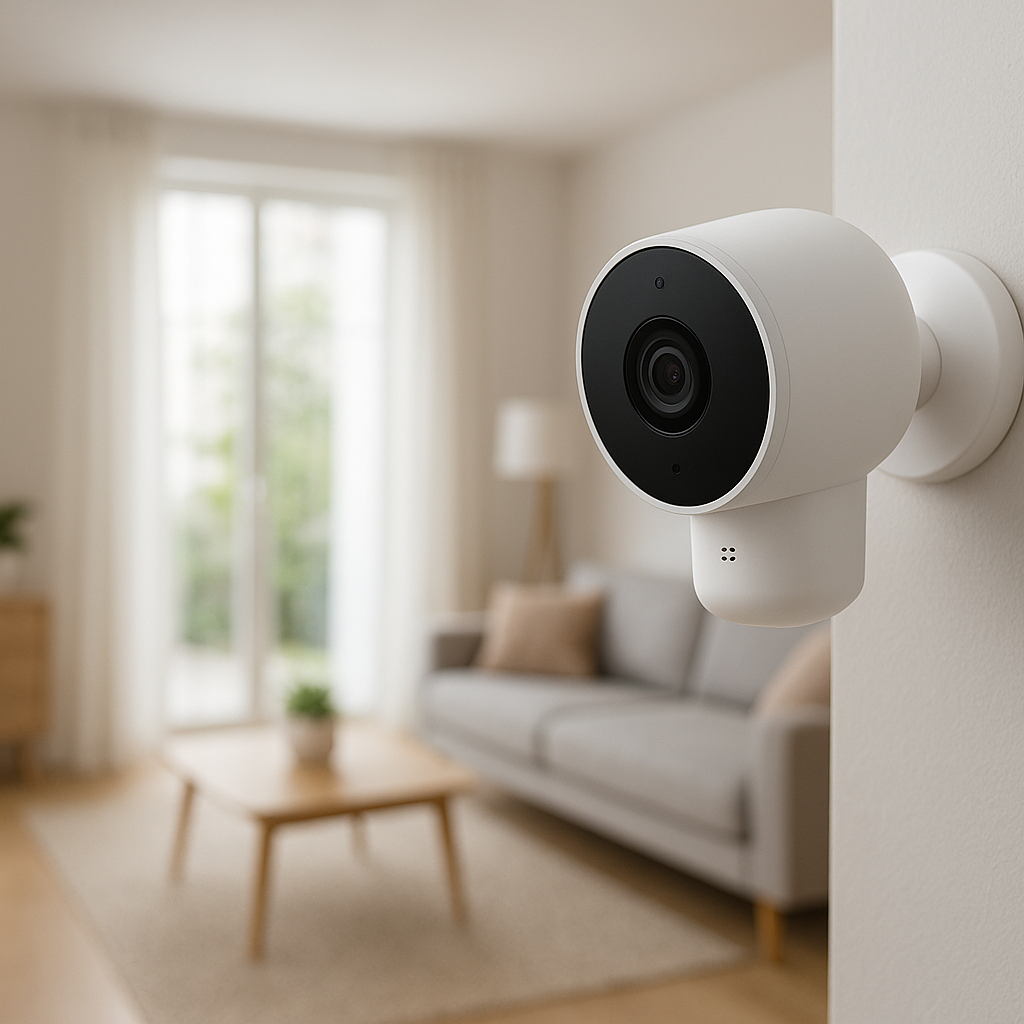
Indoor smart cameras are great for checking in on your home, kids, pets, and deliveries, but ongoing cloud subscriptions can quickly add up. Many homeowners now look for the best smart cameras with local storage so recordings stay on a card, hub, or hard drive in the house instead of a remote server.
This guide walks through why local storage matters, the key features to look for, and 10 strong camera options that record locally without requiring a monthly subscription. We’ll also cover setup tips, privacy considerations, and how to integrate these cameras into the rest of your smart home.
Why Choose an Indoor Smart Camera with Local Storage?
Avoiding Monthly Subscription Fees
Cloud plans usually charge per camera or per household. Fees can be small at first, but they add up quickly if you have several cameras or want higher video quality and longer clip history.
With local storage:
- You pay once for the camera and storage (microSD card, hub, or NVR).
- Clip history is limited by storage size, not by subscription tier.
- You can often add more cameras without paying more each month.
If you’re planning a whole-home setup with multiple indoor cameras, local storage can easily save hundreds of dollars over a few years.
Better Control Over Your Video Footage and Privacy
Local storage gives you more control over where recordings live and who can access them. Instead of sending every video to a cloud data center, the footage typically stays:
- On a microSD card inside the camera
- On a local hub or base station
- On your own NVR or NAS box
This can reduce your exposure to large-scale data breaches and gives privacy‑focused users more peace of mind. It also makes it easier to limit video access to just the people you trust in your household.
Pros and Cons of Local Storage vs Cloud Storage
Both approaches have trade‑offs:
- Local storage pros: No monthly fees, more control over data, can work even if the internet goes out, often faster playback on your home network.
- Local storage cons: If a camera or hub is stolen, footage can be lost; storage hardware can fail; remote access features may be more basic.
- Cloud pros: Off‑site backup if the camera is damaged or stolen, easier remote viewing from anywhere, often includes advanced AI features and easy sharing.
- Cloud cons: Ongoing subscription costs, more data leaving your home, some providers lock key features behind the subscription.
Many households end up with a hybrid setup: cameras record locally for everyday use, and an optional cloud tier backs up only the most important events.
Key Features to Look For in Smart Cameras with Local Storage
Types of Local Storage: microSD, NVR, NAS, and On-Device Memory
Indoor smart cameras can store video in several ways:
- microSD card: The most common option. A small card slots into the camera, usually supporting 64–256 GB or more. Look for models that clearly state support for continuous recording and loop overwrite.
- NVR (Network Video Recorder): A dedicated recorder box that stores video from multiple cameras. Good for larger homes or when you want everything in one place.
- NAS (Network Attached Storage): A more advanced option for tech‑savvy users. Some cameras can send video streams directly to compatible NAS devices using protocols like RTSP.
- On-device memory: A few cameras have built‑in storage. This is convenient but usually lower capacity and non‑upgradeable.
For most homeowners, microSD is the easiest starting point. If you’re curious about card types and durability, the SD card overview on Wikipedia is a useful reference.
Resolution, Field of View, and Low-Light Performance
Indoor cameras commonly offer 1080p or 2K (QHD) resolution, and some go up to 4K. Higher resolution makes it easier to zoom in and recognize faces or small details, but it also uses more storage.
- Resolution: 1080p is acceptable, 2K is a sweet spot for clarity, and 4K is best if you want to zoom into small areas.
- Field of view: Look for ~110°–130° for wide coverage in living rooms; smaller rooms may be fine with less.
- Low-light performance: Infrared night vision is standard. Some cameras add “color night vision” using a low‑light sensor or a small LED.
If your main use is watching pets or checking doorways, a 1080p camera with decent night vision is usually enough. For identifying faces in larger rooms, 2K or better is worth the bump.
Motion Detection, Person Detection, and AI Smart Alerts
Good detection and notifications matter more in daily use than raw resolution. Modern local‑storage cameras often include on‑device AI features without requiring the cloud:
- Motion zones: Define areas to monitor (doorways, windows) and ignore (TV screens, curtains).
- Person detection: Reduces false alerts from pets or shadows.
- Pet and sound detection: Some models can detect barking, crying, or specific sounds like glass breaking.
- Activity schedules: Arm the camera only during certain hours, or when you’re away.
Look for language like “on‑device AI” or “local detection” if you want these features without a subscription.
Data Security, Encryption, and Offline Operation
Even with local storage, data still travels over your Wi‑Fi and to your phone. Better cameras offer:
- Encrypted video streams between camera, hub, and app.
- Local‑only modes that let you use storage and live view on your home network even if the internet goes down.
- Secure onboarding (QR codes, Bluetooth, or secure provisioning) to prevent hijacking during setup.
Check whether features like live view still work when your internet is offline. Some brands require their cloud servers only for remote access; others need them for every connection.
Smart Home Compatibility (Alexa, Google Home, Apple HomeKit, Matter)
Compatibility determines how well your camera works with other devices:
- Amazon Alexa: View live feeds on Echo Show and Fire TV, trigger routines from motion.
- Google Home: Cast live feeds to Nest Hub and Chromecast‑enabled TVs.
- Apple HomeKit: Deeper integration for iPhone/iPad/Mac users, including automation in the Home app. Not all cameras support it.
- Matter: Still emerging for cameras, but some brands are adding support via firmware updates or new models.
Decide which ecosystem you primarily use and pick a camera that fits, especially if you plan to build more complex automations later.
Best Indoor Smart Cameras with Local Storage (No Subscription)
Below are 10 indoor‑friendly cameras that support local storage and don’t require a subscription for core recording features. Many offer optional cloud tiers, but you can skip them and still get reliable local recording.
Camera #1 – Best Overall Local Storage Indoor Smart Camera
Eufy Security Indoor Cam 2K
This camera hits a strong balance of price, image quality, and features:
- Storage: microSD card slot plus support for recording to a compatible NAS via RTSP.
- Video: 2K resolution with good daytime detail and solid night vision.
- AI: Local person, pet, and sound detection without a subscription.
- Smart home: Works with Alexa, Google Assistant, and often supports Apple HomeKit via firmware variants.
For most indoor use cases—living rooms, nurseries, home offices—this is one of the easiest recommendations if you want local storage first.
Camera #2 – Best Budget Smart Camera with microSD Recording
TP‑Link Tapo C110
The Tapo C110 is a compact, inexpensive 1080p or 2K camera (check the variant) with strong local‑storage options:
- Storage: microSD card slot with generous maximum capacity for continuous or event‑based recording.
- Features: Activity zones, customizable alerts, and decent night vision for the price.
- Smart home: Integrates with Alexa and Google Assistant for live viewing and basic routines.
If you want to cover several rooms without spending much, multiple C110 units combined with large microSD cards can be highly cost‑effective.
Camera #3 – Best for Privacy: Local-Only Recording and Physical Shutter
Aqara Camera Hub G3
The Aqara G3 is great for privacy‑conscious users who still want powerful smart features:
- Storage: microSD card slot for local recording plus the ability to act as a Zigbee hub for other Aqara devices.
- Privacy: A clever design physically hides the lens when the camera is in privacy mode. You can schedule this or trigger it via automations.
- Smart home: Works with Apple HomeKit (including HomeKit Secure Video), Alexa, and Google Assistant.
- AI: On‑device gesture recognition and pet/human detection.
Use this in bedrooms or home offices where you want clear visual confirmation that the camera isn’t watching at certain times.
Camera #4 – Best for Smart Home Integration and Automations
Eufy Security Indoor Cam 2K Pan & Tilt
This model adds motorized pan and tilt to the strong feature set of the standard Eufy Indoor Cam:
- Storage: microSD card plus NAS recording support on many setups.
- Smart home: Integration with Alexa and Google allows you to use motion as a trigger for routines, or view feeds on smart displays. Some versions support HomeKit.
- Automation ideas: Point the camera toward the door when your smart lock is unlocked, or spin to a pet bed when a pet feeder runs.
If you already run Eufy sensors, locks, or doorbells, this camera ties in nicely and gives you more flexibility in where you mount it.
Camera #5 – Best for High-Resolution 2K/4K Video Indoors
Reolink E1 Pro / E1 Zoom Series
Reolink’s E1 series emphasizes higher resolution and flexible viewing:
- Storage: microSD card plus optional recording to a Reolink NVR or compatible NAS via RTSP/ONVIF on many models.
- Video: Up to 4MP or higher, with options for optical zoom on certain versions.
- Use case: Great for large rooms, open‑plan spaces, or where you need to read labels or small text.
If image detail is your top priority and you’re comfortable tweaking settings like bitrates and stream profiles, Reolink is a strong fit.
Camera #6 – Best Multi-Camera System with Local NVR
Reolink NVR + Indoor Cameras Kit
For whole‑home coverage, a small NVR kit can simplify storage and management:
- Storage: Large hard drive in the NVR stores video from multiple Reolink cameras.
- Scalability: Easily expand by adding more compatible indoor and outdoor cameras.
- Control: Centralized playback, timelines, and export tools from one app or monitor.
This approach is great if you want all recordings in one secure box instead of scattered on separate SD cards.
Camera #7 – Best Discreet Indoor Camera with Local Storage
Wyze Cam v3 (Used Indoors)
The Wyze Cam v3 is small, low‑profile, and easy to tuck onto a shelf:
- Storage: microSD card slot for continuous or event‑based recording.
- Design: Compact cube form factor with a simple stand that fits well in bookshelves or corners.
- Smart home: Integrates with Alexa and Google Assistant for viewing and basic routines.
While Wyze offers cloud plans, the local microSD recording works fine on its own if you mainly need local history and live view.
Camera #8 – Best Smart Camera with Pan-Tilt and Local Recording
TP‑Link Tapo C200 / C210
The Tapo pan‑tilt line is a good budget alternative for users who want to look around a room remotely:
- Storage: microSD slot for local event or continuous recording.
- Movement: Remote pan and tilt from the app to follow pets or check corners.
- Smart home: Works with Alexa and Google for voice‑controlled live view.
Mount one in a central hallway, and you can rotate it as needed to cover multiple doors or spaces.
Camera #9 – Best Battery-Powered Indoor Camera with Local Hub
EufyCam 2C (Used Indoors)
Although marketed as an indoor/outdoor system, the EufyCam 2C works well indoors when you can’t run a power cable:
- Storage: Local storage on the Eufy HomeBase hub, not in the cameras themselves.
- Power: Battery‑powered cameras you can place on shelves or mount where outlets are scarce.
- Use case: Temporary monitoring of rentals, guest rooms, or areas you don’t want to wire.
The hub stores video locally and handles notifications, so you can still keep cloud usage to a minimum.
Camera #10 – Best Advanced AI Detection Without a Subscription
Aqara Camera Hub G2H Pro
This compact Aqara camera emphasizes on‑device intelligence and ecosystem integration:
- Storage: microSD card for local recording, plus hub features for other Aqara sensors.
- AI: Advanced motion and person detection processed locally, reducing false alerts.
- Smart home: Strong integration with Apple HomeKit, plus support for Alexa and Google Assistant.
If you want smarter notifications (for example, “person detected” vs “motion detected”) without paying monthly, this is a strong option.
Comparison Table: Storage Options, Features, and Smart Home Support
Local Storage Capacity, Formats, and Retention Time
Exact capacities vary by model and card size, but here’s a high‑level comparison of the cameras above:
| Camera | Local Storage Type | Typical Max Card / Drive | Recording Style |
|---|---|---|---|
| Eufy Indoor Cam 2K | microSD, optional NAS | Up to ~128 GB microSD (varies by revision) | Continuous or motion‑based |
| TP‑Link Tapo C110 | microSD | Often up to 256–512 GB | Continuous or motion‑based |
| Aqara G3 | microSD, optional HomeKit Secure Video | Up to ~128 GB | Motion‑based, optional cloud backup |
| Eufy Pan & Tilt 2K | microSD, optional NAS | Up to ~128 GB | Continuous or motion‑based |
| Reolink E1 Series | microSD, NVR, NAS | Often up to 256 GB on card | Continuous or motion‑based |
| Reolink NVR Kit | NVR hard drive | 1–4 TB+ depending on model | Continuous or motion‑based |
| Wyze Cam v3 | microSD | Commonly up to 128 GB | Continuous or motion‑based |
| Tapo C200/C210 | microSD | Often up to 256 GB | Continuous or motion‑based |
| EufyCam 2C | HomeBase hub | Built‑in storage (model‑dependent) | Motion‑based |
| Aqara G2H Pro | microSD | Up to ~128 GB | Motion‑based |
Retention time depends on resolution, frame rate, and how busy the scene is. A common scenario is 7–30 days of motion clips on a 64–128 GB card for a typical living room.
Smart Home Platforms, Automation Triggers, and Voice Control
Most cameras above support at least Alexa and Google Assistant for live viewing. Some standouts:
- Best for HomeKit: Aqara G3 and G2H Pro, Eufy Indoor Cam variants that specify HomeKit, and many Reolink models via HomeKit‑compatible bridges or apps.
- Best for Alexa/Google routines: TP‑Link Tapo and Eufy cameras, which expose motion events and can show live feeds on smart displays.
- Best for advanced automation: Aqara cameras acting as hubs, plus Reolink and Eufy devices when used with platforms like Home Assistant.
Check that your chosen camera exposes motion events and status in your favorite platform so you can trigger lights, announcements, or scenes.
How Local Storage Works on Smart Cameras
Setting Up microSD Cards and Recommended Card Types
For microSD‑based cameras:
- Use high‑endurance or “video monitoring” microSD cards—they’re designed for constant writing.
- Insert the card while the camera is powered off (if recommended by the manufacturer).
- Format the card in the camera’s app so it uses the correct file system.
- Enable continuous or event‑based recording and set retention if available.
High‑endurance cards last longer under constant recording, reducing the risk of corrupted footage.
Using a Base Station, NVR, or NAS for Centralized Storage
Some cameras send video to a central device instead of (or in addition to) a card:
- Base stations/hubs: EufyCam and Aqara hubs store video inside the hub. This keeps cameras simple and can improve battery life.
- NVRs: Reolink NVRs record from multiple cameras to one large drive. Great for multi‑camera systems.
- NAS devices: More advanced setups use apps or RTSP/ONVIF to record camera streams onto a NAS box.
This centralization makes backup, export, and long‑term storage easier, but it adds a bit more complexity to setup.
How Clips Are Saved, Overwritten, and Backed Up
Most local‑storage cameras use loop recording:
- New clips are written until storage is full.
- Oldest footage is overwritten automatically.
- Some apps let you lock important clips so they’re not overwritten.
If you need longer history, consider:
- Using larger cards or drives.
- Lowering resolution or frame rate to save space.
- Exporting important clips regularly to your computer or cloud drive.
Privacy and Security Considerations with Local-Only Cameras
Keeping Cameras Offline or in Local-Only Modes
Some cameras offer modes where they work primarily on your local network:
- Disable remote access in the app if you never view video away from home.
- Use local RTSP/ONVIF streaming to a NAS or NVR instead of cloud services.
- On privacy‑focused models, schedule privacy shutters to close during certain hours.
This reduces your exposure to cloud services and limits access to devices on your home network only.
Securing Your Home Wi-Fi Network and Router
Even with local storage, a weak Wi‑Fi network can expose your cameras. At minimum, you should:
- Use WPA2‑AES or WPA3 security with a strong, unique Wi‑Fi password.
- Keep your router firmware up to date.
- Consider a separate guest or IoT network for cameras and smart devices.
For a deeper dive into modern Wi‑Fi security standards like WPA3, the WPA3 article on Wikipedia offers technical details and background.
Managing User Access, Passwords, and Two-Factor Authentication
Most camera apps let you invite other family members. Follow these practices:
- Give each person their own account where possible, instead of sharing a single login.
- Enable two‑factor authentication (2FA) on your camera and email accounts.
- Use unique, strong passwords stored in a password manager.
- Review device and account access logs if your app provides them.
This makes it much harder for someone to gain unauthorized access to your cameras, even if a password leaks.
Integrating Local Storage Smart Cameras into Your Smart Home
Automations with Smart Lights, Smart Plugs, and Sensors
Once your camera is connected to Alexa, Google, HomeKit, or another platform, you can build useful automations:
- Turn on a hallway light when camera motion is detected at night.
- Switch on a smart plug for a lamp when the camera sees activity after sunset.
- Trigger camera recording or notifications when a door/window sensor is opened.
These simple combinations improve both security and everyday convenience.
Using Cameras as Motion Sensors for Routines and Alerts
Many ecosystems treat camera motion as just another sensor:
- Use camera motion to arm or disarm alarms in your smart home platform.
- Send push notifications only when motion is detected while you’re away.
- Combine motion with presence detection (phone location, smart lock status) to avoid false alarms while you’re home.
This lets a single device double as both a camera and a motion sensor, saving money and simplifying installs.
Creating Energy-Saving and Security Scenes
Scenes let you group multiple actions:
- “Away” scene: Arm all cameras, turn off lights, lock doors, and lower thermostats.
- “Night security” scene: Turn on exterior lights, arm indoor cameras in common areas, and set volume for alert notifications.
- “Movie night” scene: Disable motion notifications temporarily, dim lights, and keep only entry‑point cameras active.
These scenes make it easy for the whole household to consistently use cameras in a privacy‑respecting way.
Setup and Placement Tips for Indoor Smart Cameras
Best Locations for Coverage Without Invading Privacy
Placement affects both usefulness and comfort:
- Cover entrances (front door, back door, interior garage entry) first.
- Place cameras in common areas like living rooms and hallways, not bedrooms or bathrooms.
- Mount cameras at or slightly above eye level, angled down to minimize blind spots.
For sensitive spaces like home offices, consider cameras with privacy shutters or very strict schedules.
Avoiding Glare, Reflections, and Poor Wi-Fi Spots
A few small tweaks can dramatically improve image quality:
- Avoid pointing cameras directly at windows; reflections and bright light can wash out the image.
- Don’t place cameras behind glass if you rely on infrared night vision—it often reflects back.
- Test Wi‑Fi signal strength at the planned location using your phone; move the camera or add a mesh node if the signal is weak.
A quick test recording in day and night conditions before final mounting can save a lot of frustration later.
Cable Management and Power Considerations
For plug‑in cameras:
- Use cable clips or adhesive channels to route power cords neatly along walls.
- Avoid running power cables where they can be tripped over or pulled by pets.
- Consider outlet placement before buying; some cameras ship with short cables.
For battery‑powered models like EufyCam 2C used indoors, plan easy access for recharging or keep a spare charged camera to swap in.
Troubleshooting Common Issues with Local Storage Cameras
Fixing Missing Recordings or Corrupted microSD Cards
If you’re not seeing expected recordings:
- Check the app’s recording mode (motion vs continuous) and schedule.
- Verify that the microSD card is recognized and has been formatted by the camera.
- Try a known‑good high‑endurance card if recordings are unreliable.
- Power‑cycle the camera or reset it as a last resort.
Frequent corruption often points to a low‑quality or worn‑out card rather than a camera fault.
Solving Connection, App, and Playback Problems
For streaming or playback issues:
- Ensure your phone and camera are on a stable Wi‑Fi connection.
- Update camera firmware and the companion app.
- Reduce stream quality temporarily when on cellular or weak Wi‑Fi.
- Reboot your router if multiple devices act up at the same time.
If playback works fine while you’re at home but not remotely, check router firewalls or cloud connectivity settings in the camera app.
When You Might Still Want Optional Cloud Backup
Local storage is great day to day, but optional cloud backup can be useful if:
- You’re worried about a burglar stealing the camera or NVR along with evidence.
- You travel often and want simple remote access without managing a VPN.
- You want extra AI features only offered in the cloud by some brands.
You can usually subscribe for just the most important cameras (front door, main entry) and keep the rest fully local.
Are No-Subscription Smart Cameras Right for You?
Who Benefits Most from Local Storage Only
Local‑only setups fit best if you:
- Prefer one‑time purchases over ongoing fees.
- Have a reliable home network and don’t mind occasional maintenance (card replacements, firmware updates).
- Value privacy and want to minimize video leaving your home.
- Need lots of cameras and want predictable long‑term costs.
When to Consider a Hybrid Local + Cloud Setup
A hybrid approach can be ideal if you:
- Want local storage for routine footage but cloud backup for critical entry points.
- Rely heavily on remote viewing and easy clip sharing.
- Don’t mind paying a modest monthly fee for richer AI analytics.
Many of the cameras listed above support both approaches, so you can start local‑only and add cloud features later if needed.
Final Recommendations and Buying Checklist
Quick Checklist Before You Buy
- Does the camera support the specific local storage type you prefer (microSD, NVR, NAS, hub)?
- Is the resolution and field of view adequate for the room size?
- Does it integrate with your main smart home platform (Alexa, Google, HomeKit, etc.)?
- Are AI features like person detection processed locally or locked behind a subscription?
- Does the manufacturer have a good track record of security updates?
Best Picks by Budget, Ecosystem, and Use Case
Based on the cameras covered:
- Best all‑rounder: Eufy Indoor Cam 2K (great balance of image quality, local storage, and price).
- Best budget: TP‑Link Tapo C110 for inexpensive coverage of multiple rooms.
- Best for Apple/HomeKit users: Aqara G3 or G2H Pro with strong HomeKit integration and local storage.
- Best for power users and larger homes: Reolink NVR kit with mixed indoor and outdoor cameras.
- Best for renters or no‑drill setups: Battery‑powered EufyCam 2C used indoors with a central hub.
Start with one or two cameras in the most important locations, verify that local recording and integrations work the way you like, and then expand room by room.
FAQ
Do I need the internet for smart cameras with local storage to work?
For basic local recording, many cameras will keep saving to microSD or an NVR even if the internet is down. However, you typically need an internet connection for initial setup, firmware updates, and remote access from outside your home network.
How long will a 64 GB microSD card last in an indoor camera?
It depends on resolution, frame rate, and how often motion occurs. As a rough guide, 64 GB can hold anywhere from a few days of continuous 2K recording to several weeks of short motion‑only clips in a quieter room.
Are high-endurance microSD cards really necessary?
They’re strongly recommended. Regular cards can wear out faster under constant writing, leading to corrupted or missing footage. High‑endurance cards are designed for 24/7 recording and usually last much longer.
Can I mix different camera brands with one NVR or NAS?
Yes, if the cameras and recorder support common standards like RTSP or ONVIF. However, you may lose some brand‑specific features, and setup is more technical than using a single‑brand kit.
Are subscription-free cameras less secure than cloud cameras?
Not necessarily. Security mostly depends on firmware quality, encryption, your Wi‑Fi setup, and account practices. A well‑maintained local‑storage camera with strong passwords and 2FA can be just as secure—or more private—than a cloud‑only alternative.