A DIY smart alarm system can protect your home without locking you into contracts or monthly fees. With affordable sensors, a smart hub or app, and a bit of careful planning, you can build a flexible system that sends alerts, sounds sirens, and even turns on lights when something’s wrong.
This guide walks you through planning, choosing hardware, installing sensors, and creating automations for a DIY smart alarm system with no monthly fee. You’ll also see example builds for both local-first setups and cloud-based platforms like Alexa and Google Home.
Why Build a DIY Smart Alarm System with No Monthly Fees?
Pros and cons vs. traditional monitored alarm systems
Traditional monitored systems (from companies like ADT or Vivint) provide 24/7 professional monitoring. That’s reassuring, but it also means:
- Monthly monitoring fees
- Long contracts and cancellation penalties
- Limited control over hardware and configuration
- Installers may need to visit your home
A DIY smart alarm system with no monthly fee flips this around:
- Pros
- No ongoing monitoring charges
- Full control over devices, placement, and automations
- Mix-and-match hardware from different brands (if compatible)
- Easy to expand over time as your budget allows
- Cons
- No professional response center calling the police or fire department
- You or a trusted contact must respond to alerts
- More responsibility for maintenance and troubleshooting
If you’re comfortable managing your own alerts and maintaining your system, a DIY setup delivers a lot of protection without the monthly bill.
Typical costs to expect for hardware-only home security
Costs vary by brand and protocol, but for a typical small home or apartment you might expect:
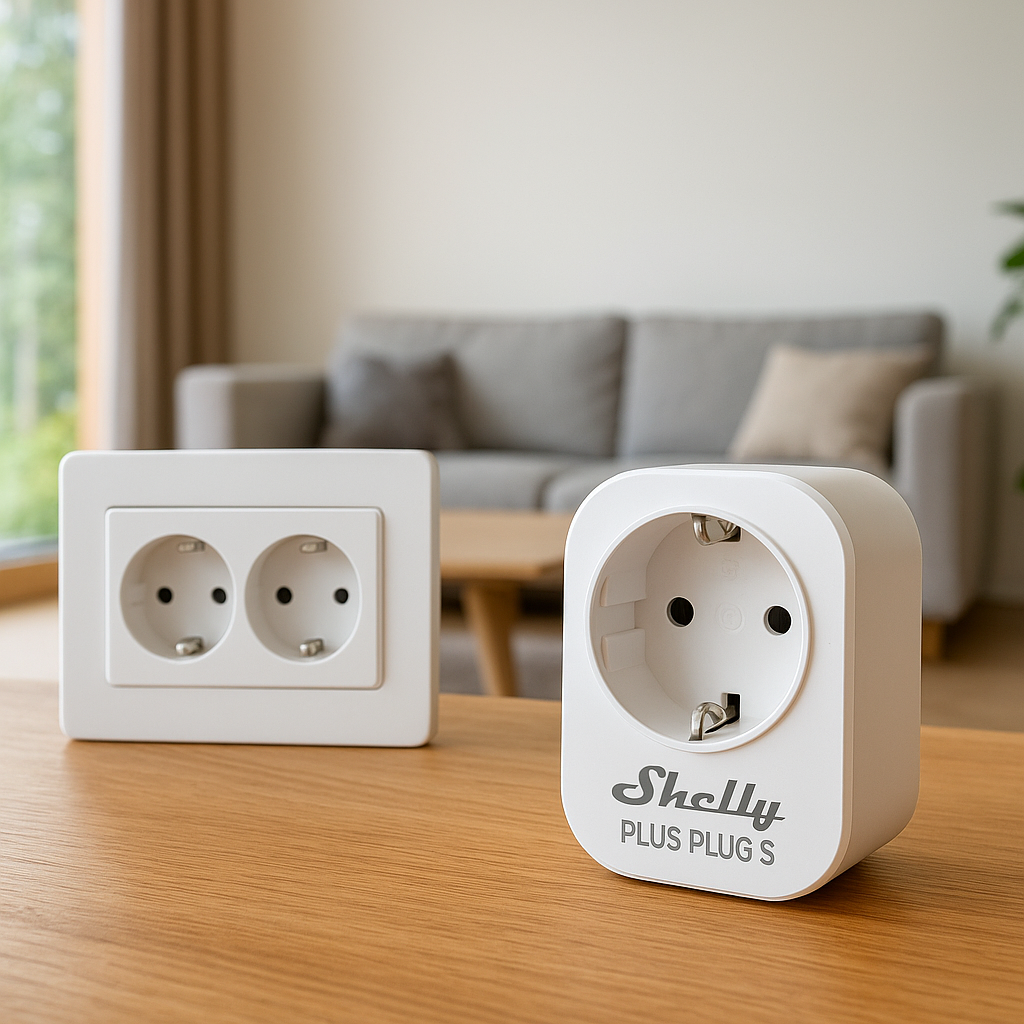
- Smart hub (optional but recommended): $40–$140 (e.g., Aeotec SmartThings hub, Raspberry Pi for Home Assistant)
- Door/window contact sensors: $15–$30 each for Wi‑Fi or Zigbee/Z‑Wave models
- Motion sensors: $20–$60 depending on PIR vs. mmWave and features
- Sirens or smart speakers: $30–$100
- Battery backup / UPS: $50–$120 (for router + hub)
- Optional cameras: $30–$150 each
A lean starter system can often be built for $200–$400 in hardware, with no monthly monitoring fees. You can then add more sensors and cameras over time.
Who this DIY smart alarm system is best suited for
This approach works best if you:
- Rent or own and want flexibility without contracts
- Are comfortable installing small devices with adhesive or screws
- Can respond to push notifications or calls on your phone
- Want to integrate security with existing smart lights, speakers, or locks
If you rarely have your phone with you, travel constantly, or live in a high-risk area where immediate professional response is critical, you may still want monitored backup or a hybrid system.
Planning Your DIY Smart Alarm System
Mapping entry points: doors, windows, and high‑risk areas
Before buying anything, walk through your home with a notepad or notes app and list:
- All exterior doors (front, back, garage, balcony)
- Ground-floor windows and any easily accessible upper-floor windows (near balconies, roofs, or drainpipes)
- High-value areas like home offices, master bedrooms, and rooms with expensive electronics
Decide the minimum coverage you’re comfortable with. A common starting point is:
- Contact sensors on all exterior doors
- Contact sensors on easily accessible ground-floor windows
- At least one motion sensor covering main hallways or living areas
Sketch a simple floor plan if it helps, and mark where sensors and sirens could go. This will make choosing wireless technologies and quantities much easier.
Choosing between Wi‑Fi, Zigbee, Z‑Wave, and Thread sensors
Most DIY alarm sensors use one of four main wireless technologies:
- Wi‑Fi
- Connects directly to your router, no hub needed
- Easy to set up, but can crowd your Wi‑Fi network
- Often more power-hungry, so battery life may be shorter
- Zigbee (see technical details)
- Low power, excellent for battery sensors
- Requires a compatible hub or coordinator
- Creates a mesh network where mains-powered devices extend range
- Z‑Wave
- Similar to Zigbee: low power, mesh network
- Often slightly more expensive per device
- Uses sub‑GHz frequencies, which can penetrate walls well
- Thread
- Newer low‑power mesh standard used by Matter
- Requires a Thread border router (built into some newer hubs, speakers, and routers)
- Designed for fast, reliable IoT communication
If you’re starting from scratch, Zigbee, Z‑Wave, or Thread sensors with a hub are usually more scalable and battery‑friendly than lots of individual Wi‑Fi sensors.
Compatibility checklist for your existing router and smart home platform
Before purchasing devices, check:
- Wi‑Fi band: Many budget sensors only connect to 2.4 GHz; ensure your router broadcasts it.
- Smart home platform: Decide if you’ll mainly use Home Assistant, SmartThings, Alexa, Google Home, Apple Home, or the manufacturer’s app.
- Protocol support: Confirm your chosen hub or platform supports the device’s protocol (Zigbee, Z‑Wave, Thread, or Matter).
- Regional compatibility: Z‑Wave uses regional frequency bands; buy devices for your country or region.
- Account requirements: Some products require cloud accounts. If you want a local-first setup, look for devices with good local integration.
Essential Components You’ll Need
Smart hub or no-hub options (Home Assistant, SmartThings, Alexa, Google Home)
You can run a DIY alarm in two main ways:
- No dedicated hub:
- Use Wi‑Fi or Matter sensors that talk directly to Alexa, Google Home, or Apple Home
- Simpler setup, but more cloud-dependent
- With a hub or controller:
- Home Assistant (on a Raspberry Pi, mini PC, or NAS) for local-first control
- SmartThings hub for Zigbee/Z‑Wave plus cloud integrations
- Hubs built into some routers (e.g., eero with Thread/Matter)
If you value privacy, flexibility, and local processing, Home Assistant or another local controller is an excellent foundation for a no-fee DIY alarm.
Door and window contact sensors: features to look for
Door and window sensors usually have two pieces: a magnet and a sensor body. Look for:
- Battery life: 1–3 years is typical for Zigbee/Z‑Wave; check user reviews.
- Size and mounting options: Slim sensors fit better on door frames and sliding windows.
- Tamper detection: Some sensors report if the cover is opened or the sensor is removed.
- Open/close history: Helpful for checking activity over time.
- Native integration: Compatibility with your hub (e.g., Aqara with HomeKit and Home Assistant, Sonoff with Zigbee, etc.).
Motion sensors: PIR vs. mmWave and placement considerations
Most alarm motion sensors use PIR (passive infrared) technology, which detects changes in heat. Newer mmWave sensors use radio waves to detect presence and small movements.
- PIR motion sensors (learn more about PIR)
- Common, affordable, and battery-friendly
- Best for detecting people walking into a room or hallway
- Can be triggered by pets, heaters, or sunlight if poorly placed
- mmWave motion sensors
- More precise presence detection, even when someone is sitting still
- Usually more expensive and may require constant power
- Useful for advanced occupancy-based automations
For alarm use, PIR sensors are usually sufficient. Place them:
- In hallways leading to bedrooms
- In main living areas an intruder must pass through
- Away from direct sunlight and HVAC vents
- At a height and angle that avoids pets where possible
Sirens, smart speakers, and notification devices
You need something that makes noise when there’s an alarm. Options include:
- Dedicated sirens: Z‑Wave or Zigbee sirens that can hit 90–110 dB and flash lights
- Smart speakers: Echo, Nest, or Sonos speakers playing alarm sounds via routines or automations
- Chimes and doorbells: Helpful for door-open alerts during the day
A loud indoor siren plus phone notifications gives you both local and remote awareness.
Backup power options: battery backups and offline behavior
Power and internet outages are common weak points in DIY systems. Improve resilience by:
- Using a small UPS (uninterruptible power supply) for your router, modem, and smart hub
- Choosing battery-powered sensors that continue to detect even if mains power fails
- Configuring your hub or devices to trigger local sirens and lights even if the internet is down
Test how your system behaves when you unplug the router or hub so there are no surprises later.
Step-by-Step Setup: Connecting Your Smart Sensors
Installing and pairing door and window contact sensors
For each door and window you’re securing:
- Clean the mounting surface with alcohol wipes.
- Place the larger sensor body on the frame and the magnet on the moving part (door or window).
- Ensure the two pieces line up and are within the manufacturer’s recommended gap.
- Use the included adhesive or screws to secure them.
- Put the hub or app into pairing mode and follow the manufacturer’s steps to add the sensor.
Open and close each door or window a few times to confirm the app updates immediately.
Installing and configuring motion sensors for best coverage
To install motion sensors:
- Mount at 6–8 feet (1.8–2.4 m) high for typical PIR sensors, angled slightly downward.
- Aim across likely walking paths, not directly at windows.
- Avoid pointing directly at heat sources or moving curtains.
- For homes with pets, use pet-immune models or aim the sensor above pet height.
After pairing, walk through the monitored areas to confirm the motion events show correctly in your app or hub.
Adding devices to your smart hub or app (with example platforms)
The exact steps vary, but common flows include:
- Home Assistant: Add Zigbee/Z‑Wave devices via the respective integration; Wi‑Fi devices may use local or cloud integrations depending on brand.
- SmartThings: Use the SmartThings app, tap + Add device, select the brand, and follow pairing instructions.
- Alexa / Google Home: Add the manufacturer’s skill/integration, log in to link accounts, then discover devices.
Check that each sensor reports open/close or motion in real time before moving on.
Naming and organizing sensors by room and zone
Clear names make automation and troubleshooting much easier. Good examples include:
- “Front Door Contact”
- “Kitchen Window Contact”
- “Hallway Motion Downstairs”
- “Living Room Motion”
Group sensors by:
- Room: For general smart home organization
- Zone: For alarm logic (e.g., Perimeter vs. Interior)
Many hubs let you create virtual groups or areas, which is helpful for arming only certain zones at night.
Creating Automations and Alerts (Without a Monitoring Subscription)
Setting up instant alerts for doors and windows opening
Start with simple, always-on notifications:
- Send a push notification when the front door opens
- Alert if a back door or balcony door opens at any time
- Notify if a window is opened while you’re not home
In Home Assistant or SmartThings, you’ll typically create an automation where the trigger is the sensor changing to “open” and the action is sending a push notification to your phone.
Creating away, home, and night modes
Define a few modes for your system, such as:
- Home: Door sensors active for alerts; interior motion sensors may be ignored or used for lighting only.
- Away: All perimeter and interior motion sensors armed. Opening doors/windows or detecting motion triggers an alarm.
- Night: Perimeter only (doors and windows) armed so you can move inside without triggering the alarm.
Use virtual switches, scenes, or built-in security modes (like SmartThings’ Security Mode) to manage these states.
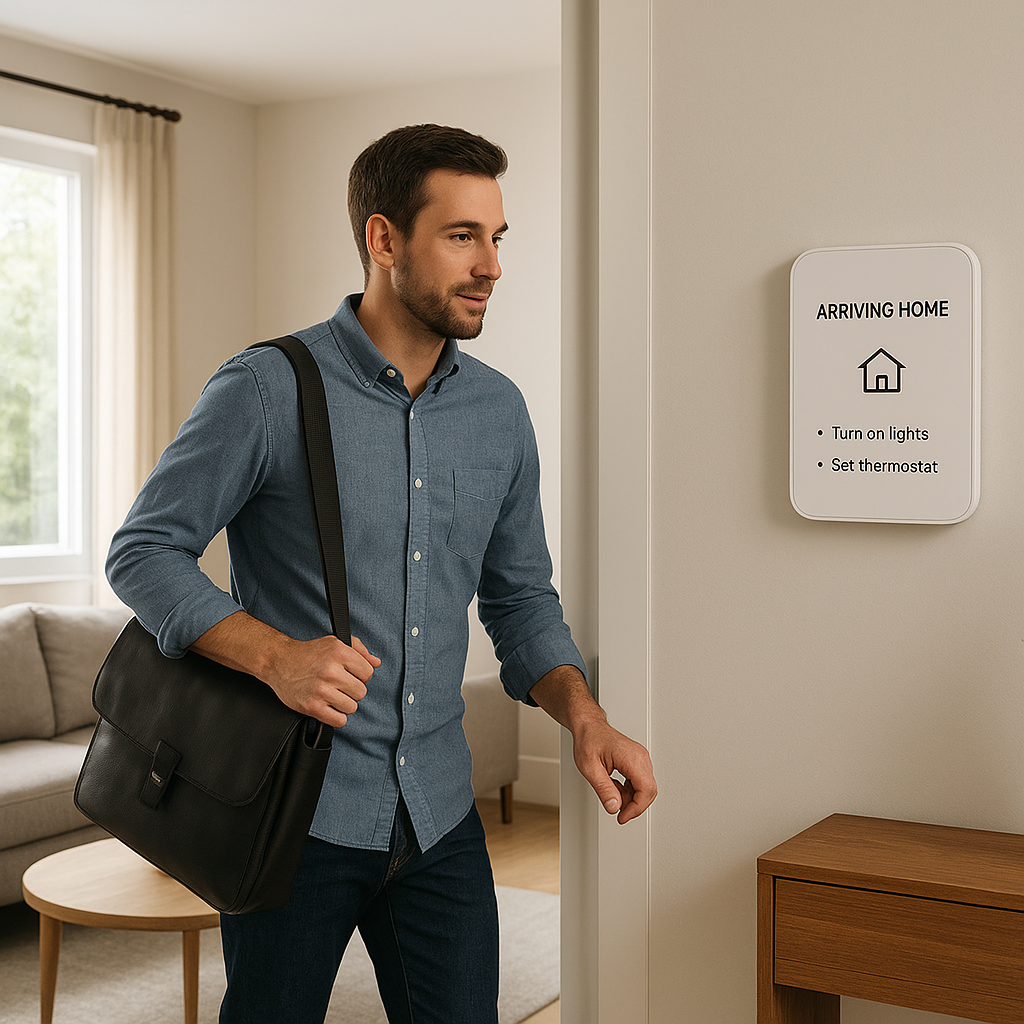
Using geofencing so the system arms when you leave
Most platforms can use your phone’s location to arm/disarm automatically:
- Enable location access for your smart home app.
- Set a geofence radius around your home.
- Create an automation: when all household members leave, switch to Away mode; when someone returns, switch to Home mode.
This reduces the risk of forgetting to arm the system and helps prevent false alarms when you come home.
Triggering sirens, lights, and smart speakers during an alarm
Your alarm automation might do several things at once:
- Turn on a loud siren or play an alarm sound on smart speakers
- Turn on all interior and some exterior lights
- Flash lights in red or bright white if supported
- Send you a high-priority push notification
By combining sound and lighting, you make it clear to an intruder that they’ve been detected, which often encourages them to leave quickly.
Sending push notifications, SMS, or email alerts for free
Most ecosystems provide free push notifications. For SMS or email, options include:
- Built-in SMS alerts in some hubs (may vary by region)
- Email integrations or webhooks in Home Assistant
- IFTTT or similar services connected to your hub (some features may have limits)
Set up at least two channels (for example, push + email) so you still get alerts if one service has a temporary issue.
Integrating Cameras and Smart Lighting for Better Security
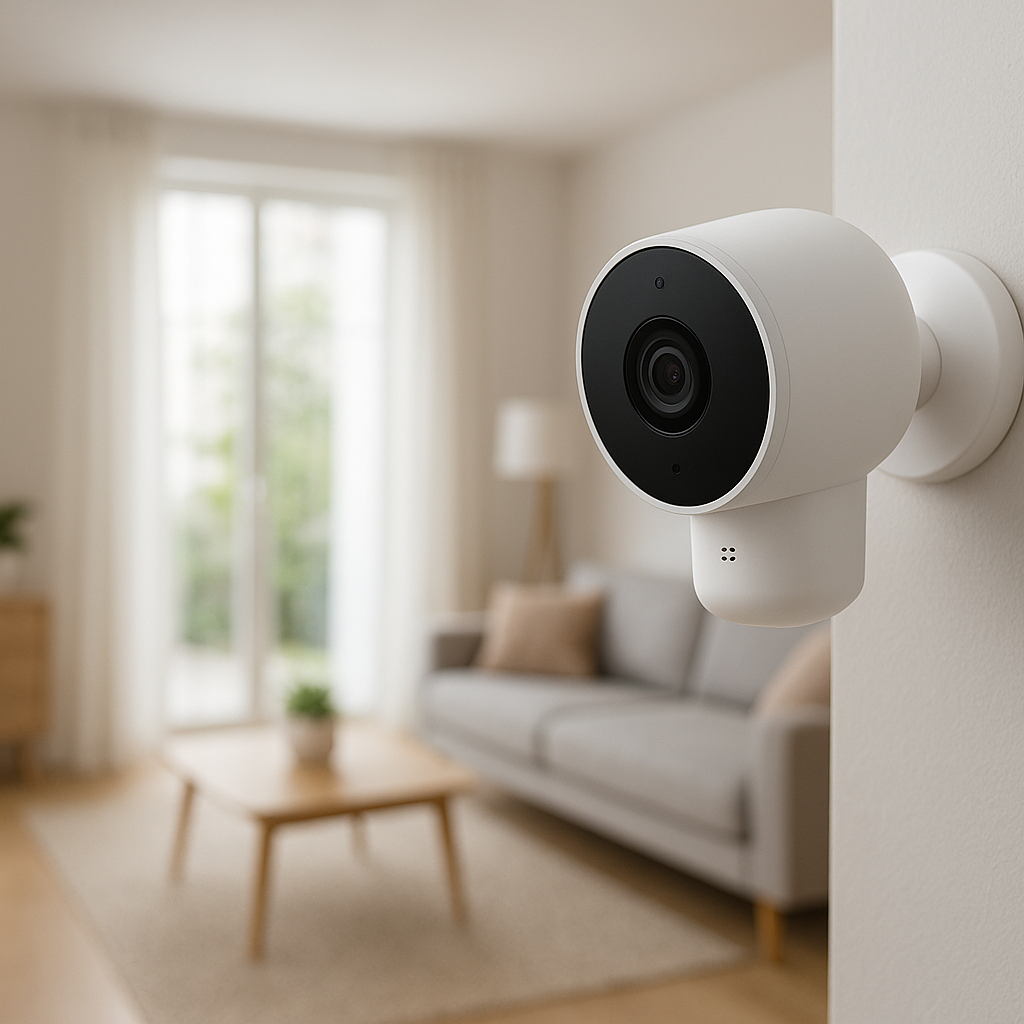
Adding indoor and outdoor smart cameras to your DIY alarm
Cameras add context when you receive an alert. Consider:
- Outdoor cameras: Cover doors, driveways, and main approaches.
- Indoor cameras: Monitor entryways and high-value areas.
- Local recording: Devices that support local NAS, SD cards, or local-only streaming if you prefer to avoid the cloud.
Integrate cameras with your hub if possible so motion events and sensor triggers can be tied together in automations.
Using smart lights to simulate occupancy and scare off intruders
Smart bulbs and switches can improve security without much extra cost:
- Schedule randomized lighting scenes in the evening when you’re away.
- Turn on porch lights when motion is detected outside.
- Turn on hallway and living room lights when an alarm triggers.
This both deters intruders and makes it safer for you to move around if something happens at night.
Linking camera recordings to sensor triggers
Many systems allow you to start recording or save clips when a door, window, or motion sensor is triggered. For example:
- When “Front Door Contact” opens while in Away mode, start recording on the “Front Door Camera” and “Hallway Camera”.
- Store clips locally on a NAS or NVR, or in the camera manufacturer’s cloud as you prefer.
This makes it easier to review exactly what happened without scrubbing through hours of footage.
Ensuring Reliability, Privacy, and Security
Local vs. cloud processing: minimizing dependence on the internet
Cloud-connected devices are convenient but rely on remote servers. For an alarm system, consider:
- Using a local hub (like Home Assistant) for core alarm logic.
- Choosing devices that expose local APIs or protocols.
- Configuring critical automations (sirens, local lights) to work even if the internet drops.
You can still use cloud integrations for voice control and remote access, but your basic alarm functions shouldn’t depend on them.
Securing your Wi‑Fi network and smart home accounts
Your network is the backbone of your DIY alarm. Strengthen it by:
- Using WPA3 or at least WPA2‑AES encryption, never open or WEP.
- Setting a strong, unique Wi‑Fi password.
- Creating a separate guest network for visitors.
- Optionally placing IoT devices on a dedicated VLAN or guest network if your router supports it.
Firmware updates, strong passwords, and two‑factor authentication
Keep all components up to date:
- Turn on automatic firmware updates for your router, cameras, and hub when available.
- Use strong, unique passwords managed by a password manager.
- Enable two‑factor authentication (2FA) on smart home accounts wherever possible.
Spending a few minutes on security upfront greatly reduces the risk of someone tampering with your system remotely.
Testing your system regularly and avoiding false alarms
Set a reminder to test monthly:
- Trigger each door/window and confirm you receive alerts.
- Walk past motion sensors in each mode (Home/Away/Night) and verify behavior.
- Trigger a full alarm and check sirens, lights, and notifications.
Adjust motion sensor angles, sensitivity, and pet settings if you see false alarms from pets, curtains, or HVAC airflow.
Example Build: Budget-Friendly DIY Smart Alarm System
Sample parts list with approximate costs
Here’s a sample budget-friendly build for a small home or apartment:
- 1 × Zigbee hub or Home Assistant green-style controller – $60–$120
- 4 × Zigbee door/window contact sensors – $15–$25 each
- 2 × Zigbee PIR motion sensors – $20–$35 each
- 1 × Z‑Wave or Zigbee siren – $40–$70
- 1 × Smart speaker (Echo Dot or Nest Mini) – $30–$50
- 1 × Small UPS for router + hub – $60–$100
Total: roughly $260–$400, depending on brands and deals.
Example configuration using Home Assistant (local-first)
With Home Assistant:
- Connect your Zigbee or Z‑Wave coordinator and add all sensors.
- Create an Alarm helper or use an alarm integration to manage modes.
- Set up automations so that in Away mode, any open door/window or interior motion triggers the alarm.
- Configure notifications using the Home Assistant mobile app for instant push alerts.
- Automate your siren and lights to activate on alarm events, even if the internet is disconnected.
This setup keeps the core alarm logic running locally on your network, with cloud features as an optional extra.
Example configuration using Alexa or Google Home (cloud-based)
For a simpler, cloud-centric build:
- Use Wi‑Fi or Matter sensors compatible with Alexa or Google Home.
- Add each sensor through the manufacturer app, then link it to Alexa/Google.
- Create Routines such as: if “Front Door Contact” opens while an “Away” virtual switch is on, then announce on speakers and turn on lights.
- Use the Alexa or Google Home mobile app for push notifications where supported.
This approach is easy to set up and works well for smaller homes, but relies more on cloud services and your internet connection.
Troubleshooting Common DIY Alarm System Issues
Sensors going offline or losing connection
If sensors frequently go offline:
- Move the hub closer to the problematic sensors or add repeaters (mains-powered Zigbee/Z‑Wave devices).
- Check battery levels and replace weak batteries.
- Reduce interference by moving the hub away from your router or microwave.
- For Wi‑Fi sensors, make sure the signal strength is good; consider adding a Wi‑Fi extender or mesh node.
Delayed notifications or unreliable alerts
Delays often stem from cloud or network congestion. To improve responsiveness:
- Prefer local processing for critical automations when possible.
- Ensure your phone’s battery optimization isn’t blocking notifications from your smart home app.
- Test using different notification channels (push vs. email) to pinpoint where the delay occurs.
- Reboot your router and hub if delays suddenly start appearing.
Motion sensor false positives and how to fix them
Common causes of unwanted triggers include pets, airflow, and sunlight. To reduce false alarms:
- Reposition sensors away from windows, vents, and heat sources.
- Lower sensitivity or enable pet-immune mode if available.
- Limit motion-triggered alarms to specific time windows (for example, at night or only when Away mode is active).
- Use multiple conditions: for example, require both motion and door opening before sounding a full alarm.
When a DIY System Isn’t Enough (And What to Do Next)
Signs you may need professional monitoring or add-on services
Consider adding professional monitoring or backup if:
- You often miss phone notifications due to work or lifestyle.
- You have high-risk factors (previous break-ins, valuable inventory, home business).
- You need more formal documentation for insurance or compliance reasons.
Some DIY-friendly brands offer optional monitoring plans that work with your existing hardware, so you can turn them on only when you need them.
Upgrading your DIY setup without losing your existing hardware
If you decide to upgrade:
- Look for monitoring services that integrate with open ecosystems like Z‑Wave, Zigbee, or Matter.
- Choose hubs or services that can import your existing devices via supported integrations.
- Gradually migrate: keep your local DIY logic while adding a monitored layer for emergencies.
This way, you keep the flexibility and no-fee operation day to day, while having a backup for critical events.
Final Checklist and Next Steps
Quick pre-deployment test routine
Before relying on your DIY smart alarm system, run this quick test:
- Arm the system in Away mode.
- Open each protected door and window one by one.
- Walk through areas covered by motion sensors.
- Confirm sirens, lights, and notifications trigger as expected.
- Disarm and verify that normal activity no longer causes alarms.
Ongoing maintenance schedule for your no‑fee smart alarm
A simple maintenance routine keeps things running smoothly:
- Monthly: Test a few sensors and review logs for any offline devices.
- Quarterly: Check batteries, clean sensor lenses, review and adjust automations if your routine has changed.
- Annually: Review firmware updates, security settings, and Wi‑Fi performance; consider adding new devices to close any gaps.
Expanding your system with additional sensors and automations
Once the basics are solid, you can expand with:
- Glass-break sensors for large windows
- Leak and freeze sensors for bathrooms, kitchens, and basements
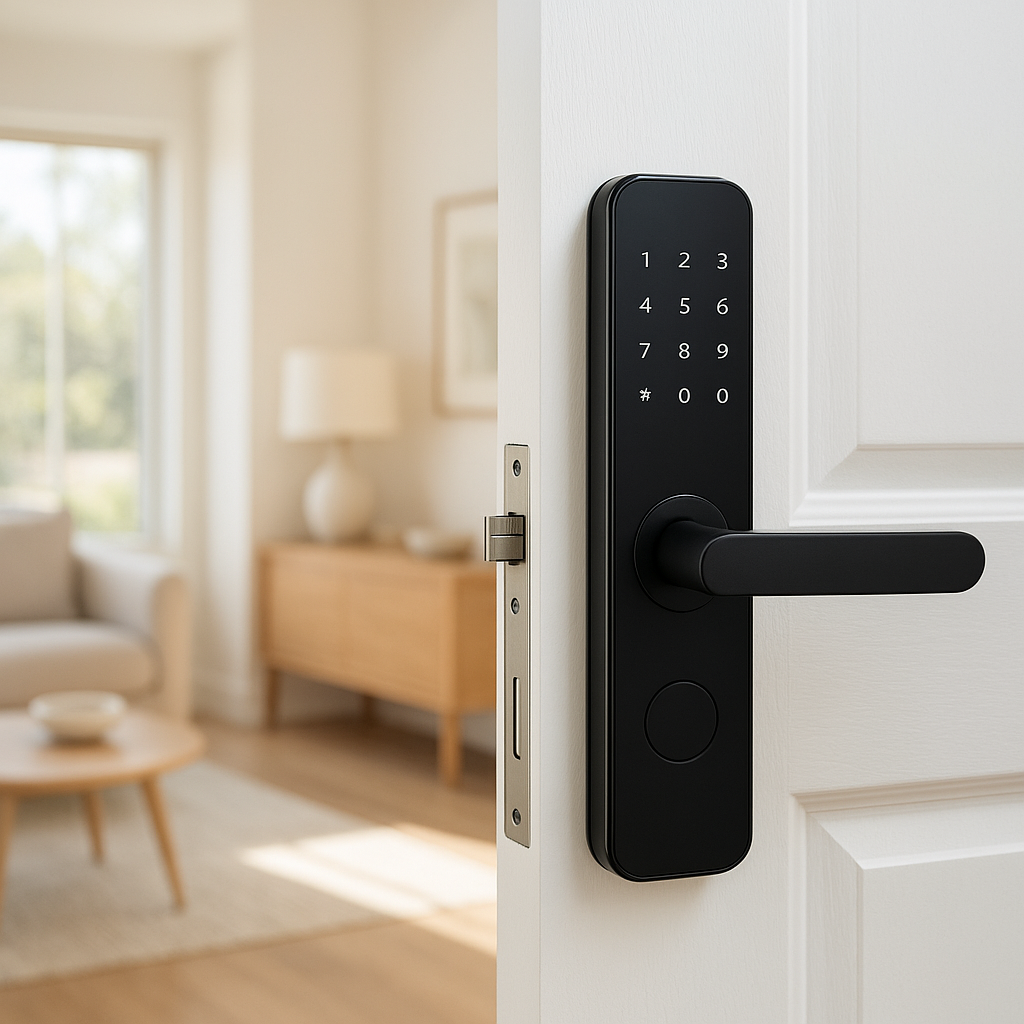
- Smart locks integrated with your alarm modes
- More nuanced automations tied to weather, schedules, or presence
Building your own DIY smart alarm system with no monthly fee gives you a flexible foundation you can keep improving as your home and needs change.
FAQ
Can a DIY smart alarm system call the police directly?
Most DIY systems do not call emergency services automatically. They send push notifications, SMS, or emails so you can decide whether to call the police or a neighbor. Some third-party monitoring services or devices can add this capability, but they typically involve a fee.
Do I need a subscription for camera recording?
No. Many cameras can record to local storage such as microSD cards or a network video recorder (NVR) without a subscription. Cloud recording often adds convenience features, but it isn’t required for basic security footage.
Will DIY sensors work in an apartment or rental?
Yes. Most contact and motion sensors attach with removable adhesive and are battery-powered, so you don’t need to drill holes or rewire anything. Choose compact devices and avoid permanent modifications if your lease restricts them.
Are DIY alarm systems easy to move if I relocate?
That’s one of their strengths. You can remove sensors, bring your hub and router, and reinstall in your new home with minimal changes. You may need to adjust Wi‑Fi settings or reconfigure automations for the new layout, but you can reuse almost all of your hardware.
Can I mix different brands of sensors and devices?
Often yes, as long as they share a common protocol and your hub supports them. For example, many Zigbee sensors from different brands can work together through a single Zigbee coordinator. Always check compatibility lists and user reports before buying.