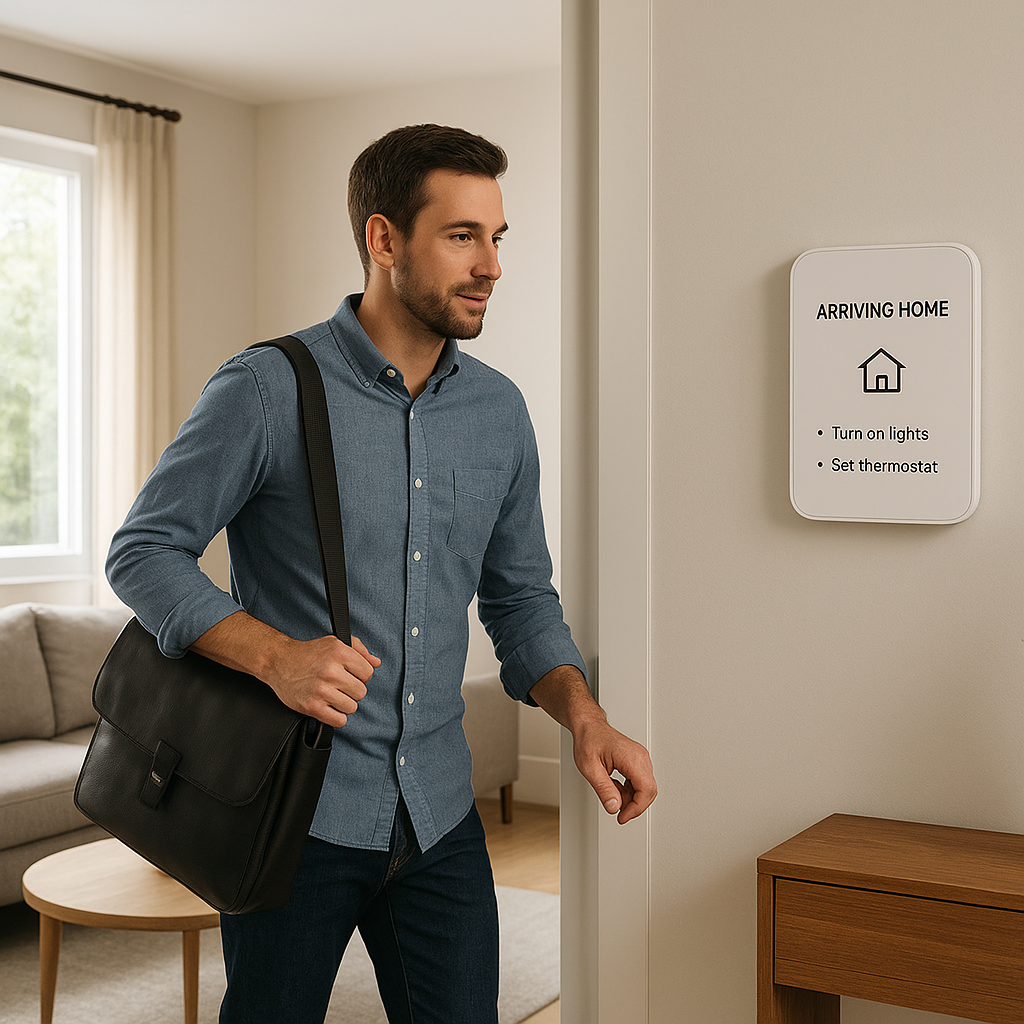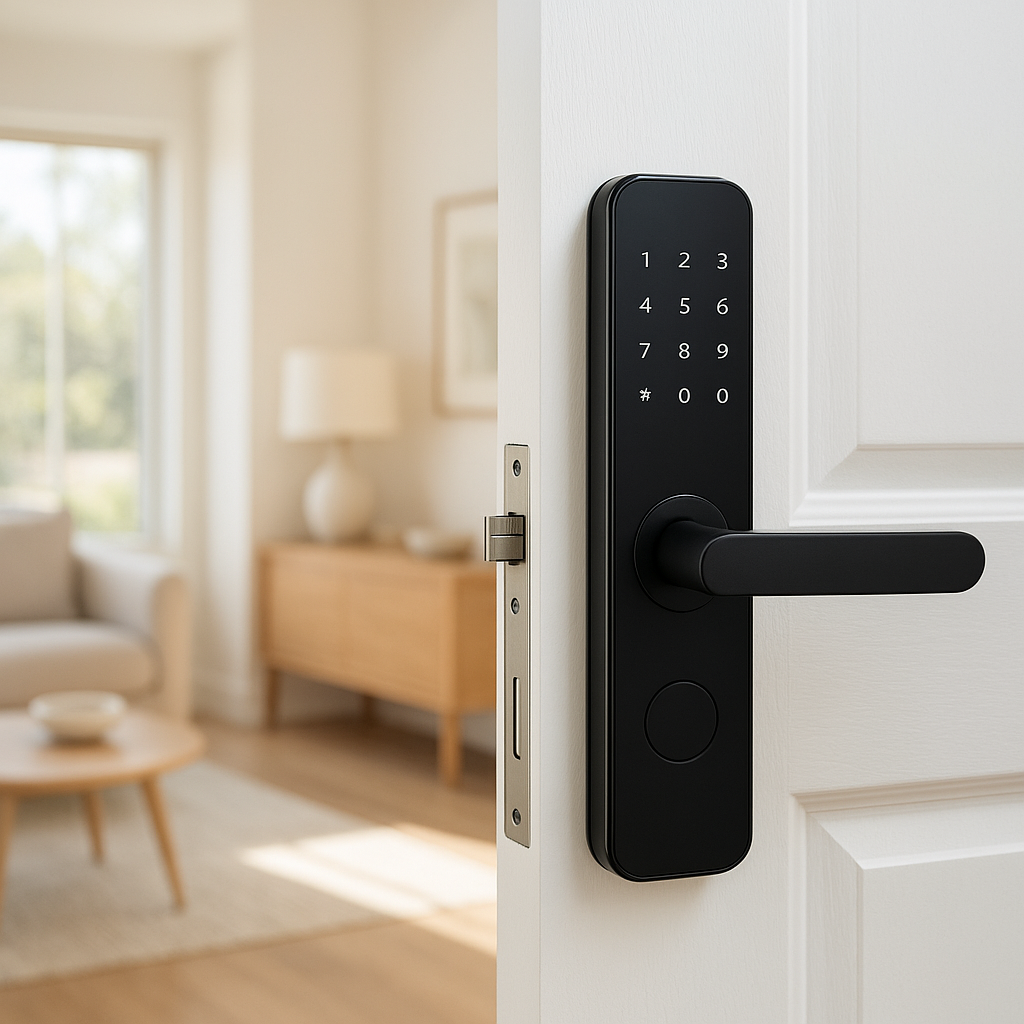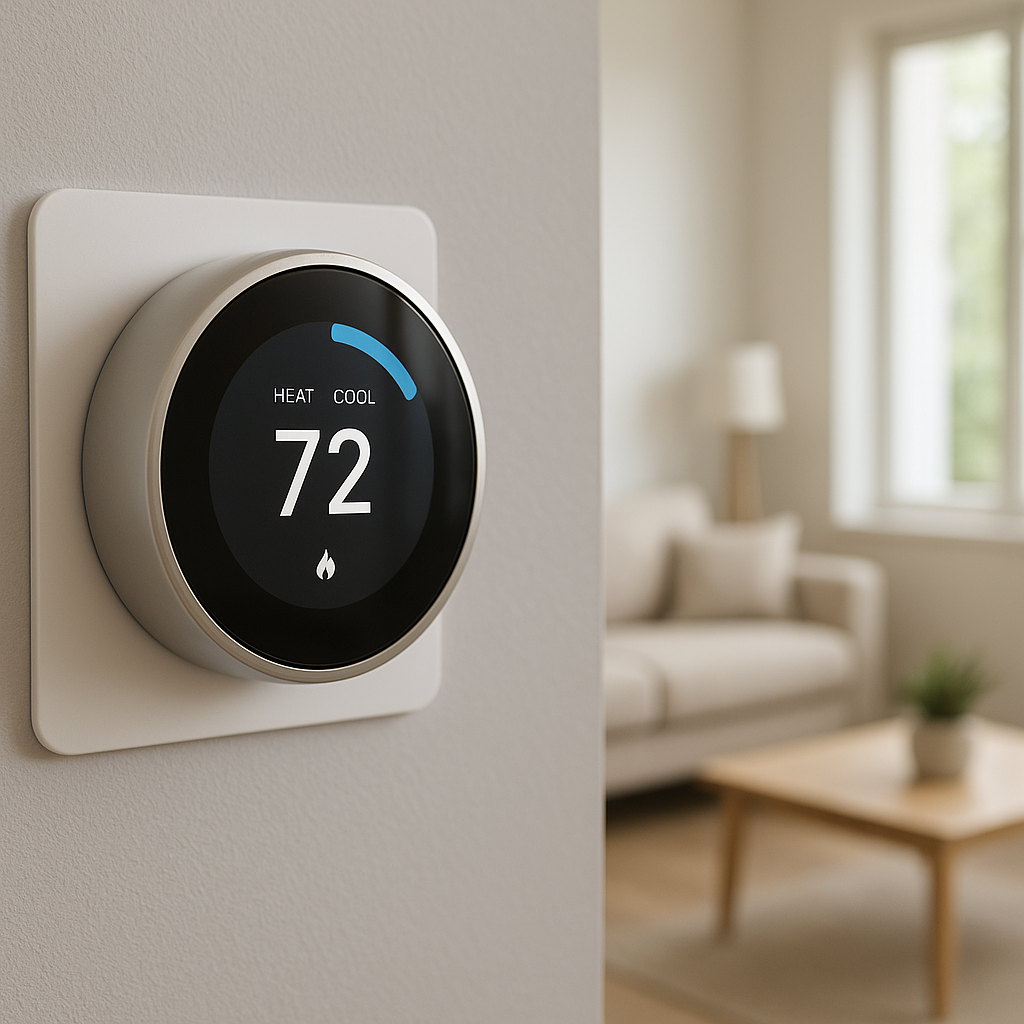
Apple Home Key lets you unlock your front door by simply tapping your iPhone or Apple Watch on the lock – no app hunting, no PIN code typing, and no fumbling for keys. If you live in the Apple ecosystem and use the Home app already, choosing a smart lock with Home Key support can make coming and going feel seamless.
This guide walks through how Apple Home Key works, what to look for when buying a compatible lock, and how the big names – Yale, Level, Aqara, and Schlage – compare. You’ll also find practical installation tips, automation ideas, and help choosing the best option for your home and family.
Overview: Why Apple Home Key Smart Locks Are Different
What Apple Home Key Is and How It Works on iPhone & Apple Watch
Apple Home Key is a digital house key stored securely in Apple Wallet. Instead of using an app or PIN code, you hold your iPhone or Apple Watch near the lock’s NFC reader to unlock the door.
Once you add a Home Key to Wallet, you can usually choose between two modes:
- Express Mode: Tap to unlock without Face ID, Touch ID, or passcode. This is the default “just tap and go” experience.
- Require Authentication: You must confirm with Face ID/Touch ID or your watch passcode before the door unlocks, adding an extra layer of security.
The lock itself still does the physical locking and unlocking. Home Key simply replaces a traditional key or keypad code as the way you prove to the lock that you’re allowed in.
Home Key vs Traditional Smart Locks (PIN codes, apps, fingerprints)
Most smart locks support several ways to unlock:
- PIN codes on a touchscreen or keypad
- App-based lock/unlock over Bluetooth, Wi‑Fi, or Thread
- Fingerprint readers or NFC fobs/cards (on some models)
- Traditional metal keys
Apple Home Key adds an additional method that’s:
- Quicker than opening an app and waiting for it to connect
- More consistent than geofenced auto-unlock, which can be unreliable
- More private than sharing permanent PINs, because you can issue and revoke individual Wallet keys
You don’t lose the other unlock options – Home Key sits alongside them. That’s especially helpful for guests, kids without iPhones, or as backup when your phone battery is low.
Supported Devices and Requirements (iOS versions, Wallet, Home app)
To use Apple Home Key, you need:
- An iPhone or Apple Watch with NFC and a recent OS version (typically iOS 15 or later / watchOS 8 or later; check the lock manufacturer for exact requirements).
- The Apple Wallet app enabled on your device.
- The Apple Home app and a HomeKit-compatible lock that explicitly supports Home Key.
Some features, like remote access and automations based on lock events, require a home hub (Apple TV, HomePod, or HomePod mini) signed in with the same Apple ID as your Home.
Pros and Cons of Choosing a Home Key–Compatible Smart Lock
Benefits:
- Fast, consistent tap-to-unlock experience
- Works even if the lock’s manufacturer app is slow or buggy
- Access stored in Apple Wallet, so sharing keys is familiar and controlled
- Tight integration with Apple Home and Siri
Trade-offs:
- Fewer models support Home Key compared to generic Bluetooth/Wi‑Fi locks
- Typically more expensive than non–Home Key equivalents
- Best experience is limited to Apple users; Android users will rely on PIN, keys, or other unlock methods
Key Buying Criteria for Apple Home Key Smart Locks
Lock Type: Deadbolt Replacement vs Retrofit vs Handle/Lever Sets
Before you fall in love with a particular model, confirm it fits your door style:
- Full deadbolt replacement (Yale Assure Lock 2, Schlage Encode Plus): Replaces your existing deadbolt inside and outside. Common for North American doors.
- Retrofit deadbolts (less common with Home Key): Mounts over the existing interior thumb-turn while keeping your original exterior hardware.
- Handle/lever sets and mortise locks (Aqara U100 and many EU/Asia options): Combine latch and lock in one assembly, more common outside North America.
Check whether you want to keep your current handle set for aesthetics, or you’re happy to change the entire assembly.
Connectivity: Bluetooth, Thread, Matter, Wi‑Fi and Hubs Explained
Home Key uses NFC at the door, but the lock also needs another way to talk to your Home hub and phone when you’re away:
- Bluetooth: Simple and battery-friendly. Requires proximity or a nearby hub for remote control.
- Thread: Low-power mesh network that improves reliability and range, supported on some newer locks and Apple TV/HomePod models.
- Matter over Thread: Opens the door (figuratively) to cross-platform support beyond Apple, useful if your household mixes ecosystems.
- Wi‑Fi: Built-in Wi‑Fi (like Schlage Encode Plus) enables direct remote access without a separate bridge but can impact battery life.
If you just want fast local access with Home Key and rarely control the lock remotely, Bluetooth or Thread is usually enough. Power users and frequent travelers may appreciate Wi‑Fi or Matter for robust remote control and broader compatibility.
Power and Backup Options: Batteries, 9V Jump-Start, Mechanical Keys
Most Apple Home Key locks are battery-powered, using AA, CR2, or CR123 cells. Key considerations:
- Expected battery life: Look for at least 6–12 months under typical use.
- Low-battery alerts: Check that the lock and Home app warn you well before shutdown.
- Emergency power: Many keypad models provide a 9V contact on the exterior so you can temporarily power the lock if batteries die.
- Mechanical key override: Some models offer a traditional key cylinder; others are fully key-free for better security but require other backup options.
Security Features: Encryption, Auto-Lock, Activity Logs, Tamper Alerts
Beyond convenience, pay attention to:
- Encryption: Look for HomeKit support, which requires end-to-end encryption between device and iPhone.
- Auto-lock: Automatically re-locks after a set time. Helpful for forgetful households, but you’ll want a well-aligned door so it doesn’t re-lock on a half-closed latch.
- Activity history: Logs when the door is locked/unlocked and by which method (PIN, Home Key, app).
- Tamper alerts: Notifications if someone tries to force the lock or repeatedly enters incorrect codes.
Door Compatibility: Backset, Thickness, American vs European Profiles
Measure your door before ordering:
- Backset: Distance from the edge of the door to the center of the deadbolt hole (commonly 2-3/8" or 2-3/4" in North America).
- Door thickness: Many locks support around 1-3/8" to 2" doors, with spacers for thinner/thicker doors.
- Profile type: US deadbolt, euro cylinder, mortise, and multipoint mechanisms all use different hardware.
Aqara’s U100 and some EU-focused Home Key locks are designed for euro-profile cylinders or mortise mechanisms, while Yale and Schlage models are mostly aimed at US-style deadbolts.
Installation Difficulty: DIY vs Professional Installation Considerations
Most Home Key locks are DIY-friendly if you’re comfortable with a screwdriver and following a template. You may want professional help if:
- Your door is misaligned or rubs against the frame
- You’re changing from a handle-only lock to a deadbolt + handle combo
- You have a metal door or unusual multipoint lock
Good practice is to dry-fit the lock and verify that the deadbolt extends and retracts smoothly before tightening everything down.
Smart Home Ecosystem: HomeKit, Home Key, Matter and Future-Proofing
Home Key is Apple-only, but your lock may support more:
- HomeKit only: Tightest Apple integration; great if your home is all-in on Apple.
- HomeKit + Matter: Allows control from additional platforms (e.g., Google Home, Alexa) while keeping Home Key as your primary unlock method.
- Vendor app features: Some extras like fingerprint enrollment, NFC tag management, or advanced schedules may be available only in the manufacturer’s app.
If you expect to mix platforms over time, prioritize locks that offer both HomeKit and Matter or at least a proven track record of firmware updates.
Best Overall Smart Locks with Apple Home Key Support
Yale Assure Lock 2 Touch with Apple Home Key (Best Overall Choice)
The Yale Assure Lock 2 Touch with Apple Home Key is the most well-rounded option for most US homeowners. It’s a full deadbolt replacement available in key-free or keyed versions, with a sleek touchscreen keypad and integrated NFC reader.
Why it stands out:
- Clean, modern design that fits many door styles
- Supports Home Key, HomeKit, and (on some variants) Matter
- Good balance of features: keypad, app control, auto-lock, guest codes
It’s a particularly good choice if you want a familiar brand, broad hardware compatibility, and a solid HomeKit experience without going all-in on Wi‑Fi.
Level Lock+ with Apple Home Key (Best for Invisible, Minimalist Design)
Level Lock+ hides almost all smart components inside the door, using your existing exterior hardware in many cases. From the street, it can look like a normal deadbolt, which is ideal for design-focused homes or HOA environments that dislike visible smart gadgets.
Highlights:
- Extremely discreet – smart hardware lives inside the door
- Home Key support plus app-based control and auto-unlock
- Compatible with many existing deadbolt trims
The trade-off is a slightly more involved installation and a higher price, but for minimalists, it’s one of the most elegant Home Key options.
Aqara U100 Smart Lock with Apple Home Key (Best Value and Feature-Rich)
The Aqara U100 combines several unlock methods into one lock: Home Key, fingerprint reader, keypad, NFC cards, and traditional keys. It’s often more affordable than comparable US-branded locks while offering extensive functionality.
Why it’s compelling:
- Multiple unlock options for mixed Apple/Android or multi-generational households
- Works with Aqara hubs, HomeKit, and can participate in broader Aqara ecosystems (sensors, switches, alarms)
- Strong fit for apartment doors and certain regional door standards
Schlage Encode Plus Smart WiFi Deadbolt (Best for Wi‑Fi and HomeKit Power Users)
Schlage Encode Plus brings built-in Wi‑Fi and Apple Home Key into one robust deadbolt. It doesn’t require a separate bridge for remote access, making it attractive if you want direct app control and voice assistant integration from anywhere.
Key benefits:
- Integrated Wi‑Fi for direct remote access
- Home Key, keypad codes, and traditional key cylinder
- Suited to power users who want granular control and notifications
Other Notable Home Key Options and Regional Variants
Beyond the big four, several brands offer Home Key locks that may be better fits depending on your region or door style:
- Additional Yale and Aqara variants for euro cylinder or mortise doors
- Regional models in Europe and Asia designed for multi-point or apartment doors
- Emerging Matter-enabled locks with Home Key support
Before importing a lock, double-check door compatibility, supported languages, and regional warranty support.
Detailed Comparison: Yale vs Level vs Aqara vs Schlage
Design and Build Quality Side-by-Side
Yale and Schlage follow the classic smart deadbolt look: a compact exterior keypad and a slightly larger interior housing. They’re solid and familiar but clearly “smart” when you see them.
Level Lock+ is the design outlier, keeping your existing exterior hardware and hiding smart components inside the door. Aqara U100 looks more like a modern apartment lock, with a taller escutcheon that includes keypad, fingerprint sensor, and possibly a key cylinder.
Installation Experience and Required Tools
Yale Assure Lock 2 and Schlage Encode Plus are straightforward for standard US deadbolts: you’ll typically need only a screwdriver, and installation can take 20–40 minutes.
Level Lock+ can be trickier because you’re reusing or upgrading specific deadbolt components inside the door. Attention to door prep depth and alignment is important. Aqara U100 may require drilling new holes or adjusting to a different lock format, depending on your existing hardware.
Apple Home Key Setup and Daily Use Experience
For all four brands, the general Home Key flow is similar:
- Add the lock to the Apple Home app
- Enable Home Key and add it to Wallet
- Choose Express Mode or authentication-required mode
Daily use is simple: tap your iPhone or Apple Watch to the NFC area on the lock. Yale and Schlage place the reader behind the keypad/touch area, while Level and Aqara integrate it into the exterior escutcheon. Once you’ve used it a few times, it quickly replaces reaching for keys or launching an app.
Connectivity and Smart Home Integration (HomeKit, Matter, Automations)
All four support HomeKit, which means:
- Control and status in the Apple Home app
- Scene and automation support
- Secure local control with an Apple home hub
Some Yale Assure Lock 2 trims and Aqara U100 (via hub) also support Matter, broadening cross-platform support. Schlage’s built-in Wi‑Fi is ideal for those who want robust remote control without a bridge, while Level leans more on Bluetooth and HomeKit integration.
Security, Certifications, and Reliability
Yale and Schlage have long histories with residential hardware and often carry ANSI/BHMA security ratings. Level and Aqara are newer to many markets but still use encrypted communication and HomeKit’s security model.
Beyond certifications, reliability often comes down to good installation and a well-aligned door. A poorly fitting door can make even the best lock struggle, so take time to address alignment before blaming the electronics.
Battery Life and Maintenance Over Time
Battery life depends on door usage, Wi‑Fi vs Bluetooth/Thread, and how often you use motorized locking. Generally:
- Bluetooth/Thread-based locks (Yale, Level, Aqara) often last longer on a set of batteries.
- Wi‑Fi locks (Schlage Encode Plus) may need more frequent battery swaps but offer more direct remote features.
Plan to check battery levels in your app monthly and replace batteries at least once a year, even if they’re not yet depleted, to avoid surprise lockouts.
Price, Value for Money, and Ongoing Costs
Level Lock+ and Schlage Encode Plus typically sit at the higher end of the price range. Yale Assure Lock 2 Touch lands in the mid-to-high range, and Aqara U100 often undercuts them while offering many unlock methods.
There are usually no ongoing subscription costs for basic Home Key features. Some brands may offer optional cloud services, but for most Apple-centric households, the Home app and Wallet are enough.
Yale Assure Lock 2 with Apple Home Key: In-Depth Review
Supported Models and Trims (Keyed, Key-Free, Touchscreen, Bluetooth)
The Assure Lock 2 family includes several trims; look specifically for the versions that mention Apple Home Key in their specifications. Options typically include:
- Key-free touchscreen: Cleanest look and fewer physical attack points.
- Keyed touchscreen: Adds a traditional key cylinder for those who want physical backup.
- Different connectivity modules (Bluetooth-only, Bluetooth + Wi‑Fi, or modules that add Matter support).
Yale’s official product pages provide an up-to-date list of which trims support Home Key and which require additional modules.
Installation Process and Door Compatibility Tips
Installation steps are typical for a deadbolt swap:
- Remove the old deadbolt and strike plate.
- Install the Yale latch and exterior keypad.
- Attach the interior housing and connect the cable.
- Insert batteries and run the calibration process.
Make sure your door thickness and backset fall within Yale’s supported range. If the bolt struggles to extend, adjust the strike plate or door alignment before relying on auto-lock.
Home Key Setup with iPhone and Apple Watch
Once the lock is installed and added to the Home app, you’ll see an option to add Home Key to Wallet. Apple’s support article on adding home keys to Apple Wallet walks through the steps and Express Mode options.
After setup, you can share Home Keys with family members using iMessage or other secure channels, and revoke them from within the Home app if needed.
Everyday Use: Auto-Unlock, Auto-Lock, and Guest Codes
In daily use, many households combine:
- Home Key tap for primary family members
- Keypad PINs for kids or guests without iPhones
- Auto-lock to ensure the door is locked a set time after closing
For cleaners, dog walkers, or short-term guests, temporary PIN codes are often simpler than issuing a separate Home Key, especially if they use Android phones.
Pros, Cons, and Best Use Cases for Yale Assure Lock 2
Pros: Mature hardware, wide door compatibility, solid HomeKit support, and a good mix of keypad, app, and Home Key access.
Cons: Interface and design are more traditional than ultra-modern, and some advanced integrations depend on choosing the right connectivity module.
Best for: Homeowners who want a dependable, mainstream Home Key lock that works well for mixed Apple/non-Apple households.
Level Lock+ with Apple Home Key: In-Depth Review
Unique Inside-the-Door Design and Aesthetics
Level Lock+ hides its motor and battery in the bolt itself, inside the door. From the outside, you can keep a conventional deadbolt trim, which appeals to those who don’t want a big smart lock housing.
This design makes Level stand out in modern or historic homes where aesthetics matter as much as tech.
Installation Quirks and Hardware Requirements
Because Level fits into the bore of your existing deadbolt, precise measurements are more critical than with a normal smart lock. You’ll need:
- A standard 2-1/8" deadbolt hole
- Compatible door thickness and backset
- Deadbolt trim that can mate with Level’s internal hardware
Take your time with the installation guide, and be prepared to adjust or replace your current deadbolt trim if it doesn’t mate cleanly.
Configuring Home Key and HomeKit with Level App
Configuration usually starts in the Level app, which walks you through pairing, firmware updates, and initial calibration. From there, you add the lock to Apple Home and then enable Home Key in Wallet.
Some settings – like auto-unlock, custom notifications, or more detailed access management – may remain in the Level app, while Home and Wallet handle core Home Key functions.
Real-World Performance: Quietness, Speed, Reliability
Level locks are known for relatively quiet operation and smooth motor action. Tap-to-unlock with Home Key is quick, and the lock generally doesn’t draw attention, which some users prefer from a security standpoint.
As with any lock, reliability hinges on door alignment and fresh batteries; Level’s discrete design doesn’t change that, but it does make the system feel less “gadgety.”
Pros, Cons, and Who Level Lock+ Is Best For
Pros: Minimalist look, strong Apple integration, and a subtle presence that blends into high-end doors.
Cons: Higher cost, more specific door requirements, and less obvious visual feedback than a big keypad lock.
Best for: Design-conscious homeowners, condos with strict exterior rules, and anyone who wants a “hidden” smart lock with Home Key.
Aqara U100 Smart Lock with Apple Home Key: In-Depth Review
Features Overview: Fingerprint, Keypad, NFC Cards, and Home Key
The Aqara U100 is all about flexibility. Unlock options can include:
- Apple Home Key
- Fingerprint reader
- Numeric keypad codes
- Aqara NFC cards or tags
- Traditional mechanical keys (model-dependent)
This makes it a strong fit for households with visitors who don’t use Apple devices or who prefer fingerprints over codes.
Hub Requirements, Matter, and HomeKit Integration
Aqara locks typically connect via an Aqara hub, which then bridges to HomeKit and potentially Matter. That extra hub is a downside if you only want a lock, but it’s a benefit if you plan to use Aqara sensors, switches, and alarms for deeper automations.
Once bridged, you can control and monitor the lock from Apple Home like any other HomeKit device while still using Aqara’s app for advanced configuration.
Unlock Methods and Configurable Security Modes
You can choose how strict the lock should be:
- Require fingerprint + Home Key for extra sensitive situations
- Allow PINs only during certain hours
- Use NFC cards for older relatives or kids without phones
This flexibility lets you tailor access to each family member’s comfort and tech level.
Pros, Cons, and Ideal Scenarios for Aqara U100
Pros: Extremely flexible unlock options, strong value, and tight integration if you’re building around the Aqara ecosystem.
Cons: Requires an Aqara hub, interface is more complex, and door compatibility varies more by region.
Best for: Tech-savvy households, apartments, and anyone wanting multiple ways to unlock beyond just Home Key and a keypad.
Schlage Encode Plus and Other Home Key-Compatible Options
Schlage Encode Plus: Features and Wi‑Fi Integration
Schlage Encode Plus is a full-featured smart deadbolt combining:
- Built-in Wi‑Fi for direct remote access
- Apple Home Key support
- Keypad and physical key override
- Integration with Apple Home and other platforms
Because it talks directly over Wi‑Fi, it’s well-suited for those who don’t want to think about hubs or extra bridges.
Regional Models and European Apple Home Key Locks
Outside North America, Apple Home Key support is slowly rolling into euro-cylinder and mortise-format locks from brands focused on apartment and multi-unit buildings. These may not always be marketed heavily in English, so look for explicit “Apple Home Key” and HomeKit support in the specifications.
Availability, Support, and Brand Ecosystem Considerations
Before purchasing, check:
- Local availability and installation support
- Warranty coverage in your country or region
- Whether firmware updates and documentation are available in your language
This is especially important if you plan to integrate the lock with a broader ecosystem of devices from the same brand.
Privacy and Security Considerations with Apple Home Key
How Apple Stores and Protects Home Key Credentials
Home Key data is stored in the Secure Element of your iPhone or Apple Watch, similar to how Apple Pay cards are stored. According to Apple’s documentation, the lock and device communicate using encrypted, device-specific credentials, and the manufacturer doesn’t see your Wallet data.
For a deeper technical overview of NFC and secure elements, the Near-field communication article on Wikipedia provides useful background.
Lost or Stolen iPhone/Apple Watch: What Actually Happens
If you lose your device, you can use Find My to mark it as lost or erase it remotely. This action also disables Apple Wallet passes, including Home Keys, so whoever finds the phone can’t use it to open your door.
You can still unlock using keypad codes, backup keys, or another family member’s device while you sort out a replacement.
Managing Access for Family, Roommates, and Guests
With Home Key–compatible locks, you can:
- Invite household members into your Apple Home, giving them ongoing lock control
- Share individual Home Keys through Wallet for specific people
- Use PIN codes or NFC cards for visitors and service providers
Revoke access promptly when someone moves out or no longer needs entry, and review active Home Keys and codes regularly.
Best Practices: Passcodes, Two-Factor, and Door Hardware
Even the smartest lock sits on a physical door. For good security:
- Use a strong passcode on your iPhone and Apple Watch.
- Enable two-factor authentication on your Apple ID.
- Install a solid strike plate with long screws into the door frame.
- Address any sagging or misaligned doors so the deadbolt fully engages.
Smart Home Automations with Apple Home Key Locks
Using Home Key Events in Apple Home Automations
In Apple Home, you can trigger automations when your lock is locked or unlocked. While Home doesn’t currently distinguish “unlocked by Home Key” vs other methods in a simple way for every lock, lock events are still powerful triggers.
Example Automations: Lights, Climate, and Security Scenes
Popular ideas include:
- When the front door unlocks after sunset, turn on hallway and living room lights.
- When the last family member leaves and the door locks, arm cameras and lower the thermostat.
- When the door locks at night, run a “Goodnight” scene that switches off lights and closes blinds.
Location, Time, and Presence-Based Locking Rules
You can combine lock events with presence detection. For example:
- If no one is home and the door is unlocked, send a notification.
- If everyone has left the home geofence, ensure the lock is locked and lights are turned off.
- Avoid fully automatic unlocking on arrival unless you’re comfortable with geofencing’s limitations.
Integrating with Other Smart Security Devices (Cameras, Sensors, Alarms)
Lock events work well with:
- Video doorbells (start recording when the door unlocks)
- Contact sensors (verify that the door is actually closed before auto-locking)
- Alarm systems (disarm when a trusted user unlocks, rearm when the door locks and everyone leaves)
Installation and Setup Tips for a Smooth Apple Home Key Experience
Pre-Installation Checklist: Door Alignment and Strike Plate
Before taking the old lock off:
- Check that the door closes smoothly without lifting or pushing.
- Ensure the existing deadbolt can fully extend and retract without friction.
- Inspect the strike plate; upgrade to a reinforced plate with longer screws if possible.
A well-aligned door makes your new smart lock quieter, faster, and more reliable.
Step-by-Step Home App and Wallet Setup for Home Key
After you physically install the lock:
- Add the lock to the manufacturer’s app if required for initial setup.
- Scan the HomeKit code to add it to Apple Home.
- Assign the lock to a room and name it clearly (e.g., “Front Door”).
- Follow the prompt to add Home Key to Wallet and choose Express Mode or authentication-required mode.
Testing, Calibration, and Troubleshooting Common Issues
Test several cycles of locking and unlocking with:
- Home Key on iPhone and Apple Watch
- Keypad codes (if available)
- App control within Bluetooth/Wi‑Fi range
If you hear grinding or see failures, recalibrate the lock through the app and adjust the strike plate or door alignment. Replace batteries if the lock seems underpowered.
Ongoing Maintenance: Batteries, Firmware Updates, and Logs
Plan to:
- Replace batteries annually or when the app warns of low power.
- Apply firmware updates from the manufacturer to improve performance and security.
- Occasionally review activity logs to confirm access patterns and spot anything unusual.
Which Apple Home Key Smart Lock Is Best for You?
Best for Renters vs Homeowners
Renters: Look for retrofit-style locks or models that can be removed without leaving damage. Level Lock+ (if your door hardware is compatible) can be a good option because it preserves the overall look.
Homeowners: Have more flexibility to drill new holes or upgrade strike plates. Yale Assure Lock 2, Schlage Encode Plus, or Aqara U100 (where compatible) are strong choices.
Best for Families with Kids and Guests
Families often benefit from keypad + Home Key combinations. Yale Assure Lock 2 and Schlage Encode Plus shine here, offering easy PIN access for kids and robust logging for parents.
Aqara U100 is great if you want fingerprints for younger kids who might forget codes, while still using Home Key for adults.
Best for Design-Focused Homes vs Budget Buyers
Design-focused homes: Level Lock+ stands out for its minimal, “invisible” hardware and compatibility with designer trims.
Budget-conscious buyers: Consider Aqara U100 where available; it usually delivers an impressive feature set per dollar, especially if you plan to use Aqara sensors and accessories.
Quick Decision Guide and Recommended Shortlist
If you want a quick answer:
- Best overall for most Apple households: Yale Assure Lock 2 Touch with Apple Home Key
- Best invisible design: Level Lock+ with Apple Home Key
- Best value & multi-method access: Aqara U100
- Best for Wi‑Fi power users: Schlage Encode Plus
Match the lock to your door type, budget, and how much you care about aesthetics vs raw features, and you’ll end up with a Home Key setup that feels natural every time you walk through the door.
Frequently Asked Questions About Apple Home Key Smart Locks
Do I Need a Home Hub (Apple TV, HomePod) for Home Key?
You don’t need a home hub just to tap your iPhone or Apple Watch to the lock; that works locally via NFC. However, you do need a hub (Apple TV, HomePod, or HomePod mini) for remote control, notifications, and most automations.
Can I Use Apple Home Key and Traditional Keys Together?
Yes, if you choose a lock with a mechanical key cylinder (for example, certain Yale, Schlage, and Aqara trims). You can keep traditional keys as backup while using Home Key for everyday access. Level Lock+ also supports a traditional key, depending on the exterior trim you pair with it.
Does Apple Home Key Work Without Internet?
Yes. Home Key tap-to-unlock is a local NFC interaction between your device and the lock, so it works even if your home internet is down. Remote control and some notifications will require internet and a home hub, but basic unlocking at the door does not.
How Safe Are NFC-Enabled Locks Compared to Normal Deadbolts?
From a physical standpoint, a smart deadbolt using Home Key is similar to a high-quality mechanical deadbolt; the main difference is how you authenticate. NFC-based Home Key uses encrypted credentials stored in the Secure Element, which is more resistant to copying than a simple metal key. As with any lock, overall safety also depends on your door frame, strike plate, and good digital hygiene (strong passcodes, updated firmware).