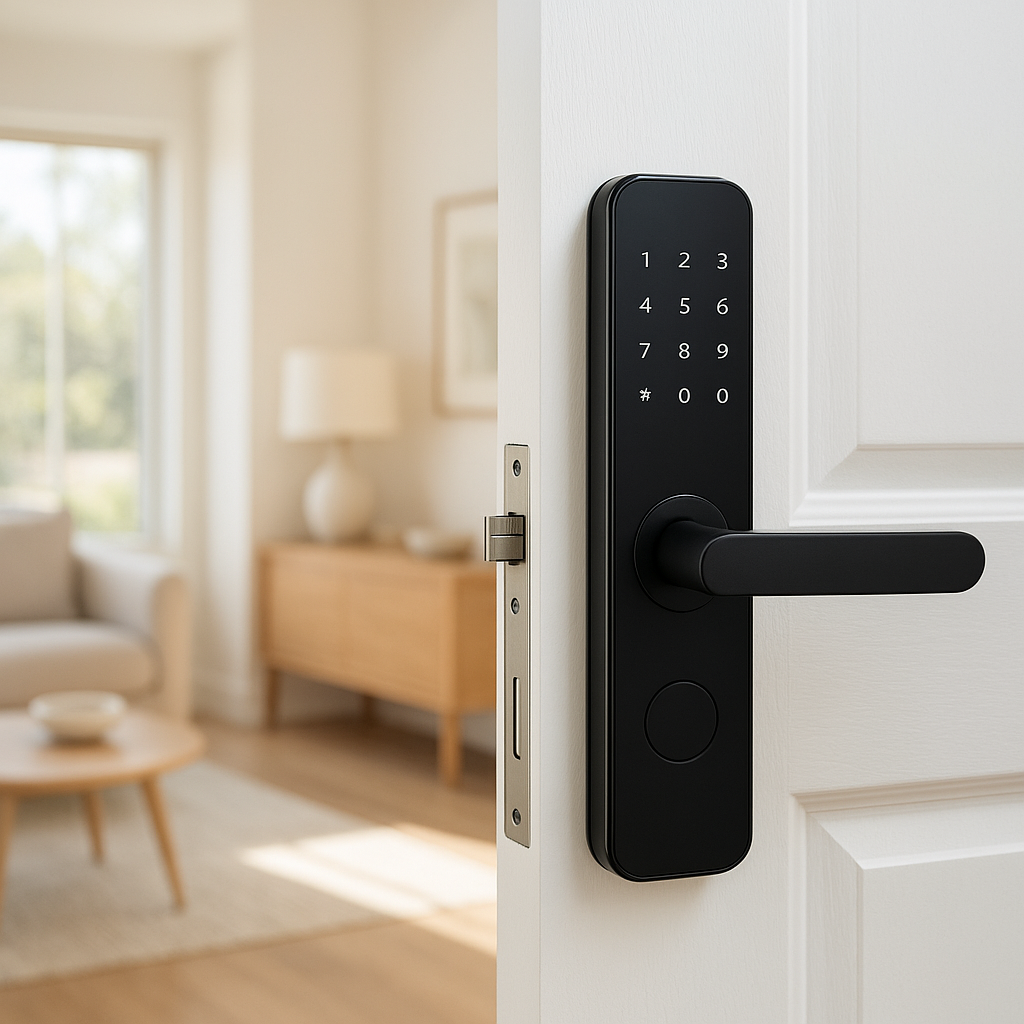
If your smart lock keypad is not working, delayed, or only responds sometimes, it can turn a convenient upgrade into a daily headache. The good news: most keypad issues come down to a few common causes—low batteries, cold weather, or wireless glitches—and you can usually fix them yourself.
This guide walks through 11 practical fixes, plus how to tell whether you’re dealing with a keypad problem, a Wi‑Fi or Bluetooth issue, or a failing lock. The tips apply to popular models like Schlage Encode, August Smart Lock with keypad, Yale Assure, Level Lock, and similar devices.
Smart Lock Keypad Not Working? Common Symptoms and Quick Checks
Signs your smart lock keypad is failing (delays, no beeps, random lockouts)
The phrase “smart lock keypad not working” can describe a few different symptoms. Pay attention to what you see and hear; it will help you pick the right fix.
- Delayed response: You enter your PIN and nothing happens for several seconds, or the lock only engages after multiple attempts.
- No lights or beeps: The keypad stays dark and silent when you press buttons, even though the lock still works from the app or a physical key.
- Partial response: Some buttons register, others don’t. You may see random error beeps or flashing lights.
- Random lockouts: The lock thinks you’re entering the wrong code and triggers a lockout period, even when you’re sure the PIN is right.
- Weather‑dependent issues: The keypad works fine in mild weather but becomes slow or dead in freezing temperatures or heavy rain.
Noting these details now will save time later when you try each fix.
Quick safety checks before troubleshooting (backup keys, app access, manual override)
Before you start taking batteries out or resetting anything, make sure you won’t accidentally lock yourself out.
- Confirm a backup entry method: Keep a physical key on you, or verify you can unlock via the manufacturer’s app (e.g., Schlage Home, August, Yale Access, Level).
- Test manual override: If your lock has a thumbturn or key cylinder on the inside, make sure it turns smoothly. This is your fallback if the electronics glitch.
- Check another user’s access: If you share the home, confirm someone else also has a way in while you’re troubleshooting.
Once you have a reliable backup, you can safely move on to deeper troubleshooting without worrying about getting stuck outside.
When to stop DIY and call the lock manufacturer or a locksmith
Most keypad issues are DIY‑fixable, but you should involve the manufacturer or a locksmith if:
- The lock is less than a year old or still within its electronics warranty.
- You see obvious cracks, broken buttons, or corrosion on the keypad.
- The lock overheats, smells burnt, or drains fresh batteries in days.
- The deadbolt jams hard and you risk damaging the door or frame.
Manufacturers like Schlage, Yale, and August usually have detailed troubleshooting and RMA options in their support pages. If the lock is your primary exterior security, a professional locksmith can also help verify the installation and door alignment.
How Cold Weather Affects Smart Lock Keypads
Why low temperatures slow or freeze electronic keypads
Cold weather is one of the most common reasons a smart lock keypad stops working reliably. Low temperatures can:
- Slow down batteries: Standard alkaline batteries provide less current in the cold, so the keypad may have just enough power to blink once but not enough to drive the motor or register every touch.
- Thicken lubricants: Grease inside the lock or deadbolt can stiffen in freezing conditions, making the lock strain or time out.
- Condense moisture: Warm indoor air meeting a cold exterior keypad can create condensation inside the electronics, temporarily shorting or confusing sensors.
Locks installed on exposed north‑facing doors or metal gates tend to show these issues first in winter.
Identifying cold‑weather symptoms vs. battery or Wi‑Fi issues
To tell if the problem is cold weather and not just bad batteries or Wi‑Fi, look for patterns:
- Works during the day, fails at night: If the keypad behaves fine in the afternoon but struggles in freezing nighttime temperatures, weather is likely a factor.
- App control is fine, keypad is not: If the lock responds quickly via Bluetooth or Wi‑Fi but the keypad is slow or dead, the keypad hardware or its power delivery is the issue.
- Sudden winter problems: If everything worked for months and started failing as temperatures dropped, suspect cold plus borderline batteries.
In many cases, simply switching to cold‑rated batteries and adding some physical weather protection solves the problem.
Best practices to protect outdoor smart locks from the elements
To keep your keypad healthy through winter and storms:
- Add a small awning or weather hood above the door to reduce direct rain and snow exposure.
- Use manufacturer‑approved weather gaskets when mounting the exterior keypad to seal gaps in the door surface.
- Avoid direct sprinkler spray and pressure washing near the keypad.
- Consider a storm door that shelters the lock without blocking its wireless signals.
Smart locks are usually rated for outdoor use, but long‑term exposure without protection will age electronics faster.
Fix #1 – Replace or Recharge the Smart Lock Batteries Correctly
How to tell if low battery is causing keypad delays or failures
Low or inconsistent battery power is the number‑one reason a smart lock keypad seems unresponsive. Signs include:
- Dim or flickering keypad lights when you press buttons.
- Multiple beeps or a specific low‑battery pattern described in your manual.
- App warnings: Many locks (e.g., Schlage Encode, August Wi‑Fi Smart Lock) show a low battery alert in the app.
- Lock works from the inside, struggles from outside: Short button presses may not deliver enough power, but a strong thumbturn still moves the bolt.
If the keypad got worse gradually over a week or two, low batteries are almost always involved.
Choosing the right batteries (alkaline vs. lithium) for cold climates
Battery type makes a big difference in winter:
- Alkaline batteries: Most manufacturers recommend high‑quality alkaline batteries (like Energizer or Duracell). They are inexpensive and predictable, but performance drops sharply in sub‑freezing temperatures.
- Non‑rechargeable lithium AA/AAA: These handle cold better and last longer, but some manufacturers specifically forbid them due to voltage differences. Always check your lock’s manual or support site first.
- Built‑in rechargeable packs: Some locks (like newer August models) have removable rechargeable packs. Expect shorter runtime in the cold and plan more frequent charging.
To see typical battery types and behavior in smart locks, you can review the general overview on smart locks and their power sources.
Safe battery replacement steps and reset checks after installation
To change batteries without causing more problems:
- Use the exact type and orientation specified in your manual.
- Remove old batteries completely and check for corrosion (white or green powder). Clean contacts with a dry cotton swab if needed.
- Insert new batteries, then wait 30–60 seconds to let the lock boot up.
- Test the lock using the internal thumbturn, then the keypad with your master code.
- Open your app and make sure the battery level updates after a minute or two.
If the keypad is still dead with fresh batteries, move on to warming the keypad (if it’s cold) or checking for other hardware issues.
Fix #2 – Warm Up a Frozen or Sluggish Keypad in Cold Weather
Safe ways to gently warm a keypad without damaging electronics
Never blast your smart lock with direct heat like a hair dryer on high or an open flame. Instead, try:
- Use your hand or glove: Cup your hand over the keypad for 30–60 seconds to gently warm the surface.
- Warm compress (lightly): Hold a slightly warm (not hot) pack or cloth against the door near the lock, not directly on the keypad window or screen.
- Wait for midday: If you can use the app or key, give the lock time to warm up during the warmest part of the day, then test again.
Once the keypad speeds up again, reinforce with better weather protection so the issue doesn’t return every cold snap.
Adding weather covers, gaskets, or shields to protect the lock
If your keypad is fully exposed, adding basic shelter helps a lot:
- Aftermarket lock covers: Some third‑party silicone skins or plastic flaps can cover the keypad while still allowing button presses.
- Foam or rubber gaskets: These sit between the keypad and the door, reducing drafts and moisture intrusion. Many locks ship with them—verify yours is installed correctly.
- Door awning or visor: A small awning keeps direct snow and rain off the lock.
Avoid covers that trap water or completely block ventilation; trapped moisture can cause corrosion over time.
Long‑term strategies for extreme winter conditions (storm doors, relocation)
If you regularly see sub‑zero temperatures:
- Install a storm or screen door to create a buffer zone for the lock.
- Move the smart lock to a less exposed door (e.g., garage entry) and keep the front door on a traditional deadbolt.
- Choose a lock rated for lower temperatures and advertised for harsher climates.
Sometimes the most reliable solution is a combination of a robust mechanical deadbolt plus a well‑protected smart lock used on a secondary entrance.
Fix #3 – Check Wi‑Fi, Bluetooth, and Hub Connections
Distinguishing keypad issues from app or connectivity problems
A key clue: if the keypad fails, but the app also struggles to connect, you may be dealing with a radio issue instead of a keypad fault.
- Keypad dead, app works locally: Keypad hardware or power issue.
- Keypad works, app fails remotely: Likely Wi‑Fi, hub, or cloud connectivity.
- Both unreliable: Possible power issues, major interference, or the lock’s internal radio module having problems.
Test from both the keypad and the app while standing next to the door to see how each behaves.
Resetting your router, hub, and smart lock radio modules
If connectivity is part of the problem:
- Power‑cycle your router and modem: Unplug for 30 seconds, plug back in, and wait for full restart.
- Reboot your smart hub: If you use SmartThings, Home Assistant, or a dedicated bridge (like the August Connect or Schlage WiFi bridge), restart it as well.
- Reboot the lock: Many locks have a simple reboot sequence (remove one battery for 10 seconds and reinsert, or hold a specific button). Check your manual.
After everything is back online, test the keypad again. Sometimes radio lockups can indirectly freeze keypad input.
Improving signal strength with extenders or better hub placement
Weak Wi‑Fi or Z‑Wave/Zigbee signals can cause intermittent behavior, especially if your door is metal or far from the router.
- Move the router or hub closer to the door, or at least off the floor and away from big metal objects.
- Add a Wi‑Fi extender or mesh node near the entry if your lock connects directly to Wi‑Fi.
- For Z‑Wave or Zigbee locks, add a powered repeater device (like a plug‑in smart plug) between the hub and the lock to strengthen the mesh.
A stronger, more consistent signal cuts down on timeouts and strange delays that can look like keypad failures.
Fix #4 – Clean the Keypad and Remove Moisture or Debris
How dirt, dust, and moisture interfere with touch or physical buttons
Over time, outdoor keypads collect oils, dust, pollen, and water spots. This buildup can:
- Prevent capacitive touch sensors from detecting your finger accurately.
- Gum up mechanical buttons, making them stick or fail to spring back.
- Trap moisture in cracks, leading to corrosion or ghost touches.
If certain digits fail more often (for example, 1 and 3 feel mushy), dirt and wear are strong suspects.
Safely cleaning capacitive vs. mechanical keypads
The cleaning method depends on your keypad type:
- Capacitive (glass or touch‑sensitive) keypads: Lightly dampen a microfiber cloth with water or a screen‑safe cleaner. Wipe gently, then dry with a clean cloth. Avoid spraying liquid directly on the lock.
- Mechanical button keypads: Use a slightly damp cloth to wipe the surface. For stubborn grime around buttons, a soft toothbrush and a tiny bit of mild soap can help, followed by a dry cloth.
- Never use abrasive pads, strong solvents, or high‑pressure water; they can scratch coatings and force moisture inside.
After cleaning, test each button individually to confirm they all respond.
Using weather‑resistant covers to prevent future buildup
If your door faces a dusty street or gets sprayed by sprinklers:
- Add a simple flip‑down cover or hood over the keypad.
- Check seals and gaskets annually and replace if they’re cracked.
- Include a quick keypad wipe in your regular door cleaning routine.
Preventing buildup is much easier than dealing with worn or stuck buttons later.
Fix #5 – Recalibrate or Reboot the Smart Lock
Soft reset vs. factory reset: which should you try first?
A soft reset or recalibration keeps your user codes and settings, while a full factory reset erases everything. In almost all cases, try these in order:
- Soft reset / reboot: Power‑cycle the lock or use the app’s “reboot” option if available.
- Recalibrate: Some locks have a calibration mode to relearn how far the deadbolt needs to move. This can fix issues where the lock stops early and thinks it’s jammed.
- Factory reset: Only use this if other steps fail or the lock acts unpredictably.
Step‑by‑step reset process for most popular smart locks
Exact steps vary, but most locks follow a pattern:
- Schlage Encode / Schlage Sense: Press and hold the reset button on the interior assembly while reinserting the battery pack, then release after the lock beeps and flashes according to the manual.
- August Smart Lock: Use the August app > Settings > Advanced > Factory Reset to reset the lock, then walk through calibration again.
- Yale Assure / Nest x Yale: Typically involve pressing a reset button or specific keypad combination while inserting batteries. Check the specific instructions in Google’s Nest support or Yale’s documentation.
Always keep your phone nearby so you can immediately re‑add the lock to the app after a full reset.
What settings you’ll lose and how to re‑add user codes after a reset
After a factory reset, you’ll usually lose:
- All user PIN codes and access schedules.
- Wi‑Fi/Bluetooth pairing with your phone or hub.
- Auto‑lock, notifications, and custom settings you configured in the app.
To recover quickly:
- Write down or export your current codes before resetting, if your app supports it.
- After reset, re‑pair the lock with your app or hub, then re‑add user codes and schedules.
- Test the keypad with a single simple code first to confirm keypresses work, then recreate more complex setups.
Fix #6 – Update the Smart Lock Firmware and App
How outdated firmware can cause keypad lag or random lockouts
Like any smart device, smart locks occasionally ship with bugs or develop quirks that are fixed in firmware updates. Symptoms of outdated firmware include:
- Random keypad lockouts even with correct codes.
- Laggy response after pressing keys.
- Connection drops between the lock and its app or hub.
Manufacturers push updates to fix these issues, improve battery reporting, and patch security vulnerabilities.
Checking for and applying firmware updates via the app
Most firmware updates are handled through the lock’s companion app:
- Open the app (e.g., Schlage Home, August, Yale Access, Level).
- Go to the device settings for your lock.
- Look for a Firmware, Version, or Update section.
- If an update is available, follow the on‑screen steps and keep your phone close to the lock until it finishes.
Plan to do updates when you’re home with a backup key, just in case the lock restarts or reboots mid‑process.
Ensuring your phone OS and smart home apps are up to date
Sometimes the issue isn’t the lock, but the app trying to control it:
- Update your iOS or Android to the latest stable version your device supports.
- Update any smart home apps you use (Google Home, Alexa, SmartThings, manufacturer apps).
- After updating, force‑quit and reopen the apps, then test keypad and app control again.
Fix #7 – Inspect the Door, Latch, and Deadbolt Alignment
Why a misaligned door can make your keypad seem unresponsive
If the deadbolt has to fight the door frame every time it locks, the motor may stall or time out, even though the keypad itself is fine. Common causes include:
- Settling houses shifting the door frame.
- Swollen wood from humidity.
- Loose hinges causing the door to sag.
To you, it looks like the keypad “isn’t working” because nothing happens—or you hear a struggle—after entering your PIN.
Testing for latch friction and deadbolt binding
With the door open:
- Turn the deadbolt by hand (thumbturn or key). It should move smoothly with little resistance.
- Lock and unlock using the keypad with the door open. If it works perfectly, alignment is likely the issue.
With the door closed:
- Try pulling or pushing slightly on the door while locking. If alignment is off, you may find a position where it suddenly works.
Simple alignment fixes: strike plate, hinges, and weatherstripping
Minor alignment fixes often solve the problem:
- Tighten hinge screws on the door and frame.
- Adjust or file the strike plate opening so the deadbolt enters without rubbing.
- Check weatherstripping for spots that push the door out of alignment and trim if needed.
Once the bolt can move freely, the keypad’s commands are far more likely to work consistently.
Fix #8 – Review User Codes, Lockout Modes, and Entry Settings
How wrong PIN attempts and lockout timers mimic keypad failure
Many smart locks have built‑in security features that temporarily disable the keypad after too many wrong attempts. If kids, guests, or delivery drivers try multiple times, you may hit:
- A temporary lockout period where the keypad ignores input for 30–60 seconds or more.
- Alert beeps or flashing lights that indicate a security timeout, not a hardware failure.
Check your manual for how your lock signals a lockout and how long it lasts.
Checking schedules, temporary codes, and auto‑lock settings
In the app:
- Review each user code and confirm it’s enabled and not expired.
- Check for scheduled access (e.g., codes that only work during certain hours).
- Look at auto‑lock settings that might relock the door quickly, confusing some users into thinking the keypad failed when it actually worked.
If someone’s code stopped working suddenly, it might have been disabled or its schedule changed.
Disabling vacation or privacy modes that block keypad entry
Some locks have modes that partially or fully disable keypad operation:
- Vacation mode: Blocks some or all user codes until you turn it off.
- Privacy or do‑not‑disturb mode: Temporarily disables outside keypad access while you’re home.
Look in your lock’s settings for any mode that mentions “vacation,” “privacy,” or “secure mode” and toggle it off to restore normal keypad use.
Fix #9 – Check for Interference from Other Devices
How nearby electronics can disrupt wireless smart locks
Smart locks that use Wi‑Fi, Bluetooth, Z‑Wave, or Zigbee can suffer from radio interference. Common culprits include:
- Large metal objects near the door, such as metal doors, mail slots, or security gates.
- Other 2.4 GHz devices like baby monitors, cordless phones, or older Wi‑Fi routers operating on crowded channels.
- Dense clusters of smart devices competing for airtime.
Interference doesn’t usually break the keypad hardware, but it can cause random delays and timeouts that feel like keypad issues.
Moving routers, hubs, or metal objects to reduce interference
Simple layout changes can improve reliability:
- Move your Wi‑Fi router or smart hub a few meters away from large metal objects and walls.
- Relocate or shield noisy electronics like baby monitors or microwaves that sit close to the lock’s path.
- If possible, avoid mounting the lock directly on a solid metal door or add a non‑metallic spacer plate recommended by the manufacturer.
Using different radio bands (2.4GHz vs 5GHz, Zigbee, Z‑Wave) wisely
Understanding how your lock communicates helps you troubleshoot smarter. Many smart locks use low‑power protocols like Z‑Wave or Zigbee, while others connect directly to 2.4 GHz Wi‑Fi.
- Ensure your router broadcasts a 2.4 GHz network if your lock requires it; some locks cannot use 5 GHz.
- For Z‑Wave and Zigbee, add a few powered repeaters to strengthen the mesh network around your door.
- Reduce Wi‑Fi congestion by changing your router’s channel if your neighborhood is crowded.
Fix #10 – Inspect for Water Intrusion or Physical Damage
Spotting corrosion, cracked housings, and worn keypads
Visual inspection can reveal serious problems:
- Corroded battery terminals or green/white crust around contacts.
- Cracks in the keypad housing that could let water in.
- Buttons worn smooth or visibly sunken compared to others.
Any of these signs point to hardware aging beyond simple DIY fixes.
What to do if the lock got rained on, sprayed, or pressure‑washed
If your lock had a direct water event:
- Remove batteries immediately to prevent short circuits.
- Gently dry the exterior with a towel.
- Leave the interior side open (if safe) to air out. Avoid heat guns or hair dryers on high.
- Once fully dry, reinstall batteries and test.
If the keypad still behaves erratically, internal components may be damaged and the lock may need professional service or replacement.
When water damage voids the warranty and what to document
Most smart lock warranties exclude damage from misuse or exposure beyond the rated weather conditions. To protect your options:
- Document the issue with photos of any damage, corrosion, or leaks.
- Note weather conditions around the time the failure started.
- Save purchase receipts and any correspondence with support.
Providing detailed information increases your chances of a warranty replacement if the lock failed within its rated usage.
Fix #11 – When to Replace Your Smart Lock vs. Repair It
Lifespan expectations for different smart lock brands and models
Smart locks generally last several years, but keypads wear at different rates depending on usage and exposure. Some homeowners get 5–7 years or more from brands like Schlage, Yale, or August before the keypad shows major wear; heavily used rentals may see issues much earlier.
If your lock is older, out of warranty, and has multiple symptoms (worn buttons, corrosion, frequent resets), replacement may be more reliable than repair.
Cost comparison: repair, RMA/warranty, or full replacement
Consider:
- Warranty RMA: Often free or low‑cost if approved, but requires time and documentation.
- Repair or keypad module replacement: Some brands sell replacement keypad modules, but parts plus labor can approach the cost of a new lock.
- New smart lock: A mid‑range smart lock typically costs less than a service call plus parts, and gives you updated features and security.
If your current lock is past its warranty and you rely on it daily, a fresh unit is often the most sensible long‑term choice.
Features to look for in your next smart lock for better reliability
When upgrading, look for:
- Weather‑rated keypad specifically designed for exterior use.
- Cold‑climate battery recommendations and clear support for lithium or alkaline.
- Local control options (Bluetooth, keypad) so you’re not stranded by cloud outages.
- Good battery monitoring with app alerts.
- Compatible with your ecosystem (Google Home, Alexa, Apple Home, SmartThings) for easier monitoring and automation.
Preventive Maintenance Tips to Keep Your Smart Lock Keypad Working
Seasonal checklists for batteries, firmware, and hardware
A few quick checks each season prevent most surprises:
- Spring: Clean the keypad, check for water damage, and tighten mounting screws.
- Summer: Inspect for sun fading or heat warping; verify the door still closes and latches easily.
- Fall: Install fresh cold‑rated batteries, verify firmware is current, and test keypad in cooler evenings.
- Winter: Monitor for slow responses on very cold days and adjust weather protection if needed.
Creating alerts for low battery and offline status in your smart home app
Most modern smart locks and hubs can notify you before things fail:
- Enable low‑battery notifications in the lock app or your smart home platform.
- Turn on offline or disconnect alerts so you know if the lock drops off Wi‑Fi or your hub.
- Set a recurring reminder to test the keypad from outside monthly.
Security best practices when sharing or changing keypad codes
Keeping your keypad reliable also means keeping it secure:
- Avoid obvious PINs like 1234 or your house number.
- Use separate codes for family, cleaners, pet sitters, and guests.
- Remove temporary codes when they’re no longer needed.
- Periodically rotate long‑term codes, especially if you suspect someone shared a code without permission.
FAQs About Smart Lock Keypads Not Working
Why does my smart lock work from the app but not from the keypad?
If the lock still works from the app, the internal motor and radio are probably fine. The issue is usually:
- Low or unstable battery power reaching the keypad.
- Dirty or worn keypad buttons that don’t register touches.
- Disabled or expired codes, or a security lockout mode.
Start with fresh batteries, clean the keypad, and verify codes and modes in the app.
How cold is too cold for my smart lock to function reliably?
Most residential smart locks are rated to around -20°C to -30°C (-4°F to -22°F), but actual performance depends on battery type, exposure, and wind chill. You may notice sluggish behavior even above those temperatures if the lock is fully exposed or batteries are old. For very cold climates, look for locks and batteries specifically tested for low temperatures and provide physical weather protection.
Can I use rechargeable batteries in my smart lock keypad?
Many manufacturers do not recommend rechargeable NiMH batteries because they have a lower voltage and different discharge curve than alkaline, which can confuse battery level readings and reduce runtime. Some newer locks with dedicated rechargeable packs are designed for them. Always check your specific lock’s documentation or support site; if it calls for alkaline only, stick to high‑quality alkaline or approved lithium options.
A smart lock keypad that’s not working reliably is frustrating, but it rarely means you need a whole new lock right away. By working through batteries, cold weather protection, cleaning, connectivity, and alignment step by step, most homeowners can restore fast, dependable keypad access and keep their smart lock running smoothly for years.