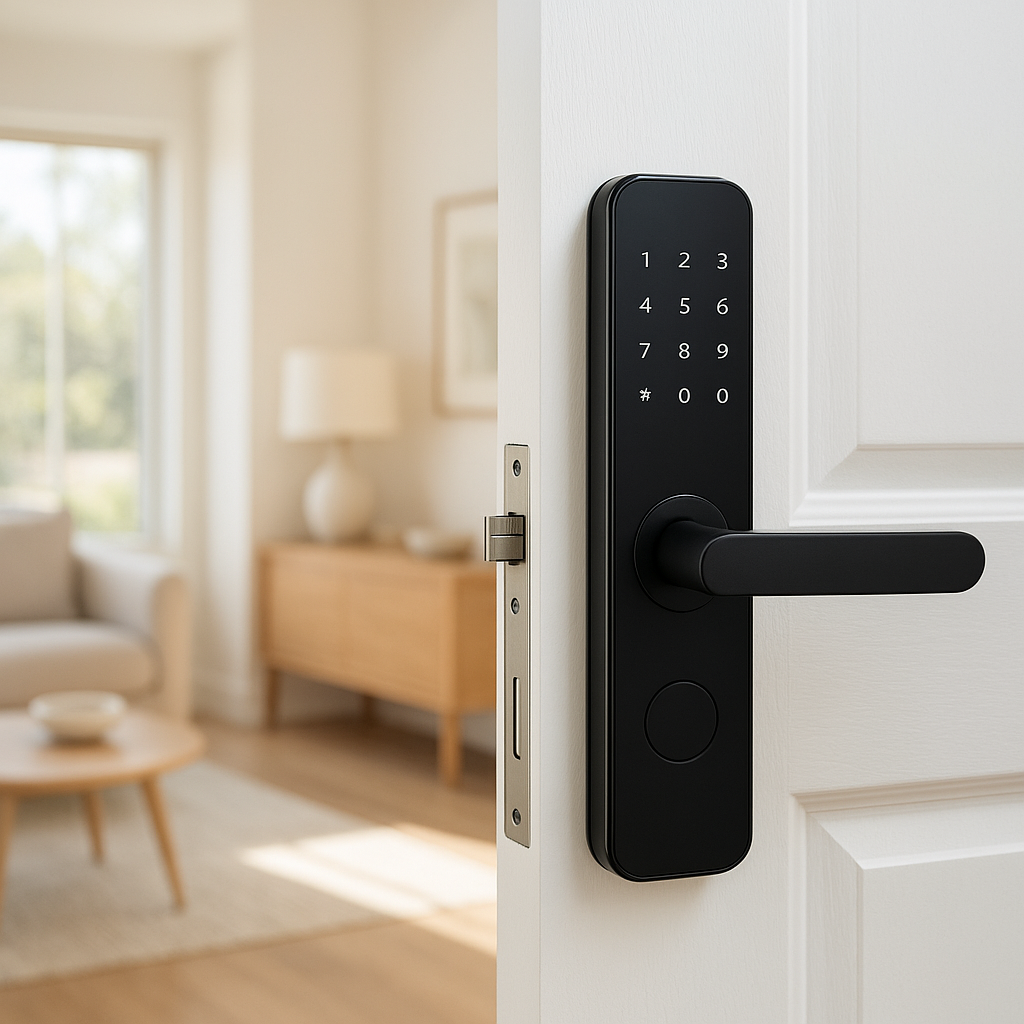
Upgrading your front door doesn’t have to mean spending $250+ on a high-end smart lock. There’s a growing group of budget-friendly smart locks that deliver solid security, app control, and smart home integration while staying around or under $150 (especially during sales).
This guide walks through what to look for, compares popular options, and highlights seven of the best budget smart locks you can buy. Collectively, they cover Alexa, Google Home, and Apple HomeKit support, so you can find a lock that fits both your door and your preferred platform.
We’ll also cover real-world scenarios—guests, kids, deliveries, Wi‑Fi outages—and basic installation and security tips so your new lock works smoothly from day one.
Why a Budget Smart Lock Is Worth It (Without Sacrificing Security)
Key benefits of upgrading from a traditional deadbolt
Even an affordable smart lock offers day-to-day benefits you don’t get from a standard key-only deadbolt:
- Keyless entry: Unlock with your phone, a PIN code, or sometimes your watch instead of fumbling for keys.
- Remote control: With Wi‑Fi, you can lock/unlock from anywhere and check if the door is secure while you’re away.
- Activity logs: See when the door was locked or unlocked and which user or code was used.
- Temporary and scheduled access: Give cleaners, guests, or dog walkers a code that works only at certain times or for certain days.
- Smart home automation: Tie your lock into Alexa, Google Home, or HomeKit routines (e.g., “Goodnight” locks the door and turns off lights).
You still keep the physical deadbolt and metal hardware doing the actual security work. The smart lock adds brains and convenience rather than replacing the core mechanics of a solid lock and strike plate.
What you gain and what you give up at under $150
Staying under $150 usually means some trade‑offs compared with premium locks:
- You gain: Core smart features (app control, auto-lock, access logs), solid security ratings on many models, and integration with major voice assistants.
- You often give up: Built-in Wi‑Fi on some models (you may need a small plug‑in bridge), advanced biometrics such as fingerprint readers on the very cheapest models, metal housings as heavy as flagship locks, and extras like built‑in doorbells or full touchscreens.
For many households, those trade‑offs are acceptable. The goal is reliable, secure access control and integration with your existing smart home—without paying for premium finishes or niche features.
Who a budget smart lock is (and isn’t) right for
A budget smart lock is usually a good fit if you:
- Rent or live in an apartment and don’t want to invest in a very expensive lock.
- Want keyless entry, basic automation, and remote control more than top-tier designer hardware.
- Are building out a starter smart home on a sensible budget.
You might want to spend more than $150 if you:
- Need commercial-grade durability for heavy use (e.g., high-traffic multi-unit buildings).
- Want advanced biometrics (multiple fingerprints, anti-peep touchscreens) with metal housings and longer warranties.
- Require integrated video, doorbell functions, or panic-proof emergency egress hardware.
What to Look For in the Best Budget Smart Lock Under $150
Lock types: deadbolt replacement vs. retrofit vs. keypad add-on
Smart locks in this price range generally fall into three types:
- Deadbolt replacement: Replace the entire exterior and interior deadbolt assembly. Examples: Ultraloq U‑Bolt Pro series, Yale Assure Lock 2. These give you a fresh keypad or keyway on the outside.
- Retrofit interior locks: Attach to the inside of your existing deadbolt. The outside of the door still looks normal with your usual key. Examples: August Smart Lock (3rd Gen), Wyze Lock, SwitchBot Lock. Great for renters who need to keep the original exterior hardware.
- Keypad add‑ons: Pair a separate keypad with a lock (often retrofits) so you have both app and code access. Examples: August Smart Keypad, Wyze Keypad, SwitchBot Keypad.
Check whether you’re comfortable changing the whole deadbolt or if you’d rather keep the original hardware intact.
Compatibility with Alexa, Google Home, and Apple HomeKit
Most budget locks support Alexa and Google Home directly or via a Wi‑Fi bridge. Apple HomeKit support is rarer, but you can still find options near this price, especially during sales or bundled promotions.
- Alexa & Google Home: Look for native support or “Works with Alexa/Google Assistant” on the product page. Wyze Lock, August Smart Lock (3rd Gen), and many Ultraloq models support these platforms.
- Apple HomeKit: Options like the Aqara Smart Lock U100 and Level Bolt Invisible Smart Lock can often be found near or under $150 on sale. Some SwitchBot locks can join HomeKit via Matter and a compatible hub.
- Bridges and hubs: Some locks need a small Wi‑Fi bridge or a brand hub (Aqara, SwitchBot) to integrate with your smart speaker or Home app.
Before you buy, confirm that the exact model and bundle you’re considering supports the platform you rely on—especially for HomeKit.
Connectivity options: Bluetooth, Wi‑Fi, hubs, and bridges
Connectivity affects both convenience and battery life:
- Bluetooth-only: Cheaper, longer battery life, but no remote access unless you’re in range or use your phone as a bridge. Example: very basic keypad locks.
- Wi‑Fi built‑in: Direct cloud access, voice assistant support, and remote control from anywhere. Battery life is shorter but still typically several months.
- Wi‑Fi bridge: Some locks use Bluetooth to talk to a nearby plug‑in bridge that handles Wi‑Fi. This keeps the lock more power‑efficient while still giving you remote access.
- Zigbee/Z‑Wave/Matter: A few budget locks use these protocols and connect through a hub like an Aqara hub, SwitchBot Hub, or other smart home hub.
For most people, Wi‑Fi (built‑in or with a bridge) is worth it so you can check and control the lock from anywhere and integrate it into routines.
Power and battery life (and what happens if the power goes out)
Almost all residential smart locks run on batteries (AA, AAA, or a rechargeable pack). Your home’s electrical power has no effect on whether you can lock/unlock the door:
- Battery life: Expect 4–12 months depending on brand, Wi‑Fi usage, and how frequently the lock cycles.
- Low-battery alerts: Good locks warn you in the app and sometimes via beeps or LED indicators before the batteries die.
- Physical backup: Many locks keep a traditional keyway. Some keypad-only models offer an emergency 9V contact point or USB‑C port to briefly power the lock for entry.
If your internet goes out, you can still lock/unlock locally using Bluetooth, a keypad code, or the mechanical key.
Security must-haves: ANSI/BHMA ratings, auto-lock, and encryption
On budget locks, focus on a few core security features:
- ANSI/BHMA rating: Look for at least Grade 2 for residential security. This rating measures physical strength and durability. You can read more about these standards in the ANSI/BHMA overview.
- Auto-lock: Automatically locks the door after a set time or when the door closes, helping prevent accidental unlocked nights.
- Secure encryption: Reputable brands use strong encryption for wireless communication and cloud access.
- Lockout protections: Some keypad locks temporarily lock after several wrong attempts.
Ease of installation and tools you’ll actually need
Most DIYers can install a smart lock in under an hour with basic tools:
- A Phillips screwdriver
- Measuring tape (for checking backset and hole size)
- Possibly a chisel or file if the strike plate or latch needs minor adjustment
Retrofit locks are usually simpler (no changes to exterior hardware). Full deadbolt replacements just require careful alignment so the bolt extends smoothly.
Quick Comparison Table: Best Budget Smart Locks Under $150
Side‑by‑side comparison of price, platforms, and key features
Prices fluctuate, but these locks are commonly found around or under $150, especially during sales. Always confirm current pricing.
| Lock | Type | Platforms | Connection | Approx. Price Tier | Highlight |
|---|---|---|---|---|---|
| August Smart Lock (3rd Gen) | Retrofit (interior only) | Alexa, Google | Bluetooth + optional Wi‑Fi bridge | Low–mid | Great all‑rounder for most homes |
| Wyze Lock | Retrofit | Alexa, Google | Wi‑Fi (via included gateway) | Low–mid | Strong remote access at a low price |
| Ultraloq U‑Bolt Pro (Bluetooth + Bridge bundle) | Deadbolt replacement | Alexa, Google | Bluetooth + Wi‑Fi bridge | Mid | Feature‑rich keypad lock |
| Aqara Smart Lock U100 | Deadbolt replacement | HomeKit, Alexa, Google (via hub) | Bluetooth + Zigbee (hub) | Mid | Best affordable HomeKit‑ready lock |
| Yale Assure Lock 2 (Keypad, Bluetooth/Wi‑Fi) | Deadbolt replacement | Alexa, Google (HomeKit on specific modules) | Bluetooth + Wi‑Fi | Mid (often on sale) | Great Alexa‑centric choice |
| SwitchBot Lock + Keypad (with Matter‑ready hub) | Retrofit | Alexa, Google, HomeKit (via Matter) | Bluetooth + hub | Low–mid | Ideal for renters & hidden installs |
| Wyze Lock Bolt | Keypad deadbolt | App only (no native voice control) | Bluetooth | Low | Simple, budget keypad for families |
Best picks by use case: renters, families, Airbnbs, and home offices
- Renters: August Smart Lock (3rd Gen) or SwitchBot Lock—retrofit designs that keep your exterior hardware untouched.
- Families with kids: Ultraloq U‑Bolt Pro or Wyze Lock Bolt—durable keypads, multiple codes, and auto-lock.
- Short‑term rentals/Airbnbs: Wyze Lock or Yale Assure Lock 2—easy remote code management and activity logs.
- Home offices or side doors: Wyze Lock Bolt—very affordable keypad control without overcomplicating things.
- Apple‑centric homes: Aqara Smart Lock U100 or SwitchBot Lock with Matter‑capable hub for HomeKit integration.
The 7 Best Budget Smart Locks Under $150
1. Best Overall Budget Smart Lock for Most Homes – August Smart Lock (3rd Gen)
Why it stands out: The August Smart Lock (3rd Gen) is a retrofit interior lock that works with your existing deadbolt. Installation is straightforward, and from the outside, your door looks completely normal.
- Type: Retrofit (interior only)
- Platforms: Alexa, Google Assistant (via optional August Connect Wi‑Fi bridge or compatible hub)
- Best for: Most homeowners and renters who want smart features without changing the exterior hardware
You can still use your regular key from the outside, but you gain auto-lock, app control, and the ability to share virtual keys. Add the August Wi‑Fi bridge and you can lock/unlock remotely and integrate with Alexa/Google routines.
2. Best Budget Smart Lock for Alexa‑First Households – Yale Assure Lock 2 (Keypad, Bluetooth/Wi‑Fi)
Why it stands out: Yale’s Assure Lock 2 line is known for strong build quality and reliable integration with Alexa. The keypad versions with Bluetooth and Wi‑Fi frequently drop near or below $150 during sales.
- Type: Full deadbolt replacement
- Platforms: Alexa and Google Home out of the box; some versions or modules also support HomeKit—check the exact model
- Best for: Households centered around Echo devices and Alexa routines
With built‑in Wi‑Fi, you get responsive remote control, notifications, and the option to manage codes for guests directly from the Yale app or Alexa. The keypad is easy for kids and guests to use, and the slim interior housing looks clean on most doors.
3. Best Budget Smart Lock for Google Home Users – Wyze Lock
Why it stands out: Wyze Lock offers full remote control and Google Home support at a very aggressive price. It’s another retrofit design, so your exterior deadbolt stays in place.
- Type: Retrofit interior lock
- Platforms: Google Home, Alexa
- Best for: Google-centric homes that want app, voice, and remote access for less
The included Wi‑Fi gateway lets the lock talk to the cloud without draining the lock’s batteries excessively. You get door position detection (knowing if the door is open or closed), auto-lock, and app notifications when people come and go. Add the optional Wyze Keypad to simplify guest access.
4. Best Budget Smart Lock for Apple HomeKit Users – Aqara Smart Lock U100
Why it stands out: The Aqara Smart Lock U100 is one of the more affordable deadbolt locks that supports Apple HomeKit and even Apple Home Key on compatible iPhones and Apple Watches. It often hovers around the $150 mark, especially on sale.
- Type: Full deadbolt replacement with keypad and fingerprint
- Platforms: Apple HomeKit natively; Alexa and Google via an Aqara hub
- Best for: Apple households that want tight Home app integration without going to a premium price tier
You can unlock with a fingerprint, PIN, mechanical key, NFC tag, Home Key, or the Aqara app. Paired with an Aqara hub, it can also tie into broader automations using Aqara sensors and switches.
5. Best Budget Keypad Smart Lock for Families and Guests – Ultraloq U‑Bolt Pro (Bluetooth + Bridge Bundle)
Why it stands out: The Ultraloq U‑Bolt Pro offers a lot of entry options for the money: keypad, fingerprint reader (on some versions), app, and mechanical key. Bundles that include the Wi‑Fi bridge regularly go on sale near or under $150.
- Type: Full deadbolt replacement
- Platforms: Alexa and Google (via bridge)
- Best for: Busy households that need multiple access methods and schedules
Parents can assign kids individual codes, track who comes and goes, and set schedules for cleaners or recurring visitors. The lock body is compact and works on most standard US doors.
6. Best Budget Smart Lock for Renters and Apartments – SwitchBot Lock + Keypad (with Matter‑Ready Hub)
Why it stands out: The SwitchBot Lock sticks to the inside of your door and physically turns the thumbturn of your existing deadbolt—no drilling or exterior changes required. With a compatible SwitchBot hub that supports Matter, you can bring the lock into Alexa, Google Home, and Apple HomeKit.
- Type: Retrofit interior lock
- Platforms: Alexa, Google Home, HomeKit (via Matter-enabled hub)
- Best for: Renters and anyone who can’t change the exterior lock hardware
Add the SwitchBot Keypad or Keypad Touch for PIN or fingerprint entry. When you move out, you simply remove the lock and leave the original hardware untouched, which makes this combo particularly appealing in apartments.
7. Best Budget Smart Lock for Short‑Term Rentals and Airbnb Hosts – Wyze Lock (with Keypad) or Wyze Lock Bolt
Why it stands out: For hosts, the ability to create, share, and revoke codes quickly is more important than high-end finishes. Wyze’s ecosystem offers very low-cost locks and keypads with reliable app control.
- Type: Wyze Lock (retrofit + Wi‑Fi) or Wyze Lock Bolt (keypad deadbolt, Bluetooth)
- Platforms: Wyze Lock supports Alexa and Google; Wyze Lock Bolt focuses on local keypad and app control
- Best for: Short‑term rentals and low-maintenance guest access
You can generate temporary PIN codes for each guest stay, monitor lock/unlock events, and reset codes between bookings. Paired with a simple check-in message, you can run largely keyless stays without spending luxury-lock money.
Smart Home Compatibility: Getting Your Budget Smart Lock Working Smoothly
How to connect your smart lock to Alexa for voice control and routines
The exact steps vary by brand, but the general Alexa setup flow is similar:
- Install and set up the lock in its own app (August, Wyze, Aqara, Ultraloq, etc.).
- Open the Alexa app and go to Devices > + > Add Device.
- Choose Lock and select the brand, then sign into your lock account to link it.
- Rename the lock to something natural like “Front Door” so you can say, “Alexa, lock the front door.”
- Under Routines, add the lock to phrases like “Goodnight” or “I’m leaving.”
Alexa usually requires a PIN to unlock doors by voice for safety. Keep that PIN private and don’t use something easily guessed.
How to add your smart lock to Google Home for shared household control
Google Home integrates similarly:
- Finish setup in your lock’s native app.
- In the Google Home app, tap + > Set up device > Works with Google.
- Search for your lock’s brand/service and sign in.
- Assign the lock to a room (e.g., Entryway) so it’s easy to find on the Home screen.
- Share the Google Home “home” with trusted household members for shared access.
Google Assistant supports verbal lock commands and, depending on your settings, may also allow unlock commands with verification on your phone.
How to pair your smart lock with Apple HomeKit and the Home app
For HomeKit‑compatible locks like the Aqara U100 or a SwitchBot Lock via a Matter-enabled hub, setup usually looks like this:
- Complete setup in the manufacturer’s app and update firmware if prompted.
- Open the Home app on your iPhone or iPad.
- Tap + > Add Accessory and scan the HomeKit or Matter code on the lock or hub.
- Assign the lock to a room and give it a clear name.
- Optional: Configure automations like “When Everyone Leaves, Lock Front Door.”
Apple documents the Home app in detail on its support site; you can explore more advanced options in Apple’s Home app user guide.
Using your lock in automation: geofencing, goodnight, and away routines
Once your lock is in Alexa, Google Home, or HomeKit, you can build powerful but simple automations:
- Geofencing: Have the lock auto-lock when you leave a certain radius, or send you a reminder if the door is unlocked.
- Goodnight routines: A “Goodnight” scene can lock the door, turn off lights, and lower your thermostat.
- Away mode: When you arm your security system or set your home to Away, ensure the door locks automatically and certain codes are disabled.
Start with one or two automations and add more gradually so you don’t create confusing overlaps.
Real‑World Use: Everyday Scenarios a Budget Smart Lock Should Handle
Letting cleaners, dog walkers, and guests in without physical keys
Good budget locks let you avoid hiding keys under mats or coordinating in-person handoffs.
- Create a dedicated PIN or virtual key for your cleaner or dog walker.
- Limit codes to specific days and time windows where supported.
- Delete or disable access instantly if you change providers.
Locks with Wi‑Fi (like Wyze Lock, Yale Assure Lock 2, or Ultraloq with bridge) also let you unlock the door remotely if someone arrives early or needs one‑time entry.
Managing kids’ access and setting schedules or temporary codes
For kids, keypads are often easier and safer than physical keys:
- Give each child their own code so you can see when they arrived home.
- Set schedules so codes only work after school hours.
- Encourage kids to memorize their PIN instead of carrying a house key they could lose.
Some locks send push notifications when specific codes are used, which adds peace of mind when you’re at work.
Handling package deliveries safely and reducing porch theft risk
Smart locks can help reduce porch theft in a few ways:
- For trusted delivery drivers or neighbors, briefly unlock the door or a side entry, then lock it again as soon as they close it.
- Combine a smart lock with a smart camera or video doorbell so you can see who’s at the door before granting access.
- Use a smart lock on a garage or mudroom door, so packages can be left inside rather than in view of the street.
What to do if your phone dies, Wi‑Fi is down, or batteries are low
Plan for failure scenarios ahead of time:
- Phone dies: Use the keypad, fingerprint reader, or traditional key.
- Wi‑Fi goes down: Bluetooth still works for nearby control; keypad and keys work normally.
- Batteries run low: Replace them promptly when you get app warnings. Some locks provide a 9V or USB emergency power contact so you can briefly power the lock from outside.
It’s wise to keep at least one traditional key hidden in a secure, non-obvious location or with a trusted neighbor as a final fallback.
Installation Guide: How to Install a Budget Smart Lock Like a Pro
Checking door and deadbolt compatibility before you buy
Before you click “buy,” double‑check:
- Door thickness: Most locks support standard 1‑3/8″ to 1‑3/4″ doors.
- Backset: Measure from the door edge to the center of the deadbolt hole (usually 2‑3/8″ or 2‑3/4″).
- Bore hole size: Check that your existing hole matches the lock’s requirements.
- Deadbolt type: For retrofit locks, make sure your current deadbolt is listed as compatible.
Most product pages include compatibility diagrams with these measurements—worth a quick look to avoid surprises.
Step‑by‑step install overview for typical retrofit and keypad locks
The exact steps differ by brand, but a general process looks like this:
Retrofit lock (August, Wyze, SwitchBot):
- Remove the interior thumbturn plate; leave the exterior key cylinder and deadbolt in place.
- Attach the mounting plate using the supplied screws, making sure the tailpiece passes through the adapter.
- Attach the smart lock body to the mounting plate.
- Insert batteries and follow the app instructions to calibrate the lock.
- Mount any Wi‑Fi gateway within range and connect it to your network.
Full keypad deadbolt (Ultraloq, Yale, Aqara, Wyze Lock Bolt):
- Remove your existing deadbolt hardware.
- Install the new latch in the door edge, adjusting the backset if needed.
- Install the exterior keypad/keyed cylinder through the bore hole.
- Attach the interior mounting plate and interior housing.
- Connect the cable between exterior and interior components.
- Insert batteries, test the bolt manually, then run app setup and calibration.
Common installation mistakes to avoid (alignment, strike plates, Wi‑Fi)
A few small errors cause most issues:
- Poor alignment: If the deadbolt binds or rubs, the motor struggles. Adjust the strike plate or door alignment until the bolt moves smoothly by hand.
- Over‑tightening screws: This can warp the lock body and cause sticking. Tighten snugly, not excessively.
- Weak Wi‑Fi signal: If the lock or bridge is far from your router, you may see delays or drops. A Wi‑Fi extender or mesh node near the door often solves this.
Basic security best practices after installation (PINs, users, updates)
Once the lock is installed, take a few minutes to harden your setup:
- Change any default PINs and avoid obvious codes like 1234 or your street number.
- Use individual codes for each person instead of sharing one code.
- Enable two‑factor authentication (2FA) on your lock account if the vendor supports it.
- Turn on automatic firmware updates or check periodically in the app.
Safety, Privacy, and Security Considerations With Cheap Smart Locks
Are budget smart locks safe enough? What the ratings really mean
Many budget smart locks use the same mechanical cores and standards as more expensive locks. The ANSI/BHMA rating focuses on physical attack resistance (drilling, prying, etc.), not the lock’s price tag.
For most single-family homes and apartments, a reputable Grade 2 deadbolt with a properly installed strike plate is more than adequate, especially when combined with basic door reinforcement and situational awareness. The weakest link in most burglaries is often an unlocked door or weak door frame—not the smart lock itself.
How to lock down your app, accounts, and guest access
Your lock’s digital security is just as important as the hardware:
- Use unique, strong passwords for your lock and smart home accounts.
- Enable 2FA wherever available (lock app, Amazon, Google, Apple ID).
- Regularly review who has virtual keys, codes, or invites to your smart home.
- For Airbnb and short‑term rentals, avoid reusing the same guest codes—generate new ones per stay.
Firmware updates, vendor support, and when to avoid ultra‑cheap brands
Firmware updates patch security bugs and add features. That’s why vendor reputation matters more than squeezing to the absolute lowest possible price.
- Prefer brands with a track record (August, Yale, Wyze, Aqara, Ultraloq, SwitchBot).
- Avoid no‑name locks with vague documentation, no clear app ownership, or no history of firmware updates.
- Check app store reviews not just for star ratings but for signs of active support (responses from the developer, recent updates).
If a lock is dramatically cheaper than everything else and you can’t find solid information about the company behind it, treat that as a warning sign.
Choosing the Right Budget Smart Lock for Your Home
Quick decision guide: platform, door type, and household needs
To narrow down your options quickly, ask three questions:
- Which platform do you care about most?
- Alexa/Google: August 3rd Gen, Wyze Lock, Ultraloq U‑Bolt Pro, Yale Assure Lock 2.
- HomeKit: Aqara U100 or SwitchBot Lock + Matter‑capable hub.
- Are you willing to replace the whole deadbolt?
- No (renter, can’t change hardware): August, Wyze Lock, SwitchBot.
- Yes: Ultraloq, Aqara, Yale, Wyze Lock Bolt.
- How will people actually use the door?
- Lots of kids/guests: prioritize keypads (Ultraloq, Yale, Wyze Lock Bolt, Aqara).
- Mostly adults with smartphones: retrofit + app access may be enough.
- Short‑term rentals: Wi‑Fi, logs, and easy code management are key.
When it’s worth spending a bit more than $150
Stepping above $150 can be worth it if you:
- Want a specific design/finish to match high-end hardware.
- Need integrated video or doorbell features.
- Run a busy rental or multi‑unit property and need commercial‑grade locks with management dashboards.
- Require fully native HomeKit or Matter support without hubs or workarounds.
For a typical family home, though, the locks in this guide usually cover the essentials without breaking the bank.
Next smart security upgrades to pair with your new smart lock
A smart lock is a strong foundation, but you can build a more complete security setup with:
- Video doorbell: See who’s at the door before unlocking.
- Outdoor cameras: Cover driveway, back door, and side yards.
- Window and door sensors: Have your system alert you if doors or windows open unexpectedly.
- Smart lighting: Automatically turn on lights when you arrive or if motion is detected at night.
Start with the lock, then gradually add components that solve real problems in your home, rather than buying everything at once.
Conclusion
A well‑chosen budget smart lock can give you keyless entry, app control, guest access, and smart home integration for around or under $150. By focusing on lock type, platform compatibility, connectivity, and vendor reputation, you can avoid the weak options and pick a lock that quietly does its job for years.
Whether you’re an Alexa‑heavy household, a Google Home fan, or deeply invested in Apple’s Home app, there’s a lock in this price range that will fit your door and your routines without overspending.
FAQ
Do I need Wi‑Fi for a budget smart lock to work?
No. Many locks work over Bluetooth and keypad alone. Wi‑Fi is only required if you want remote control from outside your home or deep integration with voice assistants. A Wi‑Fi bridge is a good compromise for battery life and features.
Can I still use a normal key with a smart lock?
Yes, most budget smart locks retain a standard keyway. Retrofit models keep your existing key; full replacements often include a new key set. Some keyless models skip the keyway and rely on keypads and emergency power contacts, so double-check if you prefer a mechanical backup.
Will a smart lock work with my existing deadbolt?
Retrofit locks usually support common single‑cylinder deadbolts from major brands. Full replacements require a standard door thickness, backset, and bore hole size. Check the compatibility section of the product listing and measure your door before buying.
Are budget smart locks easy to hack?
Reputable smart locks use strong encryption and secure app connections. The bigger risks are weak passwords, shared accounts, and poor PIN choices. Use unique passwords, enable 2FA, and stick with established brands that provide ongoing firmware updates.
How long do batteries last in a smart lock?
Battery life depends on how often the door is used and whether the lock uses Wi‑Fi. A typical budget lock runs 4–12 months on a set of batteries. Most will alert you well before power runs out so you can replace them in time.