Smart home automation for elderly parents can provide peace of mind for the whole family while helping aging loved ones stay independent. Instead of constant phone calls or in-person checks, you can use sensors, cameras, and voice alerts to quietly confirm that your parent is up, moving, and safe throughout the day.
This guide walks you through the devices, planning, and automations that work well in real homes. You’ll learn how to build respectful, privacy-conscious check-ins that support your parent’s routine, not control it.
Why Smart Home Automation Matters for Elderly Parents
Common safety risks for seniors living alone
Older adults living alone face several recurring safety risks that smart home automation can help monitor:
- Falls in the bathroom, bedroom, or on stairs.
- Nighttime wandering or confusion, especially in unfamiliar or dark areas.
- Missed medications or taking the wrong dose.
- Leaving doors unlocked or open, increasing security risks.
- Kitchen hazards such as leaving the stove on or forgetting food.
- Dehydration and poor nutrition if regular meals and fluids are skipped.
According to the CDC, millions of older adults suffer falls each year, often at home. You can read more in this overview on older adult falls from the CDC: Older Adult Falls Facts.
How automated check-ins reduce worry for families
Smart home automation for elderly parents can replace vague worry with specific signals that everything is normal. Instead of wondering, “Did Mom get out of bed?” you can see that a motion sensor detected movement in the bedroom at 7:30 a.m., just like most days.
- Routine confirmation: Automations can confirm that your parent is up in the morning, moving to the kitchen, and using the bathroom.
- Exception alerts: If something unusual happens (no motion for several hours, front door left open, no fridge activity by lunchtime), you receive a notification.
- Quicker help: If a fall or emergency occurs, panic buttons or fall-detection devices can trigger immediate alerts to family or emergency services.
Instead of reactive phone calls after a problem, automations give early signals so you can check in before something becomes serious.
Balancing independence, safety, and privacy
The best setups respect your parent’s autonomy. That means:
- Using sensors over cameras whenever possible, especially in private areas.
- Agreeing clearly on where cameras are placed (for example, front door and entryway, not bedroom or bathroom).
- Limiting who can view live streams and recordings.
- Making sure your parent understands what the system does and can easily turn some features off (like a bedroom smart speaker) when they want privacy.
Smart home automation should feel like a safety net, not surveillance.
Core Devices You Need for Automated Elderly Check-Ins
Smart sensors (motion, contact, bed, and fall detection)
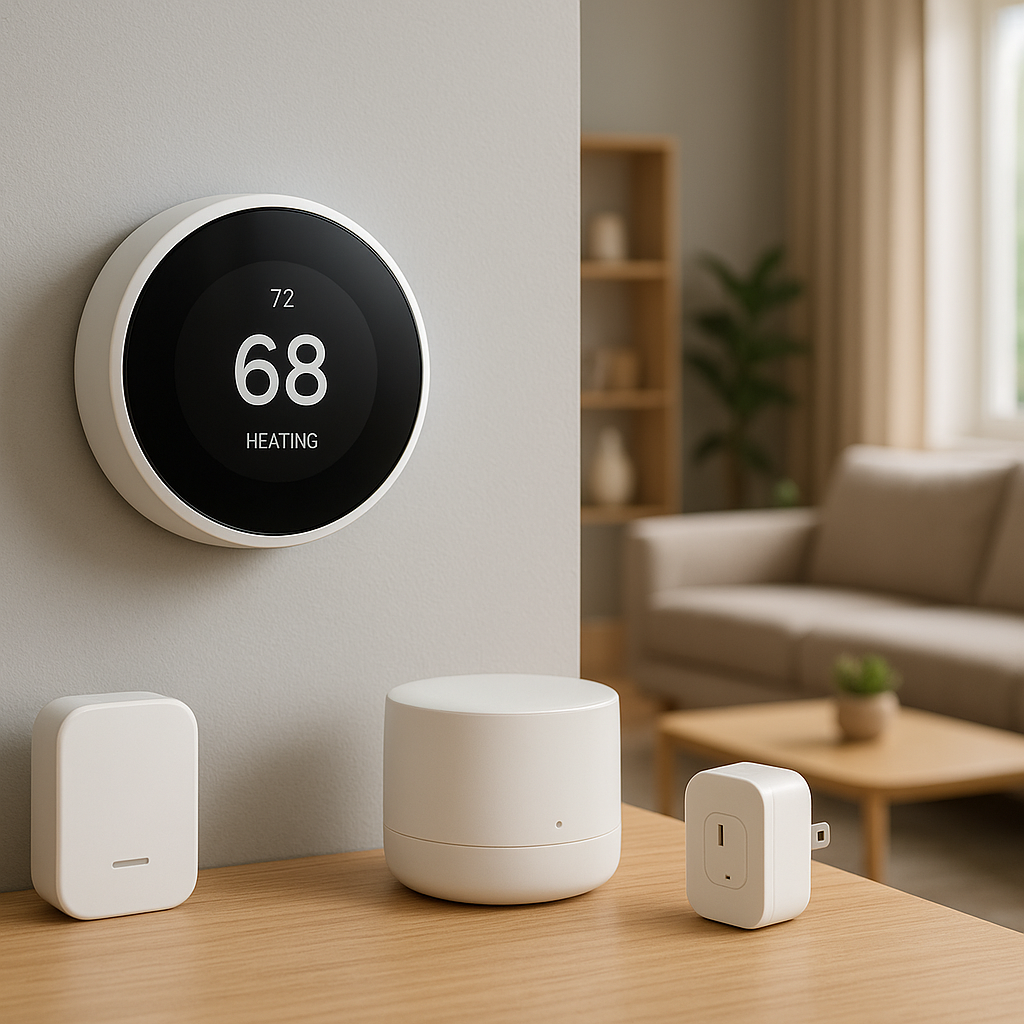
Sensors are the quiet backbone of automated check-ins. They detect activity and trigger routines or alerts.
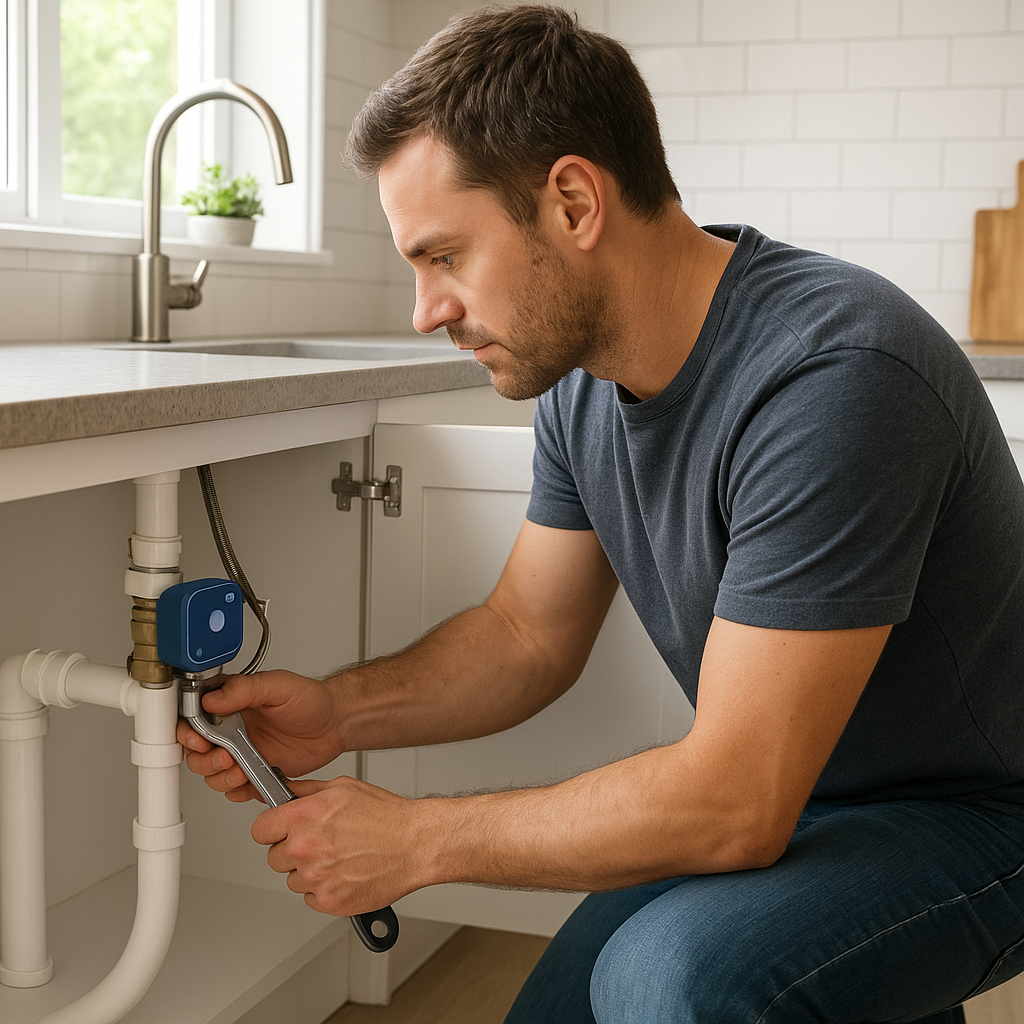
- Motion sensors: Place them in bedroom, hallway, bathroom door area, and kitchen to confirm normal movement.
- Contact sensors: Install on front/back doors, medicine cabinets, and fridge/freezer doors to confirm entry/exit and basic meal routines.
- Bed occupancy sensors: Pressure pads or under-mattress sensors can confirm when someone is in or out of bed and flag unusual inactivity.
- Fall detection sensors: Some smart watches and wearables have fall detection, as do certain in-home radar or camera-based sensors that detect sudden falls without needing to wear anything.
Look for sensors that integrate with your chosen platform (Alexa, Google Home, Apple Home, or Matter) so they can easily trigger automations.
Smart cameras and video doorbells with privacy controls
Cameras should be used selectively:
- Video doorbells help monitor who comes to the door and give elderly parents an easy way to see visitors.
- Indoor cameras can be placed in entryways or living rooms, but avoid bedrooms and bathrooms.
- Choose models that support privacy shutters or physical covers and allow you to disable recording during certain hours.
- Restrict live view access to only a few trusted people and use two-factor authentication on accounts.
Many modern cameras also provide person detection and activity zones, so you receive fewer false alerts and focus on meaningful events.
Smart speakers and displays for voice alerts and two‑way calling
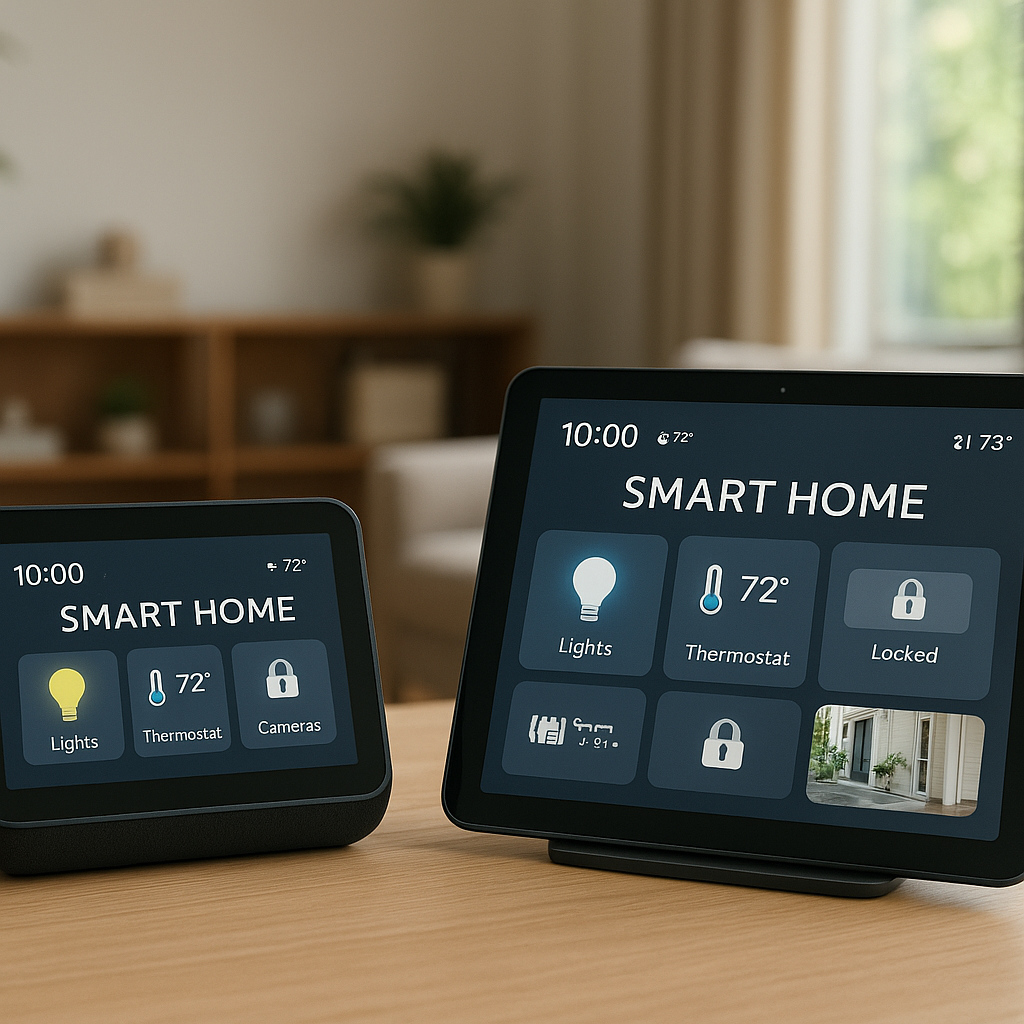
Smart speakers (like Amazon Echo or Google Nest) and smart displays (with screens) provide:
- Voice reminders for medication, hydration, or appointments.
- Two-way calling using voice (“Alexa, call Sarah”).
- Drop-in or video call capabilities on displays, which allow quick visual check-ins when agreed upon.
- Emergency phrases such as “Hey Google, call 911” where supported.
Choose devices with a simple interface, clear speaker audio, and large on-screen buttons if your parent has vision or hearing challenges.
Supporting devices: smart locks, lights, and panic buttons
Beyond sensors, a few extra devices improve everyday safety:
- Smart locks: Let you verify doors are locked remotely and unlock them for trusted caregivers or paramedics in an emergency.
- Smart lights: Automate hallway and bathroom lighting at night to reduce trips and falls.
- Panic buttons: Wearable or wall-mounted buttons that send alerts or call for help when pressed.
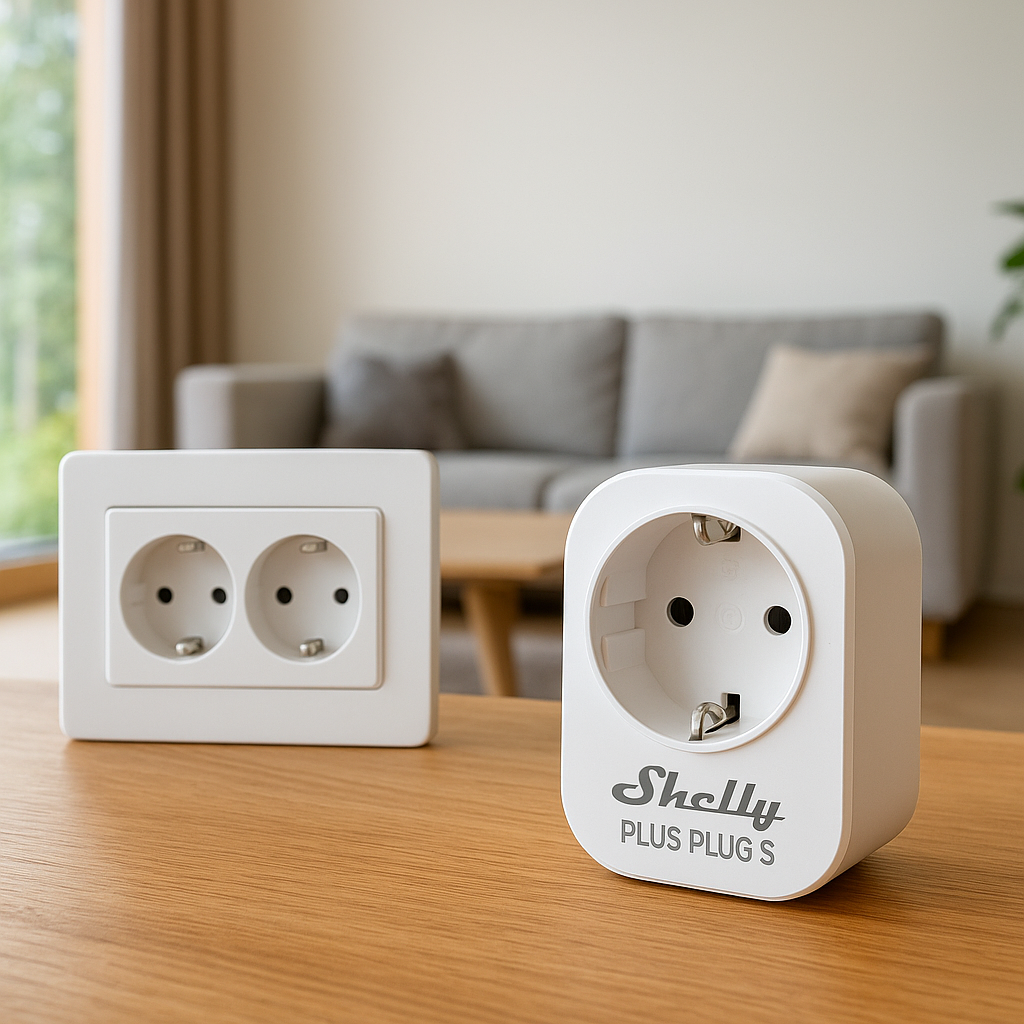
- Smart plugs: Turn off risky appliances (like space heaters) automatically at night or if no motion is detected.
Planning a Safe Check-In Strategy with Your Parents
Discussing comfort levels, boundaries, and consent
Before installing anything, sit down with your parent and talk through:
- What worries them the most (falls, break-ins, forgetting meds).
- Which areas of the home they’re comfortable monitoring.
- What kind of alerts they want (phone calls, app notifications, or neighbors checking in).
- Who can view camera feeds and sensor data.
Make it a joint project. Show pictures of devices and apps so it feels like a shared solution, not something done to them.
Choosing check-in times, triggers, and escalation rules
Automated check-ins work best with clear rules. For example:
- Morning check: Motion in bedroom or hallway between 6:30–9:00 a.m. means “up and moving.” If not, send a gentle text to a family member.
- Lunch check: Fridge door opens at least once between 11:00 a.m.–2:00 p.m. If not, send an app notification.
- Night check: Front door locked and hallway motion detected before 11:00 p.m. If the door is still unlocked, turn on a light and announce a reminder.
Decide how alerts escalate: a notification to one person first, then to siblings or neighbors if there’s no response within a set time.
Creating a simple backup plan if tech fails
No system is perfect. Internet, power, or devices can fail. Plan for that by:
- Keeping simple check-in habits (daily call or text at a set time).
- Giving a spare key to a neighbor or nearby relative.
- Posting a low-tech emergency list near the phone with contacts and conditions to call 911.
- Letting your parent know what to do if the smart speaker or camera isn’t working.
Setting Up Morning and Evening Safety Automations
Morning “I’m up” routines using motion and bedroom sensors
A simple morning automation can give you reassurance without your parent doing anything extra:
- Place a motion sensor in the bedroom or hallway.
- Create a routine: if motion is detected between 6:30–9:00 a.m., mark the day as “OK” and send a brief notification (or update a shared app dashboard).
- Optionally, turn on bedroom or kitchen lights and start a news briefing or favorite radio station on a smart speaker.
If no motion is detected by the end of that window, the automation sends you an alert to check in via call or neighbor visit.
Evening routines: confirming doors are locked and lights are on
Evening automations focus on security and safety:
- At a set time (for example, 10:30 p.m.), check smart lock status. If unlocked, send a friendly voice announcement: “It looks like the front door is still unlocked. Should I lock it?”
- Automatically turn on dim hallway and bathroom lights to guide nighttime trips.
- Turn off unnecessary lights or appliances to reduce bills and risk.
Your parent can keep control with voice commands such as “Lock the front door” or “Turn off all lights” when they’re ready.
Automatic reminders for medication, hydration, and bedtime
Smart speakers and phones can provide gentle, consistent reminders:
- Schedule medication reminders by name and time (for example, “It’s 8 p.m. Time for your blood pressure pill”).
- Add hydration reminders mid-morning and mid-afternoon, especially in hot weather.
- Create a wind-down routine at night that dims lights, turns off TV, and announces “Bedtime is in 30 minutes.”
Keep reminders brief and positive, and adjust times with your parent so they feel helpful, not nagging.
Using Smart Sensors to Confirm Daily Activity Safely
Entry and fridge sensors to confirm movement and meal prep
Contact sensors on doors and the fridge give a quick picture of daily activity:
- Front door sensor: Confirms your parent left for a walk or errand and returned later.
- Fridge sensor: Helps you see that meals are happening at roughly normal times.
- Back door or patio sensor: Indicates if they’re using outdoor spaces safely.
Use these signals to trigger checks only when patterns are unusual, such as no fridge door opening by early afternoon or multiple front-door openings late at night.
Bathroom and hallway motion sensors for safe nighttime trips
Nighttime falls are common, especially on the way to the bathroom. Simple automations can help:
- When hallway or bathroom motion is detected between midnight and 5 a.m., turn on low-level lights along the path.
- Automatically dim or turn off lights again after 5–10 minutes of no motion.
- If bathroom motion isn’t followed by hallway motion after a long period (for example, 20–30 minutes), send an alert to a caregiver.
Bed occupancy sensors to detect unusual inactivity
Bed sensors are useful for seniors with mobility issues or chronic conditions:
- Confirm that your parent got into bed by a certain time.
- Identify if they haven’t left the bed by late morning, which might indicate illness or a fall when trying to stand.
- Combine with motion sensors to see if someone got up but never reached the bathroom or kitchen.
Use bed data carefully and discuss what will trigger a phone call versus a neighbor knocking on the door.
Cameras and Voice Alerts: When and How to Use Them Respectfully
Where to place cameras and where to avoid them
To maintain dignity, limit camera placement to:
- Front door and porch.
- Main entryway or living room.
- Garage or driveway.
Avoid placing cameras in:
- Bedrooms and bathrooms.
- Any area your parent explicitly doesn’t want monitored.
Be transparent about where each camera is, who can see it, and when recording is enabled.
Using smart displays for quick visual check-ins and video calls
Smart displays make visual check-ins feel more like a regular video chat than a “security check.” You can:
- Schedule daily or weekly video calls using a smart display in the kitchen or living room.
- Use pre-agreed “drop-in” or quick view calls only when your parent doesn’t answer phone calls and you’re worried.
- Show family photos or calendars on the display to make it feel like part of the home, not just a monitoring tool.
Setting up voice alerts and announcements that feel supportive, not intrusive
Voice alerts should be short, polite, and easy to dismiss:
- “It’s 9 p.m. Would you like me to lock the front door?”
- “Time for your afternoon medicine. Say ‘I already took it’ to stop reminders.”
- “Your daughter is checking in. Say ‘Call Sarah’ if you want to talk.”
Limit the number of announcements per day and adjust based on your parent’s feedback.
Creating Automated Alerts and Escalation Rules
No-activity alerts: what to trigger and when to notify family
No-activity alerts focus on changes from normal patterns. Examples:
- No bedroom or hallway motion by 9:30 a.m.
- No fridge or kitchen motion by 2 p.m.
- No hallway or living room motion for 3–4 hours during the day when your parent is usually active.
Start with longer time windows and tighten them gradually if needed. Aim to catch genuine concerns without creating constant false alarms.
Step-by-step examples using Alexa, Google Home, and HomeKit
Each platform has its own way to build automations and routines. For example, Amazon shows how to build routines here: Create Alexa Routines.
Typical setup steps across platforms:
- Alexa: Use the Alexa app > Routines > “When this happens” (select sensor or time) > “Add action” (send notification, announce on Echo, adjust lights).
- Google Home: Use the Google Home app > Automations > Add > choose starter (time or device event) > add actions (broadcast, adjust lights, send phone notification where supported).
- Apple Home (HomeKit): In the Home app, create automations based on “A sensor detects something” or “Time of Day Occurs” and then add actions such as controlling lights or sending notifications to devices on the same Apple ID.
Multi-person notifications: children, neighbors, and caregivers
For redundancy and peace of mind, share alerts with more than one person:
- Add multiple family members to your smart home app with limited permissions.
- Include a nearby neighbor or caregiver for critical alerts that may require someone physically checking in.
- Create rules like: first alert to the primary caregiver; if not acknowledged within 10–15 minutes, send to secondary contacts.
Fall Detection and Emergency Response Integrations
Fall-detection wearables vs. in-home sensors
There are two main approaches:
- Wearables: Smart watches or dedicated medical alert pendants with built-in fall detection and SOS buttons. They work outside the home if they include cellular connectivity.
- In-home sensors: Radar-based devices or AI cameras that detect sudden falls without needing to be worn, useful if your parent often forgets or dislikes wearing a device.
Some families choose both: in-home coverage plus a wearable for walks and errands.
Linking panic buttons and sensors to automated calls and alerts
Most panic buttons can trigger alerts such as:
- Sending SMS or push notifications to selected contacts.
- Calling a monitoring center if part of a subscription service.
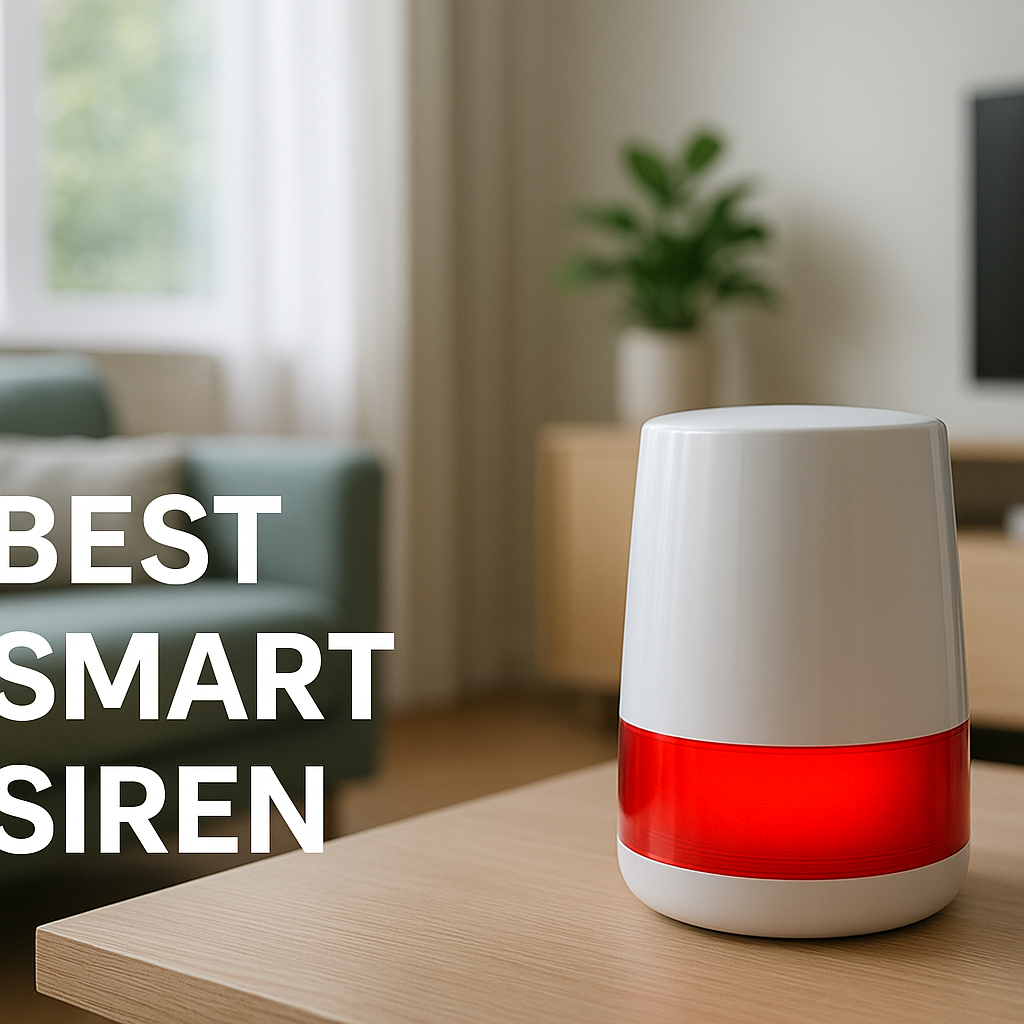
- Triggering smart home actions (turning on all lights, unlocking the door, sounding a siren).
Set clear instructions with your parent about when to press the button (falls, chest pain, feeling unsafe) and test it monthly together.
Integrating with medical alert services where available
Some smart devices integrate directly with medical alert services or can be used alongside them. For deeper background, you can read about how medical alert systems work on this reference page: Medical alert system.
Look for options that:
- Offer 24/7 professional monitoring.
- Provide GPS tracking for wearables outside the home.
- Allow family access to event history and notifications.
Protecting Privacy and Security in an Elderly Smart Home
Minimizing always-on cameras and sensitive data collection
To keep privacy front and center:
- Prefer sensors and automations over constant live video.
- Use privacy modes or schedules that turn cameras off when not needed.
- Disable features your parent doesn’t want, like continuous recording or face recognition, if it feels invasive.
Setting up user permissions and access controls for family
Most smart home platforms let you:
- Create different roles: owner, shared user, viewer.
- Limit which cameras or devices each person can access.
- Log in with separate accounts instead of sharing passwords.
Set things up so only a few trusted people can change critical settings like lock codes, camera rules, or emergency contacts.
Strong passwords, Wi‑Fi security, and avoiding common scams
Security basics matter:
- Use a strong password and two-factor authentication on your parent’s smart home and email accounts.
- Ensure their router has WPA2 or WPA3 encryption and a unique Wi‑Fi password.
- Show your parent how to ignore suspicious calls, texts, or pop-ups claiming to be from “tech support.”
- Update device firmware regularly to patch security issues.
Choosing the Right Smart Home Platform for Elderly Care
Comparing Alexa, Google Home, Apple Home, and Matter devices
Each major platform has strengths:
- Amazon Alexa: Huge device ecosystem, strong routines, and inexpensive Echo speakers.
- Google Home: Good for households already using Android/Google services and YouTube Music.
- Apple Home (HomeKit): Tighter privacy controls and good for families using iPhone, iPad, and Apple Watch.
- Matter-compatible devices: Newer standard aiming to make devices work across platforms, helpful if family uses different phones.
Choose based on what your parent and main caregivers already use on their phones and tablets to reduce complexity.
Ease of use for seniors: voice commands, big buttons, and displays
For elderly users, simplicity beats fancy features:
- Use short, natural voice commands and write them on a card near the smart speaker.
- Pick smart remotes, buttons, or keypads with large, clear labels.
- Use smart displays with large fonts and high brightness for easy reading.
During setup, turn off rarely used features that might confuse your parent.
Budget-friendly starter setups vs. more advanced systems
You do not need a full-home overhaul on day one. Consider:
- Budget starter: 1–2 motion sensors, a smart speaker, and a video doorbell.
- Intermediate: Add smart locks, more motion/contact sensors, smart lights in key areas, and a wearable with SOS.
- Advanced: Include bed sensors, fall-detection devices, professional monitoring, and full-house lighting automation.
Start small, prove the value, and expand as your parent gets comfortable.
Real-World Automation Examples You Can Copy
Daily check-in routine: 8 a.m. and 8 p.m. confirmations
Example setup:
- 8 a.m. check: If bedroom or hallway motion occurs between 6–8 a.m., mark “Morning OK.” If not, send notification to primary caregiver at 8:05 a.m.
- 8 p.m. check: If living room motion occurs between 5–8 p.m., assume evening routine is normal. If not, send a “No evening activity” alert.
- Optional: If no confirmation by 8:30 p.m., send a second alert to another family member.
Night safety routine: lights, locks, and bathroom pathway lighting
Night safety example:
- At 10:30 p.m., lock doors automatically if unlocked and announce, “The front door is now locked.”
- Dim hallway lights to a low level.
- When motion is detected at night, increase hallway and bathroom lights slightly, then dim after 5 minutes of no motion.
Out-of-home alerts when parents leave and return
Door sensors and location features can notify you when your parent leaves and returns:
- When front door opens and closes between 8 a.m.–6 p.m., log “Left home.”
- When it opens again after at least 15 minutes, log “Returned home.”
- Send a notification if your parent hasn’t returned by a set time in the evening.
Step-by-Step Setup Checklist
Pre-setup: Wi‑Fi, accounts, and permissions
Before buying devices:
- Confirm your parent’s Wi‑Fi coverage is strong in key rooms; consider a mesh system if needed.
- Decide whose accounts will manage devices (your parent’s, yours, or both).
- Set up shared access for siblings or caregivers in the smart home app.
- Make a simple list of goals (morning check-ins, nighttime lighting, door monitoring).
Device installation and basic configuration order
Installation is easier in this order:
- Set up the hub or main platform (Echo, Nest Hub, Apple Home, etc.).
- Add motion and contact sensors and test that they report correctly.
- Install smart locks and lights in key areas.
- Add cameras or video doorbells last, after discussing placement and privacy.
- Connect any wearables or panic buttons and verify alert paths.
Testing, refining alerts, and teaching parents simple voice commands
After installation:
- Test each automation several times at different times of day.
- Temporarily set wider time windows to avoid false alarms while you fine-tune.
- Teach your parent 3–5 core voice commands, like “Call [name],” “Turn on the lights,” and “Lock the front door.”
- Review alerts together after a week and adjust anything that feels annoying or unnecessary.
When to Involve Professionals and Care Services
Working with certified installers for complex homes
If the home is large, older, or has tricky wiring, a professional installer can:
- Ensure reliable Wi‑Fi and device placement.
- Install smart locks and cameras safely and securely.
- Integrate existing security systems with new smart devices.
Coordinating with home care providers and nurses
For parents who already have in-home care:
- Share a high-level overview of the system with caregivers.
- Clarify how they should use panic buttons, smart locks, and smart speakers.
- Ask what information (like activity trends) might help them support your parent better.
Knowing when technology isn’t enough and what to add next
Automation is powerful, but it can’t replace human presence. Consider adding or increasing:
- Regular in-person visits or rotations among family members.
- Professional home care hours.
- Adult day programs or community centers for social contact.
- Moving to assisted living if safety concerns outgrow what home tech and visiting caregivers can safely handle.
Summary: Building a Safer, Respectful Smart Home for Aging Parents
Key takeaways for safe automated check-ins
Smart home automation for elderly parents works best when it quietly confirms that daily life is on track and flags only meaningful changes. Use sensors for gentle activity monitoring, add cameras only where necessary, and keep your parent involved in every decision about what is monitored and who gets alerts.
How to expand the system as needs change over time
Start small with basic morning and night routines, door sensors, and a smart speaker. As your parent’s needs change, you can add bed sensors, fall detection devices, more detailed automations, or professional monitoring. Keep reviewing what works, what feels intrusive, and adjust together so the system remains a source of comfort rather than stress.
FAQ
Do I need to put cameras inside my parent’s home for smart check-ins?
No. Many effective setups rely mostly on motion and contact sensors. Cameras can be limited to entryways and outside areas, or even avoided entirely if your parent is uncomfortable with them.
What if my elderly parent isn’t comfortable with voice assistants?
You can still use sensors, smart locks, and lights without voice control. Provide simple wall-mounted buttons for key functions and keep automations mostly automatic, so your parent doesn’t have to remember new commands.
How reliable are fall-detection devices?
Fall-detection devices are improving but are not perfect. They can miss some falls or trigger false alarms. Treat them as an extra safety layer, not the only protection, and combine them with smart sensors, check-in routines, and human support.
Will all these smart devices still work during a power or internet outage?
Most Wi‑Fi-based devices will lose some or all functionality if power or internet is down. Battery-powered sensors may still log events locally, but remote alerts might not work. This is why you should maintain backup plans like phone check-ins and neighbors with keys.
How much does a basic elderly smart home setup usually cost?
Costs vary, but a basic starter kit with a smart speaker, a few motion and contact sensors, and a video doorbell can often be set up for a few hundred dollars. Adding smart locks, bed sensors, and fall-detection wearables increases costs but can still be more affordable than full-time in-home care.