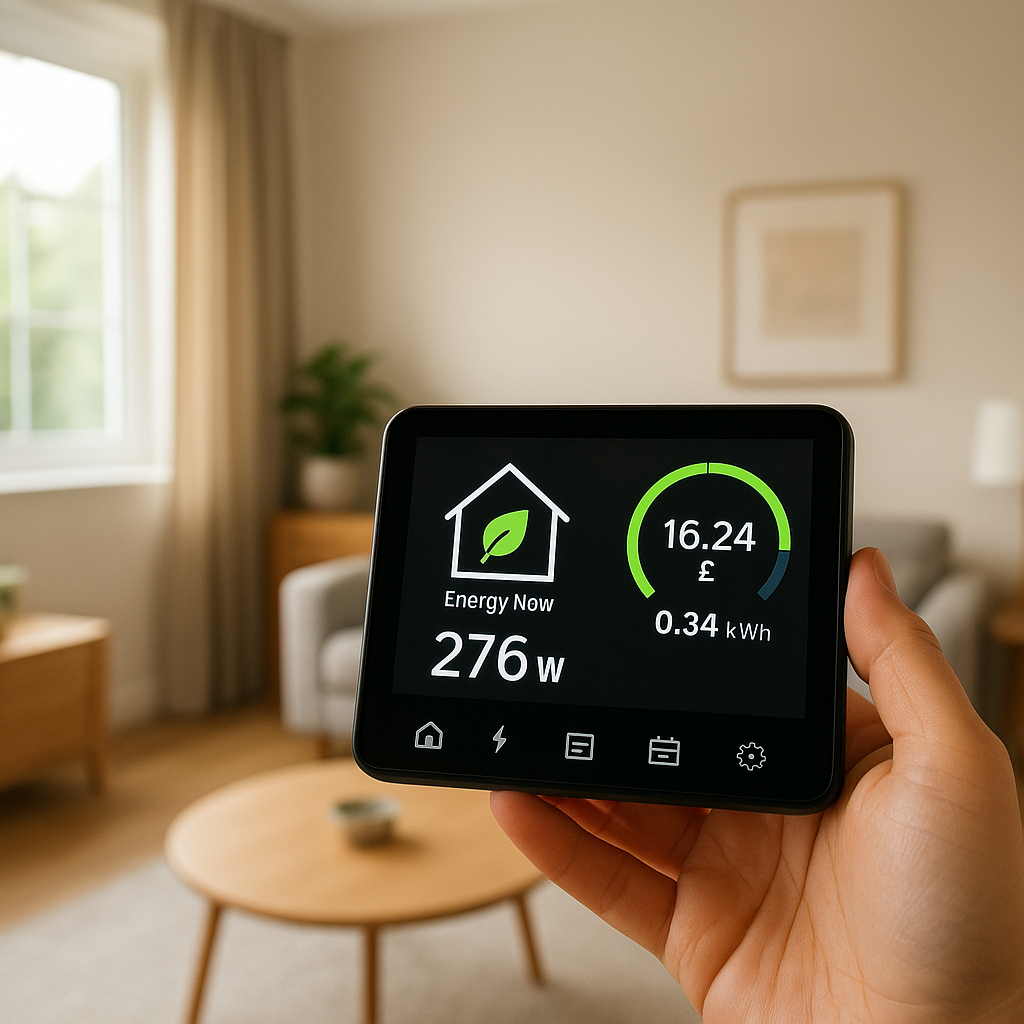
A wall-mounted smart display can turn your scattered smart home devices into something that actually feels like a unified system. Instead of juggling phone apps, you get one central control screen for lights, locks, cameras, climate, and routines.
If you’re deciding between an Echo Hub and a wall-mounted tablet, the choice isn’t just about hardware. It’s about which device fits your ecosystem (Alexa, Google, Home Assistant, Matter), your wiring, and how your household actually uses technology day to day.
This guide walks through Echo Hub vs tablet for smart home control in practical terms: how they work, installation options, what it’s like to live with each, and which setup makes the most sense for beginners, families, and power users.
Overview: Echo Hub vs Wall-Mounted Tablet for Smart Home Control
Why a central smart home control screen matters in 2026
Smart homes in 2026 usually have a mix of brands and standards: Alexa devices, Wi‑Fi plugs, Matter bulbs, maybe a Zigbee hub, plus cameras and a smart thermostat. Without a central control screen, each family member ends up using different apps and voice commands, and it becomes hard to see what’s going on at a glance.
A dedicated control screen on the wall helps you:
- Check the whole home status at once (lights on, doors locked, windows open, motion sensors triggered).
- Run scenes like “Goodnight” or “Movie” with a single tap.
- Control devices quickly when voice is inconvenient (sleeping kids, guests, noisy kitchen).
- Give visitors and kids a simple way to operate lights and climate without handing them your phone.
The two main ways to get this are:
- Echo Hub – a purpose-built, Alexa-focused wall controller with built-in smart home radios.
- Wall-mounted tablet – an Android, iPad, or Fire tablet running smart home apps in a custom dashboard.
Quick comparison: who should choose Echo Hub vs a tablet on the wall?
At a high level:
- Choose Echo Hub if your home already runs on Alexa, you mostly use Matter/Zigbee/Wi‑Fi devices, and you want a simple, reliable control surface with minimal tinkering.
- Choose a wall-mounted tablet if you mix ecosystems (Alexa + Google + Apple + Home Assistant), want deep customization, or want the screen to double as a browser, media player, and more.
Both options can work very well as a central control screen. The best choice depends less on specs and more on your ecosystem, willingness to tinker, and where the device will live in your house.
How the Echo Hub Works as a Smart Home Control Center
Built-in Alexa, Matter, and Thread support
Echo Hub is designed as an always-available Alexa smart home controller. It includes:
- Alexa built in for voice control, routines, and skills.
- Matter and Thread support so it can act as a controller and border router for many modern smart bulbs, plugs, and switches that support the Matter standard.
- Support for Zigbee (depending on region/model) through the Amazon ecosystem, reducing the need for separate hubs for many devices.
This means the Echo Hub can talk directly to many devices over local networks instead of sending everything to the cloud. For you, that usually translates into faster response when you tap a light or run a scene, and fewer separate hubs to hide in a closet.
Native smart home dashboard and widgets
Echo Hub ships with a built-in smart home dashboard optimized for wall use. You can:
- Pin favorite lights, locks, thermostats, and cameras to the main screen.
- Group devices by room (Kitchen, Living Room, Upstairs Hall) for quick access.
- Create tiles for Alexa Routines like “Leave Home” or “Good Morning.”
- Use widgets for things like weather, timers, and recent activity.
The interface is touch-first but still supports voice, so you can tap lights as you walk by or say “Alexa, turn off all the downstairs lights” without reaching for your phone.
Wall-mount, power options, and cable management considerations
Echo Hub is designed to live on the wall. Your main decisions are how to power it and how clean you want the install to look:
- In-wall power – A more permanent and clean option. The Echo Hub can be wired into an existing electrical box (often replacing a thermostat or old switch location) with a low-voltage adapter and in-wall cabling. This is the neatest solution but may require an electrician.
- Plug-in power – Simpler to install. The included power supply plugs into a nearby outlet, and you run the cable along or through the wall. You can use cable raceways or a surface-mount kit to keep it tidy.
Because it’s designed for this use, the form factor is relatively thin, and the mounting hardware lines up with common wall box setups. That reduces the need for third-party brackets.
Privacy, microphones, and camera (or lack of camera) details
Echo Hub includes a microphone for Alexa but does not have a built-in camera. That’s a plus for many people who worry about having a camera in hallways or bedrooms.
On the privacy side:
- You can mute the microphone with a physical button if you don’t want voice listening.
- Because Echo Hub focuses on control and information, it’s less about video calling and more about dashboards, which fits better in public areas like hallways and kitchens.
- As with other Echo devices, you manage voice recordings and privacy settings from the Alexa app.
How a Wall-Mounted Tablet Works as a Smart Home Control Screen
Using Android, iPad, or Fire tablets on the wall
A wall-mounted tablet is essentially a standard consumer tablet turned into a dedicated smart home panel. Common options include:
- Android tablets (Samsung Galaxy Tab, Lenovo, budget Android models).
- iPad or iPad mini.
- Amazon Fire tablets (popular for budget projects and Alexa integration).
You mount the tablet to the wall with a frame or magnetic mount and keep it powered via a hidden cable or in-wall adapter. Many people repurpose an older tablet that would otherwise sit in a drawer.
Running smart home apps: Alexa, Google Home, Home Assistant, SmartThings and more
The big advantage of a wall-mounted tablet is flexibility. You can install multiple apps and dashboards on the same screen:
- Alexa app or Alexa widgets for Echo and Alexa-compatible devices.
- Google Home or Nest apps for Google-centric setups.
- Apple Home (on iPad) for HomeKit accessories.
- Home Assistant, Hubitat dashboards, or Node-RED UI for advanced local automation.
- Proprietary apps for specific brands like Philips Hue, Ecobee, or Ring.
A common approach is to make a dashboard from Home Assistant or a tool like Fully Kiosk Browser that fills the screen, and then link out to specific apps only when needed.
Mounting solutions, power, and always-on display options
Tablets give you more choices, but also more decisions:
- Mounts range from magnetic picture-frame-style mounts to flush in-wall kits. Some allow quick removal so you can take the tablet off the wall when needed.
- Power is usually via a hidden USB cable to an outlet or a low-voltage in-wall kit. For a clean look, many people route the cable through the wall near an outlet behind furniture.
- Always-on display needs special attention: you may enable guided access, kiosk mode, or apps that prevent the screen from sleeping. On iPad and Android, you can also set the screen to dim and wake on motion or tap, depending on the software.
Because tablets aren’t designed solely as fixed wall panels, it can take some experimenting to find the right mix of brightness, wake behavior, and battery management.
Privacy, lock screen, and user account considerations
On a shared wall tablet, you want fast access but also some privacy controls:
- Use a dedicated user account or child profile with limited apps and no personal email, messages, or photos.
- Consider disabling notifications from personal apps so messages don’t pop up in the hallway.
- Configure the lock screen to be relaxed (no PIN) if the tablet only shows a dashboard, or add a simple PIN if it includes access to sensitive apps.
- If the tablet has cameras, think about where it points and whether you want it in bedrooms or bathrooms.
Echo Hub vs Tablet: Feature-by-Feature Comparison
Smart home compatibility: Alexa, Matter, Thread, Zigbee and local control
Echo Hub is tightly integrated with Alexa and supports Matter, Thread, and many Zigbee/Wi‑Fi devices. If most of your devices are “Works with Alexa,” the Hub will likely control them well, often with local communication.
Tablets depend on the apps and hubs you use. A tablet alone doesn’t speak Zigbee or Thread, but if you run something like Home Assistant on a separate box and access it from the tablet, you can reach almost any ecosystem through that hub. This makes tablets ideal for “bridge” setups combining Alexa, Google, and Apple gear.
Responsiveness, reliability, and offline behavior
Echo Hub behaves like an appliance: it’s always on, optimized for one job, and tightly integrated with its services. For basic tasks like turning lights on/off, adjusting thermostats, and running local routines, it’s usually very snappy and reliable, even if your phone is offline.
Tablets can be just as responsive, but more variables are involved:
- Operating system updates and app updates.
- Battery health and heat from always-on screens.
- Background app limitations (especially on Android) that might affect dashboards.
If your main automation brain is local (for example, Home Assistant on a Raspberry Pi), a tablet is just a “window” to that system and can remain very responsive as long as Wi‑Fi is solid.
Voice control vs touch-first control experience
Echo Hub leans into voice control via Alexa plus a touch dashboard. You say, “Alexa, set the hallway to 30%” or tap a dimmer tile. The voice assistant is always ready.
With tablets, voice depends on the platform:
- Android/Fire tablets can run Alexa or Google Assistant.
- iPad can run Siri or the Home app but is less often used hands-free on the wall.
If you want a primary voice assistant in that room, Echo Hub is more consistent. If you primarily tap and swipe, a tablet can be just as good or better, especially with bigger screens.
Customization and dashboard flexibility
This is where tablets shine. You can:
- Run fully custom dashboards from Home Assistant, Node-RED, or SharpTools.
- Design room-based floor plans and interactive maps.
- Mix shortcuts for different ecosystems on one screen.
- Rotate between multiple pages (Security, Climate, Lights, Media).
Echo Hub offers customization, but within the Alexa environment. You can reorder tiles, choose favorites, and add routine buttons, but it won’t match the near-limitless customization of a tablet running a dedicated dashboard system.
Media, cameras, and intercom capabilities
Echo Hub handles smart home cameras and live views from doorbells, plus audio playback via Alexa. It’s not primarily a media tablet; think of it as a home dashboard that can show you who’s at the door.
Tablets are better if you want:
- Full-screen camera grids or NVR apps.
- Streaming video services, news, or recipe apps.
- Web browsing or email on the wall (some people like this in the kitchen).
Many families use a tablet wall panel as a secondary family hub for calendars, shared notes, and recipes in addition to smart home control.
Echo Hub vs Tablet: Installation, Power, and Mounting
In-wall power vs plug-in solutions for Echo Hub
With Echo Hub, you typically choose between:
- In-wall powered, clean install – Looks built-in, often uses a low-voltage kit connected to a nearby electrical box. Best for owners comfortable with light electrical work or hiring a pro.
- Surface-mounted with cable management – Uses the standard power adapter and a cable channel painted to match the wall. Faster and renter-friendly, though not as seamless visually.
Because Echo Hub is designed for fixed installation, once it’s in place, you’re unlikely to move it often.
Mount types, wall boxes, and cable hiding for tablets
Tablets need third-party accessories. Common approaches:
- Magnetic or snap-on frames – Easy to remove the tablet for updates or travel.
- Flush in-wall kits – The tablet sits nearly flush, resembling a built-in panel; installation is more involved.
- Simple picture-frame-like mounts – Best for renters; use adhesive strips and a visible or semi-hidden cable.
Cable hiding often means running a USB cable inside the wall to an outlet behind nearby furniture or using paintable surface raceways. If you’re comfortable with light DIY, tablets can look very close to a professional install.
Ideal locations: hallway, kitchen, entryway, bedroom, or office
Echo Hub and tablets both work best where people naturally pass by:
- Main hallway or entryway – Perfect for “Goodbye” and “I’m home” scenes, door locks, and alarm control.
- Kitchen – A popular central spot for family dashboards, timers, and lighting control.
- Upstairs landing – Great place to check if lights are off and doors are locked before bed.
- Home office – Useful if you work from home and want quick environmental control.
For bedrooms, consider privacy and screen brightness. Echo Hub without a camera and with a dim screen can be less intrusive than a multi-purpose tablet.
Echo Hub vs Tablet: Smart Lighting, Plugs, and Climate Control Use Cases
Controlling lights, dimmers, and smart switches from the wall
Echo Hub’s tile-based interface is optimized for frequent light control. You can quickly:
- Dim a specific light or group.
- Toggle room scenes like “Evening” or “Bright.”
- See at a glance which rooms are still lit.
Tablets can do the same, but the experience depends on your chosen dashboard. Home Assistant, for example, lets you group lights by zone, use floor plans, or include sunrise/sunset info right next to controls.
Managing smart plugs, appliances, and scenes
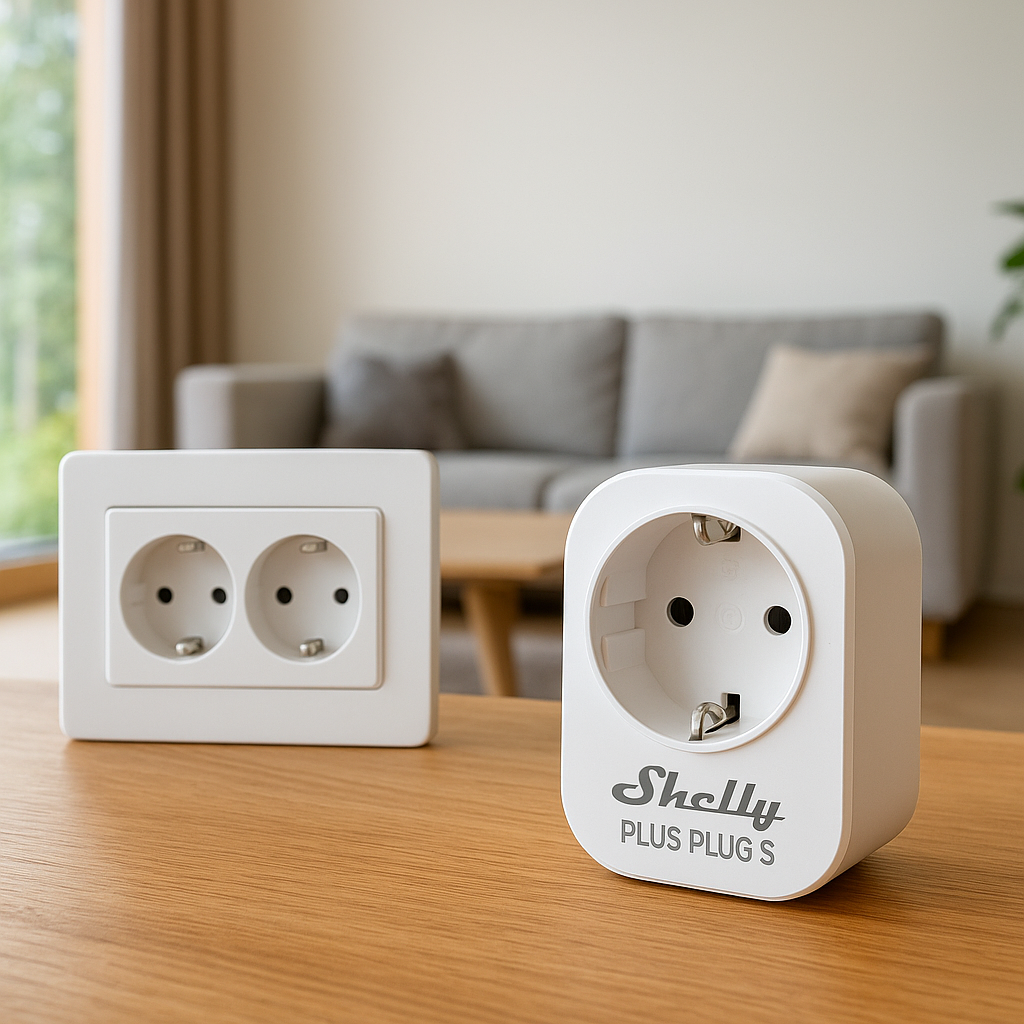
For smart plugs and small appliances (lamps, fans, holiday decor):
- Echo Hub makes it easy to create Alexa Routines that turn multiple plugs on/off with one button.
- Tablets can expose more advanced automations from systems like Node-RED or Hubitat, including conditional scenes and scripts.
Both options are fine for simple “On/Off” and “Movie Night” scenes. Power users who want conditional logic or complex scenes often lean toward tablet dashboards backed by a local automation engine.
Thermostats and climate: Nest, Ecobee, and smart radiator valves
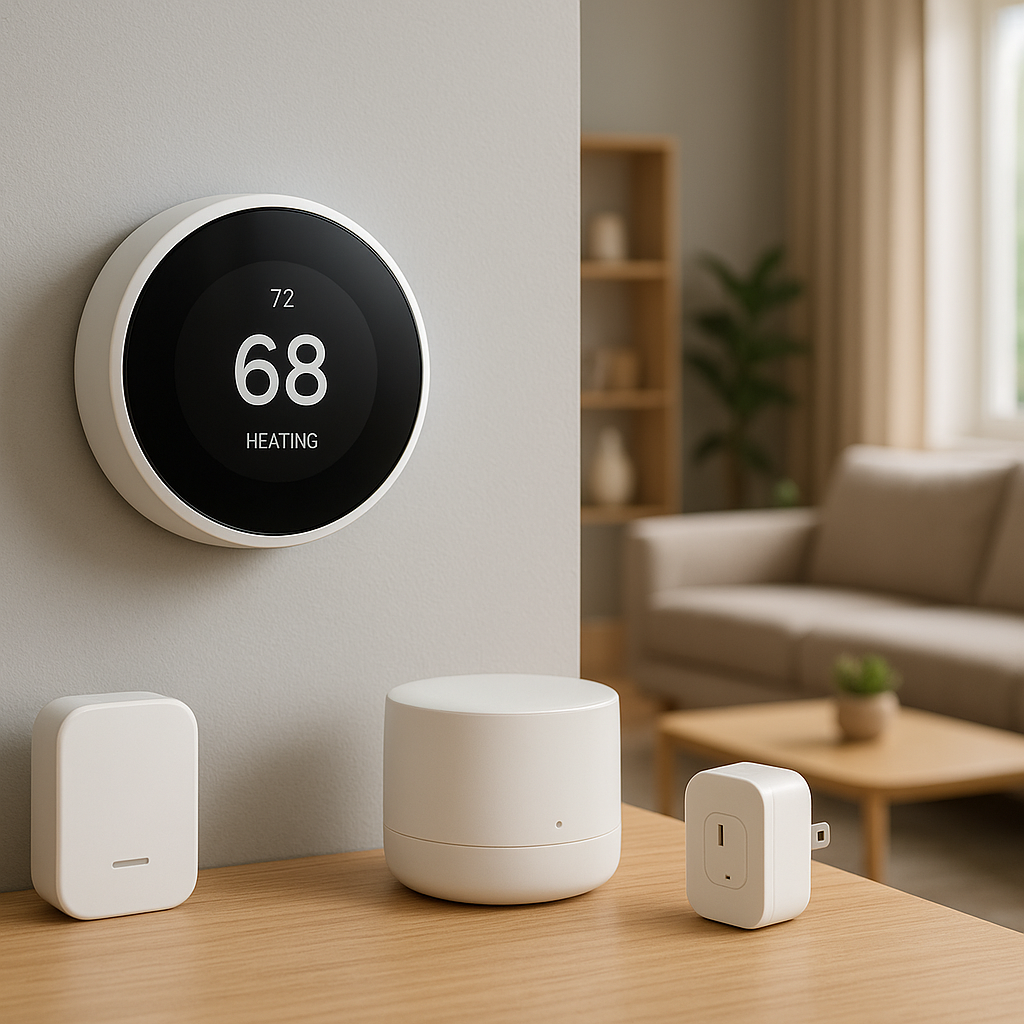
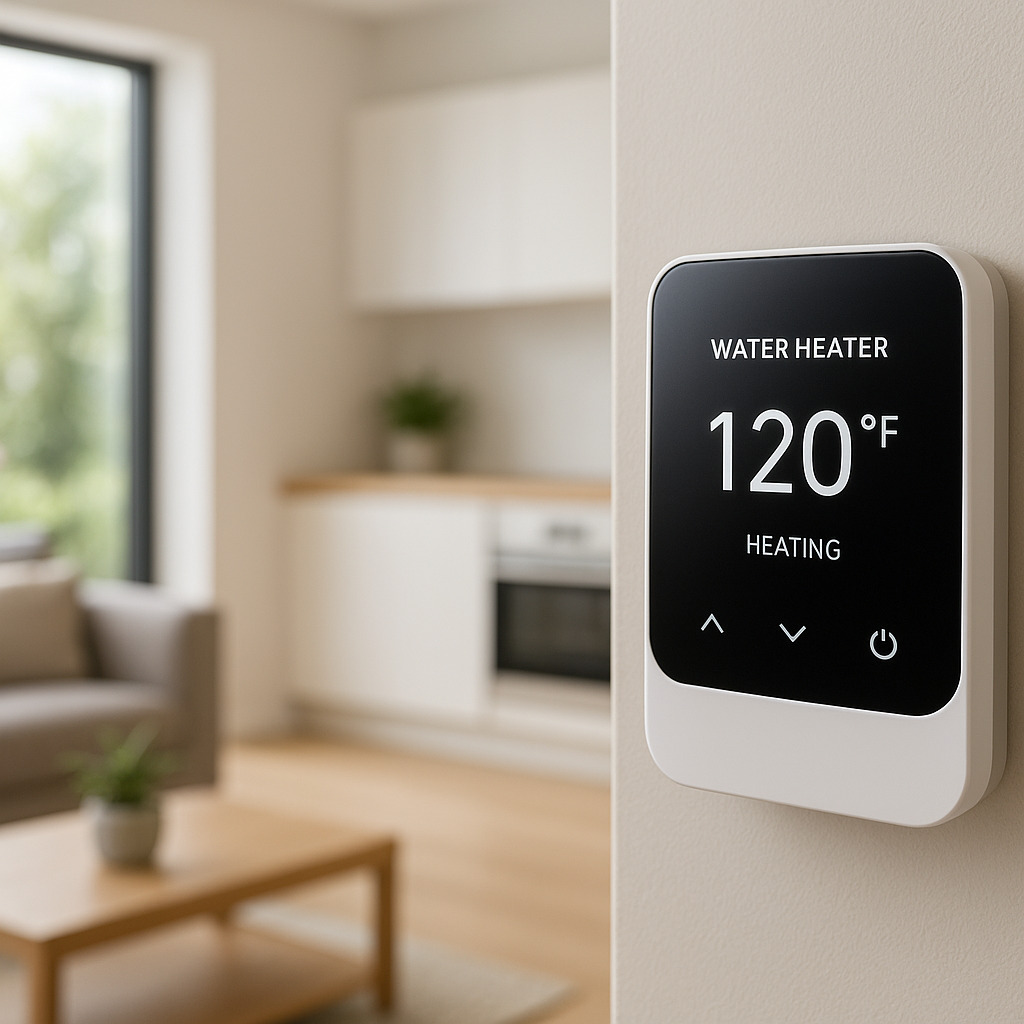
Echo Hub works well with Alexa-compatible climate devices like Ecobee, Emerson Sensi, and some Nest thermostats via linked accounts. You get temperature set points, modes, and on/off control directly from the panel.
With a wall tablet, you can run the vendor’s own apps alongside your main dashboard. That can give you deeper access to schedules, energy histories, and multi-zone control (for example, a dedicated section for smart radiator valves or mini-split controllers) without pulling out your phone.
Echo Hub vs Tablet for Security and Cameras
Viewing live camera feeds and doorbells
Echo Hub integrates smoothly with Alexa-compatible cameras and doorbells (Ring, Blink, some Arlo and Eufy models). You can:
- Say, “Alexa, show the front door” to bring up your doorbell camera.
- Tap on camera tiles for quick live views.
Tablets go further if you run an NVR or local system. You can display multi-camera dashboards, Blue Iris panels, or Home Assistant camera grids. For homes with many cameras, this can be a big advantage.
Arming/disarming security systems and smart locks
Echo Hub supports compatible alarm systems and locks via Alexa skills. You can lock doors, arm systems, and check status. For safety, some actions may require a PIN or confirmation.
With a tablet, you can often access the security vendor’s full app, plus any local dashboards. That allows more granular arm modes, history logs, and lock user-code management, but you should protect it with a simple PIN or limited user profile.
Using the screen as a household status dashboard (doors, windows, motion sensors)
Both Echo Hub and tablets can show a “house status” view:
- Which doors/windows are open.
- Recent motion events.
- Alarm state and battery warnings.
Echo Hub will primarily show sensors that live in the Alexa ecosystem. Tablets paired with Home Assistant or similar can surface data from multiple hubs and brands in a single consolidated view.
Automation and Routines: What Each Option Does Best
Alexa Routines on Echo Hub as a control surface
Echo Hub is an excellent “front end” for Alexa Routines you create in the Alexa app. You can:
- Trigger routines with one tap (“Goodnight,” “Kids Bedtime,” “Leave House”).
- Combine lights, plugs, thermostat set points, and announcements.
- Use time, presence, and sensor triggers for more automation while still keeping manual buttons on the Hub.
For most households, this level of automation is more than enough and doesn’t require technical skills.
Tablets as dashboards for Home Assistant, Hubitat, or Node-RED
Power users often pair a wall tablet with a home automation server (Home Assistant, Hubitat, Node-RED, etc.). The tablet then shows custom dashboards while the heavy lifting happens elsewhere.
This setup can:
- Link together devices from different ecosystems into unified scenes.
- Run complex automations based on presence, energy prices, weather, and more.
- Expose custom controls (e.g., “Boost heating for 30 minutes” or “Run dehumidifier until humidity is under 50%”).
If you enjoy tinkering and want absolute control, this approach is hard to beat.
Routine triggers, widgets, and one-tap scenes on each device
Echo Hub focuses on Alexa routines and scene tiles. You pick which routines to surface and in which order.
On tablets, you can mix:
- Dashboard buttons for scenes and scripts.
- OS-level widgets (e.g., Google Home or Alexa widgets).
- Shortcut icons that jump into specific app views (like a camera grid or thermostat schedule).
For households that want lots of one-tap buttons, tablets can display more variety, while Echo Hub keeps it simpler and more uniform.
Cost Breakdown: Echo Hub vs DIY Tablet Control Panel
Hardware prices, mounts, and power accessories
Typical costs (rough ranges, actual prices vary):
- Echo Hub: mid-range smart display pricing.
- Tablet: can range from a very affordable Fire tablet up to a premium iPad.
- Mounts: budget frames or magnetic mounts on the low end; flush in-wall kits cost more.
- Power accessories: in-wall USB kits, PoE adapters, or right-angle cables add to the total.
Echo Hub is a one-box solution; tablets are more modular but often need more accessories.
Hidden costs: subscriptions, apps, and professional installation
Consider ongoing costs:
- Cloud camera or security subscriptions (Ring, Arlo, etc.).
- Optional paid apps or dashboard tools on tablets.
- Professional installation if you’re not comfortable with electrical work or in-wall cabling.
Automation platforms like Home Assistant are free and open-source (see their official documentation), but you may still invest in hardware like a small server or Raspberry Pi.
Long-term value and upgrade paths
Echo Hub will receive Amazon’s software updates and benefit from new Alexa features over time. The downside is that it’s tied to the Amazon ecosystem; if you move away from Alexa, its value drops.
Tablets are more flexible over the long term. If you change ecosystems, you can install new apps, repurpose the tablet for another room, or replace it while reusing the mount and power setup. For many enthusiasts, that flexibility outweighs the higher initial complexity.
When the Echo Hub Is the Better Choice
Households already heavily invested in Alexa
If you already have Echo speakers, Alexa routines, and “Works with Alexa” devices, Echo Hub slots in naturally. You don’t have to rebuild your system or learn new tools; you just gain a dedicated control point on the wall.
Users who want the simplest, most reliable wall controller
Echo Hub is ideal if you want an appliance-like device that “just works” with minimal setup. The software is focused, there’s less to misconfigure, and Amazon handles most of the integration for you.
Renters or homeowners who prefer Amazon’s ecosystem
For renters or owners who don’t want to run extra servers or spend weekends tuning dashboards, Echo Hub is a clean, supported path to a central smart home control screen. You can usually install it without major wall modifications, especially with a surface-mount and plug-in power.
When a Wall-Mounted Tablet Is the Better Choice
Power users running Home Assistant or multiple ecosystems
If you already run Home Assistant, Hubitat, or Node-RED, a tablet is often the best display. It lets you surface powerful automations and cross-ecosystem controls in one place without being tied to a single vendor.
Homes mixing Alexa, Google Home, and Apple Home
Many households use a mix of platforms: maybe you have Nest cameras, HomeKit sensors, and Alexa speakers. A tablet can run all their apps and show dashboards that don’t care which ecosystem a device belongs to.
People who want media, browsing, and multi-purpose use on the wall
Tablets do more than control the home. In the kitchen, you might want recipes, YouTube, music, or calendar views alongside your smart home controls. If that appeals to you, a tablet will feel more versatile than an Echo Hub.
Practical Setup Examples for Different Homes
Small apartment: one Echo Hub vs one budget tablet in the hallway
In a one-bedroom apartment, a single hallway or entryway screen is often enough:
- Echo Hub: Controls all lights, a smart lock, a couple of cameras, and a single thermostat or mini-split controller. Simple and tidy.
- Budget Android/Fire tablet: Runs Alexa or Google Home plus a basic dashboard. Slightly more setup work, more flexibility if you change platforms later.
Family house: mixed setup with Echo Hub plus secondary tablets
In a larger family home, combinations work well:
- Echo Hub in the main hallway as the “family control center.”
- Smaller tablets in the kitchen or office for calendars, task lists, and advanced dashboards.
- Echo speakers throughout the house for voice-only control.
This lets less technical family members rely on the Echo Hub, while power users can dive into tablet dashboards when needed.
Smart home enthusiast: dedicated Home Assistant tablet panel
If you love tinkering, a wall-mounted tablet running a custom Home Assistant dashboard can show:
- Room-by-room floor plans with live climates and lights.
- Energy usage, power flows from solar, and EV charging controls.
- Complex scene buttons and automation overrides.
This setup pairs well with separate voice assistants (Alexa or Google) in each room, while the tablet acts as the visual command center.
Decision Checklist: Echo Hub or Wall-Mounted Tablet?
Key questions about your ecosystem, budget, and technical comfort
Ask yourself:
- Do I primarily use Alexa, or do I mix multiple ecosystems?
- Do I want a device that just works with minimal tinkering (Echo Hub) or am I comfortable setting up dashboards and apps (tablet)?
- Is this screen purely for smart home control, or do I also want media, browsing, and calendars?
- Am I okay running cables inside walls, or do I need a renter-friendly solution?
- What’s my realistic budget including mounts, power kits, and potential pro installation?
How to future-proof your central smart home control screen
To keep your setup flexible for the next several years:
- Favor Matter-compatible devices where possible so you’re less locked into a single platform.
- Choose a location and mounting method that can accommodate different devices if you upgrade later.
- Consider a hybrid approach: Echo Hub now, with wiring or space for a tablet if your needs grow more complex.
- Document your wiring and mount choices so upgrades are easier down the road.
Final Verdict: Best Central Smart Home Control Screen for Your House
Summary of pros and cons: Echo Hub vs tablet
For echo hub vs tablet for smart home control, both options are strong, but they shine in different homes:
- Echo Hub – Pros: Simple, reliable, Alexa and Matter built in, designed for wall use, no need for extra hubs for many devices, no camera (good for privacy).
- Echo Hub – Cons: Tied to Amazon’s ecosystem, less customizable than a full tablet, not ideal if you rely heavily on Google or Apple.
- Wall-mounted tablet – Pros: Extremely flexible, supports multiple ecosystems, can run advanced dashboards and media apps, easier to repurpose or upgrade.
- Wall-mounted tablet – Cons: More setup work, more moving parts (OS updates, apps, mounts), needs extra accessories for a clean install.
Recommended setups for beginners, families, and power users
Based on how involved you want to be:
- Beginners / Alexa households: Echo Hub as the main wall controller. Add a few Echo speakers and basic Alexa routines.
- Families with mixed devices: Echo Hub in the main hallway plus a wall-mounted tablet in the kitchen or office for calendars and multi-ecosystem control.
- Power users and enthusiasts: Wall-mounted tablet running Home Assistant or similar, backed by a local automation server, with optional Echo devices for voice in each room.
There’s no single right answer, but if you match the device to your ecosystem and comfort level, you’ll end up with a central screen that actually gets used every day, instead of another gadget on the wall.
FAQ
Can I use both an Echo Hub and a wall-mounted tablet together?
Yes. Many homes use Echo Hub as the simple, family-friendly control point in a hallway while a tablet in the kitchen or office hosts a more advanced dashboard, media apps, or multi-ecosystem tools like Home Assistant. They can coexist without conflict as long as they’re on the same network and linked to the right accounts.
Is Echo Hub worth it if I mainly use Google Assistant?
If your home is primarily Google-based, Echo Hub is less compelling. You’d likely be better served by a wall-mounted Android tablet running the Google Home app, or a tablet tied to a local automation platform that can also talk to Google devices.
Will Matter make the Echo Hub and tablets less important over time?
Matter helps devices talk to multiple platforms more easily, but you’ll still want a central place to control and visualize your home. Whether that’s an Echo Hub or a tablet, the need for a clear, shared control screen doesn’t go away—Matter just gives you more choice in what connects to it.
Can I start with a cheap tablet and upgrade later?
Absolutely. Many people start with a budget Fire or Android tablet plus a simple mount. Later, you can upgrade to a better tablet or even swap to an Echo Hub while reusing the same wall location and power wiring. Planning the wiring and mount position carefully now makes upgrades much easier.
Is a wall-mounted control screen necessary if I already use my phone?
It’s not strictly necessary, but most households find that a central screen reduces friction. Guests and kids don’t need your phone to turn on lights or adjust the thermostat, and you get a consistent place to check the whole home’s status at a glance.