If your HomeKit automations aren’t running, run late, or only work sometimes, you’re not alone. Many Apple Home users see routines that should be rock solid — like lights at sunset or motion-activated hallway lights — fail for no obvious reason.
The good news: most HomeKit automation issues come down to a few predictable causes. Once you understand how automations actually run and where they can break, you can usually restore reliability without rebuilding your entire setup.
This guide walks through 11 practical fixes, from hub and Wi‑Fi problems to device power, permissions, and advanced debugging. Work through them in order and you’ll typically find the culprit behind your HomeKit automations not working.
Why Your HomeKit Automations Stop Working or Run Late
Common symptoms of broken or delayed Apple Home automations
HomeKit automation problems usually show up in a few recognizable ways:
- Time-based routines (e.g., “Good Night” at 11 p.m.) don’t run at all, or run several minutes late.
- Sunrise/sunset automations trigger at the wrong time or skip some days.
- Presence automations (Arrive/Leave Home) only work for one family member, or only when the Home app is open.
- Motion-based automations fire sometimes but not others, or only control some of the devices they should.
- Accessories show as “No Response” or update very slowly in the Home app.
- Automations work once after you reboot something, then fail again later in the day.
These symptoms tell you that something is breaking the chain between your automations, your home hub, and your accessories.
How HomeKit automations actually run (Home hub, Wi‑Fi, accessories)
Understanding the basic flow helps you troubleshoot:
- Your automation rules live in iCloud and sync to your home hub.
- The home hub (Apple TV, HomePod, or iPad) actually runs the automation, not your iPhone.
- The hub sends commands over your network: Wi‑Fi, Thread, or via Bluetooth bridges.
- Accessories respond to those commands and report their status back.
So if your HomeKit automations are not working, the problem almost always sits in one of these spots:
- The hub is offline, asleep, or on the wrong network.
- Wi‑Fi or Thread coverage is weak or inconsistent.
- The accessory has power, range, or firmware issues.
- The automation’s triggers or conditions are misconfigured.
- Your iCloud/Home data is out of sync across devices.
Quick checklist before you start troubleshooting
Before diving into deeper fixes, quickly confirm:
- Your iPhone and hub are signed into the same Apple ID (or are in the same shared Home).
- Your internet connection is working and relatively stable.
- The Home app shows at least one hub as “Connected”.
- The problematic accessory can be controlled manually from the Home app when you’re at home.
- The time and time zone on your devices are set correctly and set to update automatically.
If any of those are off, fix them first. If things still misbehave, move on to the targeted fixes below.
Fix 1 – Confirm You Have a Reliable Home Hub (Apple TV, HomePod, iPad)
How to see which device is acting as your Home hub
Your hub is the brain of your automations. If it’s not working properly, nothing else will be reliable. To see your hub status:
- On iPhone or iPad, open Home > tap the three dots (…) > Home Settings > Home Hubs & Bridges.
- You should see devices like Apple TV 4K, HomePod, or HomePod mini listed as Connected or Standby.
Ideally you want at least one always-on hub (Apple TV or HomePod) marked as Connected. Multiple hubs are fine — HomeKit will choose one as primary and keep the others as backup.
Apple explains hub behavior in more detail in their support article on home hubs: Set up your HomePod, Apple TV, or iPad as a home hub.
Make sure the hub is always powered, online, and in a good location
Your hub should behave like a router: always on, rarely moved.
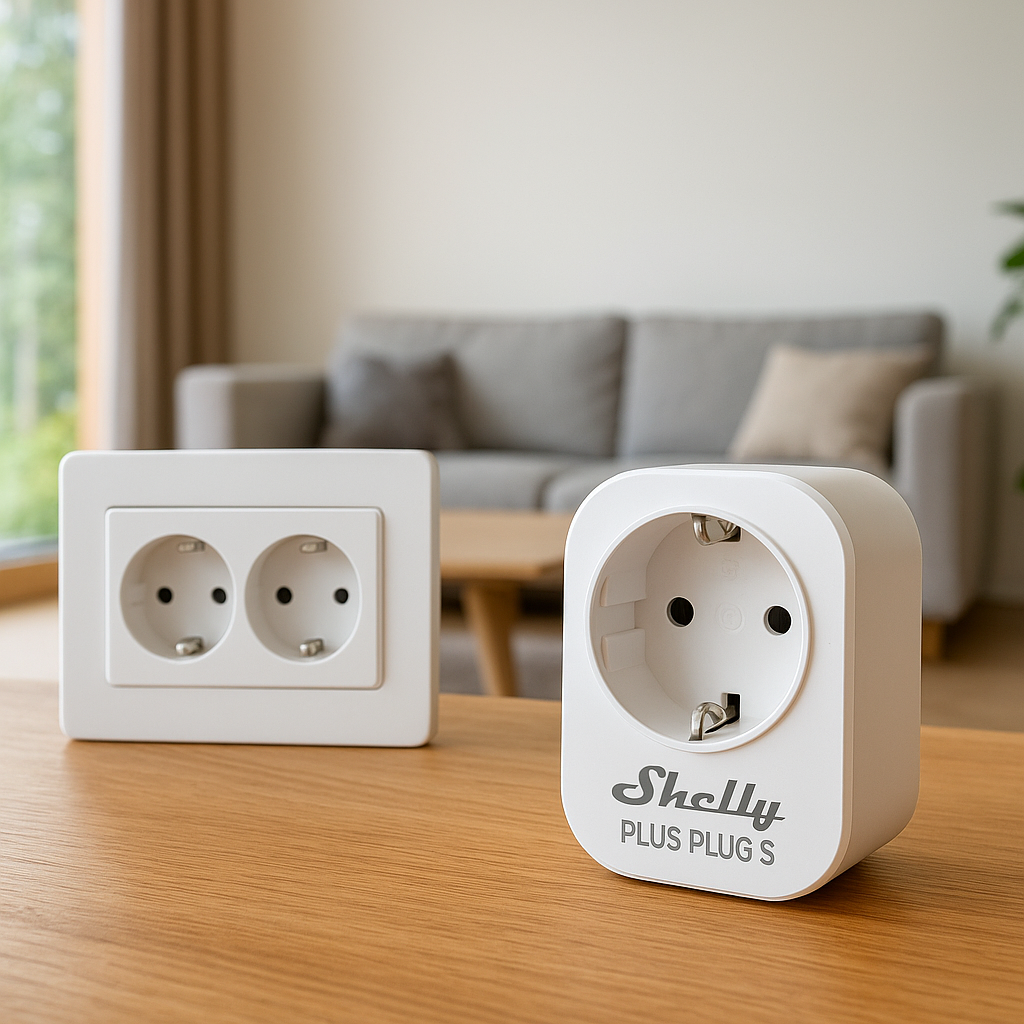
- Power: Don’t plug your HomePod or Apple TV into a smart plug that gets turned off at night.
- Network: Use a wired Ethernet connection for Apple TV if possible. It’s almost always more stable than Wi‑Fi.
- Placement: Avoid stuffing the hub in a cabinet behind your TV or Wi‑Fi router. Dense walls, metal, and appliances can all reduce signal quality.
- Single primary hub: If one hub is in a much better location (e.g., centrally located HomePod mini), prefer it by giving it the best network connection and making sure other hubs aren’t constantly power-cycling.
Why using an iPad as a hub often causes unreliable automations
An iPad can technically act as a Home hub, but it’s a poor long‑term choice:
- It may be taken out of the house, leaving no active hub behind.
- It can go to sleep or run out of battery.
- Wi‑Fi on an iPad is often weaker than a stationary HomePod or Apple TV.
If your only hub is an iPad, strongly consider adding a HomePod mini or Apple TV and turning off the iPad as a hub in Settings > Home. This alone can fix a huge number of automation issues.
Fix 2 – Reboot and Update Your Home Hub and Accessories
Restarting Apple TV, HomePod, and problematic devices
Simple restarts clear out stuck processes and stale network connections.
- Apple TV: Go to Settings > System > Restart, or unplug it for 10 seconds and plug it back in.
- HomePod/HomePod mini: In the Home app, long‑press the HomePod > scroll down > tap Reset HomePod > Restart HomePod; or unplug/replug it.
- Problem accessories: For devices like smart plugs, bulbs, and bridges (e.g., Hue Bridge, Aqara hub), power cycle by unplugging for 10–15 seconds.
After restarting, wait a few minutes for everything to reconnect, then test a simple automation such as turning on a single light.
Updating to the latest iOS, tvOS, and HomePod software
Automation reliability has improved over time, but some releases also introduce bugs. Keeping all Apple devices on similar, recent versions reduces sync and compatibility issues.
- Update your iPhone/iPad via Settings > General > Software Update.
- Update Apple TV via Settings > System > Software Updates.
- Update HomePod via the Home app: Home Settings > Software Update.
Also check for firmware updates for bridges and accessories using their own apps (e.g., Philips Hue, Eve, Aqara). Firmware updates often include HomeKit stability fixes.
When to reboot your router and modem as part of the reset
If multiple devices in your house feel sluggish or lose connection, your router may be the real problem.
- Power off the modem and router for 30 seconds.
- Turn on the modem first, wait until it’s fully online.
- Then turn on the router and wait 2–3 minutes.
- Finally, reboot your Home hub (Apple TV/HomePod).
This sequence ensures IP addresses and routes are refreshed cleanly, which often clears up “No Response” issues in the Home app.
Fix 3 – Check Your Home Wi‑Fi and Network Topology
Make sure the hub and accessories are on the same network
HomeKit expects all devices to be on the same local network (same router, same main LAN). Problems arise when:
- Your iPhone is on a guest network that blocks local device access.
- Your hub is wired to a different router than your Wi‑Fi access point (double‑NAT).
- Some devices are on a separate VLAN or isolated SSID.
In your router’s admin interface, confirm that your Home hub, bridges (like Hue), and Wi‑Fi accessories all get IP addresses from the same main network. If you use a guest network, don’t put HomeKit devices there.
Avoiding Wi‑Fi dead zones and weak signal areas
Accessories on the edge of your Wi‑Fi range are prime suspects for automations that only work sometimes.
- Use the signal/connection quality indicators in vendor apps (e.g., Hue, TP‑Link Kasa, Eve) to identify weak devices.
- Move Wi‑Fi access points closer to dense clusters of smart devices, like a garage full of switches or an outdoor camera.
- For devices in remote areas (shed, far end of garden), consider a dedicated outdoor access point.
If a particular room is always slow to respond, fix Wi‑Fi there first before blaming HomeKit.
Mesh networks, multiple SSIDs, and double‑NAT issues that break automations
Modern mesh systems (Eero, Deco, Orbi, UniFi) work well with HomeKit, but certain configurations can cause trouble:
- Double‑NAT: If both your ISP router and your mesh system are doing routing, devices can end up on separate subnets. Put one device into bridge or passthrough mode.
- Multiple SSIDs: Using different SSIDs for 2.4 GHz and 5 GHz is fine, but avoid isolating them on different VLANs unless you know what you’re doing.
- AP isolation: Some routers have “client isolation” features that block devices from talking to each other. Disable this for your smart home network.
Once your network is flat and unified, automations generally become far more consistent.
Fix 4 – Verify Accessory Power and Connectivity
Battery levels on sensors, locks, and remotes
Many of the most important automation triggers are battery powered: motion sensors, contact sensors on doors/windows, smart locks, and buttons/remotes. Low batteries can cause:
- Delayed or missed motion events.
- Contact sensors that sometimes report open/closed.
- Locks that take a long time to respond or fail entirely.
In the Home app or the manufacturer’s app, check battery levels for any device involved in failing automations. Replace batteries that are low or unknown. For critical devices like door sensors that control lights or alarms, use high-quality batteries from a known brand.
Plug‑in devices, smart plugs, and power strips turning off power
If you plug a bridge or bulb into a smart plug or switched outlet, it’s easy to cut power unintentionally.
- Always plug bridges, routers, hubs, and Wi‑Fi access points directly into unswitched outlets.
- Don’t use a wall switch to cut power to smart bulbs; leave the switch on and control them via HomeKit.
- Check if a smart plug schedule is turning power off to something critical overnight.
A surprisingly common scenario: a router, Home hub, or Hue Bridge plugged into a smart plug that turns off every night to “save energy” — taking your whole smart home down with it.
Checking Thread, Bluetooth, and Wi‑Fi signal quality to accessories
HomeKit can talk to accessories over Wi‑Fi, Thread, or via Bluetooth (often through a bridge). Each has its own failure modes:
- Bluetooth: Range is limited. If your motion sensor is behind multiple walls, it may only send events intermittently.
- Thread: Generally robust, but relies on mains‑powered border routers (like HomePod mini and some Eve devices). If you unplug these, the mesh weakens.
- Wi‑Fi: Needs decent signal and a stable router, especially for cameras and always‑on devices.
Use vendor apps to see how a device is connected (Thread vs Bluetooth vs Wi‑Fi) and move or add devices to strengthen the mesh where needed.
Fix 5 – Review Automation Conditions, Triggers, and Time Settings
Time‑based automations not running at sunrise/sunset or specific times
Time issues often come from misconfigured settings rather than hardware problems.
- Confirm your address is set correctly in Home Settings > Home Information so sunrise/sunset times are accurate.
- Ensure your iPhone and hub use the correct time zone and automatic time updates.
- Check whether the automation uses at sunset vs 15 minutes before sunset, etc. The offset might make it appear “wrong.”
- If you edited an older automation multiple times, delete it and recreate it cleanly (especially for sunrise/sunset triggers).
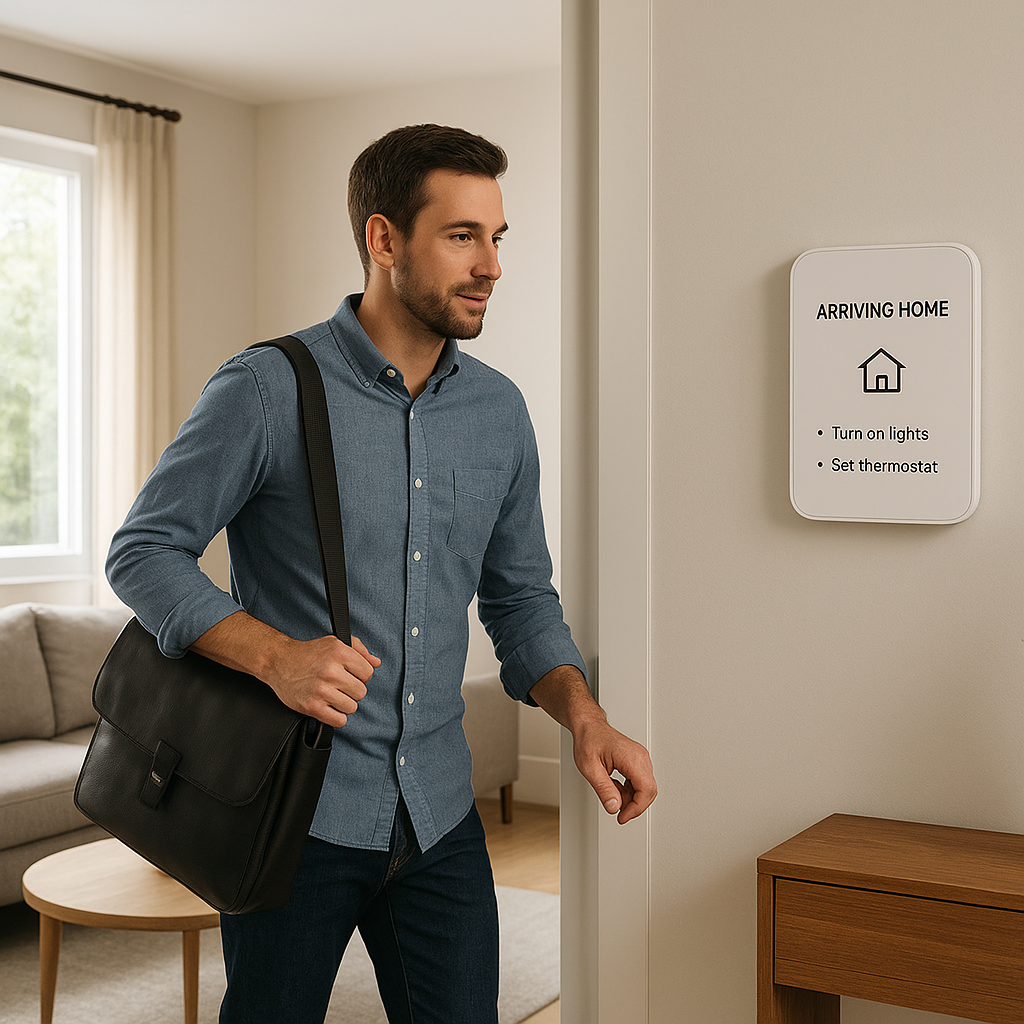
People‑based automations (Arrive/Leave Home) not triggering correctly
Presence automations depend heavily on iPhone location and background permissions.
- Each participating person must allow Location Services and Share My Location with the correct Apple ID.
- Presence automations usually work best when all household members are in the same shared Home, rather than separate Homes.
- Test automations using one person at a time: create a simple automation like “When I arrive home, turn on entry light” and see if it triggers consistently.
If presence only fails for one person, the issue is nearly always that person’s phone settings, not the hub or accessories.
Condition conflicts (e.g., ‘Only at night’, ‘When someone is home’) that block automations
Complex automation conditions can silently block actions. For example:
- A motion automation set to run Only at night plus a scene that also checks time or presence can cancel itself out.
- A door sensor automation configured to run only When someone is home may not trigger when you expect if HomeKit thinks everyone has left.
- Multiple automations controlling the same lights with opposing conditions can create odd behavior.
When debugging, temporarily remove extra conditions. Start with a simple version (“When motion is detected, turn on light”) and add time/presence limits back one at a time.
Fix 6 – Rebuild Problem Automations from Scratch
Deleting and recreating unreliable routines in the Home app
Sometimes automations themselves get corrupted, especially older ones created before major Home architecture changes.
- Identify automations that fail more than they work.
- Take screenshots of their configuration so you can re‑create them.
- Delete the automation entirely, then rebuild it fresh using the current Home app version.
Recreated automations often behave much better, particularly for sunrise/sunset and presence routines.
Splitting complex automations into smaller, more reliable ones
HomeKit prefers simple, single‑purpose automations. Instead of one huge rule that:
- Turns on multiple lights,
- Adjusts thermostats,
- Sets lock states, and
- Depends on multiple conditions,
break it into 2–3 smaller automations or use scenes (see below). Smaller automations are easier to debug and less likely to fail silently.
Using scenes as building blocks to simplify your logic
Scenes like “Movie Night”, “Away”, or “Good Morning” are reusable building blocks.
- Create scenes that set devices to the exact states you want.
- Then create automations that only decide when to run those scenes — based on time, motion, or presence.
- This lets you adjust device behavior by editing the scene, without touching the automation logic.
For example, have a “Welcome Home” scene that turns on entry lights, sets a temperature, and starts a lamp. Then an automation simply runs “Welcome Home” when the first person arrives.
Fix 7 – Check User Permissions and Shared Home Settings
Making sure invited users have permission to run automations
In a shared Home, not everyone has equal control by default:
- Open Home Settings > Home Settings > People and select each person.
- Confirm they have permission to Control accessories and automations.
- For remote access and presence, they must have Remote Access enabled and be signed into iCloud.
If a user can’t edit or run automations, check these permissions first.
How HomeKit behaves when different family members come and go
Presence automations can be set to trigger when:
- The First Person Arrives,
- The Last Person Leaves, or
- A Specific Person arrives/leaves.
Misunderstanding this can lead to confusion. For example, if an automation is set to “First Person Arrives” and one person is already home, it won’t fire when another person comes in later.
Review each automation to ensure the presence logic matches how your household actually comes and goes.
Fixing automations that only fail for specific users or phones
If an automation works for you but not your partner or kids:
- On their phone, ensure they see the same Home and devices in the Home app.
- Verify Settings > [Name] > Find My > Share My Location is enabled, using their primary device.
- Check they’re using the correct Apple ID associated with the shared Home.
- Toggle iCloud Home off and on: Settings > [Name] > iCloud > Show All > Home.
Presence and notification issues that affect only one person almost always trace back to device or Apple ID settings.
Fix 8 – Disable Low Power and Focus Modes That Interfere
How Low Power Mode can delay geolocation‑based automations
Low Power Mode aggressively reduces background activity, including location updates. That can delay or prevent presence automations from firing when you arrive or leave.
- On your iPhone, go to Settings > Battery and disable Low Power Mode, at least for testing.
- If presence automations suddenly start working again, avoid leaving Low Power Mode on all day.
Focus/Do Not Disturb modes and background activity limits
Focus modes (like Sleep, Work, Driving) don’t usually kill HomeKit entirely, but in combination with other settings they can reduce background activity.
- Check your active Focus modes under Settings > Focus.
- If a Focus automatically turns on when you leave home or connect to your car, test presence automations with Focus disabled.
- Make sure the Home app isn’t restricted in Settings > Screen Time.
Think of Focus and system power‑saving as additional friction that can make already fragile presence automations less reliable.
Location Services and Background App Refresh settings to verify
Presence automations rely on accurate, continuous location tracking:
- Go to Settings > Privacy & Security > Location Services and ensure it’s On.
- Scroll to Home and set to Always, with Precise Location enabled.
- In Settings > General > Background App Refresh, make sure it is enabled for Home.
Without these permissions, your phone may only update location when you open the Home app manually, leading to missed automations.
Fix 9 – Clean Up Old Homes, Duplicate Hubs, and Ghost Devices
Removing old ‘Home’ setups and unused rooms
If you’ve experimented with multiple Homes or moved house, you may have old setups lingering in your account.
- In the Home app, tap the three dots (…) > Home Settings and switch between Homes.
- Delete any Homes you no longer use.
- Within your main Home, remove rooms that no longer exist or that contain no active devices.
This reduces clutter and makes it easier to see what’s really going on.
Deleting offline or duplicate accessories from the Home app
Ghost devices — accessories that are offline permanently or left over from partial removals — can confuse the system.
- In the Home app, look for devices showing “No Response” all the time.
- Confirm they’re truly gone (you don’t plan to use them again).
- Long‑press > Accessory Details > scroll down > Remove Accessory.
If you migrated from one bridge or brand to another, make sure the old devices are completely removed from HomeKit.
When to sign out and back into iCloud to fix sync problems
If you see different devices or automations on different Apple devices, your Home data may be out of sync.
- First, try toggling iCloud Home off and on in Settings > [Name] > iCloud > Show All.
- As a last resort, sign out of iCloud on one device, reboot it, then sign back in. Allow time for Home data to re‑sync.
Do this carefully and one device at a time to avoid confusion.
Fix 10 – Reset the Home Architecture as a Last Resort
When to remove and re‑add the Home hub
If a particular HomePod or Apple TV seems cursed — automations fail whenever it’s the active hub — try removing and re‑adding it.
- In the Home app, long‑press the hub > scroll down > Remove Accessory.
- Reset the device using Apple’s instructions.
- Set it back up on the same Apple ID and Wi‑Fi network.
After re‑adding, give iCloud time to sync and verify it shows as a Connected home hub.
Backing up your setup before removing the entire Home
Fully resetting your Home is a nuclear option but can clear deep corruption. Before you do that, capture your setup:
- Take screenshots of all rooms and key automations.
- Write down which accessories belong to which rooms and scenes.
- If you use a third‑party app like Controller for HomeKit, consider exporting a backup of your configuration (see Fix 11).
Re‑pairing accessories and carefully rebuilding automations
To reset the entire Home:
- In the Home app, go to Home Settings > scroll down > Remove Home.
- Recreate the Home, then add accessories one room at a time.
- Test basic control (on/off, lock/unlock) before rebuilding complex automations.
- Reintroduce automations gradually so you can see exactly when problems return.
This is tedious, but for some users it’s the only way to fix persistent architectural issues.
Fix 11 – Advanced Tips: Logs, Third‑Party Apps, and Matter Devices
Using third‑party HomeKit apps (like Controller for HomeKit) to debug
Apple’s Home app is simple but hides a lot of detail. Third‑party HomeKit apps such as Controller for HomeKit or Eve for Home can:
- Show more detailed device status and logs.
- Export and import configuration backups.
- Expose advanced characteristics and triggers not visible in the standard Home app.
Use these tools to see which device missed a command or didn’t update state when an automation ran.
Special issues with Matter and Thread devices in HomeKit
Matter and Thread devices promise better interoperability, but the ecosystem is still maturing. Some common quirks include:
- Devices falling back from Thread to Wi‑Fi or Bluetooth when border routers go offline.
- Inconsistent support for advanced features like energy monitoring or multi‑button remotes across platforms.
- Firmware updates that temporarily break compatibility until the controller (Home hub) is updated too.
If a specific Matter device or brand is causing trouble, check its release notes and community forums for known issues. For background on the standard itself, see the Matter home automation standard overview.
When to contact Apple Support or the accessory manufacturer
Contact support when:
- Automations fail consistently even after trying all of the above, and you can reproduce the failure.
- A specific accessory behaves differently in HomeKit than in its own app.
- You see repeated errors during pairing or firmware updates.
Collect logs, screenshots, and a clear description of which automations fail and when. This makes it far more likely that Apple or the manufacturer can identify a real bug rather than generic “reset” advice.
Preventing Future HomeKit Automation Problems
Best practices for rock‑solid automations (naming, grouping, testing)
A bit of structure upfront goes a long way:
- Use clear names: Name devices and scenes by room and function (e.g., “Kitchen Main Light”, “Hallway Motion”).
- Keep automations simple: One purpose per automation where possible.
- Test new automations: Manually trigger conditions (e.g., simulate sunset, walk past sensors) and confirm behavior for a few days.
- Document critical routines: For your most important automations (security, locks, heating), keep a short note or screenshots so you can rebuild them quickly if needed.
Network and hardware choices that improve reliability long‑term
For a more robust Apple Home setup:
- Invest in a decent router or mesh system that can handle lots of connected devices.
- Use at least one always‑on HomePod mini or Apple TV 4K in a central location.
- Favor Thread‑enabled accessories where possible, especially for sensors and plugs spread across the house.
- Avoid putting critical devices on smart plugs or switched outlets.
Think of your smart home like any other infrastructure: a solid network and always‑on hub are non‑negotiable for reliability.
Simple monitoring habits so you catch issues early
You don’t need formal monitoring, but a few habits help:
- Once a week, quickly scan the Home app for “No Response” devices.
- Keep an eye on battery levels for motion/contact sensors and locks.
- After major iOS/tvOS/HomePod updates, manually test a few key automations.
- Consider a simple “health check” scene or automation you can trigger from outside (e.g., flash a hallway light) to verify remote control is working.
Small, regular checks mean you discover problems before you’re standing in the dark wondering why the lights didn’t turn on.
Conclusion
Unreliable HomeKit automations are frustrating, but they’re rarely random. By checking your hub, network, accessory power, and automation logic step by step, you can usually pinpoint the weak link and restore confidence in your routines.
Start with the basics — a solid home hub and good Wi‑Fi — then refine your automations and permissions. For stubborn issues, advanced tools and a careful reset can bring even messy setups back under control.
FAQ
Why do my HomeKit automations only work when I’m on Wi‑Fi?
If automations only work when you’re on home Wi‑Fi, your home hub may be offline or misconfigured, so commands are going directly from your phone to devices instead of through iCloud. Check that a HomePod or Apple TV shows as a connected hub, and ensure remote access is enabled for your Apple ID.
Can I run HomeKit automations without a HomePod or Apple TV?
You can technically use an iPad as a hub, but for reliable, always‑on automations, a HomePod (including mini) or Apple TV is strongly recommended. Without any hub at all, only shortcuts that run directly on your iPhone will work, and true Home automations won’t run when you’re away.
Why do my motion‑based automations stop working after a few days?
This often points to low batteries, weak signal, or the hub moving to a worse location. Check the motion sensor’s battery level, verify its connection type (Bluetooth, Thread, or via a bridge), and ensure your primary hub hasn’t changed to a device farther away.
Are Matter devices more reliable in Apple Home?
Matter is designed to improve interoperability, but reliability still depends on your network, hubs, and device firmware. In many homes, Thread‑based Matter devices are very solid, but you may still encounter brand‑specific bugs until the ecosystem fully matures.
Should I delete all my automations and start over?
Only as a last resort. Start by fixing specific problem areas: hub status, Wi‑Fi, device power, and misconfigured conditions. Then selectively rebuild only the automations that misbehave. Wiping everything can work, but it’s time‑consuming and not always necessary.