Leaving home for more than a night always raises the same question: how do you make the house look like someone is still there? A smart vacation mode can do more than just turn a lamp on and off. With the right setup, your lights, plugs, and blinds can work together to mimic your real routines and make your home look genuinely lived-in.
This guide walks you through how to set up smart home vacation mode step by step. You’ll learn which devices you need, how to plan realistic schedules, and how to combine everything into a single scene or routine you can activate before you leave.
What Is Smart Home Vacation Mode and Why It Matters
How burglars spot an empty home
Most break-ins are crimes of opportunity. Burglars look for houses that clearly seem empty: blinds left in the same position for days, lights never changing, or everything completely dark every evening. Even stacked-up mail or garbage cans that never move can be a giveaway.
At night, one of the biggest clues is lighting. If your home is either pitch-dark all evening or has the exact same light on at the exact same time every day, it can signal that no one is actively living there. During the day, closed blinds 24/7 or the opposite—blinds wide open with no variation—can also be a sign.
Smart vacation mode aims to break those patterns. Instead of predictable timers, your home shows subtle changes that look like a real person is turning things on and off throughout the day.
Benefits of a smart vacation mode vs. simple timer plugs
Old-school mechanical timers can switch a lamp on and off, but they’re limited. Smart vacation mode does more:
- Randomization: Slightly different on/off times from day to day feel more natural.
- Multiple devices working together: Lights, blinds, and plugs create a full picture of activity instead of a single glowing window.
- Remote control: You can adjust schedules or turn devices on/off from your phone while you’re away.
- Integration with security devices: Vacation routines can tie into cameras, doorbells, and sensors.
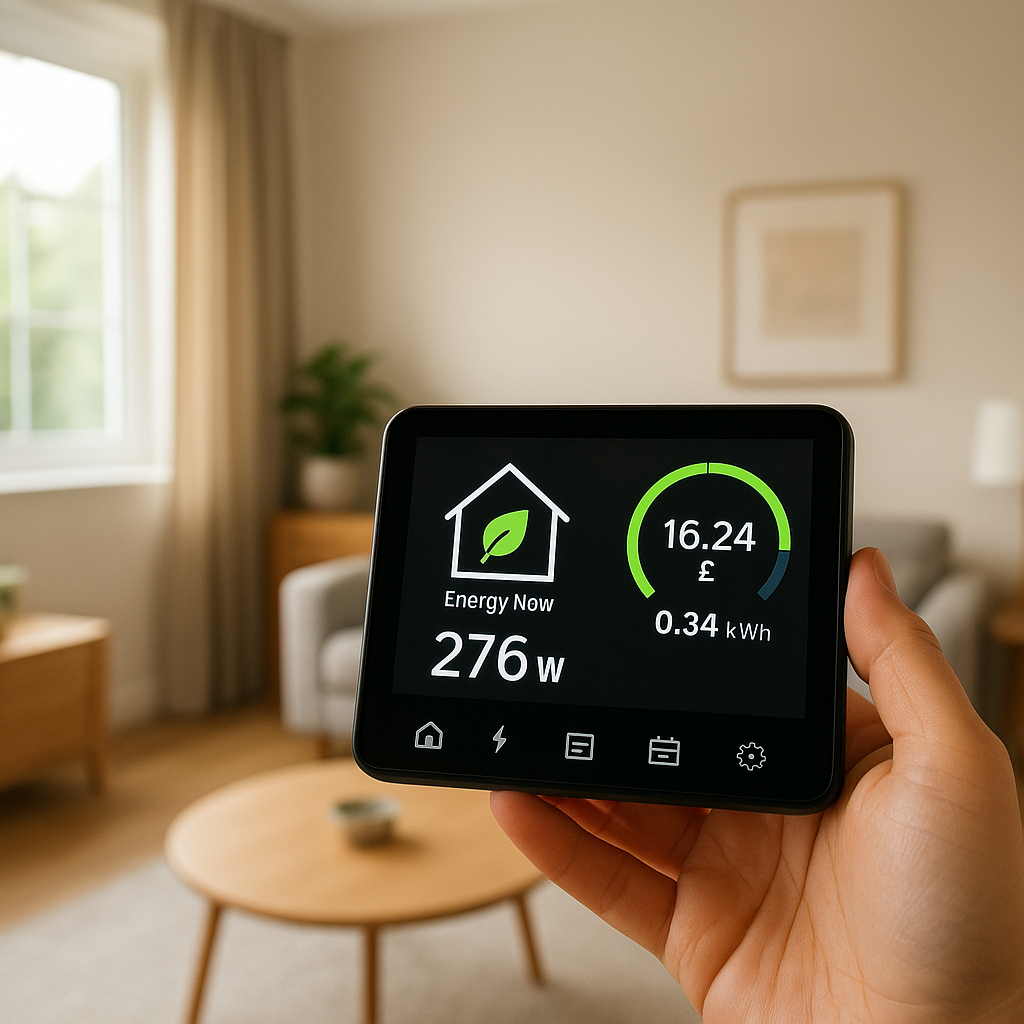
- Energy awareness: Smart systems let you limit how long devices stay on so you’re not wasting power for weeks.
Core devices you’ll use: lights, plugs, blinds, and sensors
You don’t need to automate your entire home to get a realistic effect. Focus on:
- Smart lights: Wi‑Fi or hub-based bulbs (e.g., Philips Hue, TP-Link Kasa, LIFX) and smart switches in key rooms and exterior lights.
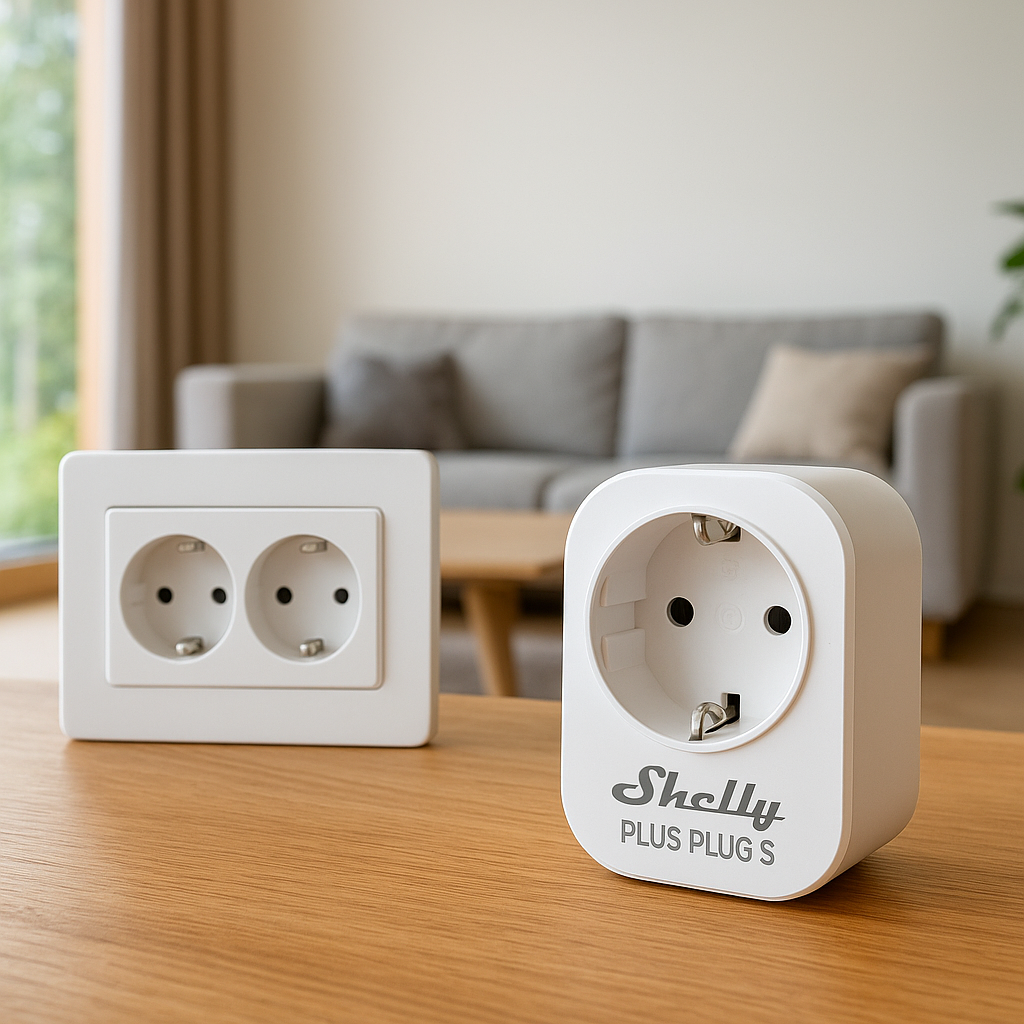
- Smart plugs: Plugs that control lamps, radios, or TVs, such as TP-Link Kasa, Eve Energy, or Amazon Smart Plug.
- Smart blinds and curtain motors: Systems like IKEA Fyrtur, Aqara curtain motors, or SwitchBot Curtain that can open/close on a schedule.
- Sensors (optional): Motion or contact sensors that can trigger extra lights or alerts while you’re away.
These devices together let you build believable patterns that resemble your normal daily life.
Smart Devices You Need for a Realistic ‘Lived-In’ Effect
Smart lights for varied, realistic lighting patterns
Smart bulbs and switches are the backbone of vacation mode. Focus on:
- Living areas visible from outside: Front rooms, hallways, and porch lights.
- Rooms you actually use at night: Living room, kitchen, bedroom, home office.
- Dimmer support: Being able to dim lights makes scenes look more natural than full brightness.
Choose products with built-in “away” or “presence simulation” features if possible. For example, Philips Hue’s app lets you create routines with random offsets, which is useful for vacation schedules.
Smart plugs to control TVs, lamps, and small appliances
Smart plugs are great for creating the illusion of life without rewiring anything:
- Lamps: Plug floor or table lamps into smart plugs and leave their switches on.
- TV or radio: A plug can power on a TV or radio at certain times to add sound and flickering light.
- Decorative lighting: String lights in a window, or a bookshelf lamp that’s visible from the street.
Make sure the plug and the device remember their last power state. Test that when you power-cycle the plug, the device turns on without needing the physical button.
Smart blinds and curtains to mimic daily routines
Automated blinds or curtain motors add a powerful signal that someone is home. Most people don’t leave blinds frozen for a week.
Look for systems that support:
- Schedules: Open in the morning, close at night, with separate weekday/weekend options.
- Integration with your platform: Alexa, Google Home, Apple Home, SmartThings, or Home Assistant.
- Partial opening: Being able to open halfway gives more nuance than fully open/closed.
Optional extras: presence simulation, speakers, and motion sensors
To push your vacation mode further, consider:
- Presence simulation: Some hubs and apps have built-in “presence” or “vacation” features that randomize lighting for you.
- Smart speakers: A Google Nest or Echo speaker can play radio, podcasts, or TV noise at scheduled times.
- Motion sensors: Trigger extra lights or alerts if motion is detected in specific zones while you’re away.
Planning a Realistic Vacation Routine Before You Automate
Study your real weekly patterns (lights, TV, blinds)
Before creating any routines, spend a few evenings paying attention to what you actually do:
- Which rooms are lit around sunset, and until when?
- When do you normally close blinds or curtains?
- When is the TV or music usually on?
- Do you get up early on weekdays but sleep in on weekends?
Write down approximate times and which lights or devices are on. This becomes your template for vacation mode.
Choosing which rooms and devices to automate first
You don’t need to automate every room. Start with:
- Front-facing rooms: Anything visible from the street or common walking paths.
- Entry areas: Hallway or foyer lights that suggest people coming and going.
- One or two upstairs rooms: Bedroom or office lights turning on briefly in the evening feel very natural.
If budget is tight, prioritize a porch or entry light, one downstairs living area light, and one upstairs light.
Balancing realism with energy savings
A realistic vacation mode doesn’t need every light blazing all night. Aim for:
- Shorter periods where single lights are on.
- Dimming to 30–60% brightness for most evening lighting.
- Devices turning off fully by late night (e.g., after 11:30 p.m.).
Think about how much light your household normally uses. Copy that feel rather than overdoing it “for security.”
Step-by-Step: Setting Up Smart Vacation Mode with Your Lights
Using built-in vacation mode or presence simulation features
Some lighting systems include dedicated vacation features. For example, Philips Hue has “Home & Away” routines, and several hubs offer “presence simulation” apps or plugins.
If your system supports it:
- Open the app and look for “Away,” “Vacation,” or “Presence” options.
- Select which lights are included (avoid bathrooms and utility rooms).
- Enable randomization if available.
- Set the active time window (e.g., 6 p.m.–11:30 p.m.).
Creating randomized evening lighting schedules
If your platform doesn’t offer built-in presence simulation, you can still create realistic routines by hand:
- Create multiple scenes (e.g., “Early Evening,” “Prime Time,” “Late Night”).
- Schedule each scene to run at slightly different times each day if your platform allows offsets (e.g., “at 7:00 p.m. ± 20 minutes”).
- Use overlapping scenes so one light turns off while another turns on.
Random offsets are key. Even a 10–20 minute variation keeps things from becoming predictable.
Avoiding giveaway patterns (every light on at the same time)
Nothing screams “automation” like every light turning on at once. To avoid that:
- Stagger start times by 5–15 minutes.
- Don’t light every room; keep some dark as they would normally be.
- Turn certain lights on only briefly (e.g., bedroom light for 20–30 minutes).
- Dim lights instead of running them at 100% brightness.
Example lighting schedule for weekdays and weekends
Here’s a simple example you can adapt:
Weekday sample:
- 6:15 p.m. – Porch light on (stays on overnight at 40–60%).
- 6:30–8:30 p.m. – Living room lamp on at 60% (randomize start by ±15 minutes).
- 8:15–9:00 p.m. – Kitchen light on at 50% (overlaps with living room).
- 9:00–9:45 p.m. – Upstairs bedroom light on at 40%, then off.
- 11:30 p.m. – All indoor lights off; porch remains on.
Weekend sample:
- 7:00–10:30 p.m. – Living room lamp on later to mimic staying up.
- 10:00–10:45 p.m. – Bedroom light on longer.
- Occasional dining room light for 30 minutes early evening.
Step-by-Step: Using Smart Plugs to Simulate Activity
Automating lamps in visible rooms
For lamps that aren’t smart bulbs, smart plugs can do the job:
- Plug the lamp into the smart plug and leave the lamp’s switch ON.
- Name plugs clearly in your app (e.g., “Front Window Lamp”).
- Add them to your existing lighting scenes or routines.
Use plugs for a few key lamps visible from outside rather than every lamp in the house.
Scheduling TV or radio for background noise with smart plugs
A TV or radio switching on for an hour in the evening can be convincing. To do this safely:
- Connect the TV or radio to a smart plug.
- Ensure the device powers on automatically when it gets power.
- Schedule it for 30–90 minutes in the early or mid-evening, not at the exact same time every day.
You can improve realism by using a news channel or talk radio, so the sound is more like conversation than repetitive music.
Safety tips: what you should never put on a smart plug
Some devices should not be controlled remotely with a smart plug for safety reasons:
- Space heaters or portable heaters
- Irons or hair straighteners
- Slow cookers or any cooking appliances that can overheat or cause fire.
Only automate devices that are safe to turn on unattended and won’t become a hazard if left on longer than planned.
Example smart plug schedule for a realistic evening routine
Here’s a simple pattern:
- 6:45–9:15 p.m. – Front window lamp on via smart plug (randomized ±15 minutes).
- 7:30–8:30 p.m. – TV on via smart plug in living room two or three nights per week.
- 9:30–10:00 p.m. – Bedroom lamp on for reading, then off.
Vary which days include the TV or radio so it doesn’t sound like a loop.
Step-by-Step: Automating Blinds and Curtains While You’re Away
Setting open/close times that match your normal habits
Think about your typical routine:
- When do you usually open blinds in the morning?
- Do you fully close them at night, or leave them partly open?
- Do you change positions on weekends?
Set your blinds or curtain motors to follow that pattern as closely as possible for both weekdays and weekends. Small differences (like opening an hour later on weekends) help everything feel real.
Using sunrise/sunset automation to keep things natural
Many platforms let you trigger actions based on sunrise and sunset with offsets. For example:
- Open blinds 30 minutes after sunrise.
- Close living room blinds 30–60 minutes after sunset.
- Bedroom blinds close slightly later than the living room.
This keeps your schedule aligned with changing daylight times, which is more believable than fixed clock times all year.
Coordinating blinds with your smart lighting schedule
Blinds and lights should complement each other:
- Close living room blinds shortly before your interior lights turn on bright in that room.
- Open bedroom blinds in the morning before or around the time any bedroom lights might come on briefly.
- If a room’s blinds are always fully open, keep light brightness lower so it doesn’t look like a showroom.
Creating a Unified Vacation Mode Scene or Routine
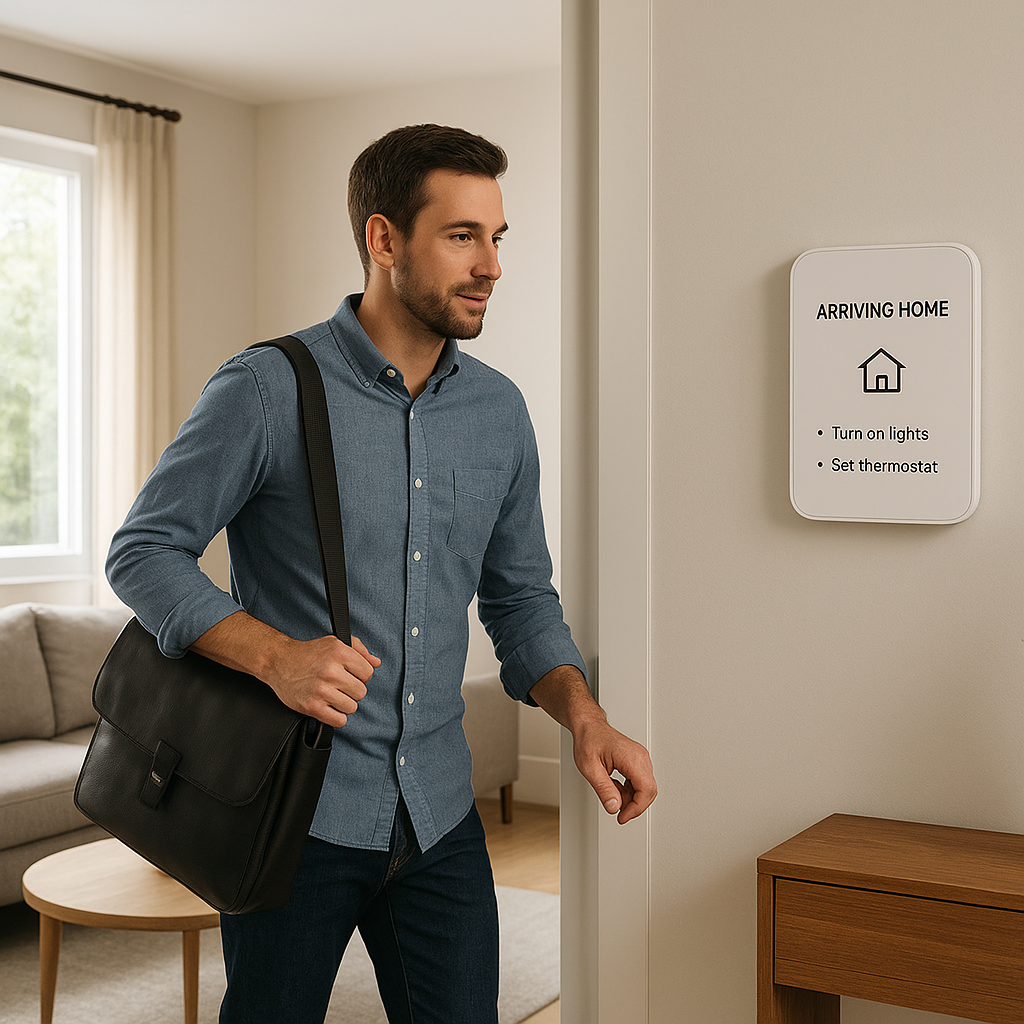
Setting up a single ‘Vacation Mode’ scene in common apps
Most smart home platforms let you create a “scene,” “routine,” or “mode” that bundles actions together. Create one called “Vacation Mode” that:
- Enables your lighting schedules or presence simulation.
- Activates blind schedules (if different from normal).
- Turns on relevant smart plug automations.
- Arms cameras or changes notification levels.
The goal is to have a single thing to activate instead of toggling lots of individual settings.
How to trigger vacation mode (phone, voice, geofencing)
Depending on your platform, you can:
- Tap a button in the app labeled “Vacation Mode.”
- Use a voice assistant command like “Alexa, I’m leaving for vacation.”
- Use geofencing so vacation mode enables if everyone’s phones are away from home for a set time (e.g., 24 hours).
Manual activation is usually best for longer trips so you don’t trigger it during a normal workday.
Combining lights, plugs, and blinds into one automation
Within your main routine, include:
- A step that enables your “evening presence” lighting scenes.
- Schedules or automations for smart plugs (lamps, TV/radio).
- Morning and evening blind actions.
- Optional: changes to thermostat settings and security devices.
Make sure you also define how to disable vacation mode when you return, restoring your usual automations.
Example multi-device vacation mode routine (step-by-step)
Here’s a basic example:
- Create lighting routines as described earlier (weekday/weekend).
- Set smart plug schedules for lamps and TV/radio.
- Configure blinds to open after sunrise and close after sunset.
- Create a “Vacation Mode” scene that:
- Turns off any motion-based interior lighting automations that might conflict.
- Enables the vacation lighting and plug schedules.
- Arms cameras and doorbells to “Away” mode.
- Add a shortcut on your phone or a voice phrase to activate this scene.
Platform Walkthroughs: Vacation Mode in Popular Smart Home Systems
Vacation mode ideas with Amazon Alexa and Alexa Guard
With Alexa, you can use routines plus Alexa Guard (now often called Guard in some regions) to monitor for sounds like glass breaking and smoke alarms. Amazon’s support page for Guard explains the features and setup in detail: Alexa Guard help & setup guide.
Ideas:
- Create an “I’m away” routine that turns on Guard, activates lighting routines, and adjusts smart plugs.
- Use Alexa routines to randomize lights in the evening.
- Enable notifications for detected sounds while you’re away.
Using Google Home routines for presence simulation
Google Home lets you build custom routines:
- Create a “Vacation Mode” routine that runs at a set time each day.
- Within it, turn on specific lights and plugs, then turn them off after delays.
- Use sunrise/sunset conditions for blinds if they’re integrated via a supported platform.
You can also use multiple shorter routines (e.g., “Evening lights,” “Late night lights”) that you enable only when traveling.
Apple Home (HomeKit) scenes and automations for travel
In Apple Home, you can build a “Vacation” scene that sets your preferred state for lights, plugs, and blinds. Then:
- Create automations that trigger this scene based on time of day and your “People” presence status.
- Use “People Leave” conditions to change modes when no one is home.
- Combine with HomeKit-compatible cameras to record and send alerts while the scene is active.
Tips for SmartThings, Home Assistant, and other hubs
Hubs like SmartThings and Home Assistant are excellent for advanced vacation modes:
- SmartThings: Use Modes (Home, Away, Night) and Routines to change behavior when set to “Away.” You can add community SmartApps for presence simulation.
- Home Assistant: Use automations with templates to create random on/off times within a window and coordinate multiple devices with one toggle (an input_boolean like “vacation_mode”).
- Other hubs: Look for “vacation,” “away,” or “presence simulation” plugins in their automation libraries.
Security Best Practices While You’re Away
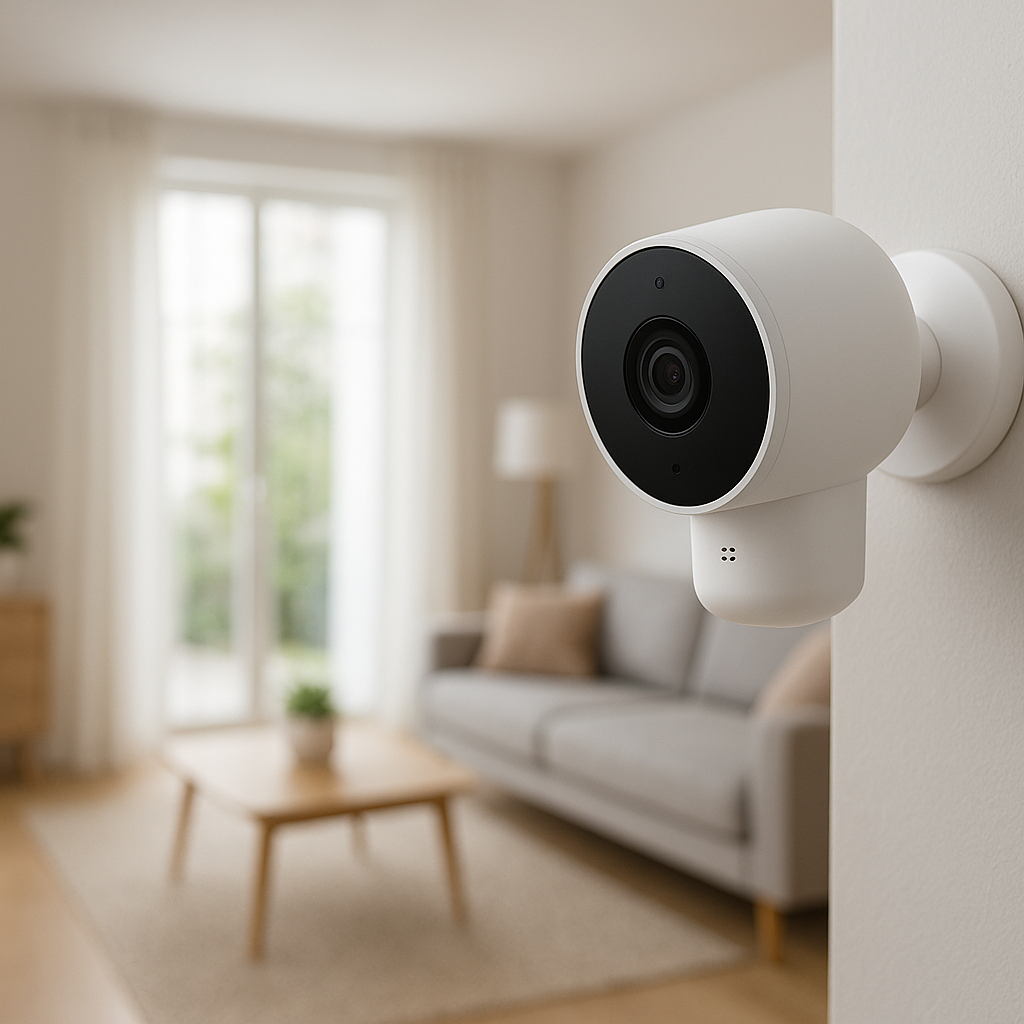
Integrating smart cameras and doorbells with vacation mode
Smart cameras and video doorbells add another layer of security:
- Arm cameras and doorbells when vacation mode is active.
- Enable motion recording and set sensible notification zones.
- Connect them to your hub or routines so that certain alerts (like door motion at night) can also trigger extra lights.
Notifications, alerts, and how much is too much
Notifications are useful, but constant alerts can cause you to ignore them. To avoid noise:
- Set higher sensitivity thresholds only for key areas (front door, driveway).
- Disable or reduce interior motion notifications unless you suspect an intrusion.
- Use summary or digest features if available so you’re not pinged for every minor motion.
Why you should disable certain automations when traveling
Some everyday automations don’t make sense while you’re away and can interfere with vacation mode:
- Motion-triggered lights that expect you to walk through a room.
- Presence-based automations that turn everything off when your phone leaves home (you want some things on).
- Voice announcements that could play randomly to an empty home.
Use your “Vacation Mode” routine to temporarily pause or override these.
Privacy and account security checks before you leave
Before a trip, do a quick security check:
- Make sure your smart home accounts use strong, unique passwords and two-factor authentication.
- Review which devices and people have access to your home controls.
- Update firmware on critical devices like locks, cameras, and hubs.
For background on how burglars select targets and common risk factors, the Burglary article on Wikipedia offers useful context.
Testing and Fine-Tuning Your Vacation Mode
Doing a “mock vacation” weekend to test your setup
Before a long trip, test your whole setup while you’re still nearby:
- Enable vacation mode for a weekend away or even just one night.
- Drive or walk past your home at different times to see what it looks like.
- Check your camera feeds (if you have them) to see lighting and blinds from the outside perspective.
Common mistakes that make your home look obviously automated
Watch out for:
- All lights turning on or off at exactly the same time.
- Blinds never changing position.
- TV or radio on at unrealistic hours (e.g., 3 a.m.).
- Extremely bright lighting that doesn’t match your neighborhood.
Adjusting brightness, timing, and randomization based on feedback
After your mock test, tweak:
- Brightness levels so they look similar to your usual evenings.
- On/off times that felt odd or too regular.
- Which rooms are included if certain windows look overly bright or completely dead.
Ask a trusted neighbor for feedback as well. They see your house from the outside more than you do.
Simple Vacation Mode Templates You Can Copy
Small apartment: 2–3 devices only
If you’re in a small apartment, you can still set up a convincing vacation mode with minimal gear:
- One smart bulb or switch in the main living area.
- One smart plug for a lamp or radio.
- Optional: smart plug for a bedroom lamp.
Schedule the living room light around sunset, plus a short TV/radio period in the evening, and a brief bedroom lamp session before “bedtime.”
Suburban house: front-facing rooms and blinds
For a typical house:
- Smart bulbs or switches in front-facing living/dining room, hallway, and at least one upstairs room.
- Smart plugs for a front window lamp and maybe a TV.
- Smart blinds or curtains in main front windows.
Automate a porch light, staggered evening lights on both floors, and blinds that open in the morning and close in the evening.
Extended trip: long-term energy-saving vacation mode
For long trips, lean more heavily on energy savings:
- Run lights for shorter periods and at lower brightness.
- Use blinds and exterior lighting for most of the signaling.
- Reduce how often TVs or radios run.
- Combine with thermostat setbacks and more aggressive security monitoring.
Final Checklist Before You Leave Home
Device health and connectivity checks
Before you walk out the door:
- Check that all key devices (lights, plugs, blinds, hub) are online in their apps.
- Verify Wi‑Fi coverage to devices at the edges of your home.
- Update apps and firmware a few days before—not the night before—so you can spot any issues.
Verifying all vacation routines are active
Then confirm:
- Your “Vacation Mode” scene or routine is enabled.
- Schedules for lights, plugs, and blinds are turned on.
- Cameras and doorbells are in the correct mode (Away/Armed).
If your platform allows it, run a quick test to simulate the next scheduled event to ensure it triggers correctly.
Backup plans if Wi-Fi or power goes out
No system is perfect, but you can add a bit of resilience:
- Use some automations that are stored locally on a hub, not just cloud-based.
- Consider a small UPS (battery backup) for your router and smart hub so short outages don’t break everything.
- Ask a neighbor or friend to check on the house if your cameras or devices go offline for an extended period.
Conclusion
Setting up smart home vacation mode is less about fancy tech and more about copying your real habits. By coordinating a few smart lights, plugs, and blinds, you can create believable patterns that make your home look lived-in while you’re away.
Start small with the rooms most visible from outside, then layer in blinds, sounds, and presence simulation as your setup grows. Test, tweak, and save everything into one easy “Vacation Mode” routine so leaving home becomes as simple as tapping a button.
FAQ
Do I need a smart hub to set up vacation mode?
No. Many Wi‑Fi smart bulbs, plugs, and blinds work with their own apps and can run schedules without a hub. A hub (like SmartThings or Home Assistant) does make it easier to coordinate multiple brands and create more advanced presence simulation, but it’s not required.
How many smart devices do I really need for effective vacation mode?
In many homes, 3–5 devices are enough: one porch or entry light, one main living room light, one upstairs or bedroom light, and one or two smart plugs for lamps or sound. You can add blinds and more rooms later if you want a more detailed simulation.
Is it better to leave some lights on all night or use schedules?
Schedules are usually better. A porch or security light can stay on all night, but interior lights should turn on and off at different times. That looks more natural and uses less energy than leaving several indoor lights on continuously.
Can vacation mode replace a traditional alarm system?
No. Smart lighting and presence simulation are deterrents, but they don’t replace door/window sensors, alarms, or professional monitoring. Vacation mode works best as part of a broader security approach that includes locks, cameras, and, if appropriate, an alarm system.
What happens if my internet goes down while I’m away?
Many devices will keep running their last saved schedules even without internet, as long as your local Wi‑Fi and power stay on. Cloud-only automations may stop. That’s why it helps to test your setup ahead of time and, if possible, use a hub that stores automations locally.