Stumbling through a dark hallway or feeling for a light switch on the stairs gets old fast. Smart motion sensors can quietly solve that problem by turning lights on and off for you, only when you need them.
This guide walks through how to automate hallway and stair lights with motion sensors, from picking the right hardware to placing sensors correctly and fine-tuning settings. The goal: a smoother, safer walk through your home at night without wasting energy.
You don’t need to be an electrician or a home automation expert. With a bit of planning, you can start with a simple sensor and expand later as your smart home grows.
Why Automating Hallway and Stair Lights with Motion Sensors Is Worth It
Common problems: dark hallways, switch hunting, and safety risks
Hallways and stairs are classic problem areas in a home. They’re often:
- Far from a light switch, especially at the top or bottom of stairs.
- Used with hands full (laundry baskets, groceries, a sleeping child).
- Shared spaces where people forget to turn lights on or off.
The result is a mix of annoyances and real risks:
- Feeling around for switches in the dark.
- Tripping on toys, shoes, or steps you can’t clearly see.
- Leaving lights on all night because nobody wants to come back and turn them off.
Motion-activated lighting removes that friction. You walk; lights follow.
Key benefits: convenience, safety, accessibility, and energy savings
Automating hallway and stair lights gives you several concrete benefits:
- Convenience: Lights turn on automatically when you approach, and turn off when no one is around. No more fumbling for switches with full hands.
- Safety: Stairs and narrow hallways are fully lit when people use them, reducing the risk of falls.
- Accessibility: Great for kids, older adults, or anyone with limited mobility. No need to reach high switches or remember where they are.
- Energy savings: Properly configured motion sensors keep lights off when spaces are empty, especially useful for areas that people often forget to switch off.
When motion automation makes the most sense (hallways, landings, kids’ rooms, basements)
Motion-controlled lighting is most useful in “pass-through” or frequently visited spaces where people don’t stay for long:
- Hallways and corridors: Automatically light the path between bedrooms, bathrooms, and living areas.
- Stairs and landings: Light both the steps and the landing to prevent missteps at night.
- Kids’ rooms and nurseries: Use dim night-mode motion lighting so parents can check in without blinding themselves or waking a child fully.
- Basements, garages, and utility spaces: These are easy to forget about; motion ensures lights don’t stay on for hours.
You can absolutely use motion in living rooms or kitchens too, but hallways and stairs are often the best starting point.
Understanding How Motion Sensors Work for Lighting Automation
PIR vs. microwave vs. sensor-in-bulb vs. smart switch motion sensors
Not all motion sensors work the same way. For hallway and stair lighting, you’ll encounter a few main types:
- PIR (Passive Infrared): Detects changes in heat from moving people or pets. These are very common for indoor lighting sensors. They’re generally reliable, affordable, and less prone to false triggers through walls. Learn more in the Passive infrared sensor article.
- Microwave: Sends out radio waves and measures reflections. They’re more sensitive and can detect smaller movements, sometimes even through thin walls. Great for larger areas, but can cause more false triggers if not tuned carefully.
- Sensor-in-bulb: Some LED bulbs have a basic motion sensor built in. These usually work standalone (no hub), turning themselves on/off as they detect motion.
- Smart switch motion sensors: Some wall switches (e.g., Lutron Maestro occupancy sensors, or smart switches from TP-Link Kasa with motion) include a sensor in the switch itself. These replace your existing switch and control your current light fixtures.
For most hallways and stairs, a PIR-based motion sensor or a motion-sensing wall switch is the simplest and most predictable option.
What “occupancy” and “vacancy” modes mean for hall and stair lights
Many motion-sensing switches or smart motion devices support two main modes:
- Occupancy mode: The light turns on automatically when motion is detected and turns off after a timeout when no motion is detected.
- Vacancy mode: You manually turn the light on (via switch or automation), but it will turn off automatically after you leave.
For hallways and stairs, occupancy mode usually makes the most sense: you want the light to come on automatically whenever someone passes by. In bedrooms or media rooms, vacancy mode can be better to avoid unintentional activations during naps or movies.
Motion sensor range, detection zones, and blind spots explained
Every sensor has a specified detection range and pattern, often shown as a top-down diagram in the manual. Key concepts:
- Range: How far the sensor can detect motion (e.g., up to 20–30 feet). Don’t push the range limits for safety-critical areas like stairs.
- Detection zones: PIR sensors are more sensitive to side-to-side movement across the sensor than straight-on movement. Placing the sensor so people cross the field instead of walking directly toward it often works better.
- Blind spots: Areas directly under or outside the angle of view of the sensor. Stairs can be tricky because you need coverage from both top and bottom approaches.
Understanding these basics helps you plan where to mount sensors so they reliably see people without reacting to every movement in adjacent rooms.
Choosing the Right Motion Sensor Setup for Your Hallway or Stairs
Option 1: Smart bulbs with built-in or linked motion sensors
Smart bulbs from brands like Philips Hue, Sengled, or TP-Link Kasa can pair with either:
- A separate smart motion sensor (e.g., Philips Hue Motion Sensor, Aqara Motion Sensor).
- An internal motion sensor built into the bulb itself.
Pros:
- Easy to install – just screw in a bulb and pair via an app.
- Flexible brightness and color temperature for night modes.
- Doesn’t require rewiring a wall switch.
Cons:
- If someone turns the wall switch off, the bulb loses power and the automation stops working.
- More expensive if you have many fixtures on one circuit.
This is ideal for renters or anyone who wants to avoid electrical work.
Option 2: Smart motion sensor + smart switch/module controlling existing lights
Another approach is to keep your existing light fixtures and bulbs but control them with:
- A smart switch (e.g., Lutron Caseta, TP-Link Kasa, Aqara, or Zigbee/Z-Wave in-wall switches).
- A separate smart motion sensor paired via your hub or platform (SmartThings, Home Assistant, Aqara Hub, etc.).
The motion sensor triggers the smart switch to turn the lights on or off based on your automations.
Pros:
- Works even if someone toggles the physical switch (because the switch itself is smart).
- Keeps your existing fixtures and compatible bulbs.
- Highly flexible logic using your smart home platform.
Cons:
- Usually requires a neutral wire and some basic wiring.
- Needs a hub or compatible app ecosystem.
Option 3: All-in-one motion-sensing wall switch (no hub vs. with hub)
Motion-sensing wall switches combine a standard light switch and motion sensor in one device. You replace your existing switch, and the sensor directly controls the light.
Two main categories:
- Standalone (no hub) switches: Devices from brands like Lutron Maestro or Leviton often let you set occupancy/vacancy modes and timeouts using buttons on the switch itself. No Wi‑Fi or hub required.
- Smart hub/voice platform switches: These connect to Wi‑Fi, Zigbee, or Z-Wave and integrate with Alexa, Google Home, or a hub. You get app control, schedules, and more complex automations.
If you want a quick, reliable fix and don’t care about voice assistants or advanced routines, a standalone occupancy switch can be the simplest route.
Power and compatibility checks (neutral wire, bulb type, fixture placement)
Before you buy anything, check:
- Neutral wire: Many smart switches need a neutral wire in the wall box. Remove the switch cover (with power off) and confirm if a bundle of white wires is present. If unsure, consult an electrician.
- Bulb type: Some motion switches specify compatible loads (e.g., LED, CFL, incandescent). Using incompatible bulbs can cause flicker or failure to turn off.
- Fixture placement: Recessed cans or enclosed fixtures may limit built-in motion bulbs. In those cases, a separate motion sensor or smart switch is better.
Planning Sensor Placement for Reliable Hallway and Stair Detection
Ideal mounting height and angle for hallways
For most PIR motion sensors used indoors:
- Height: 6–8 feet from the floor works well. This is often around doorframe or slightly above switch level.
- Angle: Aim the sensor so people move across its field of view rather than directly toward it. This improves detection consistency.
- Position: Mount on a side wall midway along the hallway or at one end facing down the length of the corridor, depending on sensor pattern.
Avoid placing sensors too close to HVAC vents, radiators, or direct sunlight spots, which can cause false triggers.
Best placement for stairs and landings to avoid missed detection
Stairs are trickier because you want the light on before someone steps onto them:
- Place a sensor at the top landing facing the hallway leading to the stairs.
- Add another at the bottom if the staircase is long, enclosed, or if people can enter from multiple directions.
- Aim sensors so they “see” the approach to the stairs, not just the middle steps.
In multi-story homes, using separate sensors for each landing often provides smoother and safer coverage than trying to rely on one sensor for an entire staircase.
Avoiding false triggers from doors, windows, pets, and adjacent rooms
To keep your hallway or stair lights from constantly turning on for the wrong reasons:
- Avoid direct view of windows: Moving tree shadows or passing cars can trigger sensitive sensors.
- Angle away from door gaps: Don’t point sensors straight at the bottom of doors where light or movement from other rooms could be picked up.
- Account for pets: If you have cats or dogs, choose sensors with “pet immunity” or lower sensitivity, or mount them slightly higher and angled upward so they ignore floor-level movement.
Example layouts: small apartment hallway vs. long corridor vs. multi-level stairs
A few example setups:
- Small apartment hallway: One battery-powered PIR sensor mounted on a side wall at mid-hallway height covering both the front door and bedroom/bath entrances. Lights controlled by smart bulbs or a smart switch.
- Long corridor: Two sensors spaced along the hallway, slightly overlapping their detection areas to avoid dark spots in the middle. Use your app to group them so motion from either sensor controls the same lights.
- Multi-level stairs: One sensor on the bottom landing aimed up the stairs, and one on the top landing aimed down the approach hallway. Each sensor can control the same stair lighting circuit for seamless activation from either direction.
Step-by-Step: How to Automate Hallway Lights with a Smart Motion Sensor
What you need before you start (hub/app, Wi‑Fi, compatible lights)
Before installing anything, make sure you have:
- Reliable Wi‑Fi coverage near your hallway or stairs (for Wi‑Fi or hub-connected devices).
- A compatible platform: Alexa, Google Home, Apple Home, SmartThings, or a local hub like Home Assistant.
- Compatible lights: This can be smart bulbs, an existing light circuit you’ll control with a smart switch, or a fixture that supports a motion-sensing wall switch.
- Your accounts set up: Install the vendor apps (Philips Hue, Aqara, TP-Link, etc.) and sign in.
Installing a battery-powered motion sensor (no wiring) and pairing it
Battery sensors are the easiest way to start:
- Unbox the sensor and insert batteries if needed.
- Open the manufacturer app (e.g., Hue, Aqara, SmartThings) and choose “Add device.”
- Put the sensor in pairing mode by holding the setup button as instructed in the manual.
- Mount the sensor using screws, adhesive pads, or a magnetic mount at the planned height and angle.
- Test detection by walking through the hallway and checking the app’s motion events or whether the test light turns on.
Battery-powered sensors are ideal for renters since you don’t touch the home’s wiring and can remove everything later.
Installing a motion-sensing smart switch (basic wiring overview and safety)
If you’re comfortable with basic DIY and your electrical code allows it, a motion-sensing wall switch gives a clean, integrated solution. Always follow local regulations and hire an electrician if you’re unsure.
- Turn off power at the breaker for the circuit you’re working on.
- Remove the existing wall plate and switch, and verify power is off with a non-contact voltage tester.
- Note wire connections (line, load, neutral, ground). Take a photo for reference.
- Connect the new motion switch according to its wiring diagram. Often this means line to line, load to fixture, neutral to neutral bundle, and ground to ground.
- Secure the switch in the box, attach the wall plate, then restore power at the breaker.
- Configure settings using the onboard buttons or associated app (timeout, occupancy/vacancy, sensitivity).
Manufacturers like Lutron and Leviton provide wiring diagrams and FAQs on their support pages. For example, the Philips Hue Motion Sensor support page shows typical setup and placement tips for smart motion sensors, which can be helpful even if you use another brand.
Adding the sensor to your smart home app (Alexa, Google Home, HomeKit, SmartThings, etc.)
Once your motion sensor and lights are installed:
- Alexa/Google Home: Link the device brand’s app (e.g., Hue, TP-Link) in the Alexa/Google Home app. Run a device discovery. Your motion sensor will appear as a sensor, and lights as controllable devices.
- Apple Home (HomeKit): Scan the HomeKit code on compatible sensors or bridges. The devices show up in the Home app where you can create automations.
- SmartThings/Home Assistant: Add the device via the hub’s app or web UI. Group sensors and lights into rooms for easier management.
Creating your first automation: “When motion is detected, turn on hallway lights”
The exact steps vary by platform, but the logic is similar:
- Open your smart home app’s Automations/Routines section.
- Create a new automation with a trigger like “Motion detected by Hallway Sensor.”
- Set the action to “Turn on Hallway Lights.”
- Add a condition such as “Only at night” or based on a lux/brightness sensor if available.
- Optionally, add a delay and action to “Turn off Hallway Lights after X minutes with no motion.”
- Save and test by walking past the sensor.
Fine-Tuning Motion Settings for Night Use
Adjusting motion sensitivity and detection area
Once basic automation works, you’ll likely need to tweak:
- Sensitivity: If lights come on too easily (pets, distant movement), reduce sensitivity. If they miss people, increase it.
- Detection area: Some sensors let you mask parts of the lens or disable zones in the app. Use this to avoid reacting to an adjacent room.
Spend a couple of nights observing how the lights behave and make small adjustments rather than big changes all at once.
Setting auto-off timers so lights don’t stay on too long
The auto-off timer is crucial for balancing safety and energy use:
- Hallways: 1–3 minutes of no motion is usually enough.
- Stairs: 2–5 minutes gives people time to climb or descend without the light cutting out.
- Kids’ nighttime trips: Slightly longer (3–5 minutes) can help prevent lights going dark if a child moves slowly.
Avoid setting the timeout extremely short; constantly cycling on and off can be annoying and harder on some bulbs.
Day/night or ambient light (lux) settings so lights only turn on when it’s dark
Many motion sensors include a light sensor (lux) or your platform can approximate day/night based on sunset times.
- Enable “only when dark” or set a lux threshold so the lights stay off during bright daytime.
- If your hallway has a window, you may need to adjust the threshold across seasons as natural light changes.
This keeps motion automation helpful without wasting energy or causing annoying daytime flashes.
Using dimmed night mode vs. full brightness for late-night trips
For late-night bathroom or kitchen trips, full brightness can be harsh. Many smart systems let you:
- Use different brightness levels based on time of day (e.g., 20% brightness between 11 p.m. and 6 a.m.).
- Choose warmer color temperatures at night to be easier on your eyes.
Configure your automations so motion after bedtime triggers a low-level “night light” scene instead of your normal bright hallway setting.
Safety and Accessibility Tips for Stair and Hallway Lighting
Preventing sudden blackouts on stairs with longer off-delays
On stairs, light cutting out unexpectedly is more than annoying; it’s dangerous. To avoid this:
- Use a longer off-delay (e.g., 3–5 minutes) for stair circuits.
- Consider overlapping sensors at top and bottom so minimal movement keeps the light on.
- If available, enable a “grace period” where slight motion retriggers the timer before lights fully turn off.
Using gradual fade on/off to protect night vision
Some smart bulbs and switches support fade-in/fade-out effects. This is especially useful for night use:
- Fade-in: A gentle ramp up over 1–2 seconds is less jarring than instant full brightness.
- Fade-out: A slow dim before lights go off gives your eyes time to adapt and reminds you the light will turn off.
Creating low-level guide lighting for kids, guests, and older adults
Beyond main overhead lights, consider adding guide lighting:
- LED strip lights along stair treads or under handrails, set to low brightness at night.
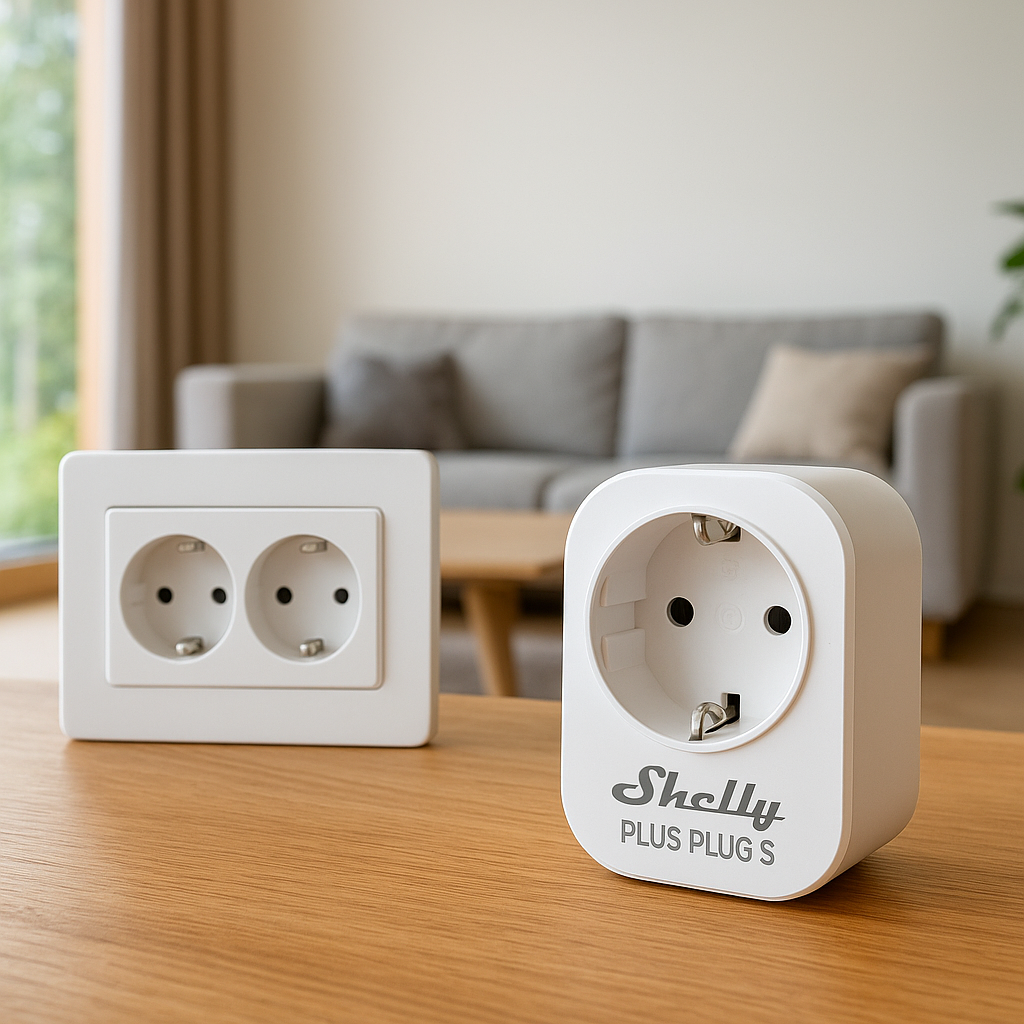
- Plug-in night lights in hall outlets controlled by the same motion events.
- Smart bulbs in wall sconces set to a soft, warm glow after bedtime.
These subtle lights make it easier for kids and older adults to move around safely without waking the whole household.
Advanced Automations for Smarter Hallway and Stair Lights
Different behaviors by time of day (bright in evening, dim at night)
Once the basics work, you can layer time-based behavior:
- Morning/evening: Motion turns lights on to full brightness.
- Late night: Motion triggers a dimmed, warm scene.
- Daytime: Motion does nothing unless it’s dark due to weather.
Most platforms allow conditions like “Only between 7 a.m. and 10 p.m.” or “Between sunset and sunrise” to control which automation runs.
Using presence, door sensors, or sleep routines to improve accuracy
Motion isn’t perfect on its own. You can improve accuracy by combining it with:
- Presence detection: Use your phone’s location or Bluetooth beacons to know if anyone is home, preventing hallway lights from triggering for pets when you’re away.
- Door sensors: Trigger hall lights when a bedroom or front door opens at night, even before motion is detected.
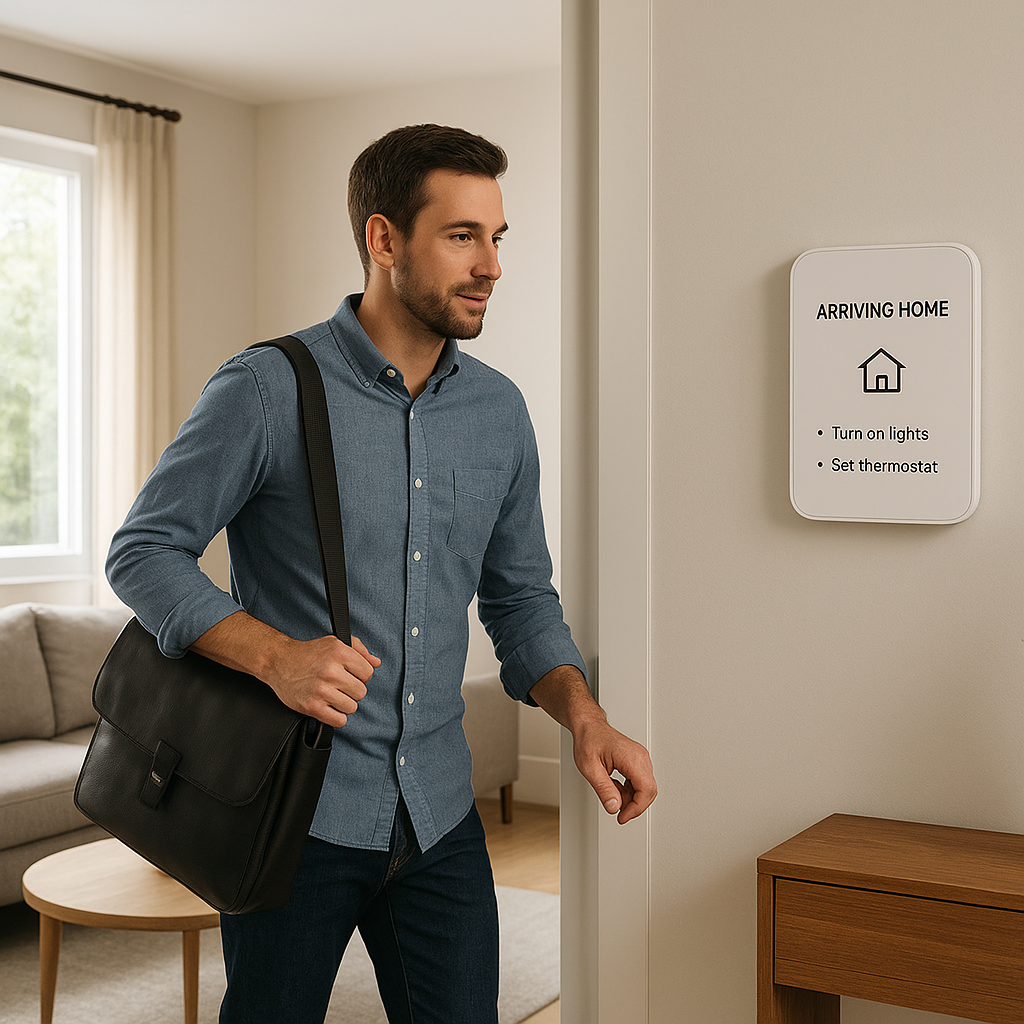
- Sleep routines: Tie brightness levels to your “Goodnight” or “Wake up” routines so the hallway adapts automatically.
Linking motion lights to security: turn on and record when motion is detected
Hall and stair motion sensors can double as security triggers:
- Turn on hallway and entry lights if motion occurs while you’re away.
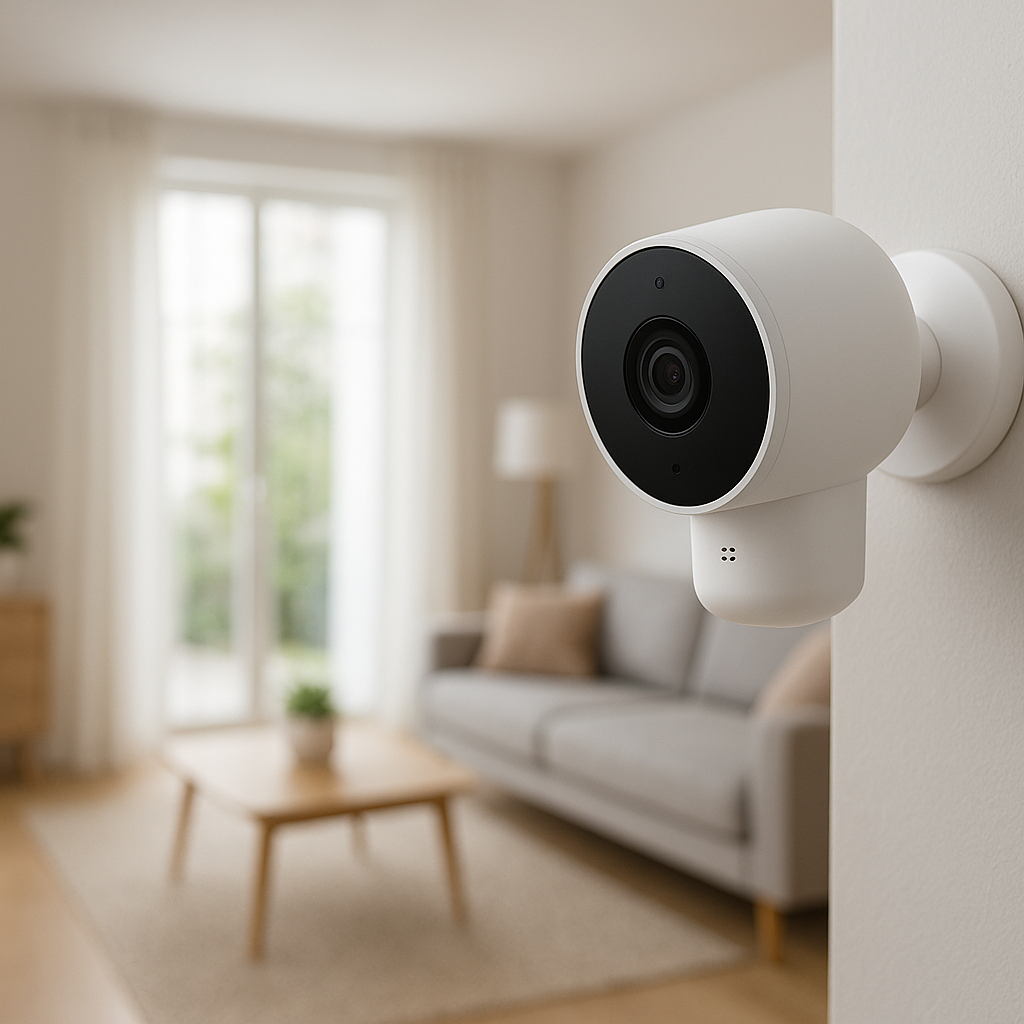
- Start recording on nearby indoor cameras when motion is detected in a usually empty area.
- Send a notification to your phone for unexpected activity at night.
Just be sure to balance security automations with privacy needs for people inside the home.
Scenes and routines: “Goodnight”, “Movie time”, and vacation mode
You can integrate hallway and stair lights into broader routines:
- “Goodnight” scene: Turn off most house lights, set hall/stair lights to dim motion-only mode.
- “Movie time” scene: Disable or dim hallway motion lights so they don’t flare up during a film.
- Vacation mode: Keep motion behavior active for security, but add random evening on/off schedules so the home appears occupied.
Troubleshooting Common Motion Sensor Lighting Problems
Lights not turning on: range, angle, obstructions, and wrong mode
If your hallway or stair lights don’t turn on:
- Verify the sensor has power and, if battery-powered, that batteries are fresh.
- Check the mode – some switches may be in vacancy mode or have auto-on disabled.
- Adjust the angle or location so people move across the detection field.
- Look for obstructions like doors, plants, or furniture blocking the sensor’s view.
- Confirm in the app that the automation is enabled and linked to the correct light group.
Lights turning on too often or for no reason (false positives)
Frequent false triggers can usually be tamed by:
- Reducing sensitivity or enabling “pet mode.”
- Re-aiming the sensor away from windows or busy adjacent rooms.
- Shortening the range if your sensor offers that option.
- Using app-based conditions (only at night, only when someone is home).
Lights switching off while you’re still in the hallway or on the stairs
If the light cuts off too quickly:
- Increase the timeout duration.
- Add a second sensor to cover blind spots, especially on long stairs or corridors.
- Reposition the sensor so it can see smaller movements, like turning on a landing.
Battery drain, Wi‑Fi/Zigbee/Z-Wave connection issues, and firmware updates
For smart sensors and switches:
- Battery drain: Check if the sensor is in a high-traffic area with constant triggers. Reduce sensitivity or move it slightly. Some apps show battery health so you can replace proactively.
- Connection drops: Ensure your Wi‑Fi or hub is within range. For Zigbee/Z-Wave, adding powered devices (bulbs, plugs) can strengthen the mesh network.
- Firmware updates: Many issues are fixed by vendor updates. Check the device app for firmware upgrades if things act strangely.
Budget and Product Suggestions for Different Homes
Simple plug-and-play kits for renters (no wiring, fully reversible)
For renters or anyone avoiding wiring changes, look for:
- Smart bulb + sensor kits (e.g., a starter kit with a bridge, motion sensor, and bulbs).
- Battery-powered motion sensors paired with Wi‑Fi or Zigbee smart bulbs.
- Adhesive or magnetic mounting so you can remove sensors without wall damage.
These setups are easy to take with you when you move and require only basic app setup.
Best options for homeowners willing to replace a switch
If you own your home and are comfortable replacing a switch, consider:
- Occupancy/vacancy motion switches (Lutron, Leviton, etc.) for rock-solid, non-connected automation.
- Smart switches with motion if you want app control and integration with voice assistants.
- Separate smart motion sensors + smart switches if you want more flexible placement and complex automations.
These solutions often look more integrated and don’t rely on people leaving wall switches in the “on” position.
Ecosystem-specific picks: Alexa, Google Home, Apple Home, and local hubs
Different ecosystems have strengths:
- Alexa: Works well with a wide range of Wi‑Fi and Zigbee motion sensors and switches. Alexa Routines make motion-based lighting straightforward.
- Google Home: Good for basic motion automations; many Wi‑Fi and Thread devices now integrate directly.
- Apple Home: HomeKit-compatible motion sensors and switches (often via a hub/bridge) offer strong privacy and local automations.
- Local hubs (SmartThings, Home Assistant, Hubitat): Great for complex logic, multi-sensor conditions, and local control even if the internet is down.
Final Checklist: Dialing In Your Motion-Activated Hallway and Stair Lights
Quick setup checklist for reliability and safety
Before calling the project done, confirm:
- Sensors are mounted at an appropriate height and angle.
- Lights come on from both directions in hallways and on stairs.
- Timeouts are long enough to avoid sudden blackouts.
- Day/night or lux conditions prevent daytime nuisance switching.
- All wiring (if any) is secure and compliant with local codes.
Settings to revisit after a week of real-world use
Use the first week as a test period:
- Note any times lights turn on or off at inconvenient moments.
- Tweak sensitivity, timeout, and brightness levels based on everyday experience.
- Adjust time-based behavior for weekdays vs. weekends if your schedule differs.
When to add extra sensors or switches for full coverage
If you still find dark spots or missed triggers:
- Add a second motion sensor for long corridors or split staircases.
- Install a companion switch at the opposite end of a hallway so you retain manual control.
- Consider dedicated night lights or LED strips where overhead lighting feels too bright at night.
Conclusion
Automating hallway and stair lights with motion sensors is one of the most noticeable smart home upgrades you can make. It removes small daily annoyances, improves safety on stairs, and reduces wasted energy from lights left on.
Start with one hallway or staircase, choose a motion sensor setup that fits your wiring and ecosystem, then refine the placement and settings over a few days. Once you dial it in, you’ll wonder how you ever lived with dark hallways and late-night switch hunting.
FAQ
Will motion-activated hallway lights still work if my internet goes down?
Most standalone motion switches and many sensor–bulb combinations work locally without the internet. Cloud-based automations (for example, some routines in Alexa or Google Home) may need internet access, but locally paired devices through a hub or bridge often keep working regardless of your connection.
Can motion sensors control multiple hallway or stair lights at once?
Yes. You can group multiple fixtures or bulbs into a single “Hallway Lights” group in your app or control them via one circuit with a smart switch. Your motion automation then targets that group or switch rather than a single bulb.
Do motion sensors always pick up small children or pets?
Most PIR sensors detect body heat and movement within a certain height and size range. Small children are usually detected if the sensor is mounted at standard height. Pets may or may not trigger the sensor depending on sensitivity, mounting, and the pet’s size. Many products offer pet-immune modes or adjustable sensitivity to fine-tune this.
Are motion-sensing wall switches safe to install myself?
If you’re familiar with basic electrical work and comfortable turning off power at the breaker, you can often install them yourself by following the instructions carefully. However, if you’re unsure about identifying wires or your home’s wiring is older or complicated, hiring a licensed electrician is the safer choice.
Can I temporarily disable motion automation if needed?
Yes. Most smart platforms and standalone motion switches let you disable auto-on or switch to manual mode. This is handy during parties, cleaning, or any situation where constant motion-triggered lighting would be distracting.