Smart lighting can quietly solve a lot of everyday struggles for elderly parents: fumbling for switches in the dark, walking through dim hallways at night, or remembering to turn lights off. With the right setup, lights can simply “happen” for them—turning on with motion, voice, or schedules—without adding complexity or new worries.
This guide walks you through how to design hands-free smart lighting for seniors using voice control, motion sensors, and schedules. We’ll focus on safety, simplicity, and reliability so your parents feel more independent and you feel more at ease.
Why Smart Lighting Matters for Elderly Parents
Common lighting challenges seniors face at home
Many older adults live in homes that weren’t designed with aging in mind. Common lighting problems include:
- Dim hallways and staircases that make it hard to see edges and obstacles.
- Hard-to-reach switches, especially at the top or bottom of stairs or across a dark room.
- Glare from harsh bulbs that can make it difficult to see clearly.
- Forgetting to turn lights on or off, leading to dark rooms at night or wasted energy.
- Confusing multi-switch setups where several switches control the same light.
Age-related vision changes (like reduced contrast sensitivity and slower adaptation from light to dark) make all of this more challenging. A good smart lighting setup works around these limitations rather than expecting your parents to adapt.
How hands-free lighting reduces fall risk and confusion
Automatic and voice-controlled lighting can significantly reduce the chances of trips and falls. Lights can:
- Turn on automatically in key areas when someone walks by, without needing to find a switch.
- Provide a clear path at night from bed to bathroom using low-level night lights.
- Stay on long enough during movement so lights don’t turn off while they are still walking.
- Maintain consistent brightness and color temperature that’s easy on aging eyes.
Falls are a major risk for older adults. The U.S. Centers for Disease Control and Prevention explains how common and serious they are for seniors on their older adult falls information page. Better lighting is one of the simplest, lowest-effort ways to reduce that risk.
Benefits for caregivers and distant family members
Smart lighting doesn’t just help your parents; it also supports you as a caregiver or concerned relative. With the right setup, you can:
- Check whether lights are on or off remotely through an app, useful if you worry they’re walking around in the dark.
- Adjust schedules seasonally or when routines change, without needing to visit in person.
- Get subtle reassurance by seeing normal on/off patterns that suggest their daily routine is continuing as usual.
- Avoid arguments about “wasting electricity” because lights can turn off automatically.
Planning a Safe Smart Lighting Setup for Seniors
Walkthrough of high-risk areas (hallways, stairs, bathrooms)
Before buying anything, do a simple walkthrough of your parent’s home—ideally at night or in the evening. Focus on:
- Hallways: Are there dark stretches between rooms? Are there night lights already? Where do they walk most often at night?
- Stairs: Are both the top and bottom well lit? Are there shadows on the steps? Are switches in convenient locations?
- Bathrooms: Can they get from bed to toilet without walking through darkness? Is there a bright overhead light that’s too harsh at night?
- Entryways: Is there enough light when coming home after dark? Is the path from door to main area well lit?
- Kitchen: If they get up for water or a snack at night, is the route clear and lit?
Make a short list of 3–5 priority spots. Start there instead of trying to automate the entire home at once.
Choosing warm, glare-free bulbs and adequate brightness
For seniors, comfort and clarity matter more than fancy color effects. Aim for:
- Warm white bulbs (2700–3000K) in bedrooms and living rooms to reduce glare and feel relaxing.
- Neutral white (3000–4000K) in kitchens and bathrooms for good visibility without being harsh.
- Adequate brightness: around 800 lumens (equivalent to a 60W incandescent) for general rooms, higher for task areas like kitchen counters.
- Frosted or diffused bulbs to reduce sharp glare and shadows.
Most smart bulbs let you adjust brightness and, in many cases, color temperature. That means you can set gentler lighting at night and brighter light during the day without changing bulbs.
Deciding between Wi-Fi, Zigbee, and Bluetooth smart lights
Smart lights usually connect using one of three main technologies:
- Wi-Fi: Bulbs like TP-Link Kasa or some budget brands connect directly to the home Wi-Fi router. They are simple to set up and don’t require a hub, but too many Wi-Fi bulbs can overload a weak router.
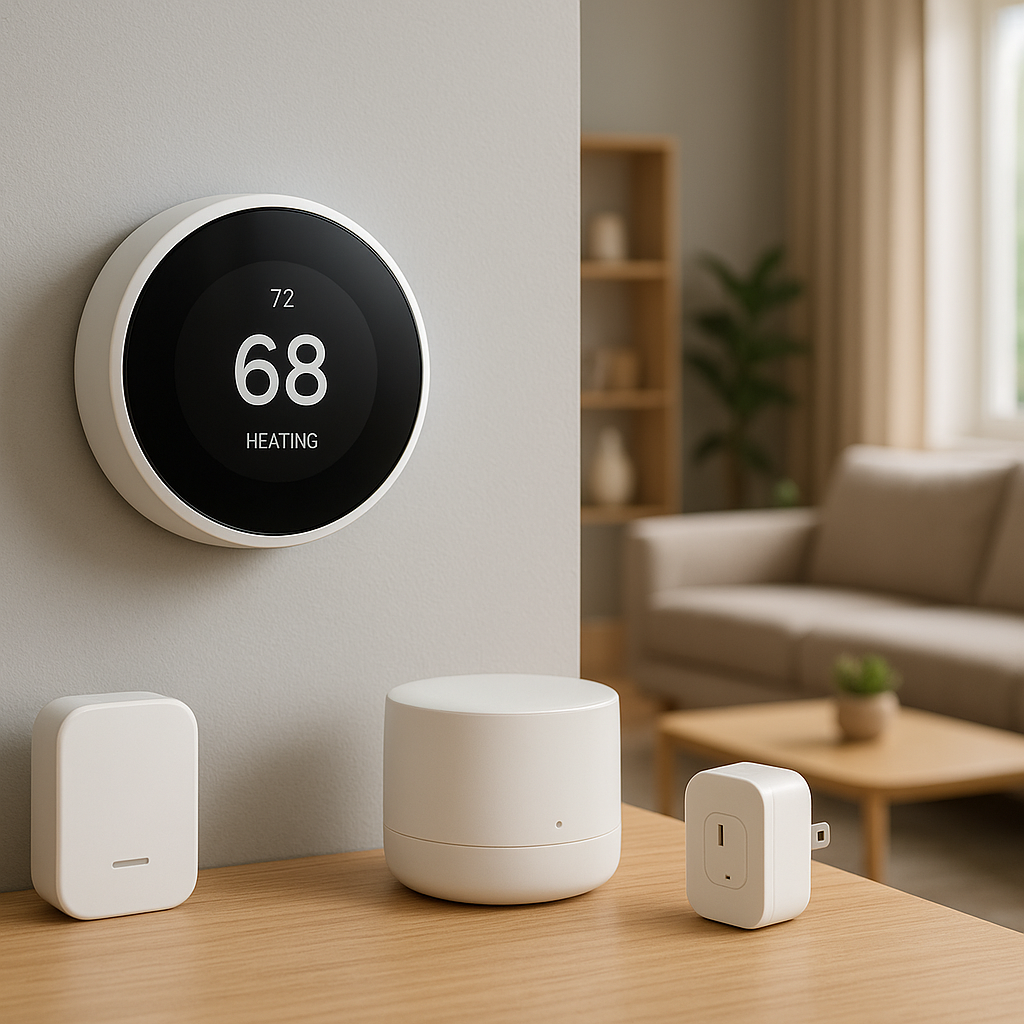
- Zigbee: Systems like Philips Hue and many motion sensors use a hub or bridge that connects to the router. Zigbee devices form a mesh network, which is often more reliable and responsive, especially in larger homes.
- Bluetooth: Often used for simple setups where lights are controlled by phone within a short range. Not ideal if you want remote access or automation when you’re not there.
For most elderly households, a small Zigbee or hub-based system (Philips Hue, Aqara, or a smart hub like Samsung SmartThings) or a limited number of Wi-Fi bulbs and switches is a good balance. Avoid setups that require your parents to control lights with their phone; focus on automation and voice instead.
Essential Devices for Hands-Free Smart Lighting
Smart bulbs vs smart switches vs smart plugs for lamps
These three device types can all control lights, but they fit different situations:
- Smart bulbs: Replace the existing bulb. Great for lamps and fixtures where you want dimming, color temperature control, or scene control. Downsides: the physical wall switch must stay “on,” which can confuse some seniors.
- Smart switches: Replace the wall switch. Best for ceiling lights and hallway fixtures. Once installed, lights work like normal from the switch, but can also be automated and voice-controlled. Consider systems like Lutron Caseta or smart switches from TP-Link or Leviton.
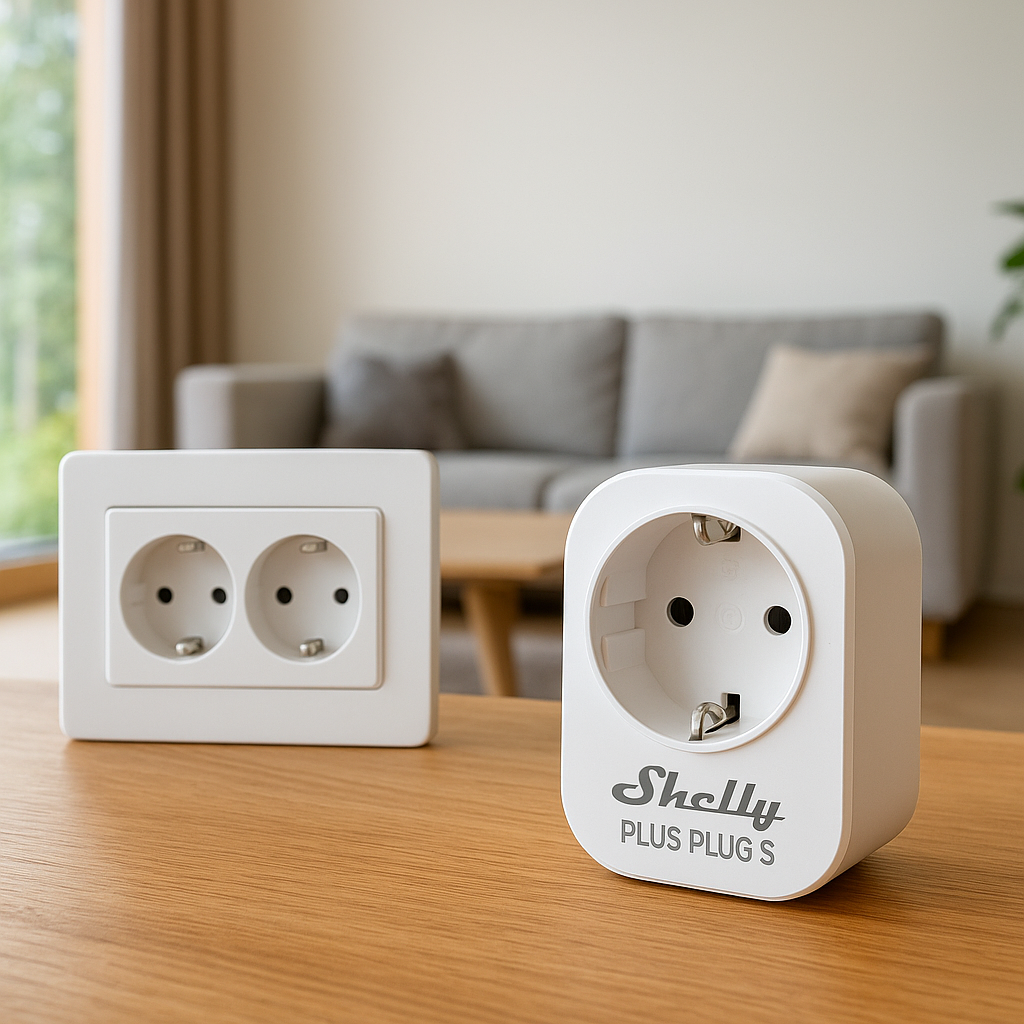
- Smart plugs: Plug into the outlet, then plug a lamp into the smart plug. An easy way to make table and floor lamps smart without changing bulbs or wiring.
For elderly parents, smart switches and smart plugs are often less confusing because they keep the familiar on/off behavior. Smart bulbs are very useful, but only if you can prevent the switch from being turned off accidentally (for example, by using switch covers or re-training habits).
Voice assistants (Alexa, Google Assistant, Siri) for seniors
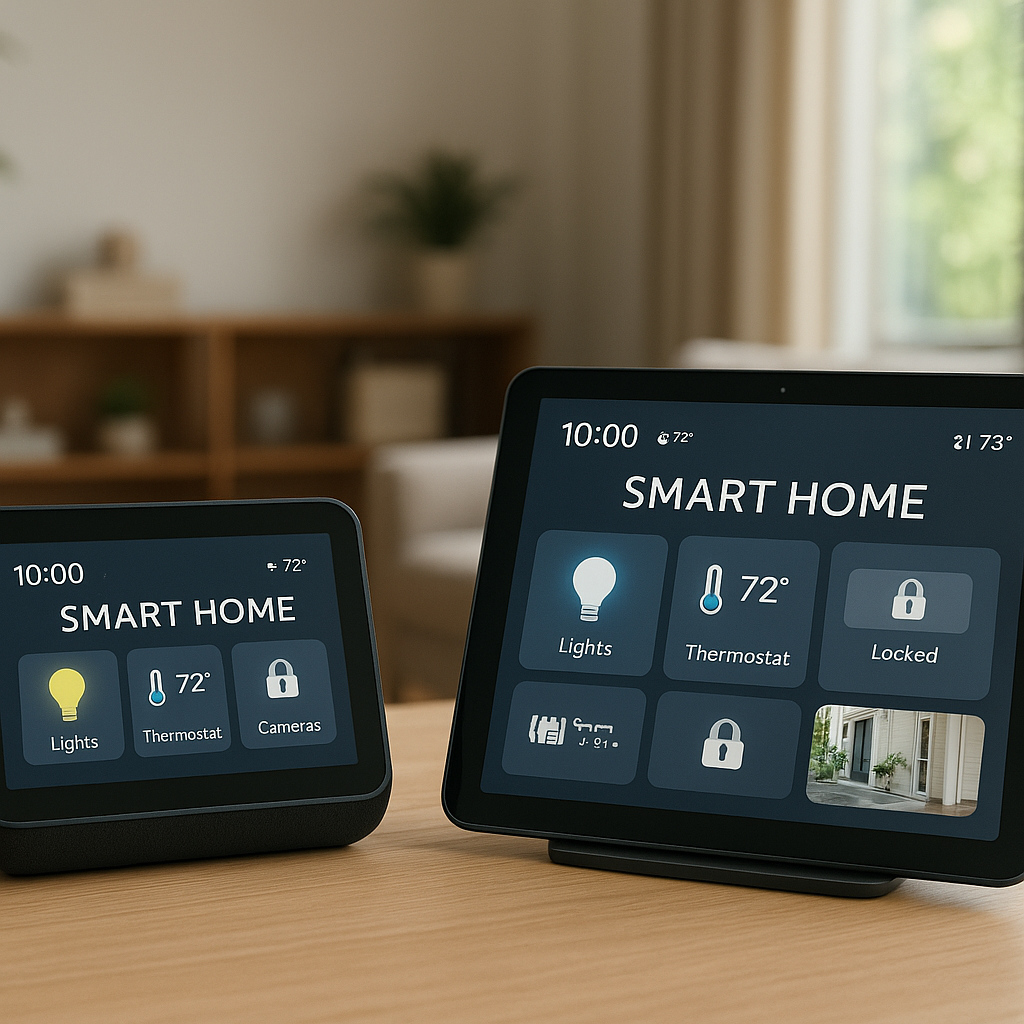
Smart speakers make hands-free lighting feel natural. A simple “Alexa, turn on the hallway” is much easier than hunting for a switch in the dark. Popular options include:
- Amazon Echo devices (Alexa): Often the easiest for beginners, with many compatible devices and clear voice feedback.
- Google Nest speakers (Google Assistant): Good natural language understanding, integrates well with Android and Google services.
- Apple HomePod (Siri): Best if your parents already use iPhones/iPads and you want everything in Apple’s ecosystem.
For seniors, place speakers in obvious, central spots (living room, bedroom, and maybe near the bathroom door) and keep voice commands short and predictable.
Motion sensors and door sensors for automatic lights
Motion sensors are the backbone of hands-free lighting. They detect movement and trigger lights automatically. Useful examples:
- Hallway sensors that turn on ceiling lights when someone walks through.
- Bathroom sensors that activate a dim night light during late hours and brighter light in the daytime.
- Bedroom sensors low on a wall or baseboard to trigger gentle path lights when feet hit the floor.
Door/contact sensors can also help:
- Turn on lights when the front door opens after dark.
- Turn on a light in a closet or pantry when the door opens, then off when it closes.
Many ecosystems offer matching motion and door sensors (Philips Hue, Aqara, Eve, etc.), which simplifies automation.
Setting Up Voice-Controlled Smart Lighting for Elderly Parents
Creating simple, easy-to-remember voice commands
Voice commands should match how your parents naturally speak. Tips:
- Use short phrases like “hall light,” “bedroom light,” “bathroom light.”
- Avoid technical names like “Hue White Ambiance Bulb 3.”
- Pick one or two core commands to start, such as:
- “Alexa, turn on the hallway.”
- “Alexa, turn off all lights.”
- Write these commands on a small printed card near the speaker as a reminder.
Naming rooms and lights clearly for older users
Set friendly names in your smart home app:
- Name groups by room (Bedroom, Hallway, Kitchen) and avoid duplicates.
- For multiple lights in the same room, use position-based names like “Kitchen main light” and “Kitchen window lamp.”
- Use the exact words your parents use. If they say “den” instead of “living room,” name the room “Den.”
Test voice commands while you are there and adjust names if the assistant misunderstands.
Setting up shared household control for caregivers
Most platforms let you share access so you can manage things from your own phone:
- In Alexa, Google Home, or Apple Home, add yourself as a household member or home administrator.
- Turn on remote access so you can adjust routines, rename devices, or update schedules from your own home.
- Consider giving a trusted neighbor or another family member access as backup.
This way, if your parents complain that “the light in the hall is too bright at night,” you can lower the brightness remotely without needing a visit.
Using Motion Sensors for Automatic Lights in Key Areas
Best motion sensor placement for hallways and stairs
Good placement can be the difference between a smooth experience and constant frustration:
- Mount sensors at about 4–6 feet high, angled slightly down the hallway.
- Place them where they will see someone entering the area, not just walking past the very end.
- Avoid pointing sensors directly at windows or mirrors, which can cause false triggers.
- For stairs, consider top and bottom sensors if the staircase is long or has turns.
Test the motion range by walking slowly, as someone with mobility issues might do, and adjust the position until lights turn on before they reach a dark patch.
Gentle night lights for bathroom and bedroom trips
Full brightness at 3 a.m. can be disorienting. Use your system’s automation to:
- Turn on dim, warm lights (10–30% brightness) from bedroom to bathroom during set “night hours.”
- Use LED strip lights under the bed or along the baseboard to create a low glow without glare.
- Keep the main bathroom light at a medium brightness at night, or use a separate night-light-only bulb.
This helps your parent see clearly without fully waking up or struggling with sudden bright light.
Adjusting motion timeouts so lights don’t turn off too quickly
Many older adults move slowly or may sit still for a while in one spot. To avoid lights turning off unexpectedly:
- Set longer timeout durations (5–15 minutes) in living rooms and bathrooms.
- For hallways, shorter timeouts (2–5 minutes) may be fine, as people pass through quickly.
- If a room is used for reading or watching TV, consider combining motion with manual control (voice command or button) so the light stays on until they say “off.”
Creating Lighting Schedules and Routines That Support Daily Life
Wake-up and bedtime lighting routines
Soft routines can support sleep and daily structure:
- Create a wake-up routine that slowly brightens bedroom lights over 15–30 minutes at a set time each morning.
- At bedtime, have lights in living areas dim and then turn off at a predictable time, reminding your parents it’s time to wind down.
- If they take evening medications, use a brief lighting change (lights brighten for a minute) as a visual reminder.
Dusk and dawn schedules to avoid dark rooms
Rather than fixed times all year, many systems can use sunset and sunrise:
- Turn on entryway and living room lights at sunset so they never walk into a dark house.
- Have outside lights switch on at dusk for safe steps and walkways.
- Turn off non-essential lights at or shortly after bedtime, while keeping night-light paths active through motion.
Vacation and away modes for added security
When your parent is away or staying with family, smart lighting can make the home look occupied:
- Use “away” or “vacation” modes that randomize light on/off times within a safe window in the evening.
- Keep porch and entry lights on a normal dusk-to-dawn schedule for safety cameras and neighbors.
- Monitor lights remotely so you can confirm the house remains secure.
Accessibility and Ease-of-Use Tips for Seniors
Large, physical buttons and remotes as a backup to voice
Not every senior will want to rely entirely on voice or motion. Add simple, tactile controls:
- Use wireless remote switches or wall-mounted buttons that can stick next to the bed or favorite chair.
- Choose remotes with large, clearly labeled buttons for on, off, and maybe dim/bright.
- Consider a simple wireless keypad that controls “All lights on” and “All lights off.”
These backups give your parents confidence that they can always control lights, even if voice or motion feels unreliable.
Simplifying smartphone apps and hiding advanced options
If your parents will occasionally use a phone or tablet:
- Install only one main app for lights on their phone, not every manufacturer’s app.
- Pin the app to the home screen with a large icon.
- Log in and disable or hide advanced menus where possible so they see only simple on/off and room controls.
- Turn off confusing push notifications they don’t need.
Keep full administrative control on your own device so you can edit routines and settings without overwhelming them.
Teaching elderly parents basic controls without overwhelm
Introduce new controls slowly, over one or two visits:
- Start with one or two key routines, like “Say ‘Alexa, turn on the hallway’ if you need more light.”
- Demonstrate the same action several times and let them try it themselves.
- Leave a simple printed guide with large text showing the most useful commands and which button controls which light.
- Check in after a week and adjust anything they find confusing.
Safety, Privacy, and Reliability Considerations
Ensuring lights still work when Wi-Fi goes down
Your setup should fail gracefully if the internet or Wi-Fi has issues:
- Prefer smart switches that still work like normal switches even without Wi-Fi.
- If using smart bulbs, make sure wall switches remain usable and that default behavior (like turning on at full brightness) is acceptable.
- Choose systems where local automations still run even if the cloud service is offline (common with Zigbee hubs and some smart home platforms).
Minimizing data sharing and protecting privacy
To keep things private and simple:
- Review the voice assistant’s privacy settings and disable features you don’t need, such as using voice recordings to improve services.
- Limit which devices are linked to the assistant—just lights and a few essentials.
- Explain plainly to your parents that the device listens for a wake word, but you can mute the microphone at any time using a physical button.
For a detailed look at how one major voice assistant handles accessibility and privacy-related features, you can review Amazon’s Alexa accessibility and feature support documentation.
Battery backup and emergency lighting ideas
Power outages can be scary, especially for someone with mobility issues. Consider:
- USB-rechargeable emergency bulbs that turn on automatically when power goes out.
- A small battery-powered lantern in the bedroom and living room, in a consistent, easy-to-reach spot.
- If budget allows, a small uninterruptible power supply (UPS) for the internet router and smart hub so key automations continue for a while during short outages.
Budget-Friendly Smart Lighting Options for Elderly Households
Where to start on a small budget (priority rooms first)
If funds are limited, focus on the highest-impact areas first:
- Front entry and main hallway for coming home safely after dark.
- Bedroom-to-bathroom route for nighttime trips.
- Kitchen if they often get up for water or snacks at night.
A minimal starter kit might include:
- 1 small smart speaker.
- 2–3 smart plugs for key lamps.
- 1–2 motion sensors for hallway and bathroom.
Mixing brands vs keeping a single ecosystem
While mixing and matching can save money, it can also complicate things. For seniors, fewer apps and ecosystems are better:
- Single-ecosystem approach (e.g., mostly Philips Hue plus one voice assistant) is simpler to maintain and troubleshoot.
- If you do mix brands, make sure they all integrate with the same voice assistant so your parents use consistent voice commands.
- You can use a smart home hub (like SmartThings or Home Assistant) to unify different devices behind the scenes while still presenting a simple interface to your parents.
When to upgrade to a more advanced hub-based system
As needs grow, you might eventually move beyond Wi-Fi bulbs and random devices:
- If you want many motion automations across rooms, a hub-based system (Zigbee or Z-Wave) usually becomes more reliable.
- If you’re managing multiple properties (e.g., your home plus your parent’s), a hub with central management tools makes life easier.
- When you notice Wi-Fi slowing down or devices dropping offline frequently, it may be time to offload some devices to a dedicated hub.
Step-by-Step Example Setup: Small Apartment for an Elderly Parent
Room-by-room device checklist
Here’s an example plan for a one-bedroom apartment:
- Front door / hallway:
- 1 smart switch or smart bulb for hallway light.
- 1 motion sensor near the entrance.
- Living room:
- 2 lamps on smart plugs grouped as “Living room lights.”
- 1 smart speaker on a side table.
- Bedroom:
- 2 bedside lamps on smart plugs or smart bulbs.
- 1 motion sensor aimed at the bed/doorway for night trips.
- Bathroom:
- 1 smart bulb or switch for main light.
- Optional: small plug-in night light separate from the main light.
Sample voice commands, motion rules, and schedules
Example voice commands you might set up and teach:
- “Alexa, turn on the hallway.”
- “Alexa, turn off all lights.”
- “Alexa, turn on bedroom lights.”
Example motion rules:
- Hallway motion (any time): Turn on hallway light to 80% and keep on for 5 minutes.
- Bedroom motion (11 p.m.–6 a.m.): Turn on hallway and bathroom lights to 20% for 10 minutes.
- Bathroom motion (6 a.m.–11 p.m.): Turn on bathroom light to 80% for 15 minutes.
Example schedules:
- Sunset: Turn on living room lamps to 70%.
- 10:30 p.m.: Dim living room lamps to 20%, then off at 11 p.m.
- 7 a.m.: Gradually brighten bedroom lamps over 20 minutes.
Maintenance checklist for you and your parents
Once things are running, plan light ongoing maintenance:
- Every 3–6 months, check batteries in motion and door sensors.
- Review voice commands with your parents and update the printed guide if anything changes.
- Adjust schedules for seasonal daylight changes.
- Occasionally review the app for offline devices or firmware updates when you visit.
When to Call a Professional vs DIY Installation
Situations where an electrician is safer
While smart plugs and bulbs are DIY-friendly, smart switches and wired devices may justify professional help. Call an electrician if:
- The home has old wiring or you see knob-and-tube or cloth-covered wires.
- You’re unsure about neutral wires or ground wires in the switch box.
- Switch boxes are cramped or metal, making DIY work tricky.
- Your parent has medical equipment or other critical devices nearby, and you want to minimize risk.
How to brief an installer about elderly accessibility needs
When you do hire a professional, give clear instructions:
- Explain that the home is for an elderly person with mobility or vision challenges.
- Ask them to place switches at comfortable heights and avoid confusing multi-switch layouts where possible.
- Request that existing switches remain functional even if power or Wi-Fi fails.
- Let them know you’ll handle the software setup, so they just need to wire and test the hardware.
Questions to ask before paying for installation services
Before you commit, ask potential installers:
- “Have you installed smart switches or hubs before?”
- “Can you show me how to reset a switch or device if it misbehaves later?”
- “Do you provide a short warranty on your work?”
- “Are you comfortable working in a home with an elderly resident present?”
Final Checklist for Hands-Free Smart Lighting for Elderly Parents
Safety, usability, and comfort checks before you leave
Before you head home, walk through this checklist:
- Can your parent reach at least one physical control in every room?
- Do motion-activated lights come on early enough and stay on long enough?
- Is nighttime lighting bright enough to see clearly but not blinding?
- Have you tested key voice commands together?
- Is there a simple written guide left in an obvious place?
How to monitor and fine-tune the setup remotely
After a week or two, check in and adjust:
- Review device activity logs (if available) to see when lights are used.
- Ask your parent if any lights feel too bright, too dim, or too sudden.
- Use remote access to tweak brightness, timeout lengths, and schedules.
- Keep changes small and incremental so your parent doesn’t feel like the house keeps “changing on its own.”
Conclusion
Smart lighting for elderly parents works best when it feels invisible. Lights simply turn on when needed, respond to a few easy voice commands, and follow gentle schedules that match their routines. By focusing on safety-critical areas first, using motion and voice wisely, and keeping controls simple, you can create a home that supports independence while quietly reducing risk.
You don’t need to automate everything at once. Start small, listen to feedback from your parents, and refine the setup over time. The goal is not a high-tech showpiece—it’s a calmer, safer home that works the way they do.
FAQ
Do my elderly parents need a smartphone to use smart lighting?
No. Once everything is set up, your parents can rely on voice commands, motion sensors, and physical remotes or switches. You can manage apps and settings from your own phone as a shared household member.
Is smart lighting safe for someone with dementia or memory issues?
It can be, if designed carefully. Keep controls very simple, avoid frequent changes, and make sure physical switches still work. Gentle night lighting and automatic hallway lights can reduce confusion and fall risk, but avoid setups that require them to remember complex commands.
Will smart lighting increase our electricity bill?
Most smart bulbs and LED fixtures are more efficient than older incandescent bulbs. Features like motion sensors and schedules can actually reduce usage by turning lights off when they’re not needed.
What happens if the internet or voice assistant stops working?
If you choose smart switches and locally controlled systems, lights will still work from the wall switches, and many automations may continue. Voice control may stop temporarily, but basic lighting should remain usable.
How many smart devices are too many for an elderly person’s home?
There’s no fixed number, but the key is how many different ways they need to control things. A home with 20 lights can still feel simple if your parent only ever uses a couple of voice commands and a few buttons. Focus on clarity and consistency, not on the total device count.