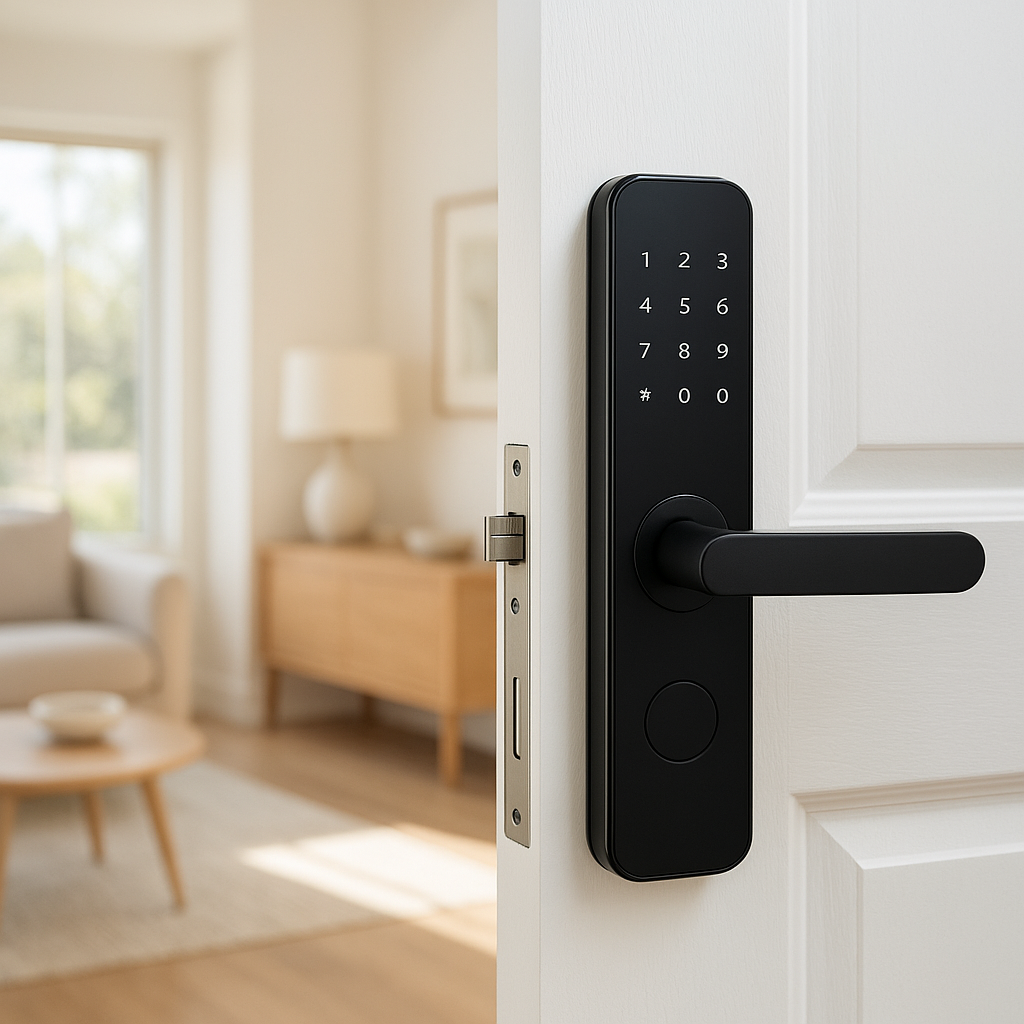
A well-planned smart home goodnight routine can turn a chaotic bedtime into a calm, consistent process. With a single command or tap, your home can lock doors, adjust the thermostat, and turn off or dim the right lights so everyone sleeps more comfortably and securely.
This guide walks you through how a goodnight routine smart home setup works, what devices you need, and how to build it on popular platforms like Amazon Alexa, Google Home, Apple Home (HomeKit), and more. You can start simple and expand over time as you add devices.
What Is a Smart Home Goodnight Routine and Why You Need One
How a goodnight routine smart home setup works behind the scenes
A smart home goodnight routine is an automation that runs a series of actions whenever you trigger it. Instead of manually walking around to lock doors, adjust the thermostat, and flip lights, your system does it for you in a predictable order.
Behind the scenes, your smart home platform (Alexa, Google Home, Apple Home, etc.) sends commands over Wi‑Fi, Zigbee, Z-Wave, Thread, or Bluetooth to each connected device. For example:
- Your voice assistant hears “Good night” and passes that to your smart home hub or cloud service.
- The routine checks your configured actions: lock front door, turn off living room lights, set thermostat to 68°F, arm the alarm system in “Home” mode, and so on.
- Each device receives its command and reports back its new status when possible.
Most platforms let you see a log or history of what happened, so you can confirm the routine actually ran and quickly spot devices that didn’t respond.
Benefits: security, comfort, and energy savings while you sleep
A goodnight routine offers three main benefits:
- Security: Automatically locking doors, closing garage doors, and arming security systems reduces the chance of forgetting a vulnerable entry point. Some routines also turn on exterior lights or simulate occupancy in certain rooms.
- Comfort: Dimming bedroom and hallway lights, adjusting the thermostat to your ideal sleep temperature, and closing smart shades all help you fall asleep more easily and stay asleep.
- Energy savings: Turning off unnecessary lights, TVs, and space heaters, and lowering the thermostat a few degrees can significantly reduce overnight energy usage without you having to think about it.
Common devices used in a whole-home goodnight routine
You can start a goodnight routine with just a few devices and expand over time. Common devices include:
- Smart locks (e.g., August, Schlage Encode, Yale Assure) on exterior doors.
- Door and window contact sensors to confirm whether entries are closed.
- Smart thermostats (e.g., Ecobee, Nest, Honeywell Home) to adjust temperature.
- Smart bulbs and switches (e.g., Philips Hue, LIFX, TP-Link Kasa, Lutron Caséta) for bedrooms, hallways, bathrooms, and exterior lighting.
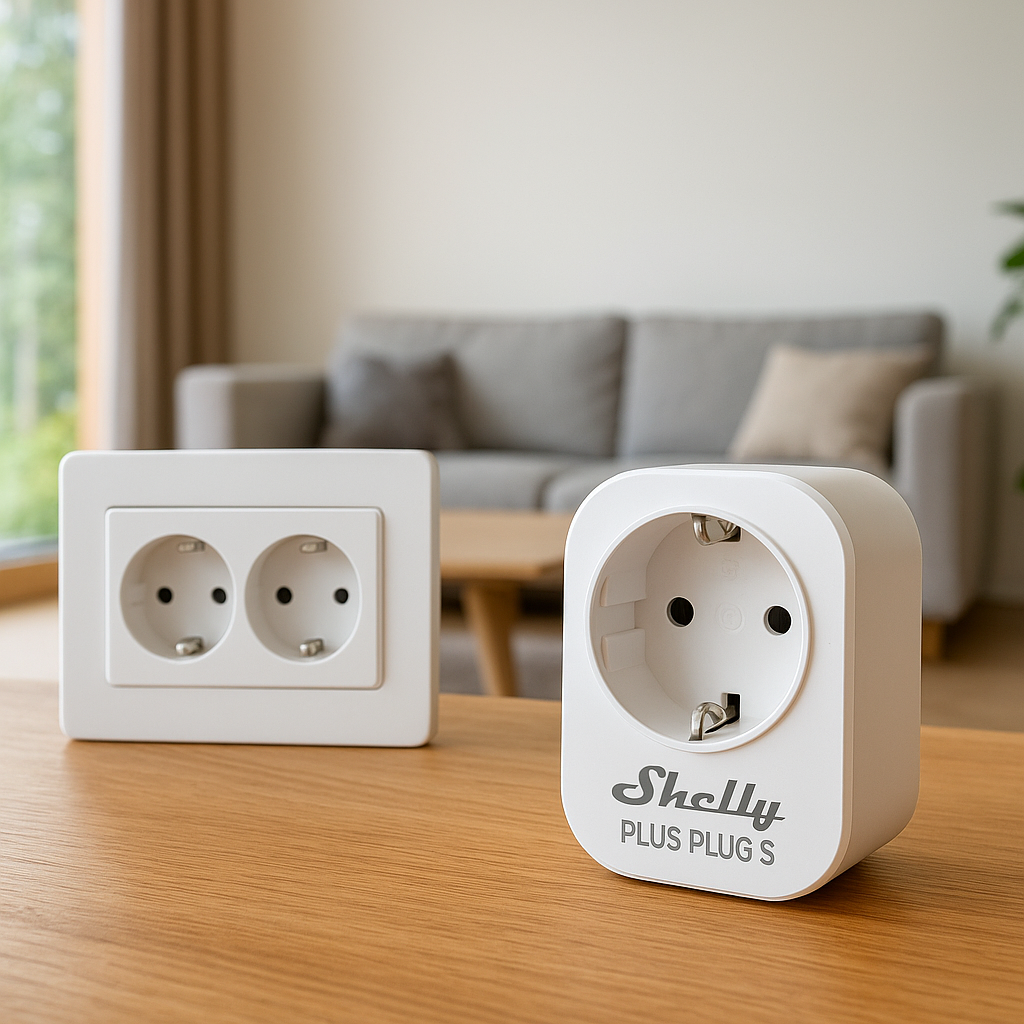
- Smart plugs and power strips for lamps, fans, and electronics that don’t need to stay on.
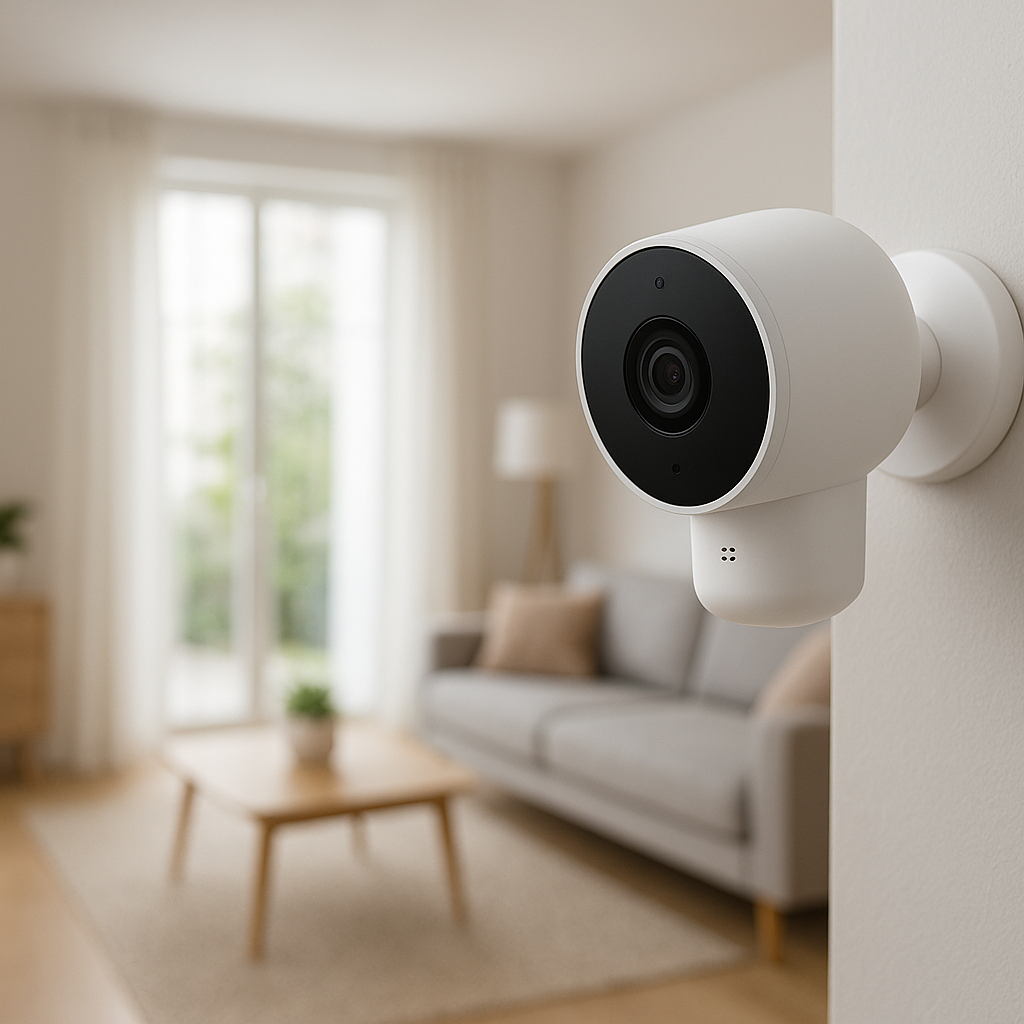
- Security systems and cameras to arm in “Home” or “Stay” mode.
- Smart shades for darkening bedrooms and adding privacy.
Planning Your Ideal Goodnight Routine Step by Step
List what should happen at bedtime in each room
Before touching any app, outline how you want bedtime to work in your home. Go room by room and make a short list:
- Front door: Lock deadbolt, confirm door is closed, maybe turn on porch light for 10 minutes.
- Living room: Turn off TV and main lights, leave one small lamp on for five minutes, then turn it off.
- Kitchen: Turn off all lights, switch off coffee maker and other counter appliances via smart plugs.
- Bedrooms: Dim lights to 20% for 10–15 minutes, then turn off; set thermostat to sleep temperature.
- Hallways and bathrooms: Dim to night-light level or use motion-activated lighting.
- Garage/outdoor: Close garage door, lock smart garage entry door, turn off driveway lights or set them to a low level.
This list becomes your blueprint for the routine you’ll build later in your smart home app.
Decide on a trigger: voice command, schedule, or phone shortcut
Most platforms offer multiple ways to start a goodnight routine:
- Voice command: Say “Alexa, good night,” “Hey Google, good night,” or “Hey Siri, good night.” This is flexible and works well if your bedtime varies.
- Schedule: Run the routine automatically at a set time (for example, weekdays at 11:00 p.m.). This is useful if your household follows a consistent schedule.
- Phone shortcut/button: Tap a scene in your smart home app or use a physical smart button on the nightstand to start the routine silently.
Many people use a combination: a scheduled “pre-bed” routine (dimming common areas) and a manual goodnight routine when the last person is actually in bed.
Map your goals to specific devices and smart home platforms
Now match each item from your room-by-room list to actual devices and the platform that controls them. For example:
- “Lock front door” → Yale smart lock → controlled by Alexa and Apple Home.
- “Dim bedroom lights” → Lutron Caséta dimmer → controlled by Alexa and Google Home.
- “Set thermostat to 67°F” → Ecobee thermostat → controlled by its app plus your voice assistant.
Decide which platform will be your primary automation hub. If most of your devices support Alexa, build your goodnight routine there. If you’re deeply invested in Apple devices, Apple Home may be easier. This avoids duplicate routines that can conflict.
Smart Devices You’ll Need for a Whole-Home Goodnight Routine
Smart locks and door sensors to secure entry points
Smart locks let your routine lock all exterior doors at once. Look for models with:
- Auto-lock support and reliable remote locking.
- Door position sensing or separate contact sensors so your routine can warn you if a door is open.
- Compatibility with your chosen platform (Alexa, Google, Apple Home, or a hub like SmartThings).
Door and window sensors add another layer of safety by confirming that everything is closed before locks engage or the alarm arms.
Smart thermostats for nighttime comfort and savings
A smart thermostat lets your goodnight routine fine-tune your sleep environment. Useful features include:
- Custom sleep schedules.
- Support for eco or setback temperatures when you’re away or asleep.
- Integration with occupancy sensors or room sensors to avoid overheating or overcooling empty spaces.
Many thermostats, such as Ecobee, offer built-in schedules, while Google Nest adds learning features and geofencing that work well with voice routines.
Smart lights, switches, and dimmers for bedrooms and hallways
For lighting, you can either replace bulbs or switches:
- Smart bulbs are easy to install and offer color and dimming but require the switch to stay on.
- Smart switches and dimmers control regular bulbs and keep lights usable with the wall switch.
Pair these with your platform so the goodnight routine can:
- Turn off bright overhead lights.
- Set bedside lamps to warm, dim light for winding down.
- Leave hallway or bathroom lights at 5–20% as night lights.
Smart plugs and power strips to safely shut down electronics
Smart plugs are useful for:
- Bedroom fans or white noise machines that should turn off after you fall asleep.
- Lamps that don’t have smart bulbs.
- Gaming consoles and entertainment gear that should power down at night.
Configure these so your goodnight routine cuts power to non-essential devices, reducing phantom energy use and nighttime distractions.
Optional add-ons: smart shades, security cameras, and alarms
To take your routine further, consider:
- Smart shades that close at bedtime for privacy and temperature control.
- Security cameras that switch to night mode or change recording schedules at night.
- Alarms and security systems that arm in a “home” or “stay” mode so interior motion sensors are off but doors and windows are monitored.
Choosing the Right Smart Home Platform for Your Goodnight Routine
Using Amazon Alexa Routines for a goodnight routine smart home
Alexa Routines are flexible and widely supported. In the Alexa app you can:
- Create a new routine, set the trigger to “When you say: Alexa, good night,” and add actions to lock doors, control lights, and set the thermostat.
- Optionally add a time-based trigger so your routine runs automatically at a set hour.
- Have Alexa give you a verbal summary: “Front door locked, all lights off, thermostat set to 67 degrees.”
Amazon’s documentation shows detailed examples of how routines work and what devices they support: Amazon Alexa Routines help page.
Building a goodnight routine with Google Home/Google Assistant
In the Google Home app, you can build a “Good night” routine that runs with “Hey Google, good night” or on a schedule. Common actions include:
- Turning off lights and smart plugs in specific rooms.
- Adjusting Nest thermostat settings for sleep.
- Playing relaxing sounds or turning on a fan via a smart plug.
Google’s routines are cloud-based, so they work across all your Google Nest speakers and displays at once.
Creating a Good Night scene in Apple Home (HomeKit)
In Apple Home, you typically create a scene called “Good Night,” then trigger it via Siri, an Automation, or a Home app tile. You can:
- Set multiple lights to dim or off in different rooms.
- Lock HomeKit-supported smart locks.
- Adjust HomeKit-compatible thermostats.
Home automations can also link your Good Night scene to a time of day or a sensor trigger, such as a smart button on your nightstand.
Advanced options: Home Assistant, SmartThings, and other hubs
If you have a lot of mixed-brand devices or want advanced logic, a dedicated hub can help. Platforms like Home Assistant and Samsung SmartThings allow:
- Complex conditions (for example, “Run goodnight only if everyone is home and it’s after sunset”).
- Local automations that keep working even if the internet is down.
- Integration across many ecosystems under one interface.
These platforms take more setup, but they’re powerful if you enjoy tinkering or have many devices.
Setting Up a Goodnight Routine That Locks Doors Automatically
Pairing and naming your smart locks and contact sensors
Start by connecting your smart locks and door sensors to your chosen platform:
- Follow the manufacturer’s instructions to add the lock/sensor to its app.
- Link that app/account to your smart home platform (Alexa, Google, Apple, etc.).
- Give each device a clear name like “Front Door Lock,” “Garage Entry Door Sensor,” or “Back Door Lock.”
Clear naming is crucial so your routine can target the right doors and you understand status messages at a glance.
Creating an automation that locks all doors with one command
Next, build a routine or scene called “Good Night” (or similar) and add these steps:
- Action to lock all exterior smart locks.
- Optional announcement: “Locking all doors now.”
- Optional delay: wait 30–60 seconds, then report any doors that failed to lock.
Test the routine while you’re awake and near the doors. Confirm that each lock responds as expected and that your app shows the correct locked/unlocked status.
Handling edge cases: open doors, guests, and late-night arrivals
Think through special cases so your goodnight routine doesn’t create problems:
- Open doors: Use contact sensors to check door status. If a door is open, your routine can send a notification instead of repeatedly trying to lock it.
- Guests: Consider a separate “Guest mode” that relaxes some automation (for example, don’t auto-lock the back door if people are enjoying the patio).
- Late-night arrivals: If someone comes home after the routine runs, ensure they can still get in easily—via a keypad code, phone app, or mechanical key.
Adjusting the Thermostat for Nighttime Comfort and Efficiency
Ideal nighttime temperature settings for sleep and savings
Most sleep experts recommend keeping bedrooms slightly cooler at night. Many households find 60–67°F (15–19°C) comfortable for sleep, though preferences vary. Lowering your thermostat by a few degrees at night can reduce heating or cooling costs, especially over long periods.
Experiment over a week or two to find your ideal temperature balancing comfort, noise from HVAC cycling, and energy use.
Linking your thermostat to your goodnight routine trigger
Once your thermostat is added to your platform, update your routine to include:
- “Set thermostat to [your preferred sleep temperature]” as part of the goodnight sequence.
- Optional: set a separate “Wake Up” routine to return to your daytime setpoint.
Check how your specific thermostat integrates. Some are controlled directly inside Alexa/Google/Apple Home, while others (like Ecobee) may use scenes or modes that you call from the routine.
Using sleep schedules and occupancy detection with your thermostat
Many thermostats offer extra features to fine-tune nighttime comfort:
- Sleep schedules: Set a dedicated “Sleep” block of time with its own temperature target.
- Room sensors: Use remote sensors in bedrooms so the thermostat cares more about where people actually sleep.
- Occupancy/geofencing: If everyone leaves at night (rare, but possible for shift workers), your thermostat can go to an even more efficient setting when the house is empty.
Turning Off (or Dimming) Lights as Part of Your Goodnight Routine
Choosing which lights turn off, dim, or stay on as night lights
Lighting is often the most noticeable part of a goodnight routine. Decide:
- Which lights should turn off completely (living room, kitchen, office).
- Which lights should dim (bedroom, bathroom, nursery, hallways).
- Which lights should stay on at low brightness as night lights or safety lighting.
Use warm color temperatures (2700K or lower) at night to reduce blue light and support better sleep.
Creating scenes like “Wind Down” vs “Lights Out”
Many people prefer a two-step nighttime process:
- “Wind Down” scene: Dim living room and bedroom lights, turn off bright overheads, maybe start calming music or white noise.
- “Lights Out” scene or routine: Turn off most lights, set night lights, lock doors, and finalize thermostat settings.
You can trigger Wind Down earlier in the evening, then use the full goodnight routine when you’re truly ready for bed.
Avoiding issues with manual switches and non-smart bulbs
Smart bulbs need constant power. If someone turns off the wall switch, your goodnight routine can’t control that light. To avoid this:
- Use smart switches or dimmers where people naturally use wall controls.
- Reserve smart bulbs for lamps and fixtures where you rarely touch the physical switch.
- Label switches with small stickers to remind family members not to cut power to key smart bulbs.
Example Goodnight Routine Setups for Different Homes
Simple apartment goodnight routine with lights and thermostat
For a small apartment, you can start with:
- Smart thermostat or smart AC controller.
- Smart bulbs or a smart plug for the bedroom and living room lamps.
Your goodnight routine might:
- Set thermostat to 67°F.
- Turn off living room lights and TV smart plug.
- Dim bedroom lamp to 20% for 15 minutes, then turn off.
Trigger it with a voice command or a tap on your phone as you get ready for bed.
Family home routine with bedroom, hallway, and exterior lights
In a multi-bedroom home, your routine can:
- Lock all exterior doors and turn on the porch light for 10 minutes.
- Turn off kitchen and living room lights.
- Dim hallway and bathroom lights to 10% as night lights.
- Set each bedroom’s lights to off or very dim, depending on kids’ preferences.
Use separate child-friendly scenes (for example, “Kids Bedtime”) that run earlier and a final “Good Night” routine when adults are heading to bed.
Advanced routine with locks, security system, and smart shades
In a more advanced home, a single goodnight routine might:
- Lock all doors and close the garage.
- Arm the security system in stay mode.
- Lower smart shades in all bedrooms and living spaces.
- Adjust thermostat to sleep temperature and enable bedroom air purifier smart plugs.
- Set exterior lights to a low security level or motion-activated mode.
This kind of setup works best with a central hub (Home Assistant, SmartThings, or a robust ecosystem like Apple Home with Thread/Matter devices).
Safety, Security, and Privacy Considerations at Night
Verifying all doors and windows are closed before auto-locking
Auto-locking a door that’s not fully closed can leave it partially latched or create wear on the lock. Use sensors to:
- Check that key doors and windows are closed before locking.
- Send alerts if something is open, instead of blindly locking.
Some smart locks include built-in door position sensing; others work with separate contact sensors that report state to your platform.
Balancing convenience with emergency egress and fire safety
Smart locks shouldn’t trap anyone inside during an emergency. Keep these principles in mind:
- Make sure interior thumb turns are always usable without an app or code.
- Teach family members how to manually unlock doors.
- Avoid automations that deadbolt interior doors people may need to exit through quickly.
Data privacy tips for connected locks and cameras
Smart locks and cameras store sensitive information about when doors are locked or who is at home. To improve privacy:
- Use strong, unique passwords and enable two-factor authentication on all related accounts.
- Regularly update firmware on locks, cameras, and hubs.
- Review which apps and users have access to control locks or view camera feeds, and remove old or unused access.
If you want to understand more about how smart locks work and what data they may process, the overview at Wikipedia’s smart lock article is a useful starting point.
Troubleshooting Common Goodnight Routine Problems
Routines not triggering or running only partially
If your routine doesn’t run or seems to stop halfway:
- Check the trigger conditions: is the phrase correct, or has the schedule been disabled?
- Look in your platform’s activity log for errors.
- Temporarily simplify the routine. Remove some actions, test, and then add them back one by one.
Devices going offline or becoming unresponsive at bedtime
Devices that go offline often have network or power issues. To fix this:
- Ensure your Wi‑Fi coverage is strong where devices live, or add a mesh node.
- Check that hubs (Hue bridge, smart lock bridge, etc.) are not overloaded or overheating.
- Power-cycle problematic devices and update their firmware.
Conflicts with other schedules and automations
Multiple automations can fight each other. For example, a lamp might be turned off by your goodnight routine, then back on by a motion automation. To avoid this:
- Review other schedules that run at night and adjust them to respect your sleep hours.
- Use modes or virtual switches (for example, “Sleep Mode On”) that other automations check before running.
- Consolidate overlapping automations into a single routine where possible.
Future-Proofing Your Goodnight Routine
Building routines that still work if you change platforms
To keep flexibility if you switch platforms later:
- Favor devices that support multiple ecosystems (Alexa, Google, Apple Home, SmartThings) instead of ecosystem-locked gear.
- Keep a written or digital list of what your goodnight routine does so you can recreate it if needed.
- Use platform-neutral features like on-device schedules where appropriate (for example, thermostat sleep schedules).
Using Matter and Thread for more reliable bedtime automations
Newer devices that support Matter and Thread can improve reliability and cross-platform support. Matter aims to let one device work across many ecosystems, while Thread provides a low-power mesh network for smart home gear. Together, they can help your goodnight routine keep running smoothly even as you mix brands and apps.
Expanding your routine with sleep tracking and presence detection
As you grow your setup, you can connect:
- Sleep trackers or smart watches that trigger automations when you fall asleep or wake up.
- Presence detection via phones or wearables so your routine only runs when everyone is home.
- Bed occupancy sensors to adjust lighting or climate control based on who is actually in bed.
Step-by-Step Checklist to Launch Your Goodnight Routine Tonight
Quick-start checklist: devices, routine steps, and testing
To get a basic goodnight routine running quickly, follow this checklist:
- Pick your main platform (Alexa, Google Home, Apple Home, etc.).
- Add and name at least: bedroom lights, living room lights, thermostat, and one exterior door lock (if available).
- Write a simple plan: what turns off, what dims, what the thermostat should do.
- Create a “Good Night” routine or scene with those actions.
- Choose a trigger: voice phrase, schedule, or phone tap.
- Test the routine while you’re awake and near the devices.
How to fine-tune your goodnight routine over the first week
Use the first week as a trial period:
- Note anything that feels annoying or unsafe (lights off too fast, house too cold, doors locking too early).
- Adjust brightness levels, delays, and which rooms are included.
- Add small improvements, like a hallway night light or a 10-minute “Wind Down” scene before full lights out.
- Ask other household members for feedback to make sure the routine works for everyone.
After a few nights of tweaks, your goodnight routine will feel natural and dependable—handling the repetitive tasks while you focus on resting.
Conclusion
A thoughtful goodnight routine smart home setup does more than just turn off lights. It quietly locks doors, sets the ideal sleep temperature, and shapes lighting throughout your home so bedtime feels calm and predictable. Start with a simple routine on your existing platform, then layer in devices like smart locks, sensors, and shades as your budget and comfort level grow. Over time, you’ll have a system that makes every night a little safer, quieter, and easier.
FAQ
Do I need a smart lock to build a goodnight routine?
Not necessarily. You can start with just lights and a smart thermostat. Locks add security and convenience, but you can still benefit from automated lighting and temperature control without them.
Will my goodnight routine still work if the internet goes out?
It depends on your setup. Some platforms and hubs run routines locally, while others rely on cloud services. Devices using local protocols like Zigbee, Z-Wave, or Thread with a capable hub are more likely to keep working during an outage.
Can I have different goodnight routines for weekdays and weekends?
Yes. Most platforms let you create multiple routines with different schedules or triggers. For example, you could have an earlier weekday routine and a later weekend routine, or separate routines for kids and adults.
What if someone in my home is a night owl or works night shifts?
Use modes or separate routines so you don’t shut everything down while someone is still active. For example, a “Night Shift” scene might leave certain lights and doors alone, while a “Good Night” routine is only used when everyone is actually going to sleep.
Is it safe to rely on automations for locking doors?
Automations are helpful, but you shouldn’t rely on them blindly. Use sensors to confirm doors are closed, check your app’s status periodically, and make sure you can always lock and unlock doors manually if something goes wrong.