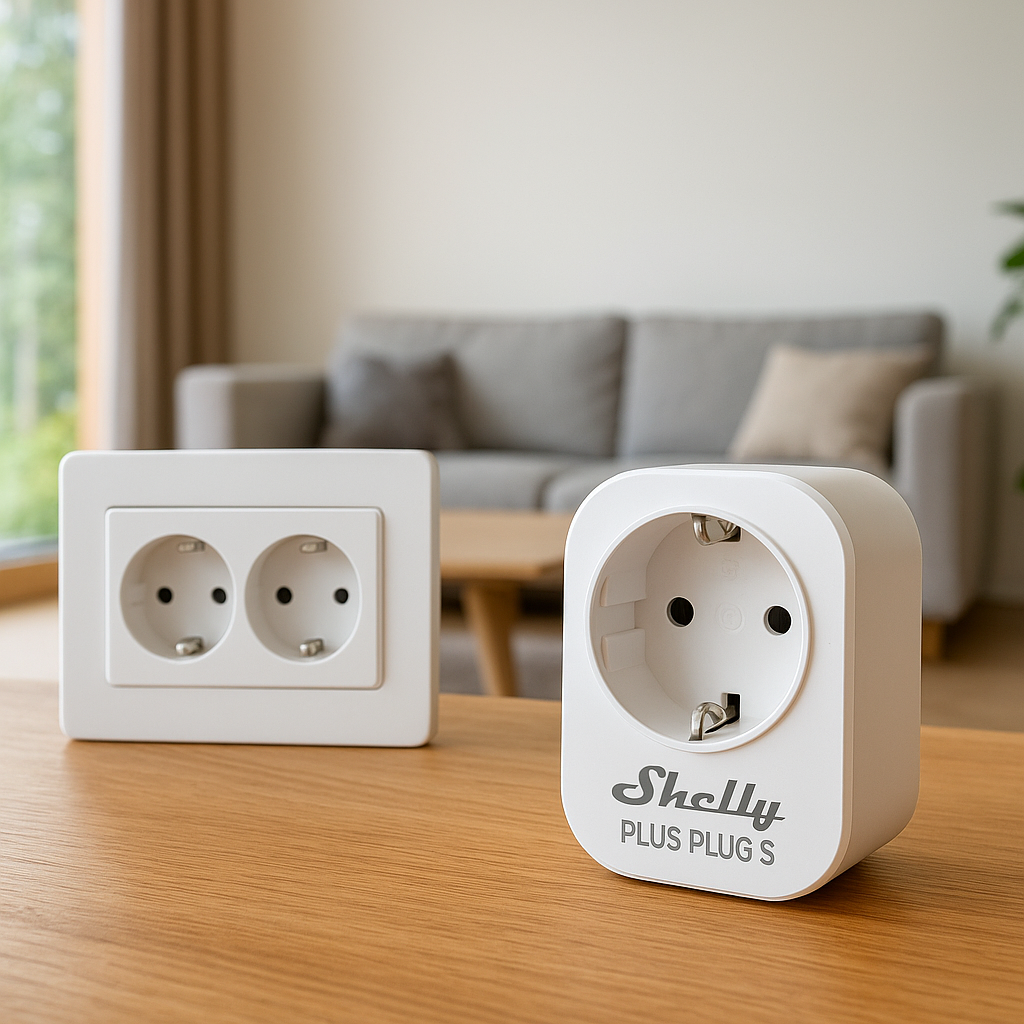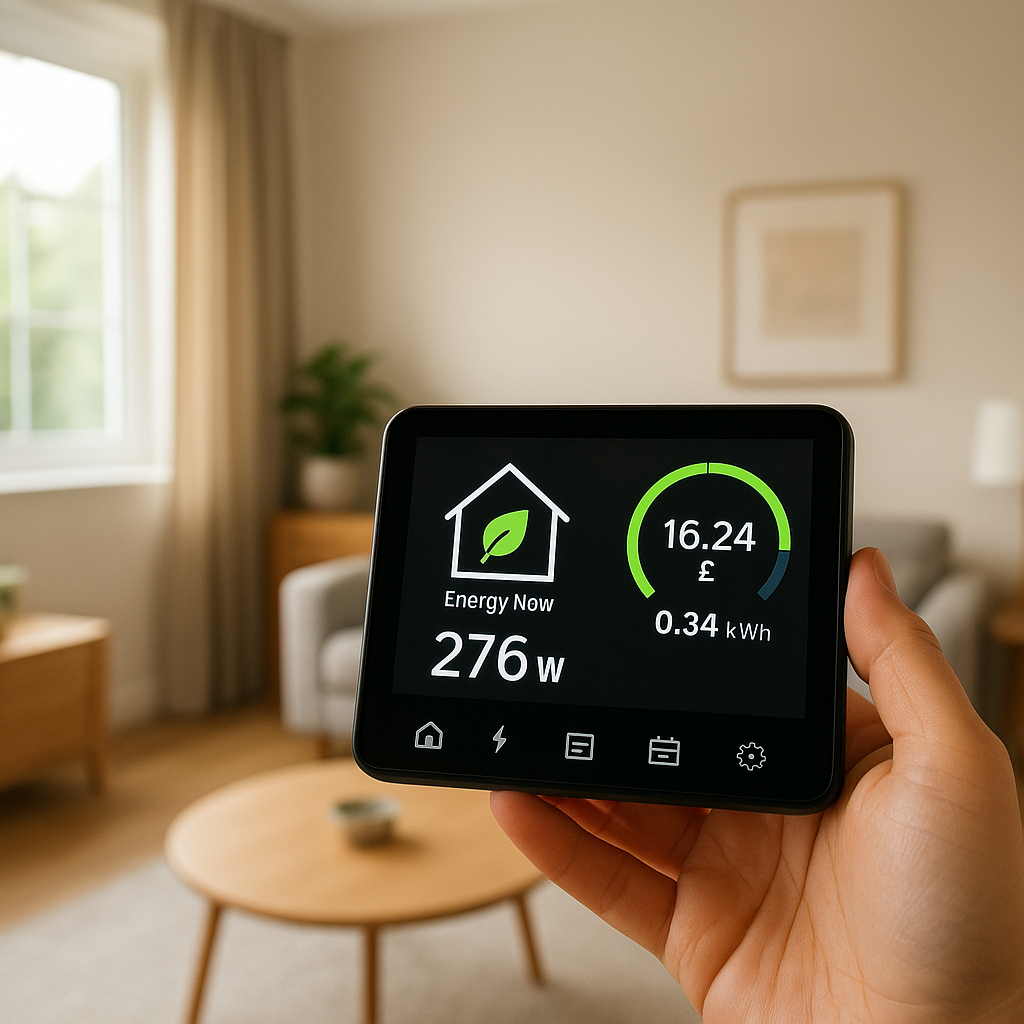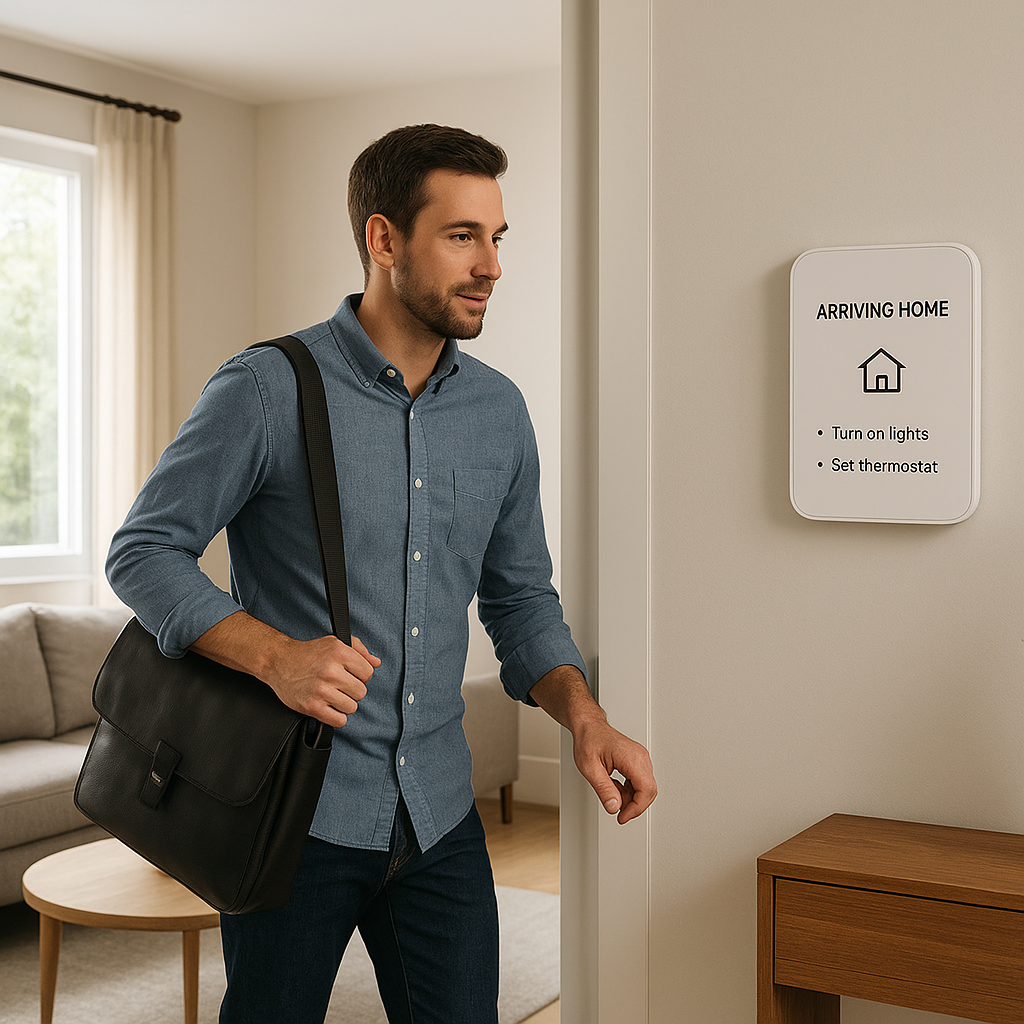
Smart power strips have quietly become one of the most useful upgrades for a modern home office. They don’t just add more outlets; the best models can automatically shut down idle gear, slash phantom power, protect your equipment, and tie into your existing smart home automation.
This guide walks through how to choose the best smart power strip for home office setups, which features really matter, specific product types to consider, and practical automation ideas. Whether you’re running a simple laptop desk or a triple‑monitor editing rig, the right strip can save energy and keep your space safer and more organized.
Why Your Home Office Needs a Smart Power Strip
The hidden cost of phantom power and always‑on gear
Most home office devices draw power even when you’re not actively using them. This standby use—often called phantom power—comes from monitors, speakers, chargers, printers, docks, and external drives that sit “off” but still plugged in. According to the U.S. Department of Energy, so‑called phantom loads can add up to 10% of a household’s electricity use.
A smart power strip can cut power completely to non‑essential devices when you leave your desk or at a scheduled time. Over a year, that can add up to noticeable savings, especially if you run multiple monitors, speakers, and chargers for many hours a day.
How automatic shutoff protects your devices and reduces risk
Automatic shutoff isn’t just about energy. Some home office gear gets warm or even hot when left on constantly: external hard drives, older chargers, or cheap power bricks. Using a smart power strip to cut power after hours can reduce the risk of overheating and extend the life of sensitive equipment.
Many smart strips also include overload protection and thermal protection. If something draws too much current or the strip gets too hot, it will trip and turn off. Combined with surge protection, this adds a layer of safety that a basic outlet or bare extension cord can’t match.
Benefits over traditional surge protectors and basic power bars
A traditional surge protector is better than nothing, but it’s always “dumb”: every outlet is treated the same way, and it never turns anything off unless there’s a surge. A smart power strip adds:
- Remote control: Turn outlets on or off from your phone or via voice assistant.
- Scheduling and automation: Power down unused gear automatically at night or on weekends.
- Energy monitoring: See which devices actually use the most power.
- Per‑outlet control: Keep your router and VoIP phone on while shutting off monitors and speakers.
This makes smart strips especially useful in a home office where you have a mix of always‑on gear (router, modem) and gear that only needs power during working hours.
Key Features to Look For in the Best Smart Power Strip for Home Office
Individually controllable outlets vs. grouped outlets
On many smart power strips, not every outlet is independent. Some strips group outlets into zones (for example, four controlled outlets + four always‑on). Others give you individual control for every AC outlet.
For a home office, individual outlet control is ideal because you can:
- Keep your modem/router powered 24/7.
- Turn off monitors, speakers, and a desk lamp together.
- Toggle a printer or scanner only when needed.
Grouped outlets work fine for simpler desks, but if you have a lot of different devices, you’ll appreciate the flexibility of per‑outlet control.
Automatic shutdown, idle detection, and scheduling options
The best smart power strip for home office use should support more than just manual on/off. Look for:
- Schedules: Set working hours (for example, 8am–6pm on weekdays) so your non‑essential gear turns off automatically.
- Auto‑off timers: Power down a device after it’s been on for a set time (handy for space heaters used briefly).
- Idle or standby detection: Some strips or companion apps can shut off outlets when power draw drops below a threshold, indicating the device is idle or in sleep mode.
Even if the strip doesn’t offer deep idle detection, a combination of schedules and motion‑based routines (covered below) handles most home office scenarios well.
Surge protection, Joule rating, and safety certifications
Your home office probably hosts your most expensive electronics. Check these protection specs:
- Joule rating: Higher is better. For computers and monitors, look for at least 1,000–2,000 Joules of surge protection.
- Clamping voltage and response time: Lower clamping voltage and fast response help protect sensitive hardware from spikes.
- Certifications: Look for UL, ETL, or equivalent safety listings on both the strip and its power adapter. UL‑listed surge protectors are tested to standards such as UL 1449; you can find more detail in technical overviews of surge protector ratings.
If the product listing doesn’t clearly state a Joule rating or safety certification, it’s better to choose a different model.
Wi‑Fi, Zigbee, Matter, and voice assistant compatibility
Smart power strips connect in different ways:
- Wi‑Fi: Most common. Connects directly to your router; easiest for beginners.
- Zigbee/Z‑Wave: Requires a hub (e.g., Amazon Echo with built‑in Zigbee, SmartThings). Good for large homes with many devices.
- Matter over Wi‑Fi: Newer standard designed to work across ecosystems (Alexa, Google Home, Apple Home).
For voice control, check explicit support for:
- Amazon Alexa
- Google Home / Google Assistant
- Apple Home (HomeKit)
If you’re deep into one ecosystem already, pick a strip that integrates smoothly so you can add outlets to routines and scenes without extra work.
Energy monitoring and usage reports for each outlet
Energy monitoring lets you see how much power each device consumes. Some smart strips can show:
- Real‑time wattage per outlet.
- Daily, weekly, or monthly kWh usage.
- Estimated cost, based on your electricity rate.
This is extremely helpful for identifying which devices are worth automating. For example, you may find your laser printer or studio speakers draw more standby power than you’d expect, while your monitor uses very little once it’s asleep.
USB and USB‑C ports for charging laptops and peripherals
Many smart power strips add USB‑A and USB‑C ports alongside AC outlets. In a home office, these can power:
- Wireless headphones and earbuds.
- Webcams and small LED desk lights.
- Tablets or phones used as secondary screens.
If you charge a USB‑C laptop from the strip, check the wattage. Some strips only offer 18–30W USB‑C ports, which are fine for tablets but may be too weak to power a full laptop under load.
Best Smart Power Strips for Home Office (Top Picks)
Best overall: Versatile smart power strip for multi‑monitor desks
For most home offices, a Wi‑Fi smart strip with 6–8 individually controllable outlets, basic energy monitoring, and Alexa/Google support is the sweet spot. Typical examples include TP‑Link Kasa or Tapo smart power strips with:
- 6 AC outlets (4–6 controllable).
- 3 USB‑A ports for peripherals.
- Decent surge protection and a compact, flat plug.
These strips work well for dual‑ or triple‑monitor setups with powered speakers, a dock, and chargers. You can assign each monitor to its own outlet, group them in the app, and shut them down with a single command or schedule.
Best for heavy PC setups: High‑capacity strip for gaming and editing rigs
If you run a power‑hungry desktop, multiple monitors, external drives, and maybe a sound interface, pay attention to maximum load and build quality. Look for:
- Amp rating of 15A at 120V (typical in North America) with clear labeling.
- Thicker power cord (14 AWG or better) and a solid plug.
- Metal housing or a robust plastic body with good heat dissipation.
Use smart control on the peripherals (monitors, speakers, lighting) and leave the PC itself either on an always‑on outlet of the same strip or, ideally, on a separate UPS (battery backup). That way, an automation never cuts power to your computer mid‑task.
Best budget pick: Affordable smart strip with basic automation
Budget smart strips from brands like Meross and Amazon Basics can be good value if you don’t need advanced energy analytics. Common traits include:
- 4–6 outlets, some grouped.
- Simple schedules and basic app control.
- Alexa and Google Assistant support, often no HomeKit.
These are fine for a laptop‑only workspace, kids’ homework desk, or guest office where you mainly want scheduled shutoff and voice control without paying for high‑end features.
Best for Apple users: HomeKit‑compatible smart power strip
If your home runs on Apple Home, choose a HomeKit‑certified strip—examples include Eve Energy Strip or certain Meross HomeKit models. These offer:
- Native control in the Apple Home app and via Siri.
- Integration with Home automations (presence, time, accessories).
- Strong privacy posture with local control where possible.
You can build automations like “When my MacBook dock turns off, power down monitors and audio gear” using Home scenes and triggers.
Best for advanced automation: Power strip with robust scene and routine support
Power users who rely on complex routines should look for strips that integrate tightly with platforms like Alexa, Google Home, SmartThings, or Home Assistant. Useful features include:
- Per‑outlet exposure as separate devices to your platform.
- Support for if/then conditions (time, motion, presence).
- Local control or LAN support for faster response.
These strips shine in workflows like “If no PC activity plus no motion for 15 minutes after 6pm, shut down all office peripherals and turn off bias lighting.”
Comparison Table: Smart Power Strips for Different Home Office Scenarios
Outlets, max load, and port configurations at a glance
Here’s a simplified comparison of typical smart power strip types you’ll see:
| Type | AC Outlets | Max Load | USB Ports | Ideal Use |
|---|---|---|---|---|
| Standard Wi‑Fi strip | 6–8 (4–6 controllable) | 15A / 1,800W | 2–3 USB‑A | Most single‑user home offices |
| High‑capacity strip | 8–10 | 15A / 1,800W (thicker cord) | None or 2 USB | Gaming / editing rigs (with UPS for PC) |
| Budget strip | 4–6 (some grouped) | 10–15A | 2 USB‑A | Laptop desks, light loads |
| HomeKit strip | 3–6 (all controllable) | 10–15A | 0–3 USB | Apple‑centric offices |
Smart home platform support (Alexa, Google, HomeKit, Matter)
Before buying, check:
- Whether every outlet shows up as its own device in Alexa/Google/Home.
- If scenes and routines can control individual outlets, not just the whole strip.
- Matter support if you want easier cross‑platform integration in the future.
If you switch ecosystems later (for example, from Alexa to Google Home), Matter‑compatible strips should migrate more smoothly.
Energy monitoring, automation features, and warranty details
On the spec sheet, compare:
- Energy monitoring: Per‑outlet vs. whole‑strip, and how detailed the history is.
- Automation: Built‑in idle detection, schedules, conditional routines.
- Warranty: Many quality strips offer 1–3 year warranties, and some include connected equipment guarantees.
For a serious home office, a longer warranty and better surge coverage are often worth paying a little more up front.
How to Set Up a Smart Power Strip in Your Home Office
Planning which devices go on smart vs. always‑on outlets
Before you plug anything in, list your devices and categorize them:
- Always‑on: Modem, router, VoIP phone, smart hub, NAS (network storage).
- Work‑hours only: Monitors, speakers, desk lamp, dock, charger stands.
- Occasional: Printers, scanners, label printers, space heaters.
Place always‑on gear either on the strip’s always‑on outlets or a separate surge protector. Use the controllable outlets for work‑hours and occasional devices so they can be switched off automatically.
Step‑by‑step setup: connecting to Wi‑Fi and smart home platforms
Most Wi‑Fi smart strips follow a similar setup process:
- Install the manufacturer’s app on your phone.
- Plug in the strip and power it on.
- Follow the in‑app steps to join it to your 2.4 GHz Wi‑Fi network.
- Rename outlets by function (e.g., “Left Monitor,” “Speakers,” “Printer”).
- Link the strip’s account to Alexa, Google Home, or Apple Home as instructed.
Once linked, you’ll see each controllable outlet as its own device, ready to be added to rooms, scenes, and routines.
Creating schedules for work hours, off‑hours, and weekends
Start simple and refine over time:
- Weekdays: Turn on monitors, speakers, and desk lamp 15 minutes before your usual start time; turn them off 30–60 minutes after your typical end time.
- Weekends: Either leave all office outlets off or create a shorter window if you often work a half day.
- Late nights: Add an “off by midnight” failsafe for everything except always‑on gear.
As your routine changes, adjust schedules rather than leaving gear on indefinitely.
Using scenes, routines, and occupancy triggers to shut down idle gear
Combine your smart power strip with other devices to detect when your office is idle:
- Create a “Work On” scene that powers up all office outlets and desk lighting.
- Create a “Work Off” scene that shuts down everything except your network gear.
- Use occupancy sensors or phone presence to automatically trigger these scenes.
This way, your office naturally powers down when you step away for a longer break or leave home, even if you forget to say a command.
Smart Automation Ideas to Automatically Shut Down Idle Home Office Gear
Using motion sensors to power down when you leave your desk
A small motion sensor placed near your desk can detect when the space is active. You can set an automation like:
- If no motion is detected for 30 minutes during work hours, turn off speakers and dim the desk lamp.
- If no motion is detected for 60 minutes after 6pm, turn off all controllable outlets on the strip.
This avoids cutting power during short breaks while still catching those long stretches when you’re away.
Linking your smart strip to your computer’s status or presence
More advanced users can integrate the strip with their computer status through platforms like Home Assistant or apps that expose PC activity as a smart home sensor. For example:
- When the PC is locked or shut down and no motion is detected for 15 minutes, power down monitors and audio gear.
- When the PC wakes, automatically turn those outlets back on.
This approach ensures you never power off essentials while you’re still actively working.
Night and vacation modes to cut phantom loads completely
Set up special modes for longer downtime:
- Night mode: At a set time, turn off everything except modem/router and maybe a low‑power night light.
- Vacation mode: Turn off all office outlets, including printers and chargers, for the entire trip.
Pair vacation mode with your smart thermostat and security system so the whole home office goes into low‑energy, low‑risk status when you’re away.
Voice commands and one‑tap “End Workday” routines
Even with automation, having a manual override is helpful. Common examples:
- Alexa/Google/Siri command such as “End my workday” that turns off all controllable office outlets, shuts blinds, and turns on hallway lighting.
- One‑tap routine in your smart home app to quickly power down everything if you need to leave in a hurry.
This creates a clear mental boundary between work and off time while ensuring nothing stays on by accident.
Safety, Reliability, and Load Planning for Smart Power Strips
Avoiding overloads with PCs, heaters, and printers
Every strip has a maximum load; most are 15A (about 1,800W at 120V). It’s easy to reach that with a gaming PC, multiple monitors, and a space heater. Tips:
- Never run a high‑wattage space heater on the same strip as your computer if it brings you near the 15A limit.
- Check the labels on power bricks and devices for wattage draw.
- Distribute heavy loads across different circuits in your room if possible.
Tripping the strip occasionally is annoying; doing it frequently can wear components faster and risk data loss if your PC loses power.
Where not to use smart power strips (space heaters, laser printers, etc.)
Some devices are better on a dedicated outlet or a basic heavy‑duty surge protector:
- Space heaters and portable AC units.
- Large laser printers or copiers with high inrush current.
- High‑draw tools or appliances (kettles, microwaves, etc.).
Use your smart strip mainly for electronics, monitors, networking gear, and accessories. Anything that heats or has a motor usually deserves its own circuit.
Cable management tips to keep your home office tidy and safe
A smart strip can reduce clutter, but only if cables are managed:
- Mount the strip under your desk or on the wall using its keyhole slots.
- Use cable sleeves, Velcro ties, or raceways to bundle runs together.
- Label each plug with the device name; this makes troubleshooting much easier.
Good cable management reduces tripping hazards and also makes it easier to see if anything is overheating or damaged.
Maximizing Energy Savings and Tracking Your Usage
How much you can save by shutting down idle gear automatically
Actual savings depend on what you run and how often, but in a typical home office:
- Two large monitors, speakers, and chargers can easily draw 20–40W in standby.
- Left on 16 hours a day outside work, that’s roughly 0.3–0.6 kWh/day.
- Over a year, that’s 100–200 kWh, which may be $15–$40 depending on your rates.
Add in a printer, docks, and multiple chargers and the numbers climb. The bigger benefit is that you don’t have to think about it—automation handles the savings for you.
Reading and interpreting energy usage data from your strip
Once your strip has been running a while, open the energy or statistics tab in the app:
- Sort by device to see which outlet uses the most power overall.
- Compare weekday vs. weekend usage to see if schedules are working.
- Adjust automation to focus on devices with the highest idle draw.
Many apps let you export or reset data. Use a one‑month baseline, then refine your setup and compare the next month to see how much difference your changes made.
Pairing with smart plugs and smart thermostats for whole‑office efficiency
A smart power strip is one piece of the puzzle. Combine it with:
- Smart plugs: Control floor lamps, non‑desk fans, or a separate standing desk power rail.
- Smart thermostat: Reduce heating or cooling in your office when your presence sensors say you’re away.
- Smart blinds or shades: Use daylight to reduce lighting needs during work hours.
By coordinating these devices, you can trim energy from lighting, electronics, and HVAC together instead of only focusing on outlets.
Choosing the Best Smart Power Strip for Your Specific Home Office Setup
Minimalist laptop desk vs. multi‑monitor workstation
Match your strip to your desk style:
- Minimalist laptop desk: A 4–6 outlet budget strip with basic scheduling is usually enough. Focus on a slim profile and USB ports for charging.
- Multi‑monitor workstation: Choose a 6–8 outlet strip with strong surge protection, per‑outlet control, and ideally energy monitoring.
Don’t overspend on features you’ll never use, but leave a bit of headroom if you expect to add more gear later.
Shared spaces and hybrid work setups
If your office shares space with a guest room or living area:
- Use separate scenes for “Office Work,” “Guest Mode,” and “Off.”
- Pick a strip with child‑lock or app‑based lockout if kids might be around.
- Label outlets clearly so family members can safely unplug or rearrange devices.
Smart scheduling also helps when you split time between home and company offices; you can power down your home desk on days you’re out.
Future‑proofing with Matter and ecosystem‑friendly options
If you plan to expand your smart home, consider:
- Matter support for cross‑platform compatibility.
- Vendors with a good track record of app updates and security patches.
- Strips that support local control with platforms like Home Assistant for more advanced setups.
Spending slightly more on a well‑supported strip now can save you from ripping it out in a couple of years when you upgrade the rest of your system.
Final Recommendations and Setup Checklist
Quick decision guide by budget, ecosystem, and desk size
Use this as a quick filter:
- Tight budget, simple desk: 4–6 outlet Wi‑Fi strip with Alexa/Google support and basic scheduling.
- Productivity or creative workstation: 6–8 outlet strip with strong surge rating, per‑outlet control, and energy monitoring.
- Apple‑centric home: HomeKit‑compatible strip, ideally with per‑outlet control and solid surge specs.
- Automation enthusiast: Strip with Matter or strong Alexa/Google/SmartThings integration and per‑outlet exposure.
The best smart power strip for home office setups is the one that matches your devices, your automation comfort level, and your existing ecosystem.
Home office smart power strip setup and automation checklist
Before you call it done, run through this checklist:
- Confirm the strip’s Joule rating and safety certifications.
- Map out which devices belong on controllable vs. always‑on outlets.
- Rename outlets in the app with clear, descriptive names.
- Set weekday and weekend schedules for non‑essential gear.
- Create “Work On” and “Work Off” scenes or routines.
- Add a motion sensor or presence trigger if your platform supports it.
- Review energy usage after a few weeks and fine‑tune automations.
With a bit of planning, a smart power strip turns your home office into a space that powers itself up when you’re ready to work and quietly powers itself down when you’re done.
FAQ
Can a smart power strip replace a UPS (battery backup) for my PC?
No. A smart power strip can add surge protection and automation, but it cannot keep your PC running during an outage. For desktops or critical equipment, use a UPS between the wall and your PC, and use the smart strip mainly for monitors and accessories.
Will a smart power strip increase my standby power usage?
The strip itself draws a small amount of power to run its Wi‑Fi and electronics, usually 1–2W. In almost all home office setups, the energy you save by automatically cutting standby loads on other devices far outweighs this small overhead.
Do I need a smart hub to use a smart power strip?
Most Wi‑Fi smart strips do not require a separate hub; they connect directly to your router via the manufacturer’s app. Zigbee or Z‑Wave strips typically do need a compatible hub like SmartThings or certain Echo models with built‑in radios.
Is it safe to plug a power strip into another power strip?
Generally, no. Daisy‑chaining power strips increases the risk of overload and is discouraged by electrical safety guidelines. Use a single high‑quality strip or consider installing additional outlets if you consistently run out of space.
Can I still use my smart strip if my internet goes down?
Most smart strips will keep their current on/off state even if the internet drops. Local control via the physical buttons on the strip will still work, but cloud‑based app or voice control may be limited until your connection returns.