High-wattage devices like space heaters, gaming PCs, and dehumidifiers can quietly drive up your electricity bill. The good news: with smart plugs, power strips, and energy monitors, you can automate these power-hungry devices based on their real-time energy usage instead of simple on/off schedules.
This guide walks you through how to automate devices based on energy usage in a practical, safe way. You’ll learn the basics of real-time monitoring, how to choose the right hardware, and how to build useful automations in platforms like Home Assistant, Alexa, Google Home, and Apple Home.
Why Automate Devices Based on Real-Time Energy Usage?
The problem with always-on power-hungry devices
Many homes have a handful of devices that quietly use a lot of power:
- Space heaters and portable AC units
- Dehumidifiers and air purifiers
- Gaming PCs, high-end laptops, and multi-monitor setups
- Electric dryers, EV chargers, and pool pumps
These devices often run longer than necessary, or they keep drawing power in standby mode. A gaming PC left on overnight can draw hundreds of watts. A dehumidifier might keep running even after humidity is already at a comfortable level. Over a month, that adds up to real money.
Traditional timers and basic schedules help, but they don’t respond to what your devices are actually doing. Real-time energy-based automation lets your home react to power draw, total household load, and even electricity price windows, so things run only when they truly need to.
Benefits of energy-aware automations (cost, comfort, equipment life)
Automating based on real-time energy data brings several concrete benefits:
- Lower costs: Cut runtime for high-wattage devices, avoid peak-rate periods, and reduce wasted standby power.
- More comfort: Keep heaters or AC units within a target band instead of all-or-nothing usage that leaves rooms too hot or too cold.
- Longer equipment life: Limiting unnecessary runtime reduces wear on compressors, fans, and power supplies.
- Safer operation: Automatically shut off heaters or other loads if they exceed a safe wattage or run longer than intended.
- Visibility: You gain clear insight into what’s using power in your home, which makes future upgrades and changes easier to justify.
Ideal candidates for automation: heaters, AC units, dehumidifiers, gaming PCs, and more
Some devices respond especially well to real-time energy automations:
- Space heaters and portable AC units: Use smart plugs rated for high loads to enforce maximum runtime per day or auto-shutoff when they idle at high wattage for too long.
- Dehumidifiers and air purifiers: Combine humidity sensors and power draw data to avoid running them all day when the air is already dry or clean.
- Gaming PCs and home office gear: Automatically power down monitors, speakers, and even the PC after inactivity or when power drops below a certain threshold.
- Entertainment centers: TVs, receivers, consoles, and streaming boxes are notorious for vampire loads; smart power strips can tame these.
- EV chargers and large appliances: Use whole-home monitors and intelligent chargers to avoid overloading circuits and to shift usage to off-peak times.
Understanding Real-Time Energy Monitoring Basics
How smart plugs and smart power strips measure power draw (W vs kWh)
Most energy-monitoring smart plugs and power strips use built-in current sensors to estimate how much power a device is drawing. They typically report:
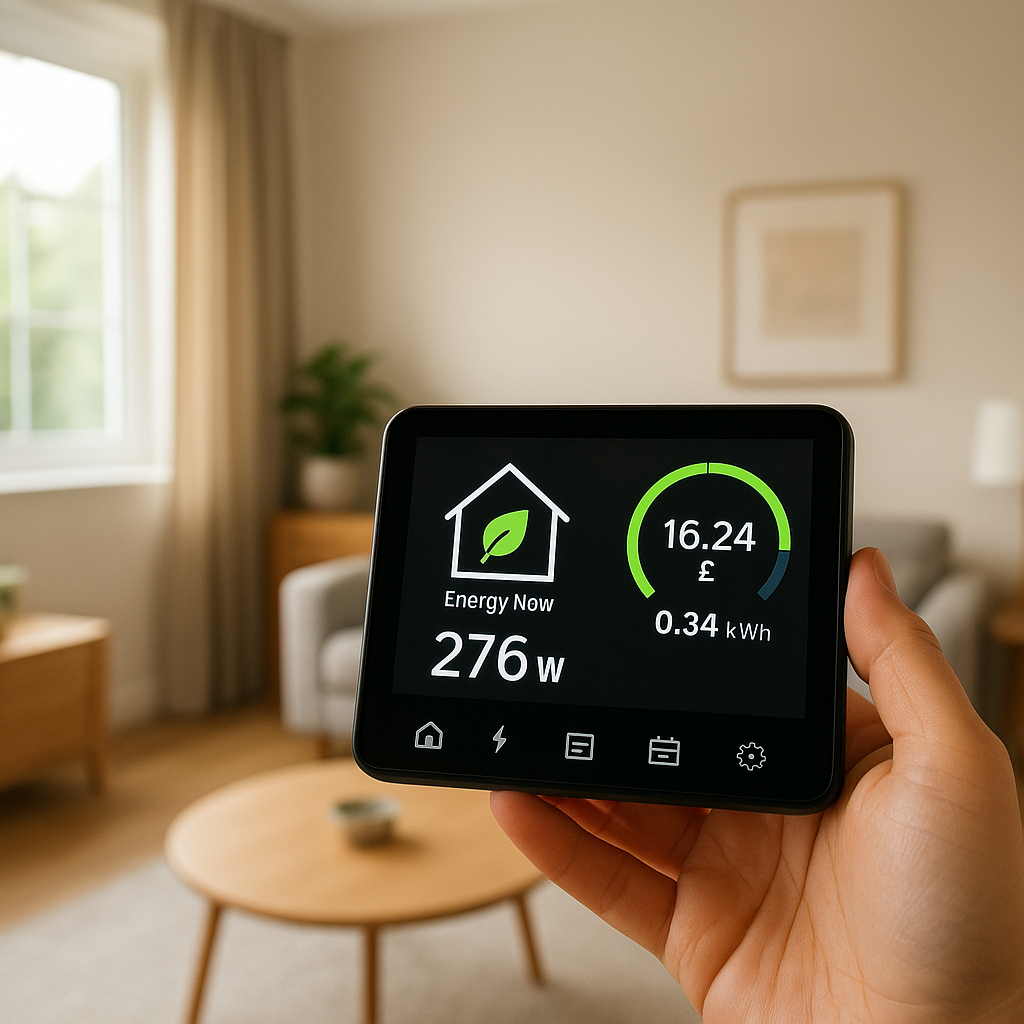
- Power (W): Instantaneous draw at a moment in time, in watts. This is what you’ll often use for triggers (e.g., “if heater > 1,500 W, turn off”).
- Energy (kWh): Total energy consumed over time, in kilowatt-hours. This is what your electric bill is based on.
For example, a dehumidifier drawing 500 W (0.5 kW) for 4 hours uses 2 kWh of energy. If your tariff is $0.25 per kWh, that’s $0.50 for that session. If it does that daily, it can be $15 per month for that single device.
If you want a deeper technical background, the kilowatt-hour article on Wikipedia is a helpful reference on how energy is measured and billed.
Whole-home energy monitors vs plug-level monitoring
There are two main approaches to monitoring:
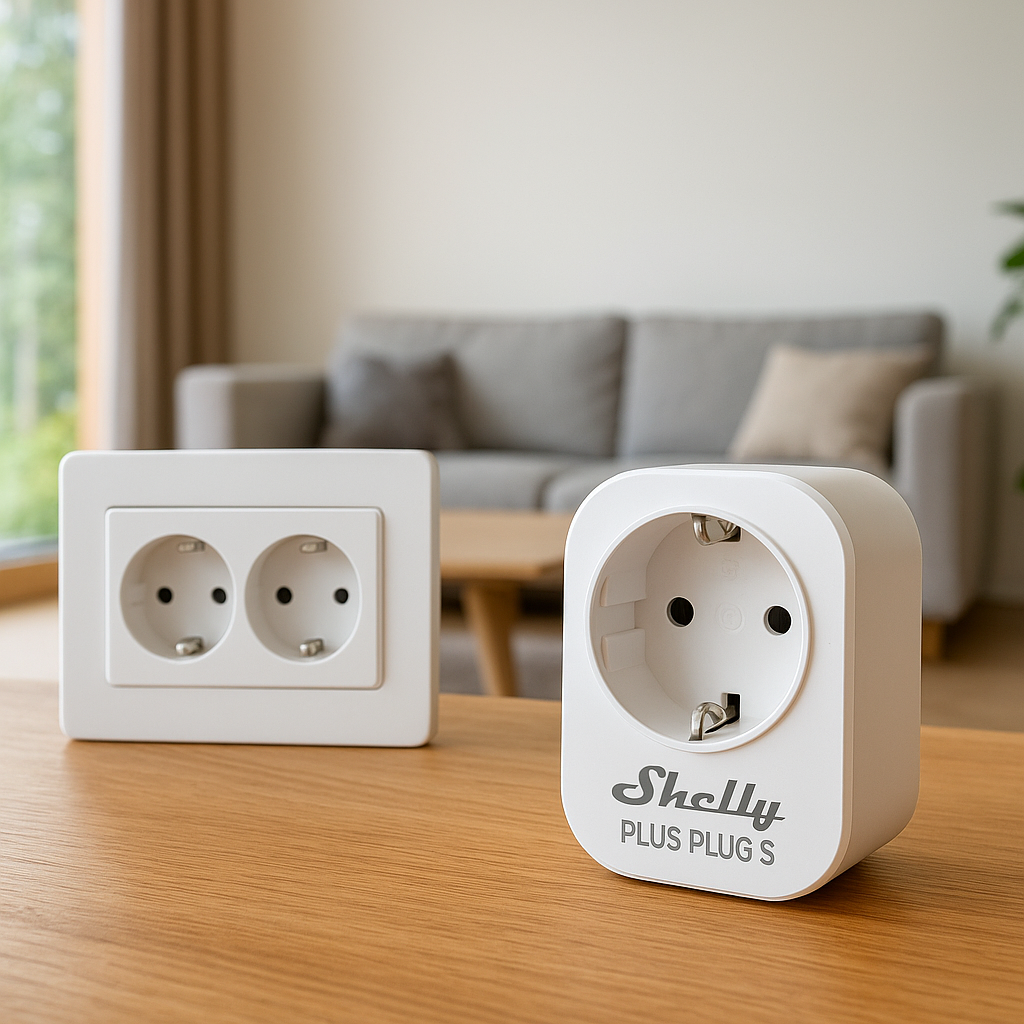
- Plug-level monitoring: Smart plugs and power strips measure the usage of individual devices. This is ideal for managing specific high-wattage loads like a heater or gaming PC.
- Whole-home monitoring: Devices like Sense, Emporia Vue, or Shelly EM clamp onto your main electrical feeds to track total household usage, sometimes down to major appliances.
Plug-level monitoring is better for fine-grained automations (“turn off this heater if it draws too much”). Whole-home monitors are better for global rules (“if total house power exceeds 7 kW, pause the EV charger”). Many advanced setups combine both approaches.
Key metrics to watch: current draw, peak loads, standby consumption
When setting up energy-based automations, focus on three practical metrics:
- Current draw / instantaneous power (W): Use this for thresholds that trigger automations, such as identifying when a PC is truly idle or when a heater is on full blast.
- Peak loads: Short periods where total usage spikes—often when multiple large appliances run at once. Auto-shedding loads helps avoid tripping breakers or incurring demand charges.
- Standby consumption: Power drawn when devices appear “off” but still use a few watts. Over many devices and hours, this becomes significant, and smart strips can eliminate much of it overnight.
Choosing the Right Smart Plugs, Power Strips, and Energy Monitors
Load capacity and safety considerations for high-wattage devices
Not every smart plug is suitable for every device. Safety comes first:
- Check the rating: Ensure the plug or strip is rated in amps and watts for your region (e.g., 15A / 1,800 W at 120V in North America). Space heaters and portable AC units can easily hit these limits.
- Look for certifications: UL, ETL, or equivalent safety marks are important for high-wattage loads.
- Avoid daisy-chaining: Don’t plug a power strip into another power strip or into a low-rated smart plug.
- Use purpose-built devices: Consider heavy-duty smart plugs designed for appliances if you’re controlling things like dryers or large heaters.
Wi-Fi vs Zigbee/Z-Wave vs Matter for reliable automation
Your choice of wireless protocol influences reliability and responsiveness:
- Wi-Fi: Common and easy to set up. Suitable for a few devices, but lots of Wi-Fi smart plugs can burden your router. Cloud-dependent Wi-Fi devices may be slower or fail if the internet drops.
- Zigbee/Z-Wave: Mesh-based, designed for smart homes. Often more reliable for many small devices and can operate locally through hubs like Home Assistant, SmartThings, or Hubitat.
- Matter (over Wi-Fi or Thread): A newer standard aiming for better interoperability and more local control with platforms like Apple Home, Alexa, and Google Home. Matter-compatible plugs and strips are becoming more common.
If you plan to build several energy-based automations, a hub-based system (Zigbee, Z-Wave, or Matter with Thread) often gives more consistent performance than a pile of separate Wi-Fi plugs.
Features to prioritize: real-time data, per-outlet control, energy reports, local control
When comparing devices, look beyond simple on/off control:
- Real-time energy data: Frequent updates (every few seconds) make threshold-based automations more accurate.
- Per-outlet control (for power strips): Being able to switch and measure each outlet individually gives much more flexibility.
- Historical energy reports: Look for apps or integrations that let you see daily/weekly usage so you can refine rules.
- Local control: Devices that keep working even without cloud access are more reliable and responsive.
- Integration with your platform: Confirm compatibility with Home Assistant, Alexa, Google Home, or Apple Home before buying.
Planning Your Energy-Based Automations
Map your high-consumption devices and their typical usage patterns
Start with a simple audit of your home:
- List all devices over ~300–400 W (heaters, PCs, AC units, dryers, kettles, etc.).
- Note when and how long they typically run.
- Identify which ones are often left on by accident or run longer than needed.
Attach temporary energy-monitoring plugs to suspected culprits for a week. The data will reveal which devices deserve permanent automation.
Define your goals: saving money, avoiding peak rates, or staying within solar production
Different goals lead to different rules:
- Saving money overall: Focus on reducing runtime and eliminating standby loads for the worst offenders.
- Avoiding time-of-use peak rates: Shift flexible loads (EV charging, dehumidifiers, dryers) away from specific expensive time windows.
- Staying within solar production/battery limits: Run heavy loads only when solar output is high or battery state-of-charge is above a chosen threshold.
Clarifying your main goal helps you avoid overcomplication and keeps automations focused.
Set thresholds and schedules that work with your lifestyle, not against it
Energy savings should not make your home annoying. When choosing thresholds:
- Allow for comfort: Don’t cut the heater so aggressively that rooms swing wildly in temperature.
- Account for habits: If you game late at night, avoid an automation that kills your PC at 10 p.m. sharp.
- Use graduated responses: Start with warnings or notifications before fully cutting power to critical devices.
Plan to test and adjust; the first version of an automation is rarely perfect.
Automations Using Smart Plugs (Per-Device Control)
Turn off idle gaming PCs, monitors, and home office gear after inactivity
A common pattern is a PC drawing high power under load, then dropping sharply when idle. You can:
- Monitor the smart plug’s power draw for your PC.
- If power stays below, say, 30–40 W for 20–30 minutes (indicating idle or sleep), cut power to monitors, speakers, and chargers.
- Optionally, send a phone notification or flash a smart light before power is cut.
For home offices, use a plug on a power strip feeding monitors and docking stations. When your laptop is unplugged or power use drops, the automation can shut off everything else to avoid overnight standby usage.
Automatically cut power to space heaters when they exceed a safe wattage
Space heaters are both high-wattage and a fire risk if misused. With a properly rated smart plug you can:
- Set a hard limit (e.g., if power > 1,600 W for more than 1 minute, turn off and send an alert).
- Limit total runtime (e.g., no more than 2 hours of continuous operation).
- Disallow operation during certain hours (e.g., automatically off after midnight).
These rules don’t replace safe usage guidelines, but they provide an extra safety net.
Reduce standby power at night for TVs, AV receivers, and chargers
Standby power adds up when you have multiple AV components and chargers. A simple approach:
- Plug your TV, receiver, subwoofer, and game consoles into a smart strip or plug (check ratings).
- Create a nightly routine that turns them completely off at a specific time if they’ve been drawing less than a small threshold (e.g., 10 W) for 30 minutes.
- In the morning or on first use (detected by power draw on a master outlet or presence detection), automatically power them back on.
Automations Using Smart Power Strips (Zone-Based Control)
Grouping entertainment center devices to eliminate vampire loads
Smart power strips shine when you have many related devices:
- Put your TV or main console on one outlet, and peripherals (receiver, soundbar, media players) on others.
- Use per-outlet monitoring to see which devices draw the most standby power.
- Set rules that cut power to peripherals overnight or when the main device has been off for a while.
This approach cleans up cabling and gives you central control of an entire zone, without needing one plug per device.
Master-outlet logic: turning peripherals on only when the main device is active
Some smart strips support a “master” outlet concept, where peripherals follow the main device:
- Assign the TV as the master outlet.
- If TV power draw rises above, say, 30 W (indicating it’s on), automatically power peripherals.
- When TV power drops into standby for a set time, cut peripheral power completely.
This avoids running receivers and soundbars when nobody is actually watching or listening.
Creating work-from-home profiles: workday vs off-hours power rules
For a home office power strip:
- Define “work hours” where monitors, docking stations, VoIP phones, and printers can operate freely.
- Outside of those hours, cut power to everything except essentials (like a router or NAS, if they’re on separate circuits).
- Optionally, allow a manual override button on the strip or within your app when you have to work late.
This keeps your desk from quietly burning watts every evening and weekend.
Using Whole-Home Energy Monitors for Smarter Rules
Auto-shedding non-essential loads when total home consumption is too high
Whole-home monitors let you watch total usage in real time. You can configure rules like:
- If total usage exceeds 7 kW for more than 2 minutes, pause the EV charger or a non-critical heater.
- If usage falls back below 5 kW, resume those loads.
This “peak shaving” helps prevent tripped breakers and reduces stress on your electrical system, especially in older homes.
Coordinating with time-of-use tariffs to avoid peak-rate periods
If your utility uses time-of-use (TOU) pricing, rates can change hourly. Many utilities publish schedules for off-peak, mid-peak, and peak hours, sometimes with seasonality. For an overview of how TOU pricing works, see a utility-focused explainer such as the PG&E Time-of-Use rate plan page.
With this information and a whole-home monitor, you can:
- Automatically disable EV charging or laundry during peak periods unless you manually override.
- Pre-cool or pre-heat rooms before a peak window, then allow temperatures to drift slightly during the expensive hours.
- Schedule non-urgent loads like pool pumps or dehumidifiers for off-peak times.
Matching device usage to solar production or battery availability
If you have solar panels or a home battery, whole-home monitoring becomes even more useful:
- Run heavy loads only when solar production is above a certain level.
- Pause non-essential loads when your battery state-of-charge falls below a chosen threshold.
- Prioritize critical devices (fridge, medical equipment, networking) over nice-to-have devices (EV charging, entertainment) during low-sun periods.
Setting Up Automations in Popular Smart Home Platforms
Example flows with Home Assistant (energy dashboard + automations)
Home Assistant is powerful for energy-based rules. A typical setup:
- Integrate your smart plugs, power strips, and whole-home monitor.
- Use the Energy dashboard to see daily and hourly consumption by device.
- Create automations such as: “If total power > 6 kW, turn off the living-room heater” or “If office strip power < 20 W for 45 minutes, turn off strip.”
Home Assistant supports templates and complex conditions, making it possible to stack multiple constraints (time of day, occupancy, weather, and power). Their own Energy management documentation is a solid reference while you build out your system.
Using Alexa, Google Home, and Apple Home for basic energy-triggered routines
Mainstream assistants are more limited but still useful:
- Alexa: Some energy-monitoring plugs expose metrics that can be used for routines, like shutting off a plug when usage drops below a certain level.
- Google Home: Often relies on manufacturer integrations; you may be able to run routines based on states reported by specific plugs.
- Apple Home: With HomeKit-compatible energy plugs, you can build automations tied to power state and time, especially when combined with Shortcuts.
These platforms are great for simpler setups, but if you hit limitations, bridging them into Home Assistant or another advanced hub can unlock more options.
IFTTT and manufacturer apps: when they’re enough and when they’re limiting
Many smart plug vendors offer their own apps with basic energy-based rules (like “auto-off after 2 hours” or “turn off when power exceeds X W”). IFTTT can also link devices and services with simple if-this-then-that rules.
These tools are often enough if you only want a few basic automations. They become limiting when you need:
- Multiple conditions (time, occupancy, and power combined).
- Fast, local responses without cloud delays.
- Complex logic, such as prioritizing certain loads over others.
Safety, Reliability, and Practical Limits
Devices you should never fully power-cut (fridges, some medical equipment)
Not every device is a good candidate for full power cutoff:
- Refrigerators and freezers: These need stable power. Frequent cycling or long off periods can spoil food.
- Medical devices: CPAP machines, oxygen concentrators, and other life-sustaining equipment should never be automated in a way that can unexpectedly shut them off.
- Network infrastructure: Routers and modems can be power-cycled manually for troubleshooting, but daily automations that cut them overnight can break smart home reliability.
For these devices, focus on monitoring rather than control, and use alerts instead of automatic shutoffs.
Avoiding relay wear and over-automation fatigue
Relays inside smart plugs and strips are mechanical and have a finite number of cycles. Constantly flipping devices on and off every few seconds or minutes can shorten lifespan.
Mitigate this by:
- Adding minimum on/off times (e.g., don’t toggle more than once every 10–15 minutes).
- Using longer averaging windows for power thresholds so brief spikes don’t cause unnecessary switching.
- Keeping automations simple and understandable so you don’t feel like your home is fighting you.
Monitoring automations over the first few weeks and fine-tuning thresholds
After you enable new automations:
- Watch logs or app histories to see how often they trigger.
- Adjust thresholds if they’re too aggressive (cutting devices prematurely) or too relaxed (not saving much energy).
- Solicit feedback from household members about what feels helpful versus annoying.
This iterative tuning phase is where your automations go from “neat” to genuinely useful.
Measuring Results and Optimizing Over Time
Tracking energy savings with utility data and app reports
To see if your efforts are working:
- Compare monthly kWh usage on your utility bill before and after major automation changes.
- Use your smart plug or monitor apps to view per-device energy usage over weeks.
- Track approximate cost savings by multiplying kWh reductions by your tariff rate.
Even modest percentage reductions can add up, especially in homes with multiple high-wattage devices.
Identifying new automation opportunities from historical usage graphs
After a few weeks of data collection, patterns emerge:
- See which devices run frequently at night or during peak-rate windows.
- Find unexpected standby loads that stay on 24/7.
- Spot times when total consumption regularly spikes, then design automations to smooth those peaks.
Use this insight to add or refine automations rather than guessing.
Creating seasonal profiles for heating, cooling, and holiday loads
Energy usage shifts throughout the year, so your automations should, too:
- Winter: Focus on managing heaters, electric blankets, and holiday lighting.
- Summer: Optimize AC units, fans, and dehumidifiers.
- Shoulder seasons: You may be able to loosen rules or disable certain automations entirely.
If your platform supports it, create seasonal scenes or profiles that adjust thresholds and schedules automatically.
Example Automation Recipes to Copy
Peak-shaving for electric heaters or portable AC units
Goal: Keep total household power below 6 kW while still maintaining comfort.
- Monitor total home usage via a whole-home monitor.
- Place living-room heater or portable AC on an energy-monitoring plug.
- Automation: If total usage > 6 kW and heater power > 800 W, turn off the heater for 10 minutes, then allow it to turn back on if usage has dropped.
This softens peaks without permanently disabling comfort devices.
Smart EV charger throttling based on whole-home load
Goal: Charge the car efficiently without overloading circuits or hitting demand peaks.
- Integrate your EV charger with your smart home platform (many chargers offer APIs or built-in integrations).
- Monitor total home usage.
- Automation: If total usage exceeds a threshold (e.g., 7 kW), lower the EV’s charging current or pause charging. Resume when usage drops.
Some smart chargers can do this natively; others can be controlled through relays or load management systems.
Limiting dehumidifier runtime based on humidity and power draw
Goal: Maintain comfortable humidity without running the dehumidifier nonstop.
- Use a humidity sensor in the same area as the dehumidifier.
- Plug the dehumidifier into an energy-monitoring smart plug.
- Automation: Run the dehumidifier while humidity > 55% and total runtime today < 8 hours. If humidity falls below 50% or runtime exceeds the daily limit, turn it off.
You can adjust the humidity thresholds to match your climate and comfort level.
Conclusion: Building a Smarter, Safer, and Cheaper Power Profile
Prioritize quick wins and expand as your data improves
Start with a few obvious high-wattage devices and simple rules. Smart plugs on a space heater and gaming PC, plus a smart strip on your entertainment center, can deliver noticeable savings with minimal effort.
As you gather data, you’ll see where more sophisticated automations—using whole-home monitors and seasonal profiles—make sense.
Combining energy-based automations with presence and schedules
Energy data becomes even more powerful when combined with:
- Presence detection: Only enforce certain cutoffs when nobody’s home.
- Schedules: Restrict heavy usage during typical sleep hours or peak-rate times.
- Scenes: Link lighting, climate, and power usage so your “Away” or “Movie” scenes also adjust energy-heavy devices.
Next steps: integrating sensors, thermostats, and scenes for deeper savings
Once you’re comfortable with basic automations:
- Integrate smart thermostats and temperature sensors to fine-tune heating and cooling.
- Add contact sensors to windows/doors so heaters or AC units pause when windows are open.
- Build whole-home scenes that coordinate lighting, climate, and power usage for work, sleep, and travel.
Bit by bit, you’ll create a home that quietly optimizes your comfort and energy costs in the background.
FAQ
Do I need a whole-home energy monitor to start automating devices based on energy usage?
No. You can start with a few energy-monitoring smart plugs for your highest-wattage devices. Whole-home monitors become useful once you want to manage total household load, coordinate with solar or TOU tariffs, or create more advanced peak-shaving rules.
Are cheap smart plugs safe for high-wattage devices like heaters?
Only use smart plugs that are properly rated and certified for the load you’re connecting. Many inexpensive plugs are designed for lamps and chargers, not 1,500 W heaters. Always check the amp and watt ratings and look for UL/ETL or equivalent marks.
Will cutting power frequently damage my devices?
Occasional automatic shutoffs are usually fine for most electronics, but constantly toggling power can stress some devices and the plug’s relay. Use reasonable thresholds and minimum on/off durations to avoid rapid cycling. For critical or sensitive equipment, focus on monitoring and alerts rather than full power cutoffs.
Can I still control devices manually if I set up automations?
Yes. Most platforms let you manually override automations using app controls, physical buttons on plugs/strips, or voice commands. It’s wise to design your rules so that manual actions don’t immediately get undone by automations.
How much can I realistically save with energy-based automations?
Savings vary by home. Many households see meaningful reductions by targeting just a few power-hungry devices—often 5–15% of their electricity use. The more high-wattage and flexible loads you can control intelligently, the more you stand to save.