Manually turning humidifiers and dehumidifiers on and off gets old fast. Maybe your bedroom feels dry when you wake up, your basement smells damp by evening, or your nursery swings between too dry and too muggy. Smart plugs and humidity sensors can take over these constant tweaks and keep your home in a comfortable range automatically.
This guide walks through how to automate a humidifier with a smart plug, and how to do the same for dehumidifiers. You’ll see what equipment you need, how to set safe automation rules, and practical example setups for different rooms so you can truly “set it and forget it.”
Why Automate Humidifiers and Dehumidifiers in the First Place?
Comfort, health, and energy savings from stable humidity
Most homes feel best when indoor relative humidity sits roughly between 40–50%. Below that, you get dry skin, scratchy throats, and static shocks. Above that, homes can feel clammy and stuffy, and mold and dust mites become more of a concern. The U.S. EPA recommends keeping humidity below about 60% to limit mold growth; you can read more in their guide on mold, moisture, and your home.
Keeping humidity in a stable range helps with:
- Comfort: You can run the thermostat a little lower in winter when the air isn’t bone dry, and high humidity in summer no longer makes moderate temperatures feel oppressive.
- Health: Balanced humidity can reduce nosebleeds, dry eyes, and irritated sinuses, and make it harder for mold and dust mites to thrive.
- Home protection: Wood floors and furniture are less likely to crack or warp, and condensation on windows is easier to control.
- Energy savings: Devices only run when needed. Instead of running a humidifier all night on full power, it can cycle on and off automatically.
Common problems with manually controlling humidifiers and dehumidifiers
Running these devices manually sounds simple, but it rarely works well over time. Common issues include:
- Forgetting to turn devices off: A humidifier runs all day in a small room and pushes humidity into the 60–70% range, leaving condensation and a musty smell.
- Inconsistent schedules: You only remember to run the dehumidifier on certain days, so the basement humidity swings wildly.
- Overcorrecting: You crank a humidifier from low to high because the air feels dry at bedtime, then wake up to a stuffy, wet room.
- No feedback: Without a humidity reading, it’s a guessing game. You may think the air is dry because it’s cold, when humidity is already high.
Automation fixes these issues by using actual humidity readings instead of guesswork and by taking repetitive on/off decisions out of your hands.
When smart plugs and sensors are better than built‑in humidistats
Many modern humidifiers and dehumidifiers include basic built‑in humidistats, but smart plugs and sensors often do a better job:
- Better accuracy: Standalone sensors (like Govee, Aqara, or SwitchBot) are often more accurate than the cheap internal sensor near the device’s warm, wet airflow.
- Flexible placement: You can put the sensor where you actually sit or sleep, not right next to the device.
- Smarter rules: Smart platforms let you combine humidity with schedules, outdoor weather, and presence, which built‑in humidistats can’t do.
- Cross‑room control: A basement dehumidifier can be triggered by a sensor on the other side of the room or even in an adjacent storage area.
Using a smart plug with an external humidity sensor turns a “dumb” humidifier or dehumidifier into something close to a fully smart appliance.
Can You Safely Automate a Humidifier with a Smart Plug?
Types of humidifiers that work well (and poorly) with smart plugs
Not every humidifier behaves well when you cut and restore power with a smart plug. For good results, you want a unit that automatically resumes its last state when power comes back.
- Work well:
- Simple mechanical knob humidifiers: These usually turn back on as soon as power is restored, as long as the knob is set to On.
- Single‑button digital units that resume last state: Some ultrasonic models remember they were On and start again after power is restored.
- Work poorly:
- Models that require you to press a power button: If they power up into standby instead of On, a smart plug can’t restart them.
- Units that reset settings after losing power: These may default to Off or change mist levels every time.
You can test your humidifier easily: turn it on, then unplug it from the wall, wait a few seconds, and plug it back in. If it starts running again on its own, it’s a good candidate for automation.
Safety considerations: water, electricity, and over‑humidification risks
Humidifiers mix water and electricity, so safety comes first:
- Use grounded outlets: Plug larger units into grounded (three‑prong) outlets and avoid loose extension cords.
- Keep cords dry: Route power cables away from potential spills or tank refills. Don’t let the power strip sit where water can puddle.
- Use built‑in protections: Most modern humidifiers have low‑water auto‑shutoff. Make sure it works properly before automating.
- Prevent over‑humidification: Long runs without feedback can cause condensation, window fogging, and mold. Automation with accurate sensors helps avoid this, but don’t set targets above ~50% for most homes.
- Regular cleaning: Smart plugs can’t clean your tank. Follow manufacturer cleaning schedules to avoid bacteria and mineral buildup.
Power ratings and choosing the right smart plug for your device
Most tabletop ultrasonic or evaporative humidifiers draw relatively little power (often under 100W), but some console units and dehumidifiers use much more.
- Check device wattage: Look at the humidifier’s label (back or bottom). It may show Watts (W) or Amps (A). Multiply Amps × 120V to estimate Watts in North America.
- Match or exceed with the smart plug: Common smart plugs like the TP‑Link Kasa KP115 or Amazon Smart Plug support up to 15A (around 1,800W). Stay well below these limits for safety.
- Avoid high‑draw devices on tiny plugs: Never plug large console humidifiers, portable ACs, or space heaters into low‑amp smart plugs.
- Indoor‑only: Use indoor‑rated smart plugs for humidifiers and dehumidifiers unless the outlet is in a damp area, where a weather‑resistant or GFCI‑protected solution is smarter.
Essential Gear: Smart Plugs, Humidity Sensors, and Hubs
Best smart plug features for humidifier and dehumidifier automation
Any basic smart plug can switch power on and off, but certain features make life easier:
- Power monitoring: Plugs like the Kasa KP115 can show energy use and help you confirm if the device is actually running.
- Reliable local control: Platforms such as Home Assistant or Apple HomeKit, paired with Matter or Zigbee plugs, keep automations working even if the internet goes down.
- Schedules and timers: Built‑in scheduling lets you limit when automations run (e.g., only at night in a bedroom).
- Good app and ecosystem: Choose something that works with your existing ecosystem (Alexa, Google Home, HomeKit, SmartThings, or Home Assistant).
Picking reliable humidity sensors (standalone vs. built‑in to thermostats)
Accurate humidity readings are the foundation of this setup. You have two main options:
- Standalone sensors: Devices like Govee Bluetooth/Wi‑Fi sensors, Aqara temperature & humidity sensors, and SwitchBot sensors are inexpensive and can be placed exactly where you need them. Many integrate with platforms like Home Assistant or IFTTT.
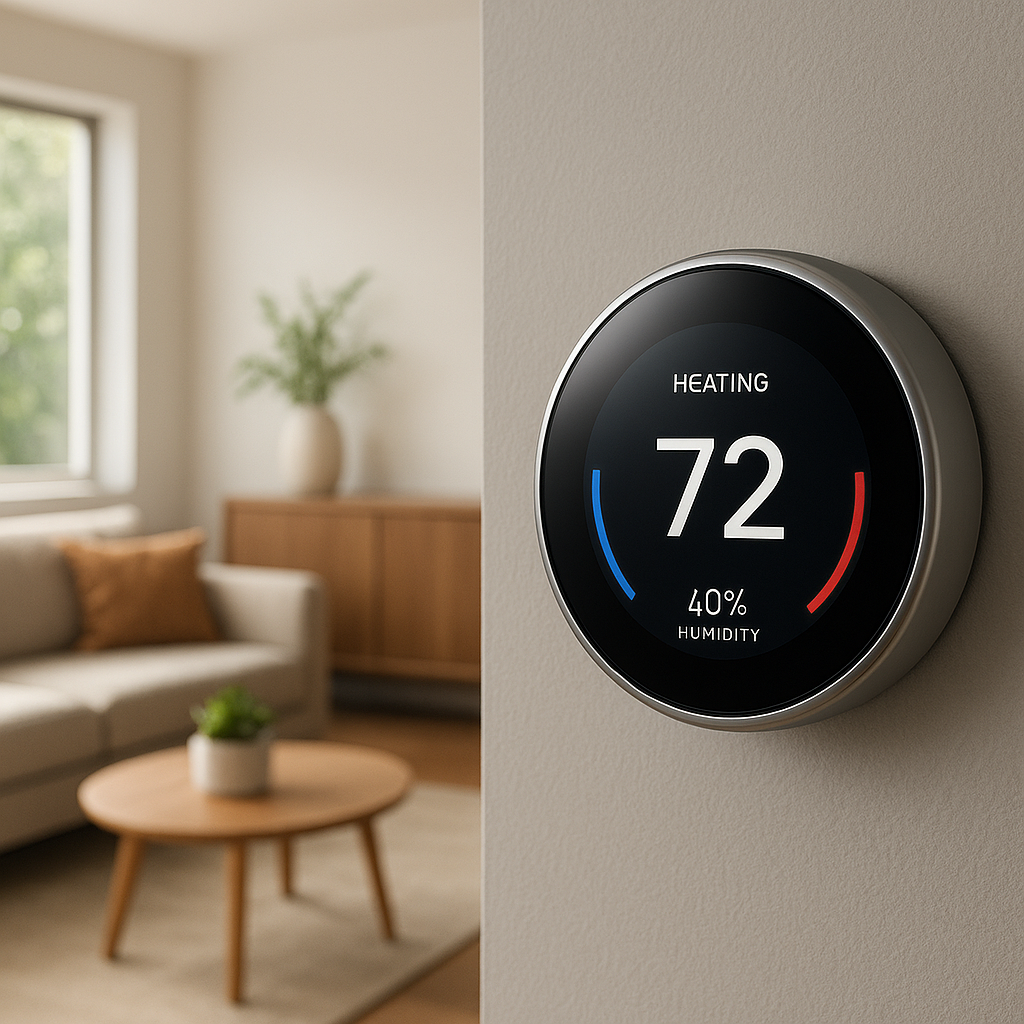
- Smart thermostats with humidity sensors: Ecobee thermostats and some Nest models include humidity measurement. They can directly control whole‑home humidification or be used as a trigger for other automations.
Standalone sensors are usually the easiest route to automate a humidifier with a smart plug in a single room. Thermostat sensors make more sense for whole‑home control.
Platform choices: Alexa, Google Home, HomeKit, SmartThings, and Home Assistant
All major platforms can handle basic humidity automations, but their capabilities differ:
- Alexa Routines: If your sensor reports humidity to Alexa, you can create routines that turn a smart plug on or off when humidity crosses a threshold.
- Google Home: Similar to Alexa, though device and sensor support can be more limited depending on brand.
- Apple HomeKit: Very reliable local automations if you use HomeKit‑compatible sensors and plugs (e.g., Eve, Aqara with a hub).
- SmartThings: Great for combining Zigbee/Z‑Wave sensors and plugs in one place, with flexible automation rules.
- Home Assistant: Most powerful and customizable, excellent if you like to tinker. It can ingest data from many sensors and control almost any plug.
Step‑by‑Step: Automate a Humidifier with a Smart Plug and Sensor
Placement tips for the humidifier and humidity sensor
Placement has a big impact on how well your automation works:
- Humidifier: Place it on a stable, water‑resistant surface, at least a few feet from walls and furniture so mist can spread evenly.
- Sensor: Put the sensor roughly at breathing height (nightstand, shelf, or wall), away from direct mist and vents.
- Avoid corners and windows: Corners and window sills tend to read cooler and more humid than the room average.
- Nurseries: Keep the humidifier out of reach, with mist pointed away from the crib, and the sensor near where the baby actually sleeps.
Setting a target humidity range (winter vs. summer)
Instead of a single fixed number, use a range with a lower and upper bound:
- Typical winter range: 35–45% in colder climates to reduce static and dryness without causing window condensation.
- Typical summer range: 40–50% if you’re running AC. Your home may naturally sit higher, so aim to avoid going above 60%.
- Nurseries and bedrooms: Many people like 40–50% for comfort and to keep nasal passages from drying out.
These ranges are guidelines, not strict rules. Watch how your home actually behaves—older, drafty homes may need slightly different targets than tight, well‑sealed houses.
Creating basic on/off automations using a smart home app
Here’s the general idea for a basic humidity automation, which you can adapt to your platform:
- Trigger (On): If humidity in Bedroom drops below 38%, turn Bedroom Humidifier Plug On.
- Trigger (Off): If humidity in Bedroom rises above 45%, turn Bedroom Humidifier Plug Off.
In practice:
- Open your smart home app (Alexa, SmartThings, etc.).
- Create a new automation or routine.
- Select the humidity sensor as the trigger, and set the threshold for On.
- Create a second automation using a higher threshold for Off.
- Optionally, restrict both automations to certain hours (e.g., only at night).
Example automation rules for different rooms (nursery, bedroom, living room)
Some sample “set it and forget it” rules:
- Nursery: Turn humidifier On when humidity < 40% and time is between 7pm–7am. Turn Off when humidity > 47% or when the room temperature drops below 66°F (to avoid feeling too cool and damp).
- Adult bedroom: Only run the humidifier at night: On below 38% after 10pm; Off above 45% or at 7am, whichever comes first.
- Living room: Let it run during occupied hours: On below 35% between 9am–10pm; Off above 42% or if a window sensor shows a window open.
Step‑by‑Step: Automate a Dehumidifier Using a Smart Plug
Ensuring your dehumidifier restarts automatically after power is cut
Dehumidifiers draw more power and are more complex than small humidifiers, so testing is essential:
- Turn the dehumidifier On and set your preferred mode (usually Continuous or a mid‑level humidity setting).
- Unplug it from the wall while it’s running.
- Plug it back in after a few seconds.
- If it resumes running in the same mode without pressing any buttons, it’s compatible with a smart plug.
If it stays Off or boots into standby, you’ll need a different model or a different control approach; a smart plug alone won’t help.
Preventing tank overflow and managing drainage
Dehumidifiers remove a lot of water, so you must think about drainage when automating:
- Use the continuous drain outlet: Many units have a hose connection so water flows to a floor drain or sump. This is ideal for basements.
- Check the float switch: The internal float should still stop the compressor if the bucket fills, even when the plug is On.
- Secure the hose: Make sure the drain hose has a steady downward slope and can’t kink or pop out of the drain.
- High‑water alerts: For critical areas, consider a water leak sensor near the dehumidifier as a backup.
Sample dehumidifier automations for basements, bathrooms, and laundry rooms
Different spaces need slightly different logic:
- Basement: On when basement humidity > 55%; Off when < 50%. Limit operation to 6am–11pm so noise doesn’t bother you at night if the basement is under bedrooms.
- Bathroom (with portable unit): On when humidity > 65% and motion is detected, then keep running for 30–60 minutes after motion stops. Off when < 55% or after a maximum of 2 hours.
- Laundry room: On when humidity > 60% OR when the washer is running (via a smart plug with power monitoring); Off when < 50% and washer plug power drops to idle.
Advanced Automations: Schedules, Weather, and Presence
Combining humidity triggers with schedules to avoid device wear
Pure humidity triggers can cause frequent short cycles. Adding time and schedule conditions helps:
- Quiet hours: Restrict bedroom humidifiers to nighttime and limit max runtime to a few hours if humidity doesn’t respond.
- Minimum run/stop times: Some platforms let you require the plug to stay On or Off for at least 10–15 minutes before switching again.
- Seasonal schedules: Only enable humidifier automations in winter and dehumidifier automations in warmer, humid months.
Using outdoor weather and season data to fine‑tune humidity targets
Smart platforms that can read local weather data (Home Assistant, some thermostats, certain cloud routines) let you adjust humidity based on conditions outside:
- Lower targets slightly when it’s very cold outside to reduce window condensation.
- Relax dehumidifier targets during cool, rainy seasons when mild dampness is hard to avoid.
- Raise targets a little during peak allergy seasons to reduce airborne dust.
For a deeper understanding of how humidifiers affect indoor air, the Wikipedia article on humidifiers gives a good overview of types and their pros and cons.
Presence‑based rules (boost humidity when you’re home, save energy when away)
Presence detection can come from your phone’s geolocation, smart locks, motion sensors, or even your Wi‑Fi router. Some ideas:
- Away mode: When everyone leaves, pause humidifiers and relax dehumidifier targets to save energy.
- Arrive home boost: When someone arrives and humidity is very low, allow a temporary higher‑power run to catch up quickly.
- Room‑based presence: Use motion sensors to focus control on rooms that are actually being used.
Avoiding Common Automation Mistakes
Sensor placement errors that give you bad readings
Bad readings lead to bad automations. Avoid:
- Placing the sensor directly above the humidifier or in the path of the mist.
- Mounting sensors near exterior doors, windows, or vents where drafts skew readings.
- Putting sensors too low on the floor in basements, where the air may be cooler and more humid than the occupied zone.
Aim for the middle of the room at about chest height, near where people actually spend time.
Dealing with short cycling and rapid on/off behavior
If your plug flips on and off every few minutes:
- Increase the gap between On and Off thresholds: Instead of 40/42%, use 38/45% to create a wider buffer.
- Use built‑in delay options: Many automation tools let you delay actions or require a condition to be true for a few minutes before acting.
- Move the sensor: If it sits too close to the device, it will see rapid swings as moisture or dry air blows past.
Signs your home is too humid or too dry even when automations are running
Even with automations, you may need to tweak targets if you notice:
- Too dry: Frequent static shocks, very dry skin, nosebleeds, cracking wood, or sore throats in the morning.
- Too humid: Condensation on windows, musty smells, visible mold spots, or sticky, clammy air.
If you see these signs, adjust your humidity range in small steps (2–3% at a time) and give it a few days before judging the results.
Monitoring, Alerts, and Energy Tracking
Using app dashboards to see humidity trends over time
Many humidity sensors and smart home platforms include history graphs. Use these to:
- Spot daily patterns, like humidity spikes after showers or laundry.
- Check whether your automations actually keep humidity in the target band.
- Compare different rooms to find hidden damp spots or extra‑dry areas.
Setting up alerts for extreme humidity or device failure
Alerts give you peace of mind, especially in basements or vacation homes:
- Notify your phone if any room’s humidity goes above, say, 65–70% for more than an hour.
- Alert if humidity stays extremely low (<30%) in bedrooms for a full day.
- Send a warning if the smart plug shows the device is On but humidity isn’t changing, which may signal an empty tank or a failed unit.
Tracking energy use of humidifiers and dehumidifiers via smart plugs
Energy‑monitoring plugs let you see how much it costs to keep humidity in check:
- Log monthly kWh consumption for your basement dehumidifier and compare across seasons.
- Identify if a very old dehumidifier is using far more energy than a modern Energy Star model would.
- Decide whether a whole‑home solution or HVAC‑integrated system might be cheaper to run long‑term.
Do You Really Need a Smart Plug? Alternatives and Upgrades
When to upgrade to a built‑in smart humidifier or dehumidifier
Smart plugs are great for getting started, but eventually you might upgrade to devices with built‑in connectivity:
- Wi‑Fi or app‑connected units: These can report their own status, error codes, and tank levels.
- Better control options: More precise humidity targets, fan speeds, and schedules without external plugs.
- Simpler wiring: One power cord, fewer devices to troubleshoot.
If you find yourself depending heavily on these automations in a key room, a fully smart model may be worth it.
Using a smart thermostat with humidity control instead of plugs
Smart thermostats like Ecobee models can directly control whole‑home humidifiers or dehumidifiers via low‑voltage wiring:
- They use their built‑in humidity sensor (and sometimes remote sensors) to manage humidity for the entire house.
- You can set different targets by season, time of day, or occupancy.
- No smart plugs needed—the thermostat wires directly to the HVAC accessory.
Integrating with whole‑home HVAC humidification and dehumidification
If you already have a furnace‑mounted humidifier, heat‑pump dehumidification mode, or a separate whole‑home dehumidifier, integration is often best:
- Use the HVAC system’s blower and ductwork to distribute humidity changes evenly.
- Control everything from a single thermostat or smart home dashboard.
- Reserve portable units and smart plugs for problem rooms like basements or bonus rooms.
Quick Setup Recipes You Can Copy Today
Simple “set it and forget it” bedroom humidifier automation
Here’s a basic recipe to automate a humidifier with a smart plug in a bedroom:
- Devices: 1x smart plug, 1x bedroom humidity sensor, 1x compatible humidifier.
- Targets: On below 38% humidity, Off above 45%.
- Time: Only allow automations between 9pm and 7am.
- Extras: Optional quiet‑hours setting so the plug doesn’t click on/off rapidly while you’re falling asleep.
Basement dehumidifier automation for mold prevention
A basement dehumidifier can run mostly on its own:
- Devices: Heavy‑duty smart plug (15A), basement humidity sensor, dehumidifier with continuous drain to a floor drain or sump.
- Targets: On above 55%, Off below 50%.
- Alerts: Notify if humidity stays above 60% for more than 4 hours (possible failure or blocked drain).
- Schedule: Allow operation during the day and early evening; reduce overnight operation if noise is an issue.
Whole‑home balanced humidity routine using multiple sensors
If you have several sensors, you can create a more balanced whole‑home routine:
- Devices: Multiple humidity sensors (bedrooms, living area, basement), multiple smart plugs controlling room units.
- Logic: Use an average of all upstairs sensors to control a main humidifier; use the basement sensor alone to control the dehumidifier.
- Seasonal: Enable upstairs humidifier routines in winter; enable basement dehumidifier routines year‑round or just in humid months.
- Presence: Relax targets slightly when the home is unoccupied to save energy.
Troubleshooting: When Your Humidifier Automation Isn’t Working
Smart plug showing offline or not responding
If the plug isn’t responding, automations will fail:
- Check Wi‑Fi or hub signal near the plug; move your router or add a range extender if needed.
- Make sure the plug’s firmware and app are updated.
- Power‑cycle the plug and, if needed, remove and re‑add it to your smart home platform.
- If internet outages are frequent, consider a platform that supports local control.
Humidity readings stuck, jumpy, or clearly wrong
Bad readings can come from both hardware and placement:
- Replace or recharge sensor batteries if readings are frozen.
- Move the sensor away from vents, direct sun, or the device’s airflow.
- Compare against a second sensor or a simple analog gauge to check accuracy.
- Update firmware or app for the sensor’s ecosystem; some bugs are software‑related.
Device won’t turn back on after the smart plug cuts power
If your humidifier or dehumidifier stays Off after the plug turns On:
- Re‑run the power‑cycle test; some units have a setting to resume after power loss.
- Ensure physical controls are set to On/Continuous, not a timed mode that may expire.
- If it always boots to standby, that model can’t be fully automated with a simple smart plug. Consider a different unit or a model with native smart features.
Conclusion
Automating humidifiers and dehumidifiers with smart plugs and sensors turns a constant chore into a background system that quietly maintains comfort. Once you’ve tested that your devices restart correctly, chosen a reliable sensor, and set sensible humidity ranges, most of the work is done. From there, you can refine things with schedules, presence awareness, and energy monitoring so your home stays comfortable without wasting power or creating moisture problems.
Start simple with one room—often a bedroom or basement—get that working reliably, then expand to the rest of your home as you gain confidence.
FAQ
Can any humidifier be automated with a smart plug?
No. The humidifier must automatically resume running when power is restored. If it powers up into standby and waits for a button press, a smart plug alone can’t fully automate it.
Is it safe to run a humidifier all night with automation?
Yes, as long as the unit is in good condition, you keep it clean, use it according to the manufacturer’s instructions, and set reasonable humidity limits (typically under 50%). Automation actually helps by preventing over‑humidification.
What humidity level should I set for my bedroom?
A common target range is 40–45% for bedrooms. This usually feels comfortable and reduces dryness without creating condensation on windows in most homes.
Do I need a hub to automate humidity control?
Not always. Many Wi‑Fi smart plugs and sensors work directly with Alexa or Google Home. A hub (like SmartThings, HomeKit bridges, or Home Assistant) can make automations more reliable and flexible, especially if you plan to expand.
Will a smart plug damage my humidifier or dehumidifier?
Used correctly within power ratings, a smart plug won’t harm your device. Avoid frequent rapid cycling by using a reasonable On/Off range and, where possible, minimum run times to reduce wear on compressors and fans.