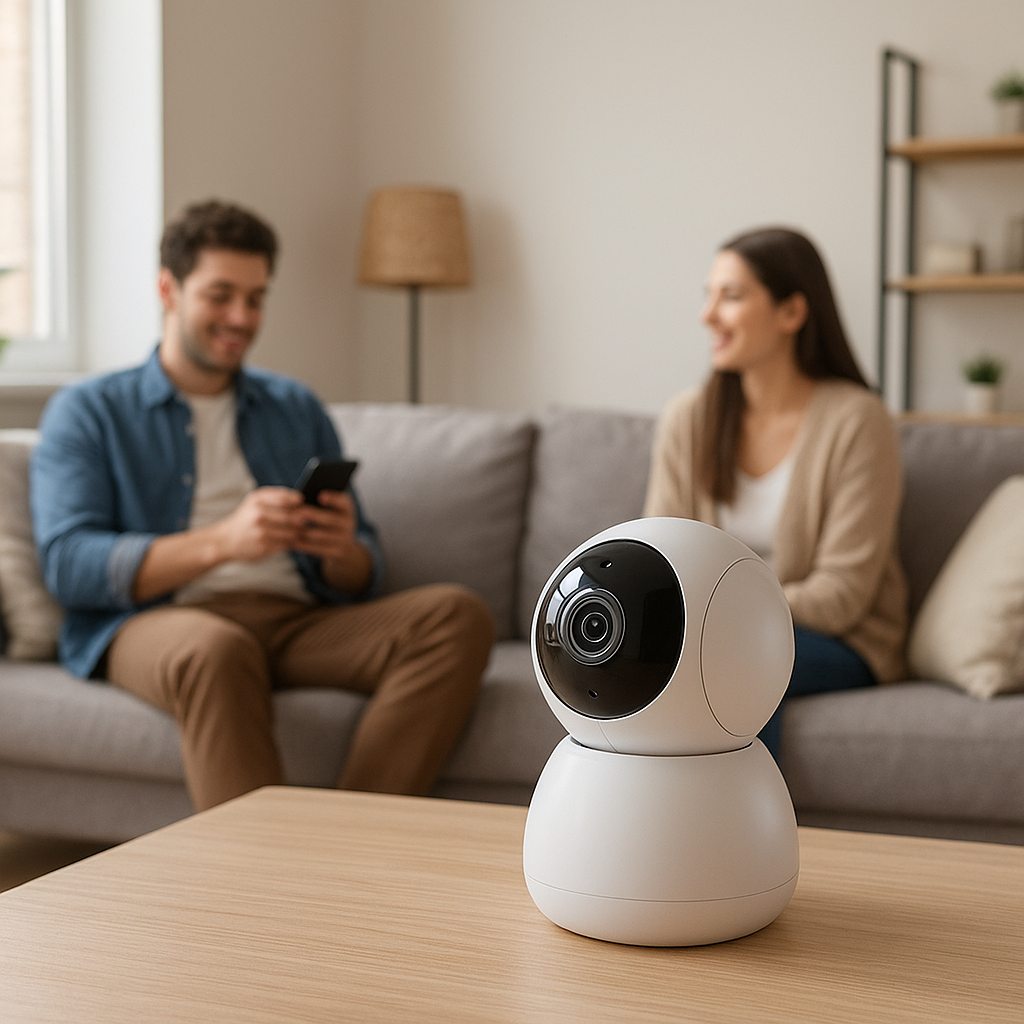
Covering a large living room or open-plan home with just one or two cameras can be tricky. You want wide coverage, but you also don’t want cameras that feel intrusive or constantly trigger false alerts.
Indoor PTZ (pan-tilt-zoom) smart cameras can solve this problem. By rotating and zooming instead of staring in a fixed direction, they watch more of the room while still letting you control what’s recorded and when.
This guide walks through why PTZ cameras are a good fit for big spaces, what features matter most, and specific models to consider. We’ll also look at privacy tools, placement tips, and setup tweaks so your camera works smoothly in everyday life.
Why PTZ Smart Cameras Are Ideal for Large Rooms and Open-Plan Homes
What PTZ Means (Pan, Tilt, Zoom) and Why It Matters Indoors
PTZ stands for pan, tilt, and zoom:
- Pan – the camera rotates horizontally to look left and right.
- Tilt – the lens moves up and down to cover floor-to-ceiling.
- Zoom – the image is magnified to see more detail in a specific area.
On an indoor PTZ camera, these motions are usually motorized. You can swipe around the room in the app, tap to jump to saved viewpoints (“presets”), or let the camera auto-track a person or pet as they move. Compared with a fixed camera, PTZ gives you:
- Fewer blind spots in a single large room.
- Fewer total cameras to install and manage.
- More control over what you’re looking at when you open the app.
If you want a deeper technical explanation of PTZ technology, the PTZ camera article on Wikipedia breaks down how these mechanisms work in professional systems.
Coverage Challenges in Large Living Rooms, Lofts, and Open-Plan Spaces
Big, open rooms are great to live in, but they’re hard to monitor with traditional indoor cameras. Common challenges include:
- Multiple activity zones – kitchen, dining area, and living area in one open rectangle.
- Long sightlines – you may want to see both a front door and a sliding door across the room.
- Furniture and decor – tall shelves, kitchen islands, and hanging lights can block parts of the view.
- Changing layouts – moving a couch or adding a play area can suddenly create new blind spots.
A good indoor PTZ camera can pivot to watch the front door in the morning, the kids’ play area in the afternoon, and the back door at night without you having to move hardware or install extra devices.
PTZ vs Fixed Indoor Cameras: When the Upgrade Is Worth It
A fixed indoor camera may be enough if:
- The room is small or mostly rectangular.
- You only care about one zone (for example, just the front door or just the crib).
- You’re on a very tight budget and fine with partial coverage.
Upgrading to a PTZ camera makes sense if:
- Your main rooms are open-plan and you want broad coverage from one location.
- You want to actively check different areas (kids on the couch, dog by the door, who’s in the kitchen) without walking around the house.
- You want auto-tracking to follow people or pets when motion is detected.
PTZ cameras do add complexity: more settings, more moving parts, and usually a bit more noise than a fixed camera. But for large or flexible spaces, the extra coverage and control are usually worth it.
Key Features to Look For in the Best Indoor PTZ Smart Camera
Auto-Tracking and Motion Detection Accuracy
Auto-tracking is one of the biggest reasons to buy a PTZ camera. The camera detects motion, decides what to follow (person, vehicle, generic motion, or pet), and then pans and tilts to keep the subject in frame.
When comparing cameras, pay attention to:
- Tracking targets – some can distinguish people, pets, and general motion; others treat everything the same.
- Tracking smoothness – cheaper models can jerk or overshoot; better ones move smoothly and re-center quickly.
- Smart detection – look for person detection or AI detection so your camera doesn’t follow curtains or shadows.
- Notification quality – good apps send clear alerts like “Person detected in living room,” often with a snapshot.
Also check whether you can turn auto-tracking off or limit it to specific times of day. Constant tracking can be distracting in a quiet room.
Field of View, Pan/Tilt Range, and Zoom (Optical vs Digital)
You want a camera that can truly see your whole space, not just swing in wide circles. Consider:
- Base field of view (FOV) – measured in degrees; 90–120° is typical. Wider FOV means more coverage even before panning.
- Pan range – many PTZ cameras rotate 340–360° horizontally, enough to see nearly the entire room.
- Tilt range – look for models that tilt from slightly above horizontal down to the floor; useful if the camera is mounted high.
- Optical vs digital zoom – optical zoom uses the lens and preserves detail; digital zoom simply crops the image and can look blurry.
If you need to zoom in on a distant door or hallway, prioritize cameras with at least some optical zoom or a high base resolution (e.g., 2K or 4K) so digital zoom still looks sharp.
Privacy Features: Physical Shutters, Sleep Modes, and Geofencing
In shared spaces, privacy is as important as coverage. Modern PTZ cameras offer several tools:
- Physical privacy shutters – a mechanical cover slides over the lens or rotates it into the housing when the camera is “off.” This is the most reassuring option for guests.
- Software privacy modes – the camera stops recording and streaming, often moving the lens to a “safe” angle (like pointing at the ceiling).
- Geofencing – the camera automatically arms when everyone leaves and disarms when someone returns, based on phone location.
- Schedules – set recording to pause during certain hours (for example, evenings when you’re usually home).
For roommates or rentals, a visible shutter and a clear privacy schedule go a long way toward building trust.
Video Quality, Night Vision, and Low-Light Performance
Resolution isn’t everything, but it matters. For large rooms, consider:
- Resolution – 1080p is the entry point; 2K (1440p) or 4K give you more detail when zooming in or auto-tracking.
- Frame rate – 20–30 fps makes motion look smooth, especially as the camera pans.
- Night vision – infrared LEDs should give you clear grayscale footage out to at least 25–30 feet in a big room.
- Low-light color modes – some cameras keep color in dim light using larger sensors and smart exposure, which can make footage easier to interpret.
Look for sample clips from the manufacturer or users so you can see how the camera handles a dim living room or a bright window behind your subject.
Smart Home Compatibility (Alexa, Google Home, HomeKit, and Routines)
Smart home integration turns a PTZ camera from a stand-alone gadget into part of your whole system. Useful integrations include:
- Voice assistants – show the live feed on an Echo Show or Nest Hub using Alexa or Google Assistant.
- HomeKit Secure Video – if you’re in the Apple ecosystem, cameras that support HomeKit can use iCloud for encrypted storage and automation. Apple’s Home app guide explains how these integrations work.
- Scenes and routines – arm cameras when you set “Away” mode, or turn on lights if motion is detected at night.
- IFTTT / local APIs – handy for power users who want advanced automations or integrations with less common platforms.
Before buying, check that your preferred assistant and ecosystem (Alexa, Google Home, HomeKit, SmartThings, Home Assistant, etc.) are explicitly supported.
Storage Options, Subscription Costs, and Local Recording
Many indoor PTZ cameras look affordable until you factor in monthly fees. Compare:
- MicroSD card slots – allow local recording without a subscription, though you won’t get off-site backup.
- Network video recorder (NVR) support – some cameras can record to NAS drives or NVRs via RTSP/ONVIF.
- Cloud plans – check price per camera, video history length, and whether AI features (like person detection) are locked behind a subscription.
- Clip vs continuous recording – motion-only clips use less storage but may miss context; 24/7 recording needs more space and bandwidth.
If you prefer low ongoing costs, prioritize cameras with robust local recording plus optional (not mandatory) cloud features.
Data Security, Encryption, and Account Protection
Indoor cameras capture sensitive footage, so security matters as much as specs. Look for:
- End-to-end encryption for video streams and stored clips where possible.
- Two-factor authentication (2FA) on the account.
- Regionally hosted servers or clear documentation of where data is stored.
- Regular firmware updates with published release notes.
Use strong, unique passwords, enable 2FA, and keep the camera on your main network (not the guest Wi-Fi) unless your router has advanced VLAN options and you know how to configure them.
Best Indoor PTZ Smart Cameras for Large Rooms: Quick Comparison Table
Side-by-Side Specs: Resolution, Pan/Tilt Range, Auto-Tracking, Price
These are standout PTZ-style indoor cameras that work well in large rooms and open-plan homes:
| Camera | Resolution | Pan / Tilt | Auto-Tracking | Approx. Price Tier* |
|---|---|---|---|---|
| Eufy Indoor Cam S350 | Up to 4K (dual lenses) | ~360° pan / 75° tilt | Person & pet tracking | Mid–High |
| Wyze Cam Pan v3 | 1080p | ~360° pan / 180° tilt | Motion tracking | Budget |
| Aqara Camera Hub G3 | 2K | ~340° pan / 45° tilt | AI face & gesture tracking | Mid |
| Reolink E1 Zoom | 5MP (slightly above 2K) | ~355° pan / 50° tilt | Motion-based | Mid |
| TP-Link Tapo C225 | 2K QHD | ~360° pan / 149° tilt | Person & pet detection | Low–Mid |
*Price tiers are relative and change over time; always check current pricing.
Privacy and Storage Comparison: Shutters, Local Storage, and Cloud Plans
| Camera | Privacy Features | Local Storage | Cloud / Subscription |
|---|---|---|---|
| Eufy Indoor Cam S350 | Software privacy mode; can disable audio | microSD card; NAS via RTSP | Optional Eufy cloud; most features work without |
| Wyze Cam Pan v3 | Software privacy mode | microSD card | Wyze Cam Plus unlocks full AI and longer history |
| Aqara Camera Hub G3 | Physical shutter (ears down), privacy modes, geofencing via app | microSD card; can also act as a hub for other sensors | Optional cloud; strong local + HomeKit Secure Video support |
| Reolink E1 Zoom | Software privacy preset (point to ceiling) | microSD card; NVR/NAS via RTSP/ONVIF | Optional Reolink cloud in some regions |
| TP-Link Tapo C225 | Physical privacy shutter, schedules | microSD card | Tapo Care cloud for extended AI and history |
Best Overall Indoor PTZ Smart Camera for Most Open-Plan Homes
Who This Camera Is Best For
Pick: Eufy Indoor Cam S350
The Eufy Indoor Cam S350 is a strong all-rounder for medium to large living rooms and open-plan areas. It suits:
- Families who want sharp footage of kids and pets without a huge subscription bill.
- Homeowners who want a mix of local storage and optional cloud.
- Anyone who wants one camera to cover most of a combined living/dining/kitchen space.
Standout Strengths: Tracking, App Experience, and Smart Integrations
Key advantages of the S350 include:
- Dual-lens design – a wide lens for general coverage and a telephoto lens for detail when zooming without losing quality.
- High resolution – effectively up to 4K detail, which helps when digital zoom is used during tracking.
- Solid auto-tracking – person and pet tracking keeps moving subjects centered with relatively smooth motion.
- Good app experience – the Eufy app is straightforward, with clear event timelines and device groups.
- Local-first approach – microSD and NAS recording support mean you can run this camera with minimal ongoing fees.
Potential Drawbacks and When to Consider Alternatives
Reasons to pick something else:
- Privacy shutter – there’s no mechanical shutter; if a visible shutter is important, consider the Aqara G3 or Tapo C225.
- Size and look – the dual-lens module is bulkier than some minimalist designs.
- HomeKit users – if deep HomeKit Secure Video integration is a must, the Aqara G3 is usually a better fit.
Best Budget Indoor PTZ Smart Camera for Wide Coverage on a Tight Budget
Essential Features You Still Get at a Lower Price
Pick: Wyze Cam Pan v3
The Wyze Cam Pan v3 is one of the most affordable ways to get meaningful PTZ coverage indoors. Even at a budget price, you still get:
- Full 360° pan and generous tilt to cover most large rooms from a central spot.
- 1080p video with decent clarity for general monitoring.
- Two-way audio to talk to kids or pets.
- microSD slot for local recording without mandatory cloud fees.
- App-based auto-tracking that can follow motion around the room.
Where It Compromises: Build Quality, Smart Features, or Storage
At this price, there are trade-offs:
- Build quality – mostly plastic, with more audible motor noise when panning compared with premium models.
- AI detection – the best AI features (like advanced person or package detection) require a Wyze subscription.
- Video detail – 1080p can look soft if you zoom in far, especially across a large room.
Ideal Use Cases: Starter Apartments, Kids’ Rooms, and Small Businesses
The Wyze Cam Pan v3 works well for:
- Starter apartments where one camera needs to cover a living room plus entryway.
- Kids’ playrooms where you want to follow activity without multiple cameras.
- Small offices or studios where you need basic coverage after hours on a budget.
Best Privacy-Focused Indoor PTZ Camera for Shared or Rented Spaces
How Physical Shutters and Privacy Modes Work Day-to-Day
Pick: Aqara Camera Hub G3
The Aqara G3 is designed with privacy front and center. Its most visible feature is a mechanical shutter: the camera’s “ears” tilt down over the lens, clearly signaling that it’s not watching. Day-to-day, you can:
- Tap a button in the app to drop the shutter when guests arrive.
- Use a quick-access button on the camera body to pause monitoring.
- Combine shutter control with scenes and automations through the Aqara or Apple Home apps.
Geofencing and Scheduling to Automate When the Camera Is On
The G3 supports automations like:
- Geofencing – close the shutter when your phone is detected at home; open it when you leave.
- Time-based schedules – keep the camera active overnight and off during typical daytime use of the room.
- Sensor-based automations – pair with Aqara door or motion sensors to only record if unexpected activity happens.
These tools let you treat the camera like an alarm sensor rather than a constant live-streaming device.
Balancing Peace of Mind with Roommate and Guest Comfort
In shared homes or rentals, cameras can create tension. The Aqara G3 helps you find a middle ground:
- Place it where everyone can see the device and shutter, not hidden in a corner.
- Agree on clear rules for when the shutter is closed (for example, evenings and when guests are over).
- Show roommates the app so they can verify when the camera is in privacy mode.
When people understand and can see when the camera is inactive, they’re usually more comfortable living with it.
Best Indoor PTZ Camera for Smart Home Power Users
Deep Integration with Scenes, Routines, and Automations
Pick: Reolink E1 Zoom
The Reolink E1 Zoom is particularly appealing to power users because it supports RTSP/ONVIF for integration with NVRs, NAS devices, and platforms like Home Assistant, Blue Iris, and other advanced setups. This enables:
- Custom automations based on motion events via your automation platform.
- Recording to NAS/NVR with more flexible retention and backup strategies.
- Central dashboards alongside other security devices and sensors.
Using PTZ Cameras with Motion Sensors, Smart Lights, and Sirens
In a sophisticated setup, your PTZ camera is one sensor among many. For example:
- Use a motion sensor at the door to trigger the E1 Zoom to pan to a doorway preset and start recording.
- Turn on smart lights in the living room when the camera detects motion after midnight.
- Trigger a smart siren or spoken announcement on a smart speaker when motion is detected while you’re away.
This kind of orchestration works best with cameras that expose events to other systems through APIs or local protocols.
Advanced Use Cases: Pet Tracking, Delivery Monitoring, and Elder Care
With good PTZ control and integrations, you can support advanced scenarios:
- Pet tracking – auto-track pets while also triggering a robot vacuum pause if the dog is in its path.
- Delivery monitoring – aim the camera at an entryway when a smart lock detects a door unlock or a delivery sensor triggers.
- Elder care – in a large living/dining area, use the camera to confirm movement during the day while keeping clear privacy rules and focusing mostly on doorways or walkways.
Placement Tips: Getting Full Coverage in Large Rooms and Open-Plan Layouts
Ideal Mounting Height, Wall vs Ceiling Placement, and Power Access
For large indoor spaces, aim to mount your PTZ camera:
- At 7–9 feet high – high enough to see over furniture but not so high that faces are only visible from above.
- On a wall or corner that gives a clear sweep across the main activity zones.
- Near a power outlet – PTZ motors draw more power, and long cable runs can look messy; consider cable covers for clean installs.
Ceiling mounting can work if you want a discreet look or full 360° coverage, but check that the camera supports inverted mounting and has a wide enough tilt range to see people at normal heights.
Avoiding Blind Spots Around Corners, Islands, and Furniture
Even with PTZ, physical obstructions matter. To minimize blind spots:
- Place the camera where it has a clear view past kitchen islands and tall shelves.
- Avoid mounting directly behind large pendant lights or ceiling fans that can block or confuse motion detection.
- Use presets aimed at areas that are harder to see, like behind a sectional sofa or near sliding doors.
Managing Reflections, Windows, and Backlighting for Clear Video
Large rooms often have big windows and mixed lighting. To improve video quality:
- Avoid pointing the camera directly at bright windows, especially during peak sunlight; backlighting makes people look like silhouettes.
- Angle the camera slightly down so reflections from glass cabinets or TVs are less intense.
- At night, use soft background lighting to help the camera stay in color mode and reduce noise.
How to Set Up and Fine-Tune Auto-Tracking Indoors
Motion Zones, Activity Zones, and Exclusion Areas
Many PTZ cameras let you define zones that control when alerts and tracking trigger. Take time to:
- Create activity zones around doors, hallways, and key furniture areas.
- Set exclusion zones for noisy or irrelevant areas, such as windows facing the street or TV screens.
- Limit tracking to people or pets if your camera supports AI-based filters.
This keeps the camera from constantly reacting to background movement that doesn’t matter.
Reducing False Alerts from TVs, Ceiling Fans, and Pets
In big rooms, there’s always something moving. To reduce false alerts:
- Lower the motion sensitivity a notch or two from the default.
- Exclude the area where the TV screen is located, or at least reduce sensitivity there.
- If pets roam freely, enable person-only alerts during the day and switch to all-motion overnight if you care about any movement.
- Position the camera so ceiling fans are at the edge of the frame instead of the center.
Optimizing Pan/Tilt Speed and Tracking Sensitivity
Some PTZ cameras let you tweak how quickly they move and how aggressively they track. For indoor use:
- Set medium pan/tilt speed so the camera doesn’t whip around; this makes footage easier to review.
- Lower tracking sensitivity if the camera keeps locking onto shadows.
- Use return-to-home features to bring the camera back to a neutral preset after a few minutes of inactivity.
Protecting Privacy While Using Indoor PTZ Cameras
Using Privacy Schedules During Evenings and Weekends
Privacy schedules help the camera work like an alarm system instead of a constant recorder. For example:
- Enable full monitoring on weekdays during work hours when the house is empty.
- Switch to limited or no recording on weekends when you’re home more.
- Close a physical shutter (if available) overnight in bedrooms or high-privacy spaces.
Local-Only vs Cloud Recording: What to Store and Where
Think about what you truly need to keep:
- Use local-only recording (microSD, NAS, NVR) for routine household activity and short history.
- Consider cloud backup for entryways, valuables, or elder-care monitoring where off-site footage may matter after a theft or incident.
- Regularly review and purge old clips, especially in shared spaces, so the camera doesn’t quietly build a huge archive of household life.
Creating Household Rules and Labels for Shared Spaces
To keep everyone comfortable with indoor cameras:
- Write down simple rules (where cameras are, when they’re on, how long clips are kept).
- Label cameras clearly in the app (for example, “Living Room – Records only when Away”).
- Tell visitors about cameras in common areas, especially if auto-tracking might surprise them.
Ongoing Maintenance, Firmware Updates, and Troubleshooting
Keeping Firmware Updated for Security and New Features
PTZ cameras rely on firmware for security, AI detection, and integrations. To keep yours in good shape:
- Enable automatic firmware updates where available.
- Check release notes occasionally to see if new features or privacy options have been added.
- Reboot the camera via the app if it starts behaving oddly after an update.
Fixing Common PTZ Issues: Stuttering, Misalignment, and Lost Presets
Common PTZ problems and quick fixes include:
- Stuttering or jerky motion – make sure the power adapter is the original or equivalent, and reduce pan/tilt speed settings.
- Camera “loses” its home position – run the camera’s calibration or “pan/tilt test” in the app, then reset your presets.
- Auto-tracking stops working – ensure motion detection is enabled and zones aren’t too restrictive.
- Laggy live view – switch to a lower resolution stream when away from home or troubleshoot your Wi‑Fi (signal strength, interference, or bandwidth limits).
When to Replace vs Reset or Reposition the Camera
Try these steps before replacing a camera:
- Factory reset and set it up again if software issues persist.
- Reposition to improve Wi‑Fi signal or reduce glare and reflections.
- Test with a different power adapter and cable if motors are weak.
If motors grind or fail to move even with proper power, or if firmware updates have stopped for years, it may be time to invest in a newer model with better security and features.
Buying Checklist: Choosing the Best Indoor PTZ Smart Camera for Your Home
Quick Question List to Match a Camera to Your Room and Lifestyle
Before you buy, answer these questions:
- How large is the room, and what are the key areas you need to see?
- Do you need person/pet detection or just basic motion alerts?
- Is a physical privacy shutter necessary for your household?
- Which smart home platform do you already use (Alexa, Google, HomeKit, Home Assistant)?
- Do you prefer local recording, cloud storage, or both?
- How many cameras will you eventually want across your home?
Future-Proofing: What to Consider if You Plan to Expand Your System
If this is your first camera and you expect to grow into a full system, consider:
- Brand ecosystem – sticking with one or two brands often makes multi-camera management much easier.
- Open protocols – RTSP/ONVIF support gives you options for future NVR or NAS recording.
- Regular updates – active development means you’re more likely to get security patches and new features over time.
- Scalable subscriptions – if you plan on multiple cameras, check whether cloud plans cover several devices under one fee.
A thoughtful first purchase can become the backbone of a larger, more capable security and monitoring setup as your home and needs evolve.
Summary
Indoor PTZ smart cameras are a strong fit for large rooms and open-plan layouts because they can follow the action instead of staring at a single spot. The best models balance wide coverage, smooth auto-tracking, and strong privacy features, from shutters to schedules. Whether you’re after an affordable starter like the Wyze Cam Pan v3, a privacy-focused pick like the Aqara G3, or a power-user camera like the Reolink E1 Zoom, there’s an option that can match your room size, smart home ecosystem, and comfort level with always-on devices.
FAQ
Do I need more than one PTZ camera for a large open-plan room?
Often one well-placed PTZ camera is enough for a typical open-plan living/dining area. You might add a second camera if the space has multiple corners, long hallways branching off, or if you want redundancy in case one view is blocked by furniture or people.
Are PTZ cameras loud when they move?
Most modern indoor PTZ cameras make a soft motor noise when panning or tilting. It’s usually not noticeable during the day but can be heard in very quiet rooms at night. Premium models tend to be quieter than ultra-budget options.
Will auto-tracking drain more power or data?
Auto-tracking itself doesn’t use much extra power, but frequent movement can slightly increase energy use. Data usage mainly depends on how often the camera uploads video, not how often it moves. If you’re on a limited internet plan, focus on adjusting resolution, frame rate, and how much recording goes to the cloud.
Can I use these cameras without a subscription?
Many PTZ cameras, including the ones highlighted here, support local recording to microSD cards or NVRs without a subscription. You may lose some advanced AI detection or extended cloud history, but basic live view and event recording typically work fine without monthly fees.
Are indoor PTZ cameras safe to point at windows?
Yes, but be aware that strong backlighting from windows can make indoor subjects look dark. Also, if the window faces a public area, you may capture some outdoor footage; check local regulations and adjust zones or angles if needed. Tilting the camera slightly downward and using activity zones helps keep the focus inside your home.