Smart baby monitors can be incredibly reassuring, but they also raise big questions: Who can see this video? Where is it stored? What happens if the internet goes down?
This guide walks through the best smart baby monitor camera setups that prioritize three things: clear video, practical breathing or wellness alerts, and strong privacy with local storage options. You’ll see what actually matters in daily use, which features are worth paying for, and how to avoid exposing your nursery to the wider internet.
We’ll look at five main “best” picks (overall, budget, premium, local‑only, and multi‑room), plus two good alternatives in the comparison section so you can match a solution to your budget and privacy comfort level.
Overview: Why Smart Baby Monitor Cameras Need to Be Both Safe and Private
How smart baby monitors have evolved beyond audio-only units
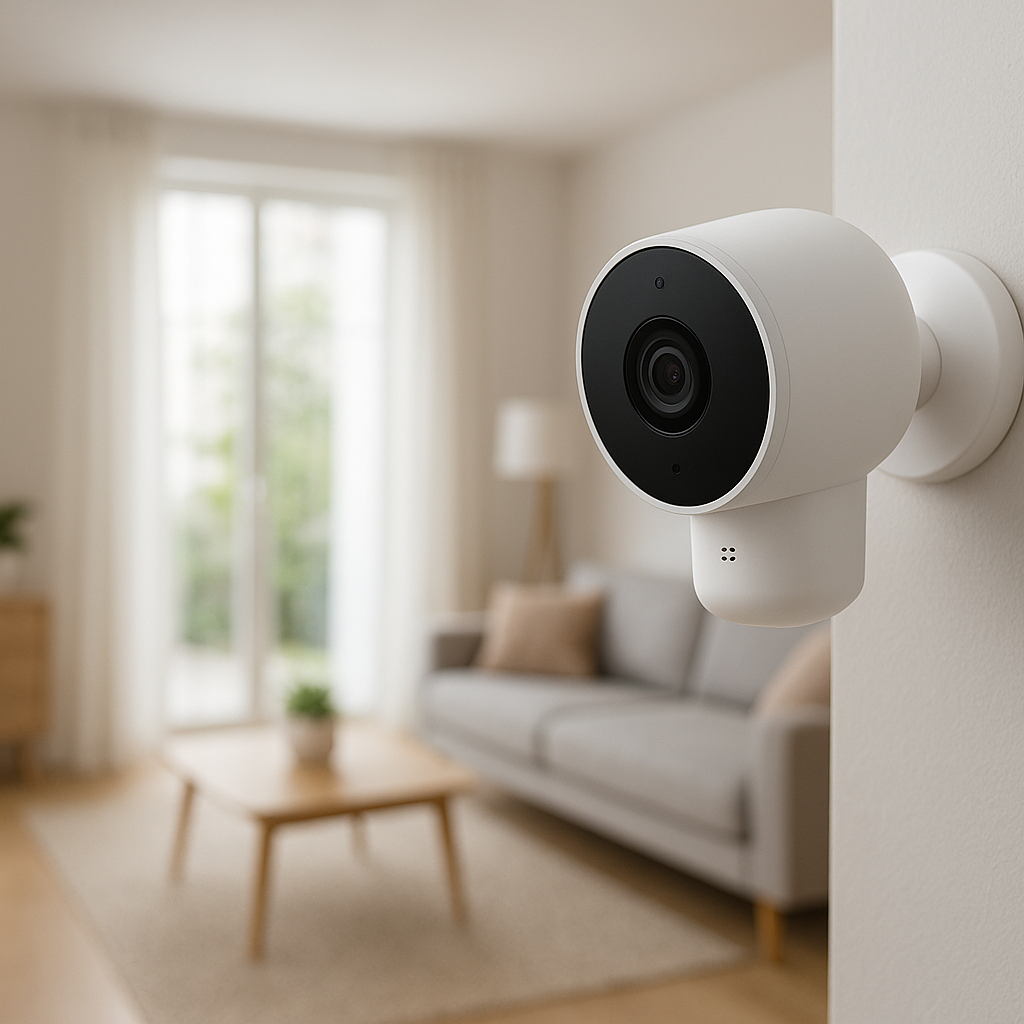
Older baby monitors were essentially walkie‑talkies with a microphone. Today’s smart baby monitor cameras add:
- HD or 2K video with infrared night vision
- Phone apps for monitoring from anywhere
- Motion, sound, and crying alerts
- Temperature and humidity sensors
- Optional breathing and sleep tracking, sometimes with a wearable sensor
Many parents now expect a quick glance at a phone instead of carrying a dedicated parent unit. That convenience is a big step up, but it also means your baby’s video often travels through cloud servers before it reaches your device.
The privacy problem with cloud-only baby monitors
Cloud‑only baby monitors upload video to a company’s servers, then stream it back to your phone. That design can be handy for long‑term recording and away‑from‑home access, but it comes with trade‑offs:
- More data exposure: Your baby’s video and audio sit on someone else’s infrastructure.
- Account and password risks: Weak passwords or reused logins can expose your camera feed.
- Ongoing subscription costs: Many brands lock useful features behind monthly fees.
- Data policy questions: You’re trusting a company’s promises about retention, sharing, and AI training.
Cloud access isn’t always bad, but you should be able to choose how much of your nursery leaves your home network. Monitors that support local storage or local‑only viewing give you that choice.
Why local storage and breathing alerts are becoming must‑have features
Two features are now high on many parents’ wish lists:
- Breathing or wellness alerts: These systems watch for movement patterns, breathing motion, or posture changes and can ping your phone if something seems off. They’re usually positioned as wellness devices, not medical equipment.
- Local storage: MicroSD, NVR, or NAS storage keeps video at home so you’re not forced into a subscription or exposing long‑term footage to the cloud.
The best smart baby monitor cameras in 2026 combine these ideas: they let you store video locally by default, add cloud only if you want it, and pair with breathing or movement monitoring (either built‑in or via a companion sensor) that runs as privately as possible.
Key Buying Criteria for a Smart Baby Monitor Camera in 2026
Video quality, night vision, and low‑light performance in the nursery
Resolution matters, but it’s not everything. For a baby monitor:
- Resolution: 1080p is usually enough; 2K gives extra detail if you want to zoom in on a chest rise or pacifier.
- Night vision: Look for infrared LEDs with even coverage and minimal “hot spots” so you can see your baby’s breathing movement without glare.
- Low‑light color: Some newer cameras offer color night vision in dim rooms; not essential, but nice when you keep a small nightlight on.
- Frame rate: 20–30 fps helps make motion smoother and reduces false breathing alarms caused by choppy, low‑frame‑rate video.
A quick test: turn the nursery lights off, check the live view, and see if you can clearly distinguish the rise and fall of your baby’s chest from your usual viewing distance.
Breathing monitoring vs. motion/audio alerts: what parents really need
Baby monitors handle “breathing” in different ways:
- Contactless motion‑based breathing: The camera or a sensor under the mattress tracks micro‑movements. This is common in premium monitors.
- Wearable breathing sensors: A clip‑on or sock reads movement or oxygen and sends breathing alerts to the app.
- Smart motion/audio alerts: These can’t see breathing directly, but they detect unusual stillness, crying, or sudden movement.
For most families, a good setup is:
- A reliable camera with motion/audio alerts and local video storage.
- An optional breathing or wellness sensor (contactless or wearable) for extra reassurance.
No consumer baby monitor is a substitute for safe sleep practices or medical monitoring. The American Academy of Pediatrics has a helpful overview of safe sleep guidelines at healthychildren.org. Use breathing alerts as an extra set of digital eyes, not your only safety layer.
Local storage options (microSD, NVR, NAS) and how they protect privacy
Local storage keeps recordings under your control:
- MicroSD card (in the camera): Simple, cheap, and ideal for 1–3 cameras. Cards are usually 32–256 GB and hold a few days to weeks of video, depending on settings.
- NVR (Network Video Recorder): A separate box (often from the same brand) that records multiple cameras at once. Great for whole‑home systems.
- NAS (Network Attached Storage): A small home server (e.g., Synology, QNAP) that stores video from compatible cameras or via software like Home Assistant.
With local storage, you can often:
- Record 24/7 or just motion events without paying a subscription.
- Block internet access to the camera while still viewing and recording on your home network.
- Decide when to erase or archive footage.
If you’re curious about how NVRs work under the hood, the Network video recorder article on Wikipedia has a solid technical overview.
Connectivity and reliability: Wi‑Fi bands, range, and offline access
For nursery reliability, focus on:
- 2.4 GHz Wi‑Fi support: This band reaches farther through walls than 5 GHz, which is handy for upstairs nurseries.
- Dual‑band or Ethernet: Some cameras support 5 GHz or wired Ethernet for more stable high‑resolution streaming.
- Offline viewing: Ideally, the app or a dedicated parent unit still shows live video if the internet goes down but your local network or direct RF link is fine.
- Dedicated parent unit vs. phone‑only: A hardware monitor can feel more reliable at night, while the phone app is convenient for travel.
Test your setup by turning off your router’s internet connection (but leaving Wi‑Fi on) to see what still works. A privacy‑friendly baby monitor should be usable even when you’re offline.
Security essentials: encryption, no-account modes, and data handling
Key security features to look for:
- Encrypted streams: Video and audio should be encrypted between the camera and your app.
- No‑account or local‑only mode: Some cameras work entirely on your LAN without needing a cloud login.
- Regular firmware updates: Check that the brand pushes updates and publishes release notes.
- Clear data policy: Look for statements on retention, sharing with third parties, and AI training.
A quick way to spot trouble: if a camera forces you to enable remote cloud access and won’t work at all without it, that’s a red flag for privacy‑first parents.
Smart home integration (Alexa, Google, Apple Home, Home Assistant)
Smart home support can make life easier, but it shouldn’t add complexity to baby monitoring. Common integrations:
- Alexa / Google Assistant: Show the nursery feed on a smart display, use routines, or get voice alerts.
- Apple Home: HomeKit Secure Video routes footage through iCloud with stricter privacy controls.
- Home Assistant / open‑source: Great for local‑only setups and more advanced automations if you’re comfortable tinkering.
For a nursery, it’s usually enough if your camera can stream to a smart display and participate in simple automations like dimming lights at bedtime. Deep automation can wait.
Best Overall Smart Baby Monitor Camera with Breathing Alerts & Local Storage
Who this pick is best for
The best “overall” setup is a camera with strong local storage plus a companion breathing sensor that talks to the same app. This combination suits parents who:
- Want breathing alerts but don’t want to rely on cloud‑only services.
- Prefer to keep most video recordings off the internet.
- Are comfortable doing a one‑time setup in the app.
Core features: breathing detection, video, audio, and storage options
A typical best‑overall setup looks like this:
- Camera: 1080p or 2K indoor camera with microSD slot for continuous or event‑based recording, two‑way audio, and infrared night vision.
- Breathing sensor: A small wearable clip or disc that attaches to your baby’s clothing or diaper and reports breathing motion to the same app.
- Alerts: Push notifications for breathing irregularities, prolonged stillness, rolling onto tummy (depending on device), and loud crying.
- Storage: Video recorded to a microSD card in the camera, with optional backup to a local NVR or optional cloud plan.
Because the breathing data is relatively small, it usually syncs to the app even if you don’t pay for cloud video storage.
Pros, cons, and real‑world nursery performance
Pros
- Local video storage by default; cloud is optional.
- Breathing alerts add a layer of reassurance during the newborn phase.
- One app for both video and wellness metrics.
- Works well whether you’re in the living room or traveling with your baby.
Cons
- Wearable sensors need battery changes or charging.
- You must get into the habit of clipping the sensor on correctly.
- Occasional false alerts if the sensor shifts position.
In daily use, parents often end up checking the breathing graph a few times in the early weeks, then lean more on basic video and audio once they’re comfortable with their baby’s sleep patterns.
Privacy and security analysis for cautious parents
From a privacy perspective, this kind of bundle is attractive because:
- Video can stay on a local microSD card or NVR.
- You can often disable remote access for the camera while still recording locally.
- Breathing data is lower‑risk than video, though it’s still personal health information.
Check the app’s settings for:
- A “local‑only” or LAN mode for the camera.
- Options to delete cloud backups or disable cloud entirely.
- Per‑device password or PIN protection before viewing video.
Best Budget Smart Baby Monitor Camera with Local Recording
What you sacrifice (and keep) at a lower price point
Budget‑friendly smart cameras with microSD slots can double as baby monitors without a big price tag. At this level you typically:
- Keep: 1080p video, night vision, basic motion/sound alerts, and local microSD recording.
- Sacrifice: Built‑in breathing analytics, advanced sleep tracking, and sometimes a dedicated parent unit.
These cameras are ideal if you primarily want to see and hear your baby, with the option to add a separate breathing wearable later if you decide you want that feature.
Breathing or wellness features on a budget
Most budget cameras don’t include true breathing detection. Instead, you can:
- Use motion and sound alerts to know when your baby stirs or cries.
- Add a standalone breathing or movement sensor that pairs with its own app.
- Rely on clear night vision to visually confirm chest movement when you glance at the video feed.
This two‑app approach (one for video, one for breathing) is slightly less convenient than a single integrated system, but it lets you upgrade in stages without committing to a pricey subscription from day one.
Local storage limits and how to work around them
On a budget camera, local storage usually means a microSD card. To make the most of it:
- Choose a high‑endurance microSD card from a reputable brand.
- Set recording to “motion only” instead of 24/7 to stretch storage space.
- Use lower bitrates or shorter clip lengths in the app if available.
- Regularly back up important clips to your phone or computer, then let the card overwrite older footage.
If you outgrow a single card, some budget‑friendly brands also support recording to a basic NVR or NAS, which gives you more space without moving to the cloud.
Best Premium Baby Monitor Camera with Advanced Breathing & Sleep Analytics
Extra health tracking features (sleep patterns, room environment)
Premium baby monitor systems pack in far more than video:
- Contactless breathing monitoring using special crib stands or under‑mattress sensors.
- Detailed sleep analytics (sleep stages, total sleep time, number of awakenings).
- Trends, graphs, and personalized suggestions in the app.
- Room temperature, humidity, and sometimes noise or light level graphs.
These systems are appealing if you love data and want to understand long‑term sleep patterns, not just glance checks.
When premium cloud features are worth it—and when to skip them
Premium monitors often lean heavily on the cloud. Subscription plans may unlock:
- Longer video history (e.g., 30 days of clips).
- Advanced sleep reports and daily summaries.
- Shareable timelines or highlight reels.
- Multi‑user access with separate logins.
These features can be worth it if:
- You actively review the data and adjust sleep routines based on it.
- You have caregivers or relatives who use shared access.
- You’re comfortable with more data in the cloud.
If you only check live video occasionally, you may be better off with a local‑first camera plus a simple breathing sensor, keeping subscriptions to a minimum.
Balancing advanced analytics with privacy concerns
With premium systems, the privacy trade‑off is usually clear: more features often mean more cloud processing. To keep the balance reasonable:
- Use local storage where possible (for example, saving clips to a microSD card if supported).
- Disable features you don’t need, such as continuous cloud uploads or public sharing.
- Review the brand’s privacy policy and opt out of analytics or “product improvement” programs if offered.
If you’re uneasy about extensive cloud data, consider using a premium monitor mainly during the newborn months, then moving to a simpler, local‑only camera as your baby grows.
Best Local‑Only Baby Monitor Camera (No Cloud, Maximum Privacy)
For parents who want zero video in the cloud
Some parents want a monitor that behaves like a traditional system: video never leaves the house. The best local‑only options are usually:
- Non‑Wi‑Fi baby monitors with a dedicated parent unit and local RF link.
- IP cameras configured for local‑network‑only viewing, recording to microSD or an NVR.
These cameras can still be “smart” in the sense that they support apps, automation, or Home Assistant—but you deliberately block their internet access at your router.
How local-only recording works day-to-day
In a local‑only setup:
- You connect your phone or tablet to your home Wi‑Fi and view the camera feed via the local network.
- The camera records 24/7 or on motion to an internal microSD card or NVR.
- If your internet goes out, everything still works as long as your Wi‑Fi stays on.
Daily use feels almost the same as a cloud camera, except you won’t be able to check video from outside your network unless you deliberately set up secure remote access (for example, via a VPN).
Using NAS/NVR setups for long-term, private storage
If you like the idea of keeping all your baby’s videos as a private archive, a NAS or NVR is ideal:
- Connect several cameras to one recorder.
- Store months of footage on large hard drives.
- Back up important clips to another drive or cloud of your choice.
- Upgrade storage without touching the cameras.
This approach does require a bit more technical comfort, but once configured, it largely looks after itself and keeps your nursery video as private as possible.
Best Smart Baby Monitor Camera for Multi-Room or Twins
Multi-camera viewing and switching between rooms
For twins or multiple children, the key is how quickly you can see each room:
- Look for apps that show multiple camera thumbnails on one screen.
- Check how easy it is to switch audio between rooms.
- If there’s a dedicated parent unit, make sure it supports split‑screen or fast toggling.
Many general‑purpose indoor cameras can be grouped by room (“Nursery”, “Toddler Room”) in the app, making it simpler to monitor more than one child at night.
Managing breathing alerts and notifications for multiple babies
If you’re using breathing wearables or under‑mattress sensors:
- Assign each sensor to a specific child in the app.
- Use distinct notification tones or labels (“Nursery A”, “Nursery B”).
- Test simultaneous alerts by triggering test alarms while you’re both at home.
This helps avoid confusion at 3 a.m. when two phones start buzzing. Some apps let you set different sensitivity levels per child, which can be useful if one baby is more wiggly than the other.
Storage planning when you add more cameras
Each extra camera eats into your storage. To keep things manageable:
- Use higher‑capacity microSD cards (e.g., 128–256 GB) in each camera.
- Switch to event‑based recording for secondary rooms you check less often.
- Consider a small NVR or NAS if you have three or more cameras.
For multi‑room setups, a central recorder is often easier to manage than shuffling through multiple microSD cards.
Comparison Table: Top Smart Baby Monitor Cameras at a Glance
Side-by-side specs: resolution, FOV, Wi-Fi, storage, alerts, integrations
Below is a simplified comparison of seven common baby monitor camera setups and styles you’ll encounter (features vary by specific brand and model, but this gives you a framework):
- Best Overall Bundle: 1080p/2K camera + wearable breathing sensor; 2.4 GHz Wi‑Fi; microSD + optional NVR; motion/sound + breathing alerts; basic Alexa/Google support.
- Budget Local Camera: 1080p; wide field of view; 2.4 GHz Wi‑Fi; microSD only; motion/sound alerts; limited or no smart home integrations.
- Premium Analytics Monitor: 1080p; standard FOV with zoom; dual‑band Wi‑Fi; primarily cloud storage; contactless breathing + detailed sleep analytics; strong smart home support.
- Local‑Only IP Camera: 2K/4K; flexible FOV options; Ethernet or 2.4 GHz; microSD + NVR; motion alerts; deep Home Assistant or local automation support.
- Multi‑Room Indoor Cams: 2K; wide FOV; 2.4/5 GHz; microSD + optional cloud; motion/sound alerts; Alexa/Google/Apple Home.
- Non‑Wi‑Fi Baby Monitor: 480–720p to parent unit; local RF link; no network; local recording on parent unit (if supported); audio/video only; no integrations.
- Camera + Separate Breathing Pad: 1080p camera with local storage; 2.4 GHz; wearable or under‑mattress sensor with its own app; breathing alerts; minimal integrations.
Use this as a checklist: identify which “style” matches your comfort level, then narrow down to specific models that support microSD or NVR recording and the type of breathing or wellness alerts you want.
Pricing overview and total cost of ownership (including optional cloud)
Approximate price ranges (USD as of 2026):
- Budget local cameras: $25–$60 per camera, no required subscription.
- Wearable breathing sensors: $90–$250, often with optional premium app features.
- Premium analytics monitors: $200–$400 for camera + stand, plus $5–$20/month for cloud analytics.
- Local‑only IP cameras: $40–$150 per camera; NVRs start around $100–$250.
- Non‑Wi‑Fi baby monitors: $80–$200 for camera + parent unit.
When comparing options, add up:
- Upfront hardware cost (camera + any breathing sensor).
- MicroSD or NVR/NAS cost.
- Cloud subscriptions over 1–3 years.
A slightly higher hardware price with no subscription can be cheaper than a “free” cloud trial that turns into a long‑term monthly fee.
Privacy & Security Checklist for Baby Monitor Cameras
Questions to ask before buying (and what brands rarely tell you)
Before hitting “buy”, try to answer these:
- Can I record video locally (microSD, NVR, or NAS) without a subscription?
- Does the camera still work if my internet goes out?
- Can I disable cloud storage completely?
- Is two‑factor authentication (2FA) available for the app?
- How long does the company say it will support firmware updates?
Brands often highlight video quality and AI features, but bury details on data retention and account deletion. Look for a published privacy policy, not just marketing promises on the product page.
How to verify encryption, firmware updates, and data policies
After you buy (or before if possible):
- Check the app or manual for mentions of TLS/SSL or end‑to‑end encryption.
- Visit the support page to see how often firmware updates are released.
- Search for “privacy” or “data” on the manufacturer’s site to find their policy.
- Look for a clear process to delete your account and request data deletion.
If you can’t find any mention of encryption, updates, or data handling, consider that a warning sign—especially for a device watching your baby.
Setting up strong passwords, 2FA, and separate Wi-Fi networks
Some simple steps go a long way:
- Use a unique, long password for your camera account and Wi‑Fi router.
- Enable 2FA in the camera app and your email account.
- If your router supports it, put cameras on a separate guest or IoT network.
- Turn off features you don’t use, like UPnP or automatic port forwarding.
These measures help prevent someone outside your home from ever seeing your camera feed, even if passwords leak from another service.
How to Set Up a Smart Baby Monitor Camera Safely in the Nursery
Best camera placement for accurate breathing alerts and minimal false alarms
Placement matters for both safety and breathing accuracy:
- Mount the camera above or slightly to the side of the crib, angled down so you see the full mattress.
- Avoid placing it directly at mattress level where a blanket or rail could block the view.
- Test the breathing or motion detection with your baby in typical sleep positions.
- Check the live view at night to ensure you can see chest movement clearly.
Small changes in angle can reduce false alerts from background movement (like curtains) and improve the accuracy of breathing or stillness detection.
Safe mounting heights and cable management around the crib
For physical safety:
- Keep the camera and all cables at least 3 feet (about 1 meter) away from the crib.
- Use wall clips or cable covers so no wires dangle where a baby or toddler can reach.
- If using a floor stand, secure it so it can’t be pulled over.
- Periodically recheck cable routing as your baby becomes more mobile.
Many brands sell wall mounts or stands specifically for above‑crib viewing; installing one well is usually worth more than any extra software feature.
Calibrating breathing and motion alerts to avoid notification overload
Too many alerts quickly lead to “notification fatigue.” To keep things sane:
- Start with default sensitivity, then adjust after a few nights based on real alerts.
- Turn off non‑essential notifications like “general motion” once you trust the system.
- Use “night mode” or do‑not‑disturb windows if your baby makes normal noises at specific times.
- For breathing monitors, follow the manufacturer’s calibration steps carefully and run test alerts while you’re in the room.
The goal is to get alerted when something unusual happens—not every time your baby sighs or rolls over.
Setting up local storage: microSD vs. network storage step-by-step
For microSD cards:
- Buy a high‑endurance microSD card in the size your camera supports.
- Insert it into the camera and use the app to format it.
- Choose continuous or motion‑only recording in settings.
- Test playback of a recent event to confirm it’s working.
For NVR/NAS:
- Connect the NVR/NAS to your router via Ethernet.
- Follow the manufacturer’s instructions to add each camera (often via IP address or QR code).
- Set retention rules (e.g., 14 days of recordings) and motion zones.
- Test remote playback on your phone while you’re on your home Wi‑Fi.
Once local storage is working reliably, you can decide whether you even need cloud backups for your baby monitor cameras.
Using Smart Home Automation with Your Baby Monitor (Without Overcomplicating It)
Simple automations: dimming smart lights and white noise when baby sleeps
The best nursery automations are small and predictable. For example:
- When the camera detects “sleep” mode or low motion, dim smart lights to 10%.
- Use a schedule (not motion) to start a smart white noise machine at bedtime.
- Turn on a gentle nightlight if the camera detects noise and movement after a certain hour.
Keep automations slow and subtle—sudden light changes or loud speaker announcements can startle a baby awake.
Using smart speakers for hands-free check-ins and announcements
Smart speakers and displays can make baby care easier:
- Say “Show me the nursery” to bring up the video feed on a smart display.
- Use broadcast or announcement features to talk to a partner in the nursery without shouting.
- Play lullabies or white noise from a speaker that’s safely out of reach.
If your monitor supports two‑way talk, test the volume once so you don’t accidentally blast a loud voice into a quiet room.
When (and when not) to link baby monitors to broader home security
It’s tempting to fold your baby monitor into your overall home security system, but be selective:
- Good idea: Use whole‑home power or internet outage alerts so you know if your monitor might be offline.
- Maybe: Add nursery cameras to your NVR for complete home coverage.
- Be careful: Sharing nursery access with many users (e.g., security monitoring services) or enabling aggressive motion alarms that might wake your baby.
Generally, treat nursery cameras as a special case with tighter access than other home cameras.
Frequently Asked Questions About Smart Baby Monitor Cameras
Are breathing monitor cameras accurate enough to rely on?
Consumer breathing monitors are designed for wellness and peace of mind, not as medical devices. They can often detect when your baby is moving and breathing normally versus unusually still, but they are not guaranteed to catch every issue and can sometimes trigger false alarms. Use them as one tool alongside safe sleep practices and regular check‑ins, not as your only safeguard.
Do I need a subscription if I use local storage only?
Usually, no. If your camera supports microSD, NVR, or NAS recording, you can typically record and play back video without a subscription. Subscriptions often add features like long‑term cloud history, advanced AI detection, or premium sleep analytics. Decide if those extras are worth it for you; many families never need them.
Is it safe to access the baby monitor when I’m away from home?
Remote access can be safe if it’s implemented well and you secure your account. Use a strong, unique password, turn on two‑factor authentication, and avoid sharing logins. If you’re especially privacy‑conscious, you can disable remote access entirely and use a VPN to reach your home network securely when you’re away.
How long will my footage stay on a microSD card?
It depends on card size, resolution, and recording mode. As a rough guide, a 64 GB card recording 1080p motion‑only video in a nursery might hold 1–2 weeks of clips. A 256 GB card with more aggressive settings could store a month or more. Most cameras automatically overwrite the oldest footage when the card fills up.
Final Verdict: Choosing the Best Smart Baby Monitor Camera for Your Family
Quick recommendations by budget and privacy level
To narrow it down quickly:
- Maximum privacy: Local‑only IP camera or non‑Wi‑Fi baby monitor with microSD or parent unit recording.
- Best balance: 1080p/2K camera with microSD + optional wearable breathing sensor.
- Data‑driven parents: Premium analytics monitor with contactless breathing and detailed sleep reports.
- Multi‑room or twins: A set of local‑storage indoor cameras with a multi‑view app or parent unit.
When to prioritize breathing alerts vs. video quality
If your budget is limited, prioritize:
- Reliable video + audio first—you should always be able to see and hear your baby clearly.
- Breathing or movement alerts as a second step, via a separate sensor if necessary.
Ultra‑high‑resolution 4K video is rarely necessary for a nursery; stable 1080p at night matters more than raw pixel count.
Next steps: a simple checklist to decide in under 15 minutes
To make your choice quickly:
- Decide your privacy stance: cloud‑friendly, hybrid, or local‑only.
- Set a budget range for camera + optional breathing sensor.
- Choose your style from the comparison section (bundle, budget local, premium, local‑only, multi‑room).
- Verify that any candidate camera supports local storage (microSD, NVR, or NAS).
- Check for basic security features: encryption, 2FA, and regular updates.
Once those boxes are checked, you’ll have a smart baby monitor camera setup that fits your family, keeps your baby in view, and respects your privacy at the same time.