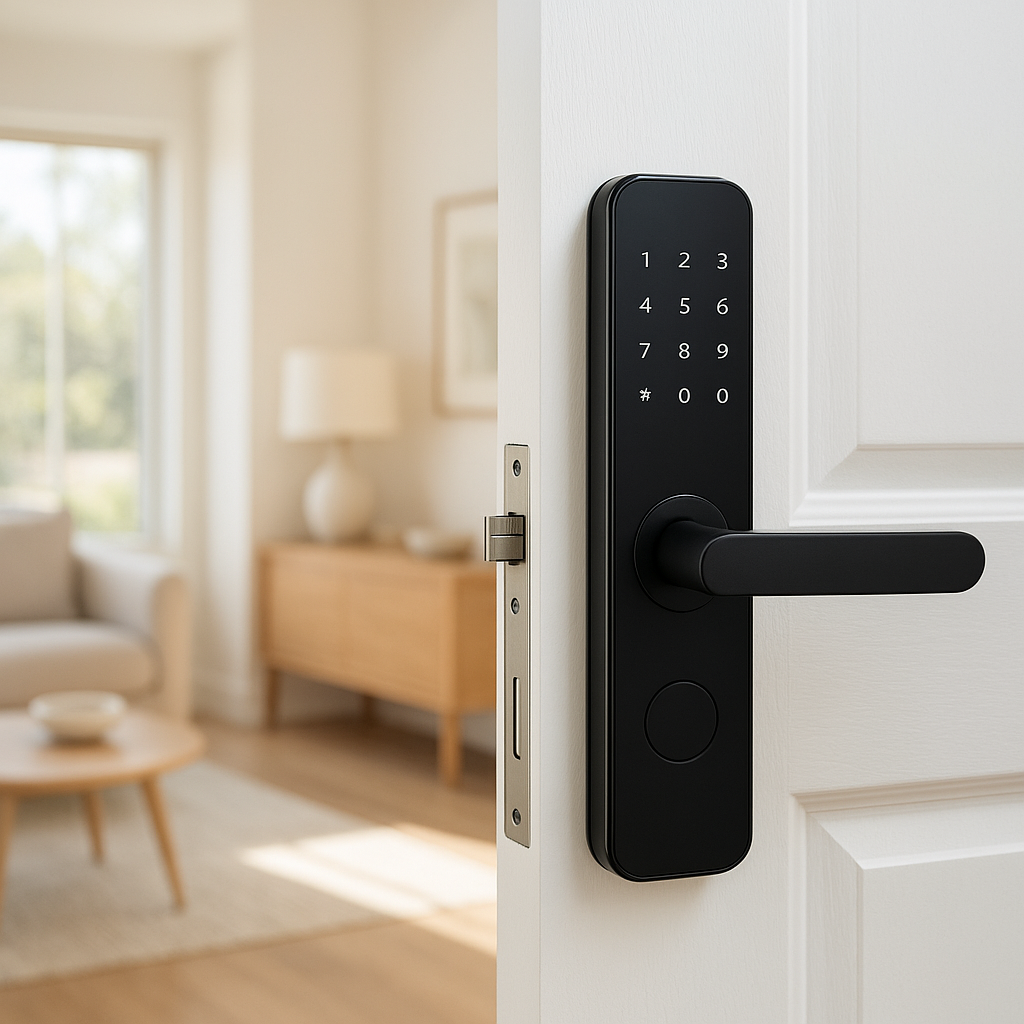
If your smart lights turn on by themselves at night, especially around 3 AM, it can be more than just annoying. It ruins sleep, confuses family members, and makes you question whether your smart home is actually smart.
The good news: there is always a reason. A routine, a sensor, a power setting, or a glitch is telling those lights to turn on. Once you know where to look, you can track down the exact trigger and stop it for good—without tearing your whole setup apart.
This guide walks you through the most common causes, how to use logs and automation history to find the culprit, and platform-specific tips for Alexa, Google Home, HomeKit, SmartThings, and popular brands like Philips Hue and TP-Link Kasa.
Why Your Smart Lights Turn On by Themselves at Night
The 3 AM mystery: why this happens more often than you think
Many people notice the problem around 2–4 AM. That’s not a coincidence. A lot of platforms and devices perform background tasks overnight—things like firmware updates, cloud syncs, and daily automation resets. If an automation is slightly misconfigured, or if a bulb’s “power restore” behavior is set to turn on, those quiet maintenance tasks can suddenly light up your bedroom.
Some common 3 AM triggers include:
- Daily routines that were meant for mornings but saved with the wrong time or time zone.
- Sunrise/sunset automations that shift with daylight savings and end up in the middle of the night.
- Power flickers that cause bulbs or switches to power back on in their default “on” state.
- Cloud services briefly losing connection and then re-adding devices as if they’re new.
It feels random, but once you map it against your automations and logs, a pattern usually appears.
Common patterns: one bulb vs whole room vs whole house
The pattern of what turns on tells you a lot about the cause:
- Single bulb or single switch turns on – Often a device-specific setting (like “power on behavior” on a Philips Hue bulb), a local schedule in that brand’s app, or a failing switch.
- One room or group turns on – Usually a scene, group routine, or voice-assistant routine targeting a room (e.g., an Alexa routine for “Bedroom lights on at 7 AM” accidentally set to 7 PM or to run every day including weekends).
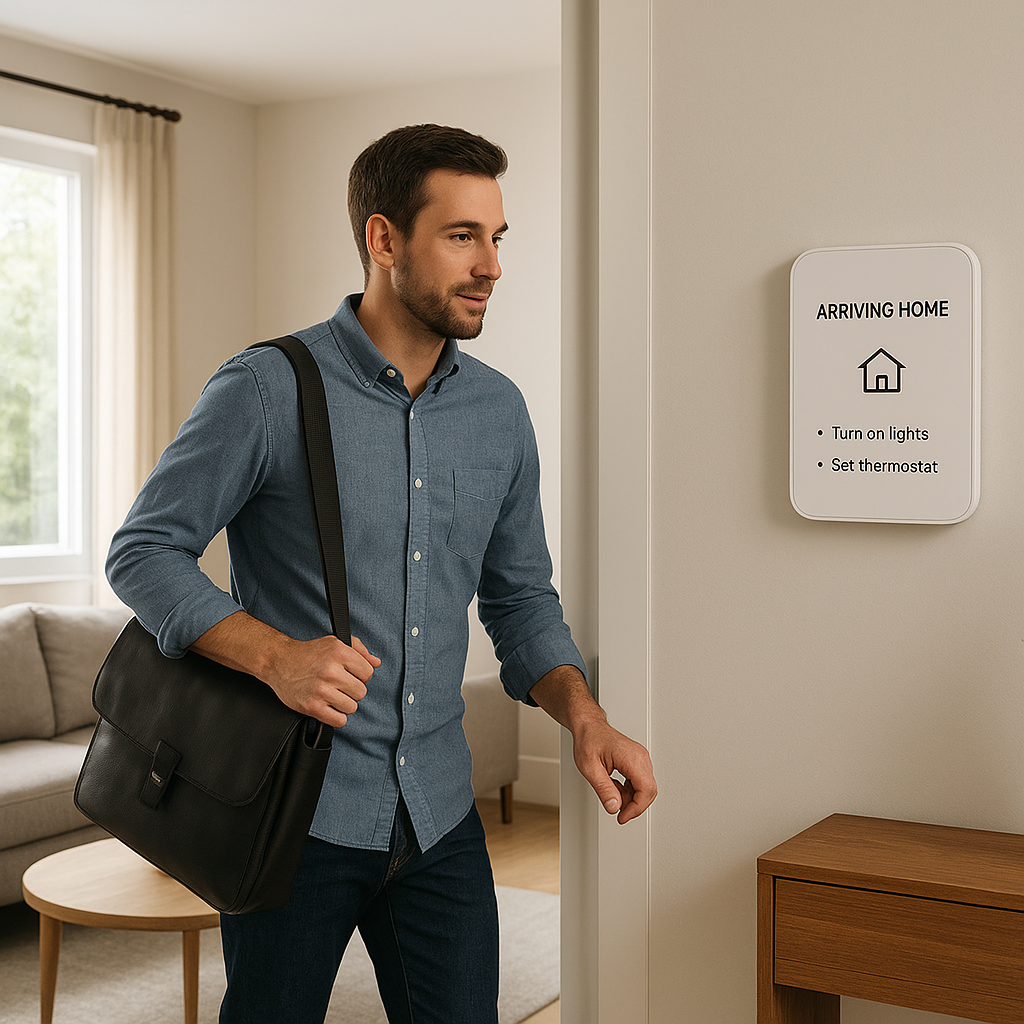
- Whole house lights turn on – More likely a high-level automation such as “Good Morning” or “Security alert” that targets every light, a presence-based routine (e.g., detects someone “arriving home” at night), or a power event affecting many devices at once.
Before you dive into settings, note exactly which lights react. That’s your first clue.
Quick checks before you start deep troubleshooting
Before you sink time into advanced debugging, run through a few fast checks:
- Ask household members – Make sure nobody created a routine on their own phone or voice account.
- Check voice history – In Alexa, Google Assistant, or Siri, review voice commands. A TV commercial or accidental wake word can trigger a command to turn lights on.
- Look for obvious schedules – In your main smart home app and brand apps (Philips Hue, Kasa, Wiz, etc.), look for schedules around the time it happens.
- Check for visitors or pets – Pets triggering motion sensors or doors opening during the night can legitimately turn lights on.
If none of these explain it, move on to the deeper causes below.
Most Common Reasons Smart Lights Turn On Randomly at 3 AM
Hidden schedules or routines you forgot you created
Most platforms make it very easy to add routines—but not always easy to see them all in one place. Over time, you end up with overlapping automations:
- A “Wake up” scene set for weekdays that later got copied or changed.
- Promotional “recommended” routines that were added with one tap.
- Temporary automations created for guests or holidays and never removed.
Check every place that can hold a schedule:
- Your main hub or platform (Alexa, Google Home, HomeKit, SmartThings, Hubitat).
- Brand apps like Philips Hue, TP-Link Kasa, Wiz, Govee, Nanoleaf, or LIFX.
- Any third-party automation tools like IFTTT.
Disable anything you don’t recognize, then test for a couple of nights.
Motion or contact sensors triggering overnight
Motion and contact sensors (doors, windows, cabinets) are common triggers for night-time lights. Typical scenarios include:
- Pets wandering through a hallway with a motion sensor aimed too low.
- Fridge or pantry door sensors tied to kitchen lights.
- Garage door opening late at night automatically turning on house lights.
Look for automations like “When motion is detected between 11 PM and 6 AM, turn on hallway light.” If the time window isn’t set, or was set incorrectly, that rule may be firing at 3 AM instead of only during your bedtime hours.
Sunrise/sunset and time-zone misconfigurations
Many people prefer “At sunset” or “X minutes before sunrise” instead of fixed times. These are great—until your home’s location or time zone is wrong.
If your hub or app thinks you’re in a different city, or daylight savings time changed and your settings didn’t, the calculated sunrise/sunset can drift into the middle of the night. A schedule like “1 hour before sunrise” might fire at 3 AM instead of 5 AM.
Check your home location and time zone in:
- Your main smart home platform.
- Each brand app that offers sunrise/sunset triggers.
Also confirm that your phone’s location permissions are granted if your platform needs them.
Power flickers causing bulbs to turn on by default
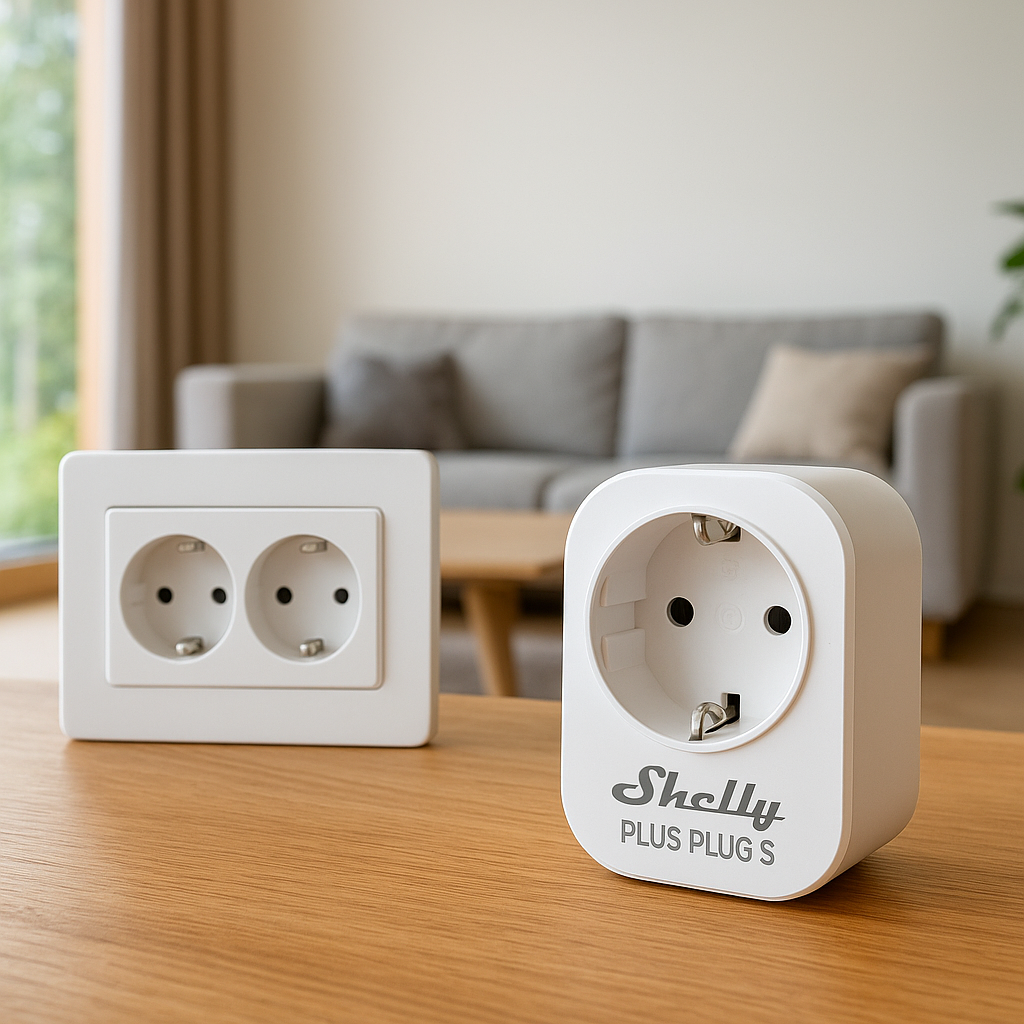
Many smart bulbs turn on when they regain power, even if they were previously off. If you have small power dips overnight, your lights can flash back on. This is especially noticeable with Wi-Fi bulbs on basic wall switches.
Some brands now let you choose what happens after power is restored (last state vs always on). For example, many Zigbee and Wi-Fi bulbs support a configurable “power-on behavior” setting. A brief overview of how different smart lighting technologies work is covered in this overview of home automation systems.
If your utility is known for occasional blips, or you see other devices rebooting, power behavior is a strong suspect.
Automation overlaps between different apps (Alexa, Google, HomeKit, etc.)
It’s very common to control the same lights from multiple apps:
- Device brand app (Philips Hue, Kasa, Wiz, etc.).
- Voice assistant (Alexa, Google Home, Siri/HomeKit).
- Hub (SmartThings, Hubitat, Home Assistant).
Each of these can have its own schedules and routines. You might disable a schedule in the Philips Hue app but forget there’s a similar routine in Alexa that still runs.
To avoid overlap, pick one “brain” for time-based automations and use the others mainly for control and voice commands.
Manufacturer cloud outages or “test” automations from apps
Occasionally, a cloud outage or a bug on the manufacturer’s side can cause odd behavior—devices reconnecting, default scenes running, or “test” routines that were meant for internal use. These are rarer, but they do happen.
If your lights suddenly misbehave on the same night you see lots of complaints online (Reddit, brand status pages, or social media), you might be seeing a cloud-side issue rather than anything you configured.
Old scenes and routines left from previous experiments or residents
If you bought a home with an existing smart setup, or you’ve been experimenting for years, your system may be full of old scenes and rules that no one remembers.
Look for:
- Scenes with vague names like “Test,” “Night Lights,” or “Auto.”
- Routines created for older devices that you replaced but never removed.
- Automations tied to people who no longer live there but whose account is still shared.
Cleaning these up not only fixes ghosts at 3 AM, it makes your setup much easier to manage.
How to Track Down the Exact Automation Causing Night-Time Light Activations
Step 1: Note the exact time and pattern of the light turning on
The more specific you are, the easier troubleshooting becomes. For the next few nights:
- Write down the exact time (or check a clock-enabled device like your smart display or thermostat history).
- Note which lights turned on—single bulb, room, or whole house.
- Capture any other activity at that time (motion, door opening, power flicker, Wi-Fi outage).
This information will help you match the event to logs and schedules later.
Step 2: Check automation history and activity logs in your smart home app
Many platforms log exactly which automation ran and why:
- Alexa: Activity history and device history can show when routines ran.
- Google Home: Shows recent activity and what triggered it.
- SmartThings/Hubitat/Home Assistant: Provide detailed logs with timestamps and rule names.
- Brand apps: Some, like Philips Hue, show recent actions from automations or switches.
Match the time of the unexpected light with the log entry. If you see “Routine: Good Morning” or “Automation: Motion in Hallway,” you’ve likely found the culprit.
Step 3: Temporarily disable all automations, then re-enable one by one
If logs don’t clearly show the cause, use process of elimination:
- Turn off or pause all routines and automations that can control those lights.
- Wait a night. If nothing turns on by itself, you’ve confirmed it’s automation-based.
- Re-enable automations one by one, starting with the ones most likely related (schedules, motion-based rules).
As soon as the problem returns, the last automation you turned back on is a prime suspect.
Step 4: Look for device-specific settings inside the bulb or switch app
Even if you control lights through a central platform, always check the native app:
- Power-on behavior (what happens after power is restored).
- Built-in schedules (often hidden under “Timers” or “Schedules”).
- Vacation/away mode that randomly turns lights on and off.
For example, some Wi-Fi switches from TP-Link Kasa or smart dimmers from Lutron can have local schedules configured entirely within their own app, independent of Alexa or Google.
Step 5: Check routines in voice assistants (Alexa, Google Assistant, Siri)
Voice assistants are a common source of surprise automations:
- Alexa’s “Hunches” feature trying to turn lights off or on based on behavior.
- Google Home’s suggested routines that get enabled with a tap.
- HomeKit automations based on people arriving/leaving, or time of day.
Review routines in each assistant, especially any that mention “night,” “sleep,” or “away.” Disable Hunches or similar “smart suggestions” if you want fully predictable behavior.
Step 6: Confirm schedules on physical smart switches and dimmers
Smart wall switches and dimmers (e.g., Lutron Caseta, Kasa switches, Wemo) may have their own schedules stored in the hardware. These can continue to run even if your hub is offline.
Open each switch’s configuration in its app and check:
- Any sunrise/sunset or time-based schedules.
- Built-in “night light” or security modes.
- Default behavior after power loss.
Turn off anything that overlaps with automations you’ve set elsewhere.
Platform-Specific Fixes: Alexa, Google Home, HomeKit, SmartThings & More
Amazon Alexa: Routines, Guard, and Hunches that can flip lights on
In Amazon Alexa, check these areas:
- Routines – Look for routines that trigger on time, sunrise/sunset, smart home events (motion, door open), or guard events.
- Alexa Guard – Guard can turn lights on/off while you’re away to simulate occupancy.
- Hunches – Alexa may suggest or automatically turn lights off/on based on your past behavior unless you disable this feature.
Because Alexa integrates with many brands, it’s often the central place where overlapping rules pile up. Cleaning up routines and turning off unexpected Hunches usually makes behavior far more predictable.
Google Home: Home/Away routines, presence sensing, and sunset triggers
In Google Home, focus on:
- Home & Away routines – These use presence (your phone’s location or sensors) to decide when to turn lights on or off.
- Sunset/sunrise automations – Make sure your home address is accurate so times are correct.
- Household routines – Any routine that many family members can trigger, including bedtime or wake-up scenes.
If your phone briefly disconnects from the network or changes location status, Home/Away routines can fire at unexpected times. Tighten the conditions or turn off presence for specific devices if needed.
Apple HomeKit: Automations based on people arriving, time, and sensors
HomeKit automations are often very reliable, but misconfigured presence or sensors can still cause issues:
- People Arrive/Leave – Check if any “When the first person arrives” or “When the last person leaves” rules control lights at night.
- Time + Sensor combos – Example: “When motion is detected in Hallway, and time is between sunset and sunrise, turn on lights.” Make sure the time conditions match your intent.
- Old devices – Remove automations that reference devices you no longer use.
You can see which automation last changed a device by checking the history in some third-party HomeKit apps, which can make tracking rogue rules easier.
SmartThings & Hubitat: Using logs to pinpoint rogue rules
SmartThings and Hubitat users have a big advantage: detailed logs.
- Use the live logs or history to see exactly which automation ran at the time your lights turned on.
- Identify whether it was a Scene, Routine, or custom SmartApp/Rule Machine rule.
- Disable or edit just that one rule rather than guessing.
If you use advanced rule engines (Rule Machine, WebCoRE, etc.), double-check for conditions that might behave differently around midnight or daylight savings transitions.
Philips Hue, TP-Link Kasa, and other brand apps: hidden schedules and power-loss behavior
Brand apps often hide powerful features under menus like “Automation,” “Timers,” or “Smart Actions.” Examples:
- Philips Hue: Has built-in routines, dynamic scenes, and a configurable “Power-on behavior” for many bulbs and fixtures. The official Philips Hue overview explains how the ecosystem manages scenes and devices through a central bridge.
- TP-Link Kasa: Local schedules and “Away mode” can run even without an internet connection.
- Wiz, Govee, Nanoleaf: Often support circadian lighting or random security lighting modes.
Open each app, look at automations or schedules, and disable any that operate during the hours when your problem occurs.
Fixing Power and Hardware Issues That Turn Lights On at Night
How power restoration settings work on smart bulbs and switches
Many smart bulbs and switches let you decide what they do when power returns:
- Last state – If the light was off before the outage, it stays off when power returns.
- Always on – Light turns on at a default brightness and color.
- Custom – Some allow a specific scene or brightness.
Set all bulbs in bedrooms and hallways to “last state” if available. This alone can stop random 3 AM wake-ups after a quick brownout.
Updating firmware to fix random on/off bugs
Manufacturers frequently release firmware updates that fix bugs like random toggling or missed commands. If you haven’t updated in a while:
- Open each brand app and check for firmware updates.
- Update the hub/bridge (Hue Bridge, SmartThings hub, etc.) as well.
- Schedule updates for daytime to avoid extra night-time surprises.
After firmware updates, monitor behavior for a few nights to see if the issue disappears.
When a failing switch, sensor, or bridge could be the culprit
Sometimes the cause isn’t software at all. Signs of failing hardware include:
- Lights flicker or turn on/off without any clear pattern.
- Switches feel hot, buzz, or don’t always respond to taps.
- Sensors report motion or open/close events when nothing moved.
- Your bridge/hub frequently disconnects or reboots.
If a specific device is misbehaving, temporarily remove it from automations or power it down for a few nights. If the problem stops, you’ve found your culprit.
Testing with a single bulb or room to isolate the problem
To simplify troubleshooting:
- Move all affected automations to a single test bulb or room.
- Disable everything else for a few days.
- If the test bulb behaves, slowly reintroduce devices and routines.
This controlled approach can reveal whether the problem is system-wide or tied to a specific area or device.
Preventing Smart Lights from Ever Turning On Randomly Again
Best-practice rules for naming and organizing automations
Good naming makes future debugging much easier. Try:
- Include time and trigger in the name, e.g., “Bedroom Wakeup 6:30 AM – Weekdays.”
- Use consistent prefixes like “MOTION – Hallway Night” or “SCHEDULE – Porch Sunset.”
- Delete or archive old routines instead of just turning them off.
When you see a rule in logs, you’ll instantly know what it’s supposed to do.
Using groups and scenes without creating conflicts
Groups and scenes are powerful, but can create conflicts if not planned:
- A bulb can be in multiple groups and scenes—different rules could be fighting over it.
- Try to have one primary scene for each room’s typical state (e.g., “Living Room Evening”).
- Use scenes for “snapshots” of lighting (movie night, reading) and keep time-based automations simple.
Fewer, well-organized scenes mean less guesswork at 3 AM.
Setting safe default states for bulbs after power loss
For bedrooms and nurseries, set default power-on behavior to:
- “Last state” if available, or
- A very dim warm white, rather than full brightness.
For hallways and safety-critical areas, you may intentionally want them to turn on after power loss so you’re never walking in the dark after an outage.
Periodic automation audits to catch weird behavior early
Every few months, especially after adding new devices:
- Review all routines and scenes in your main platform and brand apps.
- Delete unused automations and rename unclear ones.
- Check time zone, home location, and presence settings.
This light maintenance prevents weird behavior from piling up over time.
When to Reset, Replace, or Call Support
When a factory reset of bulbs, switches, or hubs makes sense
If you’ve tried everything—checked logs, disabled routines, updated firmware—and lights still misbehave, a factory reset can clear corrupted settings:
- Reset just the affected bulbs or switches first.
- If multiple brands and rooms are affected, consider resetting the hub or bridge as a last resort.
- Document your current setup (screenshots of routines) before wiping anything.
After a reset, re-add devices slowly and test as you go.
Signs it’s time to replace an unreliable device
Some devices simply wear out or were never very reliable. Replace a light, switch, or sensor if:
- It frequently appears offline while others stay connected.
- It responds slowly or inconsistently compared to newer devices.
- It triggers events (like motion) when nothing is happening.
- It no longer receives firmware updates and has known issues.
A single flaky switch can cause hours of frustration; replacing it is often worth the cost.
What information to gather before contacting brand support
If you need to contact support, having clear information ready speeds things up:
- Exact device model and firmware version.
- Which platform(s) you use (Alexa, Google, HomeKit, SmartThings, etc.).
- Exact times and patterns when lights turn on by themselves at night.
- What you’ve already tried (resets, firmware updates, disabling routines).
Support teams often ask for logs or screenshots, so grab those too. Many manufacturers list the best way to reach them, expected response times, and troubleshooting steps in their online help centers, which you can find through your device’s official documentation or app.
Summary: A Simple Checklist to Stop Smart Lights Turning On by Themselves at Night
Quick 10-minute troubleshooting checklist
If you want a fast path to relief, start here:
- Confirm your home location and time zone are correct.
- Check automation history/logs around the time lights turn on.
- Review and disable suspicious routines and schedules in your main platform.
- Open brand apps (Hue, Kasa, etc.) and turn off hidden schedules or away modes.
- Set power-on behavior for bulbs and switches to “last state” where possible.
In many homes, these steps alone solve the 3 AM lighting mystery.
Long-term habits to keep your smart lighting reliable and predictable
To avoid future surprises:
- Use clear, descriptive names for all routines and scenes.
- Pick one main platform as the “brain” for schedules.
- Audit automations a few times a year, especially after big changes.
- Keep firmware updated for bulbs, switches, and hubs.
- Document key rules (wake-up, bedtime, away) so everyone in the home understands them.
Once you’ve tracked down the culprit and cleaned up your automations, your smart home should feel calm and predictable again—no more surprise light shows in the middle of the night.
FAQ
Why do my smart lights turn on by themselves at night only some days?
Occasional events are usually tied to conditions—like motion, presence, or specific weekdays—rather than simple daily schedules. For example, a routine might say “When someone arrives home after sunset, turn on lights.” If someone occasionally comes home late, the lights only turn on those nights. Check for automations that include conditions besides just time.
Could my neighbor’s smart home be controlling my lights?
That’s very unlikely. Modern systems pair devices to a specific account or hub. Your neighbor’s Alexa or Google Home can’t see your devices unless you share them intentionally. Random overnight activations are almost always caused by your own routines, sensors, or power behavior, not outside control.
Do I need a separate hub to fix this problem?
No. A hub (like SmartThings or Hubitat) can give you better logs and more control, but you can usually fix random night-time activations using the apps you already have. Focus on checking logs, cleaning up routines, and adjusting power-on behavior before investing in extra hardware.
Will turning off the wall switch stop smart lights turning on by themselves?
Turning off the wall switch cuts power to most smart bulbs, which prevents them from turning on—until someone flips the switch back, at which point many bulbs will come on at full brightness. It’s better to solve the underlying automation issue rather than relying on physical switches, especially if you want remote and voice control to keep working.
Are Wi-Fi smart bulbs more likely to turn on randomly than Zigbee or Z-Wave?
Not necessarily. Random activations are more about how automations are set up than the wireless protocol. However, Wi-Fi bulbs are directly affected by router or power issues, while Zigbee and Z-Wave bulbs depend on hubs. Any of them can misbehave if schedules, power behavior, or firmware are not configured well.