Home office gear uses more power than many people expect. A desktop PC, dual monitors, printer, speakers, chargers, and a space heater can all end up on the same circuit. Add a few smart plugs without planning, and you can push that circuit beyond what it was designed to handle.
This guide explains how to prevent overloading a circuit with smart plugs and power monitors in your home office. You’ll learn how to understand your circuit limits, measure your actual power use, and set up smart automations that protect your equipment and wiring.
You don’t need to be an electrician. With a basic grasp of amps, volts, and watts—and a few well-chosen smart plugs—you can keep your home office both smart and safe.
Why Home Office Circuits Get Overloaded (and Why It Matters)
Common home office setups that strain a single circuit
Most home offices are carved out of spare bedrooms, basements, or dining rooms that were never designed for heavy, continuous loads. Often, the entire room shares a single 15-amp or 20-amp circuit with other outlets and lights nearby.
Typical home office setups that can strain a single circuit include:
- Powerful desktop PC or workstation plus a gaming GPU
- Two or three monitors
- Laser printer or all-in-one printer
- Audio interface, speakers, or powered studio monitors
- Multiple laptop and phone chargers
- Network gear: modem, router, switches, NAS drives
- Comfort devices: space heater, portable AC, electric standing desk, or desk lamp
Individually, many of these don’t use that much power. But when you switch them all on at once—especially high-draw items like heaters and laser printers—the total can easily approach your circuit’s limit.
Risks of overloading a circuit: tripped breakers, damage, and fire hazards
Modern homes have circuit breakers that are designed to trip and shut power off when the load is too high. That’s a safety feature. The problem is that repeated overloads are more than just annoying.
- Constantly tripping breakers interrupt your work, can corrupt files, and may stress sensitive electronics.
- Overheated wiring hidden in walls or ceilings can degrade insulation over time.
- Fire risk increases when circuits are run near or above their limits for long periods.
According to the National Electrical Code (NEC), continuous loads should be kept below 80% of a circuit’s rating, especially for things that run for three hours or more. You can read more about NEC standards on the official NFPA 70 (National Electrical Code) page.
How smart plugs and power monitors help you spot problems early
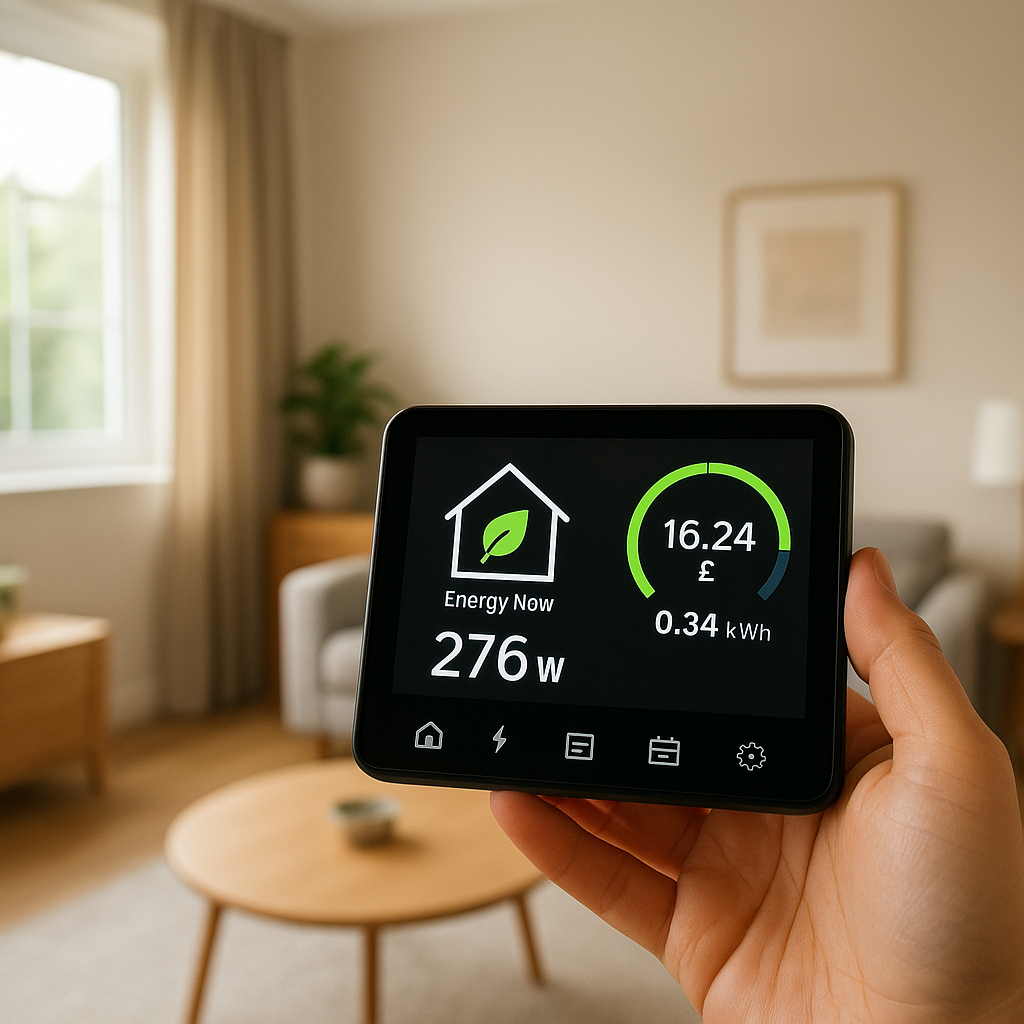
Smart plugs and inline power monitors give you visibility into how much power each device is actually using, instead of guessing from a label. That data lets you:
- See real-time wattage for your PC, printer, or heater.
- Track peak usage during the day to understand when the circuit is under the most strain.
- Set alerts for when a single device or group of devices pulls more power than expected.
- Automate shutoffs so high-draw equipment turns off before a breaker ever trips.
Used correctly, smart plugs become early warning sensors and automatic safety valves for your home office circuit.
Understand Your Circuit Capacity Before Adding Smart Plugs
How to identify the circuit your home office is on
Before you start plugging smart tech everywhere, figure out which circuit your office actually uses.
- Locate your electrical panel and find the breaker labels. Look for one marked with your office, bedroom, or area.
- If nothing is labeled, turn off one breaker at a time and see which outlets and lights go out in your office.
- Use a simple outlet tester or a phone charger and lamp to confirm which outlets are on the same breaker.
- Make a small sketch of your room and mark each outlet with the breaker number for future reference.
Knowing which outlets share a circuit keeps you from accidentally loading both sides of the room onto the same limit.
Amps, volts, and watts explained in simple terms
You only need one basic formula: Watts = Volts × Amps.
- Volts (V) are like pressure in a water pipe. In many regions, homes use about 120V; in others, 230–240V.
- Amps (A) are the amount of current flowing, similar to the volume of water.
- Watts (W) are the total power being used: how hard the electricity is working.
Circuits are rated in amps. Devices usually list watts or amps. If you know your voltage (120V or 230V) and either watts or amps, you can calculate the other values and see how close you’re getting to your circuit’s capacity.
Typical 15A vs 20A circuit limits and what they mean for your setup
In North America, most standard outlets are on 15A or 20A circuits at 120V:
- 15A circuit: 15A × 120V ≈ 1800W max. For continuous loads, target about 80%: ≈1440W.
- 20A circuit: 20A × 120V ≈ 2400W max. 80% of that is ≈1920W.
In countries with 230–240V mains, the wattage per amp is roughly double, but the same principles apply.
What this means in practice:
- A single 1500W space heater can use most of a 15A circuit’s safe capacity.
- A gaming PC setup (400–700W under load) plus dual monitors (40–60W each) and chargers can push the total past 1000W quickly.
- Add a laser printer (400–800W when printing) and you may briefly spike near or above the circuit’s limit.
Quick checklist: signs you may already be close to overloading
Watch for these warning signs that your home office circuit is near its limit:
- Breaker trips when you run the heater and printer at the same time.
- Lights dim or flicker slightly when the PC or printer starts.
- Power strips feel warm to the touch (they should stay cool or only slightly warm).
- Multiple outlet adapters or daisy-chained power strips to fit all your gear.
- You regularly unplug one device to use another high-draw device.
If any of this sounds familiar, measuring your actual load with smart plugs is the next smart step.
How to Prevent Overloading a Circuit with Smart Plugs and Power Monitors
Choosing smart plugs with built‑in energy monitoring
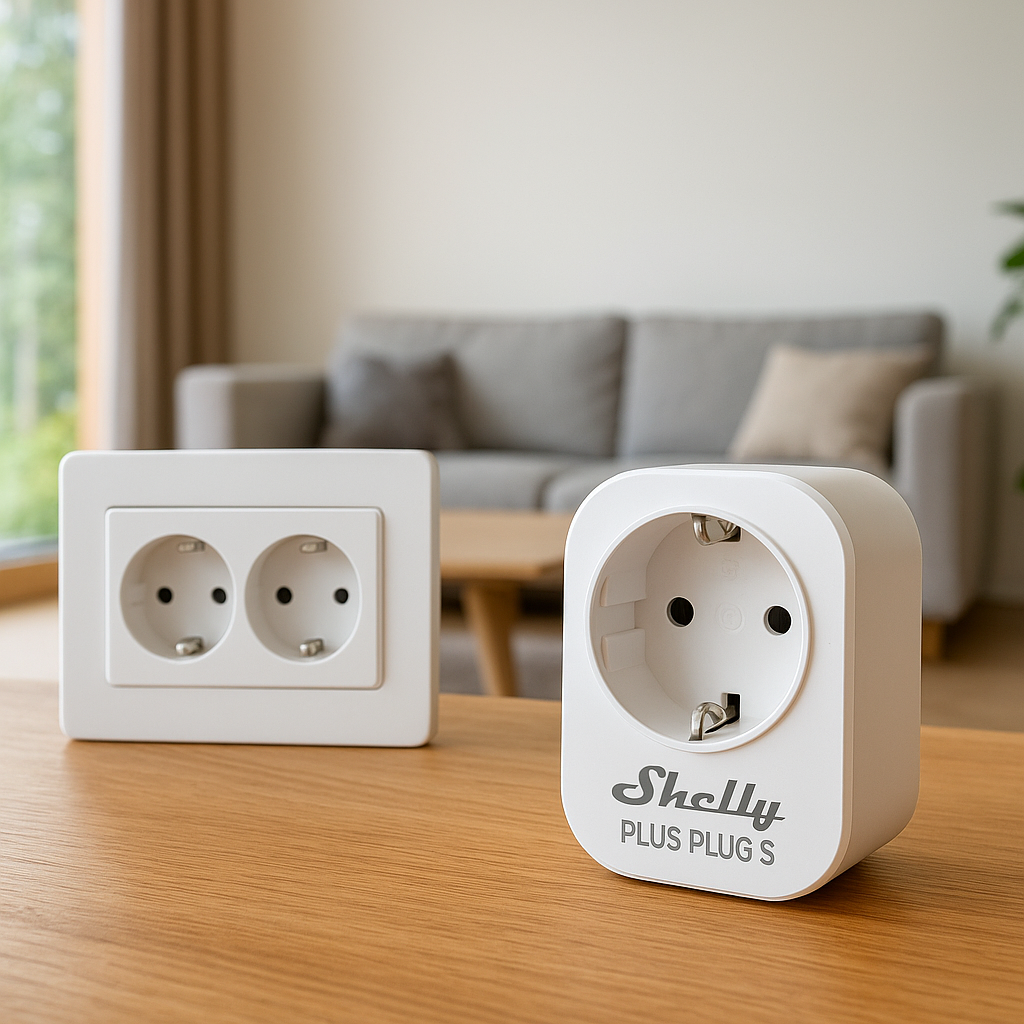
Not all smart plugs measure power. To manage your load, choose models with built-in energy monitoring. Popular examples include:
- TP-Link Kasa smart plugs with energy monitoring (HS110/EP40 style models)
- Emporia smart plugs and their energy monitoring ecosystem
- Meross and Aqara smart plugs that report watts and kWh in their apps
Key features to look for:
- Energy monitoring in watts and amps, with history graphs.
- App alerts when power draw exceeds a threshold.
- Support for your platform (Alexa, Google Home, HomeKit, or local/home automation hubs).
- Proper ratings (e.g., 15A at 120V) and safety certifications.
Using power strips vs individual smart plugs safely
You don’t need a smart plug for every single device. A balanced approach works best:
- Smart plug + standard surge strip: Put a smart plug at the wall, then plug a quality surge protector into it to control and monitor a small cluster of devices (monitor + speakers + charger).
- Individual smart plugs: Use separate smart plugs for high-draw or critical devices like your PC, laser printer, or heater (if safe and within rating).
Safe use tips:
- Never exceed the lower of the two ratings: if your smart plug is 15A and your power strip is 12A, treat the whole setup as 12A max.
- Choose surge protectors with overload protection and a clear on/off switch.
- Avoid plugging one power strip into another just to add more outlets.
Setting per‑device wattage and current alerts in your smart plug app
Most energy-monitoring smart plug apps let you set alerts when power exceeds a chosen value. Use this as an early-warning system:
- Set a wattage alert for each high-draw device (e.g., alert if heater exceeds 1200W).
- Use current (amp) alerts if available to match your circuit’s safe limit.
- Enable push notifications or emails so you actually see the warnings.
- After a few days of monitoring, tighten the thresholds based on real usage.
These alerts won’t replace the circuit breaker, but they help you see patterns and react before a trip happens.
Creating automation rules that shut devices off before overload
The real power of smart plugs is automation. Depending on your platform (Kasa, Alexa, Google Home, Home Assistant, etc.), you can create rules like:
- If total wattage for the office group exceeds 1400W, turn off the portable heater smart plug.
- When the printer starts a job and the heater is on, pause the heater until printing finishes.
- After 7 p.m., shut down all non-essential plugs like chargers and lamps.
Think of these as automatic load balancers that keep your peak usage under control throughout the day.
Measuring and Managing Home Office Power Usage Step by Step
Inventory your devices: PCs, monitors, printers, chargers, heaters, and more
Start with a simple device inventory. Grab a notebook or spreadsheet and list:
- All devices plugged into outlets in your office.
- Rough usage patterns (always on, work hours only, occasional).
- Label wattage from each device’s power brick or back panel (if you don’t yet have smart plug data).
Group them as:
- Critical: main PC, modem/router, monitor, NAS.
- Convenient: lamps, speakers, chargers, USB hubs.
- High-draw comfort or occasional devices: heaters, kettles, coffee makers, laser printers, portable AC.
How to measure actual power draw with a smart plug or inline power meter
Labels often show the maximum possible draw, not what a device uses in real life. Measure actual usage by:
- Plugging each device—one at a time—into an energy-monitoring smart plug.
- Using a standalone meter like a Kill A Watt or similar inline power monitor.
- Recording idle and peak values (e.g., PC at desktop vs while gaming or compiling code).
For more background on how these meters work, the Electric power article on Wikipedia gives a clear overview of watts and energy usage.
Adding up total load and comparing it to your circuit’s safe limit
Once you have measured values:
- Add up the typical wattage of devices that are on together during normal work.
- Identify peak combinations, such as “PC under load + heater + printer while printing.”
- Compare both to about 80% of your circuit’s rated wattage.
If your typical or peak loads are close to that 80% number, build automations or move some devices to a different circuit before you add anything else.
Prioritizing critical devices and scheduling non‑critical ones
Not every device needs to run all the time. Use your inventory to set priorities:
- Keep critical devices (PC, modem, router, monitor, NAS) on always-powered smart plugs or straight into a surge protector.
- Put non-critical devices (printers, speakers, decorative lights, extra chargers) on smart plugs scheduled to turn off outside work hours.
- Schedule high-draw comfort items (heaters, kettles) to only run at certain times or when you actively request them via voice.
This frees up headroom on your circuit and gives you a clearer picture of what’s on at any moment.
Smart Automation Ideas to Balance Load Throughout the Day
Staggering high‑draw devices (heaters, kettles, laser printers) with schedules
The worst overloads usually happen when several high-draw devices turn on at the same time. Use schedules and automation to stagger them:
- Allow the space heater to run only on the hour, and block it for a few minutes when the printer is active.
- Schedule the coffee maker or kettle to pre-heat before you start a print job or heavy PC tasks, not during.
- Delay non-critical tasks like automatic backups that spin up your NAS until the evening when the heater is off.
Using scenes and routines to power down idle equipment automatically
Most smart platforms support “scenes” or “routines” that control multiple devices at once:
- Create a “Work Start” scene that powers on your PC, monitors, and essential lighting, leaving the printer and heater off.
- Create an “Away” or “Lunch Break” scene that turns off monitors, speakers, desk lamps, and non-essential chargers.
- Use a “Night Shutdown” routine to power off everything except network gear and servers.
These reduce background load and cut down on phantom energy use while keeping the circuit far from its limit.
Integrating with voice assistants for quick “all off” commands
Voice assistants like Amazon Alexa, Google Assistant, and Apple Siri make it easy to unload a circuit instantly:
- Group your office smart plugs under a single name like “Office Plugs.”
- Set a voice routine: “Alexa, office off” or “Hey Google, shut down the office.”
- Use this before leaving the house, during storms, or if you notice flickering lights or strange behavior.
A quick voice command can shut down dozens of devices at once, making it less likely you accidentally leave a heater or other heavy load running.
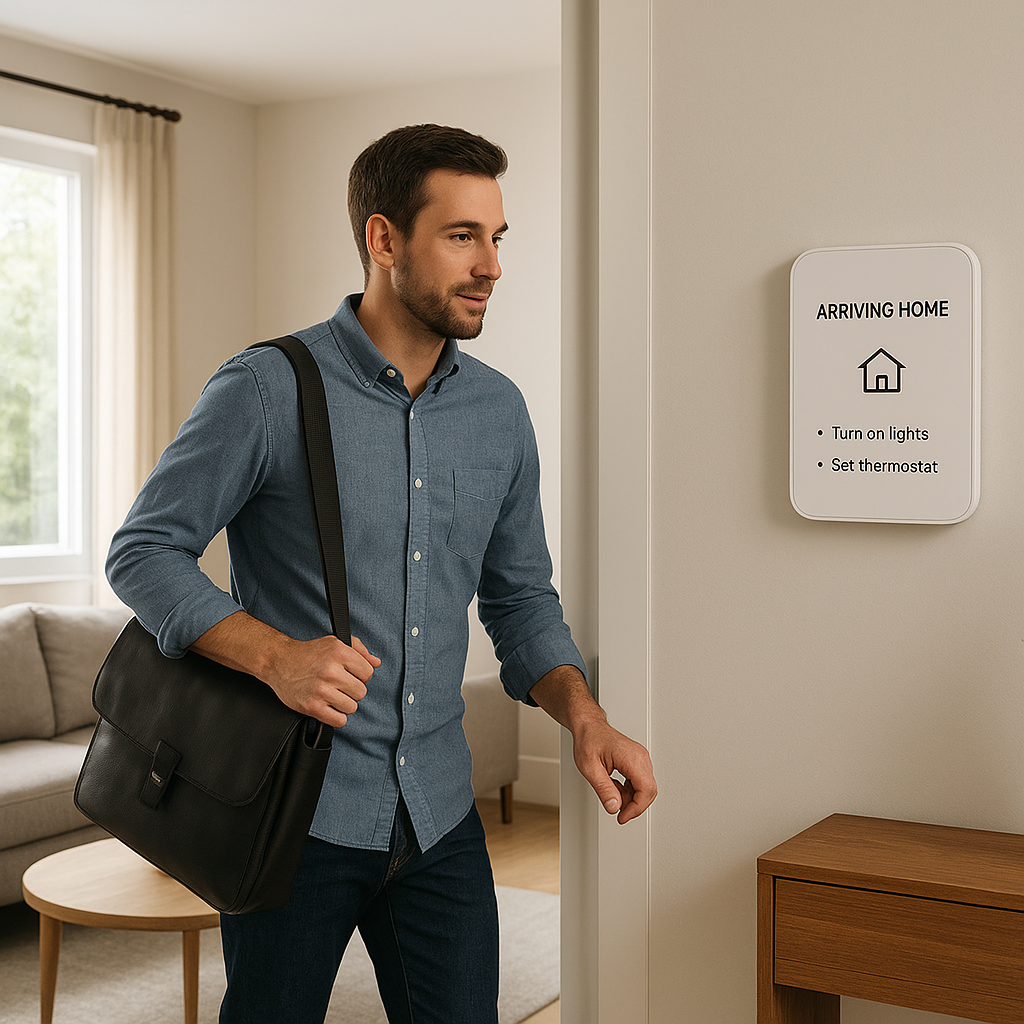
Using occupancy sensors to shut off loads when you leave the office
Motion sensors and occupancy sensors pair well with smart plugs:
- Mount a motion sensor in the office; if no motion is detected for 20–30 minutes, turn off monitors, lamps, and speakers.
- Use door sensors on the office door to trigger “leaving” and “entering” scenes.
- For devices that must stay on (router, server), leave them out of these automations.
This setup keeps your default state low-power and low-risk unless you’re actively using the room.
Safety Best Practices When Using Smart Plugs and Power Monitors
Devices you should NOT plug into smart plugs (space heaters, AC units, etc.)
Even if a smart plug is rated at 15A, that doesn’t mean every 15A device is a good match. Be very cautious with:
- Large space heaters and portable AC units (especially over 1500W).
- High-powered tools like air compressors or saws.
- Major appliances (fridges, microwaves, washing machines) unless the plug is specifically rated and recommended.
Check both the device’s power rating and the smart plug manufacturer’s guidance. If in doubt, plug high-draw heaters directly into a properly rated outlet on a dedicated circuit and control them manually or with a thermostat approved for that use.
Choosing smart plugs with correct amperage and safety certifications
Always match your smart plug to your electrical standards:
- Choose plugs rated for at least the same voltage and amperage as your circuit (e.g., 120V/15A in North America).
- Look for certifications like UL, ETL, CE, or equivalent for your region.
- Buy from reputable brands with clear documentation and support.
- Avoid using cheap, unbranded plugs for anything critical or high-draw.
Avoiding daisy‑chaining power strips, adapters, and extension cords
Daisy-chaining (plugging multiple power strips or extension cords into each other) is a common cause of overload and hot connections:
- Use one good-quality surge protector or power strip per outlet.
- If you run out of outlets, redistribute devices to another circuit rather than chaining strips.
- Keep extension cords temporary and rated for the expected load.
- Check cords and strips occasionally for discoloration, brittleness, or warmth.
When to call an electrician to add a dedicated home office circuit
Smart plugs can help you manage an existing circuit, but they can’t magically increase its capacity. Call a licensed electrician if:
- Your breaker trips even after you’ve moved and automated loads.
- Your total measured office load regularly approaches the 80% safe limit.
- You rely on high-draw devices (multiple PCs, servers, heaters) daily.
- You’re converting a space into a permanent office and want dedicated circuits and extra outlets.
A dedicated circuit for your office gear, and possibly a separate one for heating or AC, is often the cleanest long-term solution.
Example Home Office Load Plan Using Smart Plugs
Sample device list and power draw for a modern home office
Here’s a rough example of a home office on a 15A, 120V circuit:
- Desktop PC under load: 450W
- Two 27″ monitors: 50W each (100W total)
- Laser printer (idle): 10W, (printing): 600W
- Speakers: 20W
- Router + modem + switch: 30W
- Desk lamp: 10W (LED)
- Phone + laptop chargers: 40W average
- Space heater: 1200W
With everything on except the heater and printer, that’s around 650W–700W. Add the heater and you’re at ~1900W, above the safe limit for a 15A circuit. If the printer kicks in at the same time, you could spike over 2500W—enough to trip the breaker.
Example smart plug assignments and naming scheme
To keep things organized:
- SP-Office-PC – desktop tower
- SP-Office-Monitors – both monitors on one surge strip
- SP-Office-Printer – laser printer
- SP-Office-Heater – space heater (only if within rating and manufacturer allows)
- SP-Office-Desk – lamp, speakers, chargers on one strip
- SP-Office-Network – router, modem, switch (optionally left always on)
Group them in your app as “Home Office” so you can see total usage and control them together.
Example automation schedule that keeps usage under the circuit limit
On a 15A circuit (≈1440W safe continuous), you might set:
- Rule 1: If “Home Office” total > 1400W, turn off SP-Office-Heater.
- Rule 2: When SP-Office-Printer starts drawing more than 100W, pause SP-Office-Heater until printer returns to <20W.
- Rule 3: At 6 p.m., turn off SP-Office-Monitors and SP-Office-Desk; leave PC and network on if needed.
- Rule 4: At 11 p.m., turn off all office plugs except SP-Office-Network and any server plugs.
This schedule keeps your highest-risk combinations from overlapping, while still giving you a comfortable, automated office.
Troubleshooting: If Your Breaker Still Trips
How to read your smart plug’s history to find the culprit device
If the breaker continues to trip, use your smart plug apps to examine:
- Usage history around the time of the trip, focusing on spikes.
- Maximum recorded wattage for each device.
- Daily and weekly charts to see recurring problem times.
Look for sudden jumps that correspond to a heater turning on, a printer warming up, or a PC hitting full load. That device is often the key to your overloads.
Testing devices one by one to isolate problematic loads
To narrow things down:
- Turn off and unplug all non-essential devices.
- Plug in and turn on one device at a time, watching its real-time wattage.
- Add devices back in until you see the total approach your safe limit.
- Note which combination or single device pushes you over the edge.
Sometimes, an older or faulty device draws much more than its label suggests. Your monitoring data will reveal those outliers.
Long‑term fixes: redistributing outlets and upgrading wiring
If you repeatedly run into the circuit’s limit even after tuning your automations, it may be time for more permanent changes:
- Move high-draw devices (heater, printer) to outlets on a different circuit.
- Rearrange furniture so you can reach outlets on other walls or in adjacent rooms.
- Ask an electrician about adding dedicated 20A circuits for your office and heating/cooling equipment.
- Have older wiring inspected if breakers trip at surprisingly low loads.
Smart plugs are great for insight and control, but they work best alongside a solid electrical foundation.
Final Checklist for a Safer, Smarter Home Office Circuit
Quick pre‑flight checklist before adding any new high‑draw device
Before you plug in a new heater, printer, or other big load, run through this checklist:
- Know which circuit and breaker serves your office outlets.
- Check your current typical and peak loads from your smart plug data.
- Confirm the device’s wattage and that your circuit has headroom below the 80% limit.
- Decide which non-critical devices you can turn off or move to another circuit.
- Set up smart plug alerts and automation rules tailored to that device.
Ongoing monitoring habits to keep your circuit within safe limits
A few simple habits will keep your home office safe and efficient over the long term:
- Review your smart plug energy reports monthly to spot rising usage.
- Occasionally test voice commands and scenes like “All Off” to ensure they still work.
- Update automation rules when you add or remove devices.
- Listen for unusual sounds from breakers or outlets, and feel for warmth around plugs and power strips.
- Call a professional if you see scorch marks, smell burning, or experience frequent tripping despite reduced loads.
With a bit of planning and the right smart plugs, you can prevent overloading a circuit with smart plugs and power monitors, protect your gear, and run a more reliable home office.
FAQ
Can smart plugs themselves cause a circuit overload?
Smart plugs can contribute to an overload only if you use them to add more devices than the circuit can safely handle. They don’t increase circuit capacity. Used properly—with energy monitoring and automation—they actually help you avoid overloads by making power usage visible and controllable.
How many smart plugs can I safely use on one circuit?
There’s no fixed number. What matters is the total wattage of all devices on that circuit. You could have ten smart plugs controlling low-power devices and be fine, or two smart plugs controlling heaters and be over the limit. Always add up the loads and compare them to your circuit’s safe capacity.
Do smart plugs protect against power surges?
Most smart plugs do not replace a surge protector. Some include basic overload protection, but they aren’t designed to handle large spikes from lightning or grid issues. For sensitive electronics like PCs and monitors, use a quality surge protector or UPS in combination with smart plugs.
Is it safe to use a smart plug with a space heater?
Only if both the heater and smart plug are rated for the load, and the smart plug manufacturer explicitly allows heater use. Many manufacturers advise against it. Even when ratings match, heaters draw close to the circuit limit, so using a dedicated circuit or thermostat is often safer than a general-purpose smart plug.
What’s the difference between a smart plug and a smart power strip?
A smart plug controls and monitors a single outlet. A smart power strip offers multiple outlets, sometimes with individual control and monitoring for each. For home offices, a smart strip can simplify wiring, but you still need to stay within its total amp rating and your circuit’s capacity.