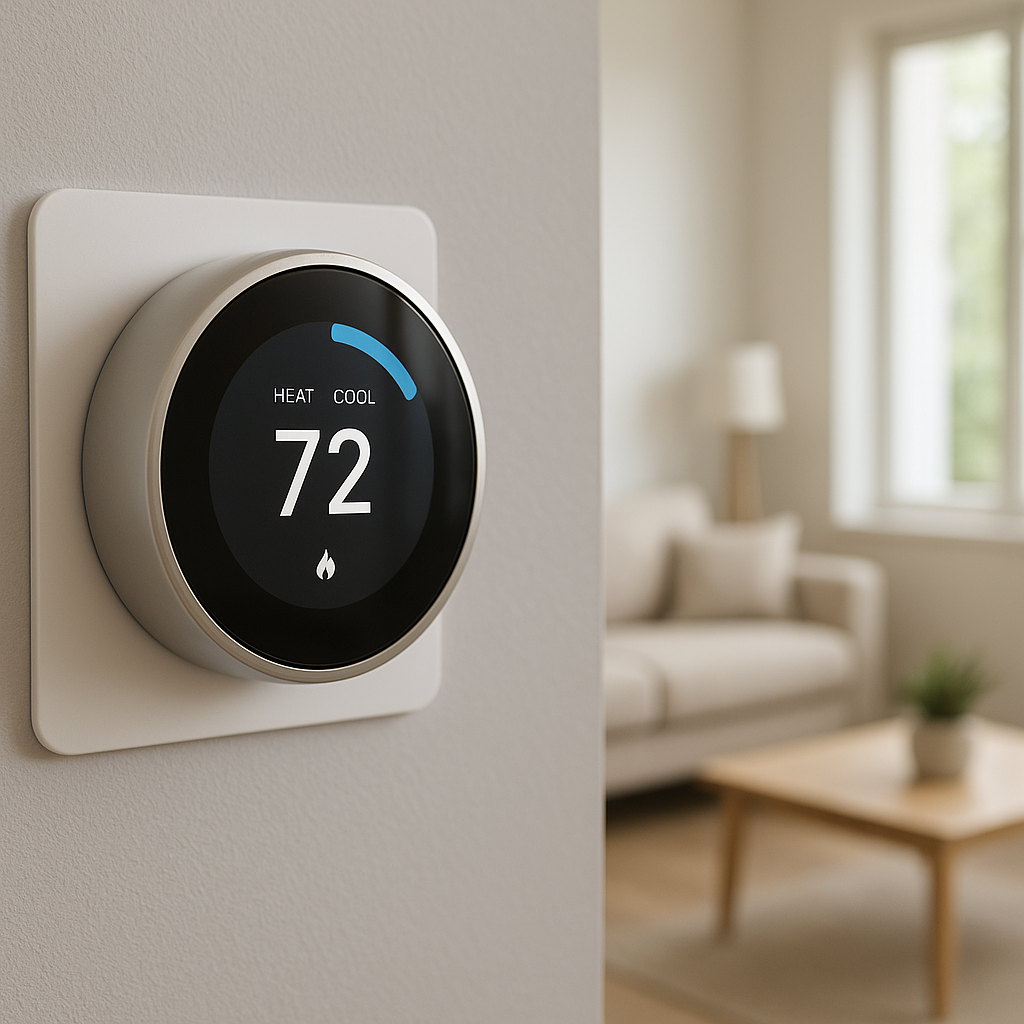

If your smart thermostat is not turning on heat, you’re not alone. It’s one of the most common smart home frustrations, especially on the first cold day of the season.
The good news: in many cases, the problem is not a broken furnace. It’s usually settings, wiring, power, or sensor issues that you can safely check yourself before paying for a service call.
This guide walks you through practical, step-by-step checks and fixes for popular smart thermostats like Nest, Ecobee, Honeywell Home, and others, so you can quickly figure out whether it’s a thermostat problem or a real HVAC issue.
Why Your Smart Thermostat Isn’t Turning On the Heat
How smart thermostats tell your furnace or boiler to start heating
Under the sleek touchscreen, a smart thermostat is just a smart version of a simple switch. When your home needs heat, the thermostat “calls for heat” by completing a low-voltage circuit between the R (power) terminal and the W (heat) terminal. That signal runs through low-voltage thermostat wires to your furnace, boiler, or air handler.
On most systems:
- R or Rh/Rc carries 24V power from the furnace.
- W or W1 is the heat call signal.
- C (common) completes the power circuit for many smart thermostats.
- Additional terminals like Y (cooling) and G (fan) handle other functions.
If the thermostat never sends that signal (because of dead batteries, bad settings, wrong wiring, or internal failure), the furnace will just sit and wait, even though it’s technically ready to run.
Common signs it’s a thermostat issue vs. an HVAC system failure
Look for these clues that point toward the thermostat rather than the furnace or boiler:
- The display is blank, stuck, or constantly rebooting.
- The app shows the system as “Idle” or “Heat not running” even when the room is much colder than the set temperature.
- Changing modes (Heat/Cool/Off) or adjusting the setpoint has no effect.
- The indoor blower fan can run (Fan On), but you never hear the burner or heat pump kick in.
- Other smart features (remote control, schedules) are glitchy or delayed.
In contrast, signs of a likely HVAC problem include loud noises from the furnace, error lights on the furnace control board, repeated ignition attempts, or a burning smell.
Safety first: when to stop DIY troubleshooting and call a pro
You can safely handle most thermostat checks because they use low-voltage wiring. However, stop DIY and call an HVAC technician if you notice:
- Burning, electrical, or gas smells.
- Sparking, smoking, or visible damage near the furnace.
- Loud bangs, scraping, or grinding noises when the system tries to run.
- Water leaks around a furnace, air handler, or boiler.
- Repeated trips of the same breaker after you reset it.
Also pause and bring in a pro if you’re not comfortable working around wiring or removing furnace panels. A quick service call is cheaper than a damaged control board or a safety issue.
Quick Checks to Do Before You Touch Any Wires
Confirm your home actually needs heat (set temperature vs. room temperature)
It sounds obvious, but it’s an easy miss. A smart thermostat will not turn on the heat if it thinks the room is warm enough.
- Check the current room temperature on the thermostat display or in the app.
- Check the set temperature (setpoint).
- For testing, set the thermostat at least 3–5°F (2–3°C) higher than the current room temperature and wait a few minutes.
If the setpoint is equal to or below the room temperature, the heat will never be called, even if the room feels chilly in a drafty area.
Check for app glitches, Wi‑Fi issues, and delayed schedule changes
Smart thermostats like Nest, Ecobee, and Honeywell Home rely on cloud services and apps, but the core heating control usually still happens locally. However, glitches can create confusion:
- If the app and thermostat screen don’t match, the app might be out of sync. Try force-closing and reopening the app.
- If your Wi‑Fi is down, you can still change settings directly on the thermostat. Don’t assume the heat is off just because the app shows “Offline.”
- Some systems have a slight delay (a few minutes) between a schedule change and the call for heat to protect equipment.
Always trust what you see on the thermostat itself more than the app during troubleshooting.
Verify the thermostat is set to Heat mode, not Cool or Off
Your smart thermostat might simply be in the wrong mode:
- On Nest: Go to Settings > Mode and choose Heat or Heat • Cool (depending on your system).
- On Ecobee: Tap the mode icon and select Heat or Auto.
- On Honeywell Home / Resideo: Use the Mode button or menu to pick Heat.
If the thermostat is set to Cool, Off, or Emergency Heat (on some heat pump systems), your main heat may not run as expected. Switch to Heat and raise the setpoint a few degrees to test.
Fix #1 – Verify Power to the Smart Thermostat
Look for blank screens, low-battery icons, or reboot loops
If your smart thermostat is not turning on heat and the screen is blank or constantly restarting, you likely have a power issue.
- Blank or dim screen: Often a dead battery, tripped breaker, or no power from the furnace.
- Low-battery icon or warning: Replace batteries before doing anything else.
- Reboot loop: Thermostat may be losing power due to a weak C‑wire connection or incompatible wiring.
Without stable power, the thermostat can’t send a reliable call for heat.
How to replace batteries safely (for battery-powered models)
Some models, like many battery-powered Honeywell and older smart thermostats, run entirely on batteries; others (like Nest Learning Thermostat) use batteries mainly as backup.
- Check the user manual or the manufacturer’s website for battery type (usually AA or AAA alkaline).
- Remove the thermostat from the wall plate gently—usually by pulling straight out or lifting from the bottom.
- Replace all batteries at once; don’t mix new and old.
- Reattach the thermostat, wait for it to boot, then test Heat mode again.
If fresh batteries don’t fix power issues, you may have a wiring or C‑wire problem (covered below).
Checking the circuit breaker and furnace power switch
Your thermostat gets its 24V power from the furnace or air handler. If that equipment has no power, the thermostat may also lose power or behave oddly.
- Find your home’s electrical panel and look for the breaker labeled Furnace, Air Handler, or HVAC. If it’s tripped, fully switch it Off and then back On once.
- Confirm the furnace power switch (usually a light-switch-style toggle near or on the furnace) is set to On.
- Wait a few minutes for the furnace and thermostat to boot up, then test the heat again.
Fix #2 – Check the Thermostat’s Heat Settings and Schedules
Make sure the setpoint is higher than current room temperature
Smart thermostats often use narrow comfort bands or temperature differentials to avoid frequent cycling. If the setpoint is too close to the room temperature, the heat might not kick on immediately.
- Set the thermostat 5°F / 3°C higher than the current room temperature.
- Wait at least 5–10 minutes to see if the system starts.
- Listen for the furnace blower, burner, or heat pump outside.
If it only runs when you raise the setpoint significantly, you may have an overly aggressive Eco or setback setting.
Disable Eco, Away, or energy-saving modes for testing
Modes like Nest’s Eco, Ecobee’s Away, or Honeywell’s Smart Response can hold the temperature lower than you expect.
- On Nest: Temporarily turn off Eco, Home/Away Assist, and aggressive scheduling.
- On Ecobee: Disable Smart Home & Away and vacation holds while testing.
- On Honeywell: Turn off Smart Schedule or energy-saving presets.
With all automation off, set a simple manual temperature and see if the heat responds. This helps you isolate whether a smart feature is holding the temperature lower than you think.
Overriding schedules and using Hold or Manual mode
Most smart thermostats let you override the schedule:
- Look for a Hold, Manual, or Permanent Hold option.
- Set the thermostat to Hold 70–72°F (21–22°C) as a test.
- Ensure there are no active vacation schedules or remote overrides from other household members.
If your heat works in Manual or Hold mode but not on schedule, you likely just need to adjust time blocks, temperature setpoints, or comfort settings in the app.
Fix #3 – Inspect the Mode, Fan, and System Settings
Ensuring the thermostat is in Heat or Auto mode
Many homeowners accidentally leave their thermostat in Cool after summer. In that case, your smart thermostat will never call for heat, no matter how high you set the temperature.
Switch to:
- Heat for a simple test, or
- Auto / Heat • Cool (if supported), which lets the thermostat choose between heating and cooling automatically within a set range.
After changing the mode, wait a few minutes and see if the heat comes on.
Understanding Fan Auto vs On vs Circulate and how it affects heating
The fan setting can be confusing when troubleshooting heat:
- Auto: The fan only runs when there’s a call for heating or cooling. This is the most common setting.
- On: The fan runs continuously, even when there’s no heat or cooling. The air might feel cool, leading you to think the heat is broken.
- Circulate: Runs the fan periodically for air circulation, not necessarily for heating.
If you feel air blowing but it’s not warm, make sure the thermostat is actually calling for Heat, not just running the fan.
Resetting to default settings if the configuration is unclear
If you’ve changed many settings over time, your system configuration may be wrong (for example, set to heat pump when you have a furnace).
- Look for a System Setup or Equipment menu in the app or on the thermostat.
- Compare your settings with your HVAC type (single-stage furnace, two-stage, heat pump, boiler, etc.).
- If things are really messy, consider a settings reset (not always a full factory reset) and then rerun the guided setup.
Be prepared to re-enter your Wi‑Fi and preferences afterward.
Fix #4 – Check the Smart Thermostat’s Wiring Connections
Turn off power before touching any thermostat wires
Before removing your thermostat from the wall or handling wires, shut off power to the furnace/air handler at the breaker and furnace power switch. This protects the control board from short circuits and keeps you safe.
Once power is off, gently pull the thermostat off its wall plate to expose the low-voltage wires.
Confirming Rh/Rc, W/W1, C, and other critical connections
Check the wiring against both:
- The smart thermostat installation guide (Nest, Ecobee, Honeywell, etc.), and
- The labels printed on your wall plate or backplate.
For a typical single-stage heat-only or heat/cool system:
- The R (or Rh) wire from the furnace should go to R/Rh.
- The W or W1 wire should go to W/W1 (heat).
- The C wire (if present) should go to C.
- Y/Y1 (cooling) and G (fan) should be in their matching terminals.
Loose, corroded, or partially inserted wires can prevent a solid heat call.
Loose or miswired W (heat) wire and what to look for
Because the W wire is what tells your furnace to run the heat, any issue here can make your smart thermostat not turn on heat.
- Ensure the W/W1 wire is fully inserted and the terminal clamp is tightened.
- Check that the wire insulation is stripped so bare copper contacts the terminal (but not so much that bare wire is exposed outside the terminal).
- Confirm the W wire isn’t accidentally landed on Y or another terminal.
If you find obviously miswired or unlabeled wires and aren’t sure what goes where, stop and call an HVAC pro. Guessing the wiring can damage the thermostat or control board.
Fix #5 – Confirm You Have a C‑Wire or Compatible Power Adapter
Symptoms of missing or unstable C‑wire (reboots, random shutoffs)
Many smart thermostats require a stable C‑wire (common wire) to provide continuous 24V power. Without it, the thermostat may:
- Randomly reboot or shut off.
- Drop Wi‑Fi frequently.
- Fail to keep the heat running consistently.
Some models can “steal” power from other wires, but this doesn’t always work well with all furnaces. If your thermostat often restarts when the heat should turn on, power delivery is a prime suspect.
Using a C‑wire adapter vs. running a new wire
If you don’t have a C‑wire available at the thermostat, you have two main options:
- C‑wire adapter (add-a-wire kit): Products like the Nest Power Connector or Ecobee Power Extender Kit create a virtual C‑wire using the existing wiring and a small module installed at the furnace.
- Running a new thermostat cable: An electrician or HVAC tech can pull a new multi-conductor cable to provide a dedicated C‑wire.
C‑wire adapters are usually cheaper and faster but require access to the furnace wiring. Running a new cable is more permanent and reliable but may be more labor-intensive.
When to contact an electrician or HVAC tech for wiring help
Call a pro if:
- You’re not sure which wire is which at the furnace control board.
- Your system uses multi-stage heat, heat pumps with auxiliary heat, or a boiler with zone valves.
- You’re uncomfortable connecting a C‑wire adapter or re-terminating furnace wires.
They can quickly identify the right wiring scheme, protect the control board, and ensure your smart thermostat has stable power.
Fix #6 – Test If the Furnace or Boiler Itself Will Run
Manually starting the furnace from the control board (if safe and accessible)
Once you’ve checked the basics at the thermostat, it helps to confirm whether the furnace or boiler can actually run. Many control boards have a test mode or simple way to see if they respond to a heat call.
If you’re comfortable and have access to the furnace:
- Turn off power to the furnace.
- Remove the front panel to access the control board.
- Restore power and watch for status lights or error codes.
- Some boards have a button to start a test cycle (check your furnace manual).
If you’re unsure or can’t access the board safely, skip this step and move on.
Checking furnace doors, safety switches, and error lights
Most furnaces have a safety switch on the front panel. If the panel isn’t fully seated, the switch stays open and the furnace won’t run—no matter what the thermostat does.
- Ensure the furnace door is closed firmly until it clicks.
- Look for an LED on the control board. A steady light usually means normal; flashing patterns often indicate error codes (listed inside the furnace panel or in the manual).
If you see an error code, you’ve likely moved beyond a simple thermostat issue.
What it means if heat runs when jumped at the furnace but not via thermostat
If a technician (or an experienced DIYer) temporarily jumps R to W at the furnace control board and the heat runs, that tells you:
- The furnace and burners are capable of running.
- The problem is somewhere between the furnace and thermostat: wiring, connections, or the thermostat itself.
At that point, replacing or rewiring the thermostat is a likely fix.
Fix #7 – Check for Tripped Safety Switches and Filters
How dirty filters and blocked vents can stop the heat from running
Restricted airflow can cause the furnace to overheat and trip safety limits. When that happens, the system may shut down early or refuse to start until it cools.
- Check your air filter and replace it if it’s dirty or clogged.
- Make sure all supply and return vents are open and not blocked by furniture, rugs, or closed doors.
Some smart thermostats may still call for heat, but the furnace will refuse the call or shut down quickly to protect itself.
Reset switches on furnaces and heat pumps (if present)
Certain systems have manual reset switches for high limits or other safety devices.
- On some furnaces, a small red button near the burner or blower compartment is the reset. If it’s tripped, you may feel it click when pressed.
- Heat pumps may have outdoor reset switches or breakers that can trip.
If a reset switch trips more than once, stop and call a pro. Repeated trips mean a deeper problem (like overheating, blocked vents, or failing components).
Signs of more serious issues: burning smells, loud noises, or frequent cycling
Watch and listen when the system tries to run:
- Burning or electrical smells (after the first short “dust burn-off” of the season) need professional attention.
- Loud banging, clanking, or scraping suggests mechanical problems.
- Short cycling (turning on and off every few minutes) can be caused by overheating, bad sensors, or control issues.
Don’t push the system if these symptoms appear. Turn it off and schedule an HVAC visit.
Fix #8 – Look for Sensor, Placement, and Calibration Problems
Thermostat installed near drafts, windows, or heat sources
Smart thermostats rely on their internal temperature sensors. If the thermostat is placed in a bad location, it can misread the room temperature and never call for heat when you expect.
- Avoid direct sunlight, especially on south-facing walls.
- Keep it away from drafty doors, windows, or stairways.
- Don’t mount it above supply vents, radiators, or electronics that produce heat.
If relocation isn’t easy, consider using remote room sensors (Ecobee or some Honeywell/Nest setups) to get more accurate readings from lived-in spaces.
Remote room sensors showing inaccurate room temperatures
Ecobee Remote Sensors and some Nest Temperature Sensors feed data back to the thermostat. If one sensor is misreading:
- Check the sensor’s location (no direct sun, drafts, or near exterior doors).
- Ensure the sensor has good battery and signal.
- Review which sensors are used for Comfort Settings or active temperature control.
A single misbehaving sensor can trick the thermostat into thinking the home is warmer than it really is.
Recalibrating temperature readings in the thermostat app (if supported)
Some thermostats let you offset or calibrate the temperature if it’s consistently off by a degree or two.
- Use a reliable room thermometer and compare readings with the thermostat.
- In the app or on the device, look for settings like Temperature Offset, Calibration, or Sensor Adjustment.
- Apply a small offset to better match the actual room temperature.
Calibration won’t fix large swings or intermittent issues, but it can correct minor inaccuracies that affect when the heat turns on.
Fix #9 – Update Firmware and Reset the Smart Thermostat
Checking for firmware updates in your smart thermostat app
Manufacturers frequently release updates that fix bugs, add compatibility, or improve reliability.
- Open the thermostat app (Nest, Ecobee, Honeywell Home, etc.).
- Go to Settings > Device Info or Software.
- Check for firmware updates and apply them.
Make sure the thermostat is on Wi‑Fi and has stable power while it updates. After an update, re-test Heat mode.
Soft reset vs. factory reset: what each does and when to use them
There are generally two levels of reset:
- Soft reset / restart: Reboots the thermostat without wiping your settings. Use this first if the display is frozen or unresponsive.
- Factory reset: Wipes all settings, Wi‑Fi, schedules, and sometimes equipment configuration. Use this only if you suspect a severe configuration bug or after replacing major HVAC components.
After a factory reset, you’ll need to walk through the initial setup just like when you first installed the thermostat.
Re-adding the thermostat to your Wi‑Fi and smart home system
If you perform a factory reset or replace the thermostat, you’ll need to:
- Reconnect to Wi‑Fi via the on-screen or in-app setup.
- Re-link with smart home platforms like Google Home, Alexa, or Apple Home.
- Recreate schedules, geofencing, and automation rules.
Once everything is reconnected, test simple manual heat control before you rebuild complex routines. Make sure the basics work first.
Brand-Specific Tips for Popular Smart Thermostats
Nest thermostat not turning on heat: unique settings and common fixes
If your Nest thermostat is not turning on heat:
- Check Mode (Heat or Heat • Cool) and turn off Eco while testing.
- Go to Settings > Equipment and confirm Nest detected the correct system type (furnace vs heat pump, stages, etc.).
- Use the Equipment wiring screen to verify that W1 (and O/B for heat pumps) connections match your actual wiring.
- Look for messages like “No power to Rc/Rh” or “No power to W1”, which point to wiring or C‑wire issues.
Ecobee not calling for heat: what to check in the equipment settings
For Ecobee thermostats:
- Open the thermostat menu and check System > Equipment to verify you’re set up for the right system type and stages.
- Review your Comfort Settings and make sure the selected comfort profile actually calls for the desired heat setpoint.
- Verify which remote sensors are active; a warm sensor in an unused room can prevent a heat call.
- Ensure the Ecobee Power Extender Kit (if used) is correctly wired at the furnace.
Honeywell and other popular brands: menu differences to know
Honeywell Home, Emerson Sensi, and other brands vary in their menus but share similar concepts:
- Use the System button or menu to select Heat.
- Check Installer Setup or Advanced Settings to confirm system type (conventional vs heat pump).
- Disable Adaptive Recovery or advanced scheduling temporarily to see if the heat responds to a simple manual setpoint.
Consult the model number on the thermostat and pull up the specific installation guide online for exact steps.
When to Stop DIY and Call an HVAC Technician
Red-flag symptoms that point to a system issue, not just the thermostat
Call a professional right away if you notice:
- Burning, melting, or gas smells when the system tries to run.
- Loud or unusual noises from the furnace or heat pump.
- Water around the equipment, especially in basements or closets.
- Breaker trips more than once after you reset it.
- Furnace error codes that persist after a power cycle.
These symptoms usually indicate a problem in the HVAC system itself, not just a smart thermostat issue.
What information to note before calling (error codes, model numbers, steps tried)
Before you call, gather:
- Thermostat brand and model (e.g., Nest Learning Thermostat 3rd Gen).
- Furnace/boiler/heat pump brand and model (found inside the access door).
- Any error codes from the thermostat or furnace lights.
- A quick list of steps you’ve already tried (battery replacement, breaker reset, wiring check, etc.).
This helps the technician diagnose faster and may reduce the time (and cost) of the service call.
How a pro will diagnose thermostat vs. furnace or heat pump problems
A trained HVAC tech will typically:
- Measure 24V power at the thermostat and furnace terminals.
- Check for proper heat call signals from W/W1 when the thermostat is turned up.
- Inspect wiring for shorts, miswires, or damaged cables.
- Run the furnace or heat pump directly from the control board to bypass the thermostat.
Based on those tests, they’ll know whether to replace or rewire the thermostat, repair the control board, or address a mechanical issue in the HVAC system.
How to Prevent Smart Thermostat Heating Problems in the Future
Seasonal maintenance checklist for your smart thermostat and HVAC
A little maintenance before heating season can prevent many “no heat” surprises:
- Replace or clean air filters every 1–3 months.
- Vacuum dust from around the thermostat and vents.
- Test Heat mode on a mild day before cold weather hits.
- Check thermostat and remote sensor batteries once a year.
- Schedule an annual HVAC inspection and tune-up.
Best practices for wiring, placement, and power stability
When installing or upgrading a smart thermostat:
- Use a C‑wire when possible, or a manufacturer-approved power adapter.
- Mount the thermostat on an interior wall at about 5 feet (1.5 m) high, away from drafts and direct sun.
- Label wires clearly before removing an old thermostat, and take a photo of the original wiring.
- Use the thermostat’s compatibility checker (Nest, Ecobee, Honeywell sites offer these) before buying.
Using energy reports and alerts to catch issues early
Smart thermostats come with tools that can warn you early when something changes:
- Review monthly energy reports for unusual jumps or drops in heating time.
- Enable system alerts for loss of Wi‑Fi, low battery, or abnormal temperatures.
- Use temperature alerts (e.g., notify if the home drops below 50°F / 10°C) to protect against frozen pipes.
These features turn your smart thermostat into a basic health monitor for your heating system.
Conclusion
If your smart thermostat is not turning on heat, the cause is often simple: power issues, wrong modes, misconfigured schedules, or wiring problems. By walking through the checks above—from basic settings to wiring and furnace status—you can narrow down the issue and often fix it yourself.
When things point beyond the thermostat—strong smells, loud noises, error codes, or repeated breaker trips—bring in a professional. With a solid installation, a stable C‑wire, and occasional maintenance, your smart thermostat should quietly manage the heat so you hardly have to think about it.
FAQ
Why does my smart thermostat say heating but no heat is coming out?
If the thermostat shows “heating” but you don’t feel warm air, there may be a problem between the thermostat and furnace. Common causes include a loose W wire, a tripped furnace safety switch, a dirty filter causing overheating, or a failed furnace component. Check airflow, filter, furnace doors, and error lights, then move on to wiring checks.
Can a smart thermostat damage my furnace?
When installed correctly and wired according to the manufacturer’s instructions, smart thermostats are safe for most modern HVAC systems. Problems arise when the thermostat is miswired, used without a needed C‑wire, or installed on incompatible systems. Always use the brand’s compatibility checker and follow the wiring guide closely.
Do I need a C‑wire for my smart thermostat to run the heat reliably?
Many smart thermostats work more reliably with a C‑wire because it provides continuous power. Some models can run without one, but may reboot or behave oddly, especially when calling for heat. If you see frequent restarts or unstable behavior, adding a C‑wire or power adapter is often worth it.
Why does my heat turn off too quickly after it starts?
Short run times can be caused by an oversized system, a thermostat placed in a draft or near a heat source, dirty filters, or furnace safety limits tripping. Start by checking filters, vents, and thermostat placement. If the furnace shuts down with an error or restarts repeatedly, schedule a service call.
Should I replace my thermostat or call an HVAC tech first?
If you’ve verified power, mode, wiring at the wall plate, and settings, and your system is older, replacing the thermostat can be a reasonable next step. However, if the furnace shows error codes, makes unusual noises, or trips breakers, call an HVAC technician before buying a new thermostat. They can confirm whether the thermostat is actually the problem.