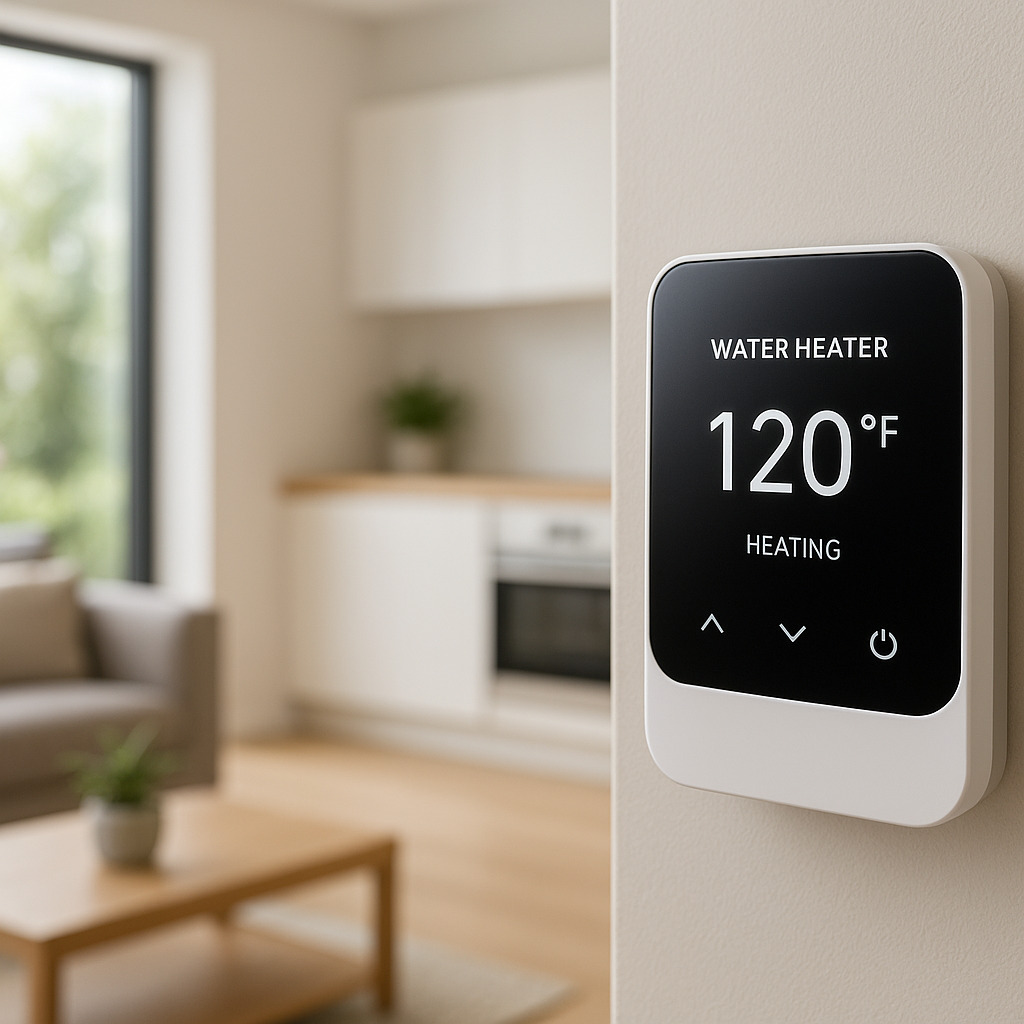
Your smart thermostat is set to Heat, the house is cold, and nothing is happening. Before you assume the furnace is dead or call for an expensive emergency visit, there are several simple checks you can do yourself.
This guide walks through practical troubleshooting steps for a smart thermostat not turning on heat, with examples from popular models like Nest, Ecobee, and Honeywell Home. You’ll learn how to tell whether the problem is in the thermostat, the wiring, or the heating system itself—and when it’s time to stop and call a pro.
Work through the steps in order. Many “no heat” issues are caused by settings, power, or safety switches, not a failed furnace.
Why Your Smart Thermostat Isn’t Turning On the Heat
How smart thermostats control your heating system
Traditional thermostats are basically simple switches: when room temperature drops below the set point, they connect two wires (usually R and W) to tell the furnace to run.
Smart thermostats do the same basic job, but with more intelligence on top:
- Temperature sensing: Internal sensors (and sometimes remote room sensors) decide when heat is needed.
- Control signals: The thermostat sends low-voltage signals over wires like R (power), W (heat), Y (cooling), G (fan), and O/B (heat pump reversing valve).
- Power: Many models use a C-wire or internal battery to stay powered.
- Software logic: Schedules, eco modes, and smart home routines can block or delay heating.
If anything in this chain fails—power, wiring, settings, or the furnace itself—the heat won’t come on.
Common symptoms: heat not coming on, short cycling, or no response
Different symptoms point to different causes. You might notice:
- No heat at all: Thermostat shows that it’s heating, but the furnace never starts.
- Short cycling: Furnace starts, runs for a minute or two, then shuts off repeatedly.
- No response: Thermostat is blank, frozen, or doesn’t react when you raise the temperature.
- Fan only: Blower runs but the air never gets warm.
We’ll use these symptoms later to help separate thermostat problems from HVAC system problems.
Safety first: when to stop DIY and call an HVAC tech
This guide focuses on low-voltage thermostat wiring and basic checks that most homeowners can do safely. Stop and call a professional if:
- You smell gas or burning odors.
- You see scorched wiring, melted insulation, or frequent breaker trips.
- Removing panels exposes large wires, unfamiliar components, or anything you’re not confident around.
- Your furnace shows a repeating error code you don’t understand.
Never remove or bypass safety devices like flame sensors, pressure switches, or limit switches. Those are there to prevent dangerous conditions.
Step 1 – Confirm the Thermostat Is Actually Calling for Heat
Check current mode (Heat vs Cool vs Auto vs Off)
Start with the obvious: make sure the thermostat is set to the correct mode. On a Nest, Ecobee, or Honeywell smart thermostat, you’ll usually see a mode icon or text like Heat, Cool, Heat•Cool, or Off.
- Set mode to Heat only while you’re troubleshooting.
- Avoid Heat•Cool (auto changeover) until everything is working reliably.
- If you see Off or Standby, switch to Heat and wait a minute to see if the system responds.
Verify the set temperature vs room temperature
Most smart thermostats won’t call for heat if you’re only 0.5–1°F below the set temperature. To be sure it’s actively calling for heat:
- Raise the set temperature to 3–5°F above the current room temperature reading.
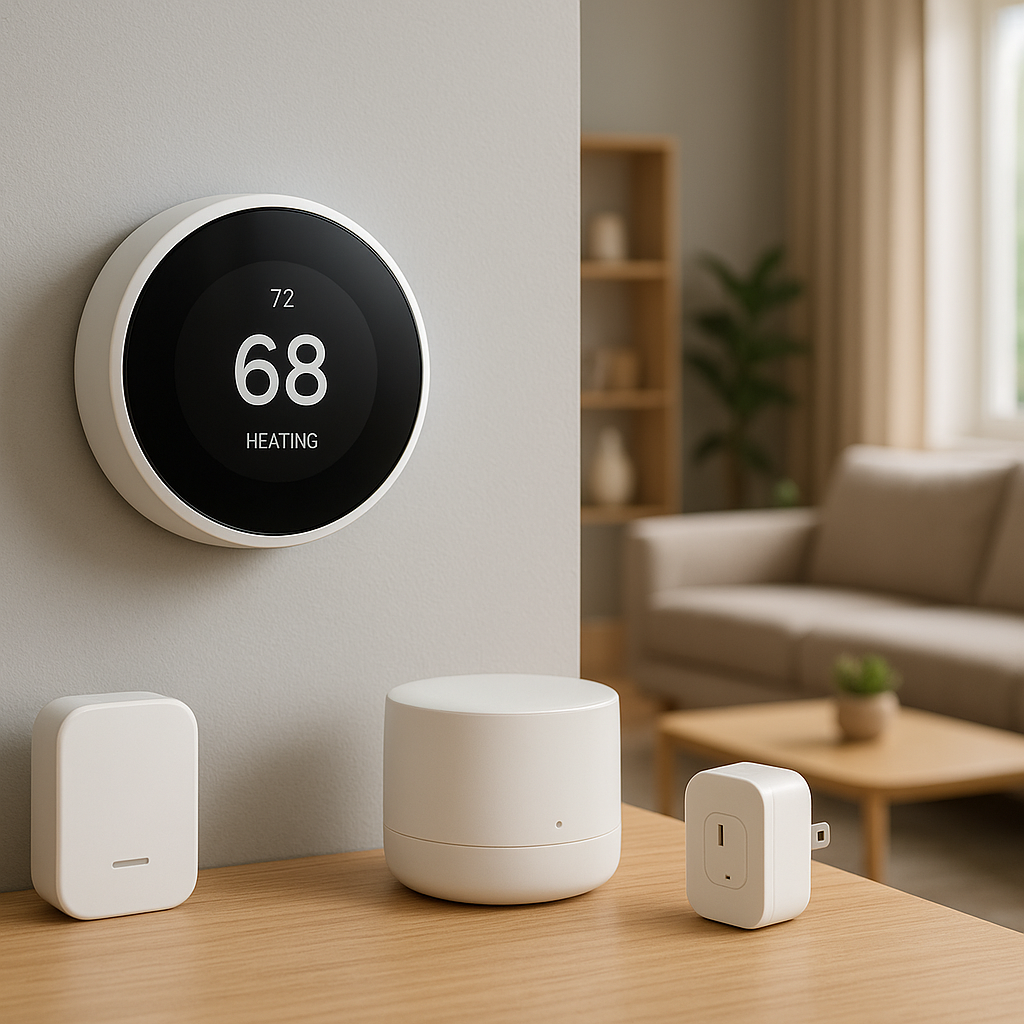
- Watch for an on-screen indicator such as a red leaf (Nest), orange flame icon (Ecobee), or “Heating”/“Heat On” message.
- Listen near the furnace or boiler for any clicks, fans, or ignition attempts.
If the thermostat never shows it’s heating, the issue may be settings, schedules, or internal logic rather than the furnace.
Make sure schedules, eco modes, and vacation settings aren’t blocking heat
Smart features can sometimes work against you:
- Eco/Away modes: Nest’s Eco mode, Ecobee’s Smart Home/Away, and Honeywell’s Away settings can hold the temperature below comfortable levels.
- Vacation/hold schedules: A vacation setting or permanent hold from weeks ago may still be active.
- Temperature limits: Some thermostats let you set a maximum heat set point; if that’s too low, you’ll never warm the house.
In the thermostat app or on the device:
- Disable Eco/Away or Home/Away Assist temporarily.
- Cancel any active vacation or hold programs.
- Set a simple schedule (or no schedule) and manually set Heat to a comfortable temperature to test.
Step 2 – Inspect Power: Batteries, Breakers, and C‑Wire Issues
Replace or recharge thermostat batteries if applicable
Some smart thermostats rely partly or fully on batteries. Low power can cause reboots, Wi‑Fi drops, or failures to call for heat.
- Nest (battery models): If you see low-battery warnings or the screen keeps going blank, remove the thermostat from its base and check the battery. Recharge via USB (Nest Learning) or replace AA/AAA cells (Nest Thermostat).
- Ecobee & many Honeywell Home models: Typically powered by a C‑wire, but some older models have backup batteries—replace them if present.
Always use fresh, high-quality batteries. Weak batteries can cause intermittent issues that are confusing to track down.
Check furnace switch, circuit breakers, and GFCI outlets
If the furnace or boiler has no power, the thermostat may look normal but the system won’t start.
- Locate the furnace switch—often a regular light switch near the unit or on the side. Make sure it’s ON.
- Check your electrical panel for tripped breakers labeled Furnace, HVAC, or Air Handler. Reset any tripped breakers once; if they trip again, call a pro.
- If your furnace or air handler plugs into an outlet, and that outlet is GFCI-protected, press Reset on the GFCI.
Understand C‑wire requirements for Nest, Ecobee, and others
Many smart thermostats need a continuous 24V power supply from a C‑wire (common wire). Without it, the thermostat may:
- Randomly reboot or go offline.
- Fail to close the heat call (W) reliably.
- Show “no power to R” or similar error messages.
Check inside your thermostat’s wall plate:
- Look for a wire connected to the C terminal.
- Compare with the wires connected at the furnace control board (if accessible) to ensure the same color is on C there as well.
- If your smart thermostat is using a “power stealing” mode or a plug-in power adapter, confirm it’s installed correctly.
If you’re missing a C‑wire, many brands (especially Ecobee) recommend adding one or using an approved power extender kit installed at the furnace—this is often a good job for a technician.
Step 3 – Check Wi‑Fi, App, and Smart Home Integrations
Confirm the thermostat works locally without Wi‑Fi
A smart thermostat should still turn on the heat even if your Wi‑Fi or internet is down. To confirm:
- Stand at the thermostat and change the mode to Heat and raise the set temperature.
- Ignore what the app says—watch the device screen.
- See if the furnace responds after a few minutes.
If it works locally but the app doesn’t, you’re dealing with a network or cloud issue, not a heating failure.
Fix common app control and remote access issues
If the app shows the thermostat offline or unresponsive:
- Reboot your Wi‑Fi router and the thermostat (many have a restart option in Settings).
- Make sure the thermostat is on the correct Wi‑Fi network and within range.
- Update the mobile app to the latest version.
App problems rarely prevent the thermostat from heating your home, but they can make troubleshooting harder if you rely only on your phone instead of the device itself.
Disable conflicting routines, scenes, and automations
Smart home platforms like Google Home, Amazon Alexa, and Apple Home can override thermostat settings:
- Look for routines that set the thermostat to Off or a very low temperature (for example, a bedtime or vacation routine).
- Check geofencing features that switch the home to Away when all phones leave—these may be mis-detecting your presence.
- Temporarily disable third-party integrations (e.g., IFTTT, Home Assistant) to rule out an automation that is constantly overriding Heat calls.
Step 4 – Make Sure the System Type and Wiring Settings Are Correct
Heat-only vs heat/cool vs heat pump configurations
During setup, smart thermostats ask what kind of system you have:
- Heat-only: Boiler or furnace with no central AC.
- Heat/cool: Separate furnace and AC.
- Heat pump: One outdoor unit that can both heat and cool.
If you selected the wrong type, the thermostat might send signals over the wrong wires. For example, a heat pump misconfigured as a regular furnace could run the outdoor unit in cooling mode instead of heating.
How to verify equipment settings in Nest, Ecobee, and Honeywell menus
On most devices, you can review equipment configuration in the settings:
- Nest: Settings > Equipment. It will show which terminals it thinks are connected (R, W1, Y1, G, O/B, etc.) and whether it’s configured as a heat pump or conventional system.
- Ecobee: Main Menu > Settings > Installation Settings > Equipment. Confirm heat source (furnace vs heat pump) and number of stages.
- Honeywell Home T-series: Menu > Installer Options > Equipment. Review system type and wiring.
Compare what the thermostat shows with what you know you have (or with labels on the furnace/air handler).
When to reset equipment configuration and re-run setup
If something looks obviously wrong—like the thermostat thinking it controls a heat pump when you have a simple gas furnace—re-run the setup wizard:
- Use the device menu to reset equipment or run guided installation.
- Let the thermostat auto-detect wires, then confirm the detected configuration matches your system.
- Only change advanced options (like number of stages) if you’re sure; otherwise accept the recommended defaults.
Incorrect configuration can prevent the furnace from getting the proper heat call signal.
Step 5 – Inspect the Thermostat Wiring (Gently) at the Wall Plate
Turn off power before touching any wires
Thermostat circuits use low voltage, but it’s still wise to power down before handling wires:
- Turn off the furnace/air handler switch, and/or
- Turn off the HVAC breaker at the electrical panel.
Wait a minute for any internal power to drain, then carefully remove the thermostat from its base.
Confirm R, W, C, and other wires are fully inserted and tightened
Loose wires are a very common cause of “no heat” after installing a smart thermostat.
- Check that the R (or Rh/Rc) wire is firmly under its terminal and the clamp is tight.
- Make sure the W (or W1) heat call wire is fully inserted and clamped.
- If you have a C wire, verify it is seated solidly.
- Give each wire a very gentle tug—none should slip out.
On some Nest, Ecobee, and Honeywell bases, you must press a small tab while inserting the wire; if you don’t push far enough, the wire may look inserted but not make contact.
Look for damaged, corroded, or loose wires at the thermostat
Visually inspect the wires:
- Trim and re-strip any wires with frayed or corroded copper (with power off).
- Ensure no bare copper is touching neighboring terminals.
- If you see only two wires at the thermostat (R and W) on a smart model that requires more, your system may need additional wiring or a power extender kit.
If the wiring looks questionable or brittle, stop DIY and consider calling an HVAC or low-voltage electrician.
Step 6 – Check the Furnace or Boiler for Error Lights and Reset Options
How to locate your furnace/air handler and safety switch
Your heating equipment is usually in a basement, utility room, attic, or closet. Most forced-air systems have:
- A furnace or air handler cabinet with a removable front panel.
- A nearby service switch (looks like a light switch) that cuts power to the unit.
Do not remove any panels unless you’re comfortable and the power is off. Many units have a door switch that cuts power when the panel is removed.
Interpreting basic status lights and error codes
Most modern furnaces and boilers have a small LED visible through a window or behind the access panel.
- Steady light: Usually normal operation.
- Blinking patterns: Indicate a fault. The panel or inside cover often has a chart listing what different blink codes mean (e.g., one flash = ignition failure, three flashes = pressure switch issue).
- No light at all: The unit may have no power, a blown fuse on the control board, or a more serious problem.
You don’t need to fix the problem yourself, but knowing the code will help your HVAC tech diagnose faster.
Safe ways to power-cycle the furnace or boiler
A simple power-cycle can clear minor faults:
- Turn off the furnace switch or HVAC breaker.
- Wait 1–5 minutes.
- Turn it back on and listen for the startup sequence (inducer fan, ignition click, burner, main blower).
If it still fails to start or quickly shuts down, note any error codes and move on to the later steps or call a professional.
Step 7 – Verify Safety Switches, Covers, and Filters
Door and panel switches that stop the heat from running
Many furnaces and air handlers have a door safety switch that cuts power if the front panel isn’t fully seated.
- Check that all access panels are correctly aligned and firmly closed.
- If you recently changed a filter or inspected the unit, you might not have latched the panel completely.
A loose door switch can make the system appear completely dead even when the thermostat is calling for heat.
Dirty furnace filters and blocked vents that can trigger lockouts
Restricted airflow can cause the furnace to overheat and shut itself down to protect the heat exchanger.
- Check the furnace filter. If it’s visibly dirty or hasn’t been changed in 1–3 months, replace it.
- Ensure supply and return vents are open and not blocked by furniture, rugs, or dust buildup.
After addressing airflow issues, power-cycle the furnace and test again with a call for heat.
Condensate pump and drain issues that shut down heating
High-efficiency furnaces and some boilers produce condensation that must drain away. If the condensate pump or drain line clogs:
- A float switch may trip and stop the furnace to prevent water damage.
- You might hear a small pump near the furnace that isn’t running properly or see water around the base of the unit.
Basic homeowner-level steps include clearing obvious blockages on the drain line and making sure the pump has power. Anything more involved should be left to a technician.
Step 8 – Test the Heating System Without Smart Features
Temporarily bypassing smart controls with a basic thermostat
One of the best ways to separate thermostat issues from furnace issues is to temporarily install a simple non-programmable thermostat (often under $30 at a hardware store).
- Turn off power to the furnace.
- Disconnect the smart thermostat and connect the basic thermostat using only R and W (and C if required).
- Restore power and set the basic thermostat to Heat at a higher temperature.
If the furnace runs reliably with a basic thermostat, the problem is likely with your smart thermostat, its wiring, or configuration.
Using jumper wires (R to W) to confirm the furnace responds
If you’re comfortable and the power is off, you can do a simple jump test at the furnace control board or thermostat base:
- Turn off power to the system.
- Locate the R and W terminals.
- Use a short piece of thermostat wire to connect R and W together.
- Turn power back on. The furnace should start a heat cycle within a few minutes.
Remove the jumper after the test. If you’re unsure, skip this step and rely on a basic thermostat instead.
What the test results tell you about thermostat vs HVAC problems
The results help narrow things down:
- Furnace runs with jumper/basic thermostat: The smart thermostat or its wiring/configuration is the likely issue.
- Furnace still won’t run: The problem is in the HVAC system itself—ignition, gas, safety switches, control board, or other components. Time to call a pro.
- Furnace starts but shuts down quickly: Likely a safety or mechanical issue (overheat, flame sensor, pressure switch), not the thermostat.
Step 9 – Reset, Update, or Replace the Smart Thermostat
How to safely perform a soft reset and factory reset
If all hardware checks out, software glitches are the next suspect.
- Soft reset: Use the menu option to restart the thermostat (for example, Nest: Settings > Reset > Restart; Ecobee: Main Menu > Settings > Reset > Restart).
- Factory reset: If problems persist, perform a full reset to factory defaults. This will erase schedules and Wi‑Fi settings, so note your preferences first.
After a factory reset, walk through setup carefully, confirming system type, wiring, and Wi‑Fi before re-adding any smart home integrations.
Updating firmware and checking for known bugs
Manufacturers frequently release firmware updates that fix bugs affecting heating performance.
- Open the thermostat’s mobile app and check for any firmware/version updates.
- Connect the thermostat to Wi‑Fi if it isn’t already so it can download updates.
- Search the support site for your model (e.g., “Ecobee no heat after update”) to see if there are known issues and recommended fixes.
When it’s time to replace the thermostat instead of repairing
Smart thermostats do fail occasionally. Consider replacement if:
- The screen is unresponsive or flickering despite good power and wiring.
- The device overheats, makes buzzing sounds, or shows repeated internal error messages.
- Your test with a basic thermostat proves the furnace is fine, but the smart thermostat still won’t reliably call for heat.
When upgrading, verify compatibility with your HVAC system, especially if you have a heat pump, multi-stage equipment, or no existing C‑wire.
When to Stop DIY and Call an HVAC Technician
Red-flag signs of serious furnace or wiring issues
Stop troubleshooting yourself and call a licensed HVAC technician if you notice:
- Repeated breaker trips or visible electrical arcing.
- Gas smells, soot, or scorch marks around the furnace.
- Loud banging, squealing, or grinding noises when the unit tries to start.
- Repeated error codes related to flame failure, pressure switches, or limit switches.
These point to issues that are beyond thermostat troubleshooting and can affect safety.
Typical costs for thermostat vs furnace diagnostics
Costs vary by region, but as a rough guide:
- Thermostat diagnostics/installation: Often $100–$250, plus the cost of the thermostat.
- Furnace/boiler diagnostics: Commonly $100–$200 for the visit, applied toward repairs in many cases.
- Emergency or after-hours service: Can be significantly higher, especially during cold snaps.
Doing the basic checks in this guide first can help you avoid paying a service fee for something simple like a tripped switch or loose wire.
What information to have ready for your HVAC tech
To speed up the visit and potentially save money, gather:
- Thermostat brand and model (e.g., Nest Learning Thermostat 3rd Gen, Ecobee Smart Thermostat Premium).
- Furnace/boiler brand, model, and approximate age.
- Any error codes from the furnace or thermostat.
- A quick list of what you’ve already tried (filter change, breaker reset, jumper test, etc.).
This helps the technician jump straight to likely problem areas instead of starting from scratch.
How to Prevent Future “No Heat” Problems with Your Smart Thermostat
Seasonal maintenance checklist for smart heating systems
Before heating season starts, run through a quick checklist:
- Change or clean furnace filters.
- Vacuum dust from around registers and returns.
- Verify thermostat firmware is up to date.
- Test Heat mode on a mild day to confirm the furnace starts normally.
- Check that the thermostat is solidly mounted and wiring is secure.
A 15-minute check in the fall can prevent a cold surprise in the first real cold snap.
Recommended settings to avoid lockouts and short cycling
Some smart features can stress your furnace if they’re too aggressive:
- Avoid rapid changes in set temperature; use gradual setbacks (2–4°F) instead of big swings.
- Disable very tight temperature bands or ultra-rapid recovery modes that cause frequent on/off cycling.
- On heat pumps, respect manufacturer-recommended settings for auxiliary/backup heat to prevent overuse and system strain.
Check your thermostat’s advanced settings for options like “minimum run time” or “cycle rate” and leave them at recommended defaults unless advised otherwise by a pro.
Using monitoring alerts and energy reports to spot issues early
Many smart thermostats include analytics that can warn you before you lose heat completely:
- Nest: Home Report emails and app alerts if the house isn’t heating as expected.
- Ecobee: System monitors that can flag extended runtimes or temperature not reaching the set point.
- Honeywell Home: Alerts for extreme temperatures or connectivity issues.
Review these reports monthly during heating season. A furnace that suddenly needs much longer to reach the same temperature may be developing a problem, even if it hasn’t failed yet.
Conclusion
A smart thermostat not turning on heat doesn’t always mean a broken furnace. In many homes, the culprit is a simple setting, wiring issue, or safety switch that’s easy to fix once you know where to look.
By working through these nine steps—from basic mode checks and power issues, through wiring and furnace status, to testing with a simple thermostat—you can narrow down the cause and decide whether it’s something you can resolve yourself or a job for an HVAC technician. The more familiar you are with how your smart thermostat and heating system work together, the more confident you’ll be the next time temperatures drop.
FAQ
Why does my smart thermostat say “heating” but no heat comes out?
If the thermostat indicates it’s heating but the furnace is silent, the thermostat may not actually be closing the heat call (W), or the furnace may be in a fault or lockout condition. Check wiring at the thermostat, verify power to the furnace, look for error lights on the unit, and, if possible, run a jumper or basic thermostat test to see if the furnace responds without the smart thermostat.
Can a smart thermostat damage my furnace?
A correctly installed and configured smart thermostat should not damage a furnace. Problems arise when wiring is incorrect, system type is misconfigured (for example, heat pump vs conventional), or the thermostat causes excessive short cycling. If you’re unsure about wiring or configuration, it’s worth having a professional verify the installation.
Do I really need a C‑wire for my smart thermostat?
Many modern smart thermostats work best with a C‑wire because it provides stable power. Some can run without it using internal batteries or power stealing, but this can lead to reboots, dropped connections, or unreliable heat calls. If you are seeing intermittent issues, adding a proper C‑wire or power extender kit can greatly improve reliability.
How often should I replace my furnace filter to avoid heating problems?
For most homes with standard 1-inch filters, every 1–3 months is typical. Thicker high-efficiency filters may last 3–12 months depending on dust levels, pets, and usage. A clogged filter restricts airflow, which can cause overheating and safety shutoffs that look like thermostat or furnace failures.
Will my heat still work if my Wi‑Fi goes down?
Yes. Your smart thermostat should continue to control heating locally even without Wi‑Fi or internet access. You may lose app control and remote access, but basic heating and cooling should function as long as the thermostat has power and is properly configured.