Apple’s HomePod isn’t just a smart speaker—it’s your ticket to automating your entire home with almost no effort. Whether you want your lights to turn on when you walk in, music to start playing at sunrise, or your door sensors to announce visitors, HomePod automations make it happen. But setting them up (and understanding what’s actually possible) can be confusing thanks to Apple’s sometimes oversimplified Home app.
What Are HomePod Automations?
HomePod automations are actions or routines you set up in Apple’s Home app that involve your HomePod. Instead of manually asking Siri to do things, you can make them happen automatically based on time, location, sensor triggers, or the actions of other devices. It’s how you turn your HomePod from a glorified music speaker into the brain of your smart home.
Examples include:
- Playing a wake-up playlist every morning
- Announcing when someone opens the front door
- Controlling lights and thermostats when you arrive or leave
If you want less tapping and more magic, automations are the answer.
How Do HomePod Automations Work?
Your HomePod doubles as a HomeKit hub. This means it securely connects all your HomeKit or Matter-compatible devices so they can respond to triggers—even when you’re away.
Here’s the basic flow:
- You create an automation in the Home app.
- You choose a trigger (time, location, sensor, accessory change).
- You set actions (play audio, control lights, adjust thermostat).
- HomePod executes it automatically (sometimes with user confirmation depending on trigger).
It’s designed to be dead simple—but Apple limits what you can do for privacy and security reasons.
Types of HomePod Automations You Can Set Up
Here are the most common automation types you can actually use:
Time-Based Automations
- Wake-up music at 7 AM
- White noise at bedtime
- Turning off lights every night
Location-Based Automations
- Start your “Welcome Home” scene when you arrive
- Turn off devices when everyone leaves
Note: Apple may require confirmation for some location-based automations for security.
Sensor-Triggered Automations
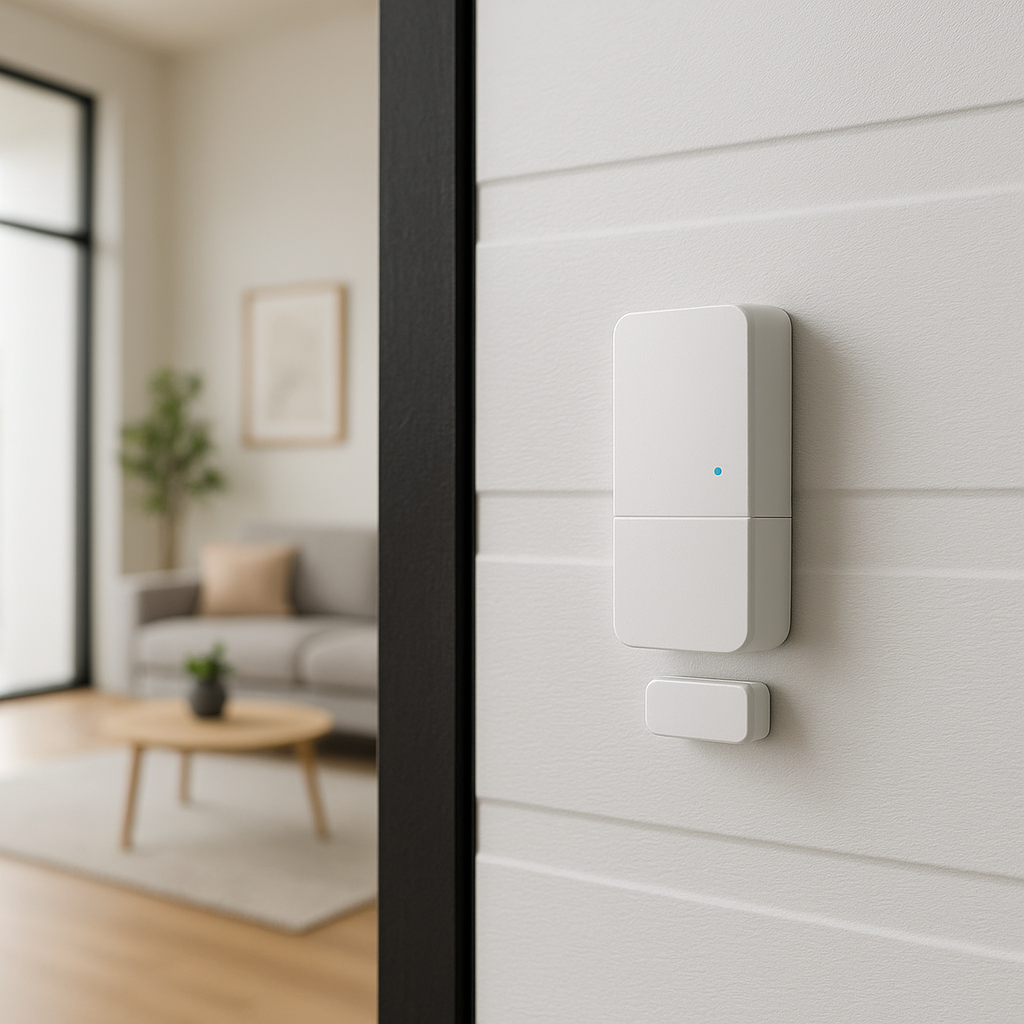
- Announce motion detected in the hallway
- Turn on lights when a door opens
- Play a sound when someone enters
Accessory-Triggered Automations
- Dim lights when you activate “Good Night”
- Turn on the fan when temperature rises
People-Based Automations
- Trigger only when specific people arrive or leave
- Avoid automations firing when the dog walker comes in
Limitations of HomePod Automations
Apple wants things to “just work” but also “not do anything dangerous.” That means:
- No true IF/THEN/ELSE logic in the Home app
- Presence-based triggers may require confirmation
- Only HomeKit/Matter-compatible devices work natively
- Complex automations need 3rd-party apps like Eve or Controller for HomeKit
If you want more control, you’ll need to go nerd-level and use Homebridge or other workarounds.
Best HomePod Automation Ideas
Not sure where to start? Here are proven, actually-useful ideas:
- Morning Routine: Lights on + news briefing + coffee machine power
- Arrival: Play music, set lighting scene
- Motion Announcements: “Someone is at the door” alerts
- Good Night: Turn off all lights, lower thermostat
- Away Mode: Randomize lights to make it look like you’re home
How to Set Up a HomePod Automation (Step by Step)
- Open the Home App on your iPhone or iPad.
- Tap the Automation tab.
- Choose Create New Automation.
- Pick your trigger (time, location, accessory, sensor).
- Add your actions (play audio, control devices).
- Customize conditions (time of day, people).
- Save and test it.
It’s that easy. Or at least, Apple wants you to think so.
Advanced Options: Using Shortcuts with HomePod
If the Home app’s automation is too basic:
- Use Shortcuts app to create more advanced routines.
- Siri can run shortcuts on your HomePod with voice commands.
- Combine HomeKit actions, apps, and even web requests.
Shortcuts unlock power-user automations but require more setup.
Final Thoughts
HomePod automations can make your smart home feel, well, actually smart. But Apple’s approach is streamlined to the point of being limited. If you’re happy with simple triggers, it’s fantastic. If you want “real” automation with advanced logic, be ready to dive into Shortcuts or third-party HomeKit apps.
Bottom line? Your HomePod is way more than a speaker—use it to get lazier, smarter, and more in control of your home.
FAQ
Can HomePod automations work with any smart home device?
HomePod automations are compatible with most smart home devices that are labeled as “Works with Apple HomeKit.” Check the compatibility on the manufacturer’s website or in the product specifications.
Are there subscription costs involved with using advanced HomePod automations?
No, there are no additional subscription costs for using the basic automation features on your HomePod. However, linked services or devices may have their own associated costs.
Do I need a HomeKit hub for automations?
Yes. Your HomePod itself is a HomeKit hub, which means once you have one, you can set up and run automations remotely. No extra Apple TV or iPad needed (though they can work too).
Does HomePod support conditional automations?
Sort of. Apple’s Home app is basic here. You can add some conditions (like time of day or people present), but if you want advanced logic (IF/THEN/ELSE), you’ll need third-party apps like Eve or Controller for HomeKit.
Can I use Siri to run automations?
Yes—but there’s a catch. You can run shortcuts with Siri (which can act like automations). But for automations created in the Home app, most run automatically. Some types (like ones triggered by presence) might require you to confirm on your phone due to security reasons.
Do automations work with multiple HomePods?
Yes. You can choose which HomePod(s) are involved in an automation. For example, music can play on all HomePods in the house when you arrive home.