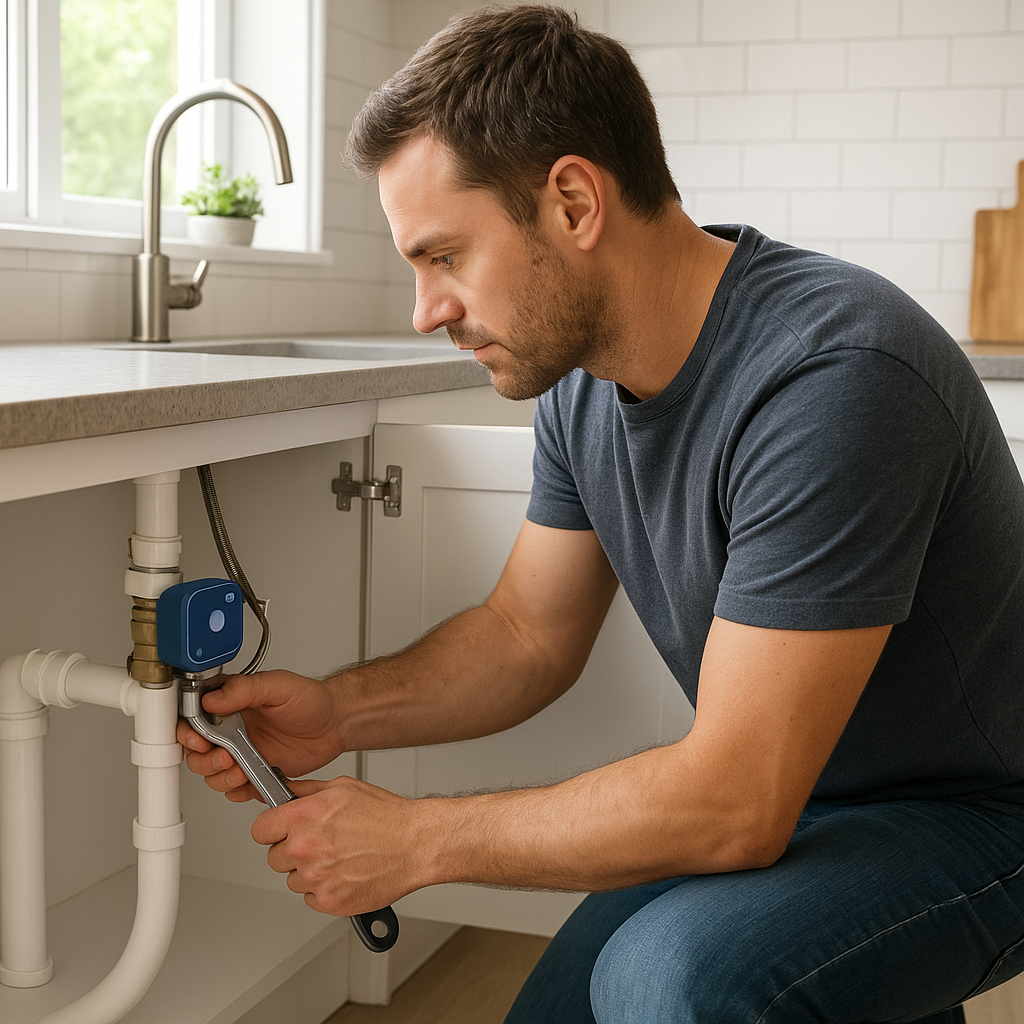
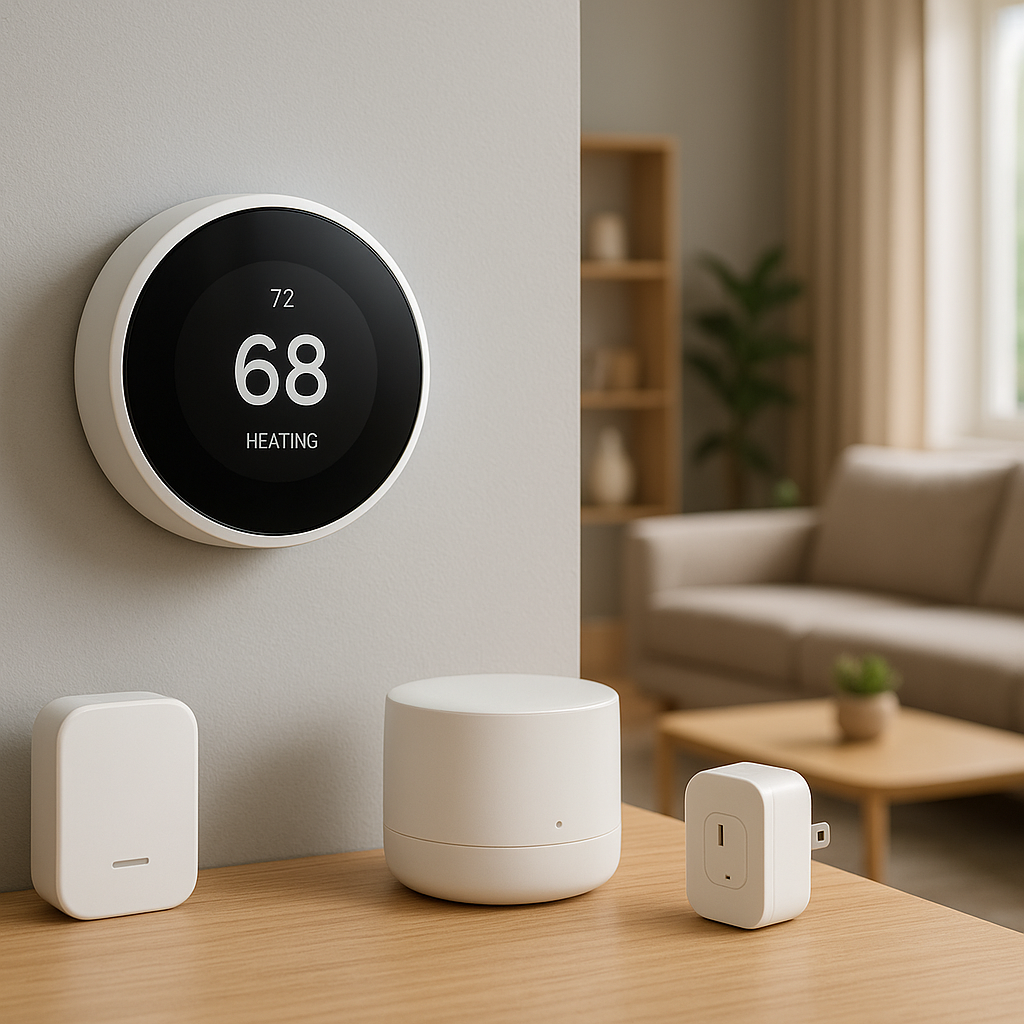
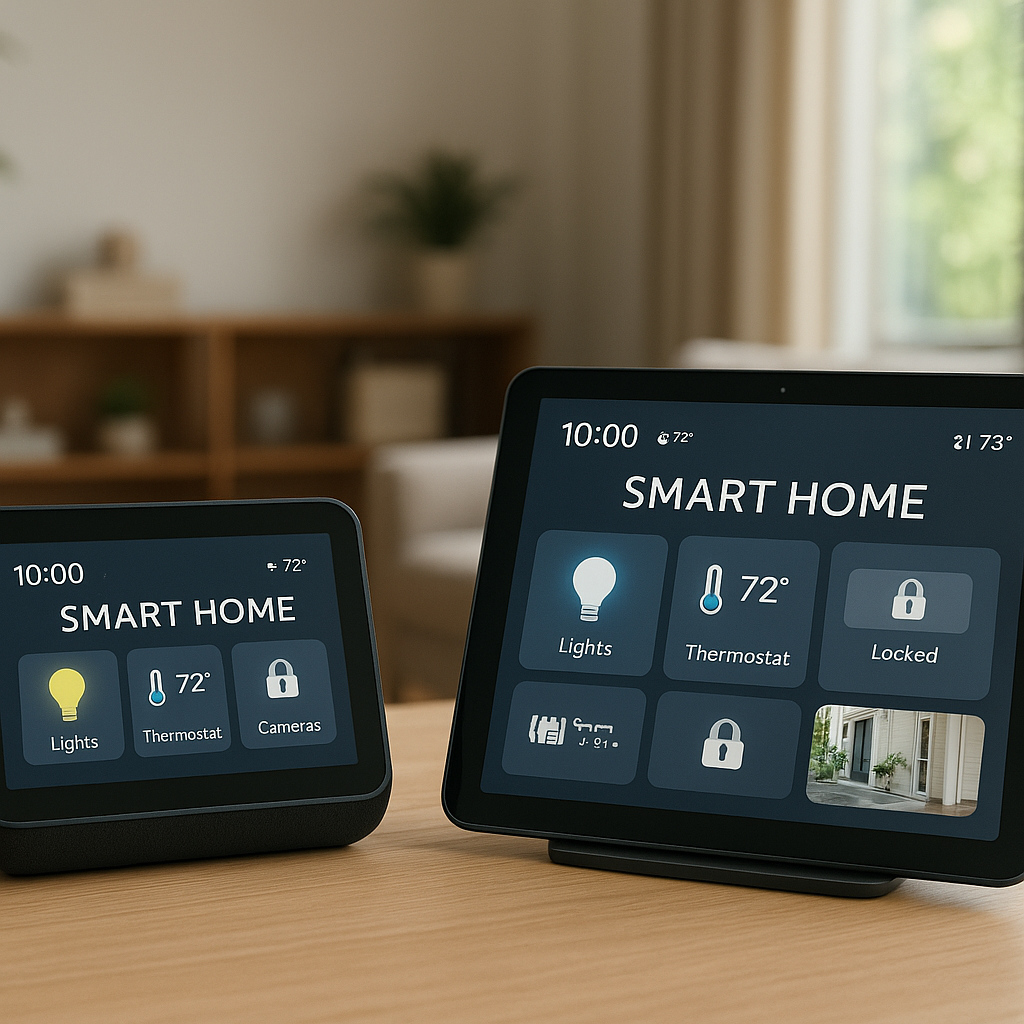
Smart blinds and curtains are great when they quietly open in the morning and close at night without you thinking about them. But if they miss timers, open randomly in the middle of the night, or only work “sometimes,” they quickly become more annoying than manual shades.
This guide walks through the most common reasons smart blinds are not following schedule reliably, and 11 practical fixes you can try. The tips apply whether you’re using IKEA Fyrtur, SwitchBot Curtain, Somfy, Lutron Serena, Aqara, or other brands, and whether you run schedules in Alexa, Google Home, Apple HomeKit, or the manufacturer’s app.
Work through these steps in order. Many schedule issues turn out to be a simple time setting, a weak signal at the window, or two different apps fighting over control of the same blind.
Why Your Smart Blinds Aren’t Following Their Schedule
Common symptoms: missed timers, random movements, and inconsistent behavior
Schedule problems with smart blinds often look like this:
- Blinds don’t open at the set time in the morning, but respond fine to manual app or voice control.
- Blinds close an hour early or an hour late, especially around daylight saving time changes.
- Only some blinds in a room follow the schedule; others stay put.
- Blinds open or close randomly at off hours, with no obvious trigger.
- Schedules work for a few days, then silently stop until you open the app.
These symptoms usually point to a problem with time settings, network or hub connectivity, conflicting automations, or buggy firmware—not the motor itself.
How schedules actually work behind the scenes (cloud vs local automations)
Most smart blind schedules are powered in one of two ways:
- Cloud-based automations – The schedule lives on a company server (for example, routines you make in the Alexa or Google Home app). At the right time, the cloud sends a command to your hub or blinds over the internet.
- Local automations – The schedule lives on a hub or device in your home (for example, Apple HomeKit automations running on a HomePod or Home Assistant, or scenes saved inside an Aqara hub).
Cloud automations depend on your internet connection and the company’s servers, while local automations keep working even if your internet is down, as long as your home network and hub are up. Many reliability problems come from schedules jumping between these two worlds without you realizing it.
Quick checklist before you start troubleshooting
Before diving into detailed fixes, quickly confirm:
- Your blinds respond manually in the app or with voice commands.
- You know which app controls the schedule (brand app vs Alexa/Google/HomeKit vs a hub like SmartThings or Hubitat).
- Any required bridge or hub (IKEA DIRIGERA/Trådfri gateway, Lutron hub, Aqara hub, SwitchBot Hub Mini, Somfy TaHoma, etc.) is powered and online.
- Your phone and hub are on a stable home network, not a guest or VPN network.
If manual control doesn’t work reliably, fix that first—no schedule will be stable until basic control is solid.
Fix #1: Confirm Time, Timezone, and Location Settings
Check phone and hub timezone settings (DST, region, 12/24-hour time)
Most schedules reference your system clock. If your phone, hub, or bridge is using the wrong timezone, every timer will fire at the wrong moment—or not at all.
- On your phone: Check date, time, and timezone. Turn on automatic time if it was manually set.
- On your hub/bridge: Open the companion app (for example IKEA Home Smart, Lutron app, Aqara app, SwitchBot app) and look for region, timezone, or location settings. Correct anything that doesn’t match your actual location.
- 24-hour vs 12-hour: If an app supports both formats, make sure you didn’t accidentally set 7:00 PM when you meant 7:00 AM.
After changing time settings, toggle the schedule off and back on, or recreate one schedule to ensure the new time is applied.
Verify sunrise/sunset location in Alexa, Google Home, and HomeKit
If your blinds are set to open at sunrise or close at sunset, those automations depend on an accurate location.
- Alexa: In the Alexa app, check the address of the device or group used in the routine. Incorrect addresses shift sunrise/sunset by minutes or even hours.
- Google Home: Confirm your home’s address in the app’s home settings, and verify the blinds are assigned to that home.
- Apple HomeKit: Make sure the Home location in the Home app is correct and that a Home Hub (Apple TV/HomePod) is active in that home.
Sunrise/sunset rules usually update automatically after address changes, but it’s worth re-saving each automation to be sure.
Adjust schedules that accidentally cross midnight or date boundaries
Some apps handle “after midnight” poorly. For example, a routine that says “close at 11:59 PM and open at 12:05” might confuse certain hubs.
- Try shifting just before or after midnight schedules by 5–10 minutes.
- In some brand apps, create separate “day” and “night” schedules instead of trying to run one rule across midnight.
- If you’re using weekday vs weekend schedules, double-check that you didn’t accidentally assign a timer to the wrong day.
Many “random” late-night movements are actually timers firing on the wrong day or just after midnight.
Fix #2: Stabilize Wi‑Fi and Hub Connectivity
Make sure the blinds’ hub or bridge is online and near the router
Most smart blind systems use a small bridge or hub that sits between your blinds and the cloud. If that box goes offline, schedules from Alexa, Google, or the brand’s app may silently fail.
- Check the hub’s status light—solid usually means online, blinking or red often means a problem.
- Open the app and confirm the hub or bridge shows as “online.” If it’s offline, power cycle it and check the ethernet/Wi‑Fi connection.
- Keep the hub reasonably close to your router or a strong Wi‑Fi point to avoid dropouts.
For example, IKEA’s DIRIGERA or older Trådfri gateway, Lutron’s Caséta/Serena hubs, and Aqara hubs all need a stable network link for cloud-based schedules to work well.
Check 2.4 GHz vs 5 GHz network issues and guest networks
Many blind hubs and Wi‑Fi motors only support 2.4 GHz. If your router hides or changes the 2.4 GHz network, devices may drop offline.
- Make sure your 2.4 GHz network is enabled and not isolated as a guest network.
- When initially pairing blinds or hubs, temporarily separate 2.4 GHz and 5 GHz SSIDs if you’re having trouble.
- Avoid connecting your hub to a guest network—guest isolation can block communication with your phone or other controllers.
If your router supports band steering, verify that it isn’t constantly bouncing devices between 2.4 and 5 GHz in ways that cause disconnects.
Reduce interference for Zigbee, Z‑Wave, Thread or Bluetooth blinds
Many blinds (IKEA, Aqara, some Somfy models) use Zigbee, Z‑Wave, Thread, or Bluetooth between the motor and hub. Signal at the window can be weaker than in the middle of the room.
- Move the hub a bit closer to the blinds or to a more central location.
- Add a Zigbee or Z‑Wave repeater (often a smart plug or bulb) near the window to strengthen the mesh network.
- Keep hubs away from thick walls, fridges, and other big metal objects.
- For Bluetooth‑based systems like SwitchBot Curtain without a hub, consider adding a SwitchBot Hub Mini so schedules can run over Wi‑Fi instead of relying on weak phone Bluetooth.
Once the signal is solid, missed schedules often disappear without further changes.
Fix #3: Check Power, Battery Level, and Motor Calibration
Low batteries and power-saving modes that break schedules
Battery-powered blinds may stop obeying schedules long before they stop moving entirely.
- Open the brand app and check each blind’s battery percentage.
- Some systems go into a low-power mode and ignore “non-essential” commands like schedules while still working manually.
- If a blind is below ~20–30%, fully recharge or replace batteries and then re-test schedules.
For solar‑powered motors, make sure the panel is clean and getting light, not shaded by curtains or window frames.
Recalibrate open/close limits so blinds know their positions
If your blinds don’t know where fully open and fully closed are, they can behave oddly with percentage-based schedules (for example, “open to 60% at 8:00 AM”).
- Use the brand app or physical buttons to run the calibration procedure (full open, full close, then save limits).
- For products like SwitchBot Curtain or Aqara rollers, calibration is usually a guided process in the app.
- After calibrating, delete and recreate any schedules that use percentages.
Well-calibrated blinds respond more consistently to both manual and scheduled commands.
Inspect power adapters, USB cables, and outlets for wired motors
Wired motors (Somfy, some Lutron and custom shades) can also have power issues:
- Verify the power supply is firmly connected at both the motor and wall outlet.
- Try a different outlet or power strip to rule out loose sockets.
- Inspect USB or barrel connectors for damage or fraying.
If a motor is intermittently losing power, it may miss schedules or stop mid‑movement even though your app shows the routine as “successful.”
Fix #4: Clean Up Conflicting Schedules and Automations
Disable duplicate schedules in the manufacturer app vs Alexa/Google/HomeKit
One of the most common causes of weird blind behavior is running schedules in multiple places.
- If you schedule blinds in Alexa, disable schedules for the same blinds in the brand app.
- If you use HomeKit automations, turn off time-based scenes in other apps that also control the blinds.
- Pick either the manufacturer app or your smart home platform as the place where time-based schedules live.
Otherwise, one app may open the blinds at 7:00 while another tries to close them at 7:01, making the behavior look random.
Look for overlapping routines, scenes, and schedules triggering the same blind
Even within a single platform, you can accidentally stack rules:
- A “Good Morning” scene that opens all blinds when motion is detected in the hallway.
- A time-based routine that also opens the same blinds at 7:00 AM.
- A security mode that closes blinds at sunset, plus a second rule that closes them 30 minutes after sunset.
Temporarily disable all routines except one basic open and one basic close schedule. If things stabilize, re-enable other scenes one by one until you find the conflicting automation.
Prioritize one “master” automation platform to avoid conflicts
Many power users connect blinds to several platforms: the brand app, Alexa, Google, HomeKit, SmartThings, and maybe Home Assistant. This is fine for manual control and voice, but risky for schedules.
- Choose one “master” platform where all time-based and mode-based automations live.
- Use other platforms only for voice commands or ad‑hoc control.
- Document (even in a quick note) where each blind’s schedules are configured so you don’t accidentally recreate them elsewhere later.
A single source of truth for schedules makes troubleshooting much simpler.
Fix #5: Review Conditions, Routines, and ‘Smart’ Rules
Remove unnecessary conditions like presence, weather, or mode that block triggers
Many automation apps let you add conditions: “only run this if someone is home,” or “only if it’s sunny.” These can easily block schedules unintentionally.
- Check each blind routine for extra conditions like presence, weather, brightness, or thermostat mode.
- Temporarily remove these conditions and leave only time-based triggers to see if reliability improves.
- If things work, reintroduce conditions carefully and test again.
Keep your core open/close schedules simple. Advanced conditions can be added later once basic reliability is proven.
Check Do Not Disturb, Away, Vacation, or Sleep modes
Some ecosystems pause automations in certain modes:
- Vacation or Away modes might lock blinds in a specific state for security scenes.
- Sleep or Night modes can block morning routines until someone wakes the system.
- Custom modes in hubs like SmartThings or Home Assistant can override default behavior.
Review which modes are active when schedules are supposed to run, and whether those modes block, delay, or replace your normal blind routines.
Rebuild complex routines into smaller, easier-to-debug automations
If you have a single giant routine that:
- Checks presence, weather, time, and brightness
- Controls lights, thermostats, and blinds all at once
…it becomes very hard to know why the blinds didn’t move. Instead:
- Create one simple time-based automation that just opens blinds.
- Create a separate one that just closes them.
- If needed, add extra routines that temporarily override those (for example, “if nobody is home at 7:00 PM, don’t open”).
Smaller, focused routines are easier to test and debug.
Fix #6: Update Firmware, Apps, and Smart Home Hubs
Update blind motor firmware from the brand’s app
Manufacturers regularly release firmware updates to fix timing bugs, add better schedule handling, and improve connectivity.
- Open the brand app and check for firmware updates for each blind or bridge.
- Perform updates when you don’t need the blinds to move (for example, afternoon rather than at bedtime).
- After updating, quickly test manual control, then schedules.
Some brands require the blinds to be powered or close to the hub for a while to complete the upgrade, so keep them plugged in and online.
Keep Alexa, Google Home, HomeKit, and hub software up to date
Automation engines themselves can have schedule bugs. Keeping apps and hubs updated reduces weird timing problems.
- Update Alexa, Google Home, or Apple Home apps through your phone’s app store.
- Apply firmware or OS updates to smart home hubs (SmartThings, Hubitat, Home Assistant, etc.).
- Reboot phones and hubs after large updates to clear stale connections.
Check each platform’s release notes if you suspect a new bug started after an update; occasionally, rolling back or changing how a routine is configured avoids brand‑new issues.
When to reboot vs when to factory reset your bridge or hub
Try the least destructive steps first:
- Quick reboot: Power off the hub/bridge for 30 seconds, then power it back on.
- Soft reset: Some devices have a “restart” option in the app that preserves all settings.
- Factory reset: Only if schedules are still unreliable after other fixes, and you’re willing to re‑add devices.
A reboot solves many odd schedule delays without forcing you to rebuild your whole setup.
Fix #7: Improve Signal Strength at the Window
Test signal where the blinds are installed (Wi‑Fi and mesh connections)
Signal quality at your router isn’t the same as at the window opening. Metal frames, Low‑E glass, and distance can all reduce signal where the motor actually lives.
- Stand near the blinds and check Wi‑Fi signal on your phone.
- If using Zigbee/Z‑Wave/Thread, use your hub’s diagnostics (if available) to see link quality or routing for each blind.
- Try moving the hub a few meters in different directions and see whether reliability improves.
Even small placement changes can turn flaky schedules into rock‑solid ones.
Use extenders, mesh nodes, or repeaters for large homes
For big houses or townhomes with multiple floors, a single router or hub might not be enough.
- Add a Wi‑Fi mesh node or extender halfway between the router and the problem window.
- Use powered Zigbee or Z‑Wave devices (plugs, switches) as repeaters near your blinds.
- Spread hubs so that each covers a logical area—front windows on one, upstairs on another—if your ecosystem supports multiple hubs.
Modern mesh systems explain how they handle signal; for example, Google’s support pages describe how Nest Wifi places nodes for best coverage, which also benefits cloud‑controlled blinds.
Reduce signal blockers like metal frames, Low‑E glass, and thick walls
Windows themselves can weaken signals:
- Metal window frames and Low‑E coatings can reflect or absorb Wi‑Fi and Zigbee signals.
- Concrete, stone, and brick walls between the hub and blinds further reduce range.
If moving the hub or adding a repeater isn’t possible, even shifting the blind’s motor side (left vs right) or slightly adjusting where the hub sits on a shelf can sometimes improve signal paths.
Fix #8: Re‑pair or Re‑add the Blinds to Your Smart Home System
Safely remove and re‑add devices without losing all settings
If a specific blind consistently ignores schedules while others behave, the pairing may be corrupted.
- Note its current schedules, scenes, and routines.
- Remove the blind from the app or hub (use the proper remove/unlink option, not just delete the app).
- Factory reset the blind motor if the manual suggests doing so before re‑pairing.
- Re‑add the blind using the latest app instructions.
Test basic manual and time-based control before rebuilding complex automations.
Rename devices and rooms clearly to avoid schedule targeting mistakes
Confusing names can lead to scheduling the wrong blind.
- Use clear, room-based names like “Living Room Left Blind” or “Master Bedroom Blackout Shade.”
- Group blinds into meaningful rooms and zones.
- Update any routines that reference old names after re‑pairing.
Clean naming also helps avoid accidental triggers from voice assistants controlling “all blinds” instead of just one room.
Recreate only the most important automations after re‑pairing
After a repair, resist the urge to immediately recreate every old routine:
- Start with one morning open and one evening close schedule.
- Let that run for a few days to confirm reliability.
- Gradually add more advanced routines (presence-based, weather-based, etc.) as needed.
This phased approach helps you spot exactly which automation—if any—reintroduces problems.
Fix #9: Handle Daylight Saving Time and Travel Edge Cases
How DST changes can break fixed-time schedules
Daylight saving time can throw off smart blind schedules in a few ways:
- Hubs or brand apps that don’t correctly auto‑adjust timezones.
- Routines configured in one timezone but executed in another.
- Devices that only partially sync time after internet outages.
After a DST shift, open each app and confirm that a 7:00 AM schedule actually runs at 7:00 local time. If not, toggle and re‑save each routine so it picks up the new offset.
What happens when you travel and your phone changes timezone
If your automations are phone-based (common with Bluetooth blinds controlled only from a phone), your device timezone matters:
- When you travel, your phone may change timezone but your blinds stay at home.
- Schedules tied to your phone’s clock can now fire at the wrong local time.
Whenever possible, move schedules to a hub, bridge, or cloud routine that stays “at home” rather than on your phone. This way, travel doesn’t affect schedules.
Use sunrise/sunset or offset-based automations for more reliability
To reduce the impact of DST and travel altogether, consider using:
- Sunrise/sunset triggers that adjust automatically as seasons change.
- Offsets like “30 minutes before sunrise” or “45 minutes after sunset” rather than fixed times.
These are calculated based on your home’s location and are usually more robust across time changes than strictly fixed clocks.
Fix #10: Stop Random Open/Close Events
Check for stray voice routines, button remotes, or wall switches
Random movements often turn out not to be random at all.
- Check any physical remotes or wall switches that came with the blinds; stuck buttons or low batteries can send repeated commands.
- Review voice assistant routines that might trigger blinds as part of alarm dismissals, morning news, or other habits.
- Look for “hidden” automations, such as buttons configured in the brand app that you forgot about.
Disable nonessential controls for a few days and see whether random movements stop.
Inspect shared accounts, family members, and third‑party services (IFTTT, SmartThings, etc.)
If multiple people or services control your blinds:
- Check whether family members have their own routines on Alexa, Google, or HomeKit.
- Look for connections to third‑party services like IFTTT, SmartThings, or Home Assistant that may be running additional schedules.
- Temporarily disconnect third‑party services one at a time to see if the issue disappears.
Sometimes an old test recipe or automation keeps running long after you’ve forgotten about it.
Review activity history or logs to see what triggered each event
Most platforms provide logs or history that show what triggered a blind movement.
- Alexa and Google Home have activity histories; hubs like SmartThings or Home Assistant offer detailed logs.
- Brand apps for Somfy, Lutron, and others may show the last commands and whether they came from a scene, schedule, or manual tap.
If you can match a random open to a specific routine in the log, you’ve found your culprit.
Fix #11: Brand‑Specific Tips (IKEA, SwitchBot, Somfy, Lutron, Aqara & More)
IKEA Fyrtur/Tredansen: gateway quirks and schedule reliability
IKEA’s Fyrtur, Kadrilj, Tredansen, and similar blinds usually connect through the DIRIGERA or older Trådfri gateway.
- Keep the gateway away from your router’s top to avoid interference; a bit of distance helps.
- Ensure blinds are updated to the latest firmware via the IKEA Home Smart app.
- Prefer storing schedules in the gateway (via IKEA’s app or native HomeKit integration) rather than building complex routines across multiple platforms.
If blinds randomly drop, re‑pairing them to the gateway and then re‑adding them to Alexa/Google/HomeKit often improves reliability.
SwitchBot Curtain and Blind Tilt: Bluetooth vs hub‑based scheduling
SwitchBot Curtain and Blind Tilt products can run off Bluetooth directly from your phone or via a SwitchBot Hub (Mini, 2, etc.).
- Phone-only schedules are less reliable; your phone has to be nearby and on for them to trigger.
- Using a SwitchBot Hub moves schedules to the cloud and Wi‑Fi, making them independent of your phone.
- After adding a hub, migrate existing schedules to hub-based ones in the app.
If you see weird behavior, SwitchBot’s documentation and app updates often address known timing bugs—check their latest support notes or firmware guidance, such as their hub scheduling help pages at SwitchBot scheduling support.
Somfy, Lutron, Aqara: where to look for schedule and scene conflicts
For Somfy, Lutron, and Aqara blinds:
- Somfy: Check TaHoma/Connexoon scenes and timers first; then review any added Alexa/Google routines.
- Lutron Serena: Timeclocks in the Lutron app can overlap with routines from Alexa or HomeKit; pick one schedule location.
- Aqara: Many users run Zigbee blinds through both Aqara and third‑party hubs. Make sure only one hub is responsible for schedules, and that each blind only belongs to one primary Zigbee network.
Because these systems integrate widely, it’s easy to create conflicting automations across several layers without realizing it.
When to Reset Everything and Start Fresh
Signs that a full reset will save time in the long run
Sometimes, endless tweaks still don’t fix erratic behavior. A clean slate may be faster when:
- You’ve changed hubs or routers several times and have leftover “ghost” devices in multiple apps.
- Schedules behave differently from what any app shows.
- You can’t tell which platform is actually in charge of each schedule.
If troubleshooting feels like chasing ghosts, a planned reset may be less painful than fighting a messy configuration indefinitely.
Step‑by‑step reset plan that minimizes downtime
To reset with minimal headaches:
- Write down your must‑have schedules (times, days, which blinds).
- Decide on one main platform for schedules.
- Factory reset the hub/bridge according to the manufacturer’s instructions.
- Remove blinds from third‑party apps (Alexa, Google, HomeKit, SmartThings, etc.).
- Re‑add each blind to the hub, then reconnect the hub to your chosen platforms.
Only once everything is paired cleanly should you rebuild automations.
Testing each blind and routine before trusting it again
After a reset:
- Test each blind manually (open/close, percentages) from the brand app.
- Create a single test schedule for one blind and set it a few minutes in the future to confirm it fires.
- Add blinds to rooms and voice assistants only after basic scheduling works.
A deliberate test cycle prevents you from assuming everything is working just because pairing succeeded.
Preventing Future Schedule Problems
Best practices for naming, grouping, and documenting routines
A bit of up‑front organization keeps your smart blinds predictable:
- Use names that describe both room and function, like “Office South Window Blind.”
- Group blinds logically: by room for daily use, and by floor or façade for whole‑house scenes.
- Keep a simple note (on paper or in a notes app) listing where each schedule lives and what it does.
This makes it much easier to spot conflicts as your setup grows.
Choosing local vs cloud automations for critical schedules
For privacy or security‑related schedules, choose the most reliable path:
- Local automations (HomeKit, some hubs, or manufacturer gateways) are best if internet outages are common.
- Cloud automations (Alexa/Google routines) are convenient when you change schedules often from your phone.
For critical blinds—like street‑facing privacy shades—favor local rules that keep working even if your ISP has issues. Platforms like Apple HomeKit document how automations run on a local Home Hub such as a HomePod; Apple’s Home automation support articles are a good reference for understanding local vs cloud behavior.
Simple monthly checks to keep your smart blinds reliable
Once a month, spend a few minutes on:
- Checking battery levels for all blinds in the brand app.
- Verifying that hubs/bridges show as online.
- Reviewing automation logs or histories for any failed runs.
- Testing at least one morning and one evening schedule manually (by temporarily setting a test time).
These small habits catch problems early, before they become daily frustrations.
With time, clear naming, and a single source of truth for schedules, your smart blinds can become one of the most reliable parts of your smart home instead of a mystery that wakes you up at 3 AM.
FAQ: Smart Blinds Schedule Issues
Why do my blinds work manually but ignore timers?
If blinds respond manually but ignore timers, the issue is usually not the motor. Common causes include the wrong timezone, a hub that’s offline, schedules saved in the wrong app, or blocked conditions (like presence or vacation mode). Start by verifying time settings, then check which platform is actually hosting the schedule and test a simple time-only routine.
Can I use multiple apps to control my blinds without problems?
You can use multiple apps for manual control and voice (brand app, Alexa, Google, HomeKit, etc.), but you should avoid running time-based schedules for the same blind in more than one place. Pick one “master” app for automations and use the others only for on‑demand control to prevent conflicts and random movements.
Are smart blinds safe to use as security or privacy automations?
Smart blinds work well as part of a security or privacy strategy, especially for making your home look occupied or keeping windows covered at night. For anything critical, favor local automations running on a hub or bridge rather than purely cloud routines, make sure batteries are healthy, and periodically test schedules to confirm they still run as expected.
Do I need a separate hub for reliable smart blind schedules?
Not always, but a dedicated hub or bridge often improves reliability. Many blind motors connect more consistently through their own gateway (IKEA, Lutron, Somfy, Aqara, SwitchBot Hub) than through direct Bluetooth or Wi‑Fi from a phone. A hub also lets schedules run even if your phone is off or away from home.
How many schedules is “too many” for smart blinds?
There’s no fixed limit, but more schedules mean more chances for overlap and confusion. A good pattern is 2–4 core schedules per blind (for example, weekday/weekend open/close), plus a few scene-based routines. If troubleshooting, simplify to one open and one close routine per blind until everything behaves reliably.