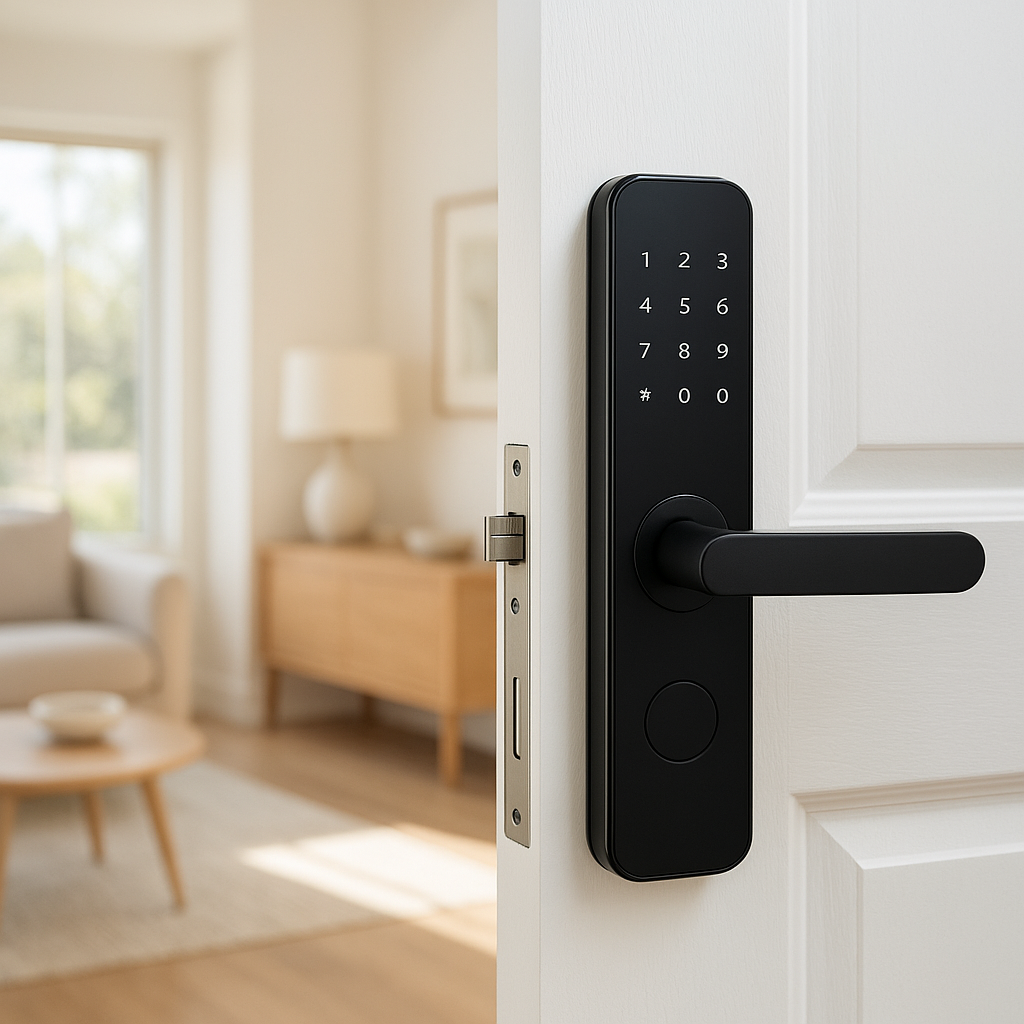
Introduction: Why Your Smart Lock Style Matters for Family Safety
A smart lock does more than replace your keys. The unlock method you choose—keypad, fingerprint, or phone—changes how your family moves in and out of the house, how you manage guests, and how well you can spot suspicious activity.
For families, safety isn’t just about blocking intruders. It’s also about making sure kids can get in after school, grandparents aren’t locked out, and you’re not stuck on the porch with an armful of groceries because the app glitched. Choosing the right smart lock style means balancing security, reliability, and everyday convenience.
How different unlock methods change everyday security
Each unlock style changes what can go wrong and what’s easy to manage:
- Keypad: No keys to lose, but codes can be guessed, shared, or seen.
- Fingerprint: Nothing to remember or carry, but sensors can fail with dirty or tiny fingers.
- Phone-based: Powerful control and logs, but depends on batteries, apps, and account security.
Understanding these trade-offs helps you choose a lock that matches how your family actually lives, not just what looks cool in the product photos.
Who this guide is for (families with kids, teens, and elderly relatives)
This guide is designed for households that:
- Have kids coming home alone after school.
- Host frequent visitors like cleaners, babysitters, or dog walkers.
- Include elderly relatives or anyone who isn’t very tech-savvy.
- Live in apartments, rentals, or multi-generational homes where access needs to be flexible but still controlled.
We’ll compare keypad vs fingerprint smart lock options and phone-based locks, highlight their strengths and weaknesses for families, and help you decide what fits your home best.
Smart Lock Basics: How Keypad, Fingerprint, and Phone Unlock Work
What makes a lock “smart” vs a traditional deadbolt
A traditional deadbolt is purely mechanical: insert key, turn, done. A smart lock adds electronics and connectivity so the lock can respond to codes, biometrics, phones, and sometimes voice assistants.
Most smart locks still use a standard deadbolt mechanism inside. What’s different is how the bolt is moved and controlled. A motor turns the bolt, and a small computer in the lock decides whether to unlock based on the code, fingerprint, or device presented.
If you want a deeper technical overview, the Smart lock article on Wikipedia is a good background read.
Common features families should look for (auto-lock, logs, guest codes)
Regardless of unlock style, families should prioritize:
- Auto-lock: Lock re-engages after a set time (e.g., 30–120 seconds) so doors aren’t left accidentally open.
- Activity logs: See who unlocked the door and when. Helpful for tracking kids arriving home or verifying a sitter’s access.
- Guest access: Time-limited PINs, temporary app invites, or scheduled access windows.
- Lock status alerts: Notifications if the door is left unlocked or if someone repeatedly enters a wrong code.
- Emergency backup: A key cylinder, 9V battery pad, or other method to unlock if electronics fail.
Popular examples that offer these features include the Schlage Encode series, Yale Assure locks, August Wi-Fi Smart Lock, and Ultraloq U-Bolt Pro.
Keypad Smart Locks: Pros, Cons, and Best Use Cases for Families
How keypad smart locks work (PIN codes, master codes, temporary codes)
Keypad locks use a numeric keypad on the outside of the door. You enter a PIN code, the lock verifies it, and if it matches a stored code, the motor retracts the deadbolt.
Most keypad locks support several types of codes:
- Master or admin code: Used to program the lock and add or remove other codes.
- User codes: Unique PINs for family members (e.g., 4–8 digits).
- Temporary or scheduled codes: Only work during set days/times or for a limited period; ideal for guests and workers.
Security strengths: no physical key, easy code changes, audit trails
For families, keypad locks offer several security advantages:
- No keys to lose or copy: A lost key can be used by anyone who finds it. A compromised code can simply be deleted.
- Easy to change access: If a sitter stops working for you, you can remove their code in seconds without rekeying the lock.
- Individual codes per person: This lets you see who unlocked the door in the lock’s history.
- Works for kids without phones: Elementary-age kids can usually manage a short code.
Security risks: code sharing, shoulder surfing, worn-out digits
Keypad locks have their own set of risks:
- Code sharing: Kids might share their code with friends, or adults might reuse the same PIN for too many people.
- Shoulder surfing: Neighbors, delivery drivers, or passersby could watch you type your code.
- Worn-out digits: On older keypads, frequently used numbers may appear shinier, helping someone guess the code.
- Simple patterns: Codes like 1234 or 2580 are far easier to guess.
You can reduce these risks by using randomized longer codes (6+ digits), rotating codes regularly, and enabling lockout features after several wrong attempts.
Kid-friendliness: can kids remember and use PINs reliably?
Many parents like keypad locks because kids don’t need a key or phone. But age and memory matter:
- Young kids (6–9): Can often handle a simple code if you tie it to something they already know (but avoid birthdays).
- Pre-teens and teens: Typically fine with PINs, though they may be more likely to share codes with friends.
- Forgetful kids: May need a backup method (a hidden mechanical key in a lockbox or a neighbor with a spare).
If your child struggles with numbers or gets anxious about remembering codes, a fingerprint or hybrid lock might work better.
Guest access: cleaners, babysitters, dog walkers, and visiting family
Keypad locks shine for recurring guests:
- Give your cleaner a code that only works Tuesdays from 10–2.
- Give your dog walker a code that only works on weekdays.
- Assign visiting relatives a temporary code that expires when they leave.
This makes it easy to revoke access later without awkward key requests. It also avoids the risk of keys being copied.
When a keypad smart lock is the best choice
A keypad-first lock is often best if:
- You have kids without smartphones.
- You want simple, reliable access that doesn’t depend on Bluetooth or apps.
- You host regular guests or service providers and want easy, revocable access.
- You value clear logs and control without complicated setup.
Fingerprint Smart Locks: Pros, Cons, and Reliability Concerns
How fingerprint and biometric smart locks work
Fingerprint locks use a sensor to capture the pattern of ridges on your finger. The lock converts this pattern into a digital template and compares it to stored templates when you touch the sensor.
Modern fingerprint locks, such as the Ultraloq U-Bolt Pro or Lockly models, typically store these templates inside the lock, not as actual fingerprint images.
Security strengths: unique biometrics, no code to share or lose
The main strengths of fingerprint locks:
- Nothing to carry: You can’t forget your finger at home.
- Harder to share casually: Unlike a code, a fingerprint can’t be texted to a friend.
- Fast entry: Often just a quick touch, which is great with kids and groceries.
- Good for users who forget codes: Ideal for some elderly relatives and younger kids.
Security risks: spoofing concerns, sensor quality, and false rejections
Biometrics have their own security questions:
- Spoofing: Very cheap or poorly designed locks might be vulnerable to fake fingerprints, though better models add liveness detection and advanced matching.
- Sensor quality: Budget locks often have more false rejections (not recognizing your finger) or false accepts.
- Wear and tear: Over time, scratches or damage to the sensor can affect performance.
Reading independent reviews and choosing a reputable brand matters more for fingerprint locks than for simpler keypads.
Everyday usability: wet hands, dirty fingers, and kids’ smaller fingerprints
Real-world use is where fingerprint locks can frustrate families:
- Wet or sweaty hands: Often fail to read. Think rainy days, pool time, or sweaty kids after sports.
- Dirty or paint-covered fingers: Also cause misreads.
- Young children’s fingers: Very small or still-changing prints may be harder for some sensors to recognize.
This is why fingerprint-only locks are risky. A good family lock pairs biometrics with a keypad or backup key.
Privacy considerations: where your family’s biometric data is stored
Always check how the lock handles biometric data:
- Local storage: Better locks store fingerprint templates locally in the lock, not in the cloud.
- No raw images: The system should store encrypted templates, not fingerprint photos.
- Clear deletion options: You should be able to remove fingerprints if you sell the lock or move.
Review the manufacturer’s privacy policy and documentation to understand how they handle biometrics before you buy.
When a fingerprint smart lock is the best choice
Fingerprint-first locks work well if:
- You want very quick, key-free entry for adults and older kids.
- You live in a single-family home where shoulder-surfing is less of a concern.
- You’re comfortable managing biometrics and want less code or key management.
Look for hybrid models that also include a keypad and/or key cylinder for guests and backup access.
Phone-Based Smart Locks: App, Bluetooth, and NFC Unlock Explained
How phone unlock works (Bluetooth, Wi‑Fi, NFC, and cloud connections)
Phone-based smart locks typically use one or more of these technologies:
- Bluetooth: Your phone talks directly to the lock at short range. Common for August and Level locks.
- Wi‑Fi: Through a bridge or built-in radio, the lock connects to your home network for remote access.
- NFC: Tap your phone or an NFC tag to the lock, similar to contactless payments.
- Cloud connections: Allow control and notifications when you’re away and integration with voice assistants.
Security strengths: encrypted access, detailed activity logs, remote control
Phone-based access can be very powerful for families:
- Encrypted communication: Modern locks use strong encryption between the app and the lock.
- Detailed logs: Many apps show exactly which user unlocked the door and how (app, code, auto-unlock).
- Remote control: Let in a delivery or relative even when you’re out.
- Account-based access: You can revoke app access per user without changing hardware.
Security risks: lost or stolen phones, weak phone security, hacked accounts
The biggest weak point is often the phone, not the lock:
- Lost or stolen phone: If your phone has no PIN or biometric lock, someone may get into your lock app.
- Weak passwords: If your account uses a simple password and no two-factor authentication, cloud access can be abused.
- Phishing or malware: Account takeover can sometimes give an attacker remote control of the lock.
Using strong phone security and multi-factor authentication dramatically reduces these risks. Google’s guide to 2-Step Verification is a good example of how to add an extra layer of protection to your accounts.
Practical challenges for families: dead batteries, no phone for young kids
Phone-based systems can be less friendly for younger family members:
- Dead phone battery: A common reason for lockouts.
- Kids without phones: Elementary-age children usually can’t rely on app-based access.
- Guests who dislike apps: Some sitters or relatives won’t want to install yet another app.
For this reason, most families should avoid locks that rely only on phone access without any keypad or key backup.
Integration with wider smart home security (cameras, alarms, routines)
Phone-first locks integrate well with broader smart home setups:
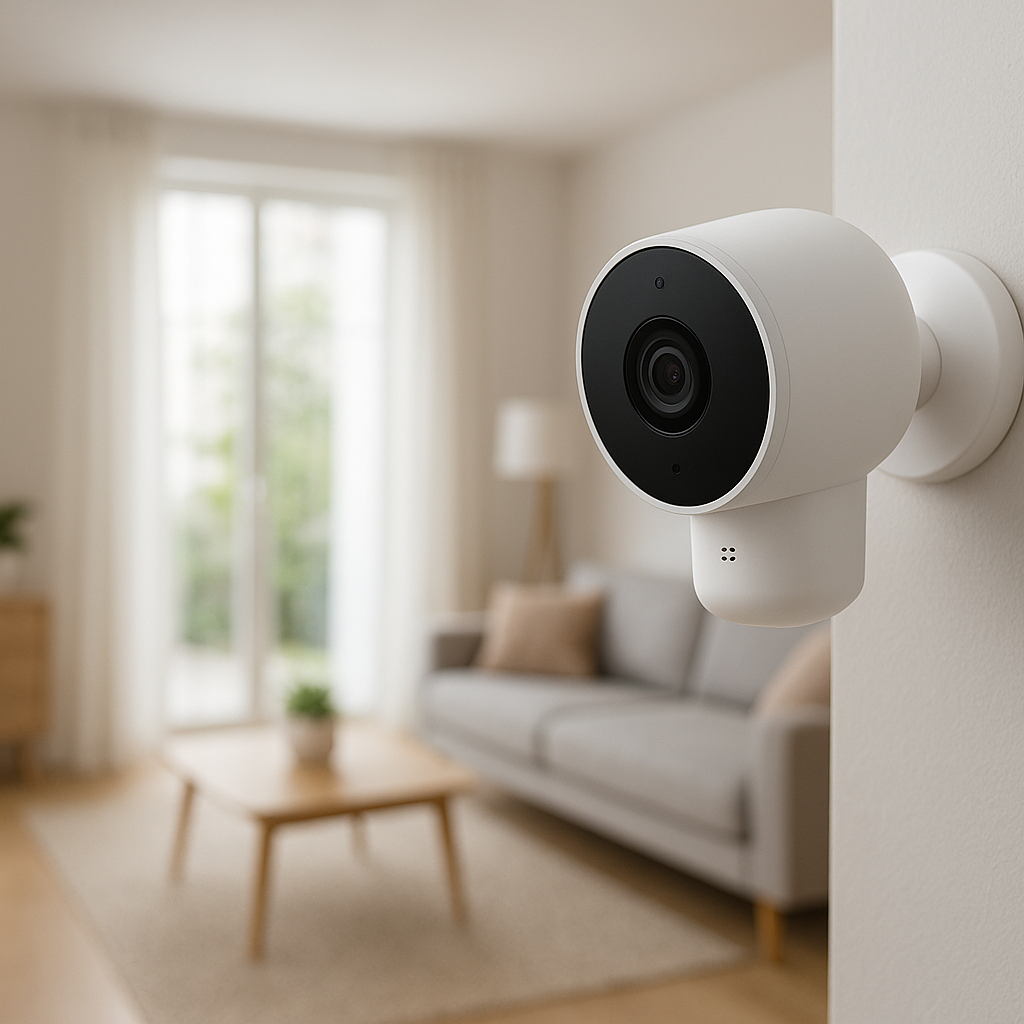
- Trigger your security camera to record when the door unlocks.
- Disarm your alarm system when a trusted user unlocks the door.
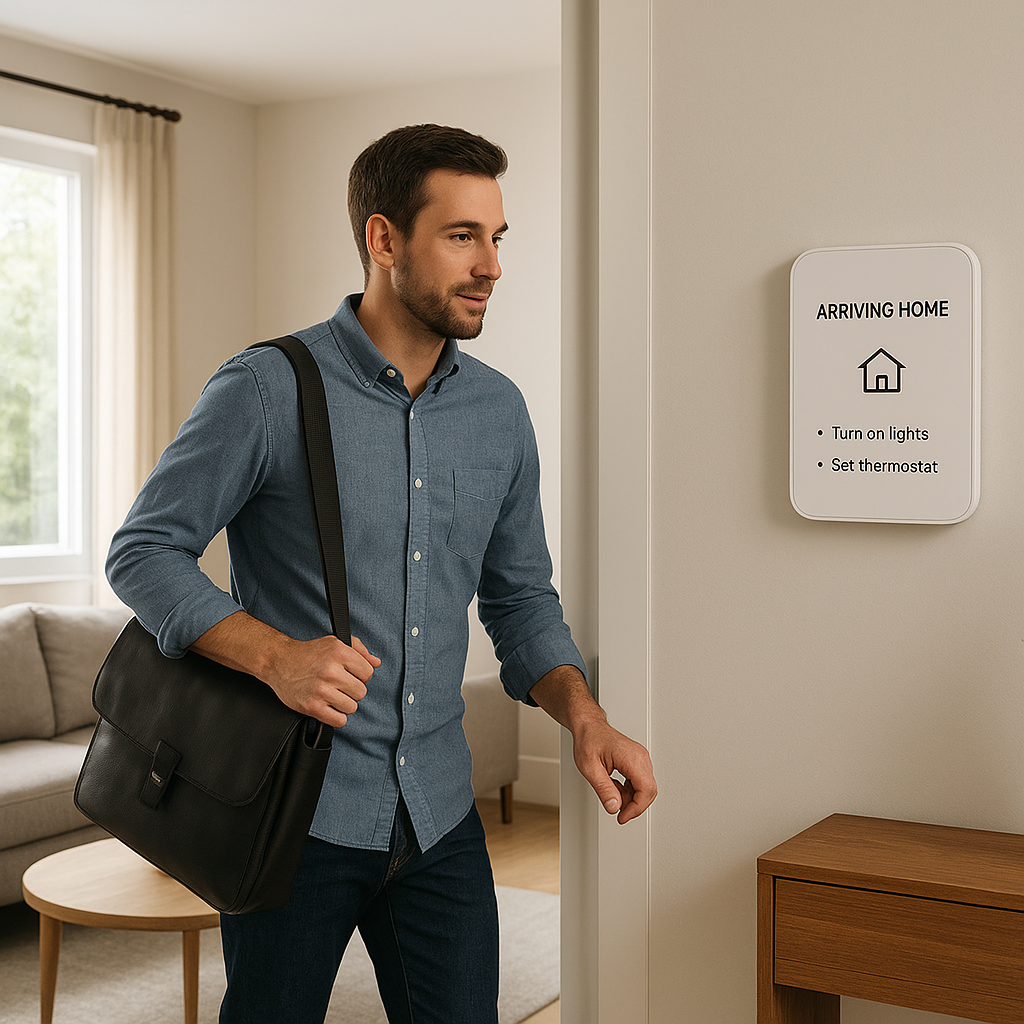
- Turn on lights or adjust the thermostat when the first family member arrives home.
Platforms like Apple Home, Google Home, and Amazon Alexa make this kind of automation easier if your lock supports them.
When a phone-based smart lock is the best choice
Phone-first locks are ideal when:
- Your household is mostly teens and adults who always carry phones.
- You want strong integration with cameras, alarms, and routines.
- You frequently manage access remotely for deliveries, guests, or rentals.
Again, pairing phone access with a keypad is usually best for families.
Comparing Safety: Keypad vs Fingerprint vs Phone Unlock for Families
Resistance to common threats: guessing, theft, tampering, and lockouts
Here’s how each method fares against everyday threats:
- Guessing or observation: Keypads are most exposed; fingerprints and phone unlock reduce this risk.
- Theft: Fingerprint and keypad locks avoid lost key risks. Phone locks add risk if your phone security is weak.
- Tampering: All quality smart locks include tamper alarms; choose a model with solid hardware and a reinforced strike plate.
- Lockouts: Keypad locks are least dependent on tech; phone and fingerprint locks need solid backups.
How each method handles lost access (forgotten code, cut finger, lost phone)
- Forgotten code: Admin can reset or issue a new PIN. Some locks support app-based resets.
- Injured or bandaged finger: Use a backup finger, keypad, key, or app unlock.
- Lost phone: Log into your account from another device, revoke access, and rely on keypad or key in the meantime.
The safest setup always includes at least one alternative unlock method that doesn’t rely on the same thing (e.g., not two phone-based methods).
Reliability in real life: power outages, Wi‑Fi failures, and app glitches
Most smart locks run on batteries, so a home power outage does not usually affect them. What can affect reliability is:
- Dead lock batteries: Choose a model with low-battery warnings and replace batteries proactively.
- Wi‑Fi failures: You may lose remote control or logs, but local keypad or fingerprint access should still work.
- App glitches: Keypad and fingerprint options allow you to ignore the app if it’s misbehaving.
This is why pure app-only locks can be risky for critical doors.
Safety for kids coming home alone after school
For latchkey kids, you want something they can consistently use, even when flustered or rushed:
- Best overall: Keypad with simple but non-obvious code, plus activity logs for parents.
- Good alternative: Hybrid fingerprint + keypad for older kids comfortable with both.
- Less ideal: Phone-only unlock, since kids lose or forget phones more easily.
Safety for elderly family members or guests who aren’t tech‑savvy
For older adults or visitors less comfortable with smartphones:
- Large, well-lit keypad: Easier than small fingerprint sensors or app navigation.
- Optional physical key: Offers familiarity and a comforting backup.
- Simple operation: Avoid requiring app installs just to get in the door.
Convenience and Daily Life: Which Smart Lock Fits Your Household Routine?
Speed of entry and hands-free options (auto-unlock, geofencing, voice)
Speed and hands-free access can be a big quality-of-life upgrade:
- Fingerprint: Usually the fastest—tap and turn.
- Keypad: Quick once memorized; just a few taps.
- Phone with auto-unlock: Some locks (e.g., August) support geofencing to unlock as you approach, though reliability varies.
- Voice: You can sometimes unlock via Alexa, Google Assistant, or Siri, usually with a spoken PIN.
For main entries, most families prefer something that works even when hands are full, like a fingerprint plus auto-lock, or keypad with a lever handle.
Managing multiple users and access levels in a busy family home
In a family home, you may have:
- Parents, kids, grandparents
- Cleaners, sitters, dog walkers
- Occasional guests or renters
Keypads and apps make it easy to assign different access levels. Look for a lock that supports many distinct codes or app users and allows schedules. Phone-based systems usually give you the most flexibility and detail, while keypad-only locks are simpler but still effective.
Handling cleaners, sitters, and short-term guests without over-sharing
The safest approach is to give each non-family member their own code or app login:
- Use time-limited codes for cleaners and sitters.
- Rotate guest codes periodically.
- Review logs if you suspect someone is extending their access beyond agreed times.
Avoid sharing your family’s primary PIN or account login with anyone outside the household.
Noise, door alignment, and other “real world” usability factors
Some practical details often overlooked:
- Motor noise: Some locks are loud when locking/unlocking—annoying for late-night arrivals near bedrooms.
- Door alignment: Smart locks are sensitive to doors that stick or sag. Poor alignment can cause failed locks or extra battery drain.
- Weather exposure: Make sure the exterior keypad or sensor is rated for your climate.
Take a close look at existing door hardware and frame before choosing a lock, especially in older homes.
Hybrid Smart Locks: Combining Keypad, Fingerprint, and Phone Unlock
Why multi-method locks can be safest for families
Hybrid locks that offer two or more unlock methods are often ideal for families. They give you:
- Redundancy: If one method fails (dead phone, dirty sensor), another still works.
- Flexibility: Kids can use keypad codes; parents use phones or fingerprints.
- Better guest management: Visitors can use codes, while core family members use biometrics or apps.
Example setups: primary vs backup unlock methods
Some practical combinations:
- Fingerprint primary, keypad backup: Adults tap in; kids and guests use a PIN.
- Keypad primary, app backup: Everyday use is simple; remote unlock and logs handled by the app.
- Phone primary, keypad and key backup: Adults use auto-unlock; kids and grandparents use PINs or keys.
Choosing backup options for emergencies and tech failures
For emergencies, ensure you have at least one non-app backup:
- Mechanical key hidden in a secure outdoor lockbox.
- 9V jump-start pad on the lock for dead batteries.
- A trusted neighbor with a spare key or code.
Talk through backup plans with all family members so they know what to do if their usual method fails.
Practical Buying Checklist: What Families Should Look For
Core safety features: auto-lock, tamper alerts, lock status notifications
At minimum, look for:
- Adjustable auto-lock: So you can set a delay that fits your routine.
- Tamper alerts: Notification if someone tries to force the lock or enters many wrong codes.
- Lock/unlock status: Clear indication in the app and on the device (lights or sounds).
Compatibility: door type, deadbolt style, and smart home ecosystems
Before buying, confirm:
- Door thickness and backset: The lock must fit your existing door dimensions.
- Deadbolt type: Some smart locks replace the whole deadbolt; others (like August) work with your existing one.
- Platform support: Check compatibility with Apple Home, Google Home, Alexa, or your alarm system.
Battery life, backup keys, and 9V emergency power options
Battery details matter more in busy households:
- Battery type: AA batteries are easy to replace; built-in rechargeable packs are less flexible.
- Estimated life: Look for 6–12 months under normal use.
- Emergency power: Some keypads let you hold a 9V battery to temporary power the lock and enter your code.
Manufacturer reputation, encryption standards, and firmware updates
Choose brands with:
- Good security track records and responsive support.
- Regular firmware updates that fix bugs and vulnerabilities.
- Documented encryption and security practices for their apps and cloud services.
Kid- and guest-management features you’ll actually use
Fancy features are useless if they’re too complex. Focus on:
- Simple code management: Adding and deleting codes should be quick.
- Clear logs: Easy to see who came and went.
- Scheduling: Enough flexibility for cleaners, sitters, and recurring visitors.
Setup, Configuration, and Safety Best Practices for Families
Secure installation basics: strike plate, screws, and door alignment
Even the best smart lock is weak if the door hardware is flimsy:
- Use the included reinforced strike plate and 2.5–3 inch screws into the door frame.
- Check door alignment so the bolt slides smoothly without forcing.
- Follow the manufacturer’s instructions closely or consider professional installation.
Setting strong PINs and managing codes for kids and guests
For keypad locks:
- Avoid obvious codes like birthdays, 1234, or 0000.
- Use unique codes per person so you can revoke individual access.
- Change guest and worker codes regularly, especially after they stop working for you.
Securing phones and apps: passcodes, biometrics, and 2FA
For phone-based access, treat your phone like a front door key:
- Enable a PIN, pattern, or biometric lock on every family phone.
- Turn on two-factor authentication for the accounts that control your smart lock.
- Ensure app access is removed when a device is lost or a family member moves out.
Teaching kids smart lock safety rules (what to share and what not to)
Talk to kids about:
- Never sharing their PIN or fingerprint with friends.
- Checking that no one is watching while they enter their code.
- Locking the door behind them using the keypad, button, or thumbturn.
- What to do if the lock doesn’t work (go to a neighbor, call a parent, use the backup key).
How often to review logs, update codes, and audit access
Set a recurring reminder to:
- Review logs monthly for unusual activity.
- Remove old codes for ex-sitters, workers, or guests.
- Update important PINs every 6–12 months.
- Check batteries and test backup unlock methods.
Recommended Smart Lock Styles by Family Scenario
For families with young children
Best fit:
- Keypad + key lock, or fingerprint + keypad hybrid.
- Simple codes for kids, with parents managing logs and guest codes.
- Reliable auto-lock so the door doesn’t stay open during hectic mornings.
For families with teens and frequent visitors
Best fit:
- Keypad + phone-based lock for mix of PINs and app access.
- Teens can use the app; guests get temporary codes.
- Parents use logs to verify arrivals and departures.
For multi-generational homes with elderly residents
Best fit:
- Large, bright keypad plus optional physical key.
- Simple operation—one or two codes only for older residents.
- Parents or tech-savvy family members manage more advanced app features behind the scenes.
For apartments, rentals, and short-term rental hosts
Best fit:
- Keypad-first locks with strong guest code features and remote management.
- Phone access for owners or property managers.
- Easy code resets between guests without swapping hardware.
Conclusion: Choosing the Safest Smart Lock Style for Your Family
Summary of keypad vs fingerprint vs phone unlock trade-offs
Each unlock style offers different strengths:
- Keypad: Great for kids, guests, and older adults; simple and reliable if you manage codes well.
- Fingerprint: Very convenient for adults, but needs a good sensor and backup method.
- Phone-based: Powerful remote control and logs, but depends heavily on good phone and account security.
For most families, a hybrid lock that combines keypad plus phone (and optionally fingerprint) offers the best balance of safety and convenience.
How to make a confident decision and future-proof your setup
To choose confidently:
- Start with your household makeup—ages, tech comfort, and routines.
- Decide which unlock method should be primary and which ones are backups.
- Check compatibility with your door and smart home ecosystem.
- Choose a reputable brand with strong security practices and ongoing updates.
If you’re unsure, a quality keypad + app-controlled lock is a safe, flexible starting point for most homes. You can always layer on more advanced features as your family’s comfort with smart home tech grows.
FAQ
Is a keypad or fingerprint smart lock safer for kids?
For most kids, a keypad is safer and more reliable. It doesn’t depend on perfect sensor readings, and it works even with wet or dirty hands. You just need to teach them not to share their code and to keep it private when entering it.
Can smart locks be hacked easily?
Quality smart locks use encryption and are not trivial to hack remotely. In practice, poor phone security, weak passwords, or shared PINs are the more common weak points. Choosing a reputable brand, updating firmware, and using strong account security goes a long way.
Will my smart lock still work if the Wi‑Fi goes down?
Yes, most smart locks still work locally without Wi‑Fi. You’ll lose remote control and notifications, but keypad codes, fingerprints, and Bluetooth access usually keep working as long as the lock’s batteries have power.
Do I still need a physical key with a smart lock?
A physical key is a good backup in case of electronics failure, dead batteries, or forgotten codes. Some households keep one in a secure outdoor lockbox or with a trusted neighbor rather than carrying it every day.
How long do smart lock batteries last in a busy family home?
Battery life varies by model and how often the lock cycles, but many families see 6–12 months on a set of quality batteries. Look for locks with clear low-battery warnings and consider replacing batteries proactively once or twice a year.