Smart cameras are no longer just for catching package thieves. Used thoughtfully, they can help elderly parents stay independent while giving family and caregivers a safe way to check in, respond to emergencies, and spot problems early.
This guide walks through the best smart camera features for elderly monitoring, how to balance safety with privacy, and which models are worth considering. We’ll also cover setup tips, smart home integrations, and real-world scenarios so you can build a system that actually works for your family.
The focus here is practical: what you really need, what’s optional, and how to avoid common mistakes when choosing the best smart camera for elderly monitoring.
Why Smart Cameras Matter for Elderly Monitoring
Common safety concerns for seniors living alone
For older adults living alone, family members usually worry about a few core risks:
- Falls in bathrooms, on stairs, or at night when lighting is poor.
- Medical events such as strokes, heart problems, or confusion from medications.
- Wandering or leaving home unexpectedly, especially with dementia.
- Missed routines like not getting out of bed, not opening the fridge, or not taking medications.
- Strangers at the door or potential scams and doorstep fraud.
According to CDC data on older adult falls, millions of seniors experience falls each year, and many don’t or can’t call for help. That’s where passive monitoring tools like cameras and sensors can make a real difference.
How smart cameras support both independence and peace of mind
A well-placed smart camera lets seniors continue living on their own terms while giving family a way to verify they’re safe without constant calls or visits. Helpful ways cameras support this balance include:
- Quick visual check-ins when a phone call goes unanswered.
- Two-way talk to reassure a parent after a scare or confusion.
- Activity snapshots (clips of movement) that show normal routines are happening.
- Door and entry monitoring so you can see who is coming and going.
The goal isn’t to watch someone 24/7, but to have evidence and context when something seems off.
When a smart camera makes more sense than a traditional medical alert system
Medical alert pendants and watches are powerful, but they depend on the wearer using them correctly. Smart cameras can be a better fit when:
- Your parent won’t wear a pendant or smartwatch consistently.
- There’s concern about confusion or dementia, where they may forget to press a button.
- You want context, not just an alert – for example, seeing why they fell or how long they were on the floor.
- Multiple people (siblings, hired caregivers) need shared visibility.
Cameras don’t replace emergency buttons, but in some homes they become the primary way caregivers understand what’s really happening day to day.
Key Features to Look For in a Smart Camera for Elderly Parents
Fall detection and activity monitoring (and their limitations)
Most mainstream security cameras do not offer true medical-grade fall detection. Instead, you’ll see features like:
- Person detection – distinguishes people from pets or cars.
- Activity zones – you mark areas (bed, couch, doorway) to watch closely.
- Unusual inactivity alerts – some ecosystems can flag when there’s less movement than usual.
These help you spot potential falls or issues (for example, no motion in the bedroom all morning), but they aren’t foolproof. To improve safety:
- Place cameras where falls are most likely (hallways, living rooms, entryways), not in very private spaces.
- Consider pairing cameras with dedicated fall-detection wearables or wall sensors for critical coverage.
- Treat AI fall alerts (if offered) as early warnings, not guaranteed detection.
Two-way audio for quick check-ins and reassurance
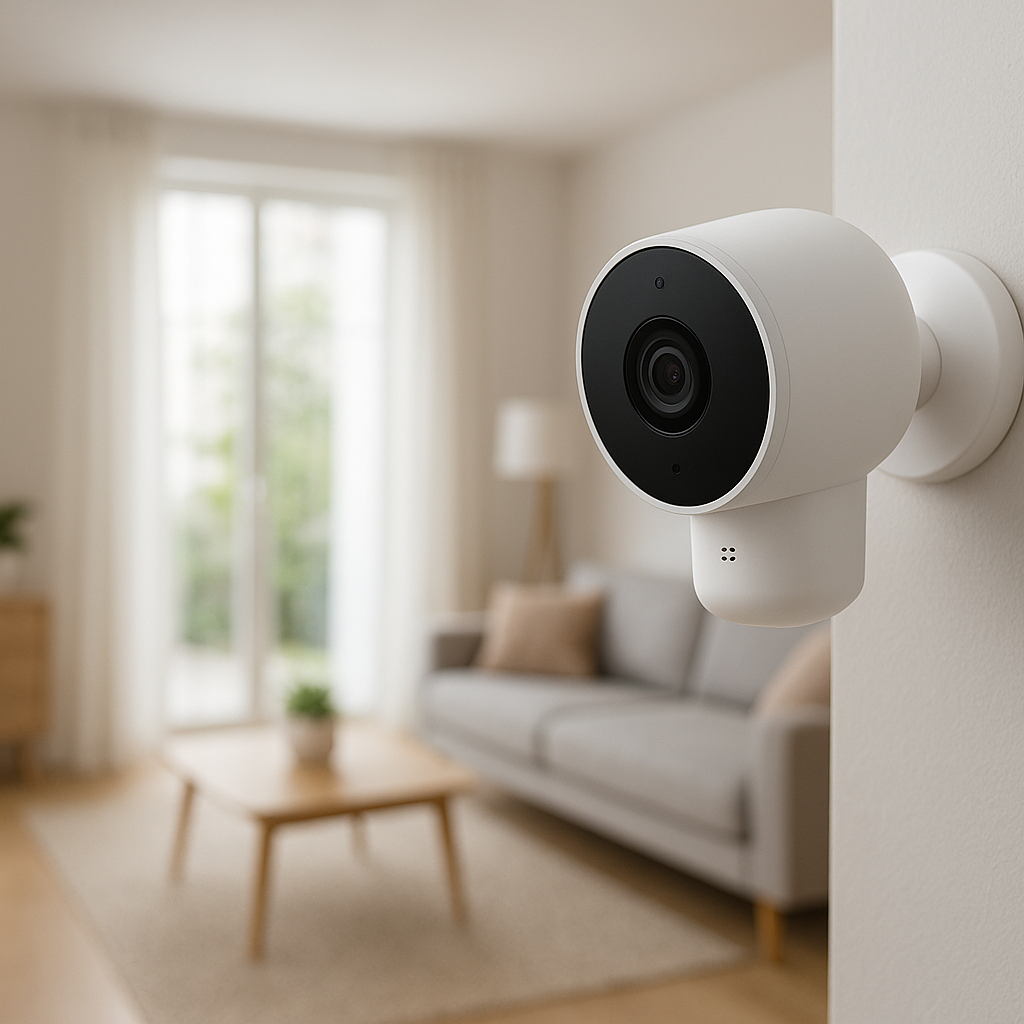
Two-way talk lets you speak through the camera using your phone or a smart display. This is extremely useful for elderly monitoring because you can:
- Reassure a parent immediately after a loud noise or unusual alert.
- Give simple instructions during confusion (e.g., “Mom, your pills are on the kitchen counter”).
- Coordinate caregivers (“The nurse is at the door, I’m unlocking it for her”).
Look for cameras with full-duplex audio (talk and listen at the same time, like a phone call) and a mic/speaker rated well in reviews for clarity, not just volume.
Wide-angle lens, night vision, and video quality for clear visibility
For elderly monitoring, clarity matters more than cinematic quality. Good benchmarks:
- Resolution: 1080p is usually enough; 2K or 4K helps in larger rooms.
- Field of view: 120–150° works well; wider lenses reduce blind spots.
- Night vision: Infrared (IR) night vision with clear grayscale image; color night vision is a bonus.
In practice, this means you can tell if your parent is actually in bed, whether they’re using a walker safely, and what happened during the night if something goes wrong.
Motion zones, alerts, and human detection to cut down on false alarms
Caregivers quickly burn out if the camera sends alerts constantly. Look for:
- Motion zones: draw boxes around doors, walkways, or beds to focus detection.
- Human/person detection: AI filters out pets, curtains, or TV flicker.
- Adjustable sensitivity: so you only get notified for meaningful movement.
- Scheduling: set quiet hours or different alert rules for day and night.
These tools let you fine-tune the system so alerts mean something and don’t become background noise.
Privacy controls: physical shutters, local storage, and data encryption
Monitoring someone’s home is sensitive. Prefer cameras that offer:
- Physical privacy shutters or covers you can close during family visits or personal care.
- Hardware or software “home” mode that pauses recording when someone is there.
- Local storage (microSD card or hub) so you aren’t forced to upload everything to the cloud.
- Encrypted video streams (look for end-to-end or at least TLS encryption in the specs).
Explain these options to your parent so they know when they’re being recorded and feel in control.
Ease of use for seniors and caregivers (apps, voice control, simplicity)
Even tech-savvy caregivers need something that “just works.” Consider:
- Simple, clean app design that makes it easy to view live video and recent events.
- Voice control via Alexa, Google Assistant, or Siri so seniors can say, “Show the front door” on a smart display.
- Big, obvious buttons for answering calls or muting the camera.
- Low-friction sharing (QR code or link) so other family members can join without troubleshooting.
Emergency workflows: what happens when an alert is triggered?
Before buying, think through the chain of events when something goes wrong:
- Who gets notifications first (you, siblings, a professional caregiver)?
- Can the camera app call or text multiple people, or just one account?
- Are there panic buttons in the app to dial 911 or local emergency numbers quickly?
- Do alerts work if your phone is on Do Not Disturb (you may need to whitelist the app)?
Some ecosystems support automated workflows, such as turning on all lights and sending a group text when unusual nighttime motion is detected. Plan this out as you configure the system.
Privacy, Consent, and Ethics When Monitoring Elderly Loved Ones
Having the conversation: how to discuss monitoring with parents respectfully
Start with safety goals, not technology. For example:
- “We’d like to make sure we can see you’re okay if you don’t answer the phone.”
- “This could help us respond faster if you fall or get sick.”
Ask what they want: where cameras feel acceptable, who can view footage, and when cameras should be off. Make it clear they can change their mind later. Document agreements in a shared note or email so everyone in the family respects the same boundaries.
Where to place cameras to balance safety and dignity
Good locations often include:
- Living room or main sitting area – shows daily activity.
- Hallways and entryways – captures movement between rooms and who comes to the door.
- Kitchen – useful for spotting skipped meals or confusion.
- Front door or porch – see visitors and deliveries.
Avoid placing cameras in bedrooms and bathrooms unless your parent explicitly requests it for medical reasons. If you must cover these areas (for example, fall-prone shower exits), consider privacy masks that block part of the image or at least limit who can view live video.
Managing who can see what: shared accounts vs guest access
Most camera platforms offer two approaches:
- Shared primary account: everyone signs in with the same username/password.
Simple, but risky if someone uses a weak password or leaves a device unlocked. - Guest or family accounts: individual logins with controlled access to specific cameras or features.
Whenever possible, use individual accounts with role-based access. This way you can give a hired caregiver access only to the front door camera, for example, while family can see more.
Cloud vs local recording and how long to retain footage
Decide early how you want to handle recordings:
- Cloud storage – easier to access from anywhere; usually requires a subscription.
- Local storage – video saved to a microSD card, NVR, or hub in the home; no monthly fees, but harder to access remotely.
For elderly monitoring, many families choose a hybrid: event-based clips in the cloud plus longer continuous recordings locally. Discuss a reasonable retention period (for example, 7–30 days) so you aren’t keeping months of sensitive footage without a clear reason.
Best Smart Cameras for Elderly Monitoring (2026 Picks)
Specific models change quickly, but these categories will help you map features to real needs. Always check current reviews for reliability and app quality before you buy.
Best overall smart camera for elderly monitoring
Look for a mid-range indoor camera with:
- 1080p or 2K video, wide-angle lens, and solid night vision.
- Reliable person detection and customizable motion zones.
- Two-way audio, easy mobile app, and smart display integration.
- Optional cloud recording with at least 14 days of event history.
Many families choose a popular ecosystem (Google Nest, Amazon Blink/Ring, Arlo, Eufy, TP-Link Tapo) and stick with it to keep sharing and automation simple.
Best camera with advanced fall detection and activity insights
Some newer cameras and smart home platforms offer activity insights such as:
- Time spent in bed vs. living areas.
- Nighttime wandering between rooms.
- Unusual inactivity during the day.
While true fall detection is still more common in wearables and dedicated sensors, a camera that integrates with health and activity dashboards can help caregivers spot concerning patterns before a crisis. Prioritize systems that clearly explain what their “fall detection” or “activity insights” actually do, so you don’t over-trust the feature.
Best easy-setup camera for non-technical families
If your family isn’t tech-heavy, choose a camera that:
- Uses a simple onboarding flow with QR codes or NFC pairing.
- Works with a familiar assistant (Alexa or Google) you already own.
- Has straightforward sharing (text a link or invite from contacts).
- Offers automatic firmware updates without extra steps.
Stick to one or two models across the home so everyone only has to learn one app and interface.
Best budget-friendly smart camera for seniors
Budget-friendly cameras can still work well for elderly monitoring if you prioritize:
- Decent 1080p video and reliable connectivity over fancy AI features.
- On-device or microSD storage to avoid mandatory subscriptions.
- Basic motion alerts and two-way talk.
Be cautious with ultra-cheap brands: check for clear privacy policies, regular updates, and compatibility with your existing smart home before relying on them for safety.
Best privacy-first smart camera with local storage
Privacy-focused options often include:
- Strong local storage options (microSD or encrypted hub).
- No or optional cloud storage.
- Physical shutters and clear recording indicators (LEDs).
- Support for local smart home standards like HomeKit Secure Video or similar privacy frameworks.
These are ideal for parents who are wary of cloud services but still want camera-based safety.
Best outdoor camera for monitoring entrances and driveways
For entrances and driveways, look for:
- Weatherproof rating (IP65 or better).
- Wide field of view to cover the entire porch and walkway.
- Two-way talk and quick notifications when someone rings or approaches.
- Integration with doorbell cameras so your parent doesn’t have to rush to the door.
Outdoor cameras help you vet visitors, watch for packages, and spot wandering or confusion when leaving the house.
Comparison Table: Smart Cameras for Elderly Parents at a Glance
Side-by-side specs: resolution, field of view, night vision, connectivity
Use a simple comparison like this when shopping (example values):
| Type | Resolution | Field of View | Night Vision | Connectivity |
|---|---|---|---|---|
| Indoor main room cam | 2K | 140° | IR, 10 m | Wi-Fi 2.4/5 GHz |
| Bedroom/hallway cam | 1080p | 120° | IR, 7 m | Wi-Fi 2.4 GHz |
| Outdoor porch cam | 1080p | 130° | IR, 10 m | Wi-Fi + optional Ethernet |
Fall detection, AI features, and emergency contact options compared
As you compare models, create a small checklist:
- Person detection (Y/N).
- Package/vehicle detection (optional but nice outdoors).
- Activity or “unusual motion” alerts (Y/N).
- Ability to tag emergency contacts and send rich notifications (with snapshots).
Note that “fall detection” may just mean the camera flags a person lying on the floor. Treat that as a helpful clue, not a medical guarantee.
Subscription costs, storage options, and total cost of ownership
Over several years, subscriptions can cost more than the hardware. Compare:
- Monthly/annual price per camera vs per household.
- Cloud retention (days of history) vs how much you actually need.
- Local storage options and any extra hubs or NVRs required.
- Features locked behind subscription (AI detection, activity insights, 24/7 recording).
Calculate a “3-year cost” that includes cameras, mounts, storage cards, and subscriptions so you aren’t surprised later.
Setting Up a Smart Camera for Elderly Monitoring Step by Step
Choosing the right installation spots inside and outside the home
Walk through the home like a caregiver and ask:
- Where are falls most likely? (Stairs, hallway from bedroom to bathroom, entry mats.)
- Where does your parent spend most of their day?
- Which entrances are actually used: front, back, garage?
Start with 1–3 cameras covering the main living area, hallway to bathroom/bedroom, and front door. You can add more later if needed.
Power options: wired, battery, or plug-in for uninterrupted monitoring
Each power option has trade-offs:
- Plug-in indoor cams: Ideal for main rooms; just ensure outlets aren’t overloaded and cables are secured to avoid tripping.
- Battery-powered cams: Best for spots without outlets (porches, sheds); set low-to-moderate motion sensitivity to extend battery life.
- Hardwired outdoor cams: More complex installation but very reliable for critical areas like front doors.
For elderly monitoring, prioritize reliability over perfect placement. A slightly less ideal angle that never loses power is better than a perfect angle that dies every two weeks.
Connecting to Wi-Fi and optimizing for weak signals
Cameras are only as good as the network they’re on:
- Place the router centrally if possible, not in a far corner of the house.
- Use 2.4 GHz for distant cameras; it travels through walls better than 5 GHz.
- Add a Wi-Fi extender or mesh node near weak areas like garages or back doors.
- Run a quick speed test near each camera location; even 5–10 Mbps up/down is usually enough for one stream.
Configuring motion zones, sensitivity, and alert frequency
Once installed:
- Draw motion zones on doorways, beds, and key walkways.
- Turn sensitivity up slightly at night to catch unusual movement, but down during busy daytime hours.
- Use different alert types: push notifications for urgent zones, daily summaries for lower-priority areas.
- Test with a family member walking through to see how many alerts you get in a normal day.
Sharing access with family members and caregivers securely
Invite family and caregivers using the camera app’s official sharing tools, not by sharing your password. Then:
- Enable two-factor authentication (2FA) for all accounts.
- Review access every few months and remove anyone who no longer needs it.
- Explain to caregivers what’s recorded and when, to avoid misunderstandings.
Integrating Smart Cameras with a Wider Smart Home Safety Setup
Using smart displays and smart speakers to check in quickly
A smart display in your parent’s home (e.g., an Echo Show or Google Nest Hub) lets them:
- See who’s at the door without walking to it.
- Answer drop-in video calls from trusted family.
- Ask to “show living room camera” or similar, which can help them feel in control.
For caregivers, viewing camera feeds on your own smart display at home makes check-ins as simple as a voice command.
Pairing cameras with smart locks to let caregivers in remotely
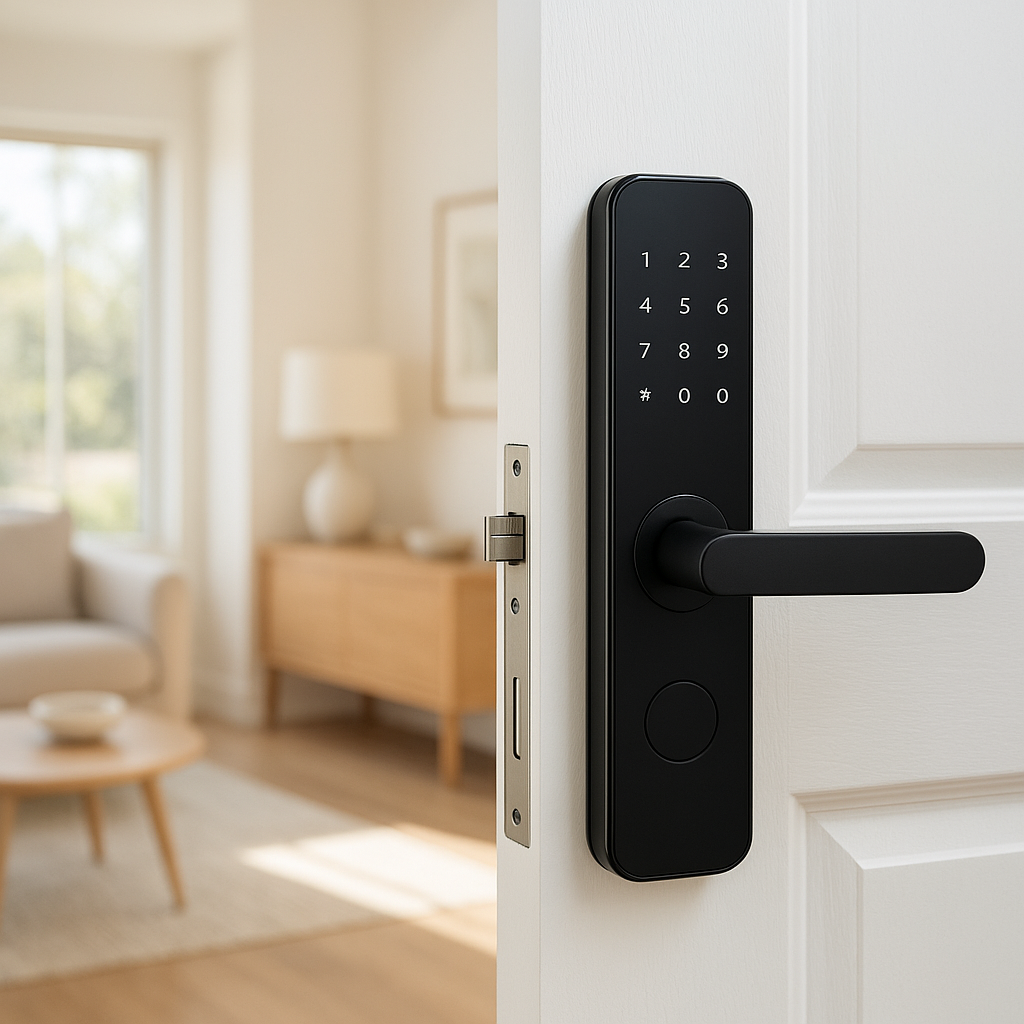
Combining a front door camera with a smart lock is powerful:
- See and talk to a nurse, cleaner, or neighbor at the door.
- Unlock the door remotely if your parent can’t reach it.
- Use time-limited access codes for visiting caregivers instead of giving out keys.
Always log who has codes and adjust them if caregivers change.
Linking cameras with smart lighting to reduce fall risks at night
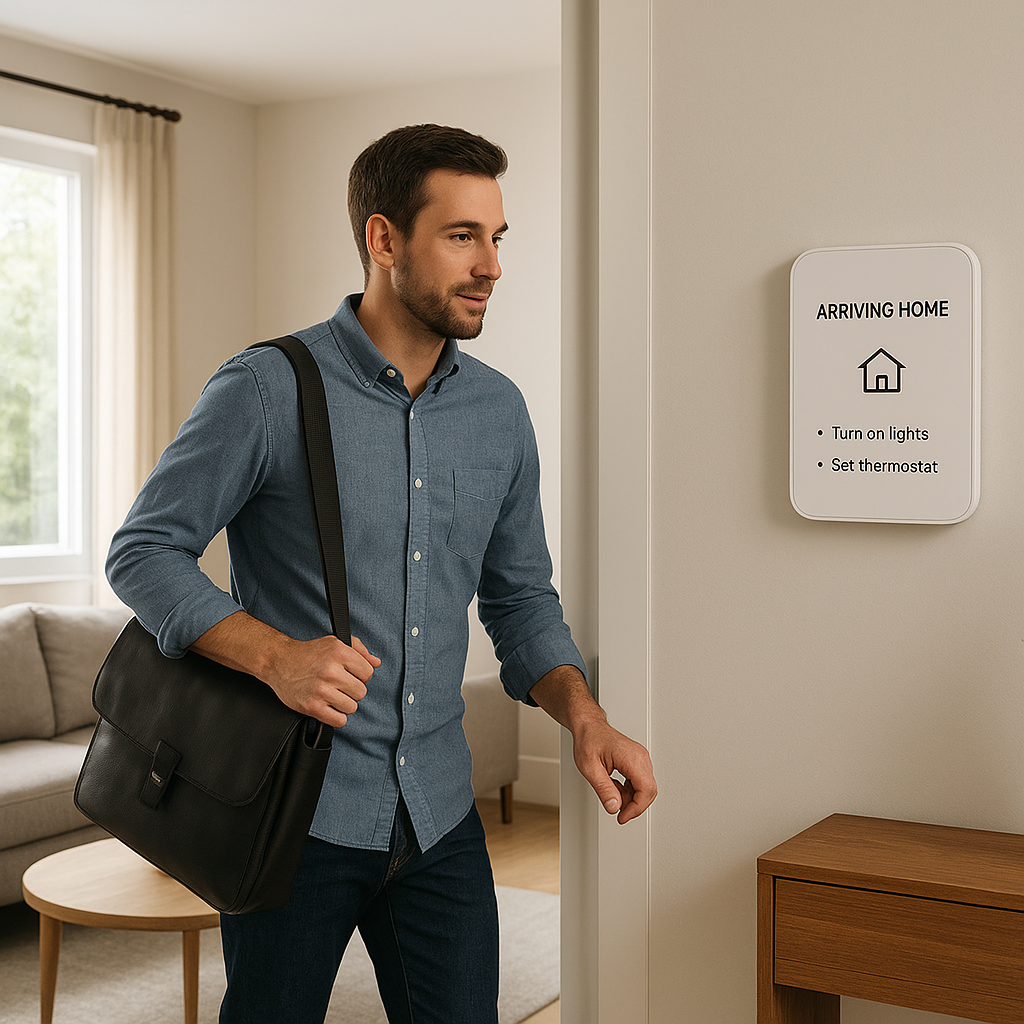
Falls often happen in the dark. Use automations like:
- When hallway camera detects motion between 11 p.m. and 6 a.m., turn on dim night lights.
- When front door opens after dark, turn on porch and entry lights.
Smart bulbs or smart plugs can make this easy without rewiring.
Using sensors and routines for activity awareness (doors, beds, motion)
Cameras pair well with non-camera sensors for a fuller picture:
- Door and window sensors – alert if an exterior door opens at odd hours.
- Bed presence sensors – some smart beds or mats report time in bed and restlessness.
- Standalone motion sensors – detect movement in bathrooms or hallways without video.
Use routines like “if no motion in living room by 10 a.m., send a check-in alert” to complement video coverage.
Real-World Scenarios: How Smart Cameras Help Caregivers Day to Day
Spotting fall risks and wandering early through activity patterns
Over time, you may notice patterns in camera clips and timelines:
- Your parent starting to grab furniture more often while walking.
- Increased nighttime pacing between bedroom and kitchen.
- Frequent opening of outside doors at night.
These signs can prompt a conversation with doctors about mobility aids, medication adjustments, or home modifications (grab bars, ramps, better lighting).
Checking in after a fall, illness, or hospital discharge
After a hospital stay, cameras help you confirm that:
- Your parent is moving safely with new equipment (walker, cane).
- They’re actually resting as advised and not overexerting.
- Home health aides or therapists are arriving as scheduled.
Short, respectful visual check-ins can replace constant phone calls when someone needs rest.
Supporting long-distance caregivers in different time zones
If siblings live in different states or countries, cameras let you share the load:
- One person handles early-morning alerts; another watches evening events.
- Everyone can see the same reality instead of debating impressions over the phone.
- Shared clips help family coordinate decisions about care needs.
When to add more cameras or upgrade your setup
Consider expanding or upgrading when:
- There are recurring blind spots (for example, falls near a doorway that isn’t covered).
- You’re constantly asking, “What happened before this clip?” and need longer history or 24/7 recording.
- Your parent’s health changes, requiring more visibility or specific areas (like outside steps).
Safety, Security, and Data Protection Best Practices
Strong passwords, two-factor authentication, and account sharing rules
Because cameras watch private spaces, account security is critical:
- Use a unique, long password for your camera account; consider a password manager.
- Turn on 2FA so logins require a secondary code or app prompt.
- Do not share the main account password; use official family/guest sharing features instead.
Keeping firmware updated and avoiding insecure networks
Updates patch security flaws and improve reliability:
- Enable automatic firmware updates in the app if available.
- Avoid installing cameras on public or shared Wi-Fi.
- If your router is old, consider upgrading to one that gets regular security updates.
Minimizing unnecessary recording and turning cameras off when appropriate
More footage isn’t always better. To respect privacy:
- Use event-based recording (only on motion) instead of continuous recording where possible.
- Schedule privacy hours or use geofencing so cameras pause when trusted family is visiting.
- Explain how to physically cover or disable cameras when your parent wants extra privacy.
How to Choose the Right Smart Camera for Your Family
Matching features to your parent’s health, mobility, and comfort level
Start by listing needs:
- High fall or wandering risk? Focus on coverage of hallways and exits, plus sensors.
- Memory issues? Emphasize simple interfaces and automations, not complex apps.
- High privacy concerns? Choose fewer cameras with shutters and strong local storage.
Then layer in your own capacity: who will manage the system, respond to alerts, and maintain devices.
Budget planning: hardware vs ongoing subscription fees
Estimate:
- Number of cameras (start with 1–3).
- One-time costs for mounts, SD cards, or a hub.
- Monthly or yearly cloud subscriptions, per camera or per account.
Sometimes it’s cheaper long-term to choose slightly more expensive cameras with free local recording than cheaper hardware that demands subscriptions for basic features.
Questions to ask before you buy and a quick checklist
Key questions:
- What specific problems are we trying to solve (falls, missed meds, wandering)?
- Where do we not want cameras, no matter what?
- Who will have access, and how will we manage that as caregivers change?
- What happens if internet or power goes out?
Quick checklist:
- Supports two-way audio and clear night vision.
- Has motion zones and person detection.
- Offers privacy controls and local storage.
- Integrates with our existing smart home (if any).
- Has clear documentation and active updates.
Frequently Asked Questions About Smart Cameras for Elderly Monitoring
Are smart cameras safe and legal to use in a parent’s home?
In most places, it’s legal to install cameras in your own or your parent’s home with their informed consent, as long as you avoid places where people reasonably expect complete privacy (bathrooms, some bedrooms). Laws vary by region, especially around audio recording, so check local regulations and always be transparent with anyone who lives or works in the home.
Do I still need a medical alert pendant if I have smart cameras?
Cameras are a helpful safety layer, but they don’t replace a medical alert pendant or watch for many people. A wearable can call for help even if Wi-Fi is down or the person is out of camera view. Many families use both: cameras for context and daily visibility, and a pendant or watch for immediate emergency calls. For more background, see the overview of personal emergency response systems in the Medical alarm article on Wikipedia.
What happens if the internet goes down or the power cuts out?
Most Wi-Fi cameras stop sending alerts and remote video if the internet or power fails. Some continue recording locally to a microSD card or NVR, so you can review footage later. To improve resilience, you can:
- Use an uninterruptible power supply (UPS) for the router and key cameras.
- Choose at least one camera with local recording.
- Combine cameras with cellular-based medical alerts or phone check-ins.
How many cameras do I really need in a small home or apartment?
For a small apartment, many families start with:
- One camera in the main living area.
- One camera covering the hallway between bedroom and bathroom.
- Optional: a doorbell or porch camera for visitors.
You can always add more if you discover blind spots or new safety needs.
Final Thoughts and Next Steps
Balancing safety, privacy, and independence for elderly loved ones
The best smart camera for elderly monitoring is the one that your parent accepts and that your family can realistically manage. A respectful conversation, clear boundaries, and thoughtful placement go further than any single feature or brand name.
Simple starter setup vs advanced monitoring setup recommendations
Starter setup (for most families):
- 1–2 indoor plug-in cameras (living room, hallway).
- 1 doorbell or porch camera.
- Event-based recording with notifications for key zones.
Advanced setup (for higher risk or complex care):
- Additional cameras in kitchen and entrance areas.
- Sensors on exterior doors and maybe bed presence sensors.
- Smart lighting routines for nighttime safety.
- Integration with medical alert wearables or services.
Links to setup guides and related smart home caregiver resources
As you choose and install your system, keep notes on what works and what doesn’t. Share those with siblings or caregivers so everyone understands how to use the cameras, where they’re pointed, and what to do when an alert fires. That shared understanding is what turns a camera from a gadget into a real caregiving tool.