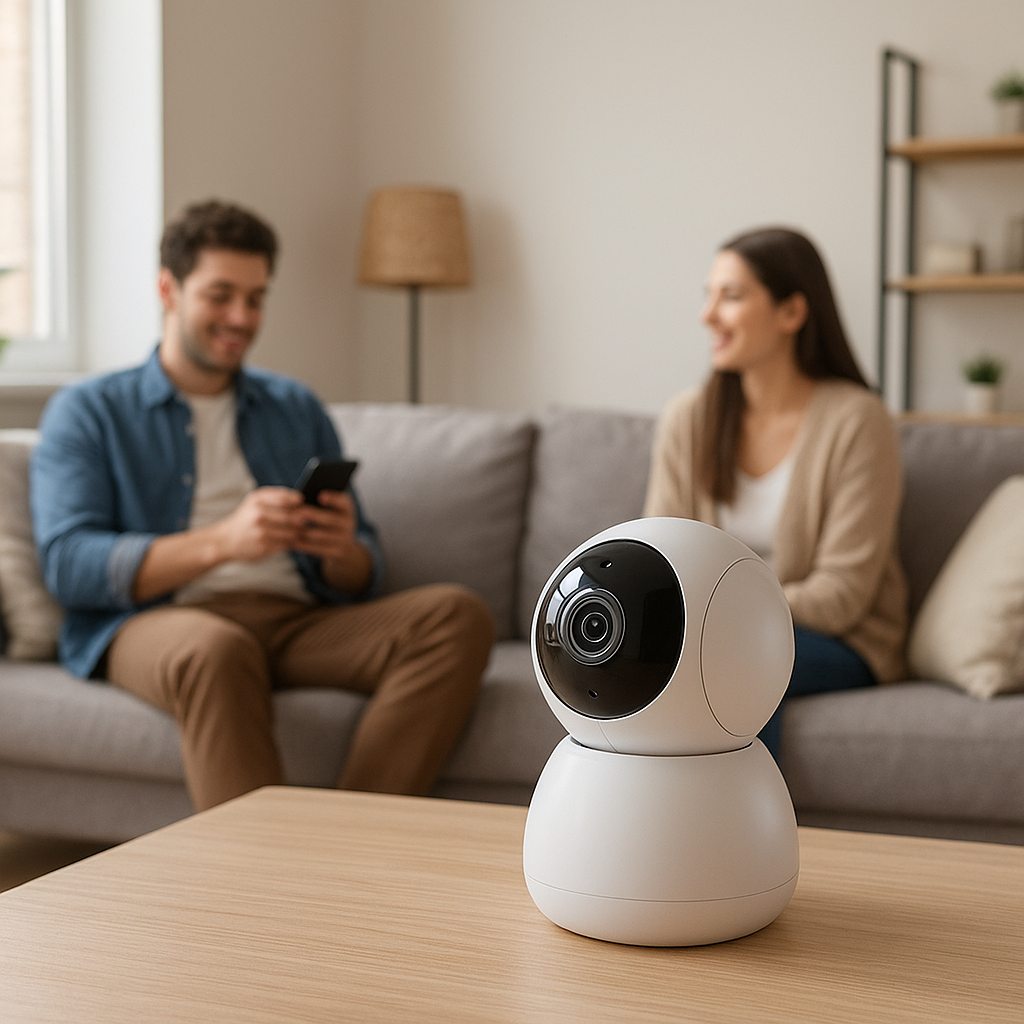
Indoor security cameras can make your home feel safer, but nobody wants to feel watched in private spaces like bedrooms and home offices. Cameras with built‑in privacy shutters solve this tension. They let you keep a camera installed and ready, while clearly and physically blocking the lens whenever you don’t want it active.
This guide walks through the best indoor security cameras with privacy shutters for bedrooms and home offices, the features that actually matter, and how to place and automate them so your space feels secure, not surveilled.
We’ll cover privacy shutter types, smart alerts, storage options, and practical setup tips so you can choose the right camera and configure it with confidence.
Why Privacy Shutters Matter on Indoor Security Cameras
The unique privacy needs of bedrooms and home offices
Bedrooms and home offices are different from entryways or living rooms. They typically contain:
- More personal activities (sleeping, dressing, nursing, working)
- Sensitive information like work documents, screens, and whiteboards
- Extended periods where you’re in view of the camera
Because of this, many people either avoid cameras in these rooms or unplug them regularly. A camera with a privacy shutter gives you a middle ground: you get security when you want it (for example, while you’re away or at night with kids sleeping), and a clear, visible “off” state when you want privacy.
How privacy shutters work (mechanical vs software-only privacy modes)
Indoor cameras handle privacy in two main ways:
- Mechanical privacy shutters: A physical cover slides over the lens. Some cameras use a manual slider; others have motorized shutters that close automatically on a schedule or when you tap a button in the app.
- Software-only privacy modes: The camera stops streaming and recording but the lens is still exposed. You rely on an app icon or LED to know it’s “off.”
Mechanical shutters are generally more reassuring because you can visually confirm the lens is covered. Some models even angle the camera down toward the base when privacy mode is on, so you can see at a glance that it’s not watching the room.
Benefits over simply unplugging or pointing the camera away
You can always unplug a camera or twist it to face the wall, but shutters offer several advantages:
- Consistency: You don’t forget to plug it back in or re-aim it before a trip or at night.
- Automation: Shutters can tie into schedules, presence detection, or routines (for example, closing when you go to bed).
- Clear status: A closed shutter is an obvious visual signal for everyone in the room.
- Remote control: If you leave home and realize the camera is “off,” you can open the shutter remotely without asking someone to adjust hardware.
Common privacy concerns with always-on indoor cameras
People hesitate to put cameras in bedrooms and offices for good reasons:
- Hacking risks: Fear that someone could gain access and watch or record without consent.
- Data misuse: Worries about companies using footage for training AI or targeted ads.
- Accidental oversharing: Cloud accounts shared too widely, or other household members seeing more than they should.
- General discomfort: Feeling self-conscious when a lens is always pointed at you.
A well-designed privacy shutter, combined with local storage and strong account security, helps reduce these concerns and makes it realistic to use cameras in rooms you actually spend time in.
Key Features to Look for in an Indoor Camera with Privacy Shutter
Physical shutter design and ease of toggling privacy mode
The shutter is the star feature, so pay close attention to:
- Type: Manual slider, flip-down cover, or motorized “privacy shield.”
- Speed: How quickly it opens/closes when you tap the app or use voice control.
- Reliability: Does the camera confirm in the app when privacy mode is active?
- Tactile controls: Some cameras include a hardware button on the body for people who don’t want to dig into an app.
For bedrooms, a motorized shutter that automatically closes on a schedule is convenient. In home offices, a hardware button or keyboard shortcut (for cameras that double as webcams) can be very helpful during calls.
Local vs cloud storage and data encryption
Storage affects both security and subscription costs:
- Local storage: A microSD card or network video recorder (NVR) keeps footage in your home. Fewer cloud privacy concerns, but you need to secure your network and devices.
- Cloud storage: Clips or continuous recording stored on the vendor’s servers. Easier remote access and sharing but more reliance on the provider’s security practices.
Look for cameras that support encryption in transit and at rest. Many brands use strong encryption similar to what’s described for general internet security in resources like end-to-end encrypted systems.
For especially sensitive spaces, consider cameras that allow you to turn cloud uploads off completely while still recording to local storage.
Video quality, night vision, and field of view for small rooms
In bedrooms and home offices, you usually don’t need ultra-wide lenses that capture every corner, but you still want:
- Resolution: 1080p is the minimum; 2K or 4K helps with detail, especially to read badges or notes in a home office.
- Night vision: Infrared LEDs should offer clear grayscale footage without being overly bright or distracting.
- Field of view: 110°–130° is often ideal. Ultra-wide lenses can capture more than you intended, including mirrors and adjoining rooms.
Smart alerts, person detection, and noise/cry detection
To avoid constant notifications, look for:
- Person detection: Reduces false alerts from curtains, shadows, and pets.
- Activity zones: Let you ignore areas like a TV or hallway while focusing on doors and windows.
- Noise or cry detection: Useful in nurseries or kids’ rooms, where you may care more about audio events than constant video.
Some cameras offer package or pet detection too, but for bedrooms and offices, person and sound-based alerts are most useful.
Smart home integrations (Alexa, Google Assistant, Apple Home, Matter)
Integration lets you automate shutters and recording:
- Alexa/Google Assistant: Show the live feed on a smart display, or use routines like “Goodnight” to close shutters and arm alerts.
- Apple Home / HomeKit Secure Video: Enables on-device analysis and tighter privacy rules for iPhone and HomePod users.
- Matter support: Still emerging for cameras, but long term this will simplify cross-platform automation.
Mounting options for desks, shelves, and walls
Check that the camera comes with practical mounting hardware:
- Freestanding base: For placing on nightstands, bookshelves, or monitor risers.
- Wall/ceiling plates: For getting the camera higher up and less noticeable.
- Tripod or 1/4″ thread: Helpful if you want flexible positioning or to repurpose camera mounts you already own.
For renters, adhesive or clamp-style mounts avoid drilling and make it easy to reposition later.
Best Indoor Security Cameras with Privacy Shutters for Bedrooms
Camera A – Best overall privacy camera for bedrooms
The ideal bedroom camera offers a quiet motorized shutter, dimmable LEDs, and reliable night vision. Look for a model similar to popular privacy-focused indoor cams (for example, Arlo’s indoor cameras with a privacy shield or Logitech’s HomeKit-focused indoor cams).
Key traits:
- Motorized privacy shield that completely covers the lens when off
- Strong low-light performance without harsh red glow from IR LEDs
- Support for schedules, like closing the shutter at bedtime automatically
- Physical LED indicators that can be disabled or dimmed
For many bedrooms, 1080p or 2K with person detection and flexible notification schedules is plenty.
Camera B – Best budget privacy shutter camera for renters
Budget doesn’t have to mean giving up privacy. Some low-cost indoor cams include a manual or motorized shutter and microSD storage. These are great for renters who want an affordable camera they can remove easily.
Features to prioritize on a budget:
- Manual slider or flip-down shutter that fully blocks the lens
- microSD slot for local recording (so you can skip or minimize subscriptions)
- Adhesive or non-permanent mounting options
- Simple mobile app with clear privacy controls
Camera C – Best for parents and nurseries
For nurseries, you want a hybrid baby monitor and security camera with:
- Privacy shutter or clear privacy mode when you’re in the room
- Reliable cry detection and two-way audio
- Gentle, non-distracting IR night vision
- Flexible viewing angles to see the crib without capturing the whole room
Some nursery-friendly models include pan/tilt for tracking movement and better framing, but pan/tilt is only helpful if privacy modes are easy to trigger whenever you’re playing or feeding in the room.
Noise, LED lights, and other bedroom comfort considerations
In a bedroom, comfort is just as important as specs:
- Motor noise: Motorized shutters should be nearly silent to avoid waking light sleepers.
- LED brightness: Status lights should dim or turn off in “Do Not Disturb” or night mode.
- IR glow: Some IR arrays emit a dull red glow that can bother sensitive sleepers—reviews often mention this, so check before buying.
- Cable routing: Make sure cords aren’t where you’ll trip over them at night.
Best Indoor Security Cameras with Privacy Shutters for Home Offices
Camera D – Best for work-from-home professionals and meetings
For a dedicated home office, the best cameras double as low-key security devices and meeting companions. Think of models that:
- Sit unobtrusively on a shelf or monitor stand
- Provide crisp 2K or 4K video for reviewing deliveries or incidents
- Offer a one-tap privacy shutter in the app or via voice control
- Integrate with calendar or status (for example, closing the shutter during scheduled calls)
Some cameras can also be connected as a virtual webcam using desktop software, giving you better optics for video calls without adding another device.
Camera E – Best for shared office spaces and studios
Shared spaces—whether it’s a coworking-style room at home or a studio—raise extra privacy questions. Choose a camera that:
- Has an obvious physical shutter so everyone can see when it’s disabled
- Supports multiple user accounts or granular sharing permissions
- Can limit recording to off-hours, with schedules clearly communicated to everyone
- Offers local storage if you don’t want workplace footage in the cloud
Look for vendors that document their privacy and access-control practices clearly, including how they handle multi-user access.
Camera F – Best for hybrid setups that double as a webcam
A few indoor cameras can act as both security cameras and webcams. These are attractive if you:
- Work from home and want a better camera for calls
- Want security coverage when you’re away, but absolute privacy when on camera for work
For this use case, prioritize:
- USB or dedicated computer connectivity in addition to Wi‑Fi
- A hardware shutter or tilt-down privacy position you can confirm visually
- Quick switching between “webcam mode” and “security mode”
Managing recordings and notifications during working hours
To avoid constant alerts every time you shift in your chair:
- Set an office schedule where motion notifications are off during work hours but on after you close the door for the day.
- Use activity zones focused on the door or window, not your desk.
- Consider event-only recording so it only saves footage when a person is detected.
- If you take sensitive calls, have a rule: shutter closed for all client calls, open only when you leave the room.
Comparing Privacy and Security: Shutter Types and Controls
Fully mechanical shutters vs motorized auto-close shutters
Each shutter type has trade-offs:
- Fully mechanical (manual): Simple, reliable, doesn’t depend on software. You physically slide or flip a cover. Great for renters and people wary of automation.
- Motorized: Can close automatically based on time or presence and via app/voice controls. Slightly more complex, and you rely on the vendor’s software to behave correctly.
If you love automation and schedules, motorized shutters are worth it. If you want a camera that’s clearly “off” unless you deliberately open it, manual may feel more trustworthy.
Scheduled privacy modes vs manual control in the app
Good cameras offer both:
- Schedules: Great for predictable patterns, like closing the shutter from 10:30 p.m. to 7:00 a.m. in a home office, or opening it only during school hours in a kid’s room.
- Manual control: Essential for one-off situations—unexpected guests, sick days, or late-night work sessions.
Look for apps where schedules and manual overrides are clearly indicated so you don’t accidentally leave a camera recording when you meant to pause it.
Using geofencing so the shutter closes when you’re home
Many camera apps can use your phone’s location to switch modes:
- Arm when away: Shutter opens and motion alerts turn on as you leave a geofenced area.
- Disarm when home: Shutter closes and alerts quiet down when your phone returns.
For couples or families, choose cameras that support multi-user geofencing so the system only arms when everyone has left.
Visual indicators that the shutter is closed (and the mic is off)
A good privacy mode should be obvious without opening the app. Look for:
- The lens physically covered or pointed down
- A distinct LED color or pattern for privacy mode (ideally dim)
- Clear labels in the app stating both video off and microphone off
Some cameras allow muting the microphone separately from the shutter. Decide whether you want audio-only monitoring in certain scenarios (for example, listening for a baby crying while not recording video).
Placement Tips for Bedroom and Home Office Cameras
Where to aim the camera for privacy while still covering entry points
Your goal is usually to see:
- Doors (bedroom door, office door, balcony door)
- Windows accessible from outside
- Entry from hallways or shared spaces
Try to avoid pointing directly at beds or desks. A diagonal angle from a corner of the room often covers doors and windows without centering on where you sleep or sit.
Avoiding mirrors and reflective surfaces that compromise privacy
Mirrors and glossy screens can unintentionally expand your camera’s coverage. During setup:
- Check the live view for reflections from mirrors, framed art, or TV screens.
- Make sure you can’t see into bathrooms or other private areas via reflections.
- Adjust the camera height or angle to minimize unwanted views.
This is especially important in bedrooms with mirrored wardrobes or in offices with large glass partitions.
Desk, shelf, and wall-mount ideas for home offices
In a home office, you usually want the camera:
- High enough to see the door
- Far enough from your main screen to avoid constant movement triggers
- Close to an outlet or cable path
Common setups include:
- On a bookshelf next to the door, angled inward
- On a monitor riser facing the office entrance, not your screen
- Wall-mounted above the door for a discreet top-down view
Cable management and keeping the setup discreet
To keep things tidy and less intimidating for visitors:
- Run cables along baseboards with adhesive clips or raceways
- Use right-angle USB adapters to reduce visible cable loops
- Bundle excess cable length behind furniture or in a cable box
- Match cable color to walls or furniture when possible
Balancing Security Monitoring with Comfort and Trust
Setting clear rules for when the camera is allowed to record
Before installing a camera in a private space, decide on rules such as:
- No recording when someone is sleeping in the room
- Video allowed during certain hours, audio off at all times
Translate these rules into schedules, geofencing, and app automations, so your configuration matches your intentions.
Sharing access with family, roommates, or coworkers safely
Shared access is where trust really matters. Consider:
- Creating separate accounts instead of sharing a single login
- Limiting who can change privacy settings vs. who can only view
- Regularly reviewing which devices and people have access
If your camera supports it, enable activity logs so you can see when shutters were opened or settings changed.
How to talk about indoor cameras with guests and visitors
Transparent communication helps avoid awkward situations:
- Tell guests where cameras are located, especially in bedrooms or office guest rooms.
- Show them that the shutter is closed and explain how privacy mode works.
- If someone is staying overnight in a room with a camera, consider unplugging it or removing it entirely for their stay.
App Experience and Smart Home Automation Ideas
Creating routines that close the shutter at night or during calls
Most ecosystems let you build routines such as:
- “Goodnight” scene: Close all bedroom shutters, arm motion alerts in common areas, dim lights.
- “Work call” scene: Close office camera shutter, turn on a desk light, set your status in collaboration apps.
Many camera apps provide their own automation tools; others integrate with platforms like Alexa Routines or Google Home automations.
Automations with smart locks, motion sensors, and lights
You can tie cameras into other smart devices for smarter behavior:
- Turn on a bedroom lamp and start recording only if the door opens after a certain hour.
- Trigger a short recording when a smart lock is unlocked, then close the shutter afterward.
- Use additional motion sensors to trigger lights while relying on the camera mainly for evidence, not constant detection.
Using voice assistants to open/close the shutter securely
Voice controls are convenient but can affect security. If your camera supports voice assistants:
- Enable PIN-protected actions for opening shutters or changing modes, when supported.
- Use voice primarily for closing shutters (privacy) rather than opening them.
- Limit which smart speakers can control cameras, especially in shared spaces.
Major platforms like Alexa and Google Nest document their camera and privacy controls in detail in their support pages, such as the Google Nest help articles on camera privacy behavior (Nest camera privacy and data use).
Subscription Costs, Local Storage, and Long-Term Value
Which features require a paid plan (smart alerts, cloud history)
Many cameras advertise advanced features that only work with a subscription. Common paywalled features include:
- Extended cloud history (beyond 24 hours or a few clips)
- Rich alerts like person, pet, or package detection
- Activity zones and facial recognition
Before buying, check which features are included for free and which require a plan, so you don’t overspend long term.
Evaluating cameras with microSD or NVR options
Local storage can be a big cost saver:
- microSD: Simple, inexpensive, great for a single room. Ensure the card supports loop recording and is rated for continuous write (endurance cards).
- NVR: Better if you have multiple cameras. Centralizes recordings and can often be isolated from the internet for extra privacy.
Some cameras allow simultaneous local and cloud recording, giving you a backup if the network goes down or storage fails.
How long you really need to keep indoor footage
For bedrooms and offices, you rarely need long retention. Many households are comfortable with:
- 24–72 hours of footage for bedrooms
- Up to a week for offices if you’re watching for occasional access issues
Shorter retention reduces storage needs and limits how much personal history exists on your devices or in the cloud.
Safety and Privacy Best Practices for Indoor Cameras
Securing your Wi-Fi network and camera accounts
A camera is only as secure as the network it’s on:
- Use WPA3 or at least WPA2 on your Wi‑Fi router.
- Avoid default router passwords and SSIDs that reveal the brand or your name.
- Consider a separate guest or IoT network for cameras and smart devices.
Two-factor authentication and unique passwords
Always:
- Enable two-factor authentication (2FA) for your camera app account.
- Use a unique, strong password stored in a password manager.
- Avoid sharing your main account—use family or shared-access features instead.
Firmware updates and vendor privacy policies to check
Vendors regularly release firmware updates to patch vulnerabilities and improve performance. Get in the habit of:
- Enabling auto-updates if offered
- Occasionally checking the app for pending firmware updates
- Reviewing the vendor’s privacy policy for how they store, analyze, and share footage
If a brand has a history of breaches or vague privacy promises, consider choosing a manufacturer with more transparent practices instead.
Summary: How to Choose the Best Indoor Security Camera with Privacy Shutter for Your Space
Quick decision guide for bedroom vs home office use
To narrow things down, ask:
- Bedroom: Is the shutter quiet and obvious? Are LEDs dimmable? Is night vision gentle? Does it offer person/noise detection without overwhelming alerts?
- Home office: Does it integrate with your smart home platform? Can you easily pause recording during work? Is the field of view focused on entry points, not your screen?
- Shared spaces: Can you clearly show others when it’s off, and share access with limits?
From there, decide on local vs. cloud storage, budget, and any must-have integrations (Alexa, Google, HomeKit, or future Matter support).
Recommended setup checklist before you hit record
Before you rely on your new camera, run through this checklist:
- Confirm the shutter fully covers the lens and that privacy mode also disables the mic (if desired).
- Set schedules for when recording is allowed or blocked.
- Configure geofencing if you want the camera to arm/disarm automatically.
- Create activity zones that focus on doors and windows, not your bed or desk.
- Test notifications and adjust sensitivity so you only get useful alerts.
- Secure your Wi‑Fi, enable 2FA, and install any firmware updates.
- Walk around the room and check the live view for reflections and blind spots.
With the right privacy-focused camera and a few thoughtful settings, you can protect your bedroom or home office while still feeling fully at ease in your own space.
FAQ
Do I really need a privacy shutter if I trust the camera brand?
A reputable brand and strong security features help, but a privacy shutter adds a visible, physical layer of assurance. It protects you even if software glitches, your account is compromised, or settings change unexpectedly. Many people feel more relaxed with a lens that can be physically blocked.
Can I use a baby monitor instead of a privacy shutter camera?
Traditional baby monitors work well for nurseries, but they usually lack advanced privacy controls, app automations, and smart alerts. A camera with a proper privacy shutter lets you repurpose it later for general security and gives you more precise control over when it records.
Is it legal to put a camera in a bedroom or home office?
In most places, it’s legal to record in your own home as long as you’re not secretly recording in bathrooms or similar spaces, and you’re not violating consent laws for audio recording. Laws vary by region, especially around audio, so check local regulations and always be transparent with anyone who regularly uses the room.
Will a privacy shutter stop hackers from accessing my camera?
A shutter doesn’t prevent hacking attempts, but it limits the damage: if the lens is covered and the mic is off, an attacker can’t see or hear much. You still need strong passwords, 2FA, and a secure network to reduce the risk of anyone accessing your camera in the first place.
How many indoor cameras do I need in a small apartment?
For many small apartments, one camera in the main entrance/living area plus one privacy-focused camera for a bedroom or home office is enough. Place them so they cover entry doors and main windows without over-monitoring private areas, and lean on shutters and schedules to keep things comfortable.