Many devices in your home draw power even when you think they are off. This slow, constant energy drain is often called “vampire power” or “phantom load,” and it can quietly add a noticeable chunk to your electric bill.
The good news: with a few smart plugs and an energy monitor, you can see exactly what’s running, how much it costs, and where to cut waste without sacrificing convenience. This guide walks you step by step through how to track vampire power with smart plugs and energy monitors, how to interpret the data, and how to build simple automations that keep your always-on loads under control.
What Is Vampire Power and Why It Matters
The difference between active use, standby power, and always-on loads
Every device in your home uses electricity in a few different ways:
- Active use: The device is doing its main job. A TV showing a movie, a laptop charging while in use, or a coffee maker brewing are all in active use.
- Standby power: The device looks off but is still partially on. Examples include TVs waiting for the remote, game consoles in “rest mode,” or a printer that’s “sleeping” but can wake quickly.
- Always-on loads: Devices that run 24/7. Your router, modem, fridge, certain smart home hubs, and security systems need constant power to do their job.
Vampire power is mostly the standby and unnecessary always-on portion of this usage. A few watts here and there doesn’t sound like much, but they run every hour of every day.
Common vampire devices in a modern smart home
Smart homes add convenience, but also introduce more always-plugged-in gadgets. Common vampire power culprits include:
- TVs and soundbars in standby
- Streaming boxes (Roku, Apple TV, Fire TV) that rarely turn fully off
- Game consoles in rest/instant-on modes
- Printers and all-in-one devices sitting idle
- Laptop docks and monitor power bricks
- Phone, tablet, and smartwatch chargers left plugged in
- Smart speakers and older smart hubs
- Microwave clocks and other always-on displays
Individually these may only draw 1–10 watts. Multiplied across a home and over 8,760 hours in a year, the cost becomes meaningful.
How vampire power quietly increases your energy bill
According to research summarized in the standby power article on Wikipedia, standby and always-on loads can account for a noticeable share of household electricity use. In a typical home, that can translate to dozens of dollars (or more) per year in energy you never actively used.
The problem is visibility. Your utility bill shows one big number, not which device is sipping power all night. Smart plugs and energy monitors break that number down so you can decide which devices are worth managing and which ones are fine to leave as-is.
Why Use Smart Plugs and Energy Monitors to Track Always-On Loads
Benefits of smart plugs vs. whole-home energy monitors
There are two main tools for finding vampire power:
- Smart plugs with energy monitoring measure the power used by a single outlet. They’re ideal for plug-in devices like TVs, office gear, and chargers.
- Whole-home energy monitors connect to your electrical panel (often via clamp-on sensors) and measure the entire home. Some can even identify individual appliances by their power signature.
Smart plugs give very precise data for individual devices and let you turn things off remotely. Whole-home monitors give a big-picture view and help you spot always-on loads you can’t plug into a smart outlet, like hardwired lights or built-in appliances.
When a basic smart plug is enough and when you need an advanced energy monitor
A basic Wi-Fi smart plug with energy metering is usually enough if:
- You mainly want to check obvious suspects: TV, entertainment center, office gear, chargers.
- You’re comfortable manually moving one or two plugs around to test different devices.
- You don’t need long-term graphs beyond what the plug’s app provides.
An advanced energy monitor or smart panel system makes more sense if:
- You want a detailed breakdown of your whole home’s usage, 24/7.
- You suspect big hidden loads (e.g., always-on well pump, pool equipment, or electric water heater).
- You prefer automated detection of appliances instead of plugging and unplugging devices.
Safety and device compatibility considerations before you start
Before connecting anything:
- Check the smart plug’s rating. Most are rated around 10–15A and 120V (in North America), which is fine for TVs and electronics but not for space heaters, portable AC units, or large appliances.
- Match plug type and Wi-Fi band. Make sure the plug fits your outlet type and supports your home’s Wi-Fi (2.4 GHz is most common).
- Do not use smart plugs on medical devices or critical equipment. Anything that must stay on for safety should be plugged directly into a wall outlet or properly rated surge protector, not a controllable plug.
Choosing the Right Smart Plugs and Energy Monitors for Vampire Power Tracking
Key features to look for: energy metering, schedules, and app insights
For tracking vampire power, look for smart plugs and monitors with:
- Real-time and historical energy metering in watts (W) and kilowatt-hours (kWh).
- Per-device energy reports so you can see daily, weekly, and monthly usage.
- Schedules and timers to automatically turn devices off at night or when you’re away.
- Integration with your ecosystem (Alexa, Google Home, Apple Home, Home Assistant, SmartThings) for automations.
- Clear, readable app graphs so you can quickly spot always-on loads.
Recommended smart plugs with built-in energy monitoring
Popular examples that include energy monitoring features (always confirm the exact model supports this) include:
- TP-Link Kasa smart plugs with energy monitoring (HS110 / KP115 series)
- TP-Link Tapo P110/P115 (in some regions)
- Emporia smart plugs (integrate with Emporia’s energy monitoring app)
- Meross smart plugs with energy monitoring (selected models)
All of these allow you to see real-time wattage and cumulative energy use per device, which is exactly what you need to hunt vampire loads.
Whole-home energy monitors and smart panels for deeper tracking
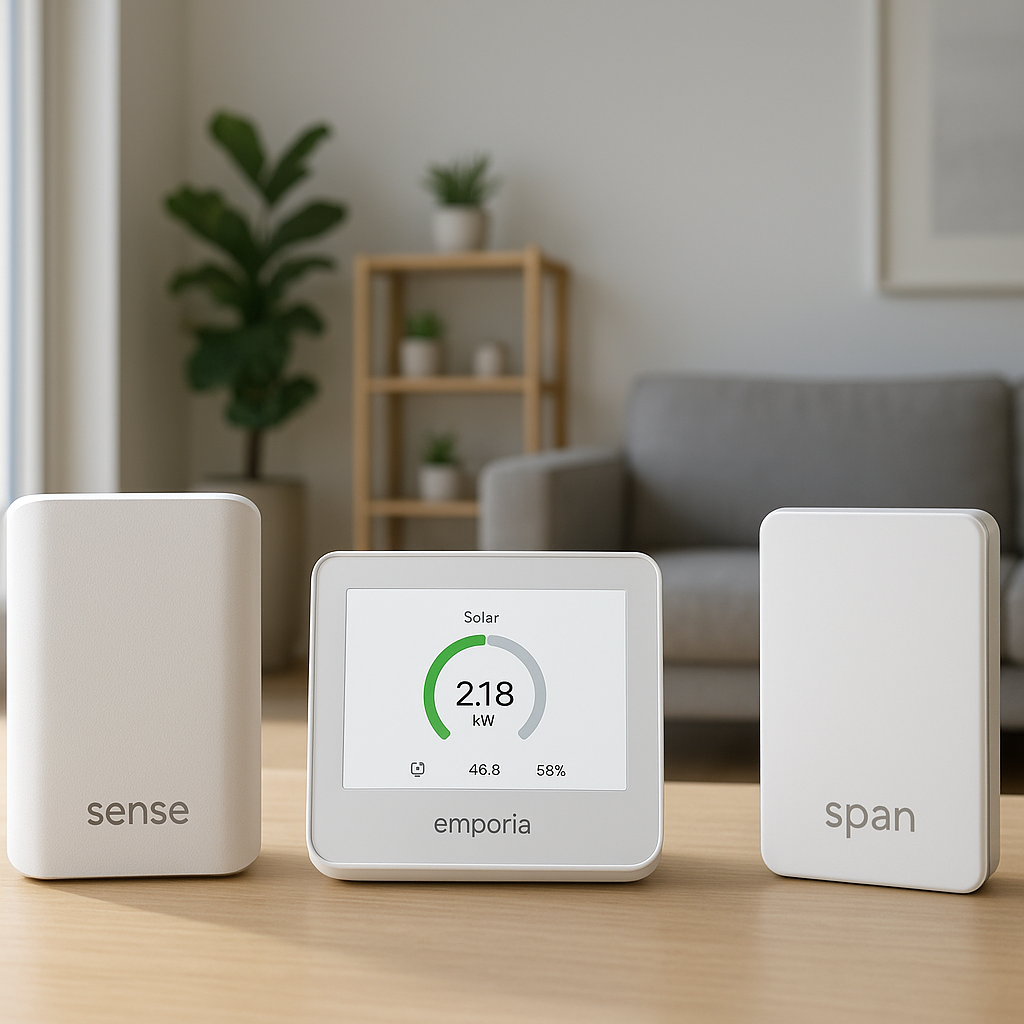
Whole-home systems typically live in or near your electrical panel and use clamp-on current transformers to monitor circuits. Examples include devices like Sense, Emporia Vue, and smart panels from manufacturers such as Span.
These products can show you:
- Your total always-on baseline usage
- Which circuits contribute the most to that baseline
- Trends over time as you add more automations and smart plugs
Some utilities and local programs even offer rebates or incentives for installing advanced energy monitoring systems; check your utility’s efficiency or demand-response offerings for details.
Step-by-Step: How to Track Vampire Power with Smart Plugs
Identify likely vampire devices to plug into smart outlets
Start with the devices that are always plugged in and easy to control via a plug:
- Entertainment center: TV, soundbar, streaming boxes, game consoles
- Home office: monitors, printer, docking station, speakers
- Bedrooms: chargers, bedside lamps with wall warts, smart speakers
- Kitchen counter: coffee maker, toaster oven, microwave (for its clock), plug-in water dispenser
Pick one area, such as your living room, and move methodically. This keeps the process manageable and makes it easy to see the impact of changes.
Set up your smart plug in the app and enable power monitoring
The process will vary slightly by brand, but generally you’ll:
- Plug the smart plug into a wall outlet.
- Open the manufacturer’s app (such as Kasa, Tapo, Meross, or Emporia).
- Follow the on-screen steps to add a new device and connect it to Wi-Fi.
- Plug your target device (TV, monitor, etc.) into the smart plug.
- Look for an “Energy” or “Usage” tab in the app and make sure monitoring is enabled.
Give the plug a clear name like “Living Room TV – Energy” so you can find it easily later.
How to log baseline power use and interpret wattage readings
To understand vampire power, you want to know what a device draws when you think it’s off.
- Turn the device fully off using its remote or power button.
- Wait a minute or two for it to settle into standby.
- Open the plug’s app and note the real-time wattage. This is your standby draw.
- Leave it like this for at least 24 hours to log daily kWh consumption.
A reading of 0–1 W is usually fine. Readings of 3–10 W in standby are worth attention. Over a year, a 5 W standby load running all the time uses about 44 kWh (5 W × 24 hours × 365 days ÷ 1000).
Using schedules and automation to cut power to non-essential devices
Once you know the standby draw, you can create automations:
- Set a nightly schedule to turn off your entertainment center smart plug at midnight and back on at 6 p.m.
- Turn off office equipment plugs automatically outside working hours.
- Create vacation-mode schedules that cut power to chargers, TVs, and printers when you’re away for several days.
Always test that devices restart gracefully when power is restored. Some game consoles or networked devices may need a few extra seconds before they’re fully ready.
Using Energy Monitors to Find Always-On Loads You Can’t Unplug
Connecting clamp-on or whole-home monitors and viewing real-time data
Clamp-on and panel-mounted energy monitors usually install near your main breaker panel. Many homeowners prefer to have a licensed electrician handle installation, especially where work near live conductors is involved.
Once installed and connected to your Wi-Fi:
- Open the monitor’s app and check your total real-time wattage.
- Compare that number during the day vs. at night when most things are off.
- The nighttime level is a good picture of your home’s “always-on” baseline.
Spotting 24/7 loads in the usage graph and daily kWh reports
In the app, look at 24-hour or 7-day energy graphs:
- A flat line that never dips below a certain wattage (say 250–400 W) suggests a high always-on baseline.
- Spikes are normal when appliances cycle, but the lowest part of the graph is your true vampire/always-on level.
- Some monitors label “Always On” or “Phantom Loads” as a separate category in daily kWh reports.
Distinguishing necessary always-on loads from avoidable waste
Not all always-on power is bad. Essential 24/7 loads include:
- Fridges and freezers
- Network gear (router, modem), especially if you have security cameras or smart locks
- Security systems and smoke/CO detectors
- Sump pumps, medical equipment, and critical monitors
Avoidable waste might include:
- Water coolers or dispensers that run a heater/compressor constantly
- Old DVRs and set-top boxes you rarely use
- Outdoor or decorative lights left on all night without a schedule
Use your monitor’s data to estimate how much each suspect circuit contributes, then use smart plugs, timers, or smart switches to trim the unnecessary part.
Interpreting Data: What Counts as a Problematic Vampire Load?
Typical standby wattages for TVs, chargers, routers, and smart gear
Every device is different, but you’ll often see ranges like:
- Modern TV: 0.5–3 W in standby; older models can be higher.
- Soundbar: 1–5 W in standby.
- Game console: 1–10 W in rest/instant-on modes.
- Phone/tablet charger (plugged in, no device): <1 W typically.
- Router/modem combo: 6–15 W, but this is usually a necessary always-on load.
- Smart speaker: 2–5 W idle.
Focus your effort on things that use 3–10 W constantly and don’t truly need to be on all the time.
How to calculate monthly and yearly cost from wattage and kWh
Many apps show kWh and even estimated cost, but it helps to know the math:
- Watts to kWh per month: watts × hours per day × 30 ÷ 1000.
- Cost per month: kWh per month × your electricity rate.
For example, a 5 W vampire load running 24/7:
- 5 W × 24 hours × 30 ÷ 1000 ≈ 3.6 kWh per month.
- At $0.20 per kWh, that’s about $0.72 per month or ~$8.64 per year for one device.
The U.S. Department of Energy has a helpful overview of so-called “phantom loads” and their impact on bills in its article on identifying and unplugging phantom loads.
Prioritizing which devices to control for maximum savings
To get the best return on a few smart plugs:
- Rank devices by standby wattage × hours used. A 10 W standby TV in a guest room that’s rarely used may matter less than a 5 W office setup that’s on every day.
- Start with clusters of devices, such as your entire entertainment center or office desk, controlled by one or two smart plugs or a smart power strip.
- Consider convenience: prioritize devices that can be safely powered down without long boot times or risk of data loss.
Automations to Reduce Vampire Power Without Sacrificing Convenience
Time-based schedules (sleep mode, work hours, vacations)
Time-based schedules are simple and effective:
- Turn off TVs, streaming boxes, and game consoles at a late-night cutoff time.
- Shut down office equipment an hour after your usual workday ends.
- Use vacation schedules that keep security devices on but cut most other plugs.
Most smart plug apps let you set multiple on/off times per day and different schedules for weekdays vs. weekends.
Presence-based automations using phones and motion sensors
If you use platforms like Alexa, Google Home, SmartThings, or Home Assistant, you can trigger smart plugs based on presence:
- Use phone-based presence or geofencing to turn off groups of plugs when everyone leaves the house.
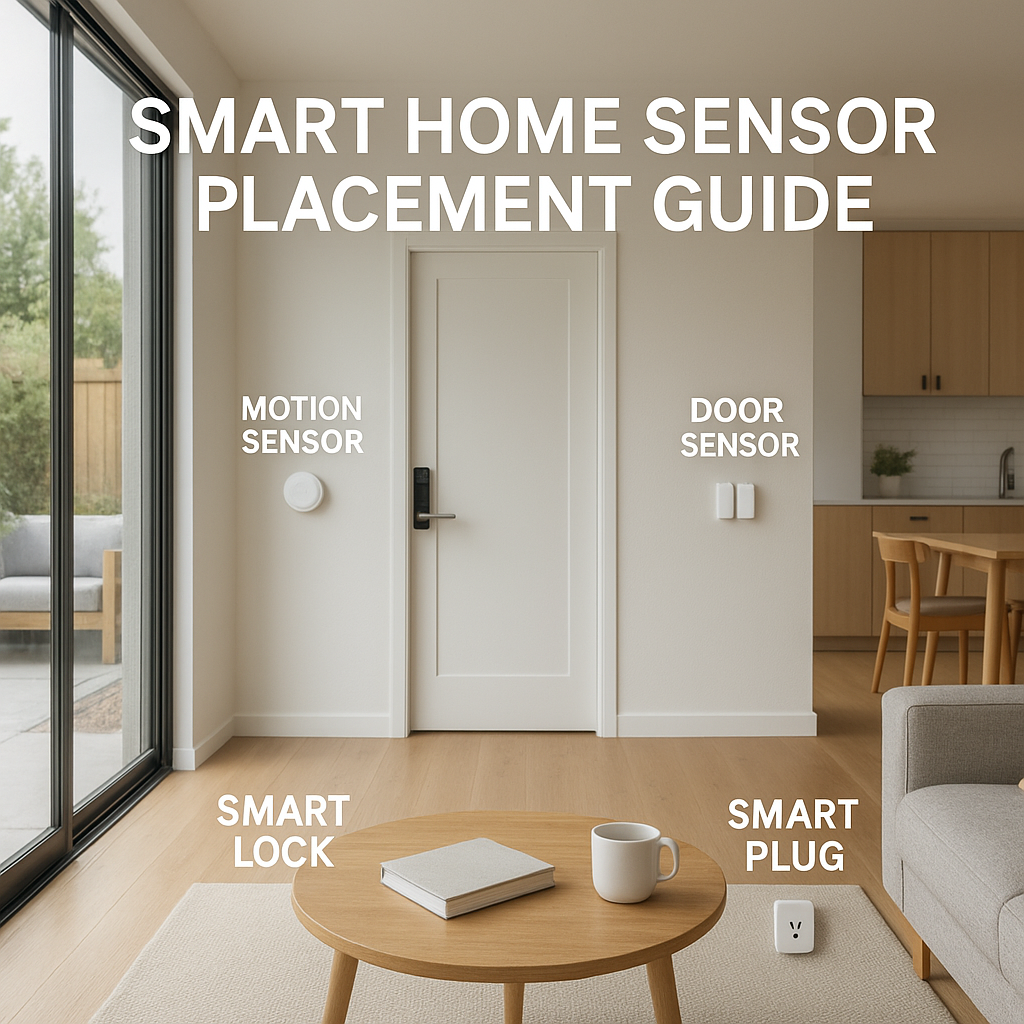
- Use a motion sensor in the office so monitors and printers lose power after a period of inactivity.
- Combine presence with time, such as “if nobody is home after 10 p.m., turn off all non-essential plugs.”
Voice control and scenes to safely power down multiple devices
Voice assistants make it easy to shut things down without hunting for switches:
- Create scenes like “Goodnight” or “Leaving Home” that power off selected plugs.
- Use clear names like “Living Room TV Plug” so commands are natural.
- Keep critical devices (routers, medical equipment) out of these scenes so they are never turned off by accident.
Safety, Reliability, and When Not to Turn Devices Off
Devices that should stay on: routers, medical equipment, fridges, and more
Some devices should not be controlled by smart plugs:
- Refrigerators and freezers: They cycle to maintain temperature; interrupting power can spoil food.
- Medical devices: Anything supporting health or safety must stay on power at all times.
- Routers and modems: Needed for security cameras, alarms, smart locks, and remote monitoring.
- Hardwired smoke/CO detectors and security systems: Leave these on dedicated circuits without smart control.
Avoiding overload: rated current, surge loads, and extension cords
To keep things safe:
- Check each smart plug’s max current rating and keep well below it.
- Avoid daisy-chaining power strips and extension cords into a single smart plug.
- Don’t use smart plugs with high-surge loads like space heaters or portable AC units unless the plug is specifically rated for them.
- If in doubt, plug higher-draw devices directly into the wall or use a properly rated surge protector.
Best practices for firmware updates, security, and long-term reliability
Because smart plugs and monitors live on your network, treat them like any connected device:
- Apply firmware updates regularly through the manufacturer’s app.
- Use a strong Wi-Fi password and keep your router updated.
- Buy devices from reputable brands with a track record of ongoing support.
- Avoid exposing control interfaces directly to the internet; use official apps or a secure smart home hub.
Example Smart Home Setups for Cutting Vampire Loads
Home office: monitors, printers, and docking stations
A typical home office might include dual monitors, a laptop dock, speakers, and a printer, all drawing a few watts even when idle. Use one or two energy-monitoring smart plugs on:
- A power strip feeding your monitors, dock, and speakers.
- A separate plug for the printer, which often has a surprisingly high standby draw.
Create a schedule or scene so everything powers off 30 minutes after your normal quitting time, and turns back on in the morning before you sit down.
Entertainment center: TV, soundbar, consoles, and streaming boxes
Entertainment centers are classic vampire zones. Simplify by:
- Plugging the TV, soundbar, streaming box, and game console into a single smart power strip or one smart plug feeding a standard strip (within rating).
- Measuring standby usage overnight to see what the bundle costs.
- Scheduling a nightly off period and morning on period that still allows for early-evening use.
If you have a device that frequently needs updates (like a console), you might give it its own plug and schedule a shorter off window to avoid interrupting large downloads.
Kitchen and bedroom: coffee makers, chargers, and small appliances
In the kitchen, small appliances often use power for displays and warm-up modes. Place a smart plug on:
- Your coffee maker, if it has a clock and warming plate.
- A microwave or toaster oven with an always-on display, if the plug rating allows.
In bedrooms, target:
- Nightstand chargers and docks that stay plugged in but rarely have devices attached overnight.
- Older smart speakers or radios that draw several watts even when idle.
Simple schedules like turning off these plugs from midnight to 6 a.m. can gradually trim your always-on baseline without changing how you use the space.
Measuring Your Savings and Fine-Tuning Over Time
Tracking bill changes and app-based energy reports
As you add smart plugs and automations, keep an eye on:
- Your utility bill over several months, adjusted for weather changes if you rely on electric heating or cooling.
- The “Always On” or baseline usage reported by your whole-home monitor, if you have one.
- Per-device monthly kWh in your smart plug apps.
You should see your nighttime baseline decrease and your overall monthly kWh trend down slightly, especially if you had many high-draw standby devices.
Adjusting schedules and rules based on real-world use
After a few weeks of real use, you’ll notice patterns:
- Some schedules may shut things off too early or too aggressively.
- Certain devices may need to stay on more often for updates or convenience.
- Other devices you rarely use could be powered down for longer stretches without any downside.
Adjust your rules gradually: trim or extend on/off times, exclude specific plugs from global scenes, and consider presence-based triggers where schedules feel too rigid.
When to expand to more plugs, smart strips, or a whole-home system
If your first few plugs show worthwhile savings and you’re comfortable with the setup, you can:
- Add more plugs to other rooms or to target specific high-standby devices.
- Introduce smart power strips that can meter and control multiple outlets individually.
- Consider a whole-home energy monitor if you still see a high always-on baseline you can’t explain through plug-in devices alone.
The goal is not to put every outlet on a smart plug, but to cover the areas that deliver the most savings and insight with the least hassle.
Conclusion: Build a Smarter, Low-Waste Home with Better Energy Visibility
Vampire power is easy to ignore because you rarely see it directly. Smart plugs and energy monitors change that by turning invisible standby and always-on loads into clear numbers you can act on.
By measuring real usage, targeting the biggest offenders, and layering in a few sensible automations, you can lower your electric bill, reduce waste, and still enjoy all the benefits of a connected home. Start with one or two smart plugs, learn what your devices are doing in the background, and expand only where it makes a noticeable difference.
FAQ
Do smart plugs themselves use a lot of power?
Most modern smart plugs use about 0.5–1.0 W when idle. That small overhead is usually more than offset by the savings from turning off higher-draw devices on a schedule. Still, focus on using smart plugs where they control several watts of standby power, not for ultra-low-power devices.
Can I use smart plugs on power strips or surge protectors?
Yes, as long as the total load on the strip stays within the smart plug’s rating and the strip is in good condition. A common approach is a single smart plug feeding a surge protector for an entertainment center or office desk. Avoid chaining multiple strips or extension cords together.
Will cutting power with a smart plug damage my TV or electronics?
Occasional power cuts are generally fine for most modern electronics, but you should always properly shut down devices first when possible. Avoid cutting power during firmware updates, large downloads, or while drives are in use. If a device behaves poorly after power is cut, consider a less aggressive schedule or leave it powered.
How many smart plugs do I really need to see a benefit?
Many households see useful data and some savings with just 3–5 well-placed plugs: one in the living room, one in the office, and one or two in bedroom or kitchen areas. You can always add more later if you find new high-draw standby devices.
Is a whole-home energy monitor worth it if I already use smart plugs?
Smart plugs are perfect for plug-in electronics. A whole-home monitor adds value when you want to understand the rest of your home: built-in lighting, HVAC, water heaters, and other hardwired loads. If your always-on baseline still looks high after managing plug-in devices, a whole-home monitor can help you find the remaining hidden loads.