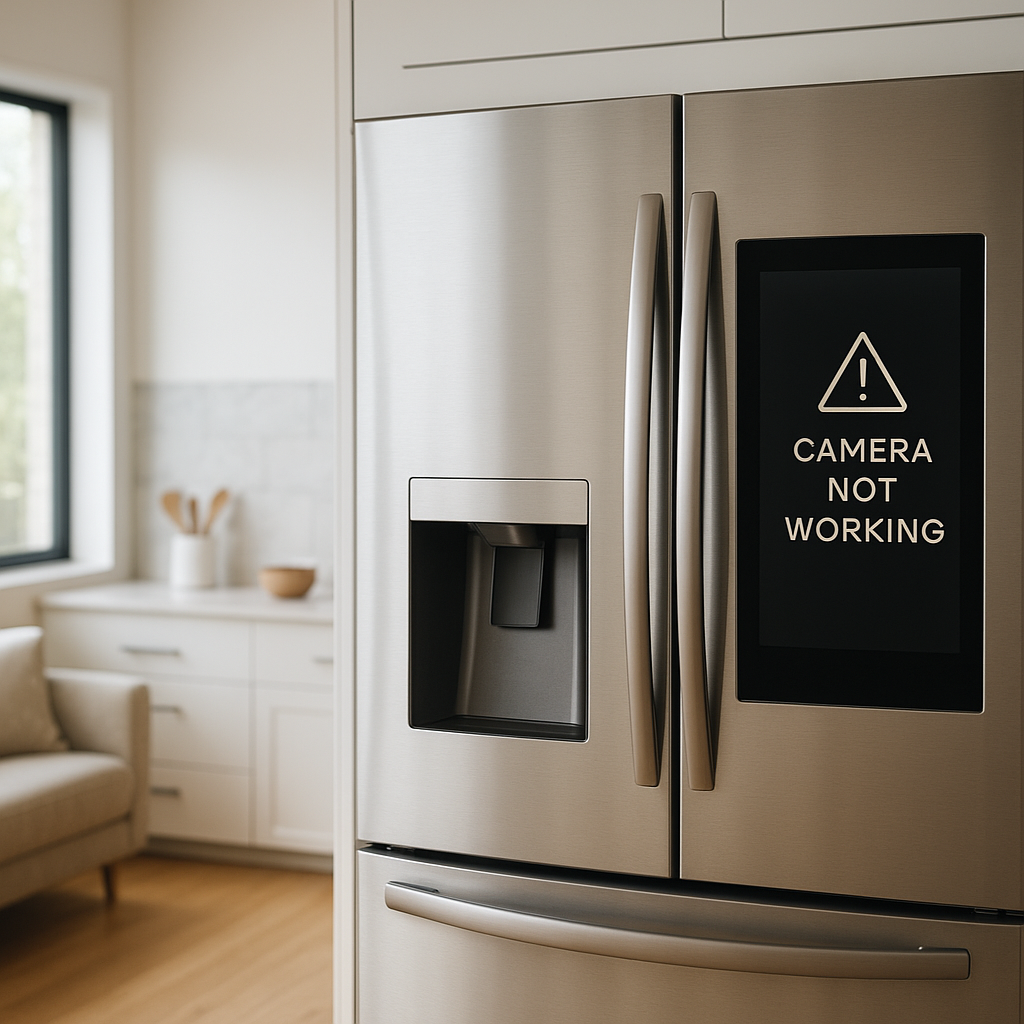

If your security camera keeps going offline at night, you’re not alone. Many Ring, Arlo, and Wyze users notice that everything works fine during the day, but live view fails or the camera shows as “offline” after dark—exactly when you most need it.
The good news: nighttime disconnects usually come down to a few fixable issues. In this guide, we’ll walk through nine proven fixes, with specific tips for Ring, Arlo, and Wyze, so your cameras stay online 24/7.
We’ll start with quick checks to confirm what’s really going wrong, then move step-by-step through Wi‑Fi, power, night vision, and network tweaks that solve most nighttime dropouts.
Why Your Security Camera Keeps Going Offline at Night
Common symptoms across Ring, Arlo, and Wyze cameras
When a security camera keeps going offline at night, the symptoms often look similar across brands:
- Live view fails or takes a long time to connect after dark.
- Camera shows as “Offline” or “Device unreachable” in the app.
- You only see recordings from the day; nighttime clips are missing or incomplete.
- Doorbell presses don’t trigger notifications or video after sunset.
- The camera reconnects on its own in the morning without you changing anything.
Ring users might see low RSSI or power warnings in Device Health. Arlo users might notice the SmartHub light changing color or cameras dropping off the hub. Wyze users often see a gray “Offline” status or timeouts when trying to view live video.
What’s different about nighttime: Wi‑Fi load, interference, temperature, and IR
Nighttime puts extra stress on your cameras and network:
- Infrared (IR) night vision and spotlights turn on, pulling more power and generating more heat.
- Wi‑Fi conditions change: more devices streaming TV, gaming, or using video calls in the evening.
- Interference increases from neighbors’ routers and devices using the same 2.4 GHz band.
- Temperature drops, which can affect battery performance and some lower-quality power adapters.
- More motion at night (cars, animals, headlights) can trigger frequent recordings, which stresses weaker connections.
All of this means a marginal setup that works during the day might fail once night vision and nighttime Wi‑Fi traffic kick in.
How to quickly narrow down whether it’s Wi‑Fi, power, or app-related
Before you start changing settings, identify the most likely culprit:
- Wi‑Fi issue: Other smart devices on Wi‑Fi also seem slow at night; the camera’s RSSI/signal strength shows as poor; the camera comes back online if you move your router closer.
- Power issue: Battery percentage drops quickly at night; wired cameras reboot or show low voltage warnings; doorbells go offline when they switch to night vision or when the mechanical chime rings.
- App/cloud issue: The camera looks offline in the app, but the router shows it connected; multiple devices using the app behave differently; logging out and back in temporarily fixes things.
Knowing which bucket your problem falls into will make the fixes below much faster to work through.
Quick Checks Before You Dive Into Advanced Fixes
Confirming the issue: is it truly only at night?
First, make sure the problem is really tied to nighttime:
- Note the times your camera goes offline and comes back online for a few days.
- Test live view at different times: late evening, middle of the night, early morning.
- Compare sunrise/sunset times with when the problem starts—does it line up with darkness and night vision turning on?
If the camera also drops during the day, you may have a more general Wi‑Fi or power problem, not just a night-specific one.
Testing live view and recordings from multiple devices
Use more than one phone or tablet to rule out app or device-specific issues:
- Try live view from another phone, ideally on a different network (e.g., your mobile data instead of your home Wi‑Fi).
- Check recorded events—do you get clips right before the camera appears offline?
- Confirm whether other cameras or smart devices in your home misbehave at the same time.
If one phone fails but another works, your camera and network may be fine and you might just need to update or reinstall the app.
Checking camera health in the Ring, Arlo, and Wyze apps
Each brand gives you helpful health diagnostics:
- Ring: In the Ring app, open your device > Device Health. Check RSSI, power status (battery vs hardwired), and recent events.
- Arlo: In the Arlo app, select the camera > Device Settings. Look for signal strength, battery level, and connection type (SmartHub vs direct Wi‑Fi).
- Wyze: Open the camera > tap the gear > Device Info. Review signal strength, firmware version, and power source.
Take screenshots of these pages at night when the issue occurs—you may need them later if you contact support.
Fix 1 – Improve Wi‑Fi Signal Strength to the Camera
How weak nighttime Wi‑Fi causes disconnects
Most outdoor cameras use 2.4 GHz Wi‑Fi, which travels farther but is more prone to interference than 5 GHz. At night, more people are streaming and gaming, so a weak or borderline signal to your camera can drop completely, especially when the camera needs more bandwidth for night vision video.
Checking RSSI/signal strength in Ring, Arlo, and Wyze
- Ring: In Device Health, look at Signal Strength (RSSI). Values closer to 0 are better. Around -40 to -60 is good; worse than -70 is problematic.
- Arlo: Signal bars show your connection to the SmartHub or router. Fewer than two bars is a warning sign.
- Wyze: Device Info shows Wi‑Fi signal with a text indicator or bars. If it shows poor or frequently fluctuates, you likely have a range/interference problem.
If your security camera keeps going offline at night and the signal strength is marginal, improving Wi‑Fi is your first priority.
Simple placement tweaks: router location, antenna direction, and obstacles
Try these easy changes before buying new hardware:
- Move your router as centrally as possible, away from thick walls and metal objects.
- Raise the router off the floor, such as onto a shelf.
- If your router has external antennas, angle them differently (e.g., one vertical, one horizontal) to improve coverage.
- Minimize obstacles between router and camera: avoid large appliances, mirrors, and metal doors.
- For Arlo with a SmartHub, move the hub further from the router if they’re very close together to reduce interference.
When to add a Wi‑Fi extender or mesh node near your cameras
If the camera is far from the router or separated by multiple walls, a stronger network is often the only lasting fix.
- Add a mesh Wi‑Fi node or extender in the room closest to the outdoor camera.
- For Arlo SmartHub setups, consider running a longer Ethernet cable so the hub can sit closer to your cameras.
- On large properties, a dedicated outdoor access point aimed toward your cameras can make a huge difference.
To understand how Wi‑Fi range and interference work, you can skim the basics in the Wi‑Fi overview on Wikipedia. It helps explain why cameras at the edge of coverage often fail first at night.
Fix 2 – Separate 2.4 GHz and 5 GHz Networks for Better Stability
Why 2.4 GHz is usually better for outdoor security cameras
Most outdoor cameras from Ring, Arlo (Wi‑Fi models), and Wyze connect more reliably to 2.4 GHz because:
- 2.4 GHz travels through walls and over distance better than 5 GHz.
- It’s less sensitive to minor alignment and placement changes.
- Many cameras only support 2.4 GHz anyway.
If your router uses the same network name (SSID) for both 2.4 and 5 GHz, the camera may bounce between bands or struggle to connect, especially at night when signal conditions change.
How to split SSIDs and lock cameras to the 2.4 GHz band
The exact steps vary by router, but the general process is:
- Log into your router’s web interface or app.
- Look for Wi‑Fi or Wireless settings.
- Give the 2.4 GHz and 5 GHz bands different names (e.g., “Home_2G” and “Home_5G”).
- Reconnect your Ring, Arlo (direct Wi‑Fi models), or Wyze cameras to the 2.4 GHz network only.
Once locked to 2.4 GHz, your cameras are less likely to drop when signal conditions fluctuate.
Dealing with smart routers and band steering that confuse cameras
Some modern routers use “band steering” to automatically move devices between 2.4 and 5 GHz. This is great for laptops, but rough on picky IoT devices.
- Look for settings like Smart Connect, Band Steering, or Intelligent Wi‑Fi and temporarily disable them.
- If your provider’s app hides advanced options, check their support pages for how to separate bands for smart devices.
- As a workaround, create a dedicated 2.4 GHz guest network just for cameras and other smart home gear.
Fix 3 – Address Nighttime Power and Battery Issues
How IR night vision increases power draw and triggers shutdowns
When night falls, your camera enables IR LEDs or spotlights, which draw more current. If your power supply is marginal or your battery is low, the camera may:
- Shut down or reboot when night vision activates.
- Drop Wi‑Fi connection under high load.
- Show flickering video or failed recordings before going offline.
Checking wiring, outlets, and PoE injectors for wired cameras
For wired cameras (including many floodlight cams and PoE models):
- Inspect all connections for corrosion, loose screws, or damaged insulation.
- Test a different outlet or circuit if possible.
- For PoE cameras, confirm the injector or switch matches the camera’s required standard (e.g., 802.3af) and wattage.
- Shorten overly long or low-quality Ethernet runs if possible, or upgrade to better cable (Cat5e/Cat6).
If you’re using Power over Ethernet, the Power over Ethernet article on Wikipedia gives a helpful overview of power and distance limits.
Battery camera tips: cold weather, low charge, and battery health
Battery-powered Ring, Arlo, and Wyze cameras are especially sensitive to nighttime conditions:
- Cold temperatures can cause batteries to drop voltage and shut off earlier.
- Night vision and frequent motion events drain batteries much faster.
- Old or worn batteries may no longer hold enough charge to get through the night.
Keep batteries above 20–30% charge, swap in fresh batteries if yours are a few years old, and consider using solar panels or trickle chargers where supported.
Using scheduled charging and power-saving settings at night
Some systems let you fine-tune power use:
- Charge batteries in the late afternoon or evening so they’re full before night.
- Use power-saving modes that reduce clip length or motion sensitivity during very quiet hours.
- For wired Ring doorbells or floodlights, ensure the transformer matches Ring’s recommended voltage and VA rating, especially if you’ve added extra chimes.
Fix 4 – Tame Infrared Night Vision and Spotlights
Why IR LEDs and spotlights can cause overheating or reboots
On some cameras, a strong IR array or bright spotlight can generate noticeable heat, especially in compact housings. If the camera overheats, it may throttle performance, disconnect from Wi‑Fi, or reboot repeatedly.
Reducing IR intensity or disabling color night vision features
Many Ring, Arlo, and Wyze cameras let you adjust night vision:
- Turn off or reduce color night vision if it forces higher brightness or processing load.
- In some models, you can switch from “Auto” to “Off” for IR and rely on nearby lighting instead.
- Experiment with IR settings to see if the camera stays online more reliably with a lighter night vision profile.
Adjusting spotlight and motion activation schedules to reduce load
If your camera has a built-in spotlight or floodlight:
- Shorten the spotlight-on duration after motion.
- Lower brightness levels at night if possible.
- Use motion zones to avoid frequent triggers from busy roads or sidewalks.
- Set schedules so the light doesn’t run constantly in the early morning hours when activity is low.
Fix 5 – Reduce Interference from Other Nighttime Devices
How TVs, baby monitors, and neighbors’ routers interfere at night
Many home devices share the 2.4 GHz band used by cameras:
- Smart TVs and streaming sticks.
- Baby monitors and cordless phones.
- Microwave ovens used in the evening.
- Neighbors’ routers that get busier at night.
When your security camera keeps going offline at night, it might not be distance—it could be that the airwaves are just crowded.
Changing your router’s Wi‑Fi channel to a cleaner option
On 2.4 GHz, channels 1, 6, and 11 are usually best. To find a cleaner channel:
- Use a Wi‑Fi analyzer app on your phone to see which channels are packed in your area.
- Log into your router and manually set the 2.4 GHz channel to 1, 6, or 11 based on what’s least used.
- Avoid “Auto” if your router picks crowded channels.
Moving power supplies, extension cords, and metal objects away from cameras
Local interference can also come from physical objects near the camera:
- Keep power bricks and coiled extension cords a bit away from the camera and its Wi‑Fi antenna.
- Avoid mounting cameras directly on large metal surfaces when possible.
- Reposition nearby electronics or hubs that emit RF noise.
Fix 6 – Optimize Router and Network Settings
Checking for router firmware updates that improve smart home stability
Router firmware updates often fix bugs that affect device connectivity:
- Log into your router or app and check for Firmware Update or Software Update.
- Apply updates during a time when brief downtime is okay.
- After updating, power-cycle both the router and cameras.
Enabling QoS or device prioritization for security cameras
Quality of Service (QoS) or device prioritization lets you give cameras higher priority:
- In your router settings, look for QoS, Device Priority, or similar.
- Tag your Ring, Arlo hub, or Wyze cameras as high priority devices.
- This helps keep their traffic flowing even when someone starts a large download or 4K stream.
Increasing DHCP lease time so cameras don’t lose IPs overnight
Some cameras are sensitive to IP address changes. If your router uses a very short DHCP lease time, the camera may briefly lose its IP overnight.
- In your router’s LAN or DHCP settings, set the lease time to at least 24 hours (often more).
- Optionally, assign a static DHCP reservation so each camera always gets the same IP.
When to reboot or factory reset your router as a last resort
If you’ve made many changes over time, your router might simply be unstable:
- Try a scheduled reboot once a week, or manually reboot the router when issues appear.
- If problems persist across all devices, back up settings, factory reset the router, and reconfigure from scratch.
Fix 7 – Update Camera Firmware and App Settings
How outdated firmware causes random nighttime disconnects
Camera firmware updates fix bugs, including ones that only show up under specific conditions like IR mode or heavy motion detection at night.
If your security camera keeps going offline at night while others don’t, that camera may simply be on older firmware.
Where to find and apply updates in Ring, Arlo, and Wyze apps
- Ring: Check Device Health for firmware status; the app usually auto-updates when the camera is idle and online.
- Arlo: Go to Settings > My Devices and look for a firmware or update option for the camera or SmartHub.
- Wyze: In Device Settings > Device Info, tap Firmware Version to see or apply updates.
Turning off aggressive power-saving or idle timeout features
Some cameras offer advanced power-saving that can backfire at night:
- Disable any “sleep” or deep idle modes that prevent quick wake-ups for motion or live view.
- Ensure the camera is set to stay connected to Wi‑Fi, not disconnect aggressively to save battery.
- For Arlo, check power management profiles (Optimized, Best Battery Life, etc.) and test a more balanced mode.
Fix 8 – Adjust Motion, Recording, and Notification Settings
Heavy motion or continuous recording at night overloading the connection
Nighttime can mean constant motion: passing cars, tree branches, bugs, and shadows. If your camera records continuously or triggers for every tiny event, the upload demand can overwhelm a weak connection.
Tweaking motion zones, sensitivity, and event recording length
Use your app’s controls to reduce unnecessary activity:
- Define motion zones that exclude roads, sidewalks, or trees.
- Lower motion sensitivity slightly so the camera ignores small changes.
- Shorten the maximum clip length and cool-down time between events.
- Try “People only” detection (where available) to cut false triggers.
Using lower resolution or bitrate during nighttime hours
Some cameras let you adjust quality:
- Switch from 4K or 2K down to 1080p on distant outdoor cameras.
- If your brand supports schedules, use a lower bitrate or resolution profile at night.
- On very weak connections, a small drop in resolution can dramatically improve reliability.
Fix 9 – Check for Weather, Condensation, and Mounting Problems
How cold, heat, and moisture at night affect camera stability
Outdoor cameras live in harsh conditions. At night, temperatures drop and condensation forms, which can affect electronics and connectors.
- Cold may cause batteries and cheap power supplies to underperform.
- Condensation inside the housing can short delicate components.
- Extreme heat trapped in direct-sun housings can cause evening overheating as the camera tries to cool.
Ensuring weatherproofing, drip loops, and protected mounting
Check your physical installation:
- Use proper outdoor-rated junction boxes and gaskets where cables enter walls.
- Create drip loops in cables so water runs off before it can reach connectors.
- Mount cameras under eaves or slight cover when possible, rather than fully exposed.
- Seal any obvious gaps where rain could reach connectors.
Testing camera operation indoors to rule out environmental issues
If you suspect weather or mounting problems:
- Bring the camera indoors, power it with a known-good adapter, and connect it near the router.
- Turn off lights to force night vision mode.
- Watch it for a night to see whether it still goes offline.
If the camera is stable inside but not outside, environment or installation is almost certainly the cause.
Ring-Specific Tips for Cameras Going Offline at Night
Using the Ring Device Health report to diagnose signal and power
Ring’s Device Health page is one of the most useful tools:
- Check RSSI to see whether signal is dropping at night.
- Review Power status to ensure the doorbell or floodlight is getting enough voltage.
- Look at Event History for patterns around the time it drops offline.
Fixing Ring Power Mode and Transformer issues for doorbells and floods
Wired Ring doorbells and floodlights depend heavily on the transformer and wiring:
- Verify your transformer meets Ring’s rated voltage and VA (power) requirements.
- If you added a mechanical chime, ensure the extra load doesn’t drag voltage too low when the chime rings at night.
- Check for loose wires at the transformer, doorbell, and junction boxes, especially outdoors.
Ring Chime Pro and Ring-specific Wi‑Fi extenders for better connectivity
If your Ring camera keeps going offline at night due to distance from the router, the Ring Chime Pro can act as a dedicated extender for Ring devices. Place it halfway between your router and the camera, then reconnect the camera to the Chime Pro network for a stronger, more stable signal.
Arlo-Specific Tips for Nighttime Disconnects
Checking Arlo base station vs direct-to-Wi‑Fi setups
Some Arlo cameras connect via a SmartHub/base, while others connect straight to your Wi‑Fi:
- If you use a SmartHub, check its LED status when cameras go offline at night.
- If multiple cameras drop together, the SmartHub or its connection is likely the issue.
- For direct-to-Wi‑Fi cameras, treat them like any other Wi‑Fi device and focus on router placement and band selection.
Optimizing Arlo SmartHub placement and Ethernet connection
For SmartHub setups:
- Use a good-quality Ethernet cable between the SmartHub and router.
- Place the SmartHub away from the router by at least a foot or two to reduce interference.
- Move the hub closer to the area where most cameras are installed.
Arlo battery optimization and activity zones for nighttime
Arlo cameras can burn through battery quickly at night if pointed at busy streets:
- Use Activity Zones to limit recording to your driveway, porch, or yard.
- Choose a balanced power mode instead of “Best Video” for distant views.
- Consider connecting frequently triggered cameras to constant power or solar panels.
Wyze-Specific Tips for Cameras That Drop Offline at Night
Using Wyze “Device Info” to view signal and firmware
Wyze’s Device Info panel gives you key clues:
- Check Signal Strength and try to keep it in the good range.
- Confirm you’re on the latest firmware; Wyze updates often address connectivity bugs.
- Monitor CPU or SD card usage if available.
Dealing with microSD card and continuous recording overload
Wyze cameras that record continuously to microSD can struggle if the card is old or slow:
- Try a high-endurance, name-brand microSD card.
- Switch from continuous recording to event-based recording and see if stability improves at night.
- Reformat the SD card within the app to clear any file system issues.
Power adapter quality, long USB runs, and Wyze outdoor housings
Wyze cameras often use USB power. Long or thin USB cables and cheap adapters can cause voltage drop:
- Use the original Wyze power adapter where possible.
- For long runs, upgrade to thicker (lower gauge) USB cables or use a power extension on the AC side instead.
- Ensure outdoor housings are well-sealed but still allow some ventilation so the camera doesn’t overheat.
When to Contact Support or Replace Your Security Camera
Signs your camera hardware may be failing
Sometimes, despite perfect Wi‑Fi and power, a security camera keeps going offline at night because it’s simply failing:
- Random reboots even when powered indoors.
- Visible corrosion, cracks, or water inside the lens.
- Severe artifacts in the image right before disconnects.
- One camera misbehaves while others with identical setups work fine.
What logs, screenshots, and tests to provide to Ring, Arlo, or Wyze support
To get faster help from support:
- Collect screenshots of Device Health / Device Info pages at night.
- Note the exact times and patterns of disconnects.
- Describe all troubleshooting steps you’ve already taken.
- Share results of your indoor test (if you tried moving the camera)
Good documentation helps support quickly decide whether it’s a configuration, environment, or hardware issue.
Deciding when to upgrade to a newer or wired camera for reliability
If your setup is several years old and you’ve hit the limits of Wi‑Fi and battery power, upgrading can be more effective than endless tweaking:
- Consider wired or PoE models for critical areas like front doors and driveways.
- Look for newer cameras with better antennas and more efficient night vision.
- Upgrade your network (mesh Wi‑Fi, better router) if you have many cameras across a larger property.
Preventive Tips to Keep Your Security Cameras Online 24/7
Seasonal Wi‑Fi and power checks before winter and summer
Make a habit of checking camera health at the start of each season:
- Verify signal strength and battery levels before extreme cold or heat.
- Inspect cables and housings for damage from sun, wind, or snow.
- Re-aim motion zones if landscaping or lighting has changed.
Setting up alerts when cameras go offline so you can respond fast
Most platforms can notify you when a camera disconnects:
- Enable offline or health alerts in Ring, Arlo, or Wyze apps.
- Consider smart home routines (via Alexa, Google Home, or Home Assistant) that notify you if a camera goes offline for more than a few minutes.
- Review alerts regularly instead of assuming everything is fine.
Building a more resilient smart home network for all your cameras
For multiple cameras, invest in a solid foundation:
- Use a modern dual-band or mesh router with good coverage.
- Place important hubs (like Arlo SmartHub) on wired Ethernet, not Wi‑Fi.
- Prefer wired power where practical, reserving batteries for tricky locations.
- Plan your network with some headroom so adding one more camera doesn’t push it over the edge.
Conclusion
If your security camera keeps going offline at night, it usually points to a combination of weaker Wi‑Fi at the edge of coverage, extra power needs from night vision, and heavier evening network use. By methodically checking signal strength, power, interference, and settings—and applying the brand-specific tips for Ring, Arlo, and Wyze—you can usually turn a flaky nighttime setup into a reliable 24/7 system.
Start with simple checks, make one change at a time, and watch how your cameras behave over a few nights. With a bit of tuning, your smart home security can be just as dependable after dark as it is in daylight.
FAQ
Why does my security camera only disconnect at night but work fine during the day?
Nighttime adds stress: IR LEDs and spotlights draw more power, Wi‑Fi gets busier, and temperature changes affect batteries and electronics. If your setup is borderline on signal or power, those extra demands push it over the edge after dark.
Should I use 2.4 GHz or 5 GHz for my outdoor cameras?
In most cases, 2.4 GHz is better for outdoor cameras because it reaches farther and penetrates walls more effectively. Many cameras don’t even support 5 GHz. Separating your Wi‑Fi bands and connecting cameras only to the 2.4 GHz network usually improves stability.
Can low battery cause my camera to go offline at night?
Yes. Batteries drain faster when night vision and motion detection are active. In cold weather, voltage can drop enough for the camera to shut off even if the percentage doesn’t look critically low. Keeping batteries well charged and using power-saving settings helps.
How can I tell if my router is the problem instead of the camera?
If multiple cameras or smart devices act up around the same times, or your phone notices slow Wi‑Fi in the same area, the router or network is likely the issue. Updating firmware, improving router placement, and adjusting channels can help determine whether the router is the weak link.
When should I replace a camera that keeps going offline?
If you’ve tested the camera indoors on a strong connection, tried different power sources, updated firmware, and it still reboots or drops offline while other devices work fine, the hardware may be failing. At that point, replacing it—ideally with a wired or better-spec model—can be the most reliable fix.