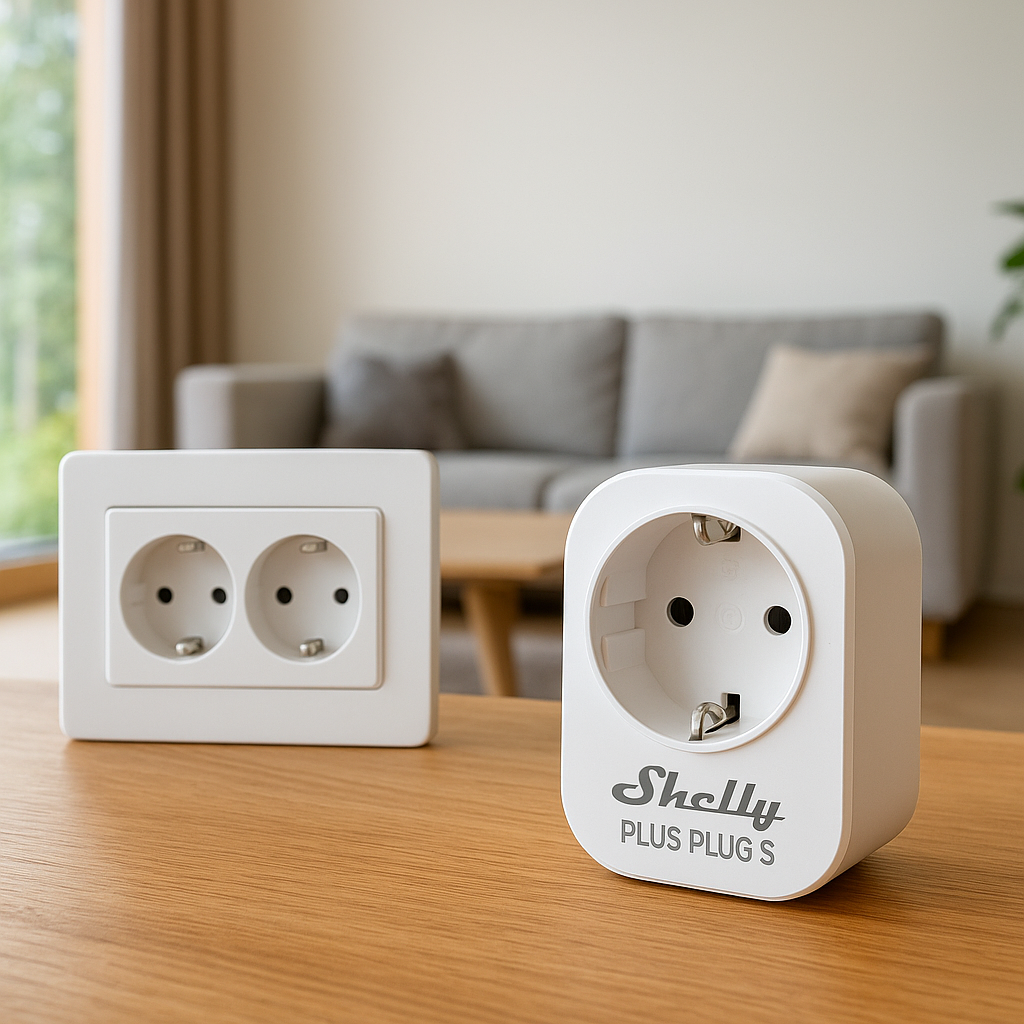
If your smart plug keeps going offline, it can wreck automations, break routines, and leave you wondering whether you can trust your smart home at all. One day your lamp responds instantly to “Alexa, turn on the lamp,” and the next day Alexa says the plug is not responding, even though the light is clearly still plugged in.
The good news: most smart plug connection problems come down to a few common network or account issues, and you can usually fix them yourself. This guide focuses on popular plugs like TP-Link Kasa, and how they behave with Alexa and Google Home, but most tips apply to other brands too (Gosund, Meross, Tapo, etc.).
Below you’ll find 11 proven fixes, explained in plain language, plus brand-specific tips and a short FAQ. Work through them in order and you’ll almost always find the cause of those random “offline” messages.
Why Your Smart Plug Keeps Going Offline (Quick Overview)
Common symptoms: offline in the app but still has power
Most people notice a problem because the plug shows as “Offline” or “Unreachable” in Kasa, Alexa, or Google Home, even though:
- The physical outlet has power and the device plugged into it works if you press its manual power button.
- The LED on the smart plug is on (sometimes solid, sometimes blinking).
- The plug might still respond locally for a while, then drop again.
In other words, the problem usually isn’t power. It’s the plug losing Wi‑Fi or cloud connectivity while still being physically powered.
How Alexa, Google Home, and Kasa report offline devices
Each platform uses slightly different language:
- Kasa app (TP-Link): Often shows “Device is unreachable” or “Offline” with a cloud icon and may still let you try a local connection on the same network.
- Alexa: Typically says “[Device] is not responding” when you use voice, and in the Alexa app you’ll see “Device is unresponsive” or “Offline.”
- Google Home: Shows “Offline” or “Not responding” with a grayed-out icon, and voice responses like “It looks like [device] isn’t available right now.”
These messages don’t always mean the plug is completely dead; they just mean Alexa/Google can’t reliably reach it over the network or cloud.
Quick 2-minute checklist before deep troubleshooting
Before diving into the detailed fixes below, run through this fast checklist:
- Check Wi‑Fi on your phone next to the plug. Is the signal weak or dropping?
- Power cycle the plug. Unplug it for 10 seconds, plug back in, wait a full minute.
- Reboot the router. Turn it off for 30 seconds, turn it back on, and wait 3–5 minutes.
- Confirm internet is working. Open a web page or stream a quick video on your phone.
- Check if all plugs are affected or just one. One usually means location or hardware; many means router/network.
If the plug still keeps dropping, work through the targeted fixes below.
Fix #1 – Check Wi‑Fi Signal Strength at the Plug’s Location
How to test Wi‑Fi coverage with your phone
Smart plugs are small and often sit in awkward spots: behind sofas, under cabinets, in garages, or near thick walls. All of that can crush Wi‑Fi signal strength.
To test:
- Stand right next to the smart plug with your phone.
- Make sure your phone is connected to the same Wi‑Fi network the plug uses.
- Look at the Wi‑Fi indicator – if it’s 1 bar or flickering between Wi‑Fi and mobile data, coverage is weak.
- Run a quick speed test (e.g., using your ISP’s app or a speed test site). Even a few Mbps is plenty, but if the test fails or is extremely unstable, the plug may struggle to stay connected.
If the signal is weak on your phone, it’s almost certainly weak for the plug as well.
2.4 GHz vs 5 GHz and why it matters for smart plugs
Most smart plugs, including many TP-Link Kasa models, connect only to 2.4 GHz Wi‑Fi. This band is slower but reaches farther and penetrates walls better than 5 GHz. If your router’s 2.4 GHz coverage is poor in that room, the plug may keep dropping offline, even if your phone on 5 GHz looks fine.
You can read more about Wi‑Fi frequency bands in the IEEE 802.11 Wi‑Fi standard overview, but the key takeaway is simple: 2.4 GHz is usually best for smart plugs.
Best practices for plug placement to avoid weak signal
To improve reliability, try:
- Avoiding metal and thick obstacles. Don’t hide the plug behind metal appliances (fridges, washers) or inside metal cabinets.
- Staying away from floors and corners. If possible, use wall outlets that aren’t blocked by large furniture.
- Reducing distance to the router. If moving the plug a few meters closer to the router makes it stable, you’ve identified a coverage issue.
- Using open outlets over surge protectors. Some bulky power strips can slightly impact Wi‑Fi if they physically trap the plug in a tight space.
Fix #2 – Ensure Your Smart Plug Is on the 2.4 GHz Network
Confirming which band your plug is using
Many dual-band routers broadcast 2.4 GHz and 5 GHz using the same network name (SSID). Phones and laptops handle this well, but some smart plugs get confused, constantly jumping or failing to join properly.
To confirm the band:
- Check your router’s admin page or app for a “Connected Devices” or “Client List” view and locate the plug by name or MAC address.
- Look for a column showing band, frequency, or radio (2.4G vs 5G). The plug should be on 2.4 GHz.
- If you can’t see the band, many routers let you click the device for details.
How to separate 2.4 GHz and 5 GHz SSIDs on your router
If your router supports it, create separate names such as:
- MyHome-2G for 2.4 GHz
- MyHome-5G for 5 GHz
Then:
- Temporarily connect your phone to the 2.4 GHz network.
- Reset the smart plug if needed.
- Use the plug’s native app (Kasa, Tapo, etc.) to add it to the 2.4 GHz SSID only.
After setup, you can switch your phone back to 5 GHz if you prefer; the plug will stay on 2.4 GHz.
What to do if your combined SSID keeps confusing devices
Some mesh systems and ISP-provided routers don’t allow separate SSIDs. In that case:
- Look for settings named “Smart Connect,” “Band Steering,” or “Network Optimization” and turn them off temporarily while you set up the plug.
- Move closer to the router when adding the plug to increase the chance it joins 2.4 GHz.
- If your router has a “guest 2.4 GHz” option, try connecting the plug to that network instead (as long as guest devices can talk to your main network if needed).
Fix #3 – Disable or Adjust Wi‑Fi Power-Saving and Idle Settings
Router features that can kick smart plugs offline
Some routers have aggressive power-saving or “Wi‑Fi optimization” features that disconnect devices they think are idle. Smart plugs send very little data, so they can be mistaken for idle clients and dropped.
Look in your router settings for options like:
- “Wi‑Fi Power Saving” or “Green Mode”
- “Idle time-out” for clients
- Advanced QoS or device prioritization that constantly reshuffles connections
Try turning these off or relaxing the timeout to reduce disconnects.
How to turn off Wi‑Fi “smart connect” or auto-optimization
“Smart Connect” (names vary by brand) automatically shifts devices between bands and sometimes between mesh nodes. This is convenient for laptops, but rough on simple IoT devices like smart plugs.
If your plugs keep going offline:
- Disable “Smart Connect,” “Band Steering,” or similar features.
- Assign plugs manually to the 2.4 GHz band where possible.
- Test for a day or two to see if stability improves.
Adjusting DHCP lease time and band steering
The router’s DHCP server hands out IP addresses with a “lease time.” If the lease is extremely short and the router is under load, renewals can fail and cause devices to vanish temporarily.
Check your DHCP settings and:
- Set the lease time to something reasonable like 12–24 hours for home networks.
- Avoid very short leases (e.g., 30 minutes) unless you have a specific reason.
- If there’s a “band steering aggressiveness” setting, try lowering it.
Fix #4 – Update Firmware for Your Smart Plug and Router
Updating TP-Link Kasa smart plug firmware in the app
Firmware updates often fix Wi‑Fi bugs, power issues, and cloud connection problems. For TP-Link Kasa plugs:
- Open the Kasa app.
- Go to Me > Firmware Update (wording may vary).
- Check if your plug is listed with a pending update.
- Start the update while your phone and plug are on the same network and avoid unplugging it until it finishes.
TP-Link documents common Kasa connectivity fixes and firmware guidance in their support resources, such as their page on dealing with unreachable plugs: TP-Link Kasa “Device Unreachable” troubleshooting.
Checking for firmware updates on Alexa and Google Home devices
While smart plugs themselves usually update via their own apps, your smart speakers and hubs also matter:
- Amazon Echo / Alexa: Echo devices update automatically when idle and connected. You can trigger an update by saying “Alexa, check for software updates” and leaving the device plugged in for a while.
- Google Nest devices: Nest speakers and displays also auto-update when online. Make sure they’re on your main network and not blocked by firewalls or DNS filters.
Out-of-date hubs can sometimes mis-handle devices or report them incorrectly.
Why outdated router firmware can cause random disconnects
Routers are the backbone of your smart home. Older firmware can:
- Crash under the load of many IoT devices.
- Have Wi‑Fi bugs that drop 2.4 GHz clients.
- Mis-handle multicast or broadcast traffic used by smart home protocols.
Check your router or mesh app for “Firmware Update” or “System Update,” install the latest stable version, then monitor your plugs for a few days.
Fix #5 – Reset and Re‑Add the Smart Plug in Its Native App
When to try a soft reset vs factory reset
Sometimes the plug itself gets into a weird state. There are typically two reset levels:
- Soft reset: Reboots or clears network info without wiping schedules and names.
- Factory reset: Erases everything and makes the plug act like it’s brand new.
Try a soft reset first if the option exists. If the plug still keeps going offline, perform a full factory reset and set it up again from scratch.
Step-by-step: resetting a Kasa smart plug
Exact steps vary by model, but generally for many Kasa plugs:
- Soft reset: With the plug powered, press and hold the power or settings button for about 5 seconds until the Wi‑Fi LED blinks amber and green (or similar pattern). This clears Wi‑Fi settings.
- Factory reset: Continue holding for about 10–15 seconds until the LED changes to rapid blinking. Release, then wait for it to reboot into setup mode.
- Open the Kasa app, tap the + to add a new device, and follow the prompts.
Consult your plug’s specific manual if the LED patterns differ.
Removing and re‑adding devices in Alexa and Google Home
After you reset and re-add the plug in its own app, you may need to clean things up in Alexa or Google Home:
- Alexa: In the Alexa app, go to Devices > Plugs, select the old offline plug, and tap Settings > Trash/Delete. Then ask “Alexa, discover devices” or use “Add Device” to re-import from Kasa.
- Google Home: Open the Google Home app, long-press the offline plug, tap the gear icon (settings), then remove it. Re-link the Kasa service if needed and add the plug again.
Fix #6 – Check Home Network Overload and Interference
Too many devices on Wi‑Fi: signs and solutions
Modern Wi‑Fi routers can technically support many devices, but performance can still degrade when you have dozens of cameras, plugs, bulbs, and phones competing for airtime.
Signs of overload:
- Random devices (not just plugs) going offline.
- Slow Wi‑Fi when several people are streaming.
- Router reboots or freezes.
Solutions include:
- Moving bandwidth-heavy devices (like streaming boxes) to Ethernet where possible.
- Adding an additional access point or mesh node for better distribution.
- Upgrading to a router designed to handle many IoT devices.
Microwave ovens, baby monitors, and other 2.4 GHz noise sources
2.4 GHz is crowded. Common interference sources include:
- Microwave ovens
- Baby monitors and cordless phones
- Old wireless cameras and analog transmitters
If your smart plug keeps going offline only when the microwave runs or near certain equipment, you may be dealing with interference. Try moving the plug or the router a bit further away from the noisy device.
Choosing a better Wi‑Fi channel to reduce interference
On 2.4 GHz, channels 1, 6, and 11 are usually the best choices. If nearby networks are crowding your current channel:
- Use a Wi‑Fi analyzer app on your phone to see which channels are busiest.
- Log into your router and switch the 2.4 GHz channel to a less congested one.
- Avoid “Auto” if your router constantly hops channels; that can disrupt plugs.
Fix #7 – Assign a Static IP or DHCP Reservation
Why changing IP addresses can cause offline errors
Most home devices get dynamic IP addresses from the router. Normally this is fine, but if the router changes a plug’s IP while your smart home platform still expects the old one, you can see “offline” or “not responding” messages.
Assigning a DHCP reservation gives your plug the same IP every time without configuring it manually.
How to set a DHCP reservation for your smart plug
On most routers:
- Open the router’s app or web interface and go to “LAN,” “DHCP,” or “Address Reservation.”
- Find your smart plug in the client list (by name or MAC address).
- Click “Reserve,” “Bind,” or “Always assign this IP,” then save.
- Reboot the plug or reconnect it so it gets the reserved address.
From then on, the plug will keep the same IP, which can improve reliability in some setups.
When to avoid manual static IP configuration
Avoid setting a static IP directly on the plug unless you’re comfortable with networking. A wrong gateway or DNS entry can make things worse. DHCP reservations are safer because the router still manages all the network details.
Fix #8 – Move the Plug Closer or Use a Mesh/Extender Correctly
Testing stability by moving the plug temporarily
To see if distance is the problem:
- Unplug the smart plug and move it to an outlet closer to your router or mesh node.
- Plug in a small lamp or fan so you can test it easily.
- Use it normally for a day. If it stays online, the original location likely has poor coverage or interference.
You can then decide whether to add better Wi‑Fi coverage to that area or keep the plug in a more reliable spot.
Using mesh Wi‑Fi without breaking device connections
Mesh systems (Eero, Google Nest Wi‑Fi, Deco, Orbi, etc.) can greatly improve coverage, but they also dynamically move devices between nodes. Some smart plugs don’t handle this well.
To reduce issues:
- Place mesh nodes so the plug has a strong, stable signal from one node.
- Avoid placing nodes where their coverage heavily overlaps right at the plug’s location.
- In some systems, you can “pin” or prioritize a device to a nearby node—use that if available.
Wi‑Fi extender pitfalls that can confuse smart plugs
Wi‑Fi extenders that repeat your main network can introduce:
- Higher latency and random drops.
- Different SSIDs or hidden roaming behavior that confuses simple IoT devices.
If your plug is connected via an old extender and keeps going offline, try connecting it directly to the main router or a better mesh system. In many homes, upgrading from a cheap extender to a proper mesh kit is the single biggest reliability improvement.
Fix #9 – Verify Cloud Account Connections (Kasa, Alexa, Google Home)
Re‑linking Kasa to Alexa and Google Home
Sometimes the plug works perfectly in the Kasa app but appears offline only in Alexa or Google Home. That points to a cloud account link issue, not Wi‑Fi.
To fix:
- In the Alexa app, go to More > Skills & Games, search for Kasa, and disable the skill. Then re-enable it and sign in again.
- In Google Home, tap your avatar > Assistant settings > Home control (or “Works with Google”), find Kasa, unlink it, then link it again.
After re-linking, run device discovery again so your plugs reappear correctly.
Fixing “offline” in Alexa when the plug works fine in Kasa
If the plug stays online in Kasa but Alexa insists it’s offline:
- Check whether you accidentally created duplicate devices with the same name.
- Delete the offline copy in the Alexa app, then re-run discovery.
- Confirm the Kasa account linked to Alexa is the same one you use in the Kasa app.
Often, simply removing the device from Alexa and letting it be re-imported from Kasa clears stubborn offline states.
Region, account, and multi‑home issues that cause confusion
Cloud services can get confused if:
- You have multiple Kasa or TP-Link accounts in different regions.
- You’ve shared devices with family members and linked different accounts to Alexa/Google.
- You use multiple “homes” (e.g., Home and Vacation Home) in Google Home.
Make sure the plug is in the same region and home structure across your apps, and that the same primary account is linked everywhere where possible.
Fix #10 – Turn Off VPNs, Ad Blockers, and Strict Firewall Rules
How network security tools block cloud smart home traffic
Security tools like Pi-hole, DNS-based ad blockers, VPNs, and strict firewalls can block the cloud servers that smart plugs use. When that happens, the plug may appear online locally but offline in Alexa or Google Home.
Typical symptoms:
- Plugs work on the local network but fail when you’re away from home.
- Some features (like energy monitoring) don’t update.
- The plug goes offline after you enable a new security feature.
Whitelisting smart plug traffic on popular routers
If you use filtering tools, look for blocked domains related to TP-Link, Kasa, or your plug’s brand. Most filters show recent blocked requests. You can then:
- Whitelist those specific domains.
- Create an exception for the plug’s IP address.
- Exclude your IoT VLAN or SSID from strict content blocking.
Check your router or security tool’s documentation for how to add exceptions or bypass rules.
Testing by temporarily disabling VPN or DNS filtering
As a quick test, disable:
- VPN on your router or phone.
- Pi-hole or DNS-based blockers.
- Any “Parental Control” or “Security” service in the router.
Wait a few minutes and see if the plug comes back online in Kasa, Alexa, or Google Home. If it does, re-enable your tools one by one, adding exceptions as needed.
Fix #11 – When the Plug Itself Is Faulty (And How to Confirm)
Simple tests to tell if your smart plug is dying
Not every issue is network-related. A failing plug can:
- Randomly reboot (clicking on and off) without any command.
- Refuse to enter setup mode or lose Wi‑Fi credentials repeatedly.
- Get unusually hot compared to your other plugs.
To confirm, try:
- Testing the same plug in a different outlet near the router.
- Comparing behavior to another plug of the same model on the same network.
- Factory resetting and setting it up on a different Wi‑Fi network (e.g., a mobile hotspot, if supported).
If it still behaves badly while other plugs are fine, it’s probably faulty.
Warranty checks for TP-Link Kasa and other brands
Most major brands offer at least a 1-year limited warranty. Check:
- Your purchase date (on Amazon, Best Buy, or your retailer’s order history).
- The manufacturer’s warranty terms on their website.
- Support options for RMA or replacement if the device is still under warranty.
Having your model number, serial number, and proof of purchase ready speeds up support requests.
When it’s smarter to replace than keep troubleshooting
If you’ve:
- Tested other plugs successfully on the same network.
- Reset and re-added the problem plug multiple times.
- Updated firmware and checked router settings.
…and the plug still keeps going offline randomly, it’s usually not worth more of your time. Replacing a flaky plug is often cheaper than hours of frustration, especially for critical automations like heaters, pumps, or security lighting.
Brand-Specific Tips: Kasa, Alexa, and Google Home
Kasa-only tips: Away Mode, schedules, and local control quirks
Kasa plugs support local control when your phone is on the same network. So if the plug shows “Offline” but still responds quickly in the Kasa app at home, that suggests a cloud or account issue, not Wi‑Fi.
A few Kasa-specific pointers:
- Away Mode and schedules run on the plug itself once synced, so they may keep working even when the plug appears offline in Alexa or Google Home.
- Double-check schedules if the plug seems to turn off randomly—it may be following an old schedule, not dropping offline.
- If you’ve migrated from the old Kasa app to Tapo or a new account, make sure all devices are actually linked to the same TP-Link ID.
Alexa-only tips: device groups, duplicates, and routines
Alexa’s device organization can cause confusion if:
- You have duplicates of the same plug in different groups.
- Routines reference old versions of the plug that are now offline.
To clean this up:
- In the Alexa app, go to Devices and search by name. Delete any obviously duplicated or permanently offline entries.
- Open your key Routines and verify that each step uses the current plug, not an old offline one.
- Give each plug a clear, unique name (“Desk Lamp Plug” instead of just “Plug”) so voice commands hit the right device.
Google Home-only tips: rooms, Wi‑Fi, and Google Nest routers
Google Home relies heavily on “rooms” and can sometimes misreport devices that moved between rooms or homes.
Tips for smoother operation:
- Make sure each plug is assigned to the correct Home and Room in the Google Home app.
- If you use Google Nest Wi‑Fi, keep the firmware current and avoid placing too many Nest points right next to thick walls or appliances.
- Use the Google Home “Wi‑Fi” section (if you have Nest Wi‑Fi) to check signal strength to each point; weak backhaul links can cause random device drops.
How to Prevent Your Smart Plug from Going Offline Again
Ideal network setup for a reliable smart home
For long-term stability, aim for:
- A modern dual-band or tri-band router or mesh system with solid 2.4 GHz coverage.
- Separate or well-managed 2.4 GHz and 5 GHz bands (or a mesh that handles IoT devices gracefully).
- Reasonable DHCP lease times and minimal “smart” Wi‑Fi tricks that constantly move devices around.
- Good placement of routers/mesh nodes in open, central locations.
If you want to dive deeper into Wi‑Fi planning, many router vendors provide network design guides; as a general reference, the Google Nest Wi‑Fi placement guide is a helpful example of best practices that apply to any mesh system.
Best practices for naming and organizing devices
Clean naming helps avoid offline confusion and makes troubleshooting easier:
- Use consistent names across Kasa, Alexa, and Google Home (e.g., “Living Room Lamp Plug”).
- Group plugs logically by room: Living Room, Bedroom, Office, Garage.
- Avoid reusing the same name for multiple devices, especially when you replace a plug.
When to consider upgrading your router for smart home stability
If you’ve done everything above and multiple smart devices still drop offline regularly, the bottleneck may be your router. Consider an upgrade if:
- Your router is more than 5–7 years old.
- You’ve added dozens of IoT devices (plugs, bulbs, cameras, sensors).
- Family members constantly complain about Wi‑Fi performance.
Look for routers or mesh kits advertised as suitable for high device counts, with strong 2.4 GHz radios and good software support.
Once your network is solid and your smart plugs are correctly configured, daily use should feel boring—in a good way. Automations just run, voice commands just work, and “offline” errors become rare.
FAQ: Smart Plug Keeps Going Offline
Why does my smart plug keep going offline at night?
Common night-time causes include scheduled router reboots, ISP maintenance, or power-saving features that turn off Wi‑Fi radios during certain hours. Check your router’s settings for automatic reboot or “night mode,” and disable anything that powers down Wi‑Fi or aggressively drops idle devices.
Can I use smart plugs with guest networks or IoT VLANs?
Yes, but only if the network allows the plug to reach its cloud servers and, if needed, talk to your phone or hub. Some guest networks block device-to-device communication, which can break local control. IoT VLANs are great for security, but you must allow outbound internet for the plug’s brand and ensure your smart home hub or voice assistants can still control those devices through the cloud.
Do schedules and automations still run when the plug is offline?
Local schedules configured in the plug’s native app (like Kasa’s schedules or Away Mode) usually keep working because they’re stored on the plug itself. Cloud-based automations—like Alexa Routines or Google Home automations—depend on the plug being online. If your plug keeps going offline, time-based functions may work, but voice commands and more complex routines can fail until connectivity is restored.
Why does my smart plug go offline after a power outage?
After a power outage, the plug, router, and modem may all reboot at slightly different times. If the plug starts up before the router is ready, it can fail to reconnect cleanly. To fix this, try unplugging the smart plug for 10 seconds and plugging it back in once your internet and Wi‑Fi are fully back up. If outages are frequent, consider a small UPS (battery backup) for your router.
Is it safe to use smart plugs on high-power devices?
Always check the smart plug’s rated current and wattage. Overloading a plug can cause overheating, shorten its life, or lead to safety issues. High-power appliances like space heaters or large AC units should only be used with smart plugs specifically rated for those loads, and even then, avoid daisy-chaining power strips or extension cords.