Your robot vacuum should finish a job, head back to its dock, recharge, and be ready for the next run without you thinking about it. When it instead stops in the middle of the floor, roams around like it’s lost, or vanishes from your app, the whole “automatic” part of cleaning breaks down.
This guide walks through the most common reasons a robot vacuum is not returning to dock and how to fix them on popular models from Roomba (iRobot), Roborock, and Ecovacs. We’ll also cover what to do when your bot disappears from your smart home app or routines, and how to prevent docking problems from coming back.
Why Your Robot Vacuum Isn’t Returning to Its Dock
Common symptoms: roaming endlessly, stopping in the middle, or dying away from the base
Docking problems don’t always look the same. You might see:
- The vacuum finishes cleaning but keeps circling or slowly driving around instead of going home.
- It heads toward the dock, then turns away at the last moment or stops a few inches short.
- The robot pauses with an error like “return to dock failed” or “cannot find charging base.”
- The bot dies somewhere in the house with a low-battery beep instead of making it back.
- The app shows the job as incomplete or “stuck” even though there’s no obvious obstacle.
All of these usually boil down to the same categories: visibility of the dock, physical obstacles, sensor issues, or software/map problems.
How docking issues affect maps, schedules, and smart home routines
Docking isn’t just about charging. On Roomba, Roborock, and Ecovacs, successful docking can also:
- Mark the end of a cleaning cycle so your app correctly logs cleaning history.
- Help the robot update and refine its home map each time it returns.
- Trigger smart home routines like pausing a TV scene, adjusting lights, or starting an air purifier.
- Sync schedules — many bots won’t start a new run if the previous one isn’t completed and docked.
If the robot doesn’t find its base, you can end up with broken maps, missed rooms, or Alexa/Google Home routines that never fire.
Quick checks to do before you dive into advanced fixes
Before you reset maps or dig into settings, run through these quick checks:
- Is the dock plugged in and the indicator light on (if your model has one)?
- Is the front of the dock clear for at least a couple of feet?
- Are the charging contacts reasonably clean and free of rust or heavy dust?
- Is the robot’s battery above critical level (give it 15–30 minutes on the dock if unsure)?
- Did anyone move the dock or large furniture since the last mapping run?
If those all look fine, move on to the targeted fixes below.
Fix 1 – Check Dock Placement and Power
Ideal dock location: flat surface, open space, and distance from stairs or clutter
Dock placement is one of the biggest factors in reliable returns. For Roomba, Roborock, and Ecovacs, place the dock on:
- A hard, flat surface (not a thick rug or uneven mat).
- An area your robot can easily reach from most rooms — often a hallway or central living space.
- A spot away from stairs so cliff sensors don’t get confused near the base.
Avoid squeezing the dock into tight corners, under low furniture, or behind plants. The robot needs to see and approach it in a straight line.
Required clearance around the dock for Roomba, Roborock, and Ecovacs
Each brand recommends a minimum clearance around the dock. As a rule of thumb:
- Roomba: About 1.5 ft (0.5 m) clear on each side, and 4 ft (1.2 m) in front.
- Roborock: Around 1.6 ft (0.5 m) on each side, and 5 ft (1.5 m) in front.
- Ecovacs: Similar to Roborock — check your model’s manual, but generally at least 1.5 ft to each side and several feet clear in front.
If your dock is squeezed between cabinets or right next to a table leg, the robot may approach at a bad angle and give up. Try pulling the dock out into a more open area and test a “return to dock” from the app.
Verifying the power outlet, adapter, and indicator lights
If the dock loses power, the robot may still try to return but won’t get a charging connection. Check:
- The wall outlet with another device (like a lamp) to confirm it’s live.
- The power brick connection at both the wall and dock ends.
- The dock indicator light (if present). Some models only light briefly when the robot is docked, then turn off to save power — that’s normal.
For surge protectors or smart plugs, make sure they’re switched on and not set to turn off overnight when your robot is scheduled to clean.
Fix 2 – Clean the Charging Contacts on the Robot and Dock
How dirty contacts prevent proper docking and charging
Over time, dust, hair, and tiny debris can build up on the metal contacts on both the dock and the robot. When this happens, your vacuum may:
- Reach the dock, bump it, and then back away without charging.
- Show as “charging” briefly and then disconnect.
- Take much longer than usual to recharge.
This can look like a docking or map problem, but it’s really just a poor electrical connection.
Safely cleaning contacts with a dry cloth and alcohol wipes
To clean the contacts on Roomba, Roborock, or Ecovacs:
- Power off the robot (or put it in standby mode) for safety.
- Use a dry microfiber cloth to wipe the contacts on the robot and the dock.
- For stubborn grime, lightly dampen a cloth or cotton swab with isopropyl alcohol (70%+), then wipe the contacts.
- Let everything dry completely before docking again.
Do not use water or spray directly onto the dock or robot. Avoid abrasive pads that can scratch the metal.
Signs your robot is touching the dock but not charging
After cleaning, watch for:
- No charging icon in the app even though the robot is physically against the dock.
- Battery percentage dropping while supposedly docked.
- Error messages about “charging error” or “cannot charge.”
If this continues after cleaning the contacts and checking power, the dock or battery may be failing — see Fix 11.
Fix 3 – Improve Lighting and Reduce Reflective Surfaces
How low light and mirrors confuse infrared and camera-based navigation
Many Roomba and Ecovacs models use a mix of infrared sensors and, on higher-end units, upward-facing cameras or visual navigation. These can struggle when:
- The area near the dock is very dark, especially under shelves or in dim hallways.
- There are mirrors or glass surfaces near the base that reflect the robot’s signals.
- Shiny metal furniture or high-gloss tiles sit close to the dock.
Low light makes it harder for the robot to recognize landmarks. Reflective surfaces can create “ghost” obstacles that cause the robot to avoid the area around its base.
Adjusting room lighting and moving glass or shiny obstacles
Try these tweaks:
- Run a test return-to-dock with ambient lights on, especially if you normally vacuum at night.
- Move mirrors, glass tables, or shiny decor further from the dock.
- If the dock is in a dark corner, consider moving it to a brighter wall or using a small nightlight aimed away from the dock.
If docking becomes reliable in better light, adjust your cleaning schedule to run at times when the area is naturally brighter.
Special considerations for LiDAR-based Roborock models
Most Roborock models use a spinning LiDAR sensor on top to map your home. LiDAR is generally less sensitive to visible light and reflections than cameras, but it can still be affected by:
- Highly reflective black or glass surfaces that absorb or misdirect the laser.
- Very narrow spaces that create confusing reflections.
If you have a LiDAR-based model like the Roborock S7 or Q series, make sure the dock is not surrounded by glass panels or very glossy black surfaces. For more on how LiDAR works, see the overview on LiDAR sensors, which is effectively what your robot is using to “see” the room.
Fix 4 – Clear Obstacles and Tidy Cables Near the Dock
How chair legs, rugs, and cords trap robots near the base
It’s ironic, but many docking issues come from clutter right around the dock itself. Common culprits include:
- Chair or table legs that force the robot into tight turns near the base.
- Thick or curled rug edges that the robot climbs and then gets stuck on.
- Power cords, ethernet cables, and charger wires that snag wheels or brushes.
If your robot spends a lot of time circling the dock or seems to “give up” nearby, watch it navigate the last few feet and clear anything it bumps into.
Creating a “no-clutter” zone and taping down problem cables
Give the dock its own little safe zone:
- Move nearby furniture legs at least a foot away from the dock area.
- Flatten or relocate rugs with raised edges or tassels in front of the base.
- Use cable clips or tape to route cords against the wall so they’re out of the robot’s path.
Think of the space in front of the dock as a mini runway the robot needs to approach in a straight line.
When to use virtual walls or no-go zones around the dock area
Sometimes, the best solution is to guide the robot digitally instead of rearranging your whole room. You can:
- Use Roomba’s physical Virtual Wall barriers to block areas that trap the robot near the dock.
- In Roborock and Ecovacs apps, draw no-go zones or invisible walls to keep the robot away from chair clusters or cable nests near the base.
The goal is not to block the dock itself, but to prevent the robot from getting tangled or stuck in the final approach.
Fix 5 – Update Firmware and App for Your Robot Vacuum
Why outdated firmware causes docking and map glitches
Manufacturers regularly release firmware updates that improve navigation, fix bugs, and refine docking behavior. If your Roomba, Roborock, or Ecovacs hasn’t updated in a while, you may be fighting an old software bug.
Updates can:
- Fix specific issues where certain floor plans or obstacles break return-to-dock logic.
- Improve how the robot recognizes its dock in complicated layouts.
- Resolve crashes or freezes that leave the robot stranded away from home.
How to update Roomba via iRobot Home app
For most Wi-Fi-connected Roombas:
- Open the iRobot Home app.
- Make sure your Roomba is on the dock and connected to Wi-Fi.
- Look for any update prompts, or check in the Settings > About or Robot Info section.
- Leave the robot on the dock while the update downloads and installs.
Some updates run automatically when the robot is idle on the dock, so keeping it powered and online overnight helps.
How to update Roborock and Ecovacs via their apps
For Roborock:
- Open the Roborock app (or Xiaomi Home for some older models).
- Select your device, then go to Settings > Firmware Update.
- Follow prompts and keep the robot docked until the process finishes.
For Ecovacs (Deebot):
- Open the Ecovacs Home app.
- Choose your robot and check the Settings or About section.
- Tap to download and install any available firmware update.
Always avoid starting a cleaning run or moving the robot during firmware updates.
Fix 6 – Rebuild or Reset the Map
When a corrupted or outdated map breaks the return-to-dock path
Smart mapping is great — until the map gets out of sync with reality. If you’ve:
- Moved the dock to a different wall or room.
- Knocked down or moved major furniture, walls, or doors.
- Had a power loss or crash during mapping.
…the robot’s saved map may no longer match your home. That can make the return-to-dock path unreliable, especially at the end of a job when the robot relies more on the map than on random exploration.
Deleting and recreating maps in Roomba, Roborock, and Ecovacs apps
On most models, you can clear or recreate maps from the app:
- Roomba: In iRobot Home, go to your robot > Maps > Map List or Map Settings, then delete the problematic map.
- Roborock: In the Roborock app, open your device > Map Management, then reset or delete the map.
- Ecovacs: In Ecovacs Home, open the map view and use the map management option to clear or rebuild maps.
After clearing, start a full cleaning run (or dedicated mapping run, if your model supports it) so the robot can build a fresh layout and locate the dock correctly.
Tips for a successful remapping run so docking is more reliable
For the best results:
- Start with the robot on the dock in its permanent location.
- Open all interior doors you want included in the map.
- Pick up cables, small toys, and loose rugs that could cause errors.
- Let the robot finish the full run, even if it takes a while, and return to the dock on its own.
Once the new map is created, set up rooms, zones, and schedules again. Test a “return to dock” from different rooms to confirm reliability.
Fix 7 – Calibrate or Clean Sensors and Wheels
Side wheels, cliff sensors, and wall sensors that affect docking alignment
A robot that can’t drive straight or “see” edges well will struggle to line up with the dock. Key components include:
- Drive wheels: If one side is stiff or dragging, the robot may approach the dock at an angle.
- Cliff sensors: These downward-facing sensors prevent falls. If they misread dark floors near the dock as a drop, the robot will avoid the area.
- Wall or front sensors: These detect the dock and walls for alignment.
Cleaning sensor windows and checking for stuck wheels or hair
Regularly check:
- Cliff sensors and front sensors for dust — wipe gently with a soft dry cloth.
- Drive wheels for wrapped hair or threads; spin each wheel by hand to confirm it moves freely.
- Side casters for debris that can tilt the robot slightly, affecting how the contacts meet the dock.
A small misalignment can be enough for the charging contacts not to meet properly.
Model-specific sensor quirks for Roomba vs Roborock vs Ecovacs
Different brands behave slightly differently when sensors misread:
- Roomba: Some models are very sensitive to dark rugs near the dock, treating them like cliffs. Moving the dock off a dark mat often helps.
- Roborock: LiDAR-based models usually navigate well, but front bumper sensors can get confused by sloped objects near the dock.
- Ecovacs: Certain models may slow heavily near reflective floors, making it harder to reach the base if the floor is highly polished.
If you notice patterns like “it always refuses to dock on this dark rug,” try relocating the dock or changing the surface directly in front of it.
Fix 8 – Check Virtual Walls, No-Go Zones, and Room Labels
How digital barriers can accidentally block the path to the base
Virtual walls and no-go zones are powerful tools, but they can also block the dock if drawn in the wrong place. If your robot:
- Stops short of the dock behind an invisible line in the app.
- Refuses to cross a threshold leading to the room where the dock lives.
- Can dock fine when started near the base, but not from other rooms.
…you may have an overly aggressive no-go zone or virtual wall cutting off its route.
Reviewing and editing no-go lines and virtual walls near the dock
Open your robot’s map and:
- Zoom in around the dock area.
- Look for red boxes, lines, or shaded regions representing no-go zones, invisible walls, or keep-out areas.
- Delete or move any digital barriers that sit between rooms and the dock.
On Roomba’s app, also double-check “Keep Out Zones.” On Roborock and Ecovacs, look at both room boundaries and no-go markers.
Renaming or merging rooms that confuse navigation
Some smart scheduling features use room names and boundaries. If your dock is technically in “Room A” but most of your schedules target “Room B,” the robot may run out of battery trying to return from an unexpected area.
Consider:
- Renaming rooms to match how you actually use the space (e.g., “Hall + Dock” instead of “Unknown”).
- Merging tiny hallway or entry rooms with adjacent rooms if splits cause odd routing.
- Re-saving the dock’s location if the app offers that option.
Fix 9 – Fix Wi-Fi and Smart Home App Connection Issues
Why a weak Wi-Fi signal can make the robot disappear from your app
Your robot doesn’t need Wi-Fi to physically find the dock, but connectivity problems can make it look like it’s lost or offline. Symptoms include:
- The robot shows “offline” in the app even though it’s cleaning.
- Smart home routines (Alexa, Google Home, HomeKit) don’t trigger when cleaning starts or ends.
- Cleaning history is incomplete or missing jobs.
These make it harder to diagnose docking issues and can interfere with scheduled runs.
Ensuring 2.4 GHz Wi-Fi and moving the router or adding a mesh node
Most robot vacuums only connect to 2.4 GHz Wi-Fi, which offers better range than 5 GHz. If your phone is on 5 GHz, you might set up the robot on the wrong band or get intermittent drops. For more background, see how 2.4 GHz Wi‑Fi works.
For better connectivity:
- Make sure your router broadcasts a 2.4 GHz network and that you connect the robot to it.
- Move the router a bit closer to where the dock lives, if possible.
- Consider a mesh Wi-Fi node near the dock if your home is large or has thick walls.
After improving Wi-Fi, reconnect the robot in its app and then re-link any voice assistants.
Reconnecting to Alexa, Google Home, and HomeKit automations
If your robot is back online in its native app but missing from voice or automation systems:
- In Alexa or Google Home, remove the old robot device and rediscover it via the iRobot, Roborock, or Ecovacs skill/integration.
- Rebuild routines that depend on cleaning start/stop events, such as setting your TV to mute or changing light scenes.
- For HomeKit (usually via a bridge or shortcut), re-run the linking process and verify triggers still point to the right device.
This ensures your smart home “knows” when the robot finishes a job and docks successfully.
Fix 10 – Perform a Soft Reset or Factory Reset
When to try a soft reset vs full factory reset
If you’ve cleaned the dock, checked the map, and updated firmware but the robot still won’t reliably return home, a reset can clear hidden software glitches.
- Soft reset: Restarts the robot’s software without wiping maps or settings. Try this first.
- Factory reset: Erases maps, schedules, Wi-Fi, and customizations, returning the robot to out-of-box state. Use this as a last resort.
Reset steps for Roomba: button combinations and what you lose
Exact steps vary by model, but in general:
- Soft reset: Press and hold the CLEAN button (or CLEAN + HOME on some models) for around 10–20 seconds until you hear a tone or see lights flash, then release.
- Factory reset: Use the iRobot Home app’s Settings section to choose “Factory Reset” or “Remove/Reset Robot,” which wipes maps and Wi-Fi.
A factory reset means you’ll need to re-add the Roomba to the app, reconnect Wi-Fi, and rebuild maps and schedules from scratch.
Reset steps for Roborock and Ecovacs and how to re-add them to your app
For Roborock:
- Soft reset by holding specific buttons (often the power/clean button) until you hear a chime, then releasing. Check your manual for your exact model.
- Factory reset is usually accessed through the Roborock app under device Settings > Reset, or via a longer button press on the robot.
For Ecovacs (Deebot):
- Soft reset typically involves holding the power or reset button until the robot restarts.
- Factory reset can be done through the Ecovacs Home app or a longer button combination on the robot.
After a factory reset on either brand, open the app, add a new device, follow the Wi-Fi setup prompts, and let the robot create a fresh map before relying on scheduled runs.
Fix 11 – When to Replace the Battery or Call Support
Signs of a failing battery: short runtimes and incomplete returns
Even with perfect maps and docking conditions, a worn-out battery can keep your robot from getting home. Signs include:
- Significantly shorter cleaning times than when the robot was new.
- The robot frequently dies before reaching the dock, especially from distant rooms.
- Battery percentage drops very quickly under load.
Batteries naturally lose capacity after a couple of years of frequent use.
Checking battery health and compatible replacement packs
Some apps show basic battery health or cycles; others don’t. Either way:
- Check your robot’s manual or the manufacturer’s website for compatible battery part numbers.
- Prefer official or well-reviewed third-party replacements designed for your exact model.
- Follow instructions for powering off the robot and accessing the battery compartment safely.
A fresh battery can restore both runtime and the robot’s ability to reach its dock without stalling.
When it’s time to contact Roomba, Roborock, or Ecovacs support
If you’ve:
- Verified dock placement and power.
- Cleaned sensors and contacts.
- Rebuilt maps and updated firmware.
- Tried a reset.
…and the robot still won’t reliably dock, the dock hardware, charging circuit, or mainboard may be faulty. At that point, reach out to the brand’s support with your serial number, purchase date, and a description of everything you’ve tried. They can walk you through model-specific diagnostics and repair or replacement options.
Preventive Tips to Keep Your Robot Docking Reliably
Weekly and monthly maintenance routines for consistent docking
A little regular care goes a long way:
- Weekly: Empty the bin, clean the filter, and quickly wipe charging contacts.
- Monthly: Clean sensors and wheels, check for hair wrapped around axles, and tidy cables near the dock.
- Seasonally: Review maps, no-go zones, and room labels after any major furniture moves or renovations.
Setting up smart schedules that return the robot before battery is low
Some models allow you to choose “quiet” or “balanced” power modes and partial-room cleaning. These can:
- Reduce battery drain so the robot has more margin to get home.
- Make it easier for the robot to finish and dock before you or your family start moving around.
Consider scheduling runs when the path to the dock is generally clear — for example, after breakfast when chairs are pushed in, or while you’re out and not moving furniture.
Using smart plugs and energy monitoring on the dock safely
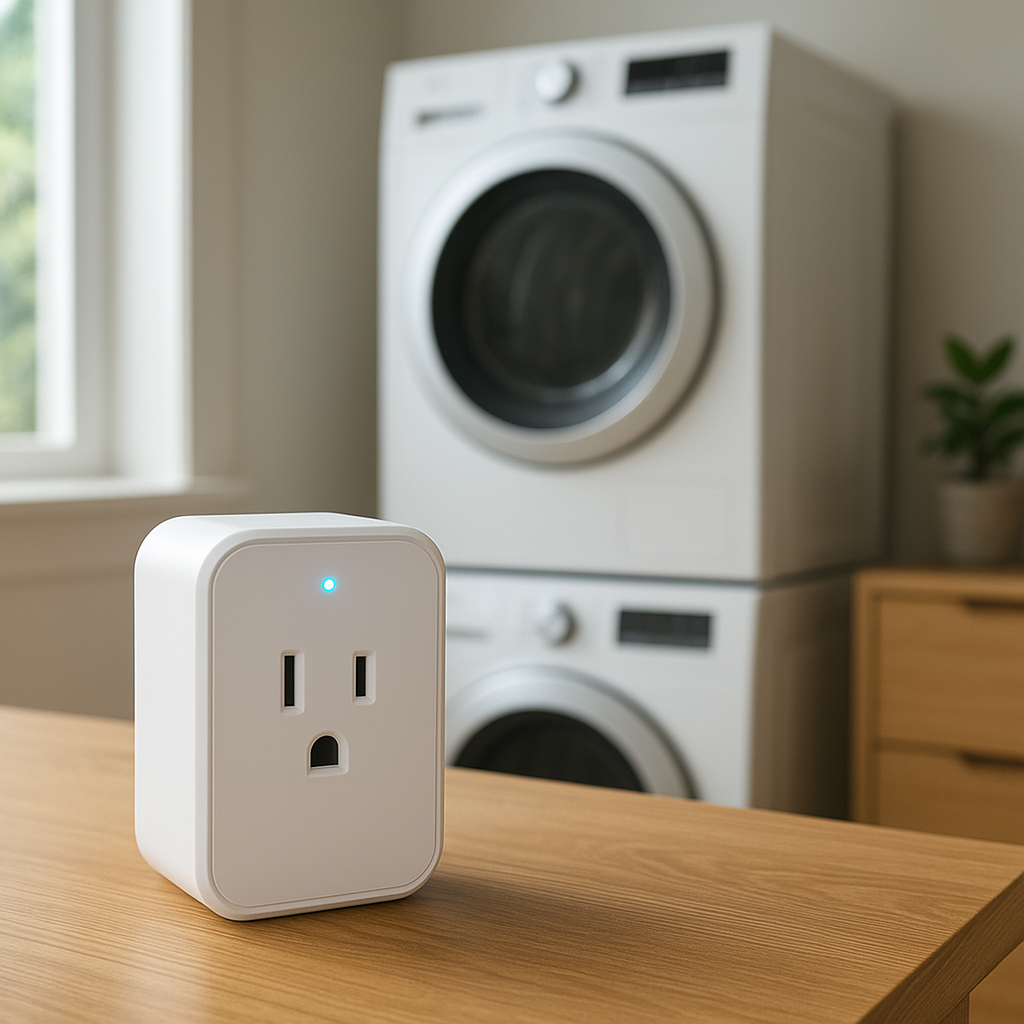
Some homeowners plug the dock into a smart plug to monitor energy use or cut power when away. That can work, but keep in mind:
- The dock needs consistent power for scheduled runs and firmware updates.
- Cutting power while the robot is mid-clean can confuse its charging logic or corrupt updates.
- If you use a smart plug, set it to stay on during all scheduled cleaning windows.
Energy monitoring can help you spot unusual power draw that might indicate a failing dock or battery, but it shouldn’t interrupt normal charging.
Once you’ve walked through these fixes, most robots will happily find their dock again and keep your floors on autopilot. A few minutes spent on placement, cleaning, and map sanity checks saves you from chasing a stranded bot later.
Frequently Asked Questions About Robot Vacuums Not Returning to Dock
Why does my robot vacuum stop a few inches away from the dock?
This usually points to either dirty charging contacts, a small obstacle the robot detects but you don’t, or misaligned sensors. Clean the contacts on both the dock and robot, clear the immediate area around the dock, and watch a return-to-dock run to see where it hesitates. If it always stops at the same spot, check for no-go lines or virtual walls in the app that might be blocking the final approach.
Can I move the dock, or will it ruin the map?
You can move the dock, but it’s best to do it thoughtfully. Small shifts along the same wall usually don’t require a full remap. Moving the dock to a different room or wall often works better if you then run a full mapping or cleaning cycle so the robot can learn the new home location. If docking becomes unreliable after a move, consider clearing and rebuilding the map.
Is it bad to pick up the vacuum and place it on the dock manually?
Occasionally picking up the robot and placing it on the dock is fine, especially if it’s stuck or nearly out of battery. Just avoid doing this mid-clean unless you also end the job in the app, as it can confuse the robot’s map of where it’s been. If you routinely have to carry it back, that’s a sign to revisit dock placement, obstacles, and map health so it can finish the trip on its own.