A well-built movie night smart home scene can turn your living room into a mini theater with a single phrase. Lights dim, the TV or projector powers on, your sound system wakes up, and maybe the popcorn maker starts preheating — all without hunting for multiple remotes or apps.
This guide walks you step-by-step through building a one-command “Movie Night” scene using smart lights, plugs, and your TV or projector. You’ll see how to plan the ambience, choose the right devices, and set everything up in Alexa, Google Home, and Apple HomeKit, with tips that also apply to SmartThings and Home Assistant.
What Is a ‘Movie Night’ Smart Home Scene and Why You Want One
How scenes differ from simple automations or routines
A scene is a saved snapshot of how multiple devices should behave at the same time: lights at specific levels, certain plugs on or off, TV input set, and so on. When you activate the scene, everything jumps to those preset states together.
Automations and routines, by contrast, are rules: “If this happens, then do that.” They’re usually triggered by time, motion, or a voice command, and they can run one or more scenes or device actions. In many ecosystems, your movie night smart home scene is actually a combination of:
- A lighting scene (dimming, colors, bias lighting)
- Device states (plugs on/off, TV input, sound mode)
- A routine or automation that calls all of the above with one command
Think of the scene as the look and feel, and the automation as the way you trigger it.
The comfort, wow-factor, and energy benefits of a one-command setup
A dedicated Movie Night scene does more than just look cool. It solves everyday annoyances:
- No more walking around turning off lamps one by one.
- No harsh overhead lighting competing with the screen.
- Sound system, subwoofer, and TV all wake up together and are ready to go.
The wow-factor is real, too. A single phrase like “Alexa, movie night” drops the room into a soft glow while the TV input changes, speakers power up, and neon LED strips behind the TV slowly fade in. It feels intentional rather than cobbled together.
There’s also an energy angle. Your scene can shut off bright ceiling lights, cut power to unused devices via smart plugs, and avoid leaving snack appliances or accent lights running for hours after the credits roll.
Everyday use cases: family movie night, date night, gaming sessions
Once you build a solid Movie Night baseline, it’s easy to tweak variations:
- Family movie night: Slightly brighter, warmer lights so kids can still move around safely, maybe a smart plug for a small lamp near the sofa.
- Date night: Warmer, dimmer lighting, maybe coloured accent lighting and softer volume presets.
- Gaming sessions: Cooler colours or bias lighting behind the screen, higher brightness, and a routine that switches to your console input instead of a streaming app.
You can store each as its own scene: “Movie Night,” “Game Night,” “Late Night,” and so on.
Devices You’ll Need for a Movie Night Smart Home Scene
Smart lights (bulbs, light strips, lamps) that support dimming and color
Lighting is the backbone of any movie night smart home scene. Aim for lights that support dimming at minimum and, ideally, adjustable colour temperature or RGB colour. Good examples include Philips Hue, Nanoleaf, and inexpensive Wi-Fi bulbs from TP-Link Kasa or Sengled.
Useful types of smart lights for movie night:
- Smart bulbs: Replace standard bulbs in table lamps and some ceiling fixtures.
- Light strips: Great behind the TV for bias lighting or under furniture.
- Smart floor and table lamps: Ready-made lamps with Wi‑Fi or Zigbee built in.
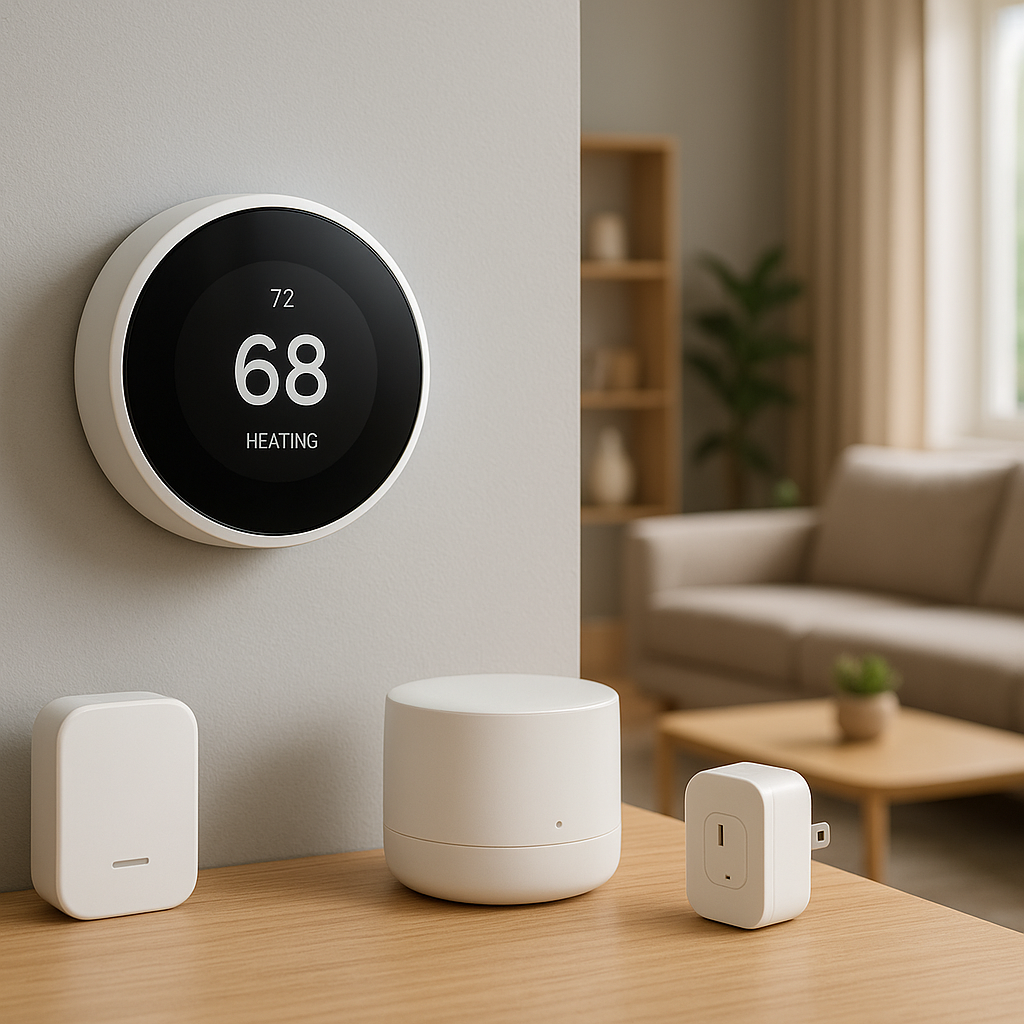
Smart plugs for lamps, bias lighting, sound systems, and snack gear
Smart plugs let you power dumb devices on and off as part of the scene. Look for plugs with:
- Sufficient amperage (especially for heaters or kettles).
- Energy monitoring if you want to track usage.
- Support for your chosen ecosystem (Matter, Alexa, Google Home, HomeKit, etc.).
Common uses:
- Lamps that don’t have smart bulbs.
- LED bias lighting kits that plug into the wall.
- Subwoofers or small powered speakers.
- Snack gear like popcorn makers (with strict safety rules, covered later).
Integrating your TV or projector (CEC, smart TVs, IR blasters, Harmony-style hubs)
To fully automate Movie Night, you’ll want control of your display:
- Smart TVs: Many recent TVs (Samsung Tizen, LG webOS, Sony/Google TV, Fire TV Edition, Roku TV) integrate directly with Alexa, Google Home, or HomeKit.
- HDMI-CEC: Lets devices control each other over HDMI so turning on your streaming stick can wake the TV and AV receiver. See Consumer Electronics Control (CEC) for technical details.
- IR blasters / universal remotes: Devices like BroadLink IR hubs or old Harmony hubs can send infrared commands to non-smart TVs and projectors.
Optional extras: smart blinds, smart speakers, and soundbars
To push the experience further, consider:
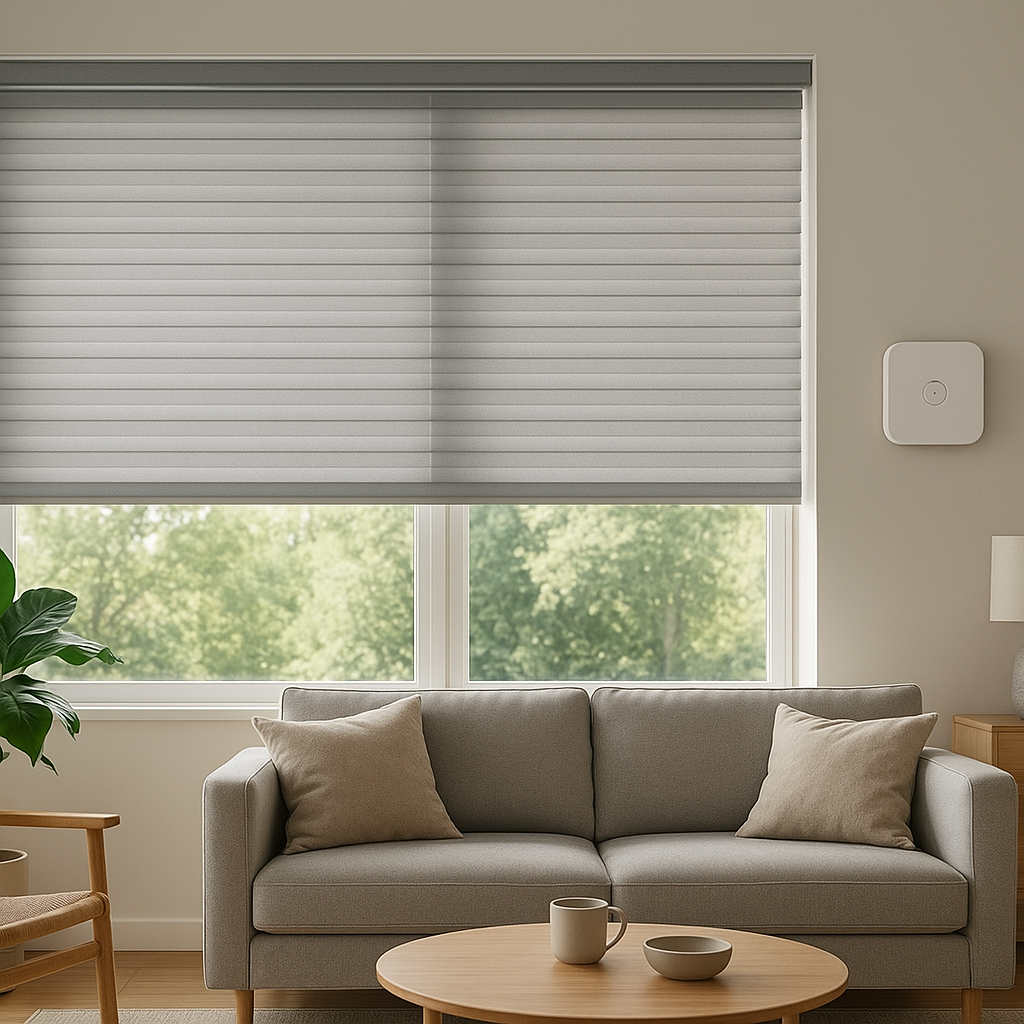
- Smart blinds: Automatically close during Movie Night to reduce glare.
- Smart speakers / soundbars: Sonos, Bose, or Echo/Google speakers for voice control and better sound.
- Motion sensors: Nudge lights brighter if someone walks out of the room.
Choose Your Smart Home Platform (Alexa, Google Home, HomeKit, SmartThings, Home Assistant)
Pros and cons of each platform for scene-based movie setups
Most platforms can run a movie night smart home scene, but each has strengths:
- Amazon Alexa: Very flexible routines, excellent smart TV and Fire TV integration, wide device support. App can feel cluttered if you have many devices.
- Google Home: Natural voice commands, good Chromecast/Google TV integration, simple Scenes. Some advanced automations still limited in the mobile app.
- Apple HomeKit: Great privacy, reliable automations with a Home Hub (Apple TV/HomePod). Hardware selection is narrower and often pricier.
- Samsung SmartThings: Strong for power users, good with Zigbee/Z-Wave hubs. Slightly steeper learning curve.
- Home Assistant: Extremely powerful and customizable, ideal for complex AV setups, but requires comfort with DIY configuration.
Ensuring all your devices are compatible with your chosen platform
Before buying anything else, confirm that:
- Your lights and plugs can be added directly to your chosen platform or via their own bridges (e.g., Hue Bridge).
- Your TV or projector has an integration (native app, Chromecast/Fire TV, HomeKit, or IR hub).
- You have a hub if required (e.g., HomeKit hub, SmartThings hub).
Checking the product’s “Works with…” badges and the platform’s official compatibility lists will save a lot of frustration.
Why you should standardize on Matter where possible for future-proofing
Matter is a new smart home standard that lets devices work across ecosystems (Alexa, Google Home, HomeKit, SmartThings) with one consistent protocol. If you’re buying new lights or plugs, choosing Matter-compatible gear where possible means:
- Easier switching between platforms later.
- Less dependence on cloud-to-cloud connections.
- Simpler setup if you add another voice assistant in the future.
Plan Your Perfect Movie Night Ambience
Decide what should happen when you say “Movie Night”
Start with a list. When you say your command, do you want:
- Ceiling lights off, lamps dimmed?
- TV or projector on a specific input?
- Soundbar or receiver set to a movie preset?
- Blinds closed and outdoor lights dimmed?
- Phone or smart speaker to start a playlist?
Write this out first; it will make the configuration steps much smoother.
Ideal light settings: color temperature, brightness, and bias lighting
For comfortable viewing and reduced eye strain:
- Brightness: 10–30% brightness on side lamps works well in most rooms.
- Color temperature: Warmer (2700–3000K) feels cozy and interferes less with sleep later.
- Bias lighting: A soft, neutral white behind or around the TV reduces eye strain and makes perceived contrast better.
Plug behaviors: turning on/off lamps, LED strips, heaters, and snack appliances
Decide which devices should only run during Movie Night:
- Turn on: bias lighting strips, decorative LEDs, a popcorn maker plug (if supervised).
- Turn off: bright floor lamps, desk lamps, maybe a noisy air purifier if it interferes with sound.
- Leave always on: networking gear, consoles in standby, streaming devices.
TV or projector behavior: power on, input selection, and audio mode
Decide exactly how your system should behave:
- TV powers to HDMI port used by your streamer or console.
- Receiver switches to the right input and “Movie” sound mode.
- Projector warms up and screen lowers (if motorized).
These will translate into specific actions in your routine, like “Turn on Living Room TV” and “Set input to HDMI 1.”
Safety and practicality: avoiding overloading power strips and plugs
Smart plugs are not magic; they’re still limited by basic electrical safety:
- Check the plug’s maximum wattage and current rating before using it for heaters, kettles, or large speakers.
- Avoid daisy-chaining multiple power strips into one smart plug.
- Do not automate anything that could be dangerous if left on unattended (stovetops, some space heaters).
Setting Up Smart Lights for Movie Night
Grouping living room lights logically (ceiling, lamps, accent lights)
In your lighting app or main platform, group lights by function, not just location:
- Ceiling Lights – main overhead fixtures.
- Side Lamps – table and floor lamps around seating.
- Accent / TV Lights – LED strips and decorative lights.
This makes it easy to adjust each group in your Movie Night scene without micromanaging individual bulbs every time.
Recommended brightness and colors for reduced eye strain
As a starting point for your movie scene:
- Ceiling lights: 0% (off).
- Side lamps: 15–25% brightness, warm white (2700K).
- Bias strip behind TV: 20–35% brightness, neutral white (4000–5000K).
Adjust gradually over a few movie sessions until the room feels balanced.
Creating a reusable “Movie Lights” scene in your lighting app
Most lighting brands let you create scenes in their own apps. Set all lights the way you like, then save as “Movie Lights”. This makes it easy to:
- Recall the same look even if your main smart home platform changes.
- Use the scene in multiple automations (Movie Night, Game Night, Late Night).
Syncing light scenes into your main smart home platform
After creating the scene, ensure it appears in your main platform:
- In Alexa, enable the skill (e.g., Philips Hue) and import scenes.
- In Google Home, link the lighting account and sync devices/scenes.
- In HomeKit, Hue and some other bridges expose scenes to the Home app.
You can then call that lighting scene as one action inside your broader Movie Night routine.
Configuring Smart Plugs for TV, Lamps, and Accessories
What should and shouldn’t be on a smart plug (TVs, projectors, consoles)
Smart plugs work best for simple on/off devices. Be cautious with AV gear:
- OK: Lamps, LED strips, subwoofers with auto-standby, small fans.
- Use with caution: Projectors (respect cooldown time), powered speakers.
- Generally avoid: Game consoles, computers, or any device that must shut down gracefully — use their own standby modes instead.
Assigning clear names to each plug (TV Backlight, Popcorn Maker, Lamp Left)
Good naming saves a lot of confusion later. In your platform, name plugs based on function and location:
- “TV Backlight Plug”
- “Left Sofa Lamp Plug”
- “Popcorn Maker Plug”
- “Subwoofer Plug”
This makes routine building easier and voice commands more reliable.
Creating on/off groups for “Movie Night Only” devices
Create a group (or room) that includes only devices you want to change during Movie Night, such as accent lights and snack devices. That way your routine can say “Turn off Movie Night Only group” at the end, returning the room to normal without affecting unrelated devices.
Handling always-on devices like AV receivers and streaming boxes
Receivers and streaming sticks are usually happiest in standby instead of fully powered off:
- Let them stay plugged in directly to mains or a normal strip.
- Use HDMI-CEC, smart TV controls, or IR commands to wake them rather than cutting power.
- Reserve smart plugs for accessories where hard power cuts are safe.
Connecting Your TV or Projector to Your Smart Home
Using built-in smart TV platforms (Fire TV, Google TV, Roku TV, Tizen, webOS)
Modern smart TVs often show up in your ecosystem as controllable devices:
- Link your Fire TV or Fire TV Edition TV in the Alexa app.
- Add Chromecast with Google TV to Google Home for input and app control.
- Add supported Samsung (Tizen) and LG (webOS) TVs to SmartThings, Alexa, or Google Home.
Once linked, you can include actions like “Turn on Living Room TV” and “Open Netflix” directly in routines.
Controlling projectors with smart plugs vs. dedicated integrations
Projectors are trickier because they need cooling time when turning off. If you use a smart plug:
- Only cut power after the projector’s own shutdown cycle finishes.
- Avoid repeatedly power-cycling via plug; use the remote for on/off when possible.
Some projectors support network or RS-232 control and can integrate with Home Assistant or hubs, which is safer and more flexible.
Using HDMI-CEC so AV receiver and soundbar power on together
Enable HDMI-CEC in your TV and receiver/soundbar settings so that:
- Turning on your streaming device wakes the TV and receiver.
- Volume commands control the receiver instead of the TV’s speakers.
This reduces the number of separate commands your routine needs to send.
IR blasters and universal remotes for older TVs and projectors
If your display isn’t smart, an IR blaster hub can bridge the gap. You teach it your remote’s commands, then trigger those through Alexa, Google Home, or Home Assistant. This works well for basic actions like power, input selection, and volume.
Build a One-Command Movie Night Scene in Alexa
Creating groups for living room lights and plugs in the Alexa app
In the Alexa app:
- Go to Devices > + > Add Group.
- Create a “Living Room” group with your TV, lights, and plugs.
- Optionally, create a separate “Movie Lights” group for only the lights you want to change.
Adding TV, Fire TV, and AV gear to an Alexa routine
Ensure your Fire TV, smart TV, or IR hub is linked and visible in Alexa. Then, in More > Routines, you’ll be able to choose these as actions: power on/off, open apps, or control volume on supported devices.
Example Alexa routine: “Alexa, movie night” step-by-step walkthrough
To build a basic routine:
- Trigger: Voice – “Alexa, movie night”.
- Actions:
- – Activate “Movie Lights” scene.
- – Turn off “Ceiling Lights”.
- – Turn on “TV Backlight Plug”.
- – Turn on “Living Room TV”.
- – Set volume on your soundbar or Echo to a comfortable level.
Test the routine and adjust delays if any devices respond too fast or slow.
Optional: starting a specific app or playlist when the routine runs
On Fire TV, you can add actions like “Open Netflix” or “Open Prime Video”. You can also tell Alexa to “Play Chill Movie Night” playlist on a specific speaker group when the routine runs, either to set the mood while you pick a film or for post-movie background music.
Build a One-Command Movie Night Scene in Google Home
Creating a Movie Night scene in the Google Home app
In the Google Home app, go to Automations and create a new one using a starter like “When I say to Google Assistant…”. Add a custom phrase, such as “It’s movie time.” Under actions, choose “Adjust home devices” to build your Movie Night scene inline.
Google’s support article on personal routines (Create and manage Routines) walks through the basics if you’re new to it.
Adding lights, plugs, and Chromecast/Google TV to one command
In the same automation, add actions to:
- Set specific lights to low brightness and warm colour.
- Turn on or off chosen plugs (backlights, lamps).
- Turn on your TV or Chromecast with Google TV and optionally switch to a particular app.
Example Google Assistant command: “Hey Google, it’s movie time”
Your automation might look like:
- Starter: Voice command – “Hey Google, it’s movie time”.
- Actions:
- – Set Living Room Lamps to 20% brightness, warm white.
- – Turn off Living Room Ceiling Light.
- – Turn on TV Backlight Plug.
- – Turn on Living Room TV and open YouTube or Netflix.
Troubleshooting common Google Home scene issues
If devices don’t respond correctly:
- Check each light/plug works individually via the app.
- Confirm devices are assigned to the right room.
- Try splitting actions into two smaller automations if timing is unreliable.
- Re-link third-party services (e.g., Philips Hue, smart plug accounts) if scenes stop updating.
Build a One-Command Movie Night Scene in Apple HomeKit
Setting up a Movie Night scene in the Home app on iPhone or iPad
Open the Home app and:
- Tap + > Add Scene.
- Choose Custom and name it “Movie Night”.
- Add accessories: lights, plugs, and TVs.
- Set each accessory’s state: brightness, color, on/off.
Once saved, the scene appears on your Home tabs and in Siri.
Configuring lights, plugs, and TVs that support AirPlay or HomeKit
Many newer TVs (especially from LG, Samsung, and Sony) support AirPlay 2 or HomeKit control. Add them in the Home app, then include them in your Movie Night scene to power on, switch inputs, or adjust volume on supported models.
Using Siri phrases like “Hey Siri, movie night”
After your scene exists, trigger it with phrases like:
- “Hey Siri, movie night.”
- “Hey Siri, turn on Movie Night.”
You can also add the scene to Control Center for quick manual activation.
Adding automation triggers like time, people arriving, or TV turning on
In the Home app’s Automation tab, you can set Movie Night to run when:
- A particular TV turns on at night.
- Someone arrives home after sunset and a TV is already playing.
- A specific time is reached (e.g., 8:30 pm on weekends).
Use these sparingly so your lights don’t change unexpectedly when someone just turns on the TV for a quick news check.
Optional Automations to Level Up Your Movie Night
Automatically closing smart blinds when Movie Night is activated
Add an action in your scene or routine to close smart blinds when Movie Night starts. This cuts glare and also creates a satisfying “theater is starting” effect.
Pausing robot vacuums and muting notifications during movies
If your robot vacuum supports pausing via your platform, add that as an action so it doesn’t start mid-movie. Likewise, some ecosystems allow Do Not Disturb changes on smart displays or speakers, reducing interruptions.
Using motion sensors to slightly raise lights when someone leaves the room
Place a motion sensor near the doorway. An automation can raise side lamps to, say, 40% when motion is detected during Movie Night, then drop them back down after a delay. This makes snack and bathroom runs safer without spoiling the ambience.
Auto-resume normal lighting when the movie ends or TV powers off
Create a second routine that:
- Triggers when the TV or projector powers off (if your platform supports it).
- Turns off accent lights and restores your usual room lighting scene.
That way you’re not left in semi-darkness after the credits.
Energy Efficiency and Safety Considerations
Using smart plugs and energy monitoring to cut standby power
Smart plugs with energy monitoring can reveal how much power your AV gear uses on standby. For some devices (like old amplifiers or powered subs), it may be worth turning them fully off after Movie Night using a delayed action in your routine.
Safe use of smart plugs with heaters, kettles, and kitchen appliances
Be very cautious automating anything that generates heat:
- Only use smart plugs within their rated load.
- Avoid automating devices that can run dry (kettles) or have exposed heating elements.
- Keep any “snack” appliances under direct supervision; don’t leave them on a fully automated schedule.
Setting automatic shutoff timers for non-essential devices
Add timers in your routines so accent lighting or snack devices shut off after a set period (e.g., 2–3 hours). This keeps energy use in check even if you fall asleep during the film.
Balancing ambience with energy savings over time
Once you’ve enjoyed your Movie Night scene for a while, review which devices truly add to the experience. You might find some accent lights or gadgets can be left out to simplify your setup and reduce standby power.
Testing, Troubleshooting, and Fine-Tuning Your Scene
Running test cycles to check timing, brightness, and TV behavior
Run your Movie Night command when you’re not in a rush. Watch how everything behaves:
- Do lights transition too suddenly or not dim enough?
- Does the TV land on the right input?
- Are there awkward delays between actions?
Adjust brightness levels and add small delays where needed.
Fixing out-of-sync devices and slow responses
If some devices lag:
- Prefer local integrations (Matter, Zigbee, local hubs) over pure cloud devices when possible.
- Improve Wi‑Fi coverage in your living room.
- Split heavier actions across two scenes (lights first, then TV/audio) if your platform struggles with many commands at once.
Saving multiple variations: Movie Night, Game Night, Late Night
Once you have a stable setup, clone it into variations:
- Game Night: Cooler colours, brighter bias lighting, switch TV input to console.
- Late Night: Even dimmer lamps, lower volume, maybe no snack appliances.
Reusing the same device groups keeps this manageable.
Backing up and documenting your setup so you can rebuild it easily
Take screenshots of key scenes and routines, or keep a simple note listing:
- Devices included.
- Desired states (brightness, colors, power states).
- Trigger phrases and automation rules.
If you ever reset your hub, change routers, or move home, you’ll be able to rebuild quickly instead of guessing.
Example Movie Night Scene Recipes You Can Copy
Cozy family setup with warm dim lights and kid-friendly volume levels
Ideal for a living room with young kids:
- Lamps at 25% warm white.
- Ceiling lights off.
- TV backlight strip at 30% neutral white.
- TV on to streaming stick input; volume limited to a “family” preset.
- Optional: smart plug for a small table lamp near play area at 40%.
Home theater enthusiast setup with bias lighting and full AV control
For a dedicated media room:
- All overhead and side lights off.
- Bias lighting behind screen at 15–20% neutral white.
- Projector on, screen lowered, receiver set to Dolby or Theater mode.
- Subwoofer plug on only during Movie Night.
Small apartment setup focused on a single TV wall and one smart plug
For a studio or compact living space:
- Single floor lamp with smart bulb at 20% warm white.
- One smart plug for LED strip behind TV.
- TV on via Chromecast or Fire TV integration.
This is a budget-friendly way to get most of the effect with minimal hardware.
Outdoor projector night with garden lights and weather-aware rules
For backyard screenings (where local rules and safety allow):
- String lights at 40% around seating area.
- Path lights at 60% for safety.
- Projector and outdoor speakers powered via rated outdoor smart plugs.
- Optional: automation that cancels Movie Night or sends a notification if a rain sensor trips or forecast predicts immediate rain.
Final Tips and Next Steps
When to add more devices vs. simplify your setup
Start with lights and one or two plugs, then integrate TV control. If managing the setup begins to feel fiddly, pause before adding more gear. Often, refining a few well-chosen devices gives a better experience than trying to automate everything at once.
How to share your Movie Night scene with guests and family members
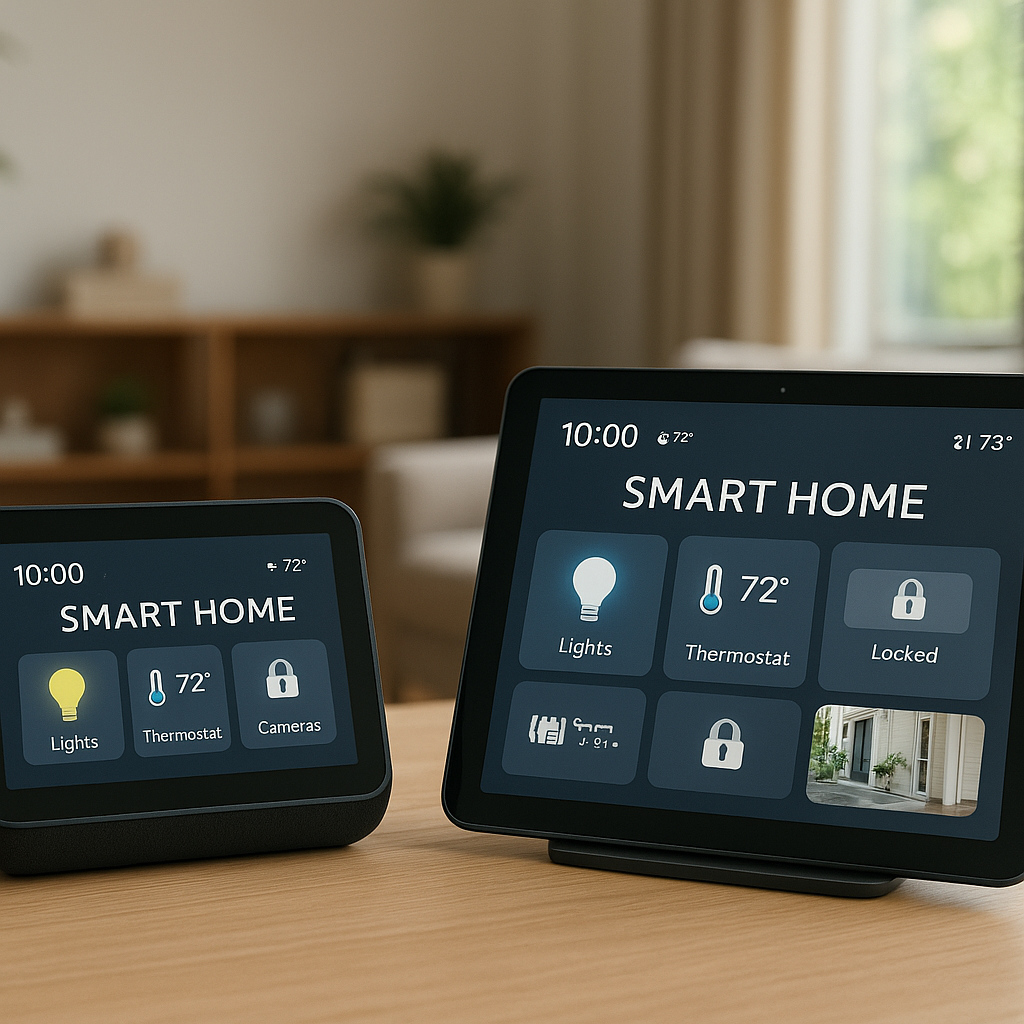
Teach a simple phrase (“Alexa, movie night”) and show where the manual buttons are in your smart home app. Consider adding the scene to favourites or widgets on phones, tablets, or wall-mounted control panels so anyone can run it without memorizing voice commands.
Other scenes to build next: Dinner, Reading, Party, and Bedtime
Once Movie Night works reliably, you already know how to build other scenes:
- Dinner: Warm, mid-level light over the table.
- Reading: Brighter warm lamp near your seat.
- Party: Colourful dynamic lighting and music presets.
- Bedtime: Gradual dimming and shutting down of TVs and non-essential plugs.
Each one makes your smart home feel more cohesive and enjoyable, not just more technical.
FAQ
How many devices do I really need for a good movie night smart home scene?
You can get a noticeable upgrade with just two smart bulbs and one smart plug for TV backlighting. Everything else — AV control, blinds, snack appliances — is optional layering.
Do I need a smart hub to set this up?
Not always. Alexa, Google Home, and many Wi‑Fi bulbs and plugs work hub-free. You’ll want a hub only if you use Zigbee/Z-Wave devices, HomeKit (needs a Home Hub), or want advanced local automation via SmartThings or Home Assistant.
Can I mix different brands of lights and plugs in one scene?
Yes, as long as they all connect to the same platform (Alexa, Google Home, HomeKit, etc.). You might use Philips Hue bulbs plus TP-Link smart plugs; your scene just sees them as devices, regardless of brand.
Will my TV work with voice control if it isn’t a smart TV?
Often yes, with help from a streaming stick (Fire TV, Chromecast, Roku) or an IR blaster hub. These devices act as the bridge between your voice assistant and the older TV.
Is it safe to control a projector with a smart plug?
Only if you avoid cutting power while the projector is running or cooling down. Ideally, use the projector’s own remote for on/off and reserve the smart plug for turning off power after it has fully shut down, or rely on more advanced integrations that respect warm-up and cooldown cycles.